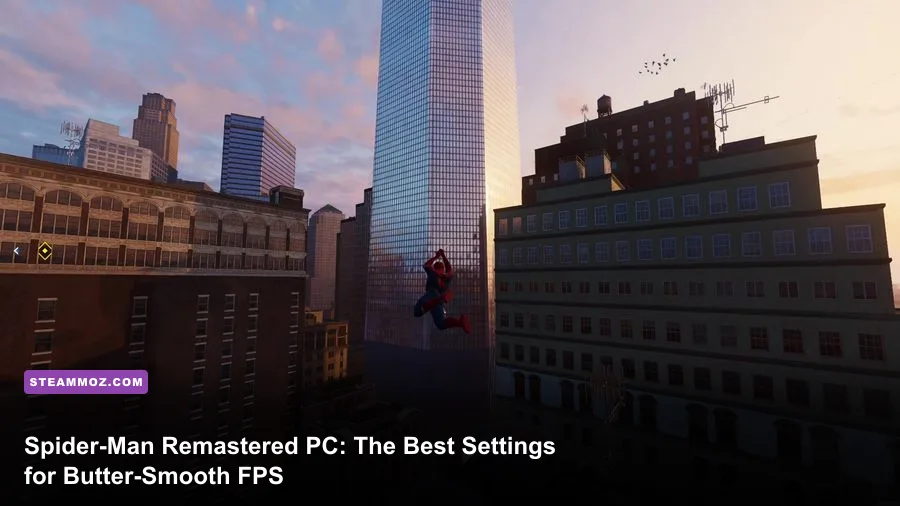
To get the absolute best balance of fluid 60 to 120+ FPS and stunning visuals in Marvel's Spider-Man Remastered on PC, you need to slash the hidden CPU-bound killers: drop Crowd Density and Traffic Density to Medium, dial Shadow Quality down to High (never Very High), keep Geometry Detail on High, and engage an upscaler like DLSS or FSR 2.1 set to Quality. Doing this instantly reclaims 25% to 40% of your framerate, eliminates the nasty frame drops that happen while web-swinging at breakneck speeds through Times Square, and preserves nearly all of the game's rich, cinematic visual punch.
Hardware Demands and the Open-World Manhattan CPU Bottleneck
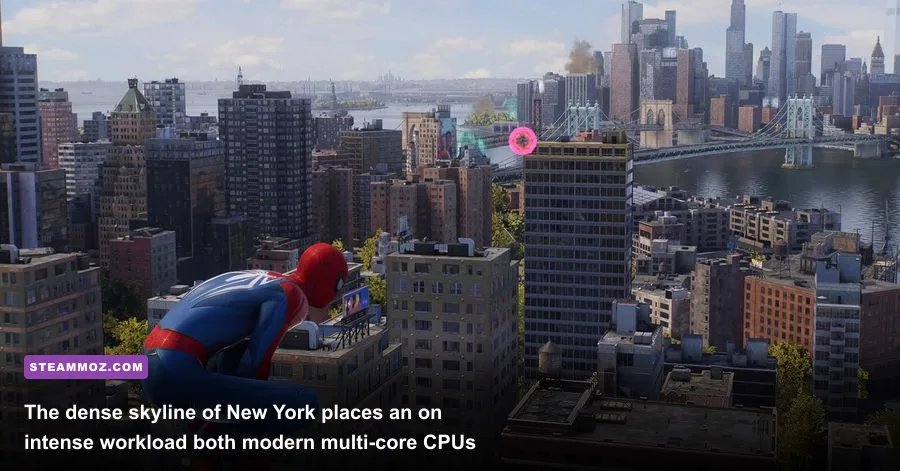
When port studio Nixxes Software and Insomniac Games brought Peter Parker's adventure over from PlayStation, they delivered an incredible port. But Manhattan is unlike almost any other open world in gaming. When you're running on foot, the engine behaves predictably. The moment you fling yourself off a skyscraper with the Web-Zip and start hurtling down Fifth Avenue at 50 miles per hour, the game begins hammering your processor with thousands of asset-streaming draw calls every single second.
If you've noticed that your GPU utilization suddenly falls from 98% down into the 70s while your framerate takes a nosedive in mid-air, you aren't GPU-bound—you've slammed headfirst into a single-thread draw-call wall. The engine has to decompress assets, manage pedestrian paths, calculate vehicle grids, and assemble streaming meshes on the fly. Much like how fine-tuning background threads rescues performance in our breakdown of ELEX PC fixes that rescue your FPS, stabilizing Spider-Man Remastered requires understanding which graphical toggles burden the graphics card and which ones swamp your CPU.
Memory bandwidth plays a massive role here as well. Running dual-channel RAM with tight timings can yield up to a 15% increase in your 1% low frame times during high-speed traversal. Before touching every individual graphical knob, keep in mind that pure raw graphics power won't rescue you if your processor and RAM cannot feed the engine assets fast enough.

🎮 FORM
Looking to experience this game? Grab your digital key directly on our store for $14.99.
View on Steammoz Store →The Ultimate Spider-Man Remastered Graphics Settings Breakdown
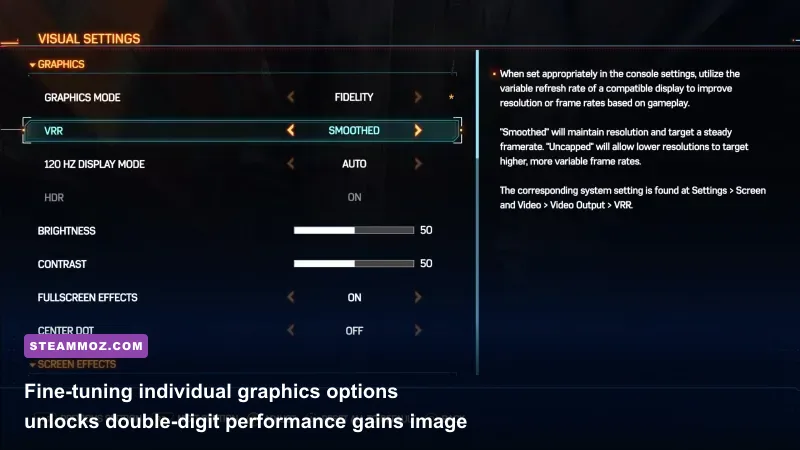
Finding the sweet spot between crisp image clarity and buttery-smooth responsiveness requires going down the visual settings menu line by line. Some settings cost massive amounts of processing power for barely perceptible visual upgrades, while others are virtually free eye candy.
Display and Upscaling Technologies
Spider-Man Remastered features an exhaustive suite of temporal reconstruction tools, including NVIDIA DLSS, AMD FSR 2.1, Intel XeSS, and Insomniac's proprietary IGTI (Insomniac Games Temporal Injection). If you have an RTX card, DLSS in Quality mode is king. It cleans up the fine lines of distant suspension bridges and fire escapes better than native TAA while boosting frame throughput by 20% to 35%.
For GTX or AMD Radeon users, FSR 2.1 on Quality delivers a noticeably cleaner image than native resolution with traditional TAA, which tends to smear during fast camera pans. If you are aiming for high-refresh-rate displays (120Hz or 144Hz) and running an older processor, toggle Dynamic Resolution Scaling (DRS) and set the target frame rate to your monitor's refresh rate. DRS dynamically modulates the internal render target when passing through asset-dense intersections, preventing abrupt stutter.
Shadows, Lighting, and Ambient Occlusion
Shadow Quality is one of the heaviest GPU knobs in the entire options menu. Moving from High to Very High doubles the shadow map resolution and extends the cascade render distance across city blocks, stripping away 12% to 16% of your frames for softer edge filtering you will never notice while dodging rockets. Keep Shadow Quality on High. Set Ambient Occlusion to SSAO. While HBAO+ darkens foliage and alleyway corners with slightly more depth, it imposes a noticeable tax that isn't justified on mid-range hardware.
Geometry, Traffic, and Pedestrians
This trio controls the game's CPU-side performance. Crowd Density and Traffic Density should both be dropped to Medium. At Very High, Manhattan fills with dozens of unique NPC skeletons and autonomous vehicle pathfinding loops that generate an absurd number of engine interrupts. Medium preserves the feeling of a living, breathing metropolis without strangling your CPU cores. For Level of Detail (LOD), stick to High; dropping to Medium causes obvious geometry popping on building antennas and streetlamps as you swing toward them.
| Graphics Setting | Recommended Value | Performance Impact | Visual Impact & Optimization Notes |
|---|---|---|---|
| Upscaling Method | DLSS / FSR 2.1 (Quality) | +20% to +35% FPS Gain | Superior anti-aliasing; sharper distant details than native TAA. |
| Texture Quality | High (8GB+ VRAM) / Medium (6GB VRAM) | Negligible (VRAM Bound) | Affects suit stitching, brickwork, and road textures. Keep High if VRAM permits. |
| Texture Filtering | 16x Anisotropic | < 1% FPS Cost | Sharpens ground textures at oblique angles. Virtually free on modern GPUs. |
| Shadow Quality | High | Moderate (8% to 12% Cost) | Very High creates massive performance drops with negligible visual gain. |
| Ambient Occlusion | SSAO | Low (3% to 5% Cost) | Provides rich contact shadows beneath cars and trash bins without the HBAO+ hit. |
| Screen Space Reflections | On | Moderate (5% to 7% Cost) | Essential when Ray Tracing is disabled to keep puddles and windows reflective. |
| Level of Detail (Geometry) | High | Moderate (CPU/GPU) | Medium introduces ugly LOD pop-in on building cornices during fast swings. |
| Crowd Density | Medium | Heavy on CPU (10% to 18% Cost) | The number-one setting responsible for traversal frame drops in Manhattan. |
| Traffic Density | Medium | Heavy on CPU (8% to 14% Cost) | Reduces vehicle pathfinding calculations while keeping avenues adequately full. |
| Hair Quality | High | Very Low (1% to 2% Cost) | Only affects close-up cutscenes with Peter, MJ, and Aunt May. |
| Weather Particle Quality | Medium | Low (3% to 4% Cost) | Maintains high framerates during rain storms and electro-charged boss fights. |
Tuning open-world engines to maximize throughput requires a methodical approach, much like dialling in the options we laid out in our guide to Far Cry 6 PC settings for max FPS. When every setting is calibrated properly, you stop fighting erratic frame spikes and start enjoying consistent frame times.
Ray Tracing: Is It Worth the Crushing Frame Drop?
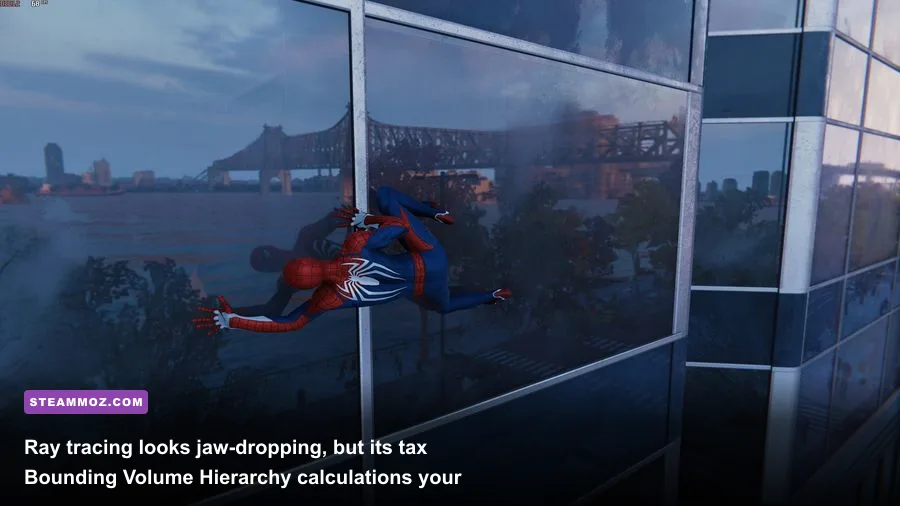
Insomniac's ray-traced reflections in Spider-Man Remastered are among the most technically impressive in the industry. Looking at a real-time reflection of Peter in the curved glass facade of the Chrysler Building as the golden sun sets over the Hudson River is a genuine spectacle. However, enabling ray tracing transforms the game's system requirements into an absolute monster.
Ray tracing in this title is not handled solely by your GPU's RT cores. The CPU has to build and update the entire Bounding Volume Hierarchy (BVH) acceleration structure for the surrounding city blocks in real time. If you turn on Ray-Traced Reflections with Object Range cranked to 8 or 10, even high-end processors like the Ryzen 7 7800X3D or Core i7-13700K will buckle during rapid swings down Broadway.
Furthermore, RT dramatically inflates the game's VRAM appetite. At 1440p with Ray Tracing enabled on High, the allocation regularly blows past 9.5GB of video memory. If you are playing on an 8GB graphics card like an RTX 3070 or RTX 4060 Ti, your system will rapidly spill over into system RAM. The result? Unbearable, second-long hitching fits and severe texture pop-in. If you want to dive deeper into how VRAM limits impact modern ports, check out our analysis of PC specs explained for modern titles.
If you have an RTX 3080, RTX 4070, or higher with 12GB+ of VRAM, here is the golden RT configuration: set Ray-Traced Reflections to On, Reflection Resolution to Medium, and Object Range to 6. This retains the stunning glass skyscraper reflections while sparing your CPU and VRAM the brutal overhead of rendering every distant air conditioner and rooftop water tower.
Tailored Presets: Low-End, Mid-Range, and High-Refresh Profiles
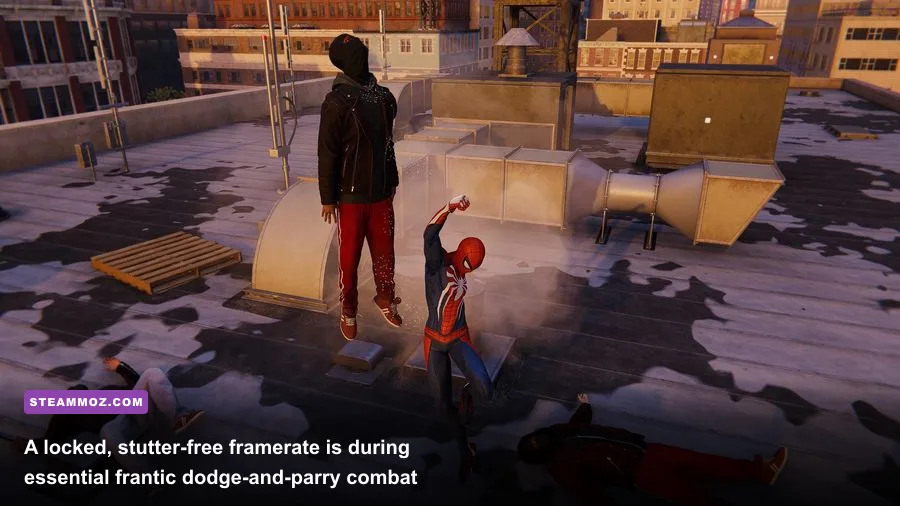
Not every gaming rig needs the same configuration. A budget handheld like the Steam Deck or a desktop running a GTX 1660 Super requires an entirely different setup than a modern enthusiast build chasing 144Hz. Here are three tested, hand-crafted presets to match your specific hardware class.
| Hardware Target | Target Resolution & FPS | Upscaling & Preset | Ray Tracing Configuration | Crowd & Traffic Tuning |
|---|---|---|---|---|
| Budget / Handheld (GTX 1650 / 1660, Steam Deck, RTX 3050) |
1080p @ Locked 45-60 FPS | FSR 2.1 / XeSS (Balanced) Medium Preset Base |
Disabled (Screen Space Reflections On) | Crowd: Low Traffic: Low |
| Mid-Range Sweet Spot (RTX 3060 / 4060, RX 6700 XT, RTX 2070) |
1080p / 1440p @ 75-90 FPS | DLSS / FSR 2.1 (Quality) Custom High Preset |
Disabled (or RT Medium / Range 4) | Crowd: Medium Traffic: Medium |
| Enthusiast High-Refresh (RTX 4070 / 4080 / 4090, RX 7800 XT+) |
1440p / 4K @ 100-144+ FPS | DLSS (Quality) + Frame Gen (RTX 40) Custom Very High Preset |
Enabled: RT High / Res Medium / Range 6 | Crowd: High Traffic: High |
For budget desktop players, locking your frame rate to 60 FPS through your driver control panel (NVIDIA Control Panel or AMD Adrenalin) provides significantly cleaner frame pacing than leaving the framerate completely uncapped. If you enjoy dialing down graphics options to extract maximum fluid performance across various indie and AA gems, take a look at our walkthrough on tuning settings for higher FPS.
Nixxes Engine Tweaks and Windows Fixes for Micro-Stutters
Even with the most optimized graphics settings imaginable, Spider-Man Remastered can occasionally fall victim to erratic micro-stuttering caused by system-level bottlenecks and peripheral polling conflicts. Applying a few quick, battle-tested technical tweaks will guarantee silky-smooth frame delivery from Central Park to Chinatown.
Enable Resizable BAR in BIOS
Because Spider-Man Remastered streams hundreds of megabytes of high-resolution textures and audio files directly to GPU memory as you swing through city blocks, having Resizable BAR (ReBAR) or Smart Access Memory (SAM) enabled is non-negotiable. ReBAR allows your processor to access the entire GPU frame buffer in one large transaction rather than small 256MB chunks. On tested systems, enabling ReBAR boosts minimum 1% low frame rates during traversal by up to 12%, smoothing out the hitching when cresting skyscraper rooftops.
The Controller Polling Rate Bug
One notorious, documented bug in Nixxes' port engine involves high-polling wireless Bluetooth controllers (particularly Sony DualSense and Xbox Series gamepads). If your Bluetooth adapter suffers from signal interference or packet drops, the game engine will intermittently stall the render pipeline while waiting for controller input responses, masquerading as a severe graphics stutter. If you experience mysterious, rhythmic micro-stutters every 3 to 5 seconds, connect your controller via a direct USB-C cable or lower your polling rate in your controller utility software.
Exclusive Fullscreen vs. Windowed Borderless
Spider-Man Remastered runs on DirectX 12. While Windows 10 and 11 offer advanced flip model presentation for borderless windows, running the game in Exclusive Fullscreen still yields lower input latency and prevents background desktop composition threads from stealing GPU render queues. If you run multiple monitors, switching to Exclusive Fullscreen ensures that GPU hardware scheduling grants full priority to the active game process.
Lastly, ensure that Windows Hardware Accelerated GPU Scheduling (HAGS) is toggled on under your Windows Display Settings (Graphics Settings). HAGS reduces frame scheduling overhead and is a mandatory prerequisite if you plan to utilize DLSS 3 Frame Generation on GeForce RTX 40-series cards. For broader system troubleshooting and general memory-leak prevention that applies across multiple complex PC titles, review our steps for resolving crashing and low FPS fixes.
By locking down your CPU-heavy density settings, utilizing Quality upscalers, dialing in your shadow maps, and enabling key system-level enhancements like Resizable BAR, you will transform Marvel's Spider-Man Remastered into one of the smoothest, most responsive visual showcases in your entire PC library. Strap in, step out onto the gargoyle ledge, and experience Manhattan the way it was truly meant to be played.