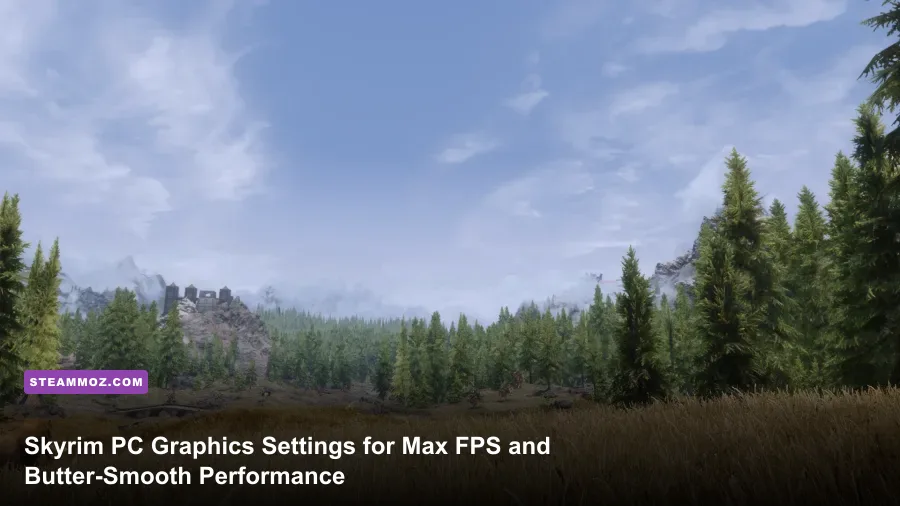
To get buttery smooth 60 to 144 FPS in The Elder Scrolls V: Skyrim Special Edition without turning Tamriel into a muddy PS2 wasteland, the winning formula comes down to three decisive adjustments: drop God Rays to Low or Off, pull Shadow Distance down from Ultra to Medium, and install the indispensable SSE Display Tweaks plugin to uncap your frame rate without detonating the Havok physics engine. Bethesda's Creation Engine is notoriously CPU-bound and heavily tied to draw calls; mindless Ultra presets will hammer modern high-end processors while barely touching your GPU's actual compute potential. Dialing in a custom profile balances lush wilderness vistas against rock-solid 0.1% low frame times.
The Culprits: What Actually Tanks Your Frame Rate in Skyrim
Skyrim's 64-bit engine overhaul in the Special Edition (SSE) solved the infamous 3.1 GB system RAM crash limit of the original 2011 release, but it introduced modern rendering features stacked clumsily onto ancient foundations. The primary performance killer across all modern setups isn't texture resolution or polygon density—it's how the engine handles shadows and volumetric lighting via single-threaded DirectX 11 draw calls. If you've ever dealt with stubborn stutter in other sprawling worlds, much like we addressed in our guide on ELEX PC fixes that stop crashes and rescue FPS, you already know that unoptimized draw calls will throttle your system regardless of raw hardware grunt.
The two heaviest offenders on your frame budget are:
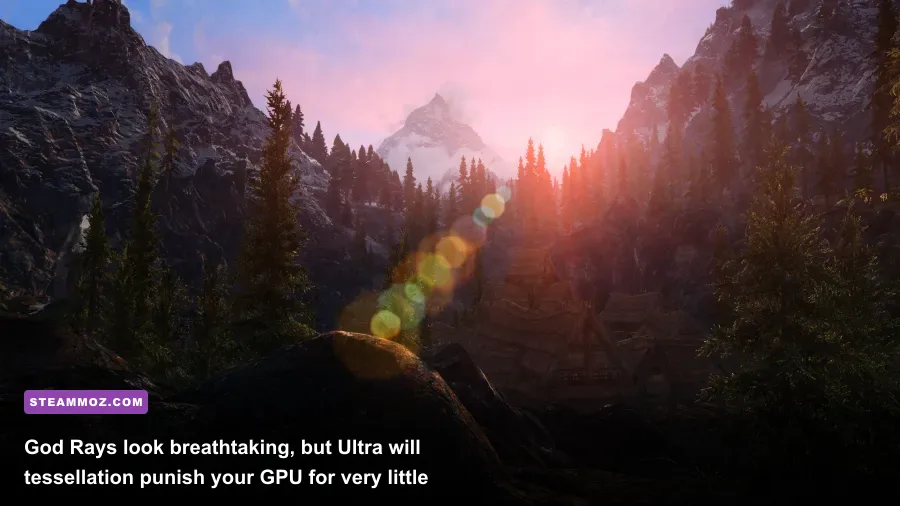
- Volumetric God Rays: Bethesda partnered with NVIDIA to implement hardware tessellation for god rays. On "Ultra," this setting runs an absurdly dense sampling grid that continuously chews through render passes. Dropping God Rays from Ultra to Low yields an instant 12% to 18% frame rate recovery in heavily forested zones like Falkreath and the Rift, with virtually zero perceptible drop in visual atmospheric scattering.
- Shadow Distance: Ultra Shadow Distance forces the engine to calculate and cast dynamic shadows up to 10,000 units away. Because Skyrim processes shadows primarily across one or two primary CPU threads, gazing over the Whiterun plains from Dragonsreach porch triggers thousands of simultaneous shadow draw calls. Setting this value to Medium (around 4,000 units) preserves clean shadows around your character while lifting massive CPU bottlenecks.
- Screen-Space Ambient Occlusion (SSAO): The native SSE ambient occlusion pass is blunt and unoptimized, casting dark, noisy halos around grass blades and character models that sap 8% to 12% of total GPU rasterization.
- Actor and Object Fade Sliders: Pushing view distances past their reasonable thresholds causes the engine to track AI routines, idle animations, and clutter physics across multiple exterior cells simultaneously, dragging down frame pacing.
Checking official performance notes on the Skyrim Special Edition Steam store page shows modest baseline requirements, but real-world gameplay with variable weather, dense foliage, and open-world combat demands intentional tuning to eliminate frame drops.

🎮 FORM
Looking to experience this game? Grab your digital key directly on our store for $14.99.
View on Steammoz Store →The Golden Preset: Best Settings for Maximum FPS vs Visual Fidelity
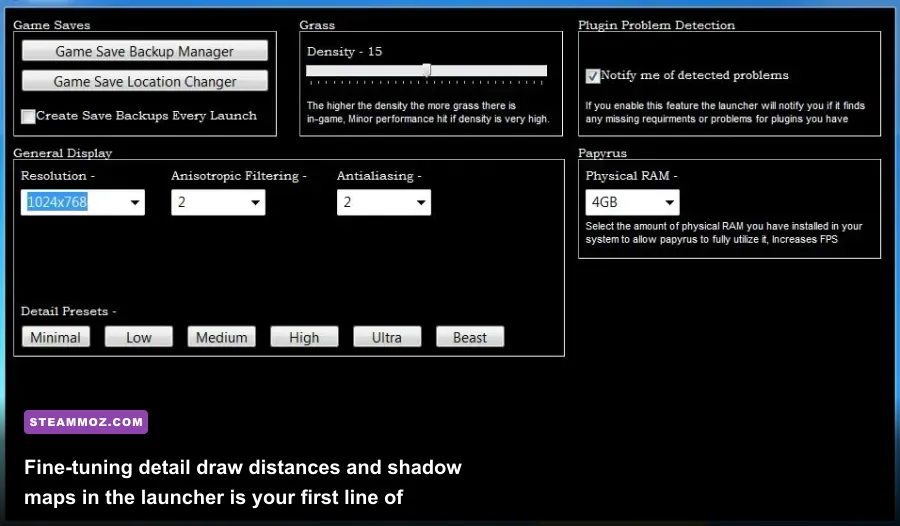
Before diving into third-party configuration utilities, you should dial in the native settings through the default launcher. The stock presets ("Low", "Medium", "High", "Ultra") are blunt instruments that toggle settings arbitrarily. Instead, open the launcher, click Options, select Advanced, and apply the hand-tuned configuration outlined below. This profile targets maximum visual clarity at 1080p, 1440p, or 4K while reclaiming 30 to 45 extra frames per second over stock Ultra.
| Setting | Optimal Value | FPS Cost | Visual Impact | Technical Recommendation |
|---|---|---|---|---|
| Resolution & Aspect Ratio | Native Display | Baseline | Critical | Always run native; drop render scale via upscalers instead of native display downscaling. |
| Antialiasing | TAA | Low (2-3%) | High | TAA eliminates foliage shimmer. Avoid FXAA, which causes blurry, muddy vegetation. |
| Detail Preset Base | Custom (High Base) | Variable | Medium | Use High as a jumping-off point rather than Ultra to prevent invisible INI bloat. |
| Shadow Detail | High | Medium (4-6%) | High | Sets shadow maps to 2048x2048. Ultra (4096) eats VRAM and causes frame micro-stutters. |
| Shadow Distance | Medium | Very High (15-22%) | Moderate | The single biggest CPU saver in exterior worldspaces. Cut to 4,000 units. |
| Decal Quantity | High | Negligible (<1%) | Low | Controls blood splatters and burn marks. High keeps battles looking gritty with no performance hit. |
| God Rays Quality | Low or Off | High (12-18%) | Low | Low still gives you atmospheric sunbeams through tree canopies without the brutal tessellation hit. |
| Volumetric Lighting | Enabled | Low (2-4%) | High | Essential for fog and lighting depth; inexpensive when God Rays are dropped to Low. |
| Ambient Occlusion | Disabled / Driver-Level | Moderate (8-10%) | Moderate | Turn off in-game SSAO. Inject via ReShade or your GPU driver panel for cleaner contact shadows. |
| Screen Space Reflections | On | Low (3-5%) | High | Adds water surface reflection depth. Keep active unless using a dedicated water mod. |
| Snow Shader | Off | Low (2-3%) | Subjective | Disabling removes the unnatural glowing "white plastic wrap" look on mountains while saving frames. |
| Lens Flare | Off | Negligible | Low | Distracting artistic effect that clutters combat visibility during dawn and dusk. |
Just as we broke down post-processing overhead in our breakdown of Filament Marmalade Edition settings for higher FPS, managing post-effects like ambient occlusion and volumetric lighting provides immediate stability without sacrificing the game's art direction.
Next, switch to the View Distance tab inside the launcher options. Set your sliders according to this target balance:
- Actor Fade: 8 to 10 (Keeps enemies visible before they enter combat aggro range).
- Item Fade: 6 (Prevents random cups and clutter from rendering across entire valleys).
- Object Fade: 10 to 12 (Maintains building and bridge silhouettes across the horizon).
- Grass Fade: 5 to 7 (Balances scenic field density against draw-call spikes).
- Distant Object Detail: Medium (High introduces significant draw-distance CPU churn).
Taming the Creation Engine: INI Tweaks and BethINI Optimization

Editing raw configuration files manually through Notepad often results in corrupted formatting, invalid syntax, or settings being wiped clean the moment you touch the game launcher. Instead, download BethINI Pie (Performance INI Editor), the community gold standard maintained on mod repositories and verified by the official Unofficial Elder Scrolls Pages (UESP) technical community. BethINI scans your hardware, cleans dirty legacy values from your Skyrim.ini and SkyrimPrefs.ini, and sets proper file permissions.
To use BethINI properly for maximum performance gains:
- Close Skyrim and its launcher completely.
- Download and extract BethINI to a dedicated folder (not inside your program files or game directory).
- Launch the executable and point it to your Skyrim Special Edition installation directory and
Documents/My Games/Skyrim Special Editionfolder. - Click the BethINI Presets radio button and select Medium or High. Do not pick Ultra.
- Check the box for Recommended Tweaks. This automatically fixes dozens of Bethesda engine bugs, such as floating grass, flickering water lines, and unoptimized thread allocations.
If you prefer making targeted adjustments yourself inside SkyrimCustom.ini or SkyrimPrefs.ini, focus on these game-changing variables:
[Display]
fShadowDistance=4000.0000
iShadowMapResolution=2048
iVolumetricLightingQuality=1
bPrecipitation=1
bEnableTreeAnimations=1
fMeshLODLevel1FadeDist=4096.0000
fMeshLODLevel2FadeDist=3072.0000

[Grass]
iMinGrassSize=60
bAllowCreateGrass=1
bAllowLoadGrass=0
The iMinGrassSize parameter controls grass clumping density. The lower the number, the denser the grass—and the harder your framerate tanks. Bethesda's default is 20 or 40 depending on your preset. Setting this value to 60 or 75 creates lush, natural meadows while slashing exterior GPU loads by roughly 15%. If your system occasionally hangs on heavy transitions, checking our fixes for sudden drop-offs like those in EscapeVR The Basement crashing and low FPS guide can help you isolate memory leak symptoms from configuration issues.
Breaking the 60 FPS Engine Barrier Without Launching Horses into Orbit
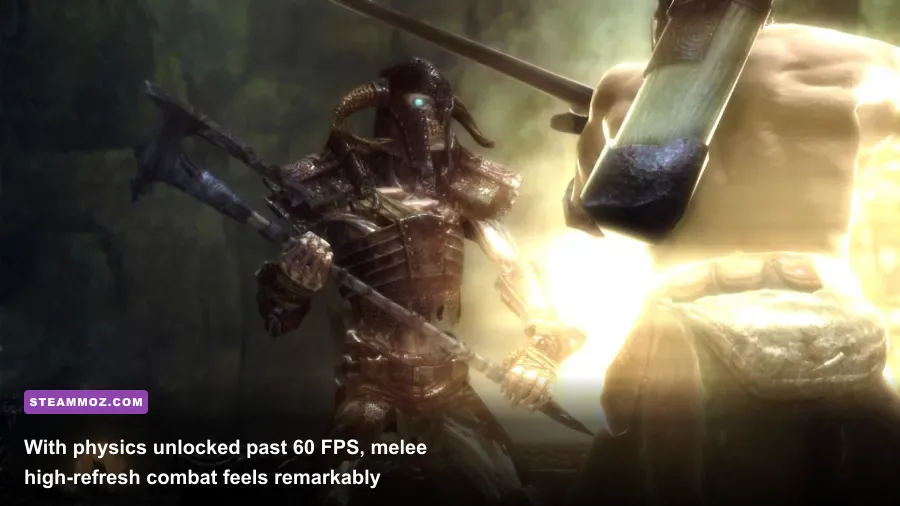
For years, PC gamers were forced to lock Skyrim to 60 FPS. If you let the framerate climb higher, the Havok physics engine went completely haywire: carriage carts flipped across the sky during the intro, plates rattled off tavern tables like miniature grenades, and swimming animations locked up. That limitation is completely obsolete if you install modern engine patches.
The single most important engine mod you can install on PC is SSE Display Tweaks. Built as a native SKSE (Skyrim Script Extender) DLL plugin, this tool decouples Havok physics ticks from your render frame rate, completely eliminates micro-stutter, replaces Bethesda's broken fullscreen modes with a low-latency borderless windowed presentation, and unlocks fluid high-refresh gameplay up to 240Hz.
| Optimization Tool / Plugin | Core Purpose | System Requirement | Framerate Impact |
|---|---|---|---|
| SSE Display Tweaks | Unlocks physics past 60 FPS, fixes frame pacing, borderless fullscreen | SKSE64 | Massive stability gain; unlocks 120-165Hz monitors |
| Engine Fixes (SSE Engine Fixes) | Patches engine memory leaks, actor fade bugs, slow save bloat | Address Library + SKSE64 | Prevents late-game FPS degradation |
| eFPS - Exterior FPS Boost | Adds invisible occlusion planes to hide unrendered geometry behind walls | Vanilla / Lightly Modded | 5 to 15 FPS boost in Whiterun, Solitude, and Riften |
| Lightened Skyrim | Removes thousands of non-visible clutter items and unoptimized meshes | Compatible with all setups | Reduces draw call load across all exterior cells |
| Skyrim Upscaler (DLSS / FSR2 / XeSS) | Temporal upscaling injects modern reconstruction algorithms into the renderer | DirectX 11 runtime | 25% to 45% FPS uplift at 1440p and 4K resolutions |
To configure SSE Display Tweaks for flawless pacing:
- Locate
SSEDisplayTweaks.iniinside yourData/SKSE/Plugins/directory. - Set
Borderless = trueandBorderlessUpscale = false. - Set
FramerateLimit = 0if you use an external driver cap, or lock it precisely 3 FPS below your monitor's maximum refresh rate (e.g.,141for a 144Hz screen) to keep G-Sync or FreeSync active. - Ensure
AdjustHavokPhysics = trueis enabled. This dynamically scales the physics tick step so objects behave normally whether you're running at 45 FPS or 144 FPS.
Modern gaming performance often comes down to handling architecture quirks cleanly, much like what we explored in our breakdown of Far Cry 6 settings for max FPS. When an engine's internal tick rate is stabilized, frame drops feel far less jarring.
Low-End Rig and Handheld Optimization: Locking 60 FPS on Budgets

Running Skyrim on integrated graphics, older gaming laptops, or handheld systems like the Steam Deck and ROG Ally requires an aggressive approach to render budgets. While Skyrim Special Edition looks superior to the 2011 Legendary Edition out of the box, its enhanced shaders place a significantly higher floor on hardware demands. If your hardware is closer to entry-level territory—analogous to the configurations discussed in our Fatal Fury City of the Wolves PC specs explained breakdown—you must reclaim GPU headroom through modern upscaling and mesh thinning.
Here is your survival blueprint for low-power and budget PC setups:
1. Deploy PureDark's Skyrim Upscaler Mod
The Skyrim Upscaler mod brings temporal reconstruction to Skyrim's DirectX 11 pipeline. If you have an RTX card, DLSS offers crisp antialiasing and substantial frame generation advantages. If you're on AMD, Intel, or a Steam Deck, switch the upscaler to FSR 2.2 or XeSS.
- At 1080p, running FSR2 on the "Quality" preset renders the internal frame at 720p before reconstructing it with temporal data, delivering a massive 30-40% frame rate increase with minimal ghosting.
- At 1440p or 4K, temporal upscaling transforms Skyrim from a stuttering headache into a locked 60+ FPS experience, even with heavy environmental textures installed.
2. Optimize Texture Bandwidth and VRAM
Running out of Video RAM (VRAM) causes violent stuttering as your operating system swaps asset data over the PCIe bus into system RAM. Bethesda's default High-Resolution DLC pack and SSE vanilla textures are notoriously uncompressed and bloated.
- Replace vanilla textures with Cleaned Skyrim SE Textures or Project Clarity. These community mods take the original Bethesda source textures, correct compression errors, remove uncompressed alpha channels, and pack them back into efficient BC7 format.
- Keep texture sizes matched to your screen resolution: 2K textures for large landscape elements (mountains, roads, architecture) and 1K textures for small clutter, armor, and weapons. Installing 4K or 8K texture packs on a GPU with 6 GB or 8 GB of VRAM will tank your frame rate the moment you enter crowded towns like Solitude or Riften.
3. Cull Clutter with Occlusion Mods
Skyrim's world map renders hundreds of tiny unseen objects behind large buildings, stone walls, and rolling hills. By loading eFPS (Exterior FPS Boost) alongside Lightened Skyrim, you inject carefully hand-placed occlusion planes throughout the exterior map. These planes instruct the Creation Engine to stop rendering geometry that sits directly behind town ramparts and mountainsides. In notorious trouble spots like the Rift forest or the climb to High Hrothgar, these lightweight mods instantly eliminate draw call spikes without removing a single blade of visible grass or structural stone from your screen.
Keep your drivers updated via official channels on Bethesda's developer portal and your GPU manufacturer's software suite. With BethINI handling your configuration files, God Rays and Shadow Distance reined in, and SSE Display Tweaks orchestrating modern frame delivery, Skyrim will run with razor-sharp frame pacing, responsive combat inputs, and pristine visual fidelity across any modern gaming PC.