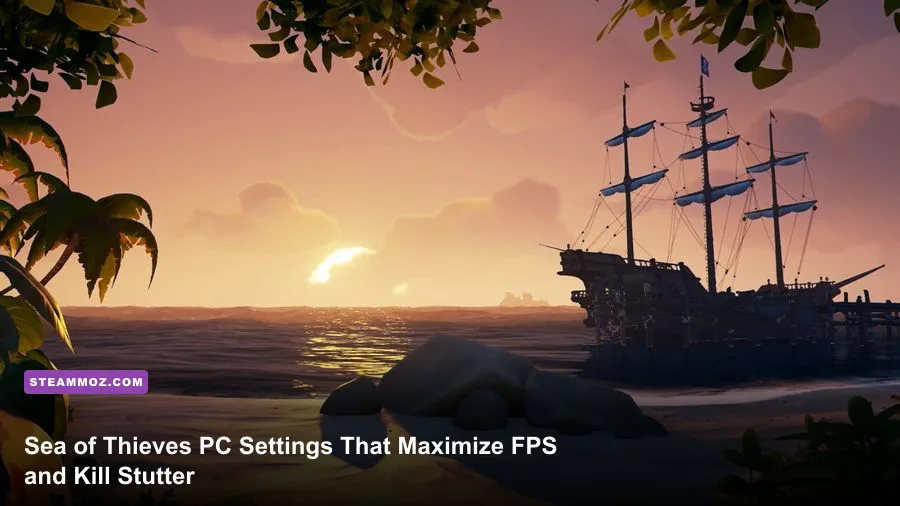
If you want to maintain a rock-solid 144 FPS during chaotic galleon broadsides without turning your high seas adventure into a blurry mess, dial down Volumetric Clouds to Common, drop Shadow Detail to Rare, and switch Lighting Detail to Common or Rare immediately. Sea of Thieves runs on a heavily customized build of Unreal Engine 4, and while Rare's water rendering is legendary, its unoptimized default presets silently crush your 1% low frame times. By targeting the precise graphical culprits that overwhelm your GPU fill rate and CPU draw calls, you can boost average frame rates by 35% to 50% while actually gaining a massive tactical advantage when spotting tuckers, tracking mermaids, and boarding enemy vessels.
The Competitive Baseline: Recommended Settings Matrix

Sea of Thieves labels its graphics presets using pirate-themed monikers: Cursed (Low), Common (Medium), Rare (High), Legendary (Very High), and Mythical (Ultra). Leaving everything on Mythical will punish even high-end graphics cards whenever volumetric weather systems roll over your ship. To get the cleanest picture with the highest stable refresh rate, configure each video option according to our battle-tested performance matrix below.
| Setting | Optimal Value | FPS Impact | Visual and Tactical Impact |
|---|---|---|---|
| Shadow Detail | Rare / Common | High (12–16%) | Lowering cleans up dark corners on deck, making stealthy tuckers easier to spot. |
| Model Detail | Rare | Low (2–4%) | Maintains high-polygon ship ladders, rowboats, and pirate silhouettes at maximum draw distance. |
| Texture Detail | Mythical / Legendary | Negligible (VRAM Bound) | Zero FPS loss if your GPU has 6GB+ VRAM; keeps ship liveries and weapon skins crisp. |
| Water Detail | Rare | Moderate (6–9%) | Wave physics stay server-side; Rare retains surface transparency to track underwater boarders. |
| Lighting Detail | Common / Rare | High (10–14%) | Reduces expensive dynamic light calculations from campfires, lanterns, and firebombs. |
| Particle Detail | Rare | Moderate (5–8%) | Prevents severe micro-stutter when cannon smoke, fire, and cursed cannonballs saturate the screen. |
| Particle Resolution | Common | Moderate (4–7%) | Stops blunderbomb spam and cannon flare alpha buffers from choking your GPU fill rate. |
| Volumetric Clouds | Common | Very High (14–20%) | Removes resource-heavy raymarched clouds in favor of lightweight 2D skybox billboards. |
| Animation Quality | Rare | Low (2–3%) | Keeps skeleton hit reactions and enemy pirate weapon swings animating at full refresh rate. |
| Direct3D Version | D3D12 (Modern) / D3D11 (Legacy) | Varies (5–12%) | DirectX 12 reduces CPU draw call bottlenecks on multi-core chips; DX11 is safer for older GPUs. |
Much like fine-tuning visual fidelity in our guide to tuning demanding open-world graphics engines, identifying which settings drain hardware resources without adding gameplay value is key to steady frame delivery. Dialing down lighting and clouds frees up substantial GPU headroom for fast-paced close-quarters cutlass duels.

🎮 FORM
Looking to experience this game? Grab your digital key directly on our store for $14.99.
View on Steammoz Store →Taming the Wave Engine: Water Detail and Lighting Dynamics
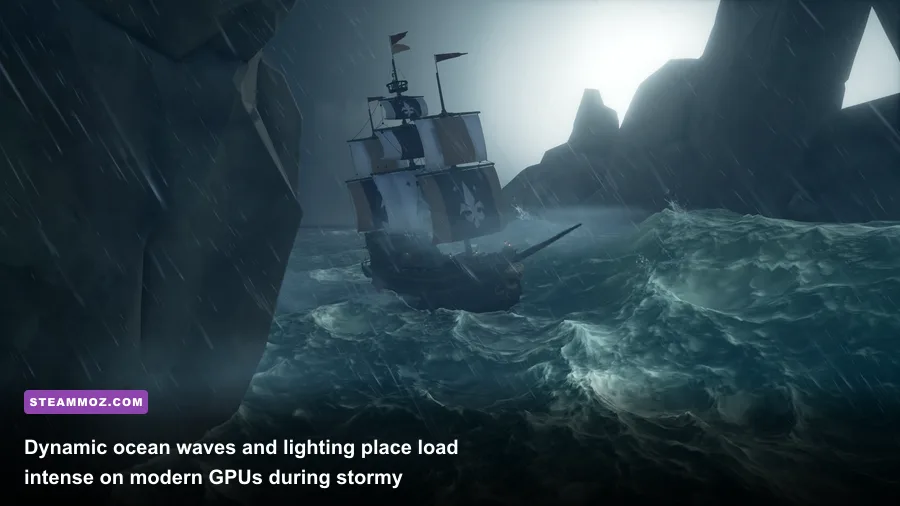
Sea of Thieves is famous for having the most realistic water simulation in modern gaming, leading many players to believe that dropping Water Detail to Cursed is required for competitive frame rates. That is a mistake. The actual geometric wave displacements—the physical crests and troughs your brigantine bounces across—are calculated entirely on Rare's game servers to ensure synchronized physics across all crews. The client-side setting controls surface tessellation, water clarity, foam simulation, and screen-space reflections.
Setting Water Detail to Cursed creates a flat, muddy ocean texture that actively harms your gameplay. On Cursed, the water surface loses its translucence, turning enemy boarders swimming up to your ship into invisible silhouettes until they are already climbing your ladder. Setting Water Detail to Rare strikes the perfect compromise: you preserve transparent shallow-water rendering, sharp water ripples, and accurate wake tracks behind rowboats, all while sparing your GPU from the brutal performance hit of Mythical's ray-traced ambient water reflections.
Lighting Detail, on the other hand, should be approached with extreme caution. On Legendary and Mythical, every player lantern, active campfire, burning mast, and glowing skull fort key casts dynamic volumetric light that casts real-time soft shadows across the environment. In the middle of an outpost or during a four-ship fleet fight, this setting causes your 1% low frame rates to plummet from 120 FPS straight down into the 50s. Dropping Lighting Detail to Common simplifies dynamic light sources and disables subtle subsurface scattering on foliage, instantly stabilizing frame pacing when cannon fire starts flying.
Slashing GPU Bottlenecks: Shadows, Volumetric Clouds, and Alpha VFX
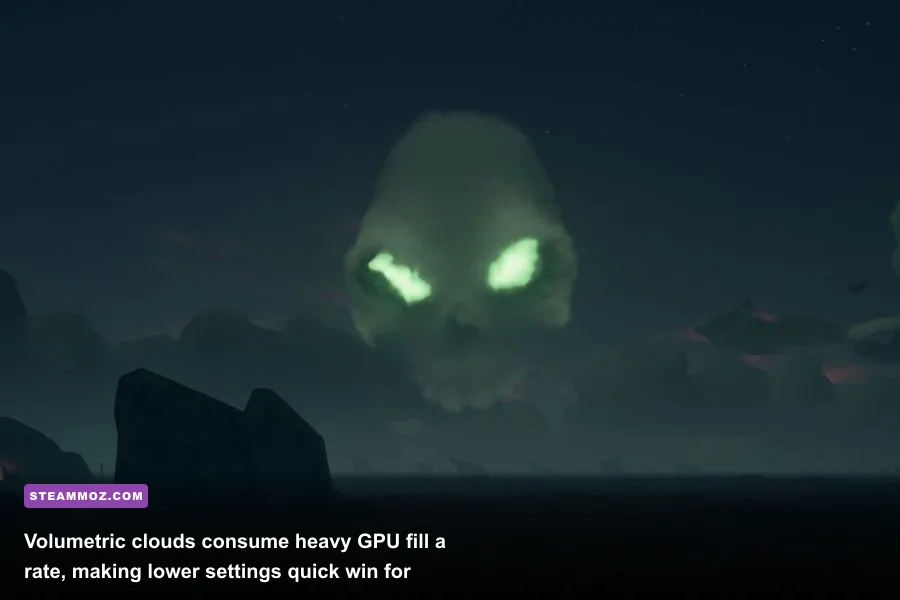
If you take nothing else away from this guide, change your Volumetric Clouds setting right now. On Mythical, Rare utilizes a complex raymarched volumetric noise shader to generate physical 3D cloud clusters that catch dynamic sunlight throughout the day. While breathtaking in screenshots, this single setting accounts for nearly 20% of your total GPU workload at 1440p and 4K resolutions. Dropping Volumetric Clouds to Common replaces these heavy volumetric geometries with static, layered billboard textures. The visual difference while scanning the horizon for enemy sails is barely noticeable, but the boost to your baseline FPS is massive.
Shadow Detail is your second-biggest performance thief. High-end shadows generate crisp, cascade-mapped silhouettes of every palm tree frond, mast rope, and rock formation. But in player-versus-player combat, ultra-dark, high-resolution shadows provide a tactical disadvantage: they conceal enemy pirates wearing the black Sailor or Tuck outfits who are hiding behind your ship's capstan or in the captain's quarters. Setting Shadow Detail to Rare or Common softens shadow penumbras, brightens overly dark ship decks, and recovers up to 15% of your GPU budget.
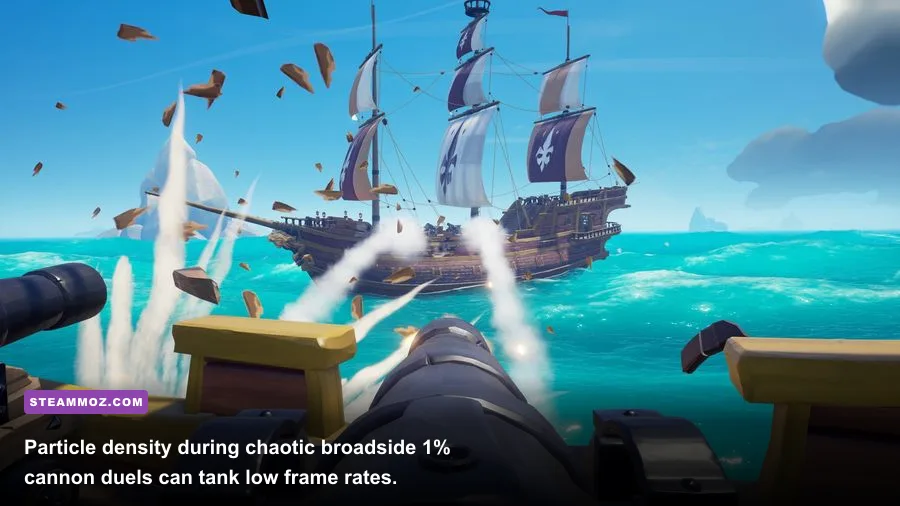
Do not overlook Particle Detail and Particle Resolution. Whenever a ship is struck below the water line, boards snap, water sprays, and cannon smoke billows across the deck. If your particle options are cranked to Mythical, the overlapping semi-transparent smoke sprites create massive alpha-blending bottlenecks. Keeping Particle Detail on Rare and Particle Resolution on Common prevents your frame rate from choking during point-blank blunderbomb exchanges, mirroring the performance gains seen when demanding puzzle and rendered titles are optimized for steady render passes.
Draw Calls, FOV, and Combat Clarity: Model Detail and Render Scale
While cutting back on heavy post-processing effects is mandatory for fluid gameplay, you must never compromise on Model Detail. Sea of Thieves handles level-of-detail (LOD) transitions aggressively. If you set Model Detail to Cursed or Common, distant enemy ships will render as blocky low-poly shapes, mermaid smoke plumes will vanish until you are right on top of them, and enemy pirates riding ladders will pop in abruptly.
Keep Model Detail locked to Rare. This preserves distant skeletal mesh rendering, keeps ship masts clearly defined across nautical miles, and ensures that loot glints on remote shores render predictably. Because modern graphics cards handle raw polygon geometry far better than volumetric shaders, keeping Model Detail at Rare costs merely 2% to 4% of your total frame throughput.
Field of View (FOV) in Sea of Thieves tops out at a native slider limit of 90 degrees. You should always run the game at maximum 90 FOV. While a narrower FOV (such as the default 78) technically renders fewer screen objects and slightly boosts frame rate, the loss in situational awareness is fatal. At 90 FOV, your peripheral vision allows you to watch both port and starboard boarding ladders simultaneously from the helm. If you struggle with micro-stutters during rapid flick-shots with the Eye of Reach, check out our techniques for fixing stubborn PC frame spikes to ensure your mouse polling rate is not overwhelming your game loop.
Resolution Scale should remain strictly at 100% at your monitor's native resolution. Sea of Thieves does not feature modern temporal upscaling algorithms like Nvidia DLSS or AMD FSR natively in its primary engine branch. Running resolution scaling at 80% or 90% relies on basic spatial stretching, which creates distracting shimmering along ropes, rigging, and island foliage, destroying your ability to spot rowboats slipping through distant swells.
Hardware Profiles: Low-End 60 FPS, Balanced 1440p, and 144Hz Competitive Rigs
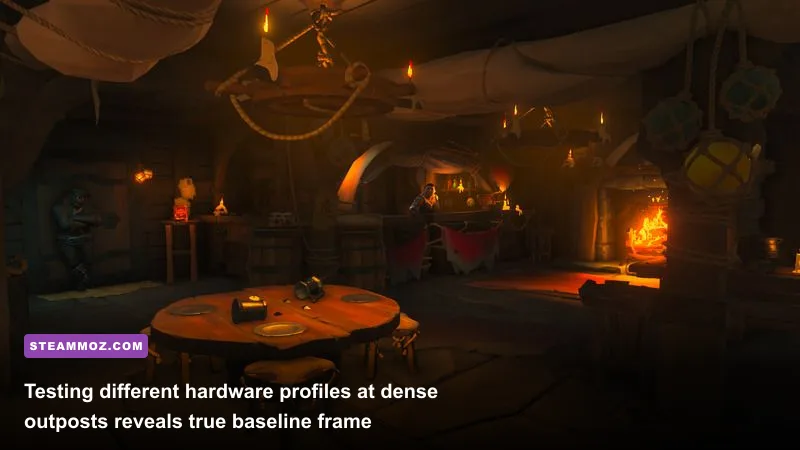
To remove the guesswork, we have built three distinct hardware profiles based on modern GPU tiers. Match your current PC specifications against these recommended loadouts to maximize your visual fidelity and motion smoothness.
| Hardware Target | Target Resolution & FPS | Direct3D API | Core Setting Profile | Key Adjustments |
|---|---|---|---|---|
| Budget Esports (GTX 1650 / RX 580 / Steam Deck) |
1080p @ 60 FPS | Direct3D 11 | Common Preset Baseline | Water: Rare Model: Rare Clouds: Cursed Shadows: Common |
| Balanced Mid-Tier (RTX 3060 / RX 6600 XT / RTX 4060) |
1440p @ 90–120 FPS | Direct3D 12 | Rare Preset Baseline | Textures: Mythical Lighting: Common Clouds: Common Particles: Rare |
| High-Refresh Competitive (RTX 3080 / RX 7800 XT / RTX 4080+) |
1440p / 4K @ 144Hz+ Locked | Direct3D 12 | Custom Tuned | Water: Rare Model: Rare Textures: Mythical Shadows: Rare |
If you are pushing an entry-level rig, prioritize DirectX 11. Although DirectX 12 offers superior multi-threaded rendering pipelines on newer architectures, older hardware often encounters erratic frame-time pacing under DX12, similar to the legacy engine behaviors analyzed in our action RPG frame recovery tweaks.
DirectX 11 vs DirectX 12 and Micro-Stutter Fixes
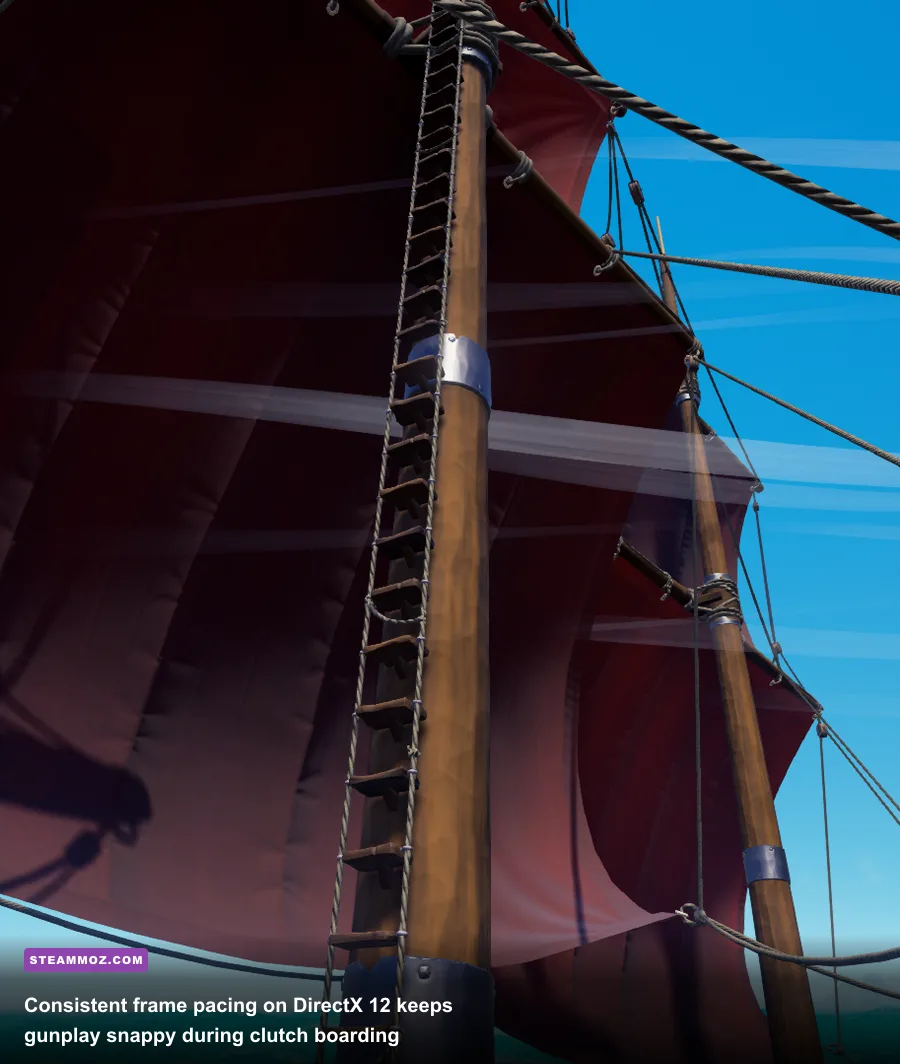
With the release of recent season updates, Rare introduced an official toggle between DirectX 11 and DirectX 12 within the video settings menu. The difference between these two application programming interfaces (APIs) can make or break your game's smoothness depending on your central processing unit (CPU). You can verify your current game build features directly through the Sea of Thieves on Steam hub.
DirectX 12 is vastly superior at spreading engine draw calls across modern multi-core processors (such as AMD Ryzen 5000/7000 series or Intel 12th-to-14th Gen chips). In densely populated areas like Port Merrick, where dozens of NPCs, shops, and complex architectural assets compete for CPU time, DX12 eliminates the severe CPU-bound bottlenecks that plague DX11. However, DX12 builds its shader cache asynchronously on your local drive during your first few voyages. If you notice brief stutters when firing a blunderbuss or loading into an outpost for the first time on DX12, let the game run for fifteen minutes to finish caching shaders. For deep technical insights on pipeline caching, consult the official Unreal Engine rendering pipeline guides.
If your system runs an older quad-core CPU or an older graphics card, switch back to DirectX 11 in the Graphics Settings menu, restart the game, and lock your frame rate. DX11 bypasses the local shader compilation hit entirely, providing immediate, rock-steady frame times on legacy hardware architectures.
Crucial Windows and Driver Tweaks for Sea of Thieves
Beyond the in-game menus, several background Windows settings directly dictate your frame stability on the waves:
- Enable Hardware-Accelerated GPU Scheduling (HAGS): In Windows 10/11 Settings under Display > Graphics Settings, toggle HAGS On. This lets your graphics card manage its own VRAM memory buffers directly, drastically smoothing out the violent hitching that occurs when transitioning between open ocean and complex island geometry.
- Set Display Mode to Fullscreen: While Borderless Windowed is convenient for alt-tabbing to Discord or community maps, true Fullscreen ensures Windows grants Sea of Thieves priority rendering status, reducing desktop composition latency and dropping input lag by roughly 8–15ms.
- Set Shader Cache Size to 10GB: Open the Nvidia Control Panel (or AMD Software), locate Global 3D Settings, and change Shader Cache Size from Driver Default to 10GB. Sea of Thieves has accumulated years of seasonal asset updates; expanding your shader cache prevents the driver from repeatedly purging and recompiling visual data mid-battle.
- Disable V-Sync In-Game and Cap Frames Externally: In-game vertical synchronization introduces sluggish cutlass tracking. Turn V-Sync OFF in the game settings, enable G-Sync or FreeSync on your display, and cap your maximum frame rate 3 FPS below your monitor's native refresh rate (e.g., 141 FPS on a 144Hz monitor) inside your GPU control panel or via RTSS.
If you ever experience out-of-memory crashes during extended four-hour Athena voyage grinds, clearing out corrupt system shader caches and checking background thread limits is vital, adhering to the same stability protocols outlined in our space-combat stability guides. If abnormal crash codes persist, cross-reference your logs with Rare's official support documentation to verify local file integrity.
By implementing these optimized settings—shedding unnecessary cloud volumetrics, dialing in competitive water shaders, and optimizing your DirectX 12 draw calls—you will transform Sea of Thieves from an unpredictable stutter-fest into an ultra-responsive, razor-sharp pirate sandbox ready for your next hourglass victory.