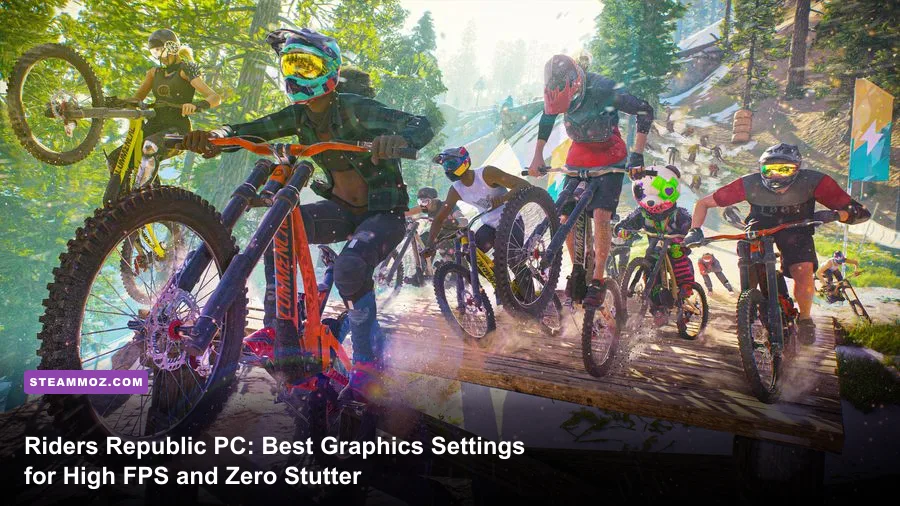
To lock in fluid framerates between 90 and 144+ FPS in Riders Republic on PC without turning your visual presentation into mush, drop Volumetric Clouds to Low, knock Screen Space Reflections to Medium, pull Terrain Quality to High, and toggle NVIDIA DLSS or AMD FSR to Quality. The open-world extreme sports sandbox runs on Ubisoft's proprietary Anvil engine, rendering vast biomes spanning Yosemite, Bryce Canyon, and Mammoth Mountain. While the vistas are jaw-dropping, the engine throws brutal rendering workloads at your GPU during high-speed descents and hammers your CPU whenever you line up alongside 63 other manic players in chaotic Mass Races.
Striking the ideal balance between competitive clarity and cinematic presentation is tricky. If you've ever mistimed a backflip off a sheer cliff because a micro-stutter ate your jump input, you know how unforgiving unstable frame pacing can be. Similar to tuning Far Cry 6 PC settings for max FPS, dialling in this game requires knowing which graphics toggles are visual luxuries and which ones silently rob you of 15% of your frame budget. Let's dig into the exact performance profile you need to get the absolute smoothest ride out of your hardware.

The Master Graphics Settings Breakdown for Maximum FPS
Riders Republic features an extensive visual options menu, but only a handful of toggles actually demand the lion's share of your hardware resources. Running everything on Ultra sounds great on paper, but it punishes midrange hardware for visual nuances you will never notice when bombarding down a rock ledge at 85 miles per hour. By trimming heavy rendering passes like ray-marched clouds and real-time planar reflections, you can unlock anywhere from 30% to 55% more frames on average.
Before touching individual sliders, ensure your display settings are cleanly mapped. Always run in Fullscreen mode rather than Borderless. Borderless windowing in Ubisoft Anvil titles is notorious for introducing desktop compositor latency and erratic frame pacing. If you are experiencing general system instability across demanding games, check out our guide on PC fixes that stop crashes and rescue your FPS to ensure clean baseline driver health before benchmarking.
| Setting | Recommended Value | FPS Impact | Visual Impact & Strategic Note |
|---|---|---|---|
| Window Mode | Fullscreen | Zero (Direct) | Bypasses Windows Desktop Window Manager; cuts input lag substantially. |
| Resolution | Native (1080p / 1440p / 4K) | High | Always run native display resolution; handle scaling via DLSS or FSR instead. |
| Field of View (FOV) | 100° to 110° | Low to Moderate (3-5%) | Wider perspective gives better peripheral vision on technical downhill runs. |
| Terrain Quality | High | Moderate (5-8%) | Controls geometry detail and deformation; drop to Medium only on older GPUs. |
| Grass Quality | Medium | Moderate (6-9%) | Drastically reduces foliage draw-call overhead across Sequoia and Zion biomes. |
| Shadow Quality | Medium or High | High (10-14%) | Ultra shadow cascades cripple the GPU; Medium retains clean contact shadows. |
| Volumetric Clouds | Low | Very High (14-18%) | The single biggest performance hog in the game. Low frees up massive headroom. |
| Water Quality | Medium | Low (2-3%) | Water bodies are sparse across high-altitude trails; High is completely unnecessary. |
| Screen Space Reflections | Medium or Off | High (8-12%) | Very taxing on wet pavement and puddles; Medium maintains sufficient gloss. |
| Ambient Occlusion | High | Moderate (5-7%) | Crucial for depth perception around rocks, trees, and dirt berms. |
| Depth of Field | Off | Low (1-2%) | Blurs background scenery during jumps; turn off for sharper visual tracking. |
| Motion Blur | Off | Negligible | Subjective, but introduces smearing when making snap corrections on bikes. |
| Anti-Aliasing | High (or Upscaler TAA) | Low (2-4%) | Smooths shimmering edges on fine foilage, cables, and fences. |
| Upscaling (DLSS / FSR) | Quality | Major Boost (+20-35%) | Renders at a lower internal resolution and reconstructs with superior clarity. |

🎮 FORM
Looking to experience this game? Grab your digital key directly on our store for $14.99.
View on Steammoz Store →The Heavy-Hitters: Graphics Options That Steal Your Frames
Not every setting in the menu pulls equal weight. In Riders Republic, two specific options account for over a quarter of your total render time: Volumetric Clouds and Shadow Quality. If your framerate feels sluggish or drops sharply whenever you look up toward the skybox or rip through densely wooded forests, these settings are the culprits.
Ubisoft's Anvil engine employs a dense ray-marched cloud simulation that calculates atmospheric light scattering through multiple cloud layers. When set to Ultra, your GPU recalculates soft volumetric density even though 95% of your gameplay focus is glued to the dirt path three feet ahead of your front wheel. Dropping Volumetric Clouds from Ultra to Low instantly reclaims roughly 15% to 18% of your total framerate on GPUs like the RTX 3060, RTX 2070, or Radeon RX 6600 XT. The visual difference while moving at breakneck speed is virtually imperceptible.
Shadow Quality is another relentless resource sink. On Ultra, the engine draws high-resolution shadow cascades across massive distances, forcing your GPU to project real-time shadows for thousands of pine needles, fence posts, and distant boulders. Dropping Shadows to Medium softens distant shadow penumbras slightly but clears up immense memory bandwidth. Combine that with tuning down Grass Quality to Medium, and you bypass massive draw-call bottlenecks that would otherwise cause frametime spikes on mid-tier processors, a problem frequently documented in our breakdown of stuttering and low FPS fixes.
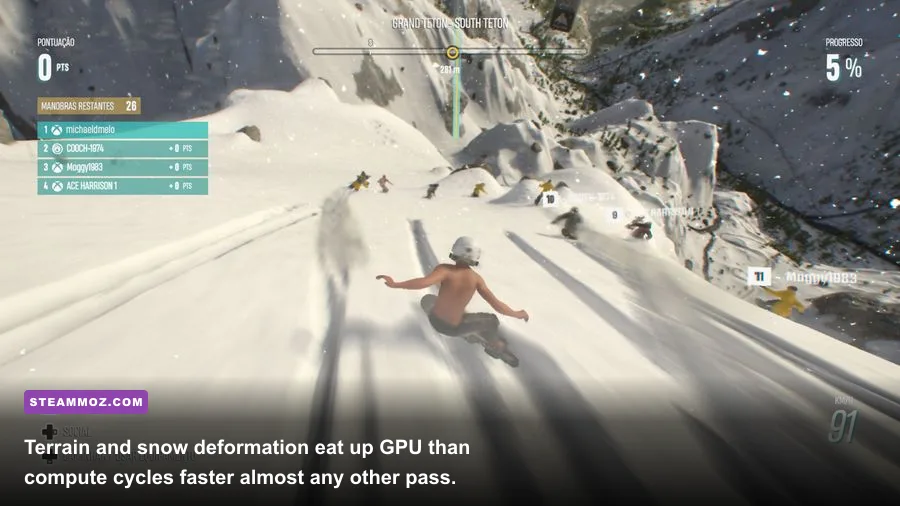
Terrain Quality deserves careful consideration. Setting it to Low creates aggressive geometry pop-in, causing sudden elevation shifts right before your bike makes contact with a jump ramp. Running Terrain Quality on High preserves the natural contours and dynamic snow/dirt deformation tracks left by other racers, keeping gameplay readable while avoiding the excessive tessellation penalties of the Ultra preset. For official specifications and developer updates, you can always monitor the official Riders Republic site.
Upscaling Showdown: DLSS vs. FSR vs. Dynamic Resolution
If you are targeting high-refresh gameplay on a 144Hz or 240Hz monitor, running at native resolution without assistance leaves free performance on the table. Riders Republic integrates both modern temporal reconstruction upscalers and internal dynamic resolution scaling. Knowing how to leverage them makes the difference between dipping into the low 50s and maintaining a crystal-clear 120 FPS lock.
For players sporting an NVIDIA GeForce RTX card, DLSS set to Quality is the undisputed gold standard. Because Riders Republic features endless thin geometry—power lines, chairlift cables, bare winter branches, and bicycle spokes—traditional TAA often smears or creates distracting temporal shimmering. DLSS Quality leverages tensor cores to deliver exceptional edge reconstruction, frequently resolving thin wire cables with cleaner stability than native 1080p or 1440p TAA while pumping out a 25% to 35% framerate uplift. If you want to review the underlying AI reconstruction tech, read through the Nvidia DLSS technology overview.
If you are rocking an AMD Radeon card, an older GTX GPU, or an Intel Arc system, AMD FSR (FidelityFX Super Resolution) set to Quality is your best alternative. While FSR can introduce minor fizzing on complex foliage during aggressive camera rotations, the framerate boost keeps inputs responsive. Avoid setting either upscaler to "Performance" or "Ultra Performance" unless you are playing on a 4K display. At 1080p, internal render resolutions beneath Quality mode degrade distant terrain and make spotting racing lines through technical rock gardens much harder.
What about the game's built-in Dynamic Resolution Scaling? Avoid it if DLSS or FSR is available. Dynamic Resolution in Riders Republic tends to kick in abruptly during high-density track moments, causing distracting shifts in image sharpness right in the middle of tricky trick combos. Manual control via a fixed upscaling profile delivers vastly superior visual consistency, much like our performance testing showed in our guide to higher FPS optimization.
Taming the 64-Player Mass Race CPU Bottleneck
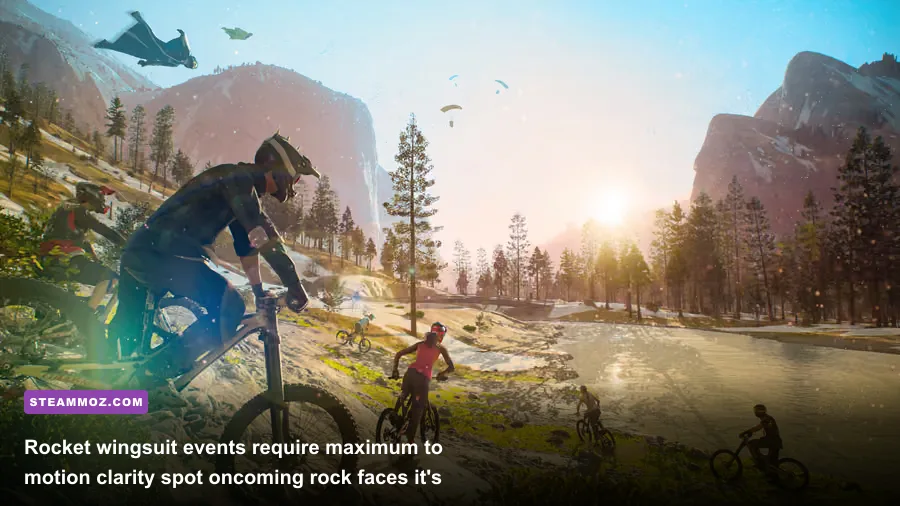
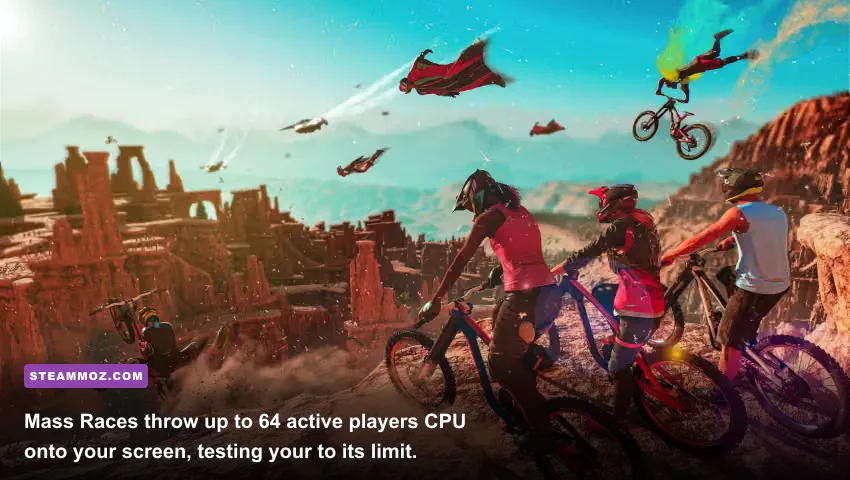
Every Riders Republic player has experienced it: your game runs like an absolute dream at 110 FPS across the open world, but the moment you enter an hourly Mass Race, your framerate plummets into the 40s accompanied by horrible micro-stutters. This is not a GPU rendering issue—it is an overwhelming CPU bottleneck triggered by network synchronization, collision calculations, and draw calls for dozens of simultaneous user rigs.
When 64 players jostle for position at the opening drop, your processor has to process independent animations, real-time physics interactions, equipment models, and smoke flares simultaneously. To prevent your CPU frametimes from spiking violently into the red, adjust your background settings and display configuration thoughtfully.
| Hardware Component | Bottleneck Factor | Tuning Recommendation | Impact on Mass Races |
|---|---|---|---|
| CPU Thread Count | Draw calls and animation compute | Cap framerate to match monitor refresh baseline (e.g., 90 or 120 FPS) | Smooths frametime variance; prevents thread saturation at race starts. |
| Grass Quality | Instanced mesh draw calls | Lower from High to Medium | Frees up precious CPU cycles spent tracking off-trail vegetation foliage. |
| Ubisoft Connect Overlay | Background thread hook | Disable in Ubisoft Connect Launcher settings | Eliminates notorious 1-second hitching when player notifications trigger. |
| DirectX 12 Pipeline | Shader compilation & memory pooling | Enable Windows Game Mode & Hardware-Accelerated GPU Scheduling (HAGS) | Reduces frame pacing hitches across crowded multiplayer sectors. |
Disabling the in-game Ubisoft Connect Overlay is one of the most effective external tweaks you can make. Open your Ubisoft Connect desktop client, head to Settings > General, and uncheck "Enable in-game overlay for supported games." This simple fix prevents the background launcher hooks from stealing CPU cycles every time friend notifications, achievements, or leaderboard standings update during an active race. If you run the game via Valve's platform, you can cross-reference player experiences on the Riders Republic Steam store page to see how widespread this launcher overlay issue is.
Furthermore, locking your framerate using an external tool like RivaTuner Statistics Server (RTSS) or your graphics card control panel yields significantly smoother frame pacing than using uncapped frames. An uncapped framerate that jumps wildly between 60 and 130 FPS feels far more sluggish to your hands than a rock-solid, locked 90 or 120 FPS that never wavers, especially when navigating tight switchbacks on a bike or deploying wingsuit micro-adjustments.
Hardware-Specific Profiles: Budget, Sweet Spot, and High Refresh
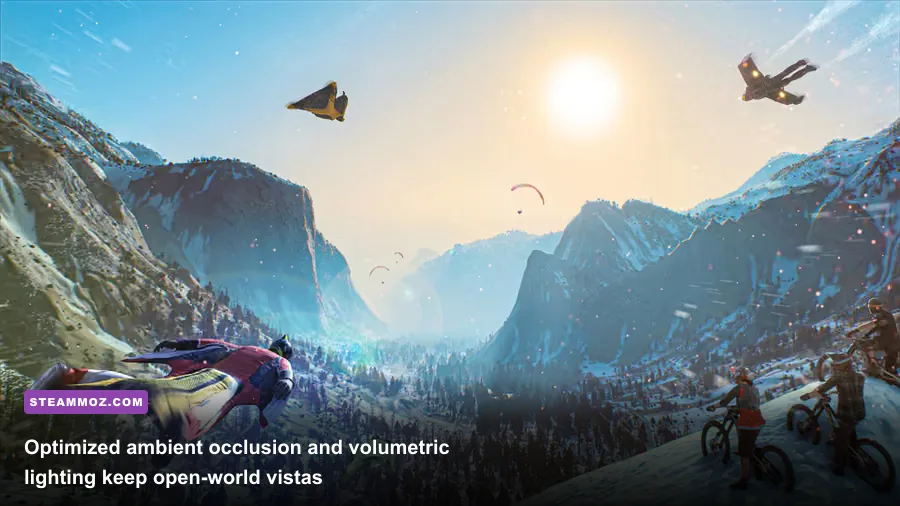
Hardware capabilities vary wildly across gaming rigs, and there is no single preset that fits an entry-level laptop and a water-cooled enthusiast tower equally. Whether you are running an aging rig, a modern mid-tier workhorse, or a high-end monster, use the following targeted profiles to lock in smooth performance immediately.
The Budget Rig Profile (GTX 1060, GTX 1660 Super, RX 580, RX 6500 XT)
If your graphics card features 4GB to 6GB of VRAM, your main priority is preserving memory headroom while keeping geometry clear. Running out of video memory causes severe asset streaming stutter that will ruin any high-speed descent. For hardware context, reviewing older baseline benchmarks like classic PC specs comparisons shows how modern streaming engines punish limited VRAM.
- Display Mode: Fullscreen (1080p)
- Dynamic Resolution: Off
- Upscaling: AMD FSR Quality or Balanced
- Terrain Quality: Medium
- Grass Quality: Low
- Shadows: Low
- Volumetric Clouds: Low
- Water Quality: Low
- Screen Space Reflections: Off
- Ambient Occlusion: Medium
- Motion Blur: Off
- Expected Framerate: 60-75 FPS stable across open world; dips to 45-50 FPS in Mass Races.
The Sweet Spot Profile (RTX 2060, RTX 3060, RX 6600, RX 7600)
This tier represents the most common PC gamer configuration: targeting a sharp 1080p or 1440p image with framerates sitting comfortably above 80 FPS. You want pristine trail details without suffering massive drops when snow storms or heavy dust trails kick up. Check your hardware against the official Riders Republic system requirements to ensure your rig clears the recommended tier.
- Display Mode: Fullscreen (1080p or 1440p)
- Upscaling: DLSS or FSR set to Quality
- Terrain Quality: High
- Grass Quality: Medium
- Shadows: Medium
- Volumetric Clouds: Low
- Water Quality: Medium
- Screen Space Reflections: Medium
- Ambient Occlusion: High
- Motion Blur: Personal preference (Off recommended for trick precision)
- Expected Framerate: 90-115 FPS in free roam; 70-80 FPS in Mass Races.
The High-Refresh / 4K Profile (RTX 3080, RTX 4070+, RX 6800 XT, RX 7800 XT+)
With an enthusiast-grade GPU, your goal is pushing 120Hz to 165Hz monitor refresh limits at 1440p, or locking a flawless 60 to 90 FPS at native 4K. Even on powerhouse hardware, running Volumetric Clouds on Ultra is a waste of thermal and acoustic budget. Keep clouds reined in so your GPU can channel its wattage into raw resolution clarity.
- Display Mode: Fullscreen (1440p or 4K)
- Upscaling: DLSS Quality (or Native TAA at 1440p if pairing with an RTX 4080+)
- Terrain Quality: High or Ultra
- Grass Quality: High
- Shadows: High
- Volumetric Clouds: Medium (Avoid Ultra)
- Water Quality: High
- Screen Space Reflections: High
- Ambient Occlusion: High
- Motion Blur: Off
- Expected Framerate: 120-165 FPS at 1440p; 85-110 FPS at 4K with DLSS Quality.
Final Control Panel & Windows Optimization Steps
Before jumping back into the saddle, lock down a few essential system-level tweaks outside the game client. These tweaks ensure that the Anvil engine receives unhindered GPU access and maintains razor-sharp frame pacing from the moment you hit the mountain.
First, navigate to your NVIDIA Control Panel or AMD Software Adrenalin Edition. Under 3D Settings for Riders Republic, set Power Management Mode to "Prefer maximum performance" (or "Optimal" on newer 40-series cards to avoid unnecessary idle wattage). Set Low Latency Mode to "On" or "Ultra". This queues frames aggressively to slash the response latency between moving your analog stick and seeing your rider lean into a high-speed carve.
Second, ensure that Windows Game Mode is switched on in Windows 10 or 11 Settings. Game Mode prevents Windows Update and background maintenance tasks from grabbing CPU execution threads while Riders Republic is actively running. Combine this with setting the game's executable (RidersRepublic.exe) to "High Priority" in the Windows Task Manager if you are playing on a quad-core or 6-core processor without hyperthreading headroom.
By slashing cloud compute, balancing shadow cascades, taking advantage of temporal upscalers, and curbing CPU thread contention, you turn Riders Republic into a blisteringly fast, responsive visual spectacle. Whether you are scrubbing jumps down Red Bull Joyride or navigating a 64-player dogpile at the start of a Mass Race, these settings guarantee your setup delivers maximum framerates without skipping a beat.