To lock down maximum FPS, razor-sharp visual clarity, and near-zero input lag in Tom Clancy's Rainbow Six Siege, set Shadow Quality to Medium, push Level of Detail (LOD) Quality to Ultra, drop Shading, Reflections, and Ambient Occlusion completely off or to Low, and enable Nvidia Reflex to On + Boost. This exact competitive balance preserves critical gameplay info—like player silhouettes casting real-time shadows under barricades and operator heads rendering cleanly across 40-meter sightlines—while wiping out frame-time stuttering and sluggish mouse delay.
The Golden Graphics Baseline for Pure Competitive Visibility
Siege isn't a single-player showcase where you stop to admire lens flares on Bank or volumetric fog on Kafe Dostoyevsky. In high-stakes ranked matches, unnecessary eye candy gets you killed. Your sole goal in the graphics menu is stripping away environmental clutter while maximizing player visibility. Setting Shadow Quality to Medium is non-negotiable. Setting shadows to Low turns off dynamic player-cast shadows entirely, which robs you of game-winning intel when an attacker rappels outside or pushes a doorway. High and Very High add soft contact shadows that eat 12% to 18% of your GPU budget without providing any tactical edge.
Level of Detail (LOD) Quality dictates the distance at which character skeletons, barricade micro-holes, and deployed gadgets drop into low-poly meshes. Running LOD on anything below Ultra causes noticeable pop-in when holding pixel angles down long corridors, like the basement hallway on Clubhouse. Because LOD relies heavily on modern CPU instruction sets rather than raw GPU rasterization, keeping it on Ultra yields zero perceptible frame drops on modern quad-core and six-core chips while ensuring an enemy's forehead doesn't morph into a jagged polygon at distance.
For textures, keep Texture Quality at Medium or High as long as your graphics card packs at least 6GB of VRAM. Siege uses a high-frequency mipmapping system that costs practically zero render time if your VRAM buffer isn't overflowing. Pair that with Anisotropic 16x filtering; the performance penalty is less than 0.5 FPS, and it keeps floor lines and surface angles crisp at oblique perspectives. Drop Shading Quality, Ambient Occlusion, and Lens Effects straight into the dirt. Shading on High adds atmospheric lighting that darkens deep corners, making defenders like Vigil or Smoke borderline invisible in shadowy nooks.
| Graphic Setting | Recommended Value | FPS Impact | Tactical Justification |
|---|---|---|---|
| Texture Quality | Medium / High | Negligible (VRAM Bound) | Keeps operator skins clear without saturating video memory buffers. |
| Texture Filtering | Anisotropic 16X | < 1% | Cleans angled floor textures and murder holes at extreme distances. |
| LOD Quality | Ultra | 1% – 2% | Eliminates player model pop-in and keeps head hitboxes distinct. |
| Shading Quality | Low | 8% – 12% | Brightens dark room corners and strips complex lighting shaders. |
| Shadow Quality | Medium | 4% – 6% | Renders dynamic player shadows without adding heavy ambient soft shadows. |
| Reflection Quality | Low | 5% – 7% | Removes distracting mirror gleams and wet floor glare across objectives. |
| VFX Quality | Low | 3% – 5% | Reduces particle density during breach explosions and smoke deployments. |
| Ambient Occlusion | Off | 7% – 10% | Eliminates fake contact shadows that obscure defenders hiding against walls. |
| Lens Effects | Off | 2% – 3% | Stops blinding bloom, anamorphic flares, and visual obstruction. |
| Zoom-In Depth of Field | Off | 1% – 2% | Maintains razor-sharp peripheral vision when aiming down sights (ADS). |
If you have struggled with wild frame drops in other engine-heavy titles, our guide on tuning Ubisoft engine settings for max FPS highlights similar principles: ditching artificial post-processing always unlocks stable frame delivery.

🎮 FORM
Looking to experience this game? Grab your digital key directly on our store for $14.99.
View on Steammoz Store →Display Calibration: Aspect Ratios and Field of View
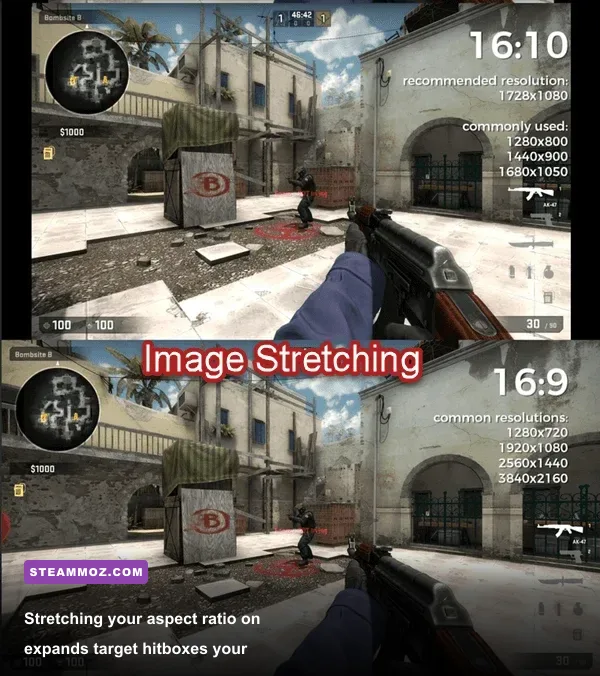
Visual clarity in Siege is heavily dictated by how you map the viewport onto your monitor. First, ensure your Display Mode is set strictly to Exclusive Fullscreen. Running Borderless or Windowed forces Windows Desktop Window Manager (DWM) to buffer frames, introducing 10 to 20 milliseconds of native input lag and disabling critical G-Sync/FreeSync low-latency optimizations. Always verify that your Refresh Rate dropdown matches the actual top-end capability of your panel (e.g., 144Hz, 240Hz, or 360Hz).
Aspect Ratio is the most debated setting among pros. While 16:9 delivers the most realistic environmental proportions, running 4:3 or 16:10 stretched is the competitive standard for aggressive entry fraggers. Stretching a 4:3 frame across a standard 16:9 monitor widens in-game player models by approximately 33%. That means an enemy peeking an angle presents a physically wider target on your retina, making swift headshots far easier to land with 1x sights like the Reflex or Holo. The trade-off is higher apparent horizontal motion speed—targets swing across your crosshair faster, requiring snappier horizontal mouse control.
Your Field of View (FOV) works hand-in-hand with aspect ratio. While setting FOV to 90 provides maximum peripheral vision, it creates a fish-eye effect that pulls the center of your screen further away, making distant heads tiny. Most competitive players settle between 84 and 87 FOV. This golden range strikes an ideal middle ground: you retain enough peripheral sight to detect flankers through doorways without turning pixel peeks down presidential hallways into microscopic squinting contests.
T-AA Scaling and Anti-Aliasing Without Blurring Crosshairs
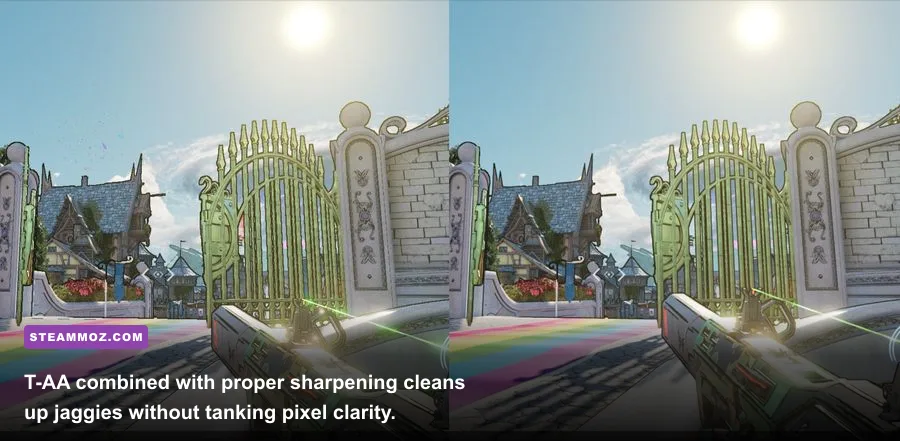
Anti-Aliasing in Siege can be a blessing or a curse depending on your render scale sliders. Setting Anti-Aliasing to Off gives you the most responsive, raw image, but power lines, metal grates, and reinforced wall perforations will crawl with distracting shimmering and jagged stair-stepping. That visual noise makes it excruciatingly difficult to spot an enemy micro-peeking a soft wall.
The optimal solution used across the pro circuit is enabling T-AA (Temporal Anti-Aliasing) with customized scaling sliders. Once T-AA is enabled, two sliders appear beneath it: Render Scaling and T-AA Sharpness. Set Render Scaling to 100% to run native resolution. Do not leave it at the default 50%, or your game will render internally at half-resolution, turning your display into an illegible soup of blurred pixels. Next, push the T-AA Sharpness slider to 60% – 75%.
This combination cleans out all edge crawl and pixel crawling while restoring the razor-sharp geometric lines needed to distinguish an Ash head peaking behind a bomb chassis. Avoid T-AA 2x or T-AA 4x at all costs; these settings apply super-sampling that brutally cuts your framerate by 40% to 60% with zero competitive benefit. If your hardware is older and you run into bottlenecks similar to those outlined in our legacy PC performance checks, dropping Render Scaling down to 85% with 80% Sharpness delivers a massive frame bump while preserving crosshair readability.
Low-Latency Engine Tweaks and Hardware Optimization
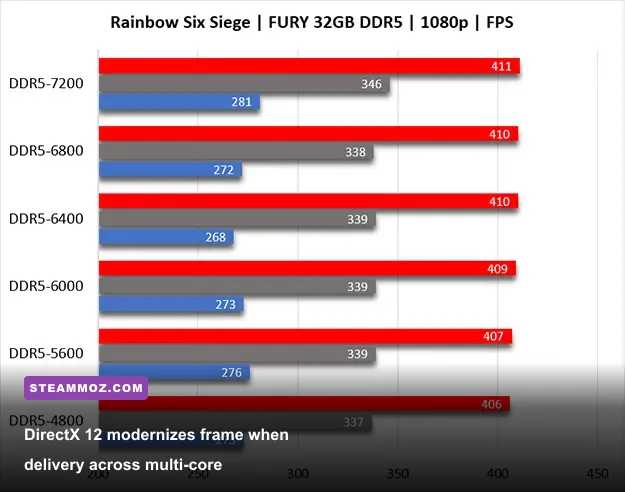
Ubisoft transitioned Siege away from the legacy Vulkan API to a modernized DirectX 12 implementation in Year 9 (Operation Twin Shells). While Vulkan was historically celebrated for its ultra-smooth frame pacing, DX12 provides better multi-threaded draw call dispatching on modern architectures when configured properly. To eliminate hitching under DX12, enable Nvidia Reflex Low Latency in the display menu.
Set Reflex to On + Boost if your GPU utilization regularly hovers above 90%. Reflex dynamically synchronizes CPU work submissions with GPU render queues, preventing the frame buffer backlog that causes floating, delayed mouse inputs during heavy gunfights. The Boost mode prevents your graphics card from downclocking during quiet rounds, guaranteeing instantaneous render response the millisecond a flashbang detonates. For AMD users, toggling Radeon Anti-Lag in AMD Software Adrenalin Edition achieves a comparable reduction in pipeline latency.
| Engine / System Feature | Target Value | Primary Benefit | Latency Impact |
|---|---|---|---|
| API Selection | DirectX 12 | Optimized CPU multi-threading and modern driver support. | Reduces frame delivery spikes |
| Nvidia Reflex | On + Boost | Keeps GPU clocks high and clears render queue bottlenecks. | Cuts input lag up to 35% |
| RawInput Mouse | On | Bypasses Windows mouse acceleration and polling anomalies. | Eliminates pointer latency |
| V-Sync | Off | Removes hard display buffering and input sync locks. | Saves 15ms – 30ms latency |
| Ubisoft Connect Overlay | Disabled | Halts intrusive background web-engine polling during rounds. | Smooths out 1% micro-stutters |
Outside the game client, disable the Ubisoft Connect in-game overlay via the launcher settings. The CEF (Chromium Embedded Framework) instance running underneath the overlay is a notorious culprit behind random 1% low frame dips. If you still encounter micro-stuttering across fast turns, check out how we address system-level pipeline hitches in our PC frame stabilization guide and diagnose wider bottlenecks using our hardware optimization techniques.
Audio Dynamics and Tactical HUD Adjustments for Flawless Intel
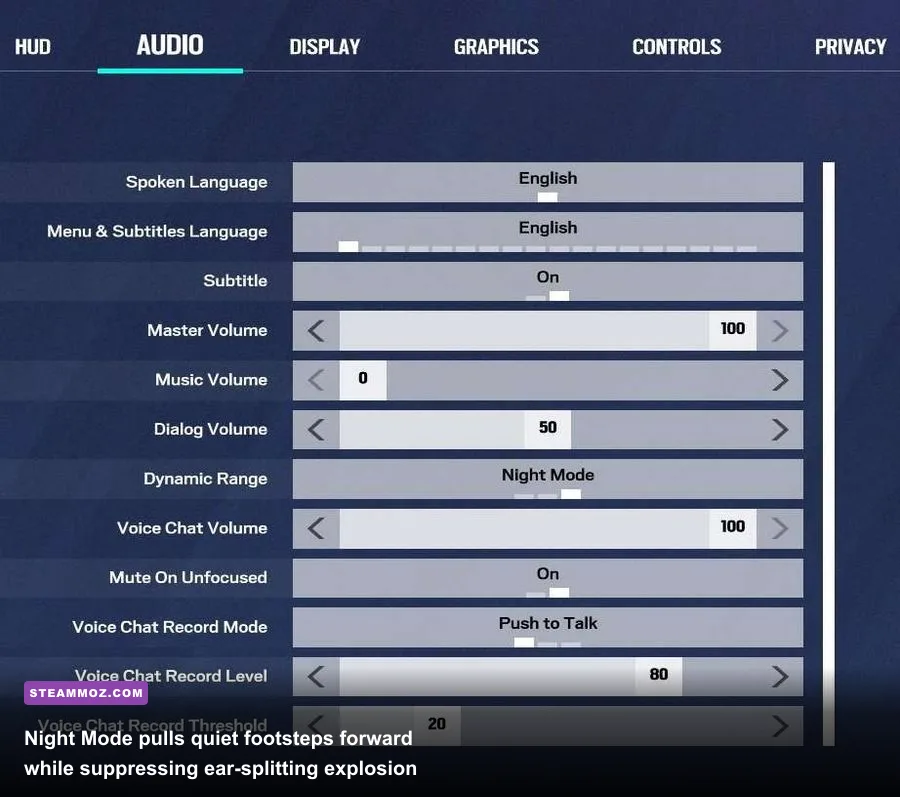
Framerate is only half the battle; auditory and sensory feedback dictates your split-second reaction times in Siege. Head into your Audio settings and switch your Dynamic Range profile to Night Mode. The default Hi-Fi preset prioritizes realistic cinematic audio: gunshots and breaching charges are deafeningly loud, completely masking subtle acoustic cues like defuser plants, crouching Nokk steps, or a Valkyrie camera deploying on drywall.
Night Mode compresses the overall audio dynamic range by pulling up low-decibel audio cues (footsteps, crawling, reload sounds, gadget toggles) and reigning in high-decibel gunfire. This allows you to pinpoint sound origins through vertical floorboards without blowing out your eardrums. Pair this with standard Stereo output—Siege's proprietary sound engine calculates complex audio propagation through open doorways and bullet holes, and running third-party 7.1 virtual surround sound algorithms scrambles those directional sound waves into inaccurate garbage.
Finally, clean up your In-Game HUD via the General options. Turn off Screen Shake entirely. When an impact grenade blows open a wall or Fuze clusters detonate on the floor above you, screen shake rattles your reticle off your target's head. Disable unnecessary UI elements like ambient points pop-ups (+10 Barricade, +20 Drone Destroyed) so your vision remains locked onto your crosshair. For players transitioning from fighting games or strict competitive reflex titles, as explored in our look at low-latency hardware standards, keeping every millisecond of sensor feedback pure is how you transform split-second peeks into round-winning frags.
Lock in this dialed-in setup on your machine, warm up your wrist in the Shooting Range or against target dummies on Map Run, and jump into Ranked with smooth frame rates and razor-sharp competitive clarity on your side.