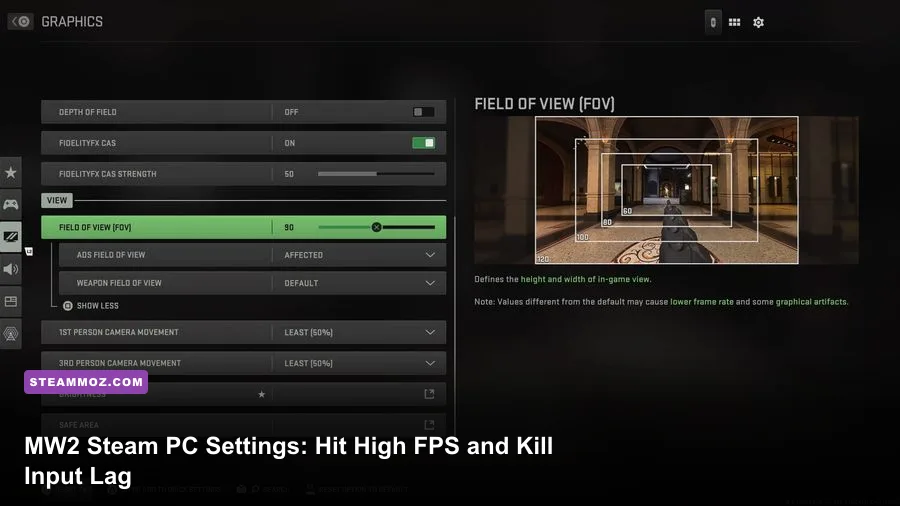
If you want to push past 140+ FPS and banish frame stutters in Call of Duty: Modern Warfare II on Steam, set Upscaling to AMD FidelityFX CAS at 75% strength, switch Spot Cache to Ultra, lower Volumetric Quality to Low, and limit Video Memory Scale to 0.80. Modern Warfare II’s IW9 engine leans notoriously hard on both your CPU cache and video memory bandwidth; running the generic "Balanced" or "Ultra" presets will inevitably leave you wrestling with micro-stutters during chaotic firefights on maps like Farm 18 or Crown Raceway. Tuning every graphic parameter individually unlocks rock-solid frame pacing, crystal-clear enemy visibility, and minimal input latency.
Display and Render Setup: Locking in Low Input Lag
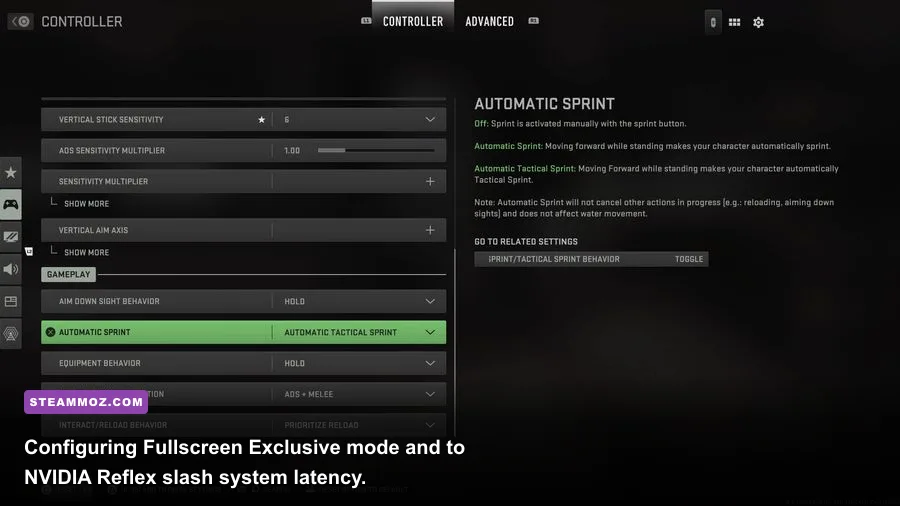
Before touching texture shaders, your display tab sets the foundation for responsiveness. Launching the game via Steam introduces an extra background layer compared to standalone launchers, so avoiding desktop windowing overhead is critical. Set your Display Mode strictly to Fullscreen Exclusive. Running in Borderless Windowed forces the game through the Windows Desktop Window Manager (DWM), which injects at least one full frame of display lag and causes intermittent frame delivery drops. If you have explored our breakdown on tuning graphics pipelines for max FPS, you know that bypassing compositor buffering is non-negotiable for competitive shooters.
Verify that Screen Refresh Rate matches your monitor’s maximum specification (whether that is 144Hz, 240Hz, or 360Hz) and keep Render Resolution locked at 100%. Lowering Render Resolution below 100% blurs player silhouettes at long sightlines, while increasing it burns GPU fill-rate for zero competitive return. Turn Dynamic Resolution OFF; sudden scaling drops mid-engagement throw off your mouse muscle memory. Under the latency toggles, enable NVIDIA Reflex Low Latency to ON + BOOST. The Boost mode prevents your GPU from dropping clock speeds during CPU-bound transitions, keeping internal input queues as shallow as possible. For AMD users, enable Radeon Anti-Lag within your driver software.
Set your Custom Frame Rate Limit strategically rather than leaving it completely uncapped. An uncapped framerate produces erratic frame times whenever you look from indoor corridors to wide outdoor vistas. Cap your Gameplay Custom Frame Rate Limit 3 to 4 FPS below your monitor's native refresh rate if using G-Sync or FreeSync (for example, 141 FPS on a 144Hz display, or 237 FPS on a 240Hz display). Set Menu Custom Frame Rate Limit to 60 FPS to keep your GPU cool between lobbies, and Out of Focus Custom Frame Rate Limit to 30 FPS to save system resources while alt-tabbed.
🎮 FORM
Looking to experience this game? Grab your digital key directly on our store for $14.99.
View on Steammoz Store →The Competitive Quality Settings: Granular Breakdown
Tuning the Quality tab requires separating eye candy that eats frame rates from settings that actually improve threat identification. Many players assume setting everything to "Low" yields the highest performance, but in the IW9 engine, dropping certain parameters too low shifts the rendering burden directly onto your CPU threads. This often amplifies micro-stuttering on mid-range quad-core or six-core processors, similar to the behavior covered in our troubleshooting for low FPS and stuttering.
The single most critical setting in this entire menu is Spot Cache. You must set Spot Cache to Ultra. Many players reflexively drop this to Low or Medium chasing extra frames, but Spot Cache allocates dedicated VRAM to store weapon flashes, killstreak explosions, and dynamic indoor shadows. Setting this to Low forces the game to recalculate these light maps in real-time right when bullets fly, causing brutal frame-time spikes right in the middle of a gunfight. Give your VRAM room to breathe by keeping Spot Cache on Ultra, provided your graphics card has at least 6GB of memory.
For textures, run Texture Resolution on Normal if your GPU has 8GB or more of VRAM, or Low on 4GB-6GB cards (avoid Very Low, as it strips sight reticle clarity). Texture Filter Anisotropic should sit comfortably at High; it has virtually zero impact on modern graphics cards and prevents floor textures from turning into a muddy smudge at angled sightlines. Kill all screen-space noise: set Particle Quality to Low, Particle Quality Level to Very Low, and Bullet Impacts & Sprays to On (seeing bullet holes helps you gauge wall-bang spots without costing measurable frames).
| Graphic Setting | Optimal Value | FPS Gain / Impact | Competitive & Visual Rationale |
|---|---|---|---|
| Display Mode | Fullscreen Exclusive | +3% to +6% | Bypasses Windows desktop compositing for pure latency reduction. |
| NVIDIA Reflex | On + Boost | Negligible FPS | Pins GPU clocks high; drops system input lag by 15-30ms. |
| Upscaling / Sharpening | FidelityFX CAS (75-85%) | Baseline (0%) | Delivers unmatched visual sharpness with no temporal smearing. |
| Anti-Aliasing | SMAA T2X (Low Quality) | +4% vs Filmic | Eliminates the excessive soft-blur caused by Filmic SMAA. |
| Texture Resolution | Normal (or Low on <6GB) | +2% to +5% | Retains operator and sight clarity without exceeding VRAM pools. |
| Spot Cache | Ultra | -1% Avg / +25% 1% Lows | Prevents mid-firefight frame drops by caching dynamic lighting assets. |
| Shadow Map Resolution | Very Low | +7% to +10% | Removes high-overhead shadow cascades while keeping basic shadows visible. |
| Volumetric Quality | Low | +5% to +8% | Strips heavy god-rays and fog simulation that blind your sightlines. |
| Ambient Occlusion | Off | +6% to +9% | Eliminates contact shadows that conceal enemies camping in dark corners. |
| Screen Space Reflections | Off | +4% to +7% | Removes shimmering on wet ground and saves massive GPU fill rate. |
| Motion Blur (World & Weapon) | Off | +1% to +2% | Restores perfect peripheral vision when snapping targets. |
Upscaling & Anti-Aliasing: Why FidelityFX CAS Beats DLSS
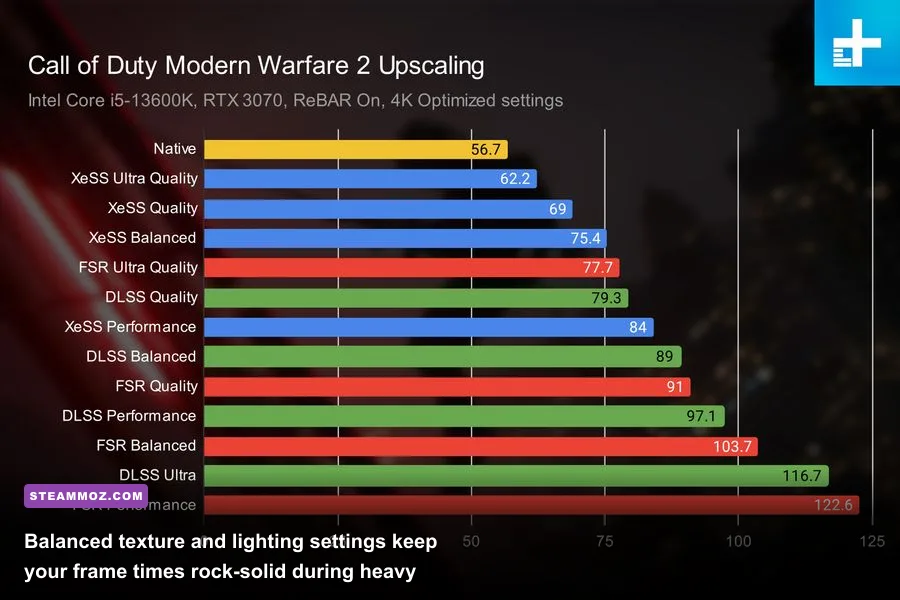
Modern Warfare II includes nearly every modern upscaler: NVIDIA DLSS, AMD FSR 1.0, FSR 2.1, Intel XeSS, and AMD FidelityFX CAS. While DLSS and FSR 2.1 boost average frame rates on heavily GPU-limited systems, they introduce temporal ghosting and softening around player silhouettes when tracking fast movement across medium-to-long distances. Unless you are playing on an entry-level GPU struggling to hit 60 FPS, avoid DLSS and FSR reconstruction in competitive multiplayer.
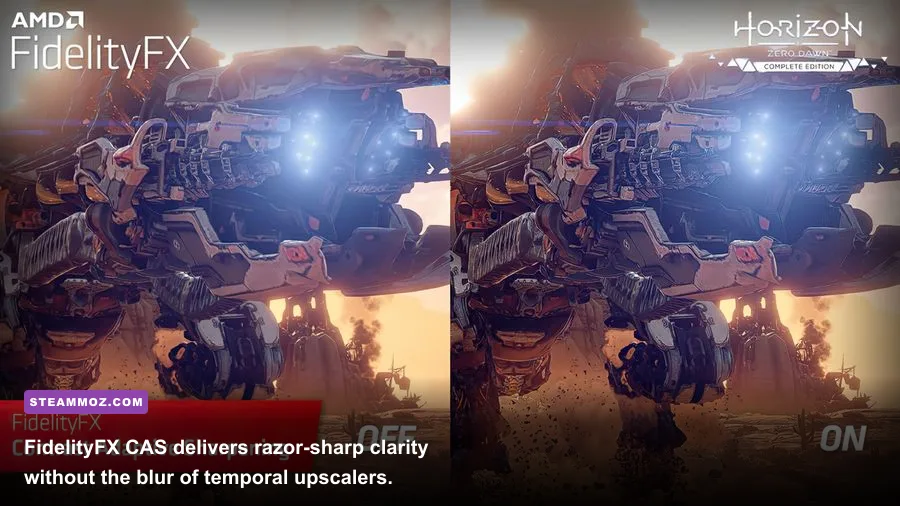
The clear competitive champion is FidelityFX CAS (Contrast Adaptive Sharpening) running at 100% native render scale. CAS does not reconstruct lower-resolution pixels; instead, it sharpens dynamic edges while leaving flat surfaces untouched. Dialing FidelityFX CAS Strength to between 70% and 85% strips away the muddy softness introduced by the mandatory Temporal Anti-Aliasing (TAA) engine. Targets at distance on long sightlines like the B-flag lane on Taraq become crisp and instantly readable.
For your Anti-Aliasing method, select SMAA T2X and set Anti-Aliasing Quality to Low. Never use Filmic SMAA T2X unless you enjoy looking through a layer of grease; the Filmic pass adds temporal smoothing designed to simulate cinematic motion, which works directly against target acquisition. Turn Depth of Field OFF, World Motion Blur OFF, Weapon Motion Blur OFF, and drop Film Grain down to 0.00. Leaving Film Grain enabled wastes encoding bitrate and obscures fine texture detail across building perimeters, a common rendering issue also covered in our renderer optimization tips for higher FPS.
Under-The-Hood Config Tweaks: Fixing the Steam Thread Bottleneck
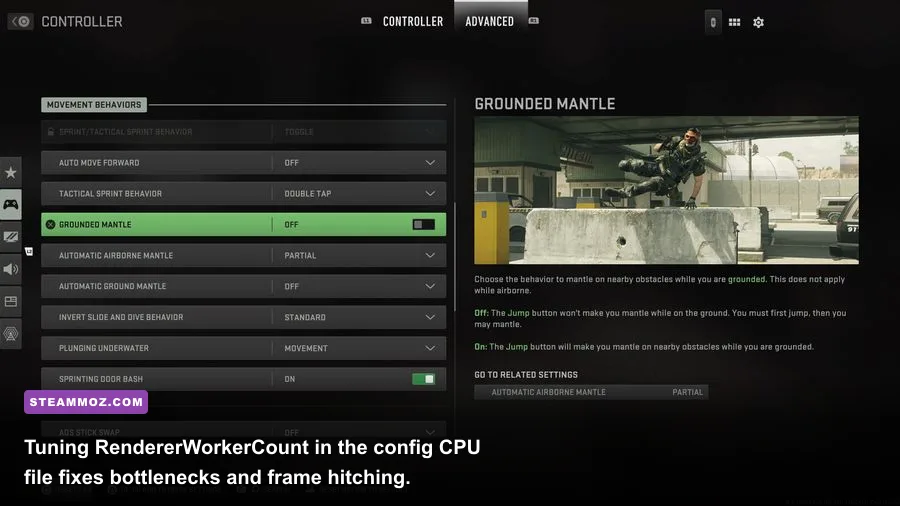
Even with optimal in-game sliders, the Steam release of Modern Warfare II has a long-standing issue with CPU core allocation. By default, the engine frequently misidentifies your CPU topology, assigning an arbitrary number of worker threads that leads to bottlenecking. If you notice your GPU usage sitting at 75-85% while your frame rate stumbles, your CPU is failing to feed the graphics pipeline fast enough.
To correct this, close the game completely and navigate to your documents folder: Documents\\Call of Duty\\players. Open the configuration file named options.3.cod22.cst using Notepad. Scroll down to the bottom or press Ctrl+F to search for the line labeled RendererWorkerCount. By default, this value may be set to an illogical number like 2, 4, or even higher than your physical core count.
You want to set this number to match the exact count of your CPU's physical performance cores, not your virtual hyperthreaded cores. For example, if you run an AMD Ryzen 5 5600X (6 physical cores, 12 threads), set RendererWorkerCount:0.0 = "6". If you run an Intel Core i7-13700K with 8 Performance cores and 8 Efficient cores, set this value strictly to "8" so the game avoids scheduling heavy rendering tasks across low-clocked E-cores. Misallocated CPU threads frequently trigger crashes and stuttering, issues we detailed in our guide on stopping PC crashes and rescuing FPS.
| CPU Architecture / Model Example | Cores / Threads | Default Worker Value | Recommended Worker Setting | Expected Impact |
|---|---|---|---|---|
| AMD Ryzen 5 (3600, 5600X, 7600X) | 6 Cores / 12 Threads | 3 or 4 | 6 | Eliminates thread choke; boosts 1% lows by 15-20 FPS. |
| AMD Ryzen 7 (5800X3D, 7700X, 7800X3D) | 8 Cores / 16 Threads | 5 or 6 | 7 or 8 | Stabilizes frame delivery during heavy airstrikes/explosions. |
| Intel Core i5 (12400F, 11400F, 10600K) | 6 Cores / 12 Threads | 3 or 4 | 6 | Prevents core serialization stalls in 64-player Ground War. |
| Intel Hybrid (12600K, 13600K, 14700K) | Mixed (P + E Cores) | Auto (often counts E-cores) | Set to P-Core Count (6 or 8) | Stops stuttering caused by threads assigning to E-cores. |
In that same configuration file, find VideoMemoryScale. The in-game slider allows you to push this up to 90 (0.90), but this frequently causes DirectX error crashes (like Error 0x887A0005) when third-party apps like Discord or Steam itself demand GPU resources. Change this line to VideoMemoryScale:0.0 = "0.80" (or 0.75 if you frequently experience memory leak crashes). Save the file and close it. You do not need to set it to Read-Only unless an in-game update resets your preferences.
Steam Overlay, Windows Optimization, and Driver Tuning
Because you are running the game through Steam, specific client hooks can introduce micro-stutters during rapid cursor movements. If you do not actively use Steam chat or friends-list invites while in a match, open your Steam client, head to Settings > In-Game, and toggle Enable the Steam Overlay while in-game to OFF. The Steam hook injects its own rendering loop over the DirectX 12 buffer, which occasionally conflicts with Modern Warfare II’s internal anti-cheat checks, creating split-second frame stalls.
On the Windows side, confirm that Game Mode is turned ON in your Windows Settings. Game Mode prioritizes CPU core allocation and prevents Windows Update from running background disk indexing while gaming. Next, search for "Graphics Settings" in Windows and ensure Hardware-Accelerated GPU Scheduling (HAGS) is toggled ON if you are using an NVIDIA RTX or modern AMD card; HAGS lowers overhead by allowing the GPU to manage its own video memory buffer directly.
Finally, dive into your graphics driver control panel. For NVIDIA users, open the NVIDIA Control Panel > Manage 3D Settings > Program Settings, and select Call of Duty: Modern Warfare II. Adjust the following parameters:
- Power Management Mode: Prefer Maximum Performance (keeps GPU clock speeds at peak frequencies during low-intensity killcam sequences).
- Shader Cache Size: Set to 100GB (the default driver cache of 4GB fills quickly with MW2’s massive shader pipeline, forcing the game to recompile assets during matches and causing hitches).
- Low Latency Mode: Ultra (if not using Reflex in-game) or let the in-game Reflex toggle take control.
Make sure to keep your graphics drivers updated through the official NVIDIA GeForce driver portal. If you run into odd rendering artifacts or hitching after an update, consult Activision Support to verify game file integrity, or check out our comparison on hardware requirements and frame budgets to ensure your rig is properly balanced.
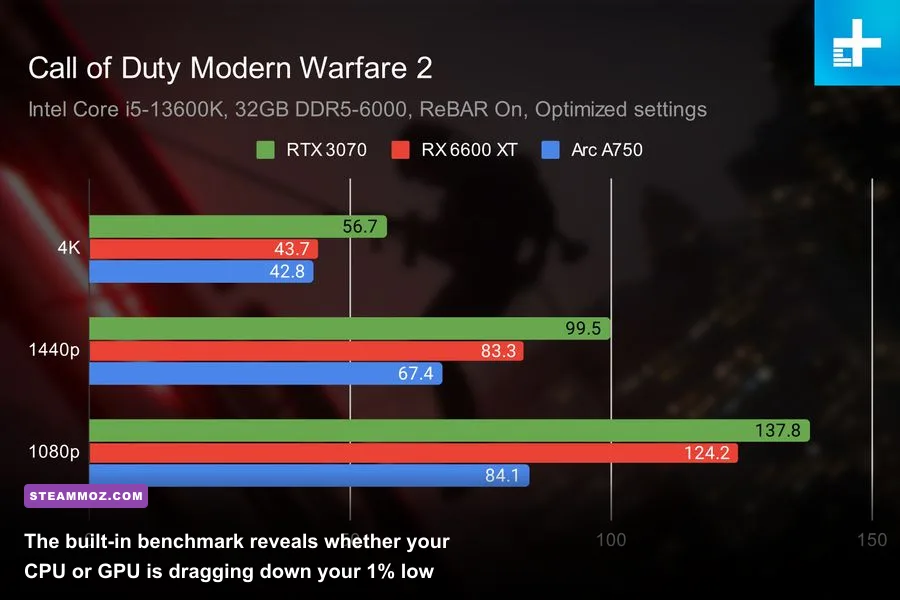
After applying these adjustments, run the in-game Modern Warfare II Benchmark tool under the game modes menu. Take note of the CPU and GPU frame time metrics: an optimized system should display a GPU bottleneck reading of 95% or higher, indicating that your CPU is delivering frames instantly without restricting your graphics card. With your frame times smooth and input lag minimized, you're ready to dominate your next Search and Destroy match or high-kill Invasion streak.