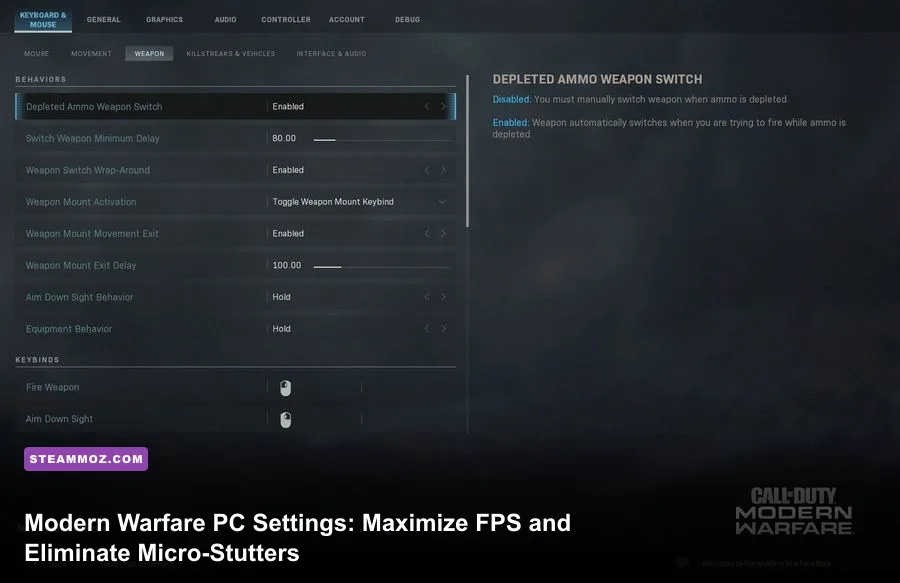
To pull maximum frame rates and butter-smooth frame pacing out of Call of Duty: Modern Warfare on PC, you need to strip away heavy post-processing effects, disable ray tracing, lock your display into Fullscreen Exclusive, and make one essential tweak to your CPU worker threads in the game's hidden configuration files. Modern Warfare's IW8 engine is capable of delivering blindingly fast 144+ FPS performance, but unoptimized out-of-the-box presets crush your GPU with redundant volumetric lighting, aggressive ambient occlusion, and VRAM memory leaks that trigger sudden mid-gunfight micro-stutters.
Core Display Settings: Eliminating Input Lag at the Root

Before touching texture fidelity or lighting models, your display configuration dictates baseline latency and frame pacing. Modern Warfare is notoriously sensitive to Windows desktop composition overhead. If you run in Borderless Windowed, you introduce measurable input latency and expose the engine to background task interruptions.
Switch your Display Mode straight to Fullscreen (Exclusive). This hands your GPU total priority over the rendering pipeline. Verify that your Display Refresh Rate matches your monitor's true physical panel speed—it is common for the engine to default to 60Hz on a 144Hz or 240Hz display after clean driver installations. Keep your Render Resolution locked at 100%. Dropping below 100% smears enemy player outlines at medium-to-long ranges, wrecking your target acquisition in Verdansk or multi-lane multiplayer maps, while supersampling above 100% wastes GPU headroom for zero competitive gain.
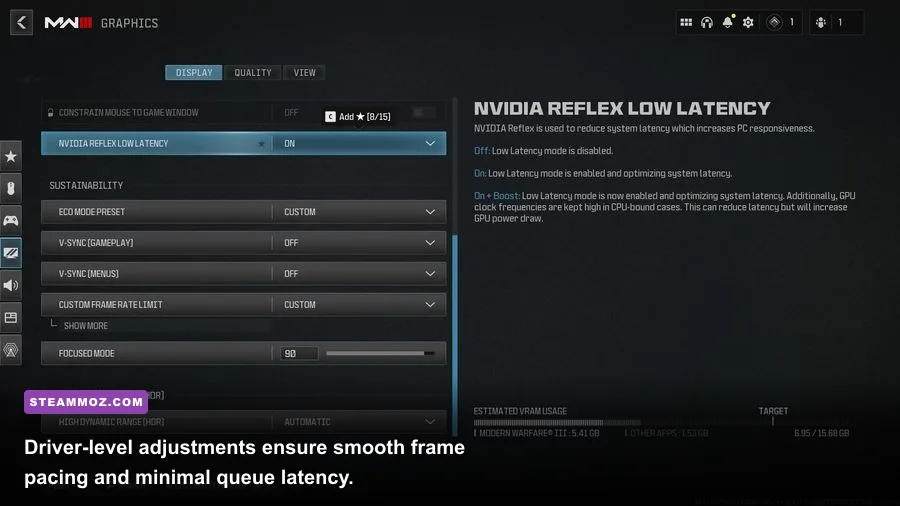
Set V-Sync (Gameplay) and V-Sync (Menus) to Disabled. V-Sync creates noticeable mouse floatiness that will sabotage your flick shots. If you want to eliminate screen tearing, pair a G-Sync or FreeSync monitor with an in-game frame rate cap placed 3 to 4 frames below your monitor's maximum refresh rate. Finally, turn NVIDIA Reflex Low Latency to Enabled + Boost. This forces your GPU clocks to stay pegged at high frequencies even during CPU-bound scenarios, minimizing the render queue and shaving precious milliseconds off your click-to-photon latency. Much like dialing in settings for max FPS in Far Cry 6, nailing your base display pipeline pays immediate dividends in match responsiveness.

🎮 FORM
Looking to experience this game? Grab your digital key directly on our store for $14.99.
View on Steammoz Store →Detailed Graphics Settings Breakdown: The Definitive FPS Impact Table
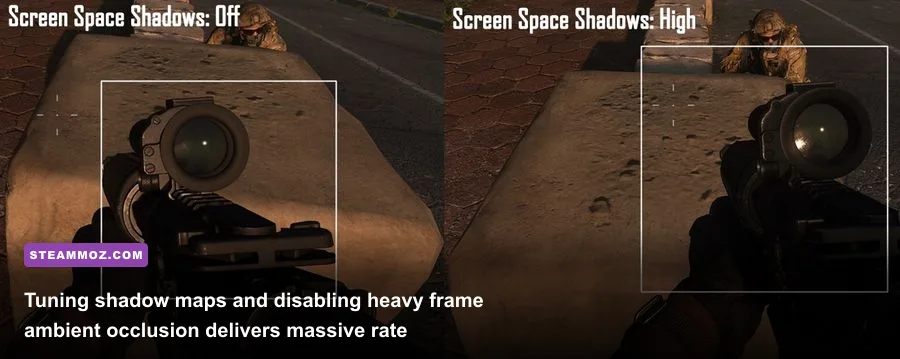
Modern Warfare packs a dense suite of visual toggles. Some tax your graphics card heavily with virtually invisible visual differences, while others provide critical visual clarity without penalizing your frame counter. The table below represents the pro-tuned competitive profile designed to hit the highest sustainable framerate while maintaining sharp visual readability across every multiplayer engagement.
| Graphic Setting | Optimal Value | FPS Cost | Visual & Competitive Impact |
|---|---|---|---|
| Texture Resolution | Normal / Low | Negligible (VRAM Bound) | High setting exhausts VRAM, causing micro-stutters. Normal provides clean clarity. |
| Texture Filter Anisotropic | Normal or High | < 1% | Cleans up ground textures at oblique angles. Negligible performance cost on modern GPUs. |
| Particle Quality | Low | 2% - 4% | Low prevents explosive smoke and killstreak debris from dropping frames mid-fight. |
| Bullet Impacts & Sprays | Enabled | < 1% | Zero real FPS loss; critical for tracking wall-bang hits and bullet trajectory. |
| Tessellation | Disabled or Near | 1% - 3% | Near keeps immediate terrain textured; disabling gives a slight edge on budget GPUs. |
| Shadow Map Resolution | Low | 6% - 9% | High shadows chew through fill rate. Low retains vital player shadow silhouettes. |
| Cache Spot Shadows | Enabled | -3% (Boosts FPS) | Caches dynamic spot lights to RAM/VRAM, drastically reducing CPU draw call overhead. |
| Cache Sun Shadows | Enabled | -4% (Boosts FPS) | Pre-bakes outdoor sun shadow passes. Free frame rate uplift if you have 8GB+ RAM. |
| Particle Lighting | Low | 2% - 5% | Prevents thermite, flashbangs, and explosions from dragging down frame stability. |
| DirectX Raytracing | Disabled | 25% - 40% | Massive frame rate penalty with no competitive benefit whatsoever in fast combat. |
| Ambient Occlusion | Disabled | 5% - 8% | Disabling brightens dark corners, making campers much easier to spot. |
| Screen Space Reflection (SSR) | Disabled | 4% - 7% | Removes distracting wet puddle reflections; stabilizes high-action framerates. |
Pay close attention to Cache Spot Shadows and Cache Sun Shadows. Counter-intuitively, you must leave both of these Enabled. When disabled, the game forces your CPU to recalculate static world shadow passes every single frame, choking your processor and causing stuttering when sprinting into new zones. Storing these passes in memory completely offloads that workload from your CPU, providing a noticeable bump in frame consistency, an optimization technique similar to troubleshooting draw call drops in our guide on fixing low FPS and game crashes.
Conversely, DirectX Raytracing is an absolute frame killer. While it adds subtle realistic bounce lighting to weapons and scenery, it slashes your average frame rate by upwards of 35% and introduces sporadic frame-time spikes when stepping through doorways or open courtyards. In competitive multiplayer, leave Raytracing strictly switched off, as officially recommended by NVIDIA's technical performance analysis.
Upscaling, Anti-Aliasing, and Competitive Visibility
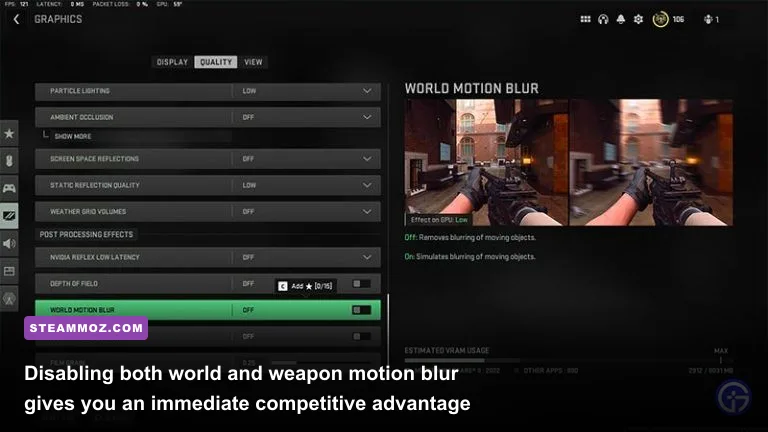
Visual noise in Modern Warfare is the difference between spotting an enemy head-glitch across the map or getting picked off before you can react. The post-processing panel contains multiple settings that degrade your image into a blurry mess if misconfigured.
Start by setting Anti-Aliasing to SMAA T2X. The default SMAA 1X produces aggressive edge shimmering and pixel crawling on chain-link fences and power lines, while turning it completely off causes severe pixel jitter. If your system is running on an RTX graphics card, you can utilize NVIDIA DLSS set to Quality mode when playing at 1440p or 4K. At 1080p, however, native resolution paired with SMAA T2X yields noticeably cleaner visual clarity without the subtle motion ghosting that temporal upscaling introduces on iron sights and reticles.
Next, neutralize cinematic bloat across the board:
- World Motion Blur: Set to Disabled. Motion blur smears your perimeter vision whenever you snap your crosshairs across corners.
- Weapon Motion Blur: Set to Disabled. Gun blur obscures target tracking while transitioning between sprint and ADS (aiming down sights).
- Depth of Field: Set to Disabled. Simulating camera lens defocus has no place in a twitch shooter; you need background information in crisp focus while aiming.
- Film Grain: Slide all the way down to 0.00. Film grain introduces harsh artificial noise that lowers perceptual contrast.
Stripping away artificial film filters gives you a clean, sharp canvas. If the image feels slightly soft after turning on SMAA T2X, leave Filmic Strength at 1.00, which prevents temporal anti-aliasing artifacts from breaking down when smoke grenades enter your FOV. Maintaining tight frame pacing in fast-paced shooters requires the same ruthless trimming of visual fat we covered when breaking down settings for higher FPS and smooth rendering.
The Secret Sauce: Config File Optimization (adv_options.ini)
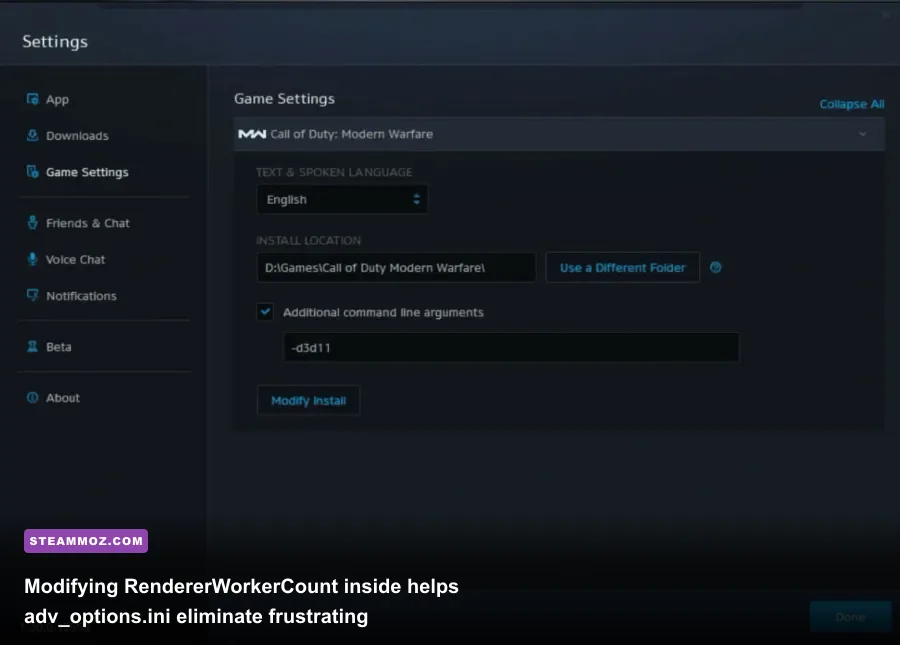
Even if you configure every in-game toggle correctly, Modern Warfare has a notorious architectural flaw: it frequently misidentifies CPU core counts upon launch. When the game attempts to schedule render threads across hyperthreaded virtual cores rather than dedicated physical cores, severe hitching and frame rate drops occur whenever dynamic assets load.
To correct this, close the game and head into your Windows file directory:
This PC > Documents > Call of Duty Modern Warfare > players
Locate the file named adv_options.ini and open it with Notepad. You will find two specific variables that dictate how the engine talks to your system hardware:
RendererWorkerCount = X
VideoMemoryScale = Y
By default, Modern Warfare often assigns RendererWorkerCount to an arbitrary number, frequently half of your total threads or an uneven figure that leaves physical cores sitting idle. Change this value to match your CPU's physical core count (not logical threads). If you are running an AMD Ryzen 5 5600X or Intel Core i5-12400 (both 6-core chips), change this value to 6. If you are on an 8-core chip like the Ryzen 7 5800X3D or Core i7-10700K, change it to 8. Do not set this higher than your physical core count, or you will reintroduce thread scheduling contention.
Next, inspect VideoMemoryScale. The game defaults this to 0.85 or 0.90. If Modern Warfare detects your VRAM crossing that threshold, it panics and violently purges loaded assets, resulting in sudden one-second freezes during intense gunfights. Lower this value to 0.75 or 0.80. This leaves a safety cushion for Windows background processes and Discord overlays, completely curing memory-related stuttering. Save the document and make the file "Read-only" in file properties so future patches from Activision's official servers do not overwrite your custom values. Addressing low-level thread allocation is just as vital here as tackling engine stumbles in our ELEX PC fixes for stuttering.
Windows, Driver Tweaks, and Shader Cache Health
Modern Warfare compiles a massive shader cache during its initial boot. Corrupted, interrupted, or unoptimized shader caches are the number one culprit behind sudden frame drops when turning corners or scoping into sniper glints. If your frame pacing feels uneven despite tuning your graphics options, initiate a fresh shader rebuild directly from the game's Graphics menu under Restart Shader Installation, and let the progress bar hit 100% in the main menu before jumping into a matchmaking queue.
At the operating system level, optimize Windows for low-overhead throughput:
- Enable Hardware-Accelerated GPU Scheduling (HAGS): Search "Graphics Settings" in the Windows search bar and toggle HAGS on. This reduces CPU scheduling latency on modern NVIDIA and AMD cards.
- Windows Game Mode: Keep this toggled On. Windows Game Mode suppresses background Windows updates and allocates CPU priority directly to the active game process.
- NVIDIA Control Panel 3D Settings: Open the NVIDIA Control Panel, navigate to Manage 3D Settings > Program Settings, and select Call of Duty: Modern Warfare. Set Power Management Mode to Prefer Maximum Performance, and switch Low Latency Mode to On.
Whenever you update your GPU display drivers through official channels via Battle.net or the Steam platform, wipe your DirectX Shader Cache via the Windows Disk Cleanup utility. This prevents old precompiled shader binaries from conflicting with updated driver instructions, guaranteeing that your game runs without phantom micro-stutters, much like keeping frame rates smooth in complex space simulations outlined in our Everspace 2 FPS and crashing breakdown.
Apply these tuned visual presets, dial in your adv_options.ini worker threads, and clear out cinematic blur. You will walk away with an immaculately smooth gameplay experience, razor-sharp visual clarity on distant enemies, and a rock-solid frame rate curve that never buckles when the lobby heats up.