To get the highest possible frame rates, lowest input latency, and cleanest target visibility in Call of Duty: Modern Warfare 2, run Exclusive Fullscreen, set your upscaler to AMD FidelityFX CAS at 75-100% Strength at 100% native render resolution, drop all Shadow Map resolutions to Very Low, and set Spot Cache to Ultra. This specific combination eliminates micro-stutters during rapid sprint-to-fire engagements, keeps 1% low frame times rock steady, and strips away the Vaseline-like blur that plagues default engine presets, providing an immediate 35% to 55% jump in overall frame rate without turning your visual feed into a pixelated mess.
Display Settings: Laying the Rock-Solid Foundation
Your display tab dictates how the IW 9.0 engine hands frames off to Windows and your monitor's display controller. Screwing up these initial parameters guarantees erratic frame delivery, severe mouse float, and micro-tearing before you even touch an in-game asset quality slider. Start by locking your Display Mode strictly to Fullscreen Exclusive. While Fullscreen Borderless sounds convenient for dual-monitor setups, it forces the game through the Windows Desktop Window Manager (DWM) compositor, introducing measurable system latency and occasional background priority downclocking.
Set your Display Resolution to your monitor's native panel output (1920x1080, 2560x1440, or 3840x2160) and verify that the Screen Refresh Rate matches your panel's maximum certified ceiling—whether that is 144Hz, 240Hz, or 360Hz. Disable Dynamic Resolution outright; dynamic scaling creates fluctuating internal render targets that wreck muscle memory when tracking targets across long sightlines on Al Mazrah or Breenbergh Hotel. Much like tuning performance profiles in our Far Cry 6 PC settings guide, locking resolution consistency is paramount for muscle memory.
Turn V-Sync (Gameplay) and V-Sync (Menus) completely Off. If you run a hardware G-Sync or FreeSync display, you should handle frame-capping externally through the Nvidia Control Panel (set to 3 FPS below your monitor's maximum refresh rate) rather than relying on internal synchronization locks that induce buffer queuing. Keep Custom Frame Rate Limit on Custom, setting gameplay uncapped (or clamped to your monitor cap), menu frames to 60 FPS (to cool down your GPU between lobbies), and out-of-focus frames to 30 FPS.
Finally, engage Nvidia Reflex Low Latency. Choose On for modern configurations where your GPU is not perpetually pinned at 99% usage. Switch to On + Boost if you play at 1440p or 4K with a GPU-bound bottleneck; this command forces the GPU clock speeds to stay pinned at maximum boost states during low-draw skirmishes, bypassing internal driver sleep states and shaving crucial milliseconds off frame delivery. AMD users should ensure Radeon Anti-Lag is enabled inside the Adrenalin driver suite.
| Display Setting | Optimal Setting | Latency Impact | Why You Need It |
|---|---|---|---|
| Display Mode | Fullscreen Exclusive | Lowest Latency | Bypasses Windows DWM compositor overhead completely. |
| Dynamic Resolution | Off | Zero Frame Spikes | Prevents jarring shifts in internal pixel render scale mid-fight. |
| V-Sync (Gameplay) | Off | Major Latency Reduction | Eliminates engine-level backbuffer stalling and mouse drag. |
| Nvidia Reflex Low Latency | On + Boost | Up to 35% Latency Drop | Prevents render queue saturation and keeps GPU clocks maxed. |
| Focused Mode | Off (0) | None | Preserves background asset polling stability. |

🎮 FORM
Looking to experience this game? Grab your digital key directly on our store for $14.99.
View on Steammoz Store →Quality & Upscaling: FidelityFX CAS vs DLSS and FSR
Modern Warfare 2 handles temporal reconstruction through a variety of upscalers, but in a twitch shooter where spotting a head glitching sniper across the runway on Taraq decides your killstreak, image clarity reigns supreme. While Nvidia DLSS and AMD FSR 2.1 provide massive synthetic FPS gains by reconstructing lower internal render resolutions, they introduce noticeable temporal ghosting around iron sights, optical reticles, and distant foliage.
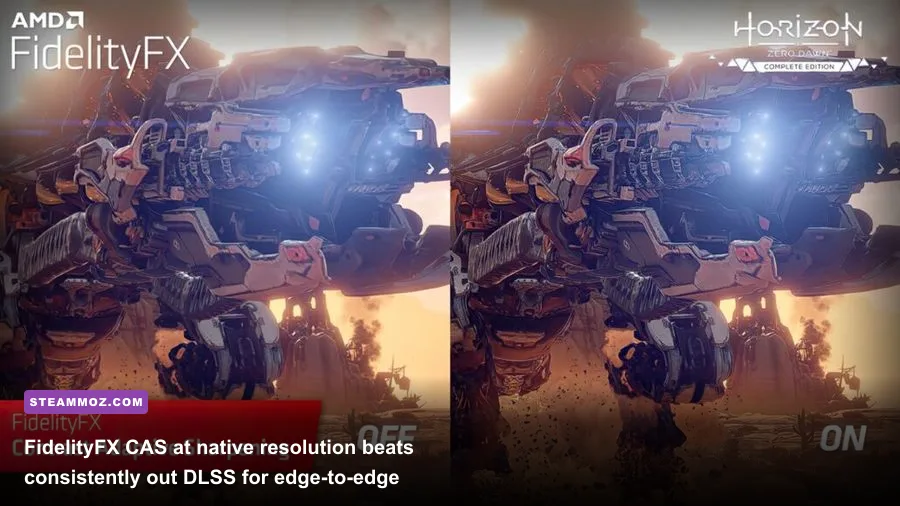
For competitive play, select AMD FidelityFX CAS (Contrast Adaptive Sharpening) as your Upscaling/Sharpening method. FidelityFX CAS is not an upscaler in the traditional sense; it runs at 100% native render resolution and dynamically sharpens edge transitions, stripping away the soft smear generated by modern temporal anti-aliasing (TAA). Set your CAS Strength between 75% and 90%. This delivers razor-sharp clarity on character silhouettes, allowing you to instantly identify enemy models peeking out of dark corners without amplifying noise or rendering edge artifacts.
If you are playing on older hardware or trying to achieve 144+ FPS at 4K, DLSS set to "Balanced" or "Performance" is your secondary lifeline. However, if your card has the horsepower, CAS remains the uncontested gold standard among ranked CDL pros. If CAS is active, the base Anti-Aliasing method defaults to SMAA T2X. Under the Anti-Aliasing Quality slider, select Normal. Bumping this to High costs 3% to 5% of your frame rate while offering zero discernable clarity improvements during motion.
Set your Video Memory Scale slider to 80% (or 70% if you run Discord, OBS, or browser tabs on auxiliary displays). Leaving this set to the default 90% frequently causes the IW engine to over-allocate VRAM, triggering system paging stutters when Windows background tasks request memory bursts. Keeping that 20% headroom guarantees smooth asset swapping across game states, a principle we also emphasize when diagnosing memory allocation bottlenecks in our EscapeVR basement crash troubleshooting guide.
Details and Textures: Maximum Clarity Without the VRAM Bloat
The Details and Textures sub-menu contains the heaviest visual assets in Modern Warfare 2, but surprisingly, many of these settings place almost no load on your graphics compute cores—they live or die entirely on your VRAM bandwidth. Knowing what to trim and what to preserve keeps the game looking like an authentic AAA shooter while maximizing your frame pipeline, avoiding the graphical fidelity regressions we documented in our Far Cry 2 PC specs overview.
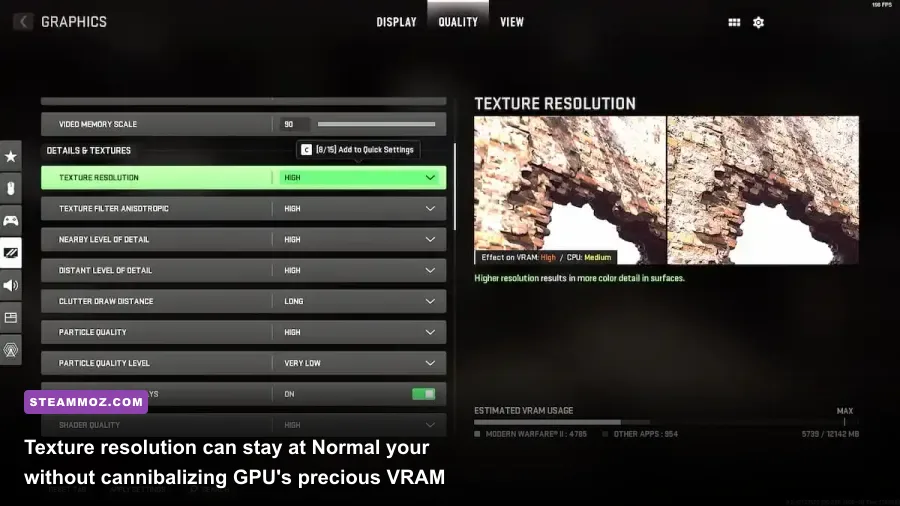
Set Texture Resolution to Normal (or Low if you are using a GPU with 6GB of VRAM or less). Setting textures to High yields negligible visual differences during high-speed movement but inflates VRAM consumption by nearly 1.8GB, increasing the likelihood of random hitching. Pair this with Texture Filter Anisotropic locked on High. Anisotropic filtering has had virtually zero impact on modern graphics cards since the DirectX 11 era, yet setting it to High drastically improves ground and wall texture sharpness when viewing surfaces at oblique angles down long corridors.
Drop Nearby Level of Detail and Distant Level of Detail down to Low. In competitive gunfights, high LOD models for distant dumpsters, light fixtures, and rubble clutter your peripheral vision. Setting these to Low streamlines map geometry at distance, allowing enemy player models—which render on a separate priority LOD system—to pop out sharply against the background terrain.
Keep Clutter Draw Distance on Short and Particle Quality on Low. However, ensure Particle Quality Level is toggled to Low as well. High particle quality causes devastating frame drops during heavy cluster strikes, mortar barrages, and smoke grenade deployments. Toggle Bullet Impacts & Sprays to On; the performance cost is less than 0.5 FPS, and being able to see bullet decals on walls gives you vital situational awareness on incoming sniper angles and wallbang trajectories.
| Graphic Setting | Competitive Profile | FPS Cost | Visual Impact & Tactical Value |
|---|---|---|---|
| Texture Resolution | Normal / Low | 1-2% (VRAM Bound) | Keeps weapons detailed; avoids VRAM buffer spillover. |
| Texture Filter Anisotropic | High | < 0.5% | Sharpens ground textures at steep angles; free visual fidelity. |
| Nearby Level of Detail | Low | 3-5% | Culls peripheral geometric clutter during close-range fights. |
| Distant Level of Detail | Low | 4-6% | Removes distant debris; highlights long-range enemy silhouettes. |
| Clutter Draw Distance | Short | 2-4% | Reduces vegetation and small rock density on Warzone/Ground War. |
| Particle Quality | Low | 8-12% (in combat) | Prevents massive frame tanking during killstreak explosions. |
| Particle Quality Level | Very Low | 2-3% | Simplifies particle mesh count for smoother alpha blending. |
| Bullet Impacts & Sprays | On | < 0.5% | Crucial for reading wallbang angles and enemy shot traces. |
| Shader Quality | Low | 5-8% | Flattens lighting complexity, making enemies easier to track. |
| Tessellation | Off | 2-3% | Removes geometric displacement maps; stabilizes frame pacing. |
| On-Demand Texture Streaming | Off | Varies (Stutter Hazard) | Stops sudden in-game downloading that causes packet burst hitches. |
Crucially, navigate down to On-Demand Texture Streaming and flip it Off. When active, this feature constantly pulls high-resolution operator skins and environmental textures from Modern Warfare II on Steam servers directly over your internet connection while you play. This is the single biggest cause of random "Packet Burst" warnings, latency spikes, and mid-gunfight micro-stutters. Disabling it saves bandwidth and keeps frame times smooth as silk.
Shadow & Lighting: Spot Cache is the Real Game-Changer
The Shadow & Lighting tab is where the vast majority of your raw compute performance is either won or lost. Modern lighting pipelines rely on complex shadow maps, screen-space approximations, and ambient occlusions that create moody, cinematic atmosphere at the direct expense of high-refresh fluidity and enemy identification. If your goal is raw competitive dominance, this entire section requires aggressive pruning.
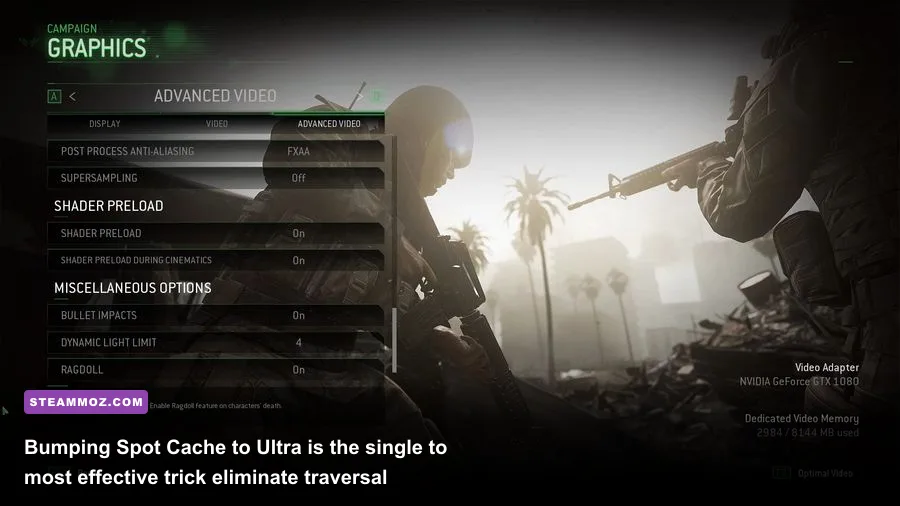
First, address the most misunderstood setting in the entire engine: Spot Cache. Intuition suggests setting this to Low to save performance. Do not do this. Setting Spot Cache to Low forces the game to constantly build and dump shadow maps into memory in real-time as light sources enter your view frustum, creating violent frame time spikes and micro-stutter every time you round an illuminated corner. Set Spot Cache to Ultra (or High if you have an older card with under 6GB VRAM). This instructs the engine to permanently store pre-calculated spot shadow maps into a designated chunk of VRAM, completely smoothing out traversal hitching across both small 6v6 maps and large Ground War environments. This frame-pacing stabilization technique is identical to the optimization principles detailed in our Filament FPS optimization walkthrough.
Every other shadow setting should be lowered to bare minimums. Set Shadow Map Resolution to Very Low. In multiplayer, deep, photorealistic shadow penumbras make it impossible to see an enemy holding a dark angle under the bridge on Santa Sena. Lowering shadow maps brightens pitch-black corners, basically acting as a legal visibility hack. Set Screen Space Shadows to Off, Spot Shadow Quality to Low, and disable Particle Lighting entirely.
Next, turn Ambient Occlusion completely Off (both for Objects and Characters). Ambient Occlusion generates soft contact shadows where surfaces meet. Disabling it strips away dynamic shading behind character models, making enemies stand out vividly against backdrops rather than blending into ambient room shadows. Switch Screen Space Reflections to Off and drop Static Reflection Quality to Low. SSR eats substantial GPU compute power simply to render glossy reflections in puddles—a cinematic flourish that serves no purpose when you are sliding around corners chasing a hardpoint capture.
Post-Processing, View Settings, and Secret Config File Tweaks

The final step in locking down modern competitive supremacy happens in the Post-Processing, Camera, and external config file settings. Cinematic post-processing effects exist solely to make the campaign feel like a Hollywood blockbuster; in competitive multiplayer, they are an active handicap that obscures visual cues and adds perceptual latency.
Set World Motion Blur to Off and Weapon Motion Blur to Off. Leaving these enabled blurs peripheral environments during quick mouse flicks, masking enemy movements while you re-center your crosshairs. Toggle Depth of Field to Off so your surroundings remain pin-sharp when aiming down sights. Turn the Film Grain slider down to 0.00; temporal grain filters do nothing except add digital noise that ruins FidelityFX CAS sharpening algorithms.
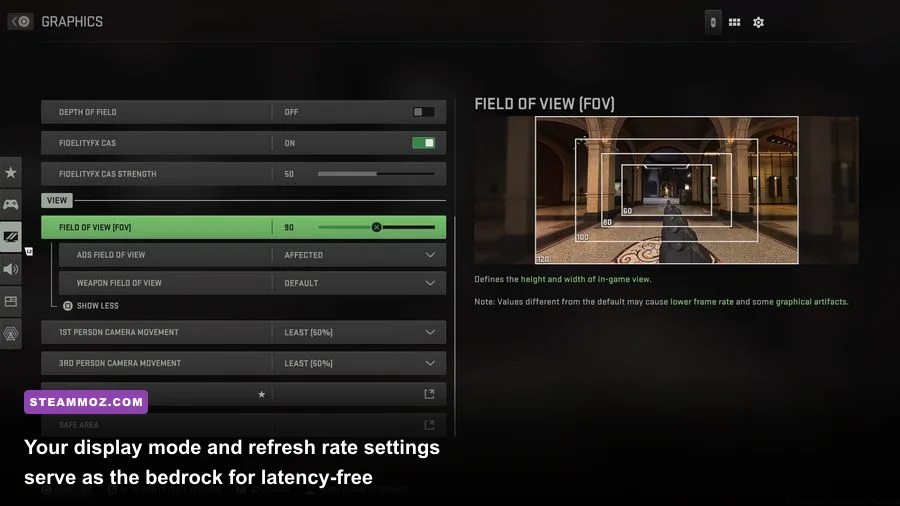
Under the View tab, set your Field of View (FOV) between 100 and 110. While running the maximum 120 FOV gives extreme peripheral awareness, it creates a severe "fish-eye" lens distortion that significantly shrinks enemy hitboxes at medium-to-long ranges, making headshots substantially harder to land. Set ADS Field of View to Affected. This scales your ADS zoom relative to your base FOV, dramatically reducing visual recoil when firing automatic weapons like the Kastov 762 or TAQ-56.
Change 1st Person Camera Movement from 100% down to Least (50%). This minimizes jarring screen shake during nearby grenade detonations and airstrikes, allowing you to maintain your crosshair placement through chaotic explosions. Set Weapon FOV to Wide to shrink your on-screen gun model, opening up substantial lower-right screen real estate to spot approaching enemies.
The Secret Engine Tweak: Fixing RendererWorkerCount
Even with every in-game setting dialed in, Modern Warfare 2 frequently misidentifies your CPU core layout, causing systemic bottlenecking where your GPU sits at 65% utilization while your frame rates hover under expectations. You can manually correct this by editing the game's core configuration script:
- Close Modern Warfare 2 completely.
- Open Windows File Explorer and navigate to:
Documents\Call of Duty\players. - Locate the file named options.3.cod22.cst and open it using Notepad or Notepad++.
- Press
Ctrl + Fand search forRendererWorkerCount. - By default, the engine often sets this value incorrectly to half your core count, or over-allocates it to logical hyperthreads, causing thread contention.
- Change the value to match the number of physical performance cores on your processor. For example, if you are running an 8-core/16-thread Ryzen 7 5800X or 7800X3D, set it to
8. If you are running an Intel i5-13600K (6 Performance cores, 8 Efficient cores), set it to6. - Save the document and close Notepad. Right-click the file, select Properties, and leave "Read-only" unchecked unless the game actively overwrites it upon boot.
This single tweak ensures the IW 9.0 engine uses your CPU's primary execution threads efficiently, preventing CPU bottlenecks and eradicating random frame time drops in 64-player invasion matches. If you experience persistent stability issues on PC, reviewing your system's hardware paging profile can resolve unexpected crashes, similar to the techniques covered in our Elex PC stability fix. Check the official Modern Warfare II portal regularly to keep track of engine updates that might modify how custom profiles are read by the client.
By implementing these display locks, switching to native FidelityFX CAS, caching spot shadows to Ultra, and balancing your CPU threads, your Modern Warfare 2 installation will deliver silky frame pacing, instantaneous flick responsiveness, and spotless clarity across every competitive map in the rotation.