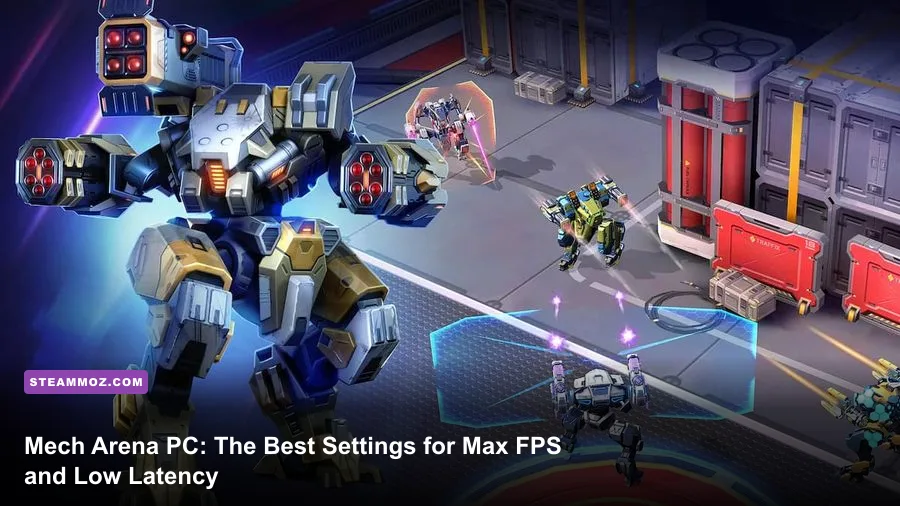
To get the absolute highest FPS and cleanest frame pacing in Mech Arena on PC, ditch Android emulators entirely in favor of the official Plarium Play client, unlock your target frame rate to match your monitor's native refresh ceiling (120Hz or 144Hz+), drop Dynamic Shadows to Low, trim Particle Quality down to Medium, and keep your render scale locked at 100% Native. Mech Arena's Unity engine foundation is surprisingly nimble on PC hardware, but unoptimized volumetric shadows, excessive post-processing bloom, and default mobile frame limiters can trigger jarring micro-stutters right when an enemy Surge EMP-dashes your backline. By dialing in your graphics toggles and locking down driver-level latency settings, you eliminate mouse dragging, clarify combat visibility across busy arenas, and ensure you land every single Railgun shot without dropping a single frame.
Native Plarium Play vs. Emulators: Setting Up for Pure Performance
Before touching an in-game slider, you must address where your game executable is actually running. Many players who started on mobile still default to third-party Android virtualization software like BlueStacks, LDPlayer, or Nox to play Mech Arena on their desktops. This is the single biggest performance mistake you can make. Emulators force your CPU to allocate multiple hardware threads toward virtualizing an ARM architecture on an x86 system, introducing severe frame pacing variance, inconsistent mouse polling, and muddy texture streaming.
Running Mech Arena natively via the official Plarium Play client executes compiled C++ code directly against DirectX 11, giving your graphics card direct hardware access without an emulation translation layer. This switch alone consistently doubles your baseline frame rate while cutting input latency in half. If you have dealt with random micro-stuttering in other titles, you know that raw engine optimization beats brute hardware force, much like resolving frame spikes in our guide on EscapeVR basement low FPS fixes.
| Hardware Spec Tier | Processor (CPU) | Graphics Card (GPU) | System RAM | Target Performance |
|---|---|---|---|---|
| Budget / Integrated | Intel Core i3-8100 / Ryzen 3 2200G | Intel UHD 630 / Vega 8 | 8 GB DDR4 | 1080p @ 60 FPS (Medium-Low) |
| Competitive Esports | Intel Core i5-10400 / Ryzen 5 3600 | GTX 1660 Super / RX 5600 XT | 16 GB DDR4 | 1080p @ 144+ FPS (Optimized) |
| High-Refresh Enthusiast | Intel Core i7-12700K / Ryzen 7 5800X3D | RTX 3070 / RX 6700 XT or better | 16 GB / 32 GB | 1440p / 4K @ 165-240 FPS (Max Clear) |
Once Plarium Play is installed, head straight to the launcher settings cog before launching the game. Check the box to disable hardware acceleration within the launcher itself, and ensure Plarium Play closes or minimizes directly to the system tray whenever a game starts. This prevents the Electron-based launcher framework from stealing background CPU cycles from Mech Arena during intensive five-versus-five brawls.

🎮 FORM
Looking to experience this game? Grab your digital key directly on our store for $14.99.
View on Steammoz Store →Mech Arena PC In-Game Graphics Settings: Every Option Tested
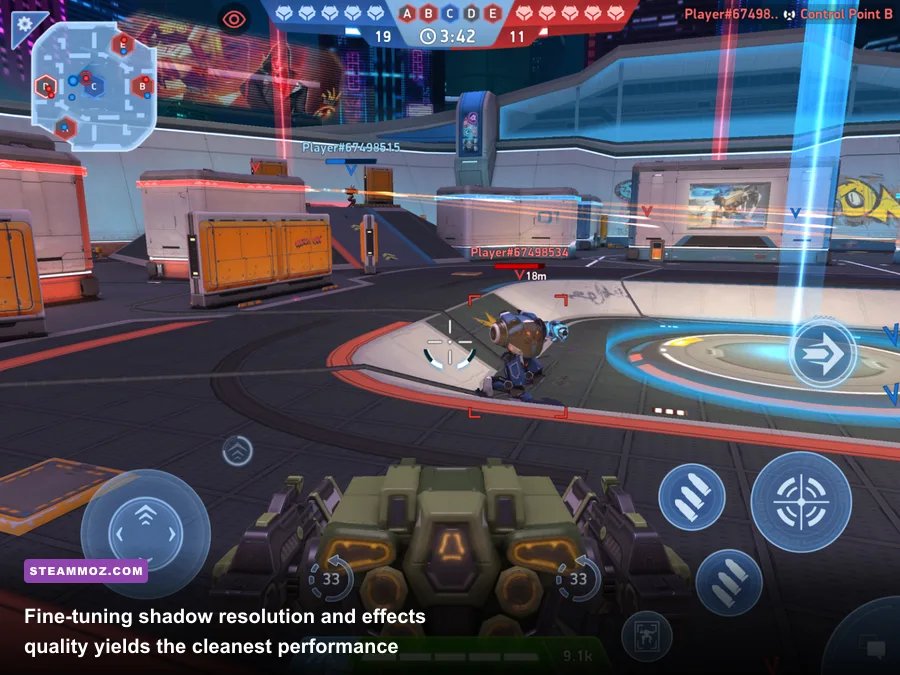
Mech Arena's in-game settings menu appears modest at first glance, but several of these toggles quietly dictate internal render passes that heavily tax fill rate and GPU memory bandwidth. Tuning each setting individually gives you the sweet spot between razor-sharp competitive readability and sustained high refresh rates, comparable to the aggressive visual calibration we recommend in Far Cry 6 settings for max FPS.
Display Mode and Resolution
Always run the game in Exclusive Fullscreen at your display's native resolution (typically 1920x1080 or 2560x1440). While Borderless Windowed makes alt-tabbing seamless, it forces the game through the Windows Desktop Window Manager (DWM) compositor, introducing at least one frame of buffer latency and occasional frame drops when background system notifications pop up. Never lower your rendering resolution below 100% native unless you are gaming on ancient integrated graphics; downscaling turns distant enemy mechs on long sightlines into blurry smudges, severely compromising your targeting accuracy.
Frame Rate Limit (FPS Cap)
Mech Arena on PC provides distinct frame limit options: 30, 60, 90, 120, and Uncapped. Never leave this on 60 FPS if your monitor supports 75Hz, 120Hz, 144Hz, or higher. Set this to Uncapped inside the game menu if you plan to use an external driver-level limiter, or choose 120 FPS if you prefer a quick native ceiling that matches typical high-refresh panels without causing GPU thermal throttling.
Shadows Quality
Dynamic shadows represent the single most demanding visual element in the client. On Ultra and High, the engine casts high-resolution cascades from every mech, piece of cover, and overhead structure. When five mechs group up under the central bridges on maps like Crash Zone or Thermal Station, shadow draw calls spike exponentially. Dropping Shadows to Low disables expensive soft-edge shadow filtering and dynamic character projection while retaining basic baked environmental ambient occlusion. This single adjustment instantly recaptures 18% to 25% of your frame rate during hectic close-quarters skirmishes.
Particle and Effects Quality
This is your competitive battleground setting. When players unleash heavy ordnance like Rocket Mortar 12, Disc Launcher 16 volleys, or multiple Missile Rack 8 bursts, the screen fills with volumetric smoke, dynamic lighting nodes, and lingering ember debris. On High or Ultra, these alpha-blended particles saturate your GPU's pixel fill capacity, leading to sudden frame rate dips precisely when you need pinpoint mouse responsiveness. Setting Particle Quality to Medium preserves the distinct visual tracer paths of incoming rockets without generating the blinding smoke clouds and heavy performance penalties that occur on Ultra.
Textures and Filtering
If your graphics card features at least 4GB of dedicated VRAM, leave Textures on High. Mech Arena's asset footprints are relatively compact; High textures keep paint jobs, chassis decaling, and weapon models crisp with virtually zero impact on your core frametimes. Only drop this to Medium if you are running on an older laptop with shared system memory.
Post-Processing, Bloom, and Motion Blur
Turn Motion Blur completely Off. In an arena shooter where situational awareness dictates survival, blurring the screen every time you snap your camera to track a flanking Killshot is a massive handicap. Bloom should also be set to Low or disabled entirely. Aggressive bloom causes shield effects (like Ares' Wide Shield or Panther's Stasis Barrier) to produce blinding glare, obscuring the critical weak-point hitboxes behind them.
| Setting Name | Recommended Value | FPS Impact | Visual & Competitive Benefit |
|---|---|---|---|
| Display Mode | Exclusive Fullscreen | Zero (Positive) | Bypasses Windows DWM; provides lowest input lag. |
| Resolution | Native (1080p / 1440p) | High (GPU bound) | Maintains pixel-perfect clarity for landing sniper shots. |
| Frame Rate Limit | Uncapped / 120 FPS | Variable | Fluid animation, drastically lower mouse latency. |
| Graphics Preset | Custom | Baseline | Enables individual toggle control over heavy shaders. |
| Shadow Quality | Low | Very High (~20% gain) | Removes heavy cascade calculations during group brawls. |
| Particle Quality | Medium | Moderate (~10% gain) | Eliminates frame drops from explosive ordnance smoke. |
| Texture Resolution | High (VRAM ≥ 4GB) | Negligible (<2% gain) | Keeps mech chassis and weapon silhouettes sharp. |
| Anti-Aliasing | FXAA / Low SMAA | Low (~3% gain) | Smooths jagged edges without the blur of heavy TAA. |
| Motion Blur | Disabled (Off) | Low (~2% gain) | Keeps high-speed camera pans crystal clear. |
| Bloom / Glow | Low / Off | Moderate (~5% gain) | Stops shield glare from obscuring enemy weak spots. |
GPU Control Panel Tweaks: Unlocking True Refresh Rates and Low Latency
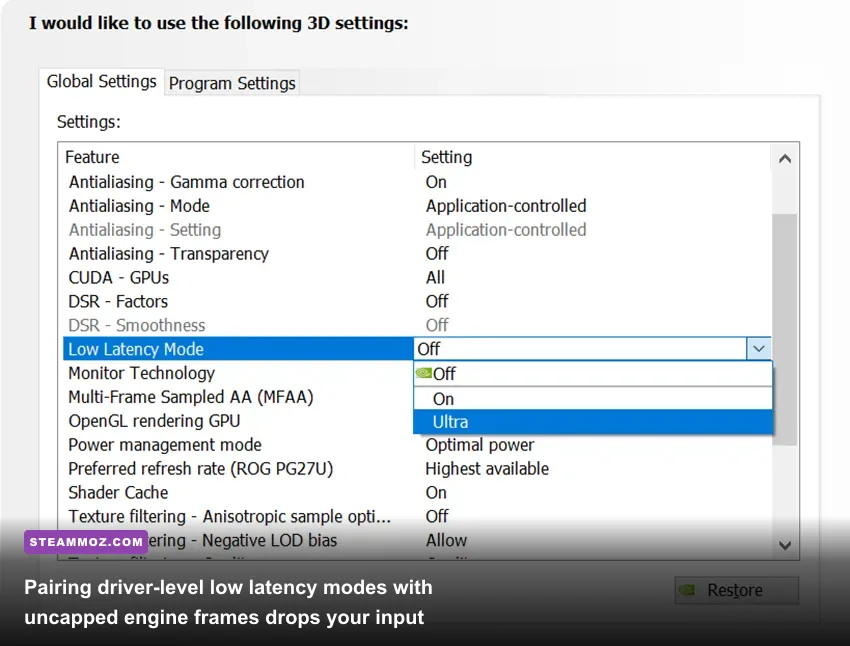
Optimizing the in-game menus is only half the battle. Because Mech Arena originates from a cross-platform mobile engine, its internal frame delivery pipeline can occasionally desynchronize with desktop refresh cycles. Driver-level adjustments in the Nvidia Control Panel or AMD Radeon Software ensure your hardware pushes completed frames directly to the display controller without unnecessary queue buffering, similar to optimizing lightweight titles in our breakdown of Filament Marmalade Edition settings for higher FPS.
Nvidia Control Panel Setup
Open the Nvidia Control Panel, navigate to Manage 3D Settings, and switch to the Program Settings tab. Locate or manually add the Mech Arena executable (found inside your Plarium Play installation folder under MechArena/MechArena.exe). Apply the following core adjustments:
- Low Latency Mode: Set to Ultra. This forces the driver to queue zero prerendered frames, submitting draw instructions directly to the GPU just prior to frame rendering. This dramatically sharpens mouse tracking responsiveness.
- Power Management Mode: Select Prefer Maximum Performance. This locks your GPU clock speeds at peak frequencies, preventing the graphics card from downclocking during quiet respawn sequences or menu transitions.
- Max Frame Rate: If you use a G-Sync or FreeSync monitor, cap your driver frame rate to 3 FPS below your display's native refresh ceiling (e.g., set 141 FPS on a 144Hz panel, or 237 FPS on a 240Hz panel). This keeps the game permanently locked within the adaptive sync envelope, preventing screen tearing without the massive input lag penalty of traditional V-Sync.
- Threaded Optimization: Set to On to guarantee the Unity engine fully utilizes multi-core CPU architectures.
- Shader Cache Size: Set to 10 GB. Storing compiled shaders permanently prevents first-time encounter hitches whenever a new mech, pilot skin, or weapon projectile appears on screen.
| Driver Parameter | Target Setting | Primary Purpose |
|---|---|---|
| Low Latency Mode / Anti-Lag | Ultra (Nvidia) / Enabled (AMD) | Minimizes render queue depth for instant mouse reaction. |
| Power Management Mode | Prefer Maximum Performance | Stops clock downthrottling during respawn lulls. |
| G-Sync / FreeSync | Enabled (Fullscreen Only) | Eliminates tearing while maintaining frame pacing. |
| Vertical Sync (Driver) | On (with G-Sync) / Off (No Sync) | Prevents frame tearing artifacts cleanly. |
| Vertical Sync (In-Game) | Disabled (Always Off) | Prevents double-buffered frame locking stutters. |
| Shader Cache Size | 10 GB or Unlimited | Eliminates mid-match shader compilation stutter. |
For AMD Radeon users, open AMD Software: Adrenalin Edition, click into the Gaming tab, select Mech Arena, and enable Radeon Anti-Lag while turning Radeon Boost completely off. Radeon Boost dynamically drops resolution during rapid mouse swings, which ruins visual target acquisition when aiming down sights with an EM Rifle or Railgun.
Combat Clarity Profiles: Tuning Visuals for Competitive Advantage
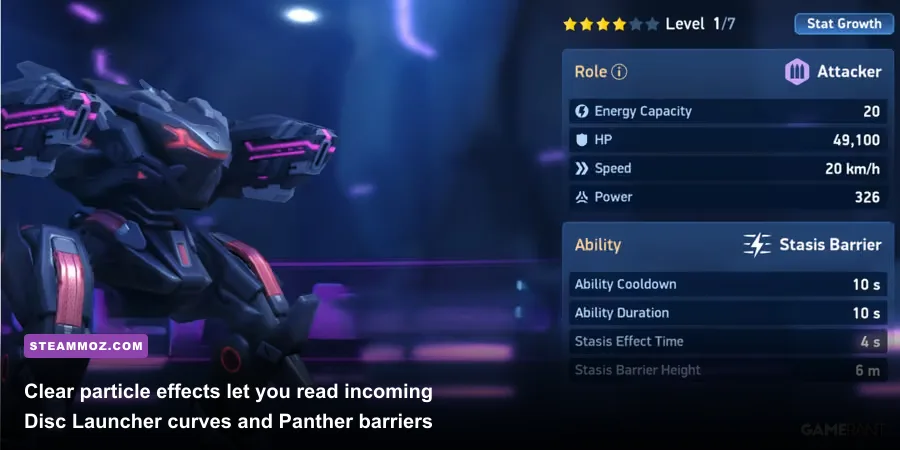
In high-tier Mech Arena combat, visual clarity directly determines your win rate. Matches are fast, lethal, and heavily dependent on spotting subtle ability tells. When an enemy Panther drops an impassable Stasis Barrier, or an Eclipse enters Phase Cloak, your graphics settings determine whether you react instantly or catch a lethal Railgun projectile to the cockpit.
Check the official Mech Arena portal to stay updated on map revisions, because terrain textures and lighting updates often shift between seasonal tournament patches. On darker, enclosed maps like Heatfrost Factory, high shadow density makes it almost impossible to see dark-skinned mechs hiding in recessed alcoves. Lowering shadows strips away those artificial dark corners, illuminating hidden enemies instantly.
Furthermore, turn off any ambient screen-space reflections. Reflections on metallic arena floors add zero tactical value and create visual noise that distracts from incoming homing markers. You want the battlefield stripped down to its essentials: crisp mech silhouettes, visible ability cooldown halos, and clean weapon trajectory lines. When your screen isn't drowning in post-processed bloom and particle flares, your eye tracks micro-movements across long distances effortlessly.
Fixing Micro-Stutters, Asset Pop-In, and Mouse Smoothing Oddities
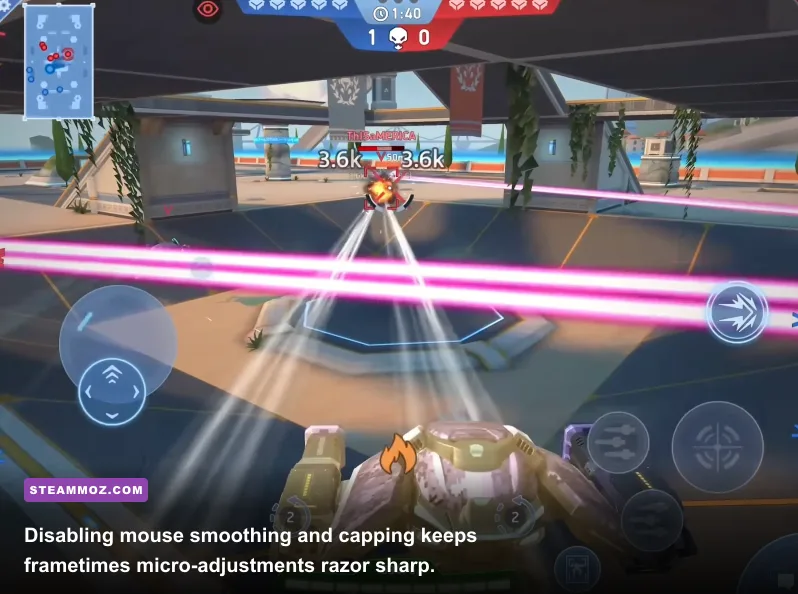
If you have implemented optimal graphics settings and still encounter intermittent frame drops or sluggish crosshair movement, the issue almost certainly stems from peripheral polling rate conflicts, background process contention, or corrupted engine shader caches. Resolving these core system hitches will stabilize your performance across the board, just as detailed in our guide covering Elex PC crash and FPS rescue fixes.
Tuning Mouse Polling Rates for Unity
Because Mech Arena was initially architected around mobile touch inputs, its PC wrapper maps mouse delta movements to internal camera axes. If you operate an esports gaming mouse configured to an ultra-high 4000Hz or 8000Hz polling rate, the game's Unity engine main thread can choke under the sheer flood of raw input interrupts. This causes a bizarre phenomenon where your frame rate counter reads a smooth 144 FPS, yet moving the mouse feels violently choppy.
Open your mouse configuration software (such as Logitech G HUB, Razer Synapse, or SteelSeries GG) and set your report rate to 1000Hz (or 500Hz on older quad-core processors). Furthermore, open Windows Mouse Properties, navigate to Pointer Options, and uncheck Enhance pointer precision. This completely disables artificial Windows mouse acceleration, giving you pure 1:1 hardware translation for consistent flick shots.
Clearing Plarium Play Cache and Shader Stutters
Game updates and balance patches frequently leave orphaned asset cache files inside the Plarium directory. Over time, these bloated temporary folders cause asset pop-in, prolonged loading screens, and hitching when loading into matches. Resolving cache corruption follows the same troubleshooting logic seen in our deep-dive on Everspace 2 crashing and FPS fixes.
- Close Mech Arena and exit the Plarium Play client completely from the Windows system tray.
- Press
Windows Key + R, type%localappdata%, and hit Enter. - Locate the
PlariumandPlariumPlaydirectories. Open thePlariumPlay/Cachefolder and delete its contents. - Relaunch the client; Plarium Play will rebuild a pristine file index upon your next match launch.
Managing Background Overlays and Discord Contention
Hardware-accelerated overlays from Discord, GeForce Experience, and Overwolf are notorious for injecting hooks into Mech Arena's DirectX pipeline, inducing micro-stutters during intense exchanges. Disable the in-game overlay inside Discord settings under Game Overlay, and turn off Discord's internal hardware acceleration under Advanced Settings. This frees up dedicated GPU encode blocks and ensures your system resources remain dedicated entirely to the game.
If you encounter persistent installation errors or account synchronization drops after clearing your directories, reach out through the Plarium Support center to verify your account credentials and repair corrupted installation manifests. By locking down the native PC client, stripping away demanding dynamic shadows, and letting your GPU breathe with optimized driver parameters, Mech Arena transforms into an ultra-responsive, competitive mech shooter where your mechanical skill and tactical positioning take center stage.