The best Marvel’s Spider-Man PC settings are High textures, Medium shadows, Medium crowd and traffic density, Screen Space Reflections on, ray tracing off, and DLSS or FSR 2.0 set to Quality. That combination usually delivers a sharp image and far smoother traversal than the Ultra preset, especially during fast web-swinging through Manhattan. If you have an RTX 3070, RX 6800, or better, you can add ray-traced reflections selectively; otherwise, rasterized reflections are the smarter choice for consistent 60 FPS.
This guide targets Marvel’s Spider-Man Remastered on PC, not the separate Miles Morales release. The game is unusually demanding because you’re streaming a huge open world while animating crowds, traffic, shadows, reflections, particles, and Spider-Man’s suit at high speed. A setting that looks harmless in a quiet alley can become a frame-time problem above Times Square.
Before changing anything, check the official Steam page for Marvel’s Spider-Man Remastered and install the latest GPU driver. If other PC games are stuttering too, our Elex crash and FPS fixes cover the same driver, shader-cache, and background-process basics.
The best Spider-Man PC settings for maximum FPS
Start with the profile below. It’s designed around a 1080p or 1440p display and aims for stable frame delivery rather than a pretty benchmark average. The goal is simple: no ugly drops when you launch from a rooftop, turn toward Central Park, or enter a crowded street during a crime event.
| Graphics setting | Recommended value | FPS impact | Visual trade-off |
|---|---|---|---|
| Texture Quality | High | Low FPS impact, high VRAM use | Preserves suit, building, and character detail |
| Texture Filtering | 8x or 16x | Very low | Keeps rooftops and roads sharp at distance |
| Shadow Quality | Medium | Medium to high | Slightly softer shadows, much better consistency |
| Ambient Occlusion | SSAO or HBAO | Low to medium | Retains contact shadows around streets and interiors |
| Screen Space Reflections | On | Medium | Keeps puddles and windows convincing without RT cost |
| Weather Particle Quality | Medium | Medium | Less snow, rain, and debris during heavy scenes |
| Traffic Density | Medium | Medium CPU impact | Fewer cars during long swings |
| Crowd Density | Medium | Medium CPU impact | Fewer pedestrians in dense districts |
| Depth of Field | On | Low | Preserves cinematic focus during story scenes |
| Motion Blur | 0 to 3 | Negligible | Lower values improve combat clarity |
| Ray-Traced Reflections | Off | Very high | Uses screen-space reflections instead |
Set Texture Quality to High unless your graphics card has only 4GB of VRAM. Texture quality mostly affects memory capacity rather than raw shader performance, so dropping it won’t rescue a CPU-limited system. On a 6GB or 8GB card, High is the sweet spot. Very High can cause texture streaming hiccups when you move rapidly across the city, particularly at 1440p.
Shadow Quality is one of the first settings to reduce. High and Very High draw more detailed shadows across a large distance, which is expensive during traversal. Medium still gives rooftops, vehicles, and combat arenas convincing definition. If your average FPS looks fine but your 1% lows collapse, shadows are a better target than textures.
Keep Screen Space Reflections enabled. Turning them off saves frames, but it makes rainy Manhattan noticeably flatter. These reflections are far cheaper than ray tracing and look good enough while swinging. Traffic Density and Crowd Density are CPU-heavy because they affect simulation, animation, and streaming. Reduce both when your GPU usage sits below 90 percent during dips.

🎮 FORM
Looking to experience this game? Grab your digital key directly on our store for $14.99.
View on Steammoz Store →DLSS, FSR 2.0, XeSS, and dynamic resolution explained
Upscaling is the biggest performance lever in Marvel’s Spider-Man Remastered. At 1440p, start with DLSS Quality on an RTX card, FSR 2.0 Quality on an AMD card, and XeSS Quality if Intel’s option gives you the cleaner image on your hardware. These modes render below native resolution and reconstruct the missing detail, freeing GPU time for geometry, lighting, and effects.
| Target resolution | GPU profile | Upscaler | Expected result |
|---|---|---|---|
| 1080p | GTX 1660, RTX 2060, RX 5600 XT | DLSS/FSR 2.0 Quality | Mostly 60 FPS with RT disabled |
| 1440p | RTX 3060 Ti, RTX 3070, RX 6700 XT | DLSS/FSR 2.0 Quality or Balanced | 60 FPS target with High settings |
| 1440p with RT | RTX 3080, RX 6800 XT, or better | DLSS Quality or Balanced | 45 to 60 FPS depending on RT range |
| 4K | RTX 4070 Ti, RTX 4080, RX 7900 XT | DLSS/FSR 2.0 Balanced | Playable 60 FPS without aggressive RT |
| Steam Deck | Custom APU | FSR 2.0 Performance or dynamic resolution | 30 FPS target, 40 FPS possible in lighter scenes |
Use Quality first because it preserves Spider-Man’s suit webbing, distant building edges, and fine rooftop detail. Switch to Balanced only when your GPU is clearly the bottleneck. Performance mode can look soft at 1080p, and the shimmering on railings and window grids becomes distracting during movement.
DLSS generally produces the cleanest image on Nvidia cards, especially around thin geometry and moving foliage. FSR 2.0 remains a strong option, but its ghosting can be more visible around fast-moving enemies and web lines. XeSS is worth testing rather than dismissing; its result depends heavily on the GPU architecture and the game’s current patch.
Dynamic Resolution Scaling is useful when you care more about a locked target than a fixed internal resolution. Set the target to 60 FPS on a 60Hz display, or 90/120 FPS if your hardware and monitor can sustain it. Don’t pair an aggressive dynamic resolution target with ray tracing and a crowded city profile. The image will constantly fluctuate as the engine chases the target, which can feel worse than a stable 50 or 60 FPS.
If you own an RTX 40-series card, test DLSS Frame Generation only after your base frame rate is healthy. Frame generation can make camera movement feel smoother, but it doesn’t reduce the underlying simulation load or controller latency. A real 45 FPS boosted to a displayed 80 FPS still feels less responsive than a genuine 60 FPS.
Ray tracing settings that don’t wreck performance

Marvel’s Spider-Man Remastered has some of the best ray-traced reflections in an open-world superhero game, but they’re brutally expensive because the city is packed with glass, puddles, vehicles, and reflective building surfaces. Ray tracing affects more than a few puddles: it can increase GPU workload during traversal and create sharp frame-time spikes when the camera sweeps across downtown.
For a balanced RT profile, enable Ray-Traced Reflections, set Reflection Geometry Detail to Medium, set Object Range to 6 or 7, and keep the RT resolution at the lowest level that still looks clean on your display. Leave RT Reflections Off entirely if you’re using an RTX 2060, RTX 3060, RX 6600 XT, or similar card.
The Object Range slider matters more than many players expect. Higher values allow ray-traced objects and surfaces to remain active farther from the camera. That looks impressive from tall buildings, but it makes traversal through the city substantially more expensive. Medium range keeps the effect visible where you actually look while limiting the distant workload.
Ray tracing also interacts badly with crowded scenes. During a random crime, particle effects, enemy animations, reflections, and destruction can arrive together. If your benchmark shows 70 FPS but combat drops into the 40s, lower RT object range before touching texture quality. The average number is lying; the frame-time graph tells the real story.
For most players, the best-looking practical setup is RT off, Screen Space Reflections on, High textures, and improved shadows. You lose mirror-like reflections on surfaces outside the screen, but the image remains cinematic and the extra performance makes swinging feel dramatically better. Check the official Insomniac Games Spider-Man page for the game’s visual direction; the PC port’s appeal isn’t limited to ray tracing.
Best settings for low-end PCs and Steam Deck
The official minimum target is modest on paper: an Intel Core i3-4160, 8GB of RAM, and a GeForce GTX 950 2GB or Radeon RX 470. That specification is enough to launch the game, not enough to guarantee a comfortable open-world experience. The recommended tier moves to an i5-4670 or i7-4770, 16GB of RAM, and a GTX 1060 6GB or RX 580 8GB.
On a low-end desktop, use 1080p, FSR 2.0 Performance, Low textures if you have 4GB of VRAM, Medium model quality, Low shadows, Low weather particles, and Low crowd and traffic density. Cap the game at 30 or 45 FPS rather than chasing an unstable 60. A locked 30 feels much better than a range between 28 and 55 during web-swinging.
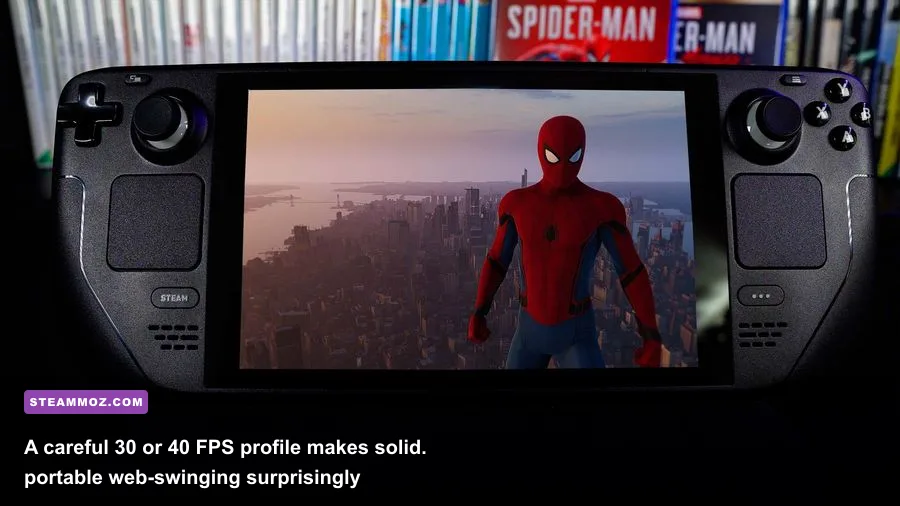
For Steam Deck, use 1280x800, 40Hz mode if your unit can hold 40 FPS in most areas, and FSR 2.0 Performance. Set textures to Medium, shadows to Low, traffic and crowd density to Low, weather particles to Low, and ray tracing off. A 30 FPS cap is the safer story-mode profile. The Deck can look surprisingly good, but Manhattan’s busiest streets are where the APU limit becomes obvious.
| Hardware situation | Resolution and cap | Core settings | What to expect |
|---|---|---|---|
| 4GB VRAM desktop | 1080p, 30 to 60 FPS | Low textures, FSR Performance, RT off | Playable, but streaming can stutter |
| GTX 1060 or RX 580 | 1080p, 60 FPS target | Medium/High mix, FSR Quality, RT off | Good city traversal with occasional dips |
| Steam Deck LCD/OLED | 800p, 30 or 40 FPS | Medium textures, Low crowds, FSR Performance | Stable portable profile with reduced detail |
| Modern six-core CPU | 1440p, 60 FPS target | High textures, Medium shadows and crowds | Strong balance for most gaming PCs |
Don’t ignore the 75GB storage requirement. Install the game on an SSD, not a mechanical hard drive. The city streams constantly while you swing, and a slow drive can produce traversal stutter that no graphics slider will fix. Leave extra free space on the SSD and avoid recording software that competes for disk bandwidth.
Close browser tabs, RGB utilities, overlays, and hardware monitoring tools one by one if stutter persists. This isn’t busywork: Spider-Man’s CPU and streaming workload can expose background spikes that lighter games hide. Our EscapeVR low-FPS troubleshooting guide has useful general checks for overlays, fullscreen behavior, and driver conflicts.
How to test FPS, stutter, and frame-time stability
Don’t judge settings from a quiet rooftop. Use the same repeatable route: start near the Empire State Building, swing west toward Times Square, dive between buildings, then trigger a street crime if one appears. This route stresses streaming, traffic, crowds, reflections, and combat effects in a few minutes. Repeat it after every major change so you’re comparing like with like.
Watch GPU usage and frame time with your preferred overlay. If the GPU sits near 99 percent, reduce resolution, upscaling quality, RT, shadows, or weather particles. If GPU usage falls to 70 percent during dips, the CPU is likely limiting you; lower crowd density, traffic density, object range, and model detail instead. A faster graphics card can’t fix a simulation bottleneck.
Use a frame cap slightly below your monitor’s refresh rate when using VRR. For a 144Hz screen, try 141 FPS; for 120Hz, try 117; for 60Hz, use 60 or 58 depending on your sync setup. If your system cannot hold the cap, choose 50, 45, or 40 rather than allowing constant swings. Consistent frame pacing makes aiming gadgets, dodging melee attacks, and landing on narrow rooftops feel more precise.
Motion blur is personal, but I recommend setting it between 0 and 3. High blur can hide traversal judder for some players, yet it also smears Spider-Man’s animation during rapid camera turns. Keep depth of field enabled for story presentation, then disable it if you dislike the soft focus during dialogue scenes. Bloom and lens flares have tiny performance costs, so change them for taste, not FPS.
Shader compilation and first-run stutter can improve after you play through several districts. Let the game finish its initial setup, keep the driver shader cache enabled, and avoid repeatedly deleting cache files unless a driver update corrupted them. If a patch causes fresh crashes, consult our FPS-first crash troubleshooting for a sensible order of operations.
Recommended profiles for 1080p, 1440p, and 4K
These final profiles give you a clean starting point. Apply one, test the Empire State Building-to-Times Square route, and adjust only one setting at a time. Spider-Man rewards smoothness more than a few extra pixels of shadow detail: swinging at a locked 60 FPS feels faster, cleaner, and more responsive than a visually maxed-out 45.
1080p high-FPS profile
Use High textures, High model quality, Medium shadows, Medium weather particles, Medium traffic, Medium crowds, SSAO, Screen Space Reflections on, motion blur at 2, and ray tracing off. Pair it with DLSS or FSR 2.0 Quality. This is the strongest profile for RTX 2060, RTX 3060, RX 6600 XT, and similar cards. If you’re chasing 120 FPS, switch shadows and weather particles to Low before dropping the upscaler below Quality.
1440p balanced profile
Choose High textures, High model quality, Medium shadows, Medium crowd and traffic density, High texture filtering, SSAO or HBAO, Screen Space Reflections on, and DLSS Quality. An RTX 3060 Ti, RTX 3070, RX 6700 XT, or faster GPU can usually make this feel excellent with ray tracing disabled. On an eight-core CPU, raising crowd density to High is possible, but it won’t improve the game as much as keeping frame times stable.
4K cinematic profile
Use High or Very High textures depending on VRAM, High model quality, High shadows, Medium weather particles, Medium crowds, and DLSS or FSR 2.0 Balanced. Enable ray tracing only on high-end hardware, and keep RT object range at Medium. An RTX 4080 or RX 7900 XTX can push a strong 4K presentation, but even these cards benefit from upscaling during dense traversal.
For more PC optimization ideas, our Far Cry 6 max-FPS settings guide explains the same CPU-versus-GPU testing approach. If you’re checking whether an older system can run demanding open-world games, compare it with our PC specification breakdown.
Finally, keep the official PlayStation PC support resources bookmarked for patches and known issues. The best Marvel’s Spider-Man PC setup isn’t necessarily Ultra across the board. High textures, restrained shadows, sensible crowd settings, a good upscaler, and ray tracing used selectively will give you the smooth Manhattan free-roam experience the game deserves.