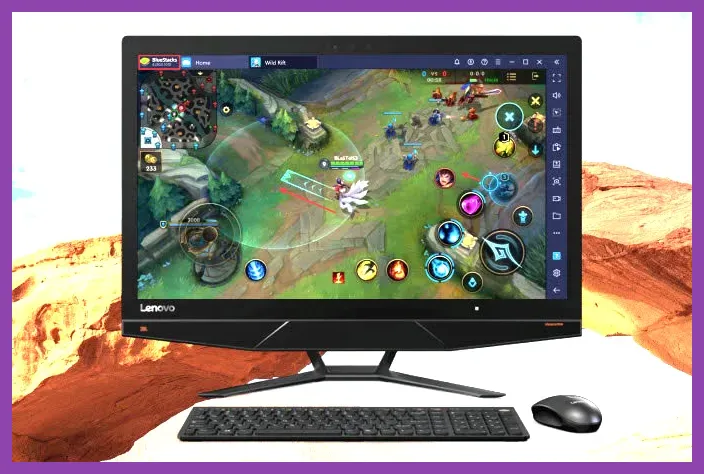
To run League of Legends Wild Rift on your PC with optimal performance, you need to configure BlueStacks or LDPlayer with 4 CPU cores, 4GB to 8GB of RAM, DirectX mode, and a custom MOBA keymapping layout featuring Quick Cast and targeted camera panning. By leveraging dedicated Android emulators, you can bypass mobile touchscreen limitations, achieve a stable 120 FPS, and execute complex champion combos with keyboard and mouse precision similar to traditional PC MOBAs.
Choosing and Configuring the Right Android Emulator
Finding the right emulator is the foundation of a lag-free Wild Rift experience on your desktop. Not all Android emulators handle modern graphic-intensive mobile MOBAs equally. Currently, BlueStacks 5 (Pie 64-bit instance) and LDPlayer 9 offer the best compatibility, stability, and high refresh rate support for Riot Games titles. To ensure your hardware is properly leveraged, check out our guide on hardware performance setups for insights on optimizing your rig.
Recommended Engine Settings
Before installing the game, open your emulator's settings panel and apply the following hard-coded hardware allocations:
- CPU Cores: Assign at least 4 Cores (or 6-8 if your processor has them available). Avoid selecting 'Custom' if it drops below 4.
- RAM Allocation: Allocate 4096 MB (4GB) or 8192 MB (8GB). Allocating too little RAM causes stuttering during massive teamfights involving multiple champion ultimate abilities.
- Graphics Renderer: Set to DirectX for Windows Nvidia GPUs or Vulkan if you are running an AMD Radeon card. Avoid OpenGL as it introduces severe input latency.
- ASTC Texture: Enable hardware decoding (ASTC) to ensure textures render instantly without loading delays on champions like Ahri, Zed, or Yasuo.
For more strategies on mobile game optimization, check out Stardew Valley mobile optimization tips and Roblox beginner performance setups.
Display and High FPS Configuration
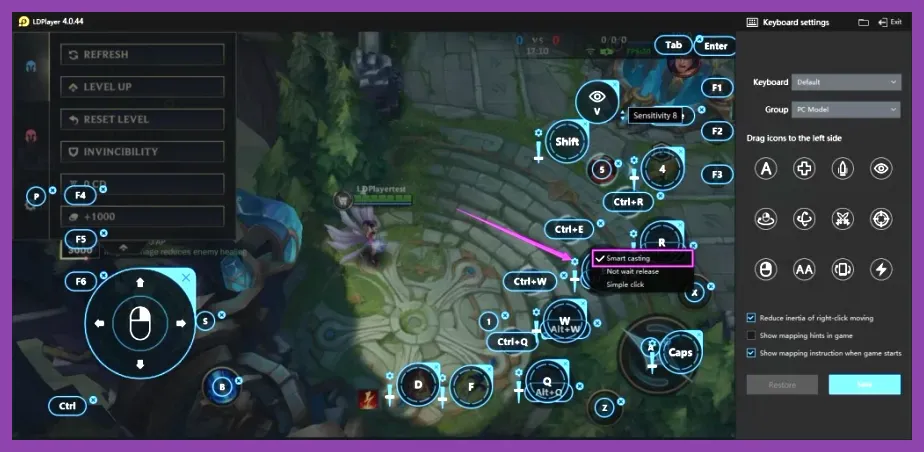
Wild Rift natively supports high refresh rates, and playing at 120 FPS gives you a massive competitive advantage in dodging skillshots like Lux's Light Binding or Ezreal's Mystic Shot. Navigate to the display tab within your emulator and set your resolution profile.
Optimal Resolution and DPI Profiles
Resolution directly impacts how much of the Summoner's Rift map you can see at once. Over-scaling can blur HUD elements, while under-scaling makes cursor tracking difficult during chaotic skirmishes.
- Resolution: 1920x1080 (1080p). This strikes the best balance between crisp UI text and high GPU frame rates.
- DPI Setting: Set your DPI to 320 or 400. This ensures your mouse cursor movement feels natural and responsive when clicking on minion health bars or enemy champions.
- High Frame Rate Mode: Toggle 'Enable High Frame Rate' in the emulator settings, then unlock the frame rate cap inside the emulator preferences to 120 FPS.
For additional resource management tips, review our guides on resource and currency farming mechanics and material collection efficiency.
Advanced MOBA Keymapping Layout
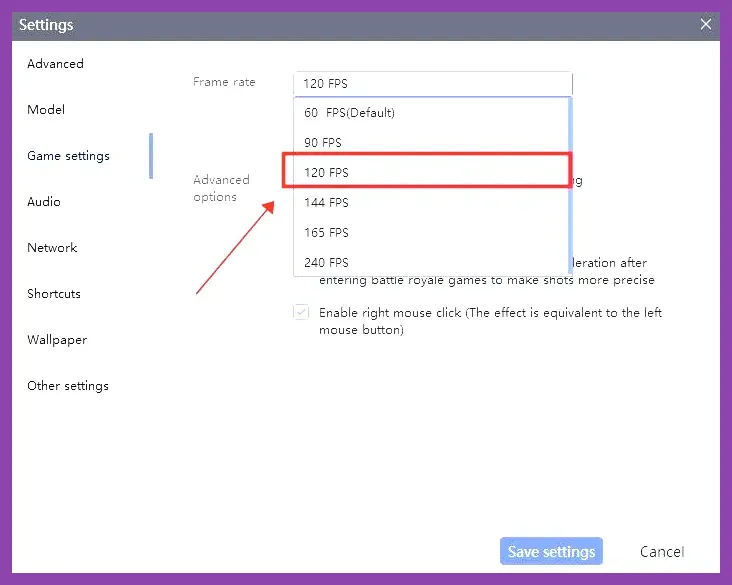
The standard touchscreen virtual joystick will ruin your gameplay on PC. You must build a dedicated MOBA keymapping profile using the emulator's advanced HUD editor. For official game asset references and patch updates, visit the Official Wild Rift Website.
Keybind Recommendations for Seamless Combat
Assigning your keys correctly allows you to cast abilities, use summoner spells like Flash and Ignite, and manage items instantly without lifting your hand from the keyboard.
- Movement: Use the default Right-Click to Move feature (available in modern emulators via MOBA mode) rather than a fixed keyboard directional pad. This mimics traditional PC League of Legends controls.
- Abilities (Q, W, E, R): Bind your primary skills to the standard Q, W, E, and R keys. Enable Quick Cast with Indicator or pure Quick Cast for lightning-fast button execution.
- Summoner Spells: Map Flash to the F key and Ignite, Exhaust, or Smite to the D key.
- Active Items: Bind your Zhonya's Hourglass or Locket enchantment to the Spacebar or side mouse button for immediate life-saving activations.
- Camera Pan: Assign edge-pan or hold a modifier key (like Alt) to drag the camera across the Baron and Dragon pits.
If you enjoy tactical team games and coordination guides, check out our insights on weapon tier rankings and character strength analysis.
In-Game Settings and Performance Tweaks
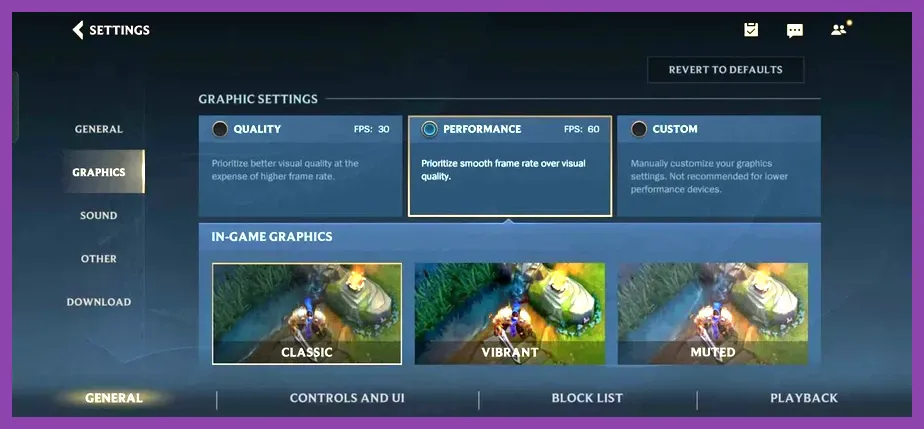
Once inside the Wild Rift client, your in-game graphic settings must match your emulator configuration to prevent frame drops during intense team fights in the jungle or around elder dragon spawns.
Best In-Game Graphic Profiles
Navigate to Settings > Graphics and apply these exact configurations:
- Graphics Quality: Custom
- Resolution: High
- Frame Rate: 120 FPS (Ensure your monitor's Windows refresh rate is also set to 120Hz or higher).
- Shadows: Medium (High shadows unnecessarily tax the emulator's virtual GPU).
- Special Effects: High (Crucial for clearly seeing enemy skillshot boundaries and ultimate telegraphs).
- UI Animation: ON
For more competitive character tier breakdowns, take a look at our analysis on solo player class viability and essential early-game skill unlocks.
Troubleshooting Lag and Input Delay
If you experience stuttering, rubberbanding, or mouse input lag while playing Wild Rift on your PC, apply these final optimization steps:
- Virtualization (VT): Verify that Intel VT-x or AMD-V is enabled in your PC's BIOS settings. Without hardware virtualization enabled, your emulator will run at a fraction of its true speed.
- Antivirus Exclusion: Add your emulator folder (e.g., BlueStacks_nxt) to your Windows Defender or third-party antivirus exclusion list to stop real-time scanning from eating up CPU cycles.
- GPU Driver Updates: Download the latest Game Ready drivers directly from Nvidia or AMD. Outdated graphics drivers frequently cause black screens and graphical artifacts on Android 9 and Pie instances.
To explore more guides on character progression, high-tier loot acquisition, and tactical playstyles, check out our content on character unlock strategies, fast weapon acquisition guides, survival game progression trees, active reward redeem codes, hidden map exploration tips, and fighting game team synergy strategies.