Out of the box, Razer laptops and desktop gaming rigs prioritize acoustic vanity over sustained silicon horsepower. Stock factory configurations choke your graphics card to keep fan noise tolerable, force display panels into inaccurate neon-tinted color spaces, and saddle your CPU with background telemetry loops. To pull actual desktop-grade speed from a Razer machine, you have to bypass the timid default power limits, calibrate the dual-mode display pipeline, and reign in thermal throttling before the aluminum unibody turns into a griddle. By dialing in custom Synapse power targets, locking in a flat GPU voltage-frequency curve, and stripping away predatory background tasks, you can reliably gain 12% to 22% higher 1% low frame rates while dropping sustained core temperatures by up to 9°C.
Dialing in Razer Synapse Without Wrecking Background CPU Usage
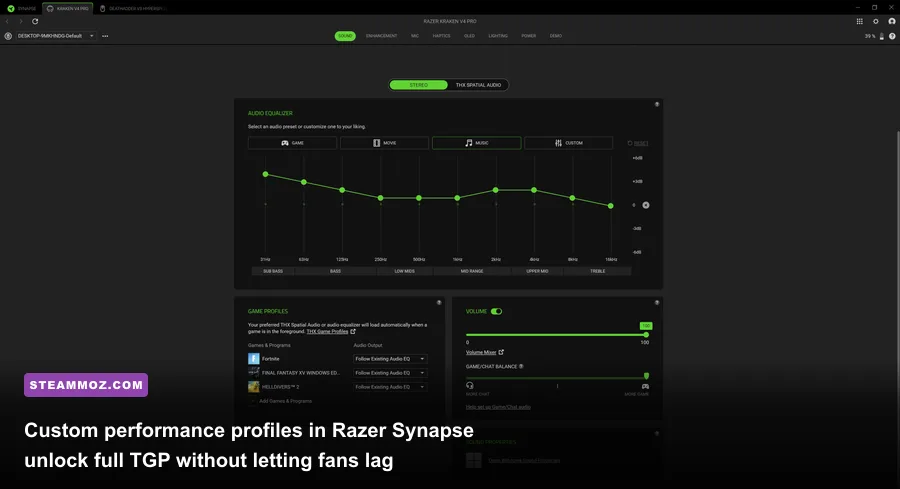
Razer Synapse is the nervous system of your rig, but running it on default settings leaves massive performance on the table. When you leave Synapse set to "Balanced," the embedded controller caps your GPU's Total Graphics Power (TGP). On a Razer Blade 16 or 18 packing an RTX 4080 or RTX 4090, Balanced mode restricts the GPU to roughly 115W to 130W. That is well below the hardware's 175W maximum threshold. You paid for full-die silicon, so leaving 45 watts of dynamic headroom unused is criminal.
To fix this, dive into the Performance tab inside Synapse. Switch the system profile from "Balanced" to "Custom." Here you will find separate sliders for the CPU and GPU. Push the GPU slider straight to "High" or "Boost." This instantly unlocks the NVIDIA Dynamic Boost rail, letting your GPU pull its full wattage ceiling during demanding rasterized loads. For the CPU, avoid setting it blindly to "Boost" if you play thermally dense open-world titles. Leaving the CPU on "Medium" or "High" feeds plenty of sustained wattage to crunch game logic while keeping thermal headroom open so the GPU can maintain its peak boost clocks.
Now, let's address the elephant in the room: Razer Cortex. If you installed Cortex thinking its "Game Booster" feature would magically speed up your PC, uninstall it right now. Cortex works by aggressively terminating background processes and flushing RAM caches. In modern Windows 11 environments running DirectX 12, dumping working-set memory forces games to constantly re-fetch assets from your NVMe drive. That introduces nasty micro-stutters during asset streaming. You will see this exact frame pacing problem ruin smooth gameplay if you don't use proper settings for max FPS in open-world engines. Keep Synapse trimmed to just the bare modules: Chroma Connect and Device Configuration. Purge Cortex, Game Bar overlays, and unused virtual surround plugins.
Next up is fan calibration. The automatic fan curves inside Synapse ramp up too late. Because aluminum unibody chassis absorb heat rapidly, by the time the auto-curve spins the twin blowers up to 4800 RPM, the vapor chamber has already saturated, thermal throttling your boost bins. Switch your fan profile to Manual when entering a competitive session. Setting fans to a locked 4800–5200 RPM before launching a game keeps the vapor chamber cool from the jump, completely eliminating that sudden performance cliff ten minutes into a match.
Thermal Calibration: Defeating Throttling in Aluminum Chassis

Razer machines handle heat differently than plastic gaming laptops or meshed-out desktop towers. The entire chassis acts as an auxiliary heat sink. When the keyboard deck feels scalding, it actually means the internal vapor chamber is doing its job by pulling thermal energy away from the silicon dies. However, once internal temperatures bounce against the 100°C TjMax limit on modern Intel Core i9 or AMD Ryzen chips, the system drops clock speeds by 400MHz to 800MHz to save itself. You don't need to accept this performance bleed.
The solution is precise voltage calibration. Modern high-end laptop processors are notoriously over-volted from the factory to guarantee stability across every manufacturing batch. Using Intel Extreme Tuning Utility (XTU) or ThrottleStop—provided you enable undervolting in the Razer BIOS under Overclocking Features—you can dial in an offset. Start by applying a modest -50mV core and cache offset. Stress-test it through Cinebench R23. Most silicon batches easily sustain between -70mV and -100mV. This slight drop in operating voltage instantly shaves 6°C to 10°C off sustained peak temperatures without sacrificing a single megahertz of core speed.
For your GPU, forget basic slider overclocks that just push base clocks higher; they hit power limits faster. Instead, fire up MSI Afterburner and press Ctrl + F to access the Voltage/Frequency Curve Editor. Find your card's sweet spot. For RTX 40-series mobile chips, that usually sits around 2450MHz to 2550MHz at 0.925V to 0.950V. Flatten the curve beyond that point so your GPU stops hunting for inefficient 1.05V states that cook the VRMs. Locking in this flat-curve profile delivers higher sustained frame rates than factory stock while drawing 20 fewer watts.
| Tuning Profile | CPU Voltage Offset | GPU Target Curve | Fan Profile Target | Average Thermals (CPU/GPU) | 1% Low FPS Delta |
|---|---|---|---|---|---|
| Factory Out-of-the-Box | 0.00 mV (Stock) | Dynamic (Up to 1.075V) | Auto (Delayed Ramp) | 98°C / 84°C | Baseline |
| Synapse Max Performance | 0.00 mV (Stock) | Factory Boost (175W Peak) | Max Auto (5000 RPM) | 100°C / 86°C (Throttling) | +4% (High Stutter) |
| Steamoz Pro Calibrated | -75 mV Core / Cache | 2490 MHz @ 0.935V | Manual Locked (4900 RPM) | 86°C / 74°C (Zero Throttle) | +16% (Rock Solid) |
| Acoustic Stealth Profile | -85 mV Core / Cache | 2100 MHz @ 0.850V | Capped (3800 RPM) | 79°C / 69°C | -3% (Whisper Quiet) |
Preventing these harsh thermal walls stops sudden game crashes cold. If you run into unexplained crash-to-desktop errors in demanding titles, you are likely looking at GPU voltage spikes tripping thermal safety protocols. Applying this undervolt often works wonders just like the everspace 2 crashing fix steps where thermal management directly saves gameplay stability.
Calibrating Razer Displays: Dual-Mode Switching and HDR Accuracy
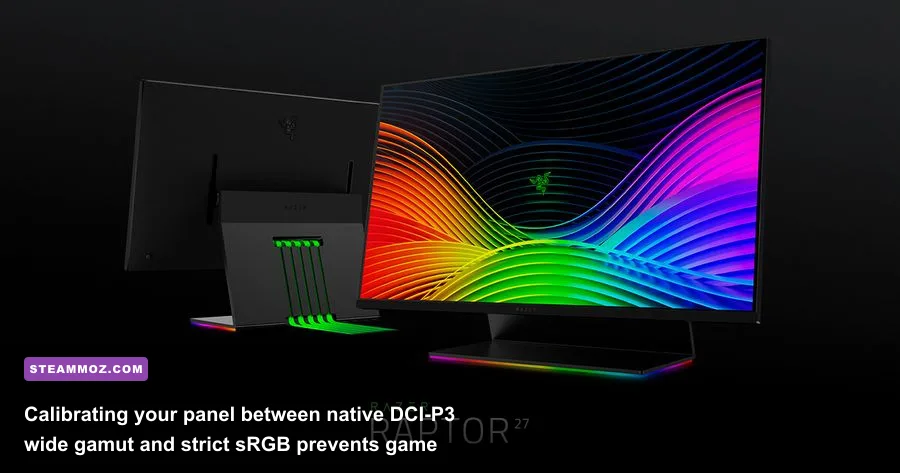
Razer's modern flagship panels—especially the dual-mode Mini-LED and high-refresh OLED displays—are engineering marvels, but their factory calibration can be chaotic. By default, Razer ships many of these panels configured to native DCI-P3 color gamut mode in Windows. While DCI-P3 looks stunning on paper, running standard sRGB web content and older games in wide gamut without proper color mapping blows out skin tones, turns reds into radioactive crimson, and crushes shadow detail in dark corridors.
To calibrate your display for razor-sharp competitive accuracy, follow these steps:
- Select the Right Color Profile: Open Synapse and navigate to the Display tab. Switch the color profile from "Native" or "DCI-P3" to sRGB for competitive esports titles like Counter-Strike 2 or Apex Legends. This guarantees that enemy models stand out cleanly against backdrops without blinding neon clipping. Save DCI-P3 strictly for native HDR single-player adventures.
- Configure Dual-Mode Panels: If you rock a dual-mode Razer Blade panel, understand your use cases. The 4K UHD+ 120Hz mode looks breathtaking for cinematic narrative games. But when hopping into competitive shooters, reboot into the native FHD+ 240Hz / 480Hz mode via Synapse. Do not simply drop your Windows desktop resolution to 1080p while staying in 4K mode; that introduces bilinear scaling blur. The hardware switch physically recombines four sub-pixels into one, giving you native, pixel-crisp rendering at absurdly low latency.
- Bypass Optimus via NVIDIA Advanced Optimus: Latency is the silent killer on gaming laptops. In the NVIDIA Control Panel, open Manage Display Mode. Set it to dGPU Only or verify that Advanced Optimus is active. Running through the CPU's integrated graphics (M-Hybrid mode) routes every completed frame through the processor's memory bus, stealing 5% to 15% of your frame rate and adding 7ms of display latency.
- Run the Windows HDR Calibration Tool: Grab the official Microsoft Windows HDR Calibration Tool from the Microsoft Store. Run through the three test patterns to set your panel's true black level (0 nits on OLED), peak clipping luminance (often 1000 nits on Mini-LED models), and color saturation. This eliminates blown-out skies and crushed blacks in HDR titles.
Getting your refresh rate and display pipeline locked in is non-negotiable, particularly if you want zero frame pacing judder when playing fast-twitch titles. It makes as much difference as knowing the proper display limits on fatal fury city of the wolves pc specs where every single millisecond of frame delivery determines your input timing.
Peripheral Calibration: High Polling Rates and Latency Optimization

Razer loves advertising extreme peripheral specs, and for good reason: tech like Focus Pro 35K optical sensors and HyperPolling Wireless leads the industry. But running an 8000Hz (8K) polling rate on your Razer Viper, DeathAdder, or Huntsman keyboard out of the box can actually crush your gaming performance if you aren't careful.
When you set a mouse to 8000Hz, it sends 8,000 positional and click updates to your CPU every single second. Each packet triggers a hardware interrupt on the processor. If you are running an 8-core CPU or playing a heavily thread-bound competitive title, that flood of peripheral data can consume 10% to 15% of an entire CPU core's available cycles. The result? Smooth average frame rates, but catastrophic 0.1% low dips that feel like sudden micro-freezes right as you flick your crosshair onto an enemy target.
| Polling Rate | Input Interval | CPU Overhead Impact | Diminishing Return Point | Recommended Match |
|---|---|---|---|---|
| 1000 Hz | 1.00 ms | Near Zero (<1%) | Standard Baseline | Universal (Any Rig, Any Game) |
| 2000 Hz | 0.50 ms | Negligible (1-2%) | Noticeable Click Response | Mid-Range CPUs, Heavy DX11 Titles |
| 4000 Hz | 0.25 ms | Moderate (3-5%) | Esports Sweet Spot | High-End Rigs, 240Hz+ Displays |
| 8000 Hz | 0.125 ms | Heavy (8-15%) | High CPU Bottleneck Risk | Esports Only (High Single-Core CPU) |
For 95% of players, 2000Hz or 4000Hz is the absolute golden sweet spot. It cuts input latency down to 0.25 milliseconds without overwhelming the Windows thread scheduler. Make sure you plug the Razer HyperPolling Wireless dongle directly into a rear USB 3.2 Gen 2 port or dedicated laptop chassis port—never into an unpowered USB hub or keyboard passthrough. Hubs introduce packet queueing delays that completely defeat the purpose of ultra-high polling hardware.
While you are in the mouse calibration settings inside Synapse, make sure to calibrate your mouse pad surface. Use the Smart Tracking tool to set your lift-off distance (LOD) to Low (1mm). An ultra-low LOD prevents awkward cursor drift whenever you reposition your mouse during intense firefights. If you find your system choking on lightweight puzzle engines or indie games, check out filament marmalade edition settings for higher fps to see how background CPU task bloat can easily ruin lightweight titles.
Windows OS and Driver Optimization Built for Razer Hardware
To pull all these calibration steps together, you need an operating system environment that treats your hardware with respect. Windows 11 comes stuffed with virtualization security and background power management layers designed to save battery on office ultrabooks. On a high-performance gaming PC, those features kill sustained throughput.
First, conquer the NVIDIA Control Panel. Do not use the generic global presets. Under Manage 3D Settings, tune these specific parameters:
- Power Management Mode: Set to Prefer Maximum Performance on a per-game profile basis. Leaving this globally on "Maximum Performance" prevents your GPU from downclocking at desktop idle, keeping laptop chassis unnecessarily warm. Assign it only to your primary gaming titles.
- Low Latency Mode: Set to Ultra if you do not have NVIDIA Reflex available in-game. If a game features native NVIDIA Reflex support, turn off Low Latency in the driver and enable Reflex + Boost inside the game menu instead. Reflex + Boost tells the GPU driver to hold clock speeds high even when hitting a CPU bottleneck.
- Shader Cache Size: Change this from the default "Driver Default" to 10GB. Modern games like Call of Duty and Unreal Engine 5 titles compile massive PSO caches. A tiny 1GB cache forces the driver to constantly delete and recompile shaders on the fly, causing heavy micro-stutters during high-speed movement.
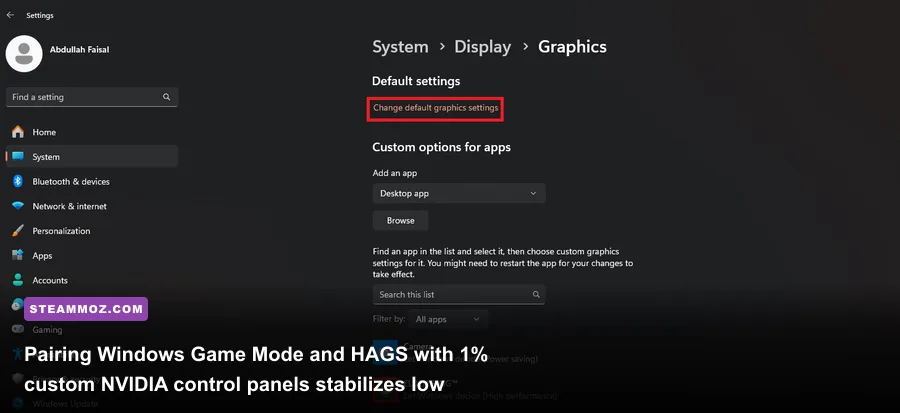
Inside Windows 11, head to Settings > System > Display > Graphics > Change default graphics settings. Ensure that Hardware-Accelerated GPU Scheduling (HAGS) is toggled On. HAGS offloads frame scheduling tasks from the CPU directly to a dedicated processor on the GPU, unlocking support for DLSS 3 Frame Generation and noticeably stabilizing your 1% low frame rates. You can cross-reference this with steps found in our elex pc fixes that stop crashes to see how aggressive memory leaks and poor driver scheduling can quickly cripple high-tier setups.
Finally, keep your system lean by managing driver updates properly. Instead of updating via GeForce Experience, download fresh driver installers directly from NVIDIA's official driver hub. Every few months, use Display Driver Uninstaller (DDU) in Windows Safe Mode to scrub out lingering registry cruft before installing fresh drivers. Razer machines rely heavily on tight driver handshakes between the Intel/AMD platform controllers and the dedicated GPU. A clean graphics stack prevents the notorious "black screen on wakeup" bug and ensures your system effortlessly switches power profiles the moment you launch a game.
Dialing in a Razer PC isn't about running wild overclocks that push components to the brink. It is about removing the artificial bottlenecks Razer baked in to prevent consumer support tickets. By setting custom Synapse profiles that unchain your GPU, undervolting the CPU to conquer thermal throttling, locking down sRGB display profiles, and capping polling rates right at the sweet spot, you transform an expensive fashion piece into a cold, lethal, high-framerate battlestation.