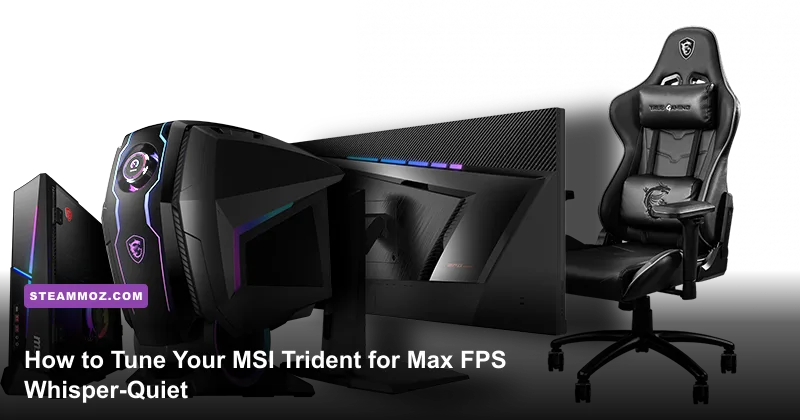
Out of the box, the MSI Trident series—whether you are rocking the console-sized Trident 3 or the slightly beefier MEG Trident X—is a marvel of small-form-factor engineering that ships with terrible factory tuning. You get aggressive power limits that cook the CPU, erratic fan curves that ramp up like jet engines every time you open a browser tab, and background bloatware eating precious processing overhead. Getting maximum frame rates and whisper-quiet thermals requires three critical interventions: manually calibrating MSI’s Silent Storm dual-chamber fan curves, locking your CPU’s long-duration power limits (PL1/PL2) in the BIOS to prevent thermal downclocking, and applying an undervolt curve in MSI Afterburner to your graphics card. Tackle these three areas, and your Trident will deliver sustained peak performance without screaming at 85 degrees Celsius.
Unboxing and Placement: Give the Silent Storm Room to Breathe
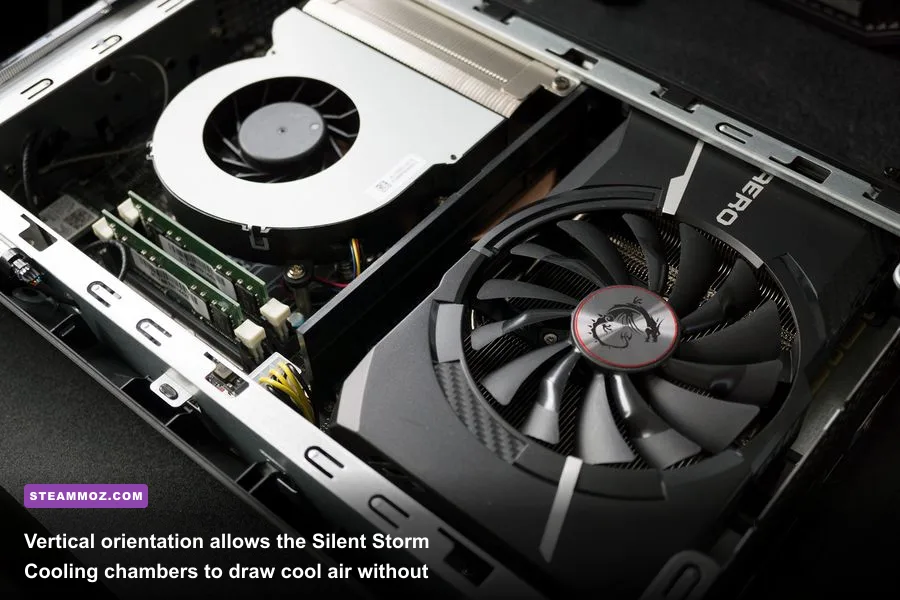
Small-form-factor (SFF) rigs live and die by physical clearance. The core architectural feature of the MSI Trident is what MSI markets as "Silent Storm Cooling." In plain English, MSI separates the primary heat sources into isolated physical chambers: the graphics card pulls cool air from one side through a dedicated intake cutout, while the CPU and power supply breathe through independent intake zones on the opposite panel or base.
If you lay your Trident horizontally inside a cramped entertainment center or push the rear exhaust flush against a drywall boundary, you completely defeat this chambered physics design. Hot exhaust recirculates straight back into the GPU fan intake, triggering aggressive thermal throttling within ten minutes of launching a match. Here is your physical setup checklist for rock-solid thermals:
- Always Use the Vertical Stand: While MSI provides rubberized feet for horizontal placement, running the Trident vertically increases cold air intake volume by up to 35%. Laying it flat inevitably suffocates either the graphics card or the low-profile CPU cooler.
- Maintain a 6-Inch Clearance Zone: Keep at least six inches of clear space behind the rear exhaust ports and three inches away from side walls. The heat expelled by modern RTX cards in a sub-10-liter case is dense, and back-pressure will force hot air back over internal VRMs.
- Ditch Carpeting Completely: If your desk space is at a premium and you must place the Trident near the floor, set it on a solid riser block or hard wood board. Placing an SFF chassis directly on carpet fills the fine mesh filters with dust and carpet fibers within weeks, drastically choking intake velocity.
Decimating Bloatware: What to Keep and What to Purge
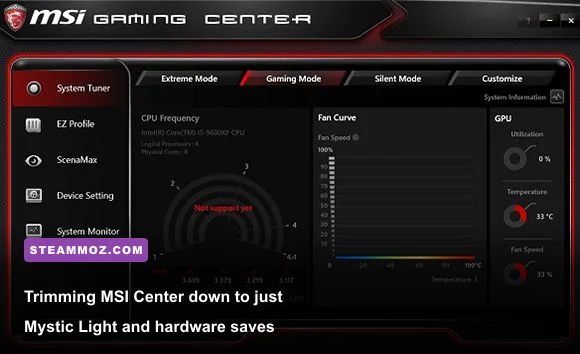
MSI pre-installs an extensive suite of background utilities on factory Trident images. While features like RGB lighting controls are nice, the default software load creates significant background CPU load. Background telemetry packages, companion service hubs, and third-party antivirus trials continuously ping hardware sensors, keeping CPU cores pinned at elevated idle clocks and preventing the processor from entering lower C-states.
Head to Windows Settings, open Installed Apps, and immediately uninstall Norton or any pre-loaded third-party antivirus. Windows Defender provides comprehensive, low-overhead protection that will not siphon away frames. Next, evaluate MSI Center (or Dragon Center on older models). By default, MSI Center installs modular packages like "Smart Priority," "User Scenario," and "System Diagnosis." These modules frequently conflict with native Windows thread scheduling, causing erratic frame-time pacing in high-draw environments. Similar to the system hiccups we diagnosed while resolving ELEX crashes and stuttering, rogue background hooks can ruin your baseline performance.
Your ideal software environment should look lean: uninstall MSI Center completely if you do not care about synchronized chassis RGB. If you require chassis lighting controls, perform a clean reinstall of the lightweight standalone utility directly from the MSI official utility center, disable auto-updating services, and install strictly the Mystic Light module while declining all system tuning add-ons. Use lightweight, community-standard monitoring tools like HWInfo64 or the official Steam platform client in-game overlay instead of proprietary OEM telemetry apps.
Thermal Calibration: Custom Fan Curves for Compact Chambers
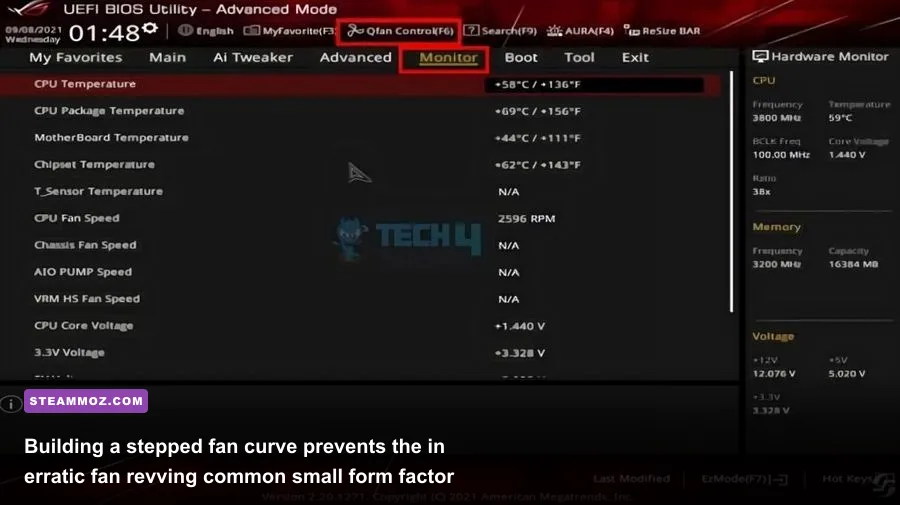
The single most annoying characteristic of a stock MSI Trident is fan hunting. Because the case uses compact, high-RPM blower or slim axial fans, the stock BIOS fan curve ramps fan speeds from 20% directly to 80% the split-second a CPU core spikes to 65°C, only to drop back down three seconds later. This sudden, whining pitch change breaks immersion faster than an in-game frame drop.
Reboot your machine and tap the Delete key repeatedly to enter the MSI Click BIOS / UEFI. Switch to Advanced Mode (F7) and navigate to the Hardware Monitor screen. Here, you will find independent fan curve controls for your CPU Fan (System Fan 1) and Aux/Chassis Fans. Do not leave these on "Auto." Switch the CPU Fan control mode from DC to PWM (assuming your Trident model utilizes a 4-pin PWM cooler, standard across modern revisions), and enable Smart Fan Mode.
To eliminate that annoying fan oscillation, build a stepped curve rather than a sharp ramp. By setting temperature thresholds that absorb brief burst workloads—like opening a browser or loading a level—you keep acoustic pitch completely level while gaming.
| Thermal Stage | Temp Threshold | Fan Speed (PWM %) | Acoustic Target | Expected Operational State |
|---|---|---|---|---|
| Stage 1 (Idle/Desktop) | Up to 50°C | 35% | Near-Silent (~24 dB) | Web browsing, video playback, background downloads |
| Stage 2 (Light Load) | 51°C to 68°C | 48% | Low Murmur (~31 dB) | Indie titles, casual gaming, sustained downloads |
| Stage 3 (Heavy Gaming) | 69°C to 79°C | 65% | Audible White Noise (~38 dB) | Sustained AAA gameplay (Unreal Engine 5, Cyberpunk) |
| Stage 4 (Emergency Dump) | 85°C+ | 100% | Full Pitch (~46 dB) | Thermal safety ceiling; prevents silicon degradation |
Set your Fan Step Up / Step Down Time to 0.3 or 0.5 seconds in the BIOS settings. Adding this delay smooths out the transitions between fan speeds, ensuring your Trident slowly glides into higher RPM bands rather than aggressively jerking back and forth under fluctuating loads.
BIOS Tuning: Unlocking Memory XMP and Power Limits
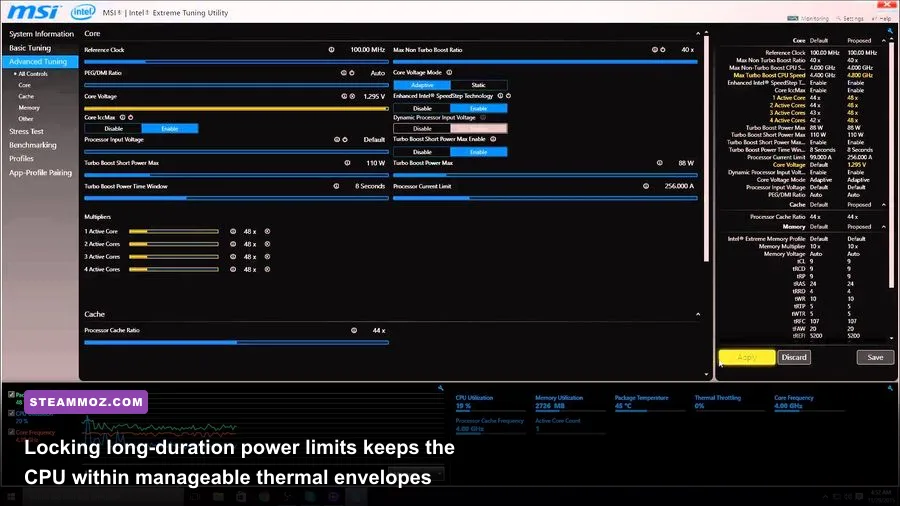
While you are inside the UEFI, there are two mandatory configuration toggles that dictate whether your hardware runs at baseline budget speeds or true enthusiast capacity. The first is system memory speed. Pre-built Trident configurations frequently reset memory timings back to default JEDEC baselines (often 2133MHz or 2400MHz) if the system recovers from an unclean shutdown.
Head to the OC (Overclocking) tab in the MSI BIOS. Locate Extreme Memory Profile (X.M.P.) and toggle it from Disabled to Profile 1. Verify that your DRAM Frequency displays your kit's full rating (typically 3200MHz DDR4 or 5600MHz+ DDR5 depending on whether you run a 10th-to-14th gen platform). Leaving XMP off leaves up to 15% of your 1% low frame-rate performance on the table in modern titles.
Next, address CPU Power Limits. MSI motherboards in the Trident often feature an overly optimistic "Tower Cooler" or "Water Cooler" power profile selected by default, allowing Intel CPUs to pull 180W+ indefinitely through a small low-profile heat sink. This causes the chip to slam into the 100°C thermal ceiling within seconds, violently downclocking core frequencies to shed heat.
Locate Long Duration Power Limit (PL1) and Short Duration Power Limit (PL2). If you run a non-K processor (e.g., Core i7-12700 or i7-13700) inside the ultra-compact Trident 3 chassis, lock PL1 to 65 Watts and PL2 to 115 Watts, setting the Tau (duration window) to 28 seconds. If you own the larger Trident X chassis with its dedicated 120mm/240mm AIO, you can raise PL1 to 125 Watts and PL2 to 180 Watts. By setting realistic ceilings, the processor sustains stable all-core clocks without hitting thermal trip points, preventing the sudden frame-pacing drops seen in demanding simulations like those covered in our Everspace 2 crash and FPS tuning breakdown.
GPU Undervolting: Cooler Temps and Higher Sustained Clocks

Graphics cards in the MSI Trident—typically custom dual-slot or thin triple-slot Ventus/Aero variants—suffer from thermal saturation over prolonged sessions. The modern Nvidia Ampere and Ada Lovelace architectures push aggressive voltage spikes to maintain high boost bins. By running an undervolt, you can drop GPU core temperatures by 6 to 12 degrees Celsius while actually *increasing* average frame rates by preventing the card from hitting its power or thermal limit throttles.
Download and install the latest build from the MSI Afterburner official download page. Open Afterburner, enter Settings, and enable "Unlock Voltage Control" and "Unlock Voltage Monitoring." Close settings, and press Ctrl + F on your keyboard to open the Voltage/Frequency Curve Editor.
Here is your step-by-step tuning procedure:
- Determine Your Target Frequency: For an RTX 3060/3070-series Trident, a realistic sustained target is 1875MHz to 1920MHz. For an RTX 4070/4070 Ti, target 2610MHz to 2670MHz.
- Identify Your Voltage Floor: Locate the 900mV (0.900V) or 925mV (0.925V) point on the horizontal X-axis of the curve editor.
- Offset the Curve: Drag the curve point at 900mV straight up until it aligns with your chosen target frequency (for example, 1905MHz).
- Flatten the Remaining Curve: Click every point to the right of your 900mV marker, and hold Shift + drag them down, or manually pull them so the curve remains completely flat after 900mV. Hit the checkmark button in Afterburner to apply.
| Hardware Profile | Core Voltage (mV) | Core Clock (MHz) | Peak Temp (°C) | Total Board Power (W) | Real FPS Stability |
|---|---|---|---|---|---|
| Factory Stock (RTX 3070) | 1050 mV | 1845 MHz (Fluctuates) | 83°C (Throttling) | 220W | Micro-stutters during thermal spikes |
| Balanced Undervolt | 900 mV | 1920 MHz (Locked) | 73°C | 175W | Rock-solid frame times (+4% avg FPS) |
| Factory Stock (RTX 4070) | 1075 mV | 2655 MHz (Drops down) | 79°C | 200W | Minor clock down-stepping |
| Optimized Undervolt | 925 mV | 2700 MHz (Rock Solid) | 68°C | 155W | Maximum boost retention (+6% avg FPS) |
By preventing the graphics card from attempting to draw 1.05V+ inside the Trident's enclosed chamber, you eliminate the massive heat dump that normally bleeds into the chassis. This technique mirrors the core philosophy behind game-specific optimizations like our Far Cry 6 settings guide: working smarter with available hardware resources yields higher framerates than brute force ever will.
Windows 11 and Latency Calibration: Locking in Frame Pacing
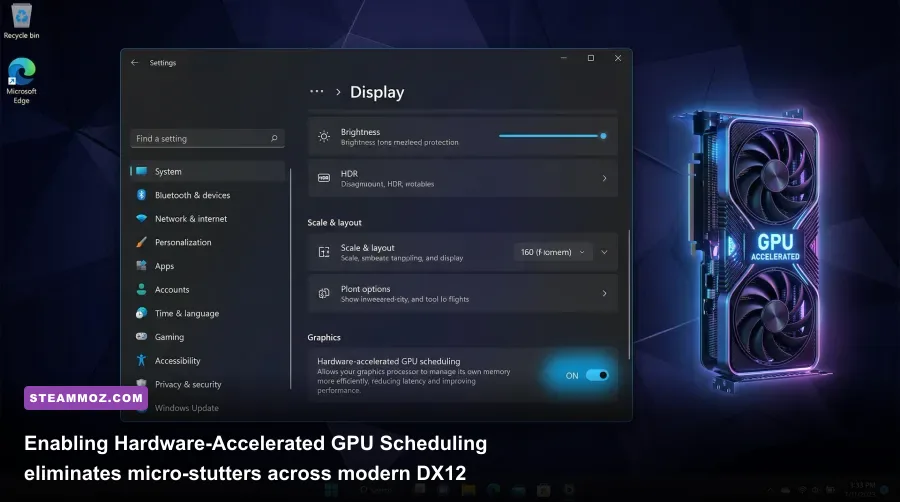
Hardware calibration is only half the battle. If your operating system is poorly tuned, you will still experience noticeable frame pacing spikes, similar to the hitching explored in our EscapeVR basement performance guide. Let's configure Windows to pass instructions directly to your tuned Trident hardware with minimum system latency.
Open Windows Search, type Graphics Settings, and ensure Hardware-Accelerated GPU Scheduling (HAGS) is toggled to On. This passes video memory management duties away from the operating system kernel directly to the graphics card’s dedicated scheduler, lowering input latency and unlocking compatibility with modern frame generation technology. Restart your PC to lock in the change.
Next, tune your Windows Power Plan. Search for Choose a power plan in the control panel. Many players make the mistake of setting this to "Ultimate Performance." In a small-form-factor build like the MSI Trident, forcing "Ultimate Performance" keeps the CPU running at maximum frequency even when sitting completely idle at the desktop, needlessly raising chassis temperatures by 8-12°C. Instead, select Balanced. The modern Windows Balanced plan allows cores to instantly enter sleep states between frame cycles, giving the Silent Storm cooling fans a chance to quiet down between rounds while preserving full clock performance the microsecond a load hits.
Finally, open the Nvidia Control Panel, navigate to Manage 3D Settings, and configure the following low-latency baseline:
- Power Management Mode: Set to "Normal" globally. Only switch this to "Prefer Maximum Performance" on an individual, per-game basis if a particular engine demonstrates aggressive downclocking during gameplay.
- Low Latency Mode: Set to "On." Avoid "Ultra" unless you are running entirely GPU-bound without an in-game Nvidia Reflex option, as Ultra can occasionally induce frame pacing jitter in CPU-heavy matches.
- Max Frame Rate: Set this globally to 3 FPS below your monitor's native refresh rate (e.g., 141 FPS on a 144Hz panel, or 162 FPS on a 165Hz panel). When combined with G-Sync/FreeSync, this completely prevents input lag spikes caused by your monitor bouncing in and out of the active VRR variable refresh window.
By balancing physical chamber airflow, disabling unnecessary background telemetry, tuning BIOS power limits, and maintaining a flat Afterburner undervolt curve, you transform your MSI Trident from an erratic, loud, throttling mini-PC into an ultra-quiet, finely calibrated gaming machine that holds flat frame times through hours of marathon gaming sessions. For additional fine-tuning concepts on tricky rendering pipelines, check out our deep-dive into the Filament Marmalade Edition frame rate guide to squeeze every last drop of performance from your gaming setup.