If The Last of Us Part 1 is choking your rig with jarring micro-stutters, nose-diving into single-digit frame rates during combat, or crashing straight to the desktop during cutscenes, the problem comes down to three culprits: incomplete background shader compilation, runaway VRAM over-allocation, and Windows virtual memory paging exhaustion. While patch updates from Iron Galaxy and Naughty Dog on The Last of Us Part 1 Steam page have smoothed out the rough edges from launch, the port remains one of the heaviest CPU-and-memory hogs on modern hardware. You can stabilize your frame rates and banish crashes entirely by optimizing your virtual memory, dialing in high-impact graphics toggles, and tuning driver-level caches.
Let the Shaders Build: The Golden Rule of TLoU Part 1
The single biggest cause of violent frame-time hitching and audio-desync bugs is jumping into Joel and Ellie's journey before the game finishes building its Pipeline State Object (PSO) shaders. When you boot the game for the first time—or right after updating your graphics card drivers—the engine immediately starts running thousands of shader calculations in the background. If you hit "Continue" or "New Game" while that bottom-right progress bar reads anything under 100%, your CPU threads will max out at 99–100% utilization while trying to compile shaders and stream geometry at the exact same time.
Sit at the main menu and let the shader compilation finish completely. On a modern 8-core, 16-thread chip like an AMD Ryzen 7 7800X3D or Intel Core i7-13700K, this takes anywhere from 10 to 20 minutes. On older 6-core CPUs like the Ryzen 5 3600 or Core i5-10400F, expect to wait up to 45 minutes. During this period, your CPU will run hot, and your cooling fans will scream. That is completely normal. Once that progress indicator disappears and shows "Building Shaders 100%," your CPU will drop back to idle temps, and in-game traversal hitching will drop drastically.
If your shader process freezes or crashes midway through, your local shader cache is corrupted. Clear it manually by navigating to your AppData directory:
- Press Win + R, type
%localappdata%, and hit Enter. - Locate the folder labeled The Last of Us Part I or the Naughty Dog cache directory.
- Delete the contents inside the
savedandcachefolders (do not delete yoursavegamesfolder). - Relaunch the game and let the shaders compile from scratch without touching any menus.
The Oodle Kraken Memory Leak and DLL Integrity
Under the hood, the PC port relies on RAD Game Tools' Oodle Kraken compression software (specifically oo2core_9_win64.dll) to decompress massive level assets on the fly. The original release bundled an unoptimized version of this library that triggered runaway memory leaks and unhandled CPU thread bottlenecks. While subsequent patches integrated updated libraries, conflicting installations or corrupted updates can revert or break this critical file.
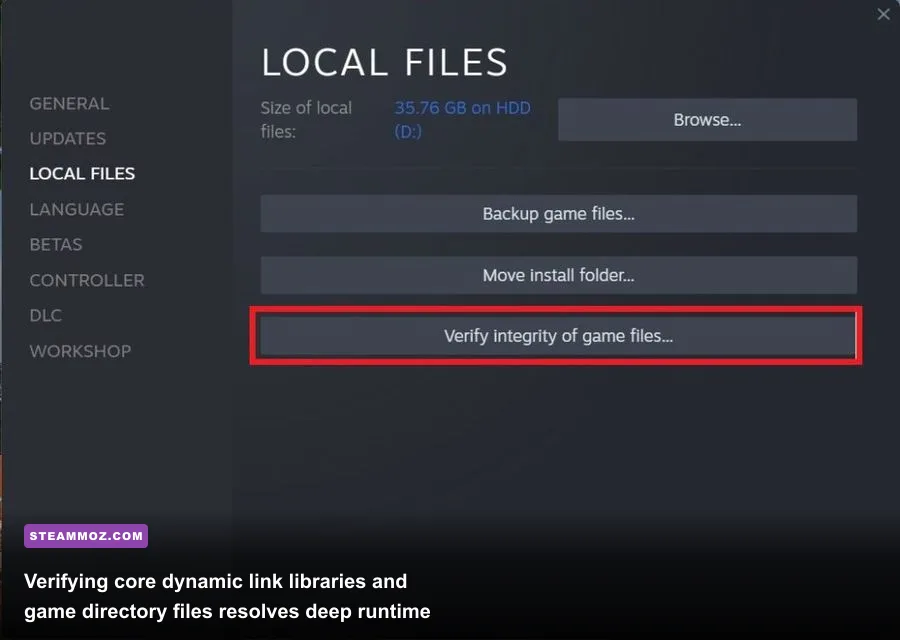
To eliminate decompression-related crashes, verify your game files through your platform client. In Steam, right-click the title in your Library, select Properties > Installed Files, and click Verify integrity of game files. For Epic Games Launcher users, click the three dots beneath the game card and choose Manage > Verify. Much like diagnosing our Elex PC performance fixes, resolving corrupted runtime dependencies removes the primary trigger behind abrupt EXCEPTION_ACCESS_VIOLATION (0xc0000005) desktop dumps.
Virtual Memory and Windows Pagefile Tweaks for Crash Prevention
Even if you are packing 32GB of physical DDR4 or DDR5 RAM, The Last of Us Part 1 demands a massive Windows virtual memory pagefile. If your pagefile is managed automatically across multiple drives, or locked to a small fixed value on a sluggish mechanical hard drive, the engine will instantly crash to the desktop whenever it commits large texture blocks to memory. This is particularly noticeable during the transition from the Boston Quarantine Zone out into the rainy downtown outskirts.
Manually adjusting your virtual memory allocation on your fastest NVMe SSD provides the engine with the breathing room it needs to stream high-density assets. Follow these precise steps:
- Type View advanced system settings into your Windows search bar and open it.
- Under the Advanced tab, click the Settings button inside the Performance box.
- Go to the Advanced tab and click Change... under Virtual Memory.
- Uncheck Automatically manage paging file size for all drives.
- Select your fastest SSD (preferably your primary C: drive or the drive where the game is installed).
- Click Custom size: set Initial size (MB) to
16384and Maximum size (MB) to24576. - Click Set, click OK, and restart your computer to apply the changes.
Fixing systemic crash loops through smart storage management mirrors the tactics used in our EscapeVR crash troubleshooting guide. Giving your operating system a stable 16GB to 24GB paging reserve completely stops mid-level crash-to-desktop errors.
| Crash Symptom | Underlying Root Cause | Primary Fix Action | Stability Impact |
|---|---|---|---|
| Crash on Boot / Loading Screen | Incomplete or Corrupt Shader Cache | Purge %localappdata% cache and allow 100% rebuild | High |
| Desktop Dump during Shootouts | VRAM Spike exceeding card hardware capacity | Drop Texture Quality one tier & enable DLSS/FSR | Critical |
| Random Freeze during Cutscenes | Pagefile exhaustion (Out of Memory) | Set manual Windows Pagefile (16GB min / 24GB max) | Critical |
| Audio Crackling and Frame Drop | CPU thread starvation & dynamic streaming | Lock framerate to 60 FPS in Nvidia/AMD control panel | Moderate |
Optimized Graphics Settings: Balancing Fidelity Against Heavy VRAM Drops
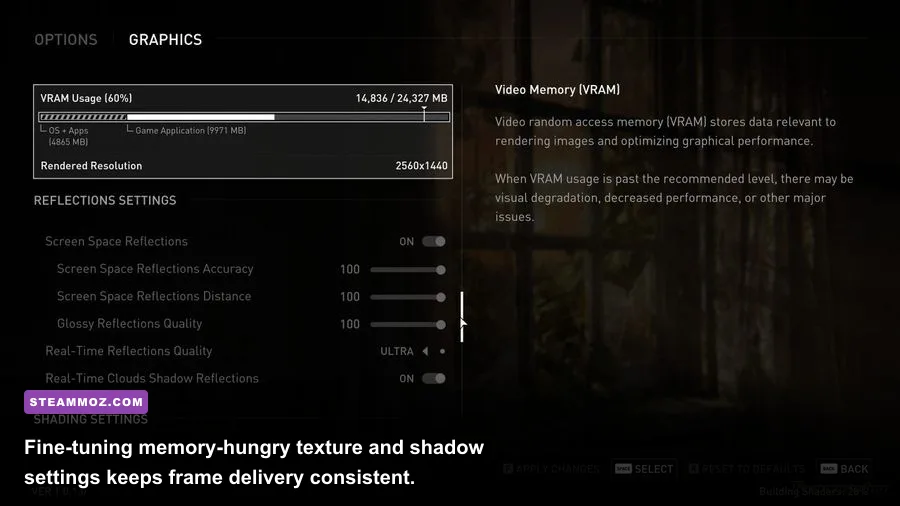
The graphics menu in The Last of Us Part 1 features dozens of individual toggles, but only a handful account for nearly 70% of performance penalties. The golden rule here is staying within your GPU's physical VRAM limit. If you have an 8GB graphics card (such as an RTX 3060 Ti, RTX 3070, or RX 6600 XT), pushing settings that cause the in-game VRAM meter to enter the red zone will drop your 1% low frame rates down into the single digits whenever Joel enters dense foliage or water.
Similar to the visual scaling choices featured in our Far Cry 6 optimized settings breakdown, your objective is trimming invisible overhead without softening Naughty Dog's photorealistic character models and lighting.
| Graphic Setting | Recommended Value | FPS Impact | VRAM Savings | Visual Impact |
|---|---|---|---|---|
| Texture Quality | High (Medium on 8GB VRAM) | Low (High if VRAM overflows) | ~1200 MB | Noticeable only on tiny surface text |
| Dynamic Objects Quality | Medium | Moderate (~6%) | ~250 MB | Minimal during gameplay |
| Volumetric Lighting Quality | Medium | High (~9%) | ~80 MB | Retains god rays with softer edges |
| Screen Space Shadows | Medium | Moderate (~5%) | ~110 MB | Slightly softer foliage contact shadows |
| Ambient Occlusion | Half Resolution | High (~8%) | ~150 MB | Virtually indistinguishable in motion |
| Reflections Quality | Medium | Moderate (~6%) | ~180 MB | Cleans up jitter on water puddles |
| Depth of Field | Low / Off | Low (~3%) | ~40 MB | Removes aggressive cinematic blur |
| Super Resolution (DLSS / FSR) | Quality Mode | Massive (+25% to +35% FPS) | ~450 MB | Sharper than native TAA |
Pay close attention to Texture Quality and Dynamic Objects Quality. Setting Texture Quality to "Ultra" requires massive chunks of VRAM that can choke even 10GB and 12GB cards when paired with high internal rendering resolutions. Dropping to "High" preserves all primary hero geometry and facial details while keeping your memory footprint safely in the green zone. If you need additional headroom, our approach for tuning performance in Filament shows how lowering screen-space reflections and shadow resolution restores frame stability without dulling environmental atmosphere.
Nvidia and AMD Driver Overrides for Rock-Solid Frame Pacing
Even when your average frame rate sits comfortably at 70 FPS, irregular frame delivery (frame-time spikes) can make panning your camera feel sluggish and stuttery. You can fix erratic pacing directly through your graphics card control software instead of relying strictly on the game's internal frame limiter.
For Nvidia GeForce Users:
- Open the Nvidia Control Panel and head to Manage 3D Settings > Program Settings.
- Select The Last of Us Part I (
tlou-i.exe) from the drop-down list (or add it manually). - Change Shader Cache Size to 10 GB (or Unlimited). The default 4GB driver limit is frequently exhausted by Naughty Dog's massive asset pools.
- Set Power Management Mode to Prefer Maximum Performance. This stops modern GPUs from down-clocking during simple dialogue cutscenes.
- Set Max Frame Rate to match your monitor's sweet spot (e.g., 60 FPS, 90 FPS, or 120 FPS). Capping your frame rate stabilizes CPU frame-time variance during intense fire encounters.
- Set Low Latency Mode to Ultra or On.
For AMD Radeon Users:
- Open AMD Software: Adrenalin Edition and navigate to Gaming > Games > The Last of Us Part I.
- Enable Radeon Anti-Lag to drop input response lag.
- Turn on Radeon Chill and lock both the Min and Max FPS to a flat target (like 60 or 75 FPS) to enforce uniform frame times.
- Navigate to the global graphics options, scroll down to Reset Shader Cache, and perform a clean wipe if you recently updated your Adrenalin software.
Taming dynamic engine overhead this way mirrors the steps outlined in our Everspace 2 stability guide. Enforcing a strict frame cap stops your GPU from constantly bouncing against thermal boundaries, which prevents violent FPS drops whenever enemies trigger explosive molotovs or smoke bombs.
Lastly, double-check official technical documentation on the Naughty Dog Support portal and verify your system meets the baseline requirements outlined on the PlayStation PC support hub. Running the executable in Windows 8 Compatibility Mode or ticking Disable Fullscreen Optimizations in the tlou-i.exe compatibility properties can also solve stubborn overlay hooking issues caused by Discord, RivaTuner Statistics Server, or GeForce Experience.
Apply these targeted tweaks, let that initial shader build finish completely, and you will transform The Last of Us Part 1 on PC from an unpredictable crash-fest into the gorgeous, responsive post-apocalyptic masterpiece it was always meant to be.