If your screen hitches right as you slide-cancel through a doorway on Crown Raceway, or the game dumps you back to desktop with an unhelpful 0xC0000005 error code, you are not alone. Modern Warfare 2 runs on Infinity Ward's IW 9.0 engine, which demands aggressive hardware resource management. The fastest way to stabilize your frame pacing and stop crashes is to lower your in-game Video Memory Scale to 70 or 80, set your RendererWorkerCount in the configuration file to match your CPU's physical core count, purge corrupted shader caches, and increase your Windows virtual memory allocation. Just as we've seen when optimizing other demanding titles—such as our breakdown of ELEX PC fixes that stop crashes and rescue FPS—unstable frame delivery usually stems from memory mismanagement rather than weak hardware.
1. Dial in the Config File: Fixing the Infamous Worker Count
Modern Warfare 2 features an aggressive multithreading engine, but its automatic hardware detection frequently misconfigures how many CPU threads it should dispatch. This results in heavy micro-stuttering whenever particle effects explode or multiple smoke grenades detonate simultaneously. The game defaults to an incorrect thread allocation on hybrid Intel architectures (like Alder Lake, Raptor Lake) and Ryzen processors with Simultaneous Multithreading (SMT), creating a CPU bottleneck that drags your 1% low frame rates down into the single digits.
To fix this, you must manually edit the player options configuration file:
- Close Call of Duty: Modern Warfare II completely, making sure Battle.net or Steam isn't actively running the process in the background.
- Open Windows File Explorer and navigate to your Documents folder:
C:\Users\[YourUsername]\Documents\Call of Duty\players. - Locate the file named options.3.cod22.cst (or options.3.cod23.cst depending on your installation client's unified launcher status).
- Right-click the file and select Open with > Notepad.
- Press
Ctrl + Fto open the search prompt and typeRendererWorkerCount. - Find the line that reads:
RendererWorkerCount:0.0 = "X"(where X is a number the game auto-assigned). - Change that number to match your CPU's count of physical performance cores, not total logical threads.
For example, if you're rocking an AMD Ryzen 7 5800X or 7800X3D (8 cores, 16 threads), set the value to 6, 7, or 8. Never set it to 16. Setting it to 6 or 7 often delivers the smoothest frame pacing because it leaves dedicated headroom for Windows background tasks and voice chat apps. If you're on an Intel Core i5-13600K (6 Performance cores, 8 Efficient cores), start by setting this value strictly to 6 to prevent the IW engine from accidentally scheduling critical render tasks onto sluggish E-cores. Save the file (Ctrl + S) and set it to "Read-Only" in its Properties menu if the game attempts to overwrite your values on startup.
2. Fine-Tuning In-Game Display and Quality Settings for Maximum Frames
Blindly turning every setting down to "Low" can actually shift the rendering burden entirely onto your CPU, causing severe frametime spikes. Modern Warfare 2 runs best when the graphics card is working at 95–99% utilization without choking its onboard video memory. Similar to the adjustments we highlighted in our Far Cry 6 settings guide for max FPS, fine-tuning your visual stack ensures competitive visibility while boosting average framerates by 30 to 45 percent.
One setting that requires special attention is Spot Cache. If you have this set to Low or Medium, you will experience sudden 20-frame dips whenever you turn corners in maps like Breenbergh Hotel or Mercado Las Almas. Setting Spot Cache to High or Ultra forces the game to store map shadows in your video memory instead of dynamically calculating them on the fly, practically eliminating turn-induced micro-stutters.
| Graphics Setting | Competitive Value | Framerate Impact | Performance / Visual Reasoning |
|---|---|---|---|
| Display Mode | Fullscreen Exclusive | Low (Improves Latency) | Bypasses Windows Desktop Window Manager (DWM) for lowest input lag. |
| Upscaling / Sharpening | FidelityFX CAS (Strength: 65-80) | Zero (Native) | Sharper image without DLSS motion smearing. Use DLSS/FSR Quality only on weak GPUs. |
| Texture Resolution | Normal | Negligible (VRAM Bound) | Low looks muddy; Normal maintains sightline clarity with zero frame hit if VRAM allows. |
| Texture Filter Anisotropic | High | Under 1% | Essential for identifying prone enemies at extreme angles on asphalt and floors. |
| Particle Quality Level | Low | Moderate (5-8% in fights) | Stops sudden frame drops when standing inside cluster strikes or smoke grenades. |
| Bullet Impacts & Sprays | On | Negligible | Tactically necessary to trace enemy firing lines through walls and cover. |
| Shader Quality | Low | Moderate (4-6%) | Removes superfluous lighting complex calculations from wet surfaces. |
| Tessellation | Near | Low (1-2%) | Maintains geometric terrain accuracy without wasting cycles on distant terrain. |
| On-Demand Texture Streaming | Disabled | High (Stutter Culprit) | Eliminates continuous network-driven texture downloading during active matches. |
| Shadow Map Resolution | Very Low | High (8-12%) | Massive frame boost without impairing competitive player shadow tracking. |
| Spot Cache | High or Ultra | Beneficial for Frametime | Eliminates hitching when swinging your mouse across crowded indoor spaces. |
| Particle Lighting | Low | Moderate (3-5%) | Reduces GPU workload when muzzle flashes and explosions overlap. |
| Ambient Occlusion | Off | High (6-10%) | Flattens lighting, making players lurking in dark corners substantially easier to spot. |
| Screen Space Reflections | Off | High (7-11%) | Removes distracting floor glare and recovers substantial graphics headroom. |
| Nvidia Reflex Low Latency | On + Boost | Improves Frametime Pacing | Keeps GPU clocks peaked, clearing render queues instantly for snappier aim. |
Ensure that both World Motion Blur and Weapon Motion Blur are strictly turned Off. Aside from the competitive disadvantage of visual smearing, motion blur vectors impose extra post-processing passes that choke mid-range GPUs. For more optimization deep dives, you can check our analysis of tuning PC settings for higher FPS across complex game engines.
3. Eradicating Micro-Stutters: VRAM Allocation and Shader Recompilation
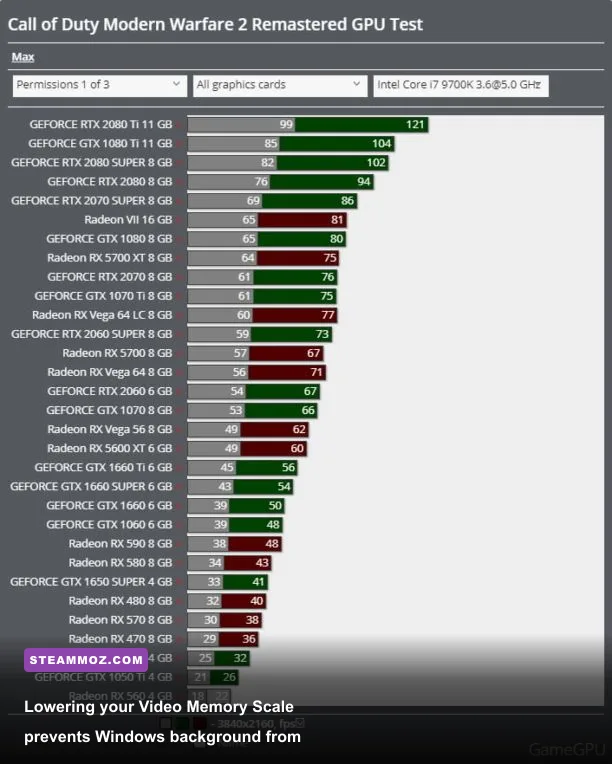
The single most destructive setting in Modern Warfare 2's menu is the Video Memory Scale slider. By default, the game sets this value to 90 (meaning it plans to allocate up to 90% of your graphics card's available VRAM). The problem? Windows, background browsers, Discord, and graphics driver buffers need VRAM too. The moment MW2 tries to claim that 90th percentile and exceeds physical memory capacity, your system violently swaps assets out to system RAM, creating devastating half-second freezes.
To eliminate this, jump into Settings > Graphics > Quality and slide Video Memory Scale down to 70 (or 80 if you have an 8GB+ card and zero background apps). This forces the engine to maintain a strict buffer, preventing it from ever spilling over into Windows swap memory.
Performing a Pristine Shader Cache Flush
Shader compilation bugs are the leading cause of random stutters and catastrophic launch crashes. Patches frequently leave behind orphaned pre-compiled binaries that conflict with freshly updated assets. Fixing this takes just a few steps:
- In the game's display settings, click Restart Shader Optimization.
- Close Modern Warfare 2.
- Open your Run dialog box by pressing
Windows Key + R, type%localappdata%, and press Enter. - Navigate into the
Activisionfolder, then delete the cached shader subfolders inside. - If you run an Nvidia card, also clear the DirectX shader cache: open Disk Cleanup, select your
C:drive, check DirectX Shader Cache, and click OK. - Launch the game, remain in the main multiplayer lobby, and let the shader progress bar reach 100% before queueing for a match. Do not hop straight into the firing range while this runs!
Additionally, open the Nvidia Control Panel, navigate to Manage 3D Settings > Global Settings, scroll down to Shader Cache Size, and change it from "Driver Default" to 10 GB or 100 GB. Modern titles like MW2 and Warzone chew through the default 1GB shader limit within an hour of jumping between maps, causing the driver to constantly delete and recompile shaders mid-firefight.
4. Cracking Specific Crash Codes: Direct3D, Dev Errors, and Page File Depletion
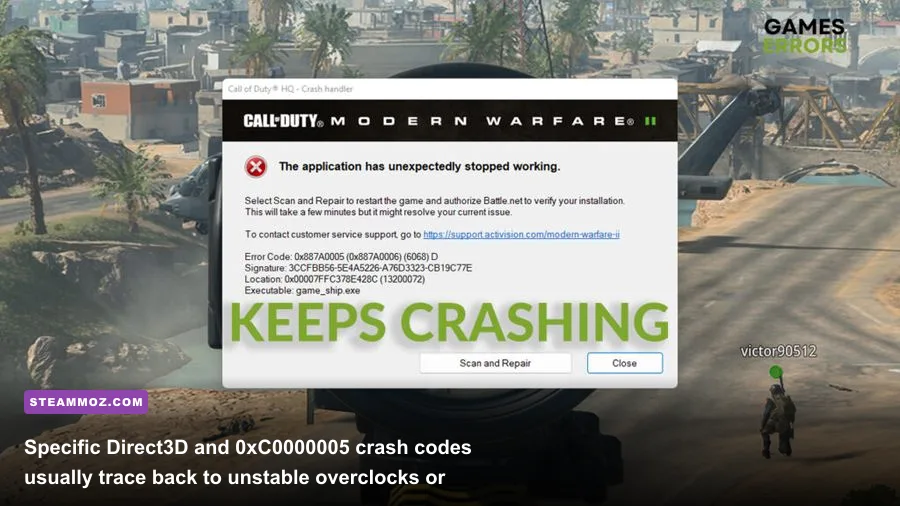
Few things are more aggravating than having the game completely collapse during the final round of Search and Destroy. Modern Warfare 2 is notoriously sensitive to memory over-commitments and background driver hooks. If you've struggled with unstable PC titles before—like the issues we covered in our guide on fixing crashes and low FPS in EscapeVR—you know that error codes usually point to very specific system pipeline failures.
| Error Code / Message | Primary Root Cause | Effective Troubleshooting Fix |
|---|---|---|
| Error 0xC0000005 (Access Violation) | System memory instability, corrupted game files, or overly aggressive XMP/EXPO RAM timings. | Verify game files through Steam/Battle.net; run sfc /scannow in Admin CMD; slightly raise DRAM voltage or step down memory frequency by 100MHz. |
| Dev Error 6068 (DirectX Unrecoverable) | GPU clock instability, unstable factory overclock, or DirectX hook interruption from third-party overlays. | Underclock GPU core/memory clock by -50MHz using MSI Afterburner; disable GeForce Experience, RivaTuner, and Discord overlays. |
| Dev Error 6144 or 6146 | Multiplayer server handshake timeout mixed with corrupted local playlist cache data. | Delete the players folder in Documents (back up your keybinds first), flush DNS via ipconfig /flushdns, and restart your router. |
| Direct3D Device Lost / Removed | Graphics driver timeout detection and recovery (TDR) trigger or power rail dip. | Perform a clean driver reinstall using DDU (Display Driver Uninstaller); set Windows Power Plan to High Performance. |
| Game Freezes, Desktop Exit (No Code) | Virtual memory (Page File) exhaustion, forcing Windows to aggressively kill the process. | Manually increase Windows Page File size to a static 16384 MB (16 GB) on your fastest NVMe SSD. |
Expanding Your Windows Page File to Stop Memory Crashes
Even if you have 16GB or 32GB of physical RAM, MW2 can trigger an instant out-of-memory crash if your Windows virtual memory page file is set to "System Managed" on a crowded drive. Fixing this provides immediate system stability:
- Press the
Windows Key, type View advanced system settings, and hit Enter. - Under the Advanced tab, click the Settings button inside the Performance box.
- Switch to the Advanced tab in the new window and click Change under Virtual Memory.
- Uncheck Automatically manage paging file size for all drives.
- Select your fastest SSD drive (usually
C:), click Custom size, and set both Initial size and Maximum size to 16384 (which equals 16GB). - Click Set, then hit OK, and reboot your PC.
Locking the minimum and maximum to the same value stops Windows from dynamically expanding and shrinking the file during matches, which is a frequent source of sudden frame freezes. If errors persist, refer to the official Activision Support diagnostics page or the Battle.net Support connection portal to verify server-side status.
5. Background Bottlenecks: Overlays, Poll Rates, and Windows Scheduling
Sometimes your in-game settings are pristine, but your operating system is fighting the engine behind the scenes. If you are experiencing micro-stutters that occur precisely whenever you swipe your mouse across the mousepad, the culprit is almost certainly your mouse's polling rate. High-end esports mice offering 4000Hz or 8000Hz polling flood the Windows message queue with millions of coordinate updates per second. Modern Warfare 2's main input thread struggles to parse 8000Hz updates alongside its rendering loop, which causes violent, periodic hitches. Dial your mouse polling rate down to 1000Hz inside your mouse configuration software (such as Razer Synapse or Logitech G HUB)—your frame pacing will instantly smooth out.
Next, clean up overlay conflicts. Disable every single overlay application running in the background. This includes:
- Discord Overlay: Open Discord Settings > Game Overlay > toggle "Enable in-game overlay" off. Discord's hook into the DirectX pipeline is responsible for endless Dev Error 6068 crashes.
- Nvidia ShadowPlay / GeForce Experience: Toggle the in-game overlay off unless you are actively capturing clips. The constant background buffer recording puts high pressure on memory bandwidth.
- RivaTuner Statistics Server (RTSS): If you use MSI Afterburner to monitor thermals, ensure RTSS is updated to the latest build, set the Application Detection Level to "Low", or close it completely before launching MW2.
Finally, inspect Windows Hardware-Accelerated GPU Scheduling (HAGS). Type "Graphics settings" into your Windows search bar and locate the HAGS toggle. If you have a modern mid-to-high-tier GPU (like an RTX 3070, RTX 4070, or Radeon RX 6800XT) paired with a solid CPU, leaving HAGS On lowers input latency and improves frametimes when using DLSS Frame Generation. However, if you are running an older 6-core processor or an entry-level GPU with under 8GB of VRAM, turning HAGS Off can prevent the scheduling logjams that trigger sudden frametime spikes. Similar architectural balances are crucial across other modern releases, as we noted in our guide to Everspace 2 crash and FPS fixes.
Tackle these fixes systematically: tune your RendererWorkerCount, balance your VRAM scale to prevent memory spillovers, build a clean shader foundation, and strip away intrusive background hooks. Once these adjustments are locked in, you'll step into your next lobby with rock-solid frame pacing, clean target acquisition, and zero crashes getting between you and victory.