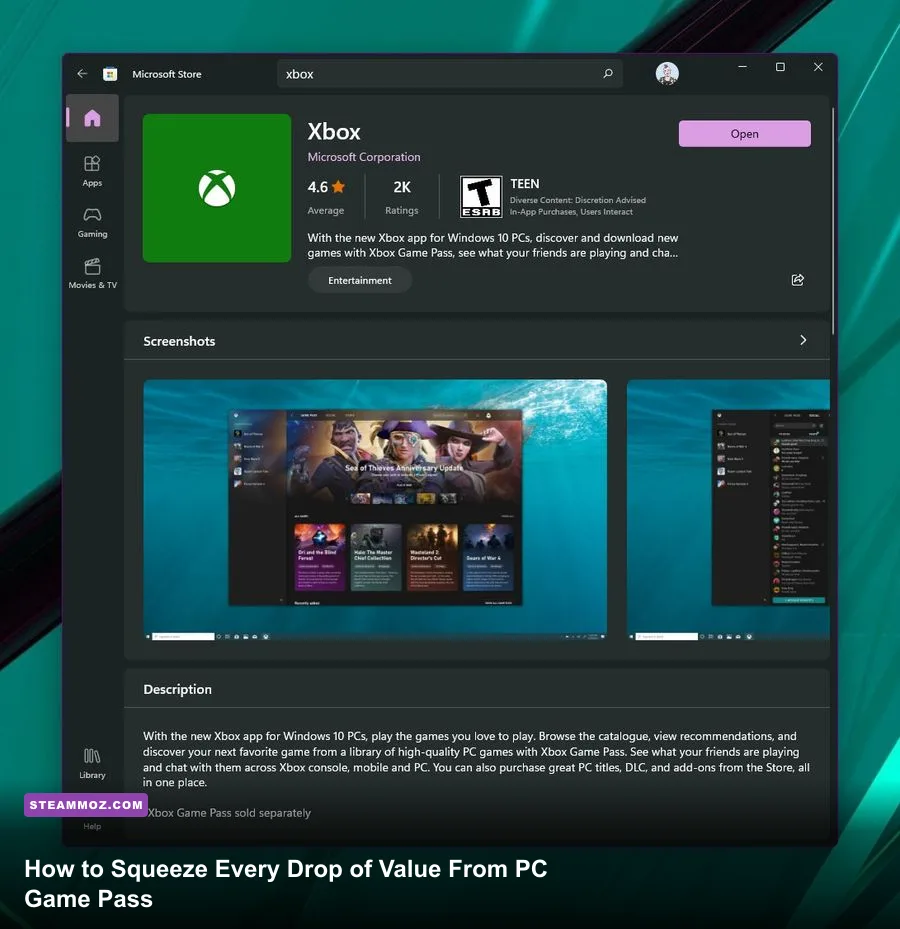
PC Game Pass is undeniably one of the greatest values in modern PC gaming, but the default Windows configuration treats your multi-thousand-dollar rig like a locked-down living-room console. Out of the box, the Xbox app routes your files through encrypted system directories, throttles your gigabit internet connection through Windows Delivery Optimization, and hides hundreds of dollars worth of bundled third-party perks behind obscure account-linking submenus. To truly get the most out of your monthly subscription, you must peel back Microsoft's restrictive defaults, streamline your installation architecture, reclaim hijacked SSD storage, and tweak stream rendering profiles for cloud play.
Ditch the WindowsApps Jail: Configure Custom Installation Directories and Modding
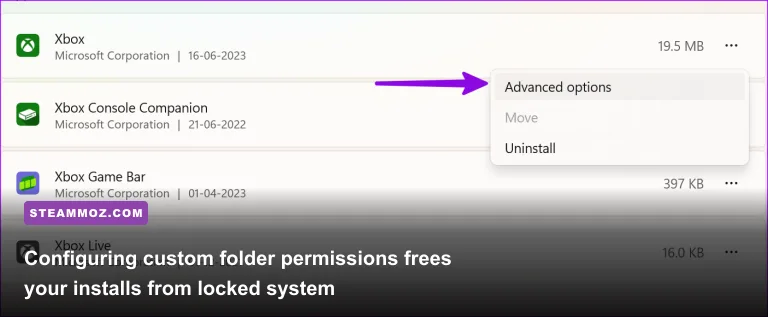
For years, the biggest headache for PC Game Pass users was Microsoft's Universal Windows Platform (UWP) file encryption. Games were automatically downloaded into an inaccessible root folder called C:\Program Files\WindowsApps. Modifying configuration files, dropping in custom reshade shaders, or manually tweaking `.ini` values was nearly impossible without wrestling with elevated NTFS access control lists (ACLs) or deploying administrative commands like takeown /f. Thankfully, modern versions of the Xbox app feature an Advanced Installation Management framework that lets you install games into standard, unencrypted Win32 folders.
To enable this, launch the Xbox app, click your gamer profile avatar in the top-left corner, and select Settings. Navigate to the General tab and locate the Game install options section. You will see an option to specify your default installation folder. Instead of leaving it pointing toward your primary Windows drive or root directory, set a dedicated path such as D:\XboxGames. Once enabled, whenever you install a title, the Xbox app generates a standard directory containing accessible binaries, asset folders, and configuration files.
This structural change is an absolute game-changer for titles that thrive on player modifications, such as MechWarrior 5: Mercenaries, Slay the Spire, or Mount & Blade II: Bannerlord. Within the app, right-click any installed game in your sidebar, select Manage, open the Files tab, and click Browse.... This immediately opens Windows Explorer directly inside the game's actual executable directory. From here, you can install Nexus Mods, community DLL loaders, and custom widescreen fixes without triggering administrative permission faults.
Just like when you tune your system for performance using our guide for higher frame rates and settings tweaks, having unencumbered file access means you can fix erratic engine hitches directly. You can uncap hidden frame rate limits, disable aggressive motion blur, and inject custom anti-aliasing profiles into game configuration files without waiting for official developer patches.
Uncap Download Speeds: Fix the Windows Delivery Optimization Choke
Nothing kills the excitement of jumping into a massive 140GB installation like watching your download crawl at 12 MB/s on a 500 Mbps fiber connection. The Xbox app on Windows does not handle file transfers through its own independent download engine; instead, it funnels all incoming network traffic through the internal Windows Delivery Optimization (WDO) service. By default, WDO prioritizes domestic network bandwidth conservation and background task stability, aggressively throttling download speeds regardless of your actual throughput capacity.
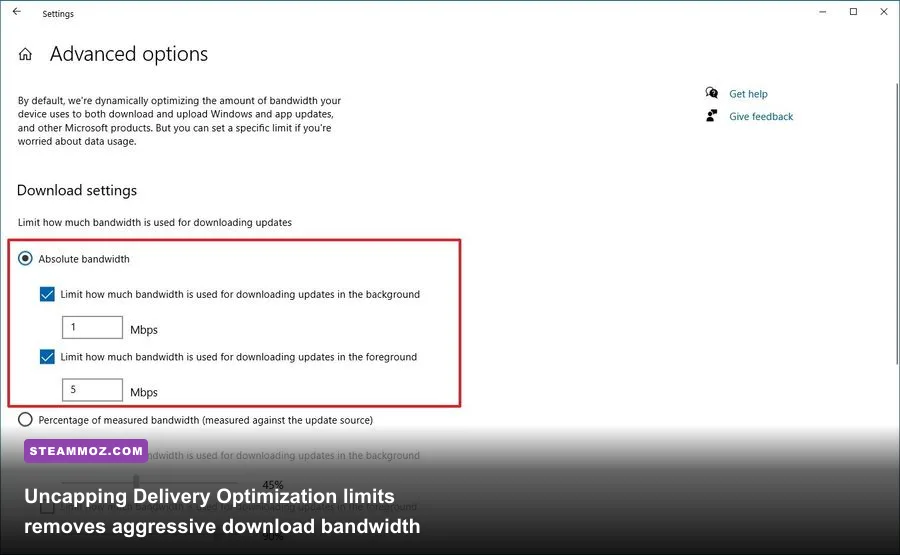
To shatter this artificial bottleneck, open your native Windows Settings panel (press Win + I), navigate to Windows Update, click on Advanced options, and choose Delivery Optimization. From this menu, open Advanced options to view your bandwidth throttling profiles. By default, Windows allocates an arbitrary, dynamic percentage of your total available bandwidth to background and foreground tasks. Switch this toggle directly to Absolute bandwidth.
| Configuration Parameter | Windows Default Setting | Optimized Power-User Value | Observed Real-World Impact |
|---|---|---|---|
| Bandwidth Throttle Method | Percentage of Bandwidth | Absolute Bandwidth | Eliminates artificial ISP-level dynamic clamping |
| Foreground Download Limit | Dynamic (Unchecked) | Checked / Max Line Speed (Mbps) | Increases Xbox app transfer speeds by up to 300% |
| Background Download Limit | Clamped to 5% Available | Checked / Match Foreground Speed | Allows downloads to run full-speed while gaming |
| Allow Downloads from Other PCs | Enabled (LAN and Internet) | Devices on my local network only | Prevents PC from wasting upload bandwidth as a P2P node |
| Upload Bandwidth Limit | Unmetered / Dynamic | Clamped to Minimum (5%) | Guarantees low ping during active background installs |
Check the box for In the foreground and enter a value that matches your ISP's true download speed (for example, enter 500 if you have a 500 Mbps tier). Do the same for In the background if you prefer your queue to finish while you browse the web or run lightweight tasks. Crucially, verify that the peer-to-peer distribution setting is not acting as an open torrent node for external strangers on the web, as outlined in the official Microsoft Delivery Optimization documentation. Setting upload sharing strictly to local devices preserves upstream stability so your online matches won't suffer sudden ping spikes.
If your downloads still get stuck in a persistent "0% Preparing" state, your local Microsoft Store cache is likely corrupted. Fix this instantly by pressing Win + R, typing wsreset.exe, and hitting Enter. A blank Command Prompt will appear for several seconds, flush the Store's transient metadata, and cleanly restart your service stack.
Claim Hidden Perks: Linking Riot, EA Play, and Ubisoft Connect Accounts
A staggering percentage of PC Game Pass subscribers pay every month without realizing they are sitting on hundreds of dollars worth of free third-party content. Your subscription is not confined to the games visible inside the standard Xbox desktop catalog; it provides full, native access to partner services without tacking on supplementary membership charges.
The crown jewel is the bundled EA Play membership. While console users get this automatically, PC players must link their Microsoft credentials through the modern EA Desktop client. Once linked, you get complete access to EA's back catalog—including games like the Dead Space remake, Star Wars Jedi: Survivor, and the Mass Effect Legendary Edition. Make sure to download games through the EA app directly once your link is recognized, which prevents double-launch handshake errors.
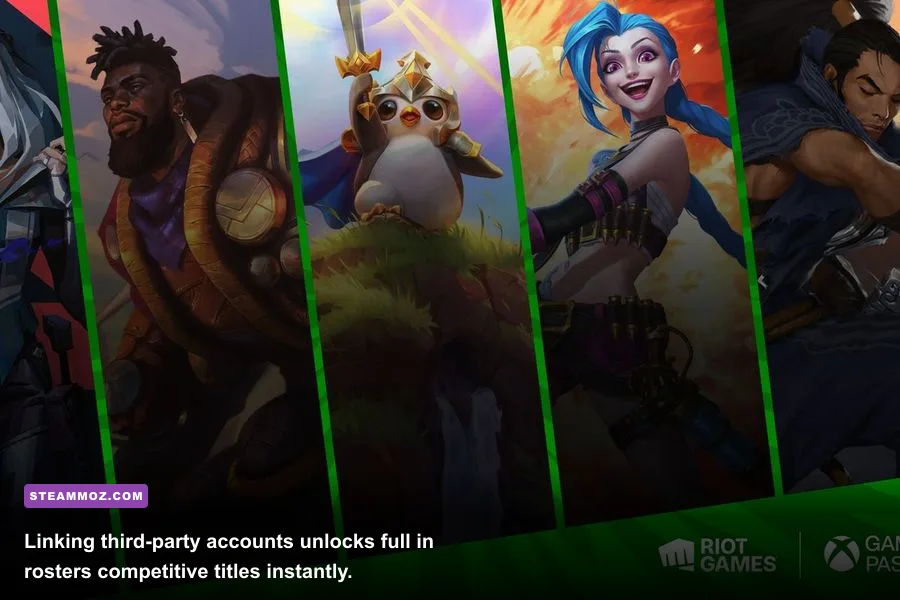
Second, competitive multiplayer enthusiasts must link their account via the official Riot Games account dashboard. The second your Game Pass profile connects to Riot, you instantly unlock:
- League of Legends: Every single champion in the roster (over 160 characters unlocked instantly, saving thousands of hours of Blue Essence grinding).
- Valorant: Every single Agent unlocked on day one, including new agents the exact second they launch.
- Teamfight Tactics: Unlocked tier-one Little Legend avatars and revolving arena skins.
- Legends of Runeterra: Immediate expansion access and bonus card unlocks.
Similarly, Ubisoft Connect now binds seamlessly with PC Game Pass. Linking your accounts gives you access to sprawling single-player open-world campaigns without paying retail fees. If you dive into Yara's tropical chaos, consult our Far Cry 6 beginner loadout and gear guide to hit the ground running, and check our Far Cry 6 graphical optimization guide to ensure smooth, hitch-free frame pacing on modern graphics cards.
Storage Management: Safely Move Games and Clean Orphaned Files
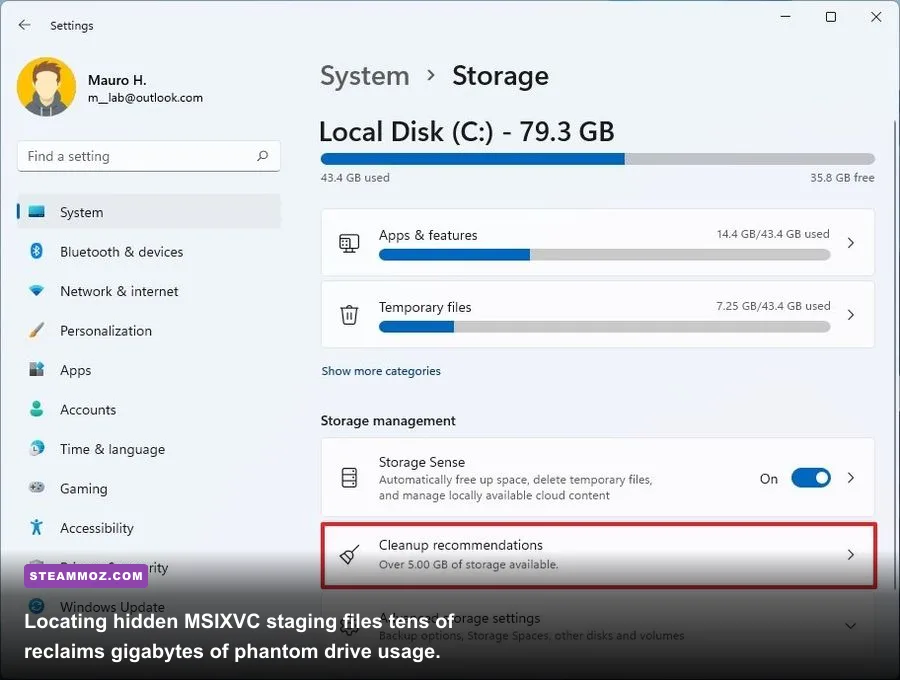
Few things are more frustrating than uninstalling a 100GB game only to notice your SSD's free space counter didn't move an inch. The Xbox app suffers from a notorious "phantom storage" bug. Whenever an installation fails midway through, or if you cancel an ongoing update for a massive title, the staging data cached in hidden system folders fails to purge.
These ghost files typically reside in hidden partitions or directory structures labeled MSIXVC, .gamingroot, or inside C:\Program Files\WindowsApps\MutableBackup. To safely diagnose drive bloat without breaking Windows system permissions, use native tools first. Open Windows Settings > System > Storage > Installed Apps. Sort the list by size. Often, Windows will register uninstalled titles or corrupted installations here under generic GUID codes or duplicate titles. Uninstalling them directly from this native Windows menu properly executes the deletion script that the Xbox app failed to trigger.
If you need to juggle space between multiple SSDs, never delete and re-download a title from scratch. The Xbox app allows native drive transfers that rival Steam's storage manager:
- Open the Xbox app, navigate to your installed game sidebar, and right-click the title.
- Select Manage, then switch to the Files tab.
- Click the Change Drive option under the installation path details.
- Select your target secondary high-speed NVMe drive and click Move.
The system will verify file hashes, migrate the installation block-by-block, and rewrite Registry flags in under five minutes on modern solid-state hardware. If you frequently encounter game crashes or weird lockups after moving installs, consult our proven crash fixes and performance stability guide or check out our troubleshooting steps for game launch crashes to identify missing runtime dependencies and clean up faulty configuration states.
Cloud Gaming and Controller Tweaks on PC
If you don't want to dedicate 120GB of NVMe real estate to a game you only plan to test for an hour, Xbox Cloud Gaming (xCloud) is bundled directly into the Game Pass Ultimate tier. However, streaming through the native Windows Xbox app often yields washed-out colors, sub-par 1080p bitrates, and noticeable compression artifacts. You can vastly improve stream clarity and input response using targeted browser settings.
Instead of launching streams through the native desktop app, open Microsoft Edge and navigate to Xbox Cloud Gaming via browser. Edge contains an exclusive hardware-accelerated spatial upscaling feature called Clarity Boost. Once your game stream boots, click the three-dot stream control icon in the upper-left corner and toggle Enable Clarity Boost. This post-processing pass applies edge-detection and dynamic sharpening algorithms directly inside your GPU's raster pipeline, making text readable and removing the muddy blur typical of 1080p cloud video feeds.
| Streaming Approach | Rendering Engine | Visual Quality & Bitrate | Input Latency Profile | Recommended Use Case |
|---|---|---|---|---|
| Native Windows Xbox App | Direct3D / WindowsApp Container | Moderate Bitrate (~9-12 Mbps), Soft Contrast | Baseline Low (Native XInput handshake) | Plug-and-play casual gaming with Xbox controllers |
| Microsoft Edge Browser | Chromium + Clarity Boost | Sharp / Up-scaled (Spatial edge-enhancement) | Extremely Low (Hardware GPU canvas acceleration) | Best overall image fidelity for RPGs and text-heavy titles |
| Chrome / Brave Browser | Standard Chromium WebRTC | Standard Bitrate, mild color banding | Moderate (Dependent on VSync buffer settings) | Fallback option if Edge hardware acceleration is disabled |
| Better xCloud Script / Mod | Custom WebRTC Engine Hook | Forced 1080p High-Bitrate Profile (~15-20 Mbps) | Ultra Low (Direct protocol tuning & frame pacing) | Enthusiasts wanting crisp streams on high-refresh monitors |
Another major point of friction is non-Xbox controller support. The Windows Xbox app communicates almost exclusively via the Microsoft XInput API standard. If you connect a Sony PlayStation DualSense, DualShock 4, or older DirectInput flight stick, the app frequently refuses to recognize button inputs. You have two rock-solid options to fix this:
- DS4Windows: Run this open-source virtual controller wrapper to instantly map your DualSense inputs into a virtual XInput Xbox 360 controller profile. It features customizable deadzones, full gyro support, and zero perceptible input latency.
- Steam Overlay Injection: Add the Xbox application or specific game executables as a "Non-Steam Game" within Steam. Steam's powerful controller wrapper will translate nearly any modern gamepad into an XInput-compliant signal on the fly.
Game Library Strategy: Beating Subscription Rotations and Extracting Saves
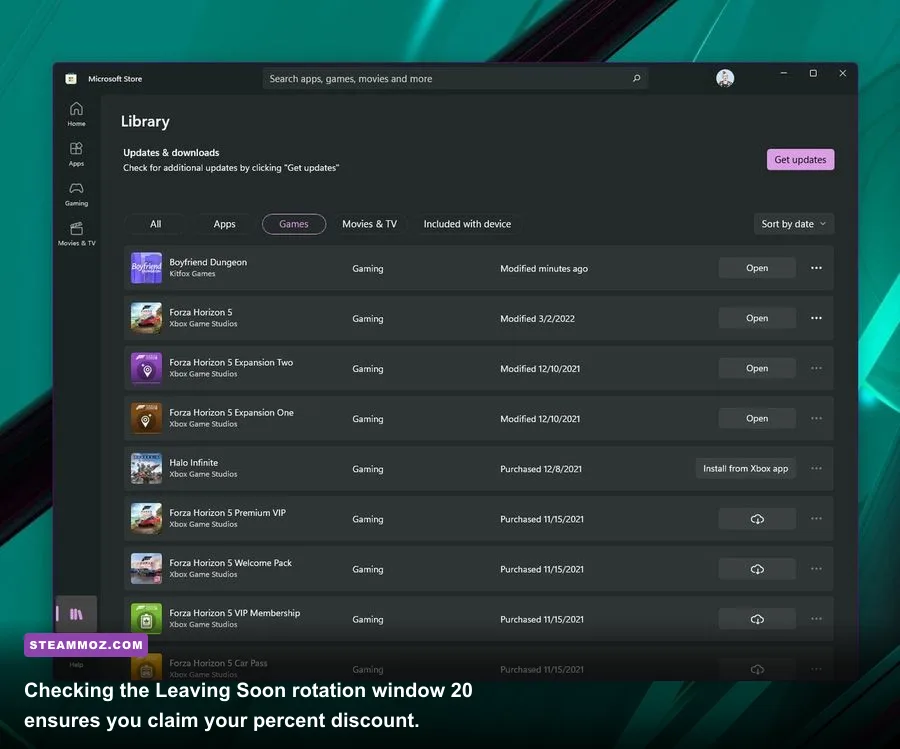
Unlike first-party Xbox titles—which remain permanent fixtures on Game Pass—third-party titles rotate out continuously. Microsoft works on a predictable delisting cycle: titles generally leave on either the 15th or the final day of any given month. Microsoft provides a two-week warning under the Leaving Soon tab within the app.
Make a habit of checking this tab on the 1st and 16th of every month. If a title you're actively playing pops up here, your active membership automatically grants you an automatic 20 percent discount on the retail purchase price, alongside a 10 percent discount on associated DLC expansions. If you decide you want to own it forever, buying it while it's still actively tied to the subscription catalog saves you money compared to standard retail pricing on other storefronts.
Furthermore, pay close attention to Xbox Play Anywhere tags. Games supporting Play Anywhere (like deep space action-RPGs, where our Everspace 2 secret locations and hidden rewards guide can direct your cosmic explorations) automatically sync your save states between your gaming PC, Xbox consoles, and cloud streaming sessions seamlessly through the cloud without extra setup.
What if a third-party game is leaving Game Pass and you want to continue your campaign on Steam instead? Microsoft obscures save files within nested package directories inside your user profile:
%LOCALAPPDATA%\Packages\[Publisher.GameTitleGUID]\SystemAppData\wgs\Inside the wgs (Windows Game Storage) folder, your saves are stored under cryptographically randomized filenames without explicit file extensions. Fortunately, open-source community utilities like XGP-Save-Extractor can parse these encrypted directories, match the internal headers, and spit out clean, unencrypted .sav or JSON save files compatible with Steam, GOG, or Epic Games Store releases. This ensures you never lose 80 hours of campaign progression simply because a third-party licensing window expired.
By shifting your install directories into open Win32 folders, uncapping Windows Delivery Optimization bandwidth limits, harvesting third-party account perks, and fine-tuning your stream rendering options, you transform PC Game Pass from a basic rental locker into a finely tuned, power-user gaming hub. Put these optimizations in place, take command of your files, and squeeze every cent of gaming performance out of your subscription.