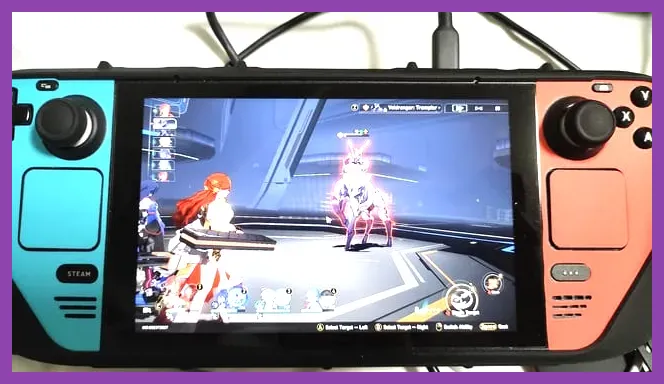
To optimize gacha games on your Steam Deck, you need to configure Proton GE compatibility layers, lock your frame rate to 45 FPS via the Quick Access Menu, and adjust in-game graphic presets to medium-low to maintain stable power draw and prevent thermal throttling. Titles like Genshin Impact and Wuthering Waves demand specific performance profiles to run smoothly on SteamOS.
Installing Proton GE for Anti-Cheat and Launcher Support
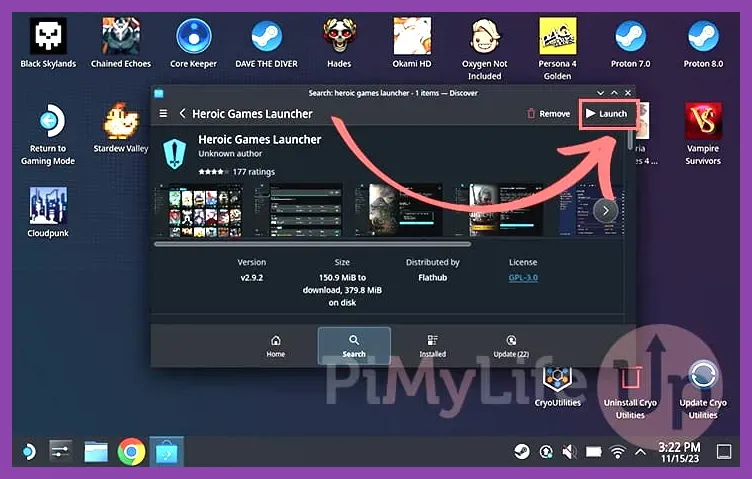
Most modern gacha games rely on third-party Windows launchers or kernel-level anti-cheat software that will crash out-of-the-box on standard SteamOS Proton versions. To bypass these hurdles, switch your Steam Deck into Desktop Mode, open the Discover Software Center, and download ProtonUp-Qt. Once installed, use ProtonUp-Qt to download and install the latest Proton-GE release (such as Proton-GE-Latest).
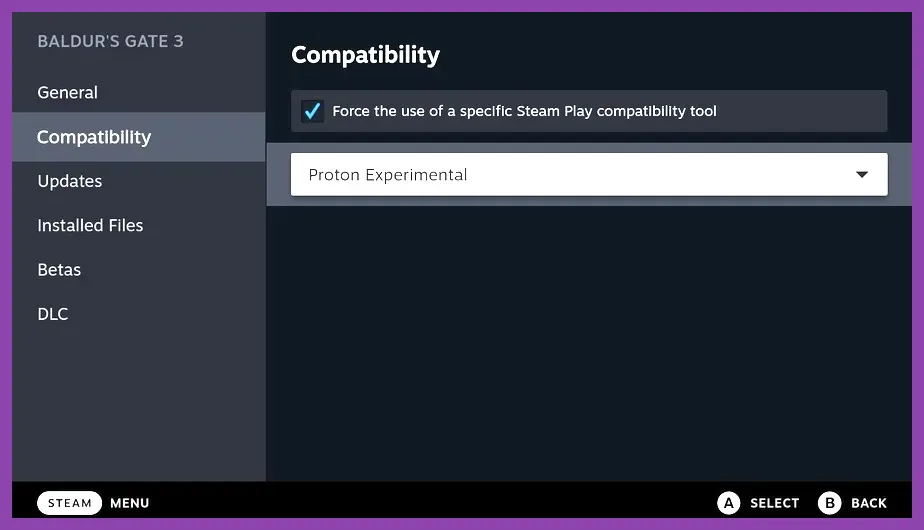
After downloading Proton-GE, return to Game Mode, add your non-Steam gacha game installer or Epic Games launcher shortcut as a non-Steam game, right-click the title in your library, go to Properties > Compatibility, and check the box to force the use of a specific compatibility tool, selecting your newly installed Proton-GE version. This step is critical for games that require specialized Windows DLL overrides to process login tokens and web-view authentication screens.
For players diving into complex cross-platform ecosystems, checking out other optimization guides like Solo Leveling Arise Best Settings for Max FPS can provide additional insights into handling resource-heavy anime titles on portable hardware. Ensuring your compatibility layer is up to date prevents sudden crashes during intensive gacha pull animations and boss transitions.
Configuring SteamOS Performance Overlay and Frame Limits
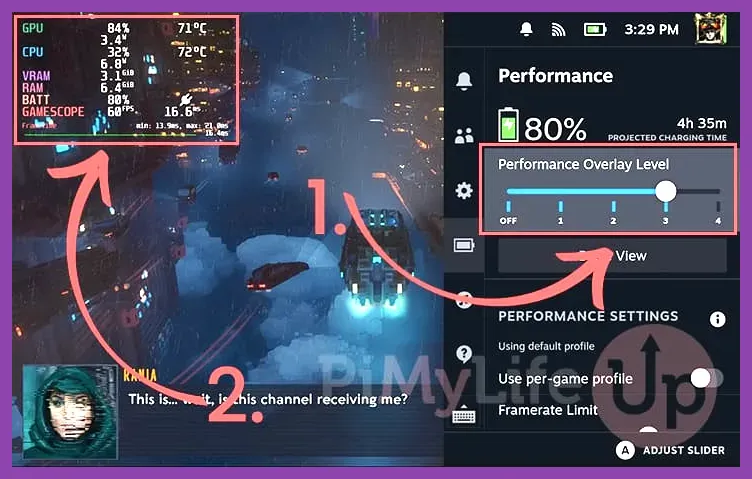
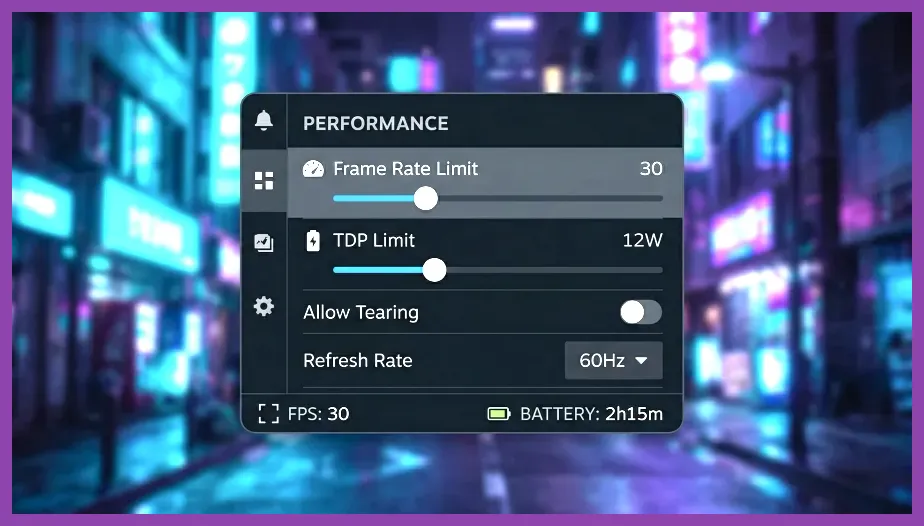
Gacha games are notoriously demanding on mobile APUs because of their unoptimized particle effects during ultimate ability animations. Press the QAM (Quick Access Menu) button (three dots on the right) on your Steam Deck, navigate to the Performance tab, and set the Performance Overlay Level to 2. This allows you to monitor your GPU clock speeds, RAM usage, and battery drain in real-time.
To achieve a balanced experience between visual fidelity and battery longevity, cap your frame rate limit to 45 FPS and set the Refresh Rate to 45 Hz. This sweet spot provides significantly better motion fluidity than a jagged 30 FPS cap while consuming substantially less power than a volatile 60 FPS target that causes the Steam Deck fan to scream at maximum RPM. Enable Half-Rate Shading if you experience severe stuttering during heavy AoE spellcasting in titles resembling Squad Busters Best Weapons Tier List 2026 or heavy tactical RPGs.
Thermal management is equally important. Ensure your Thermal Power Limit (TDP) is set to 12W or 13W. This prevents the custom AMD APU from needlessly drawing 15W+ on static menus, extending your gaming session from roughly 90 minutes to over two and a half hours on a single charge.
Tuning In-Game Graphics Presets for Stable 45 FPS
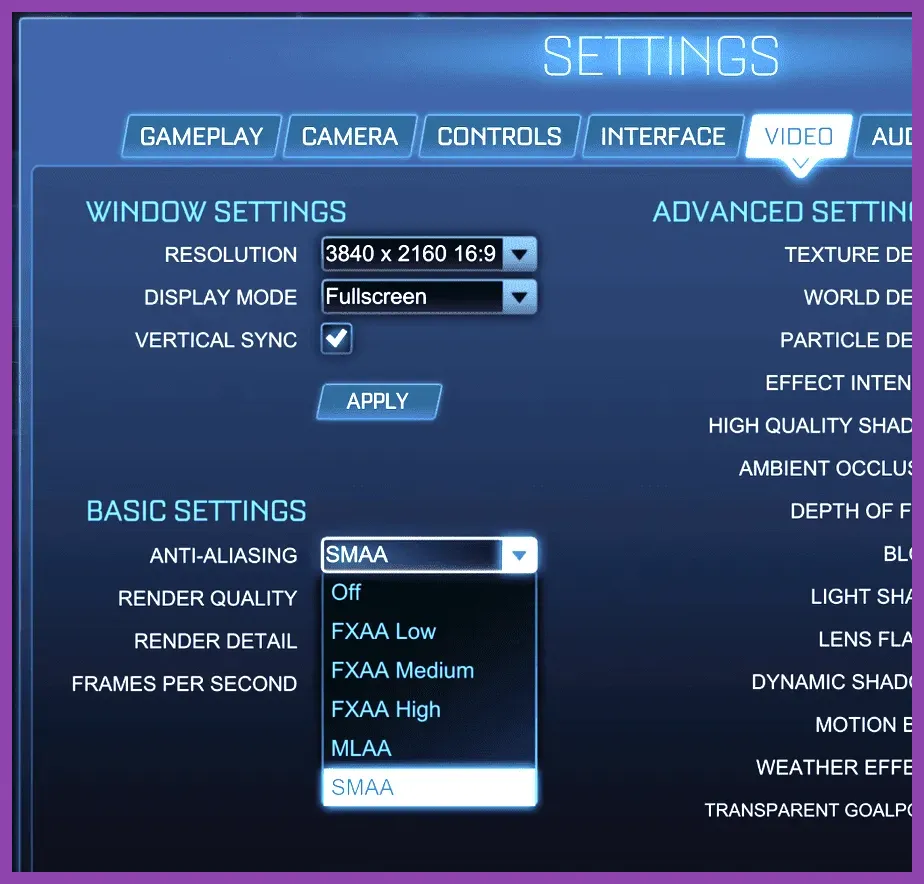
Default graphic presets in modern gacha games usually default to high or ultra settings designed for desktop GPUs with dedicated VRAM. On the Steam Deck, shared system memory requires aggressive reduction of texture filtering and shadow resolution. Navigate to your game's internal settings menu and apply the following profile:
- Display Mode: Exclusive Fullscreen (or Borderless Windowed if using desktop scaling)
- Resolution: 1280x800 (Native Steam Deck resolution)
- Shadow Quality: Medium (High shadows cripple the Deck's RDNA2 GPU during complex outdoor scenes)
- Special Effects (VFX): Medium or Low (Crucial for reducing lag during multi-character elemental bursts)
- Crowd Density / NPC Count: Low (Saves massive CPU overhead in hub cities)
- Anti-Aliasing: TAA or FXAA (Avoid heavy MSAA)
- Volumetric Clouds / Fog: Off or Low
Applying these adjustments ensures that even during chaotic endgame boss fights—such as battling difficult raid bosses similar to those found in Stardew Valley 1.6 How to Beat the Hardest Boss—your frame pacing remains rock solid without micro-stutters ruining your dodge timings.
Optimizing Controls and Radial Menus for Complex Gacha UI
Most gacha games are engineered with touchscreen or mouse-and-keyboard navigation in mind, meaning default controller layouts can feel clunky when managing inventory screens, artifact farming, and daily commission boards. Press the Steam button while in-game, go to Controller Settings, and build a custom layout utilizing the Steam Deck's trackpads and rear grip buttons.
Set the left trackpad as a directional radial menu mapped to your core inventory shortcuts: Character Screen, Map, Mailbox, and Events. Assign the L4 and R5 rear grip buttons to quick-switch your active party members or trigger special utility skills. For games that require persistent clicking through endless reward screens, utilize the Steam Deck's touch screen functionality alongside the right trackpad acting as mouse mouse-region input.
If you enjoy experimenting with varied team synergies and inventory management systems, exploring guides like The First Descendant Best Team Comp Synergy or Tekken 8 Best Team Comp Synergy Guide will give you a better appreciation of how precise input mapping directly improves your overall gameplay efficiency.
Managing Shader Cache and Storage for Massive Updates
Gacha games receive massive content patches every six weeks, adding new regions, characters, and gigabytes of audio and texture assets. Because SteamOS stores shader pre-caches on your internal NVMe drive (usually the 64GB or 256GB root partition), heavy gacha titles can quickly choke your internal storage.
Move your game installations to a high-speed MicroSD card (such as a SanDisk Extreme A2 rated card) using Steam's built-in storage manager, but keep an eye on shader cache bloat using applications like Decky Loader and the Storage Cleaner plugin. Periodically clearing out orphaned shader caches from uninstalled gacha titles prevents your internal drive from filling up with invisible junk data.
Furthermore, ensure your swap file size is expanded if you experience sudden out-of-memory crashes during prolonged farming sessions. Increasing your swap file to 16GB via desktop mode terminal commands provides a vital safety net for memory-leaking launchers.
Automating Dailies and Maximizing Battery Efficiency
The primary advantage of playing gacha games on the Steam Deck is knocking out resin burning, stamina dumps, and daily commissions from the comfort of your couch. To maximize your efficiency, utilize the Steam Deck's suspend/resume feature (tapping the power button once to put the Deck to sleep).
Because gacha games require persistent online server connections, waking your Deck up from sleep mode will usually force a quick reconnect rather than a full game reboot, provided you are using a stable Wi-Fi 6 connection. Combine this with a conservative screen brightness setting (around 40% to 50%) and disable Bluetooth if you are playing with built-in controls rather than wireless peripherals.
For players who juggle multiple free-to-play mobile economies, balancing your time with resources like Summoners War Redeem Codes Active Today ensures you never miss out on free promotional currency to fuel your pulls. By carefully balancing your Proton version, locking your frame rate, and tuning down aggressive visual settings, your Steam Deck transforms into the ultimate portable gacha machine.