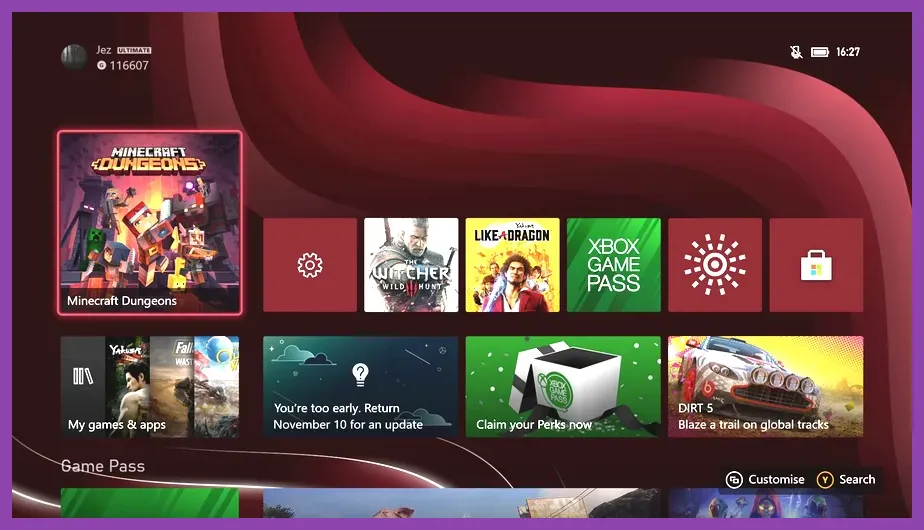
To optimize co-op games on Xbox Series X|S and Xbox One, you must navigate deep into your system settings to eliminate network latency, switch video output from cinematic fidelity modes to high-framerate performance presets, clear the active Quick Resume cache, and configure proper QoS (Quality of Service) on your router. Whether you are raiding dungeons in Monster Hunter Wilds, surviving chaotic extraction runs, or coordinating complex base building akin to Manor Lords, hardware bottlenecks and unstable packet delivery will consistently ruin cooperative sessions. This guide details the exact configurations required to lock in 60 frames per second, slash your ping, and guarantee buttery-smooth multiplayer synchronicity.
Configuring Advanced Network and DNS Settings for Zero Packet Loss
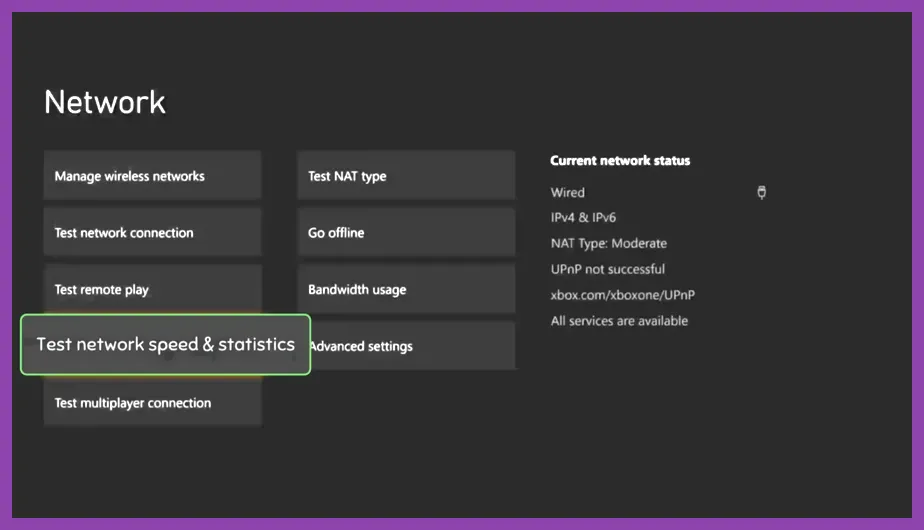
Network latency is the single greatest enemy of seamless cooperative gameplay on consoles. High bufferbloat and unstable packet jitter will cause severe rubber-banding, delayed hit registration, and unexpected session drops. To combat this, you need to move away from default internet configurations and establish a direct, optimized pathway between your Xbox console and your local router.
First, abandon wireless Wi-Fi connections entirely. Even a high-end Wi-Fi 6 router introduces micro-interference that triggers packet loss in fast-paced co-op titles like Left 4 Dead 2 or modern cooperative shooters. Plug a Cat 6 or Cat 7 Ethernet cable directly into your Xbox Series X or Series S LAN port. Next, navigate to Settings > General > Network settings > Advanced settings. Instead of using your Internet Service Provider's default Domain Name System (DNS) servers—which often route through congested external nodes—manually input reliable public DNS addresses. Set your Primary IPv4 DNS to Cloudflare's high-speed server (1.1.1.1) and your Secondary IPv4 DNS to Google's redundant server (8.8.8.8). For users seeking maximum security alongside speed, check out the official Xbox Support Portal for further network troubleshooting instructions.
After applying manual DNS configurations, run a detailed network statistics test directly on the dashboard. You are looking for a NAT Type of Open. If your NAT type reads Moderate or Strict, your console cannot establish peer-to-peer connections with certain squadmates. Resolve this immediately by accessing your home router's admin panel and enabling Universal Plug and Play (UPnP), or by manually assigning a static IP address to your Xbox and placing it inside your router's DMZ (Demilitarized Zone). Furthermore, if your router supports Quality of Service (QoS) tagging, prioritize your Xbox's MAC address to ensure packet delivery is never throttled by background downloads or other household streaming devices.
Maximizing Framerate via In-Game Graphics and Video Output Presets
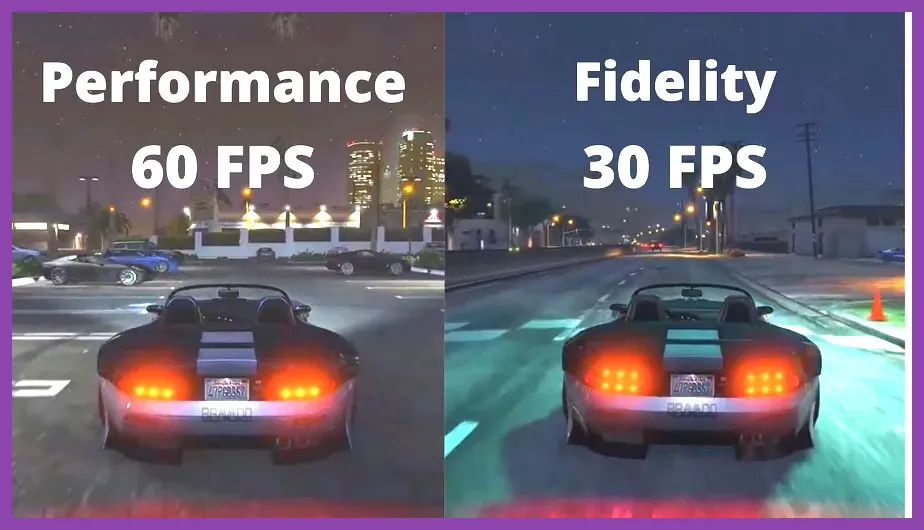
Cooperative games demand rapid visual processing, especially when multiple players cast high-particle spells or trigger massive explosions simultaneously. If your console is locked into a 30Hz graphical fidelity mode that prioritizes ray-traced reflections over responsive input timings, your gameplay will feel sluggish and unresponsive during intense combat encounters.
Begin by adjusting your overarching console video settings. Go to Settings > General > TV & display options. Ensure your resolution is set correctly to match your display capabilities (4K UHD or 1440p), but crucially, verify that your refresh rate is locked to 120Hz if you own a high-refresh monitor or HDMI 2.1 television. Check the boxes for Allow 4K, Allow HDR10, and specifically Allow variable refresh rate (VRR). VRR is an absolute game-changer for co-op titles, as it dynamically synchronizes your display's refresh rate with the console's output frame rate, effectively eliminating screen tearing and mitigating the perception of frame dips during chaotic squad battles.
Once your system-level display parameters are locked in, dive into the specific video settings of the co-op game you are playing. Always navigate to the graphics sub-menu and select Performance Mode rather than Quality or Resolution Mode. Performance profiles universally drop internal rendering resolutions (often scaling dynamically via AMD FidelityFX Super Resolution or temporal reconstruction) to guarantee a locked 60 FPS or higher. Disable motion blur, lower ambient occlusion quality to medium, and turn off chromatic aberration. These specific graphical tweaks free up crucial GPU and memory bandwidth, ensuring that when four players unleash screen-clearing ultimate abilities at the exact same second, your frame rate remains rock-solid.
Purging the Quick Resume Cache to Prevent Memory Leaks
The Xbox Series X|S Quick Resume feature is a marvel of modern console engineering, allowing you to suspend multiple games in a frozen state inside the system's ultra-fast NVMe solid-state drive. However, this feature is notoriously problematic for online, server-dependent cooperative titles.
When a co-op game is left sitting in Quick Resume, its network socket tokens expire, its persistent server connection drops into a zombie state, and background memory allocations remain stubbornly pinned. When you quickly boot back into the game to join a friend's squad without a fresh application launch, the game client frequently fails to re-authenticate with the developer's matchmaking servers. This results in endless infinite loading screens, corrupted party invites, or sudden mid-mission disconnects.
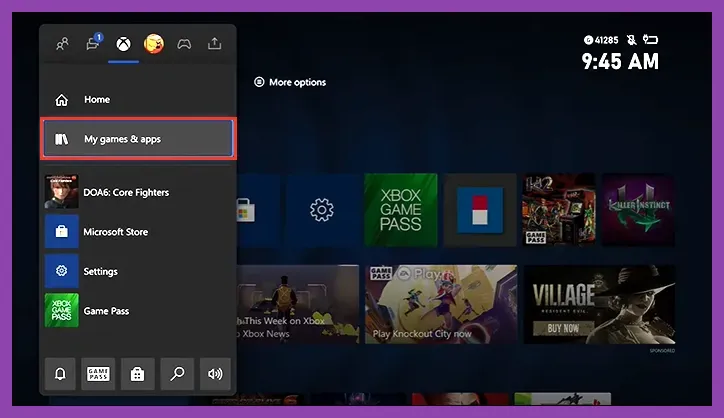
To prevent these frustrating networking anomalies, make it a strict habit to completely close out of your co-op game before starting a session. Press the Xbox button on your controller, highlight the active game card on the guide menu or within your My Games & Apps library, press the Menu button (three horizontal lines), and select Quit. This forces the console to completely purge the game from its active memory cache, releasing reserved RAM pools and compelling the game engine to execute a completely clean initialization sequence. A fresh boot ensures your game client pulls the latest hotfixes, synchronizes local save states properly, and establishes a pristine handshaking protocol with multiplayer servers.
Balancing Party Chat Audio and Game Mixer Priorities
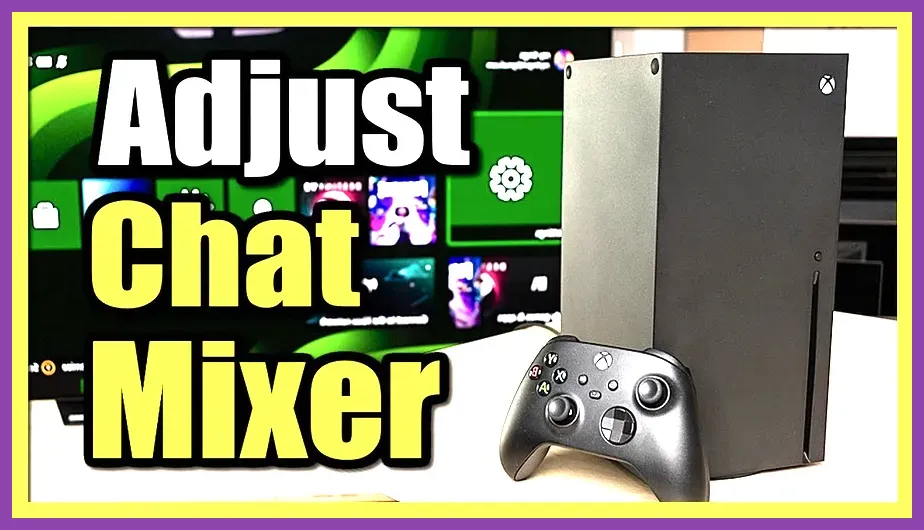
Cooperative gaming relies fundamentally on crystal-clear communication. There is nothing more detrimental to a tactical squad run than struggling to hear critical audio cues—such as a boss charging a telegraphed one-shot attack or an enemy flanking your position—because your party chat audio is completely drowning out the game sound design.
Xbox consoles feature a dedicated, hardware-accelerated audio mixer built directly into the guide menu that lets you balance party chat volume against master game audio on the fly. Press the Xbox button, navigate down to the Audio & Music tab (represented by the speaker icon), and locate the Party chat mixer slider. If you find your teammates are too loud, slide the marker slightly toward the game icon to lower party volume without needing to ask individual friends to adjust their microphone output levels.
Furthermore, if you are playing games that feature deep spatial audio mechanics, ensure your console's overarching audio output is configured correctly. Go to Settings > General > Volume & audio output. If you are using a compatible headset, select Dolby Atmos for Headphones or Windows Sonic for Headphones. Spatial audio processing dramatically enhances directional sound separation in co-op environments, allowing you to pinpoint team revives, incoming projectile directions, and enemy footsteps with absolute auditory precision. For further reading on hardware audio integrations, consult the official Dolby Audio Standards documentation.
Managing Storage Drives and External Loading Bottlenecks
Cooperative multiplayer heavily taxes hardware streaming pipelines as multiple players load assets, textures, and character models concurrently. If your co-op game is installed on an older external USB mechanical hard drive or a sluggish external SSD instead of the internal Xbox Velocity Architecture storage, you will experience severe stuttering, delayed asset pop-in, and synchronization timeouts when transitioning between mission areas.
For Xbox Series X|S optimized games, it is mandatory that titles be stored directly on the Internal Storage Expansion Card or the internal custom NVMe SSD. If your internal drive is currently maxed out, use an external USB 3.1 hard drive strictly as a cold-storage vault to archive games you aren't currently playing, rather than running active multiplayer sessions off of it. Moving active co-op games to internal high-speed storage reduces texture streaming latency to near-zero, ensuring that when a fast-travel loading screen finishes, your character spawns instantly alongside your squadmates rather than lagging behind while assets crawl across a slower bus interface.
Finally, perform a full hard power cycle of your console once a week to clear lingering system cache bugs. Hold down the physical power button on the front of your Xbox console for approximately ten seconds until the power supply unit's LED light turns from white to a dull orange, or completely unplug the power cord from the wall outlet for thirty seconds. This physical hard reset clears temporary RAM registers, resets network transceiver states, and ensures your console operates at peak thermal and processing efficiency for your next gaming marathon.