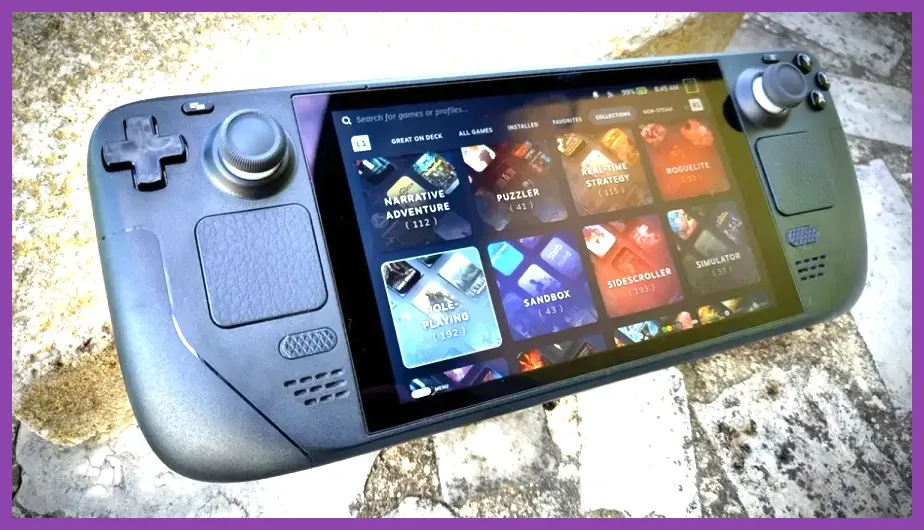
To optimize anime games on Steam Deck, start with a 40 FPS cap, 40 Hz refresh rate, 1280×800 resolution, Proton Experimental, and per-game power limits; then raise textures before shadows or effects. Persona 5 Royal can run at 60 FPS with low power draw, while Tales of Arise and Granblue Fantasy: Relink need a 30–40 FPS target, reduced volumetric effects, and careful thermal management.
Use the Right Steam Deck Baseline
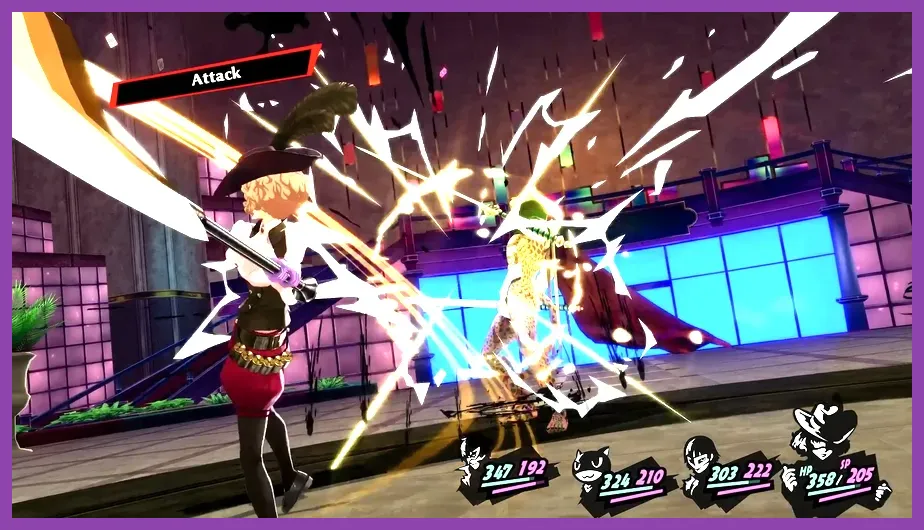
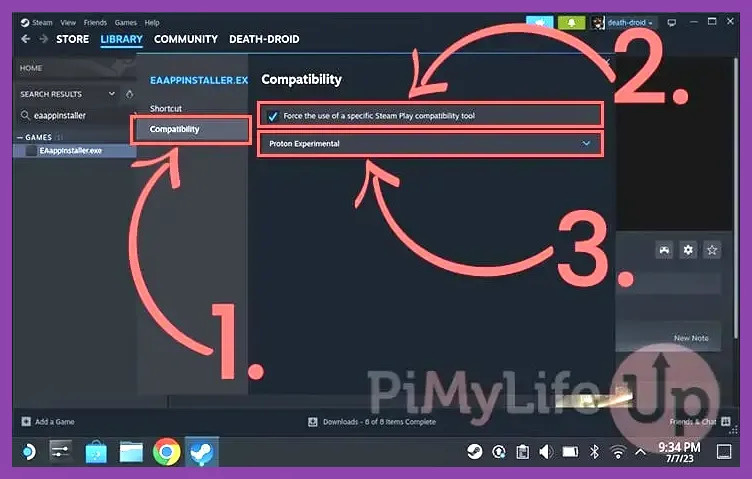
Open a game’s Properties menu, select Compatibility, and test Proton Experimental first. Native Linux builds are not automatically faster, and some anime releases behave better under Proton than through their default compatibility choice. Check the game’s current status on the official ProtonDB community database, but verify reports against the latest game patch and SteamOS version.
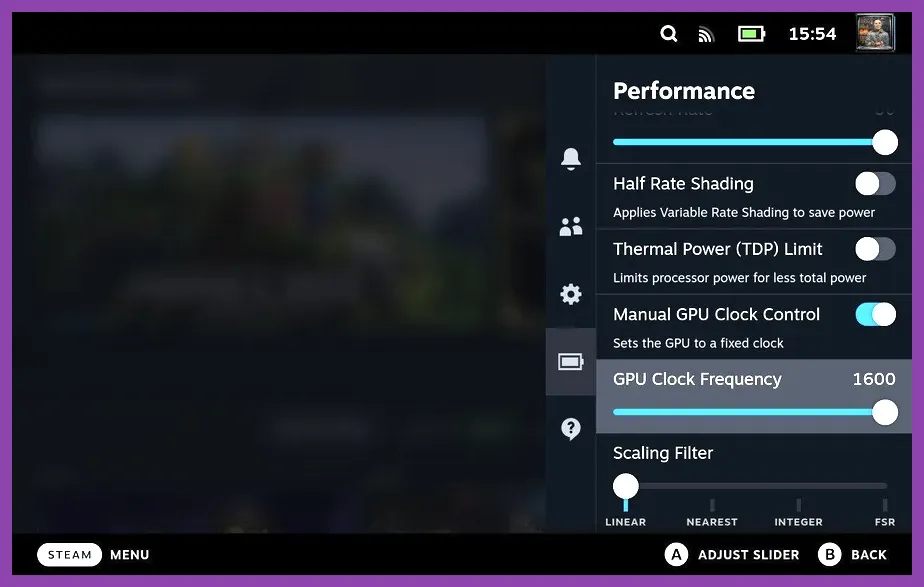
In Gaming Mode, press the three-dot button and open the Performance tab. For story-driven RPGs, set Refresh Rate and Frame Limit to 40, then leave the GPU clock on automatic. A 40 Hz/40 FPS profile is a strong middle ground on the LCD Deck’s 60 Hz panel and OLED Deck’s 90 Hz panel. It cuts heat and battery use without making camera movement feel as heavy as 30 FPS.
- Resolution: 1280×800 for games supporting 16:10; use 1280×720 when 800p causes interface scaling or extra rendering cost.
- Frame limit: 40 FPS for demanding 3D games, 60 FPS for lightweight games such as Persona 5 Royal.
- Refresh rate: 40 Hz for a 40 FPS cap; 60 Hz or 90 Hz when targeting 60 FPS.
- Scaling: FSR at 5–6 sharpness only when internal resolution must drop below native.
- Performance overlay: Level 2 while testing, then disable it for normal play.
Do not force a low GPU clock immediately. The Deck’s seven-core GPU can shift power between CPU and GPU, and a fixed clock may create worse frame pacing in shader-heavy scenes. For broader handheld tuning principles, compare this approach with our Steam Deck-style max-FPS settings guide.
Best Settings for Persona 5 Royal and Turn-Based RPGs
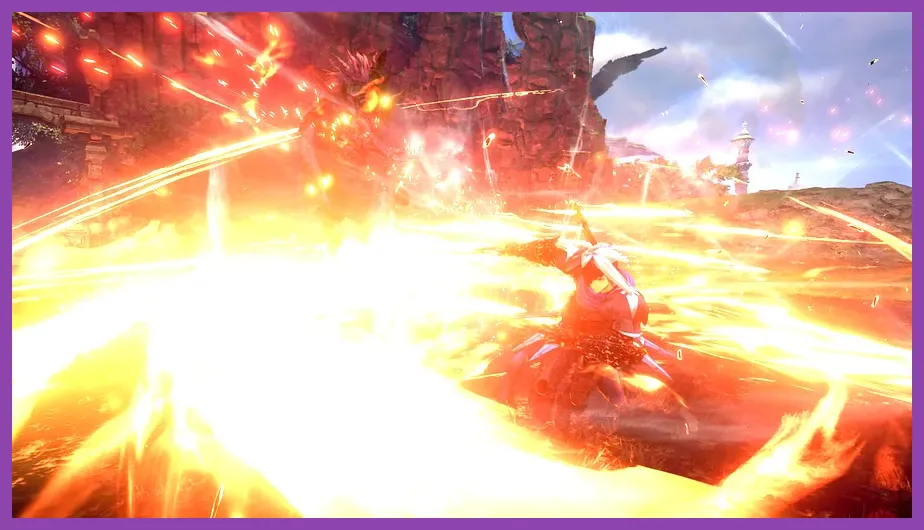
Persona 5 Royal on Steam is one of the easiest anime RPGs to optimize. Its turn-based battles, fixed camera angles, and stylized menus make a locked 60 FPS realistic without sacrificing image quality.
Persona 5 Royal 60 FPS profile
- Resolution: 1280×800.
- Frame limit: 60 FPS.
- Textures: High.
- Shadows: Medium.
- Anti-aliasing: High or the game’s default option.
- Ambient occlusion: On if frame rate remains locked; otherwise Off.
- TDP: Start at 8 W and increase only if the game dips below 60.
This profile usually keeps the fan quieter than a demanding action game and works well for long sessions in Kamoshida’s Palace, Mementos, and the later Shido’s Palace sequence. If you see brief stutters when entering a new area, allow shader processing to finish and avoid repeatedly changing Proton versions. The same low-power principles apply to many 2D-heavy or menu-driven releases, including several Atelier and visual-novel RPGs.
For games with video playback problems, use Proton Experimental before switching to GE-Proton. Confirm that SteamOS is updated through Settings > System, and keep at least 10 GB free on the internal SSD so shader caches and updates do not compete with game storage.
Best Settings for Tales of Arise
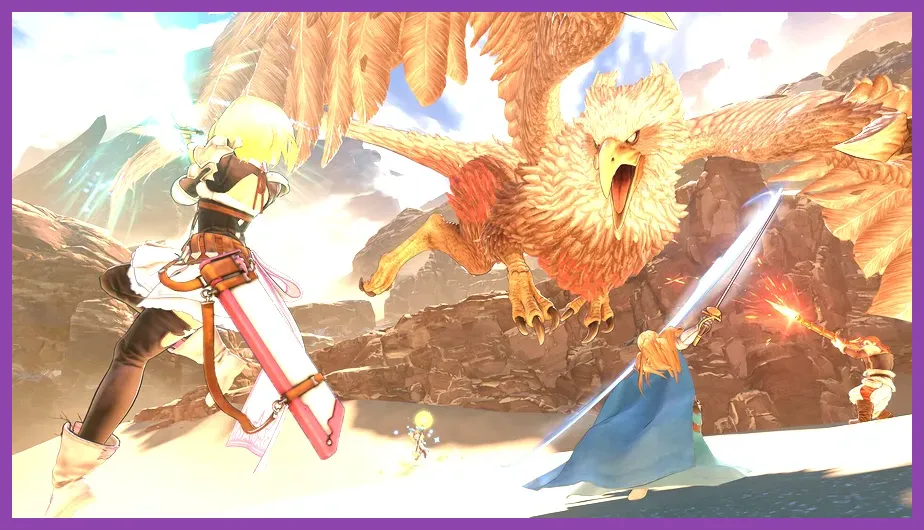
Tales of Arise is more demanding because its Unreal Engine environments combine detailed character models, dense foliage, real-time lighting, and fast party combat. Targeting a stable 40 FPS is preferable to chasing an inconsistent 60 FPS, especially during fights against large Zeugles.
Tales of Arise 40 FPS profile
- Resolution: 1280×720 if native 800p causes dips; otherwise 1280×800.
- Frame limit: 40 FPS.
- Textures: High.
- Effects quality: Medium.
- Shadow quality: Low or Medium.
- Foliage and environment detail: Medium.
- Motion blur: Off.
- Volumetric effects: Low.
- FSR: Quality, with sharpening kept moderate.
Textures are the setting to preserve because reducing them makes Alphen, Shionne, and the game’s armor look noticeably muddy. Shadows and volumetric lighting cost more during exploration in areas such as Calaglia’s burning landscape and Menancia’s lush fields. If combat drops below 40, lower volumetrics first, then shadows; do not immediately reduce textures.
Keep the Steam Deck’s GPU clock automatic and test with the performance overlay while fighting large enemies. A sustained 40 FPS cap also reduces CPU spikes caused by combat effects. For players moving between several RPGs, our system requirements breakdown explains why a game’s advertised PC target does not translate directly to handheld performance.
Granblue Fantasy Relink and Demanding Action RPGs
Granblue Fantasy: Relink is harder to stabilize than Persona 5 Royal because four-character battles generate frequent particle effects, large bosses, and camera movement. Luminiera Seaway encounters and late-game quests can expose frame-time spikes even when the average FPS looks acceptable.
Granblue Fantasy Relink 30–40 FPS profile
- Resolution: 1280×720.
- Frame limit: 30 FPS for maximum battery life, or 40 FPS for smoother combat.
- Textures: Medium or High if VRAM behavior remains stable.
- Shadows: Low.
- Effects: Low or Medium.
- Post-processing: Low.
- Motion blur: Off.
- V-sync: Enabled if you see tearing; otherwise use the SteamOS frame limiter.
Choose 30 FPS for long farming sessions and 40 FPS for boss attempts where responsive dodges matter. Reduce effects before textures because Skybound Arts, chain bursts, and boss telegraphs can fill the screen with particles. Locking the frame rate is especially important in multiplayer, where uneven frame pacing can make Link Attacks and Perfect Guards feel inconsistent.
Disable downloads while playing online and avoid using an SD card with poor sustained read speeds. Relink streams combat assets and can hitch if the card is nearly full or heavily fragmented. For another example of prioritizing combat clarity over visual excess, see our Solo Leveling: ARISE defensive setup guide.
Proton, Shaders, and Per-Game Troubleshooting
Compatibility issues are often mistaken for weak hardware. Before lowering every setting, confirm whether the problem is a shader hitch, a launcher failure, or an overlay conflict. Valve’s official Proton repository lists known compatibility work, while the Steam Deck compatibility program explains Valve’s Verified and Playable labels.
Fixes worth testing in order
- Restart the Deck after a major SteamOS or game update.
- Try Proton Experimental, then Proton Hotfix if the title recommends it.
- Verify installed files through Properties > Installed Files.
- Let shader pre-caching complete before judging traversal stutter.
- Disable third-party overlays, ReShade, and unnecessary launch options.
- Only then reduce shadows, effects, or internal resolution.
Anime games with separate launchers may require a first boot in Desktop Mode, but do not install random DLL files or unofficial patches unless a trusted compatibility report specifically requires them. If a launcher loops, clear its Proton prefix only after backing up saves; cloud synchronization is not a substitute for a manual save copy.
Battery, Heat, and Long Anime RPG Sessions
The most reliable battery improvement is a frame-rate cap, not maximum CPU reduction. Start with 40 FPS, 10 W TDP, and automatic GPU clock for Tales of Arise or Relink. If the frame rate stays locked, test 9 W; if it drops during battles, return to 10–12 W. Persona 5 Royal can often use 8 W at 60 FPS, depending on brightness and background downloads.
Keep screen brightness around 50–70 percent, use headphones instead of high speaker volume, and disable Wi-Fi during offline palace exploration. On OLED models, 45 Hz can be useful for games that fluctuate between 40 and 45 FPS, but a stable 40 FPS remains easier to configure. Avoid playing while the Deck is trapped inside a case or pressed against bedding; sustained heat can increase fan noise and reduce boost behavior.
Finally, save a separate per-game profile rather than applying one universal preset. Persona 5 Royal wants a high-quality 60 FPS profile, Tales of Arise prefers balanced 40 FPS settings, and Granblue Fantasy Relink benefits from a 30 FPS battery profile or carefully reduced 40 FPS mode. That distinction delivers smoother anime games on Steam Deck without sacrificing the sharp character art that makes these RPGs worth playing.