If your journey across Aesperia and Vera feels like a slideshow punctuated by sudden desktop crashes, you aren't alone. Tower of Fantasy runs on Unreal Engine 4, and while Hotta Studio delivered an eye-catching anime aesthetic, the PC port launched with notorious technical headaches: uncompiled pipeline state object (PSO) shaders, aggressive memory leaks in dense hubs like Mirroria, and severe frame hitching whenever multiple players unleash weapon discharge skills simultaneously. The fastest way to stabilize your game is to force the client into DirectX 11 mode, adjust your texture streaming pool inside Engine.ini, and slash your same-screen wanderer count. These targeted tweaks stop the game from choking your hardware, whether you're running a modest mid-range rig or a top-tier enthusiast build.
Quick Fixes for Tower of Fantasy Crashing on Launch and Mid-Fight
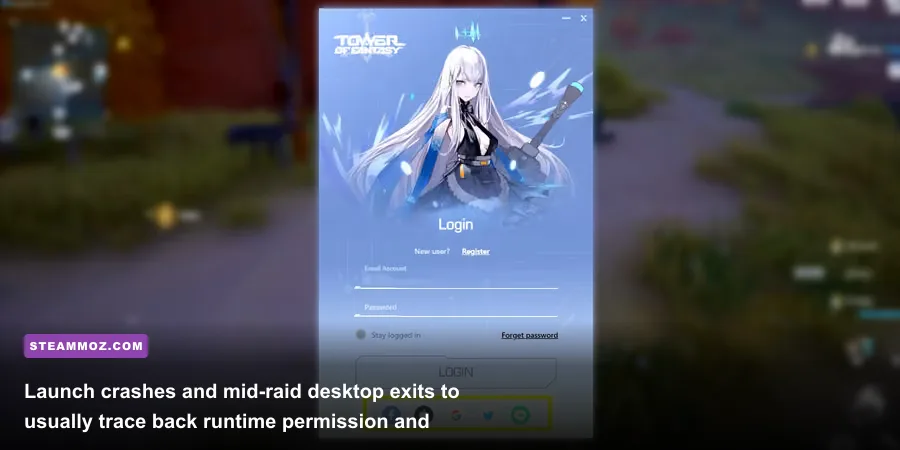
Nothing kills the excitement of pulling a new simulacrum quite like an instantaneous crash to desktop (CTD) without an error code. When Tower of Fantasy crashes, the fault generally lies with three culprits: anti-cheat conflicts, missing runtime redistributables, or the game attempting to initialize an unstable DirectX 12 render pipeline. The game relies on Anti-Cheat Expert (ACE), a kernel-level service that frequently clashes with third-party background software, screen recorders, and aggressive antivirus suites.
First, tackle the client permissions. Navigate to the game installation directory (typically found at Tower of Fantasy\Hotta\Binaries\Win64) and locate QRSL.exe. Right-click the executable, open Properties, jump to the Compatibility tab, and check Run this program as an administrator. While you are here, check Disable fullscreen optimizations to prevent Windows Desktop Window Manager (DWM) from hijacking render queues. This simple toggle eliminates a substantial number of launch crashes where the client hangs indefinitely on the Hotta Studio splash logo.
Next, repair the system-level Microsoft Visual C++ redistributable packages. Tower of Fantasy depends on multiple runtime libraries that can become corrupted during Windows updates or launcher patch cycles. Download the latest combined x86 and x64 installers directly from the official Microsoft Visual C++ Redistributable repository, run the setups, choose "Repair" (or install fresh), and restart your rig. If you encounter persistent launcher corruption on Steam, head over to your Steam Library, right-click the title, select Properties > Installed Files, and run Verify integrity of game files. We have seen similar launch instability fixed using these exact system-level steps in our troubleshooting guide for EscapeVR basement crashing and low FPS fixes.
If the game crashes during intense combat—specifically when fighting world bosses like Sobek, Apophis, or Rudolph—you are likely suffering from a GPU timeout (TDR). This occurs when the graphics card stalls for more than two seconds compiling a sudden burst of particle effects from Samir's Dual EM Stars or King's Scythe of the Crow. Disabling third-party overlays (Discord, GeForce Experience, MSI Afterburner/RivaTuner) immediately reduces overlay hook hooks that trigger these crashes during combat spikes.
Taming the Engine: Config Edits to Kill Micro-Stutter and Shader Cache Lag
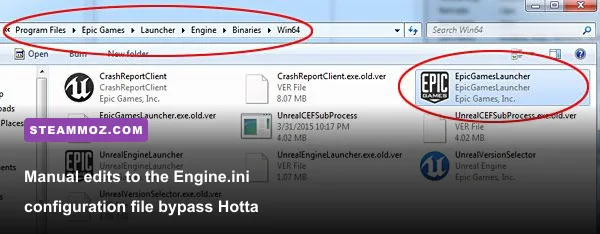
Micro-stutter in Tower of Fantasy is rarely caused by a weak graphics card; it stems from how the game streams assets off your drive and compiles shaders in real time. Hotta Studio opted not to include a comprehensive pre-compilation shader screen at the main menu. Consequently, the very first time an enemy executes an elemental attack or you trigger a jetpack glide across the Vera Desert, your CPU halts the render thread to build the shader cache. The result is a brutal half-second hitch that ruins dodge timings.
You can wrest control back from the engine by making targeted modifications to the configuration files. Press Win + R, type %LOCALAPPDATA%\Hotta\Saved\Config\WindowsNoEditor, and hit Enter. Locate the file named Engine.ini. Before touching anything, right-click and create a backup copy on your desktop. Open the original file in Notepad, scroll to the bottom, and paste the following optimization block:
[SystemSettings]
r.Streaming.PoolSize=4096
r.Streaming.UseBackgroundThreadPool=1
r.CreateShadersOnLoad=1
r.Shaders.Optimize=1
r.bInitialShaderPreshaders=1
r.Streaming.AmortizeCPUToGPUCopy=1
r.Streaming.MaxNumTexturesToStreamPerFrame=3
s.AsyncLoadingThreadEnabled=1
Let's break down why this matters. The r.Streaming.PoolSize parameter controls how much video memory is explicitly allocated for texture caching. If you have an 8GB VRAM card, setting this to 4096 gives the engine a massive 4GB playground to keep high-res textures loaded, virtually eliminating the aggressive texture pop-in seen when sprinting into Banges Dock. If your GPU has 6GB of VRAM, change this number to 3072; if you are packing a 12GB+ monster like an RTX 4070 or RX 7800 XT, you can safely bump it to 6144.
The shader flags (r.CreateShadersOnLoad=1 and r.bInitialShaderPreshaders=1) force Unreal Engine 4 to build shaders during area loading screens instead of waiting for combat encounters. Your initial loading screens into Navia or Mirroria might take three to five seconds longer, but the in-game micro-stuttering will vanish almost entirely. Once saved, right-click Engine.ini, select Properties, check Read-only, and click Apply. This prevents the official launcher from overwriting your custom values every time a mini-patch drops.
Optimal Graphics Settings: High Framerate Without Blurry Textures
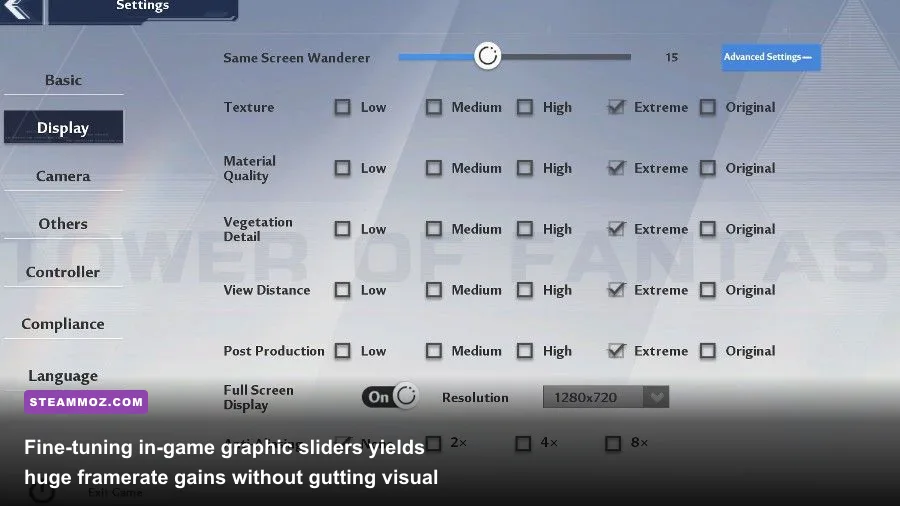
Tower of Fantasy's in-game display menu looks simple on the surface, but several toggles carry disproportionate rendering penalties. The worst offender by a wide margin is the client's rudimentary implementation of Ray Tracing. Flipping Ray Tracing to "On" can halve your framerate in dense districts, introducing severe frame pacing spikes while offering practically negligible reflections on water surfaces or metallic surfaces in Crown Mines.
To establish a bulletproof baseline, configure your display to run in exclusive Fullscreen at your monitor's native resolution. Running in "Windowed Fullscreen" forces the game to play nice with Windows composition buffers, which frequently introduces input latency and sporadic micro-stutters. Cap your framerate to 120 FPS within the in-game menu if your monitor supports it; Unreal Engine 4 handles physics calculations smoothly at high tick rates, and unlocking 120 FPS noticeably sharpens weapon animation cancels and aerial dodge trajectories.
| Setting Option | Optimal Value | FPS Cost | Visual & Tactical Impact |
|---|---|---|---|
| Ray Tracing | Off | 35% - 50% | Useless performance drain with unstable lighting artifacts. Keep off. |
| Resolution Scaling / DLSS | Quality / Balanced | -15% (Gain) | DLSS delivers sharp 1440p/4K presentation while clawing back vital GPU overhead. |
| View Distance | Medium or High | 8% - 12% | Medium is plenty for spotting distant exploration chests and elite bosses. |
| Textures | Original / High | 1% - 3% | Determined by VRAM. Has almost no frametime cost if within your card's memory limits. |
| Shading | Medium | 10% - 14% | High/Extreme overloads scene lighting when several players trigger ultimate bursts. |
| Post-Processing | Low or Medium | 6% - 9% | Low removes obnoxious motion blur and heavy depth-of-field filters during battle. |
| Vegetation | Medium | 5% - 7% | Reduces foliage draw overhead in lush biomes like Astra and the Vera greenery zones. |
| Same Screen Wanderers | 5 to 10 | 15% - 25% | Drastically reduces draw calls and CPU skeletal mesh updates during boss raids. |
Special attention must be paid to the Same Screen Wanderers slider in the Basic settings tab. This controls the maximum number of player models rendered on your screen simultaneously. When set to the maximum of 30, joining a joint operation or fighting a world boss like Lucia or Frost Bot turns your CPU into an absolute bottleneck. Your rig must calculate dynamic outfit physics, weapon glows, and matrix visual effects for every single wanderer. Dropping this slider down to 10 preserves battle readability and prevents your framerate from collapsing into the mid-20s. Balancing these graphics values mirrors the systematic tweaking we detailed in our guide on Far Cry 6 max FPS settings and our performance profile for Filament Marmalade Edition higher FPS.
DirectX 11 vs. DirectX 12 and Windows Tuning for Aida
By default, the PC build often defaults to a DirectX 12 render path if it detects compatible hardware. However, Hotta Studio's DX12 implementation is plagued by unstable command queue submissions that cause the dreaded D3D Device Lost error (error code 0x887A0006). Unless you desperately need Nvidia DLSS features that require modern render interfaces on specific driver versions, forcing the game into DirectX 11 provides rock-solid frametime pacing and ends driver-level device crashes.
To force DirectX 11 through Steam, right-click Tower of Fantasy in your client, open Properties, and in the Launch Options box at the bottom of the General tab, enter:
-dx11If you use the standalone client downloaded from the Tower of Fantasy Official Website, you can force this via a desktop shortcut. Right-click the shortcut to QRSL.exe, select Properties, and append -dx11 to the end of the Target field outside the quotation marks (e.g., "...\Hotta\Binaries\Win64\QRSL.exe" -dx11). Applying launch flags to stabilize unstable ports is an established fix across many RPGs; we applied nearly identical launch instructions to solve engine stumbles in ELEX PC crash and FPS fixes as well as space-combat anomalies in Everspace 2 crashing and FPS fix.
| Tuning Parameter | Target System Component | Recommended Value | Core Operational Benefit |
|---|---|---|---|
| Shader Cache Size | Nvidia / AMD Control Panel | 10 GB or Unlimited | Prevents the driver from purging compiled Aesperia and Vera shaders. |
| Low Latency Mode / Anti-Lag | GPU Driver Utility | Ultra (Nvidia) / On (AMD) | Squeezes out render queue latency without desyncing weapon combos. |
| Power Management Mode | Nvidia Control Panel | Prefer Maximum Performance | Stops your GPU from downclocking during lighter open-world traversal. |
| Control Flow Guard (CFG) | Windows Exploit Protection | Program Override: OFF | Eliminates security overhead hitches on the game's executable. |
| Hardware GPU Scheduling (HAGS) | Windows Display Settings | Enabled | Lowers CPU scheduling load during intense multiplayer boss encounters. |
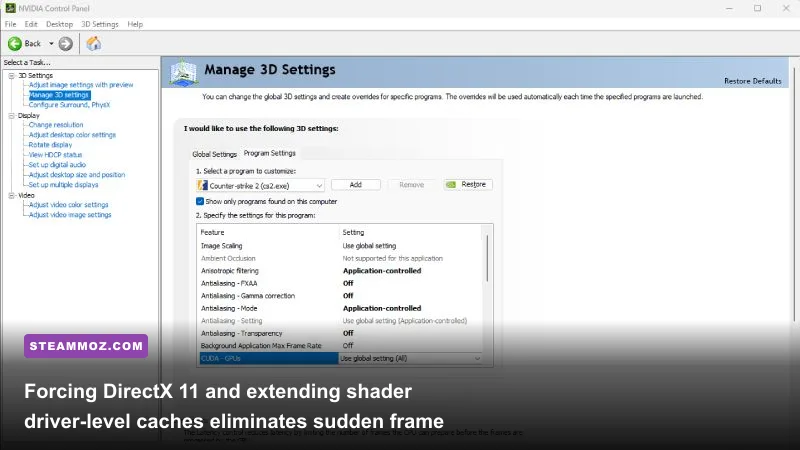
The Shader Cache Size tweak listed above is arguably the most impactful external fix you can make. Open your Nvidia Control Panel, navigate to Manage 3D Settings > Program Settings, and add QRSL.exe. Scroll down to Shader Cache Size and change it from the default "Driver Default" to 10 GB. Unreal Engine titles churn through shader storage quickly; the default 1GB cache on modern Windows installations fills up within a few hours of exploring different biomes, forcing your GPU to constantly overwrite and recompile environmental assets. Giving it a 10GB sandbox ensures that once a shader compiles, it stays cached forever.
Resolving Memory Leaks, Game Security Breaches, and Network Latency Spikes
A common complaint among veteran players is that Tower of Fantasy runs buttery smooth for the first twenty minutes of a session, but gradually degrades into an unplayable, hitching slog. This is a classic symptom of memory leakage within the asset streaming buffer. Over extended play sessions, the game fails to purge unloaded textures and sound banks from your system RAM, steadily bloating usage from a modest 4.5GB up to 14GB or more until your system chokes on page file swap requests.
To combat this, utilize a utility like Intelligent Standby List Cleaner (ISLC). This lightweight background tool constantly monitors your Windows memory standby list and automatically flushes it whenever free memory drops below a designated threshold (such as 4GB). It prevents the Windows memory manager from stalling the game thread while trying to free up pages during fast traversal on your vehicle or grappling hook maneuvers through Mirroria's high-rise corridors.
Another sneaky source of hitching is network packet drop masquerading as visual stutter. Because Tower of Fantasy utilizes server-authoritative client synchronization, severe packet loss causes your character to micro-rubberband backwards, which feels nearly identical to an engine frametime drop. If you are experiencing micro-teleportation while executing aerial combos with Alyss or Lin, double-check your connection integrity:
- Ditch Wi-Fi for Ethernet: The game's anti-cheat heartbeat constantly monitors client latency. Even small 2% packet loss bursts will cause the game client to momentarily freeze animation processing to wait for server acknowledgement.
- Set Windows Exploit Protection Overrides: Open your Windows Start menu, search for Exploit Protection, switch to Program Settings, and click Add program to customize. Select
QRSL.exe, scroll down to Control Flow Guard (CFG), check Override system settings, toggle it to Off, and apply. This stops Windows from repeatedly intercepting game thread execution calls made by the anti-cheat driver. - Clean your Temp & Shader Directory: Occasionally, corrupted cache chunks in your Windows temporary folder cause loading hangs. Press Win + R, type
%localappdata%\D3DSCache, and delete the folders inside. Do the same for%localappdata%\Nvidia\DXCache(or the AMD equivalent). Your card will repopulate these fresh on the next boot, clear of corrupted instruction sets.
By coupling these network and memory hygiene practices with our custom Engine.ini commands and the forced DirectX 11 launch option, you effectively bypass the rough edges of Hotta's PC conversion. For ongoing patch notes and official announcements on client stability updates, keep an eye on the Tower of Fantasy on Steam community hub. With your client properly tuned, you can finally dive into Vera's hardest raids without fearing an abrupt crash right before the boss drops its loot.