If Microsoft Flight Simulator is violently stuttering, tanking to single-digit framerates, or dumping you straight to the desktop on PC—especially when running through the Xbox Game Pass ecosystem—the issue almost always traces back to an overloaded CPU Mainthread, an undersized Windows pagefile triggering out-of-memory errors, or corrupted cloud-streamed data. To eliminate the immediate stuttering right now, drop your Terrain Level of Detail (LOD) to 100, purge your in-game Rolling Cache, manually assign a static 32GB Windows Virtual Memory pagefile, and revert from DirectX 12 (Beta) back to DirectX 11. These adjustments instantly stabilize the render pipeline, slash memory leaks, and prevent the simulator from choking out your hardware.
The Immediate Survival Tweak: Cache, Pagefile, and DirectX Mode
Microsoft Flight Simulator pulls an unprecedented amount of volumetric atmosphere, vector data, and photogrammetry assets into system memory simultaneously. When you launch the sim through the PC Xbox app or access it via Xbox cloud integrations, the client continuously streams gigabytes of real-world terrain from Bing Maps servers. If your system runs out of physical or virtual memory during this asset swap, the sim will not gracefully stutter—it will crash straight to desktop (CTD) without an error code.
Your first line of defense is taking control of the Windows paging file. By default, Windows dynamically manages the swap file size on your primary drive. When MSFS rapidly requests an extra 8GB of virtual address space while loading into a dense municipal area like Los Angeles or London, Windows often fails to expand the pagefile quickly enough, triggering an unhandled exception. Similar to troubleshooting memory bottlenecks in EscapeVR: The Basement crashing and low FPS issues, you must lock in a permanent virtual safety net:
- Press Win + R, type
sysdm.cpl, and hit Enter. - Navigate to the Advanced tab and click Settings under the Performance section.
- Click the Advanced tab inside the Performance Options window, then select Change under Virtual Memory.
- Uncheck "Automatically manage paging file size for all drives".
- Select your fastest NVMe SSD (the drive where MSFS or your packages are installed), choose Custom size, and set both Initial size and Maximum size to
32768MB (32 GB). - Click Set, then hit OK and restart your PC.
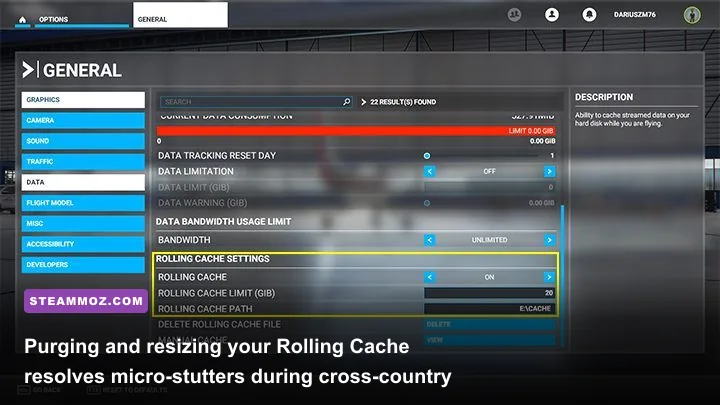
Next, dive directly into the simulator's internal storage subsystem. Go to Options > General Options > Data. Scroll down to Rolling Cache. A corrupted rolling cache file is responsible for roughly half of the rhythmic micro-stutters pilots encounter during final approaches. Turn Rolling Cache OFF, click Delete, and confirm. Once cleared, turn it back ON, assign it a fixed size of 16 GB to 32 GB on your fastest SSD, and click Save & Apply. This ensures clean, unfragmented read/write operations when cycling through heavily rendered regional airspace.
Finally, check your Graphics API. While DirectX 12 offers native support for Nvidia DLSS 3 Frame Generation, its implementation in MSFS remains notoriously prone to aggressive VRAM over-allocation and memory degradation over long flight sessions. Unless you are rocking an RTX 40-series card and genuinely require Frame Generation to hit your monitor's refresh ceiling, switch the DirectX Version toggle back to DX11. DirectX 11 provides significantly tighter frame pacing and shields mid-tier graphics cards (such as the RTX 3060, RTX 3070, and Radeon RX 6700 XT) from sudden driver-level timeouts.
Fine-Tuning the Graphics Settings That Kill Your Frame Times
MSFS does not tax your hardware like a standard shooter or linear action game. In 90% of performance drop scenarios, you are not GPU-bound—you are CPU Mainthread bound. The game engine processes flight physics, aerodynamic calculations, AI traffic logic, and terrain streaming through a single primary thread. If you crank settings that overwhelm this core, your GPU will sit idle at 60% utilization while your frame rate plummets into the high teens.
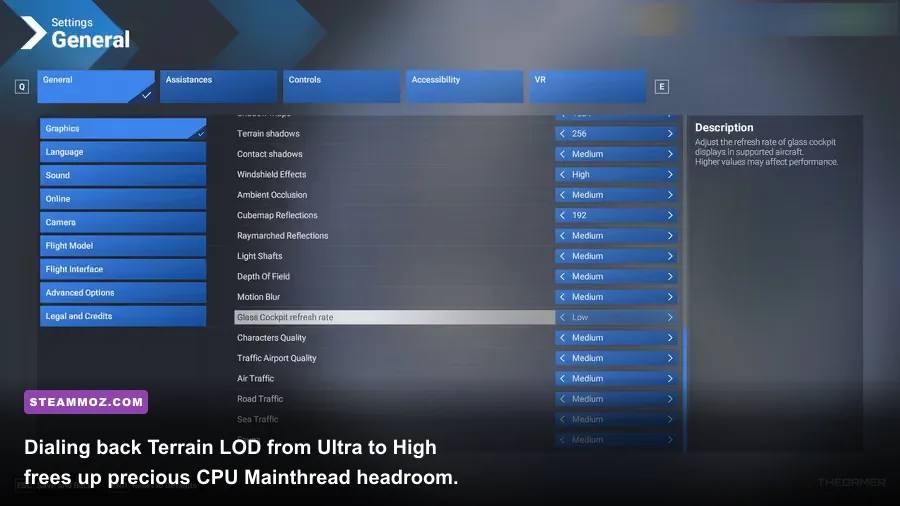
The single most destructive setting in the entire engine is Terrain Level of Detail (TLOD). This setting dictates the geometric density, mesh draw distance, and photogrammetry resolution rendered outward to the horizon. Cranking TLOD to 200 or 400 forces your CPU to track millions of distant vertices across the landscape, shattering your 1% low frame rates. Dialing it back between 100 and 125 preserves crisp visual clarity from cruising altitude while cutting your Mainthread latency by as much as 14 milliseconds per frame.
The secondary killer is Objects Level of Detail (OLOD), which governs 3D clutter, ground vehicles, ramp equipment, and dynamic airport infrastructure. When taxiing around handcrafted mega-hubs like Frankfurt (EDDF) or John F. Kennedy (KJFK), OLOD crushes CPU frame pacing. Drop this value to 100. Similarly, the Glass Cockpit Refresh Rate forces your system to redraw complex vector displays on avionics suites like the Garmin G1000 NXi or Airbus A320neo electronic flight instrument systems (EFIS). Setting this to Medium cuts display redraw intervals in half, reclaiming crucial frames inside modern cockpits without sacrificing navigational readability.
| Graphics Setting | Optimal Setting | FPS & Frametime Impact | Primary Bottleneck Relieved |
|---|---|---|---|
| Terrain Level of Detail (TLOD) | 100 – 120 | Massive (+20-35% Frame Pacing) | CPU Mainthread |
| Objects Level of Detail (OLOD) | 80 – 100 | Moderate (+8-12% at Airports) | CPU Mainthread |
| Volumetric Clouds | High (Avoid Ultra) | Substantial (+12-18% in Weather) | GPU Rasterization & VRAM |
| Glass Cockpit Refresh Rate | Medium | Moderate (+5-10% inside Cockpit) | CoherentGTDraw / CPU |
| Shadow Maps & Terrain Shadows | 1536 / 512 | Moderate (+6-10% Ground Level) | GPU VRAM & Core Pipeline |
| Off-Screen Terrain Pre-Caching | Ultra | Stabilizes Panning (Prevents Spikes) | System RAM & Bus Bandwidth |
| Ambient Occlusion | Medium or Low | Low (+4-6% in Cabins) | GPU Shaders |
Pay close attention to Off-Screen Terrain Pre-Caching. While setting this to Ultra consumes slightly more physical RAM, it forces the simulator to maintain visual assets in memory even when you pan your camera away from them. If this setting is set to Low, every quick glance out the left cockpit window forces an immediate disk or memory read, manifesting as an unbearable stutter while the assets snap into position. Much like tuning performance profiles in our Far Cry 6 optimization pass guide, isolating system bus spikes is critical for maintaining buttery frame pacing.
Taming the Xbox App, Gaming Services, and Cloud Streaming Glitches
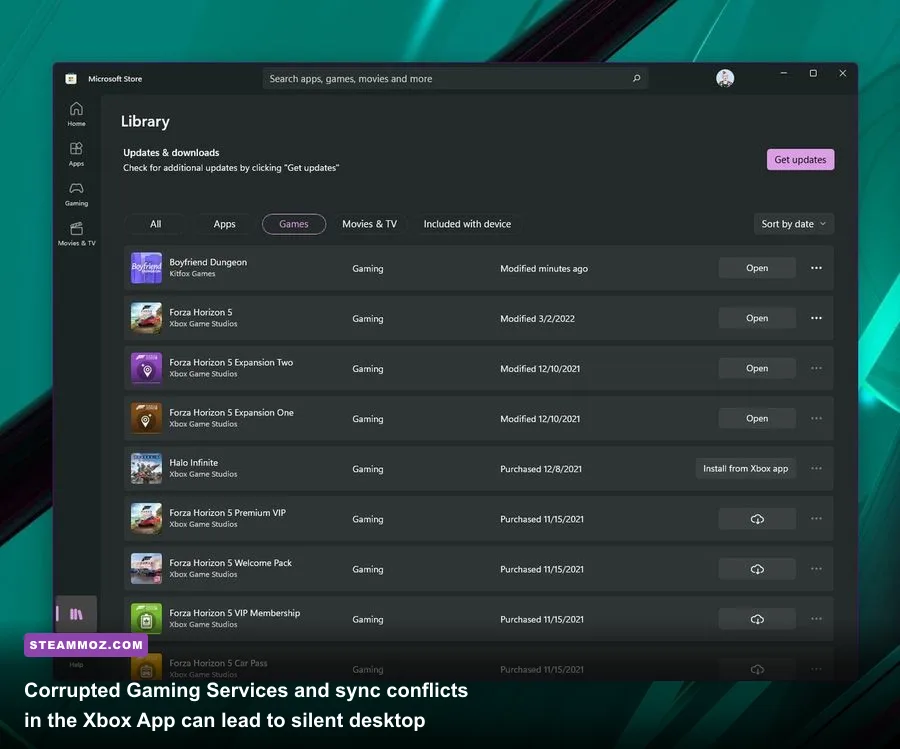
If you launch Microsoft Flight Simulator via PC Game Pass or purchased it via the Microsoft Store, your installation relies heavily on Windows Gaming Services, Xbox Identity Provider, and regional cloud authentication nodes. When these background apps fall out of sync, the simulator encounters endless loading spirals, stuttering asset streams, and sudden desktop terminations during cloud validation handshakes.
Start by resolving Gaming Services hang-ups. Corrupted credential tokens in the Xbox ecosystem will randomly interrupt asset streaming. Shut down the sim, open an elevated PowerShell terminal (Run as Administrator), and execute the following command to completely uninstall the current Gaming Services payload:
get-appxpackage Microsoft.GamingServices | remove-AppxPackage -allusersOnce finished, input this command in the same PowerShell window to automatically launch the Microsoft Store directly onto the clean Gaming Services install page:
start ms-windows-store://pdp/?productid=9MWPM2CQNLHNClick Install, let the services refresh, and reboot your machine. If you are experiencing repeated permission failures or installation crashes when handling modern storefront titles, our breakdown of ELEX PC fixes that stop crashes explores similar permission and runtime dependency conflicts that plague Windows Game Pass installations.
For those playing Microsoft Flight Simulator on PC via Xbox Cloud Gaming (streaming the console version directly through the Xbox App or a browser), local hardware is rarely the primary source of framerate drops. Cloud stutters usually stem from client-side network jitter or inefficient hardware decoding. If streaming through a browser, exclusively use Microsoft Edge with Clarity Boost enabled. Head into edge://settings/system, toggle Use hardware acceleration when available to ON, and disable any active VPNs or aggressive firewall packet inspection filters. For general connectivity verifications, refer directly to official diagnostic protocols on Xbox Support.
Eliminating Mainthread Bottlenecks and Micro-Stutters
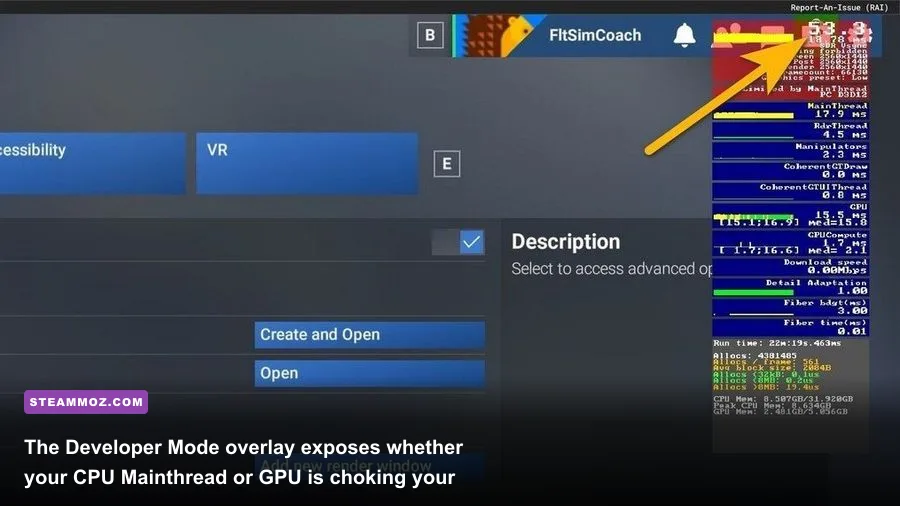
To accurately fix performance degradations, you need objective data rather than guesswork. Launch the simulator, navigate to General Options > Developers, and toggle Developer Mode to ON. A thin menu bar will appear at the top of your screen. Click Debug and select Display FPS. This unlocks the engine's real-time hardware telemetry overlay.
Look at the color-coded latency indicators. The engine explicitly displays whether your current bottleneck is Limited by Mainthread, Limited by GPU, or Limited by CoherentGTDraw:
- Limited by Mainthread: Your CPU cannot process aircraft aerodynamics, terrain assets, and physics scripts fast enough. You must reduce Terrain LOD, lower traffic density (cars, boats, airport ground vehicles), or disable third-party background flight loggers.
- Limited by GPU: Your graphics card core clock or VRAM is saturated. Drop Volumetric Clouds from Ultra to High, reduce Shadow Resolution, and utilize upscaling techniques like DLSS Quality or AMD FSR 2.
- Limited by CoherentGTDraw: The internal UI, cockpit panel scripts, or flight management computer displays are stalling the frame draw. Drop the Glass Cockpit Refresh Rate to Medium and remove unoptimized cockpit HUD mods.
Once you understand your bottleneck, apply specific driver-level interventions. For Nvidia users, open the Nvidia Control Panel, jump into Manage 3D Settings > Program Settings, and locate FlightSimulator.exe. Apply these precise operational values:
- Low Latency Mode: Set to On (avoid Ultra if CPU-bound, as Ultra can starve the Mainthread of frame queuing).
- Power Management Mode: Set to Prefer Maximum Performance. This locks clock states and prevents dynamic frequency downclocking when flying through empty, low-complexity airspace.
- Threaded Optimization: Set to On.
- Max Frame Rate: Match this to an even divisor of your monitor (e.g., lock to 30 or 60 FPS on a 120Hz/60Hz panel). MSFS delivers a vastly smoother visual impression running at a rock-solid, locked 30 or 45 FPS with consistent frame times than violently swinging between 35 and 65 FPS.
Always verify your graphics drivers are current. Clean driver installations eliminate erratic DirectX shader cache stalls. Download the latest WHQL release directly through the Nvidia Official Driver Portal or AMD's driver hub. Similar rendering pipeline optimizations are detailed across our analysis of Filament Marmalade Edition settings for higher FPS.
Resolving Community Add-On and Mod Conflict Crashes
If your crashes occur primarily when approaching specific destination runways, clicking the "Fly" button on the world map, or panning around complex cockpits, the simulator core itself may be entirely innocent. The overwhelming majority of unhandled CTDs in MSFS stem from incompatible, outdated community mods residing in your Community directory.
Every major simulator Sim Update (SU) alters base engine memory addresses, navigational databases, and shader caches. An outdated freeware airport livery, an obsolete airport scenery package, or an abandoned GPS gauge mod can instantly crash the simulator the microsecond its asset GUID is called into the active render stream. To systematically diagnose mod conflicts, execute an isolation sweep:
- Completely exit Microsoft Flight Simulator.
- Locate your packages folder. For PC Game Pass / Windows Store users, it typically resides at:
C:\\Users\\[YourUsername]\\AppData\\Local\\Packages\\Microsoft.FlightSimulator_8wekyb3d8bbwe\\LocalCache\\Packages\\ - Rename your
Communityfolder toCommunity.old. - Create a brand new, completely empty folder named
Communityin the exact same directory. - Relaunch the simulator and attempt the exact same flight plan and aircraft combination that previously triggered the crash.
If the simulator loads cleanly, flies smoothly, and holds stable framerates, you have confirmed a mod conflict. Do not dump your entire collection back in at once. Reintroduce add-ons using a binary search pattern (half at a time) or utilize management utilities like MSFS Addon Linker. Prioritize checking third-party liveries that feature custom 8K cabin textures, as these frequently exhaust graphics card VRAM, causing immediate crash-to-desktop events similar to texture streaming overflows discussed in our troubleshooting for Everspace 2 crashing fixes.
Additionally, check any external applications that interface with the simulator via SimConnect or FSUIPC—such as Navigraph Simlink, Volanta, VATSIM vPilot, or external flight loggers. Ensure these tools are updated to their latest compatible binaries. Outdated SimConnect hooks running in the background will relentlessly hammer CPU thread resources, creating recurring micro-stutters every few seconds as they desperately attempt to poll aircraft telemetries. For the latest status updates on game-wide server issues and certified mod guidelines, keep tabs on the official Flight Simulator Support Portal.
The Final Pre-Flight Configuration Checklist
Achieving stable performance in Microsoft Flight Simulator requires harmonizing in-game graphics, memory streaming, Windows service layers, and background utilities. Before firing up your next multi-hour cross-country flight, run through this definitive hardware and software verification checklist:
| Subsystem Target | Optimal Setting / Action | Purpose & Impact |
|---|---|---|
| System Pagefile | 32 GB Static on NVMe SSD | Completely prevents out-of-memory CTDs in dense photogrammetry cities. |
| Rolling Cache | Purged & Set to 16-32 GB | Removes stale streaming fragments and resolves approach micro-stutters. |
| Graphics API | DirectX 11 (Unless using DLSS 3) | Eliminates DX12 VRAM memory leaks and stabilizes long-haul flights. |
| Terrain LOD | Locked between 100 and 120 | Keeps CPU Mainthread latency strictly under 20ms over urban landscapes. |
| Glass Cockpit Refresh | Medium | Halves vector instrument draw overhead on glass panel aircraft like the A320. |
| Community Directory | Clean or Isolated via Addon Linker | Prevents outdated freeware liveries from causing unhandled engine exceptions. |
| Frame Cap | Locked at 30, 40, or 60 FPS | Eliminates GPU frame pacing fluctuations for perfectly smooth camera pans. |
By shifting your focus from blind graphics dial cranking to targeted Mainthread latency reduction and disciplined virtual memory allocation, you can completely eliminate the crashing fits and framerate drops that plague Microsoft Flight Simulator on PC. Lock in your pagefile, rein in your Terrain LOD, sweep your mod directory, and enjoy buttery smooth approaches all the way down to the runway centerline.