Hogwarts Legacy stutters and crashes on PC primarily due to aggressive Unreal Engine 4 asset streaming hiccups, runaway VRAM consumption in dense hubs like Hogsmeade and the Central Hall, and default shader cache limits that choke your GPU pipeline. To stabilize your frame times instantly, turn off in-game Ray Tracing, expand your GPU Shader Cache to 10GB inside your display driver software, set a manual 16GB Windows Pagefile, and dial back Volumetric Fog and Population Quality to Medium. Applying these core tweaks eliminates the sudden 20 FPS nosedives and memory-related desktop crashes without sacrificing the breathtaking fidelity of the Scottish Highlands.

1. The Root Cause: Why Hogwarts Legacy Chokes Modern Hardware
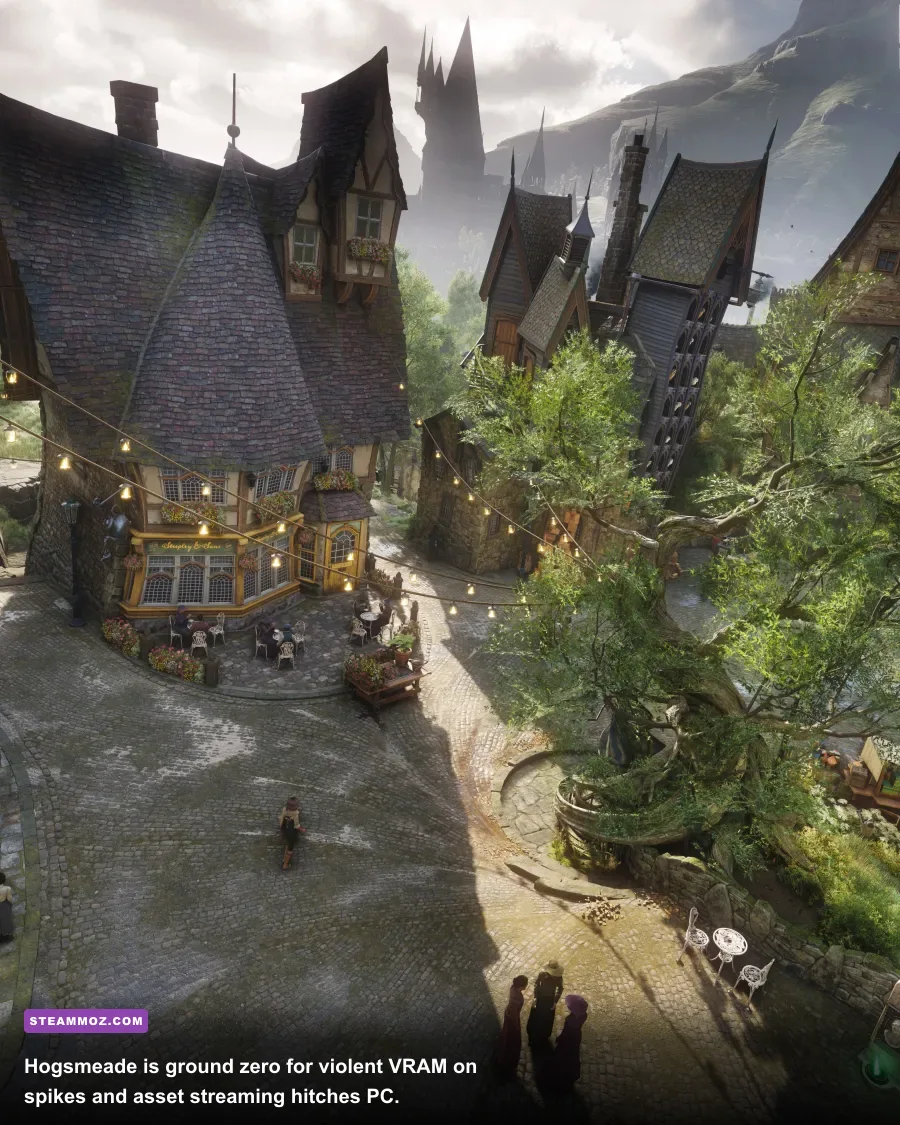
Even on beefy modern rigs equipped with cards like the RTX 4070 or Radeon RX 7800 XT, Hogwarts Legacy can feel like a jagged, stuttering mess. The game is built on a heavily customized iteration of Unreal Engine 4. Unlike games that load clean instances, Avalanche Software relies on dynamic background streaming to load the massive castle interior, exterior grounds, and hamlets seamlessly. When you sprint through ornate wooden doorways or turn a sharp corner in the Library Annex, the engine aggressively dumps old textures from your VRAM while pulling high-resolution mipmaps from your SSD.
If your graphics card runs out of available high-speed video memory—which happens routinely on 8GB and even 12GB cards when running high settings—the engine spills surplus assets over your PCIe bus into slower system RAM. That roundtrip latency is what causes the infamous hitching where your framerate plummets from a silky 80 FPS down into the single digits for a agonizing half-second. Similar to issues we tackled in our EscapeVR: The Basement crashing and low FPS guide, unoptimized streaming buffers will cripple your frame pacing regardless of raw computing power.
Compounding this problem is how the game manages its DirectX 12 pipeline state objects (PSOs). Despite the lengthy "Preparing Shaders" progress bar that greets you upon every boot, the title continues to compile micro-shaders on the fly during fast-paced broom travel and explosive spell duels. Without external intervention, your operating system and GPU driver fight over thread priorities, leading directly to dropped frames and intermittent driver timeouts.
🎮 Hogwarts Legacy
Looking to experience this game? Grab your digital key directly on our store for $59.99.
View on Steammoz Store →2. Crucial Windows and Driver Tweaks to Establish Stability
Before touching a single slider inside the in-game display menu, you need to configure your operating system and graphics control panel to handle the sheer volume of assets the game throws at them. Windows default settings are built for office productivity, not the ruthless memory churn of an open-world action RPG.
Expand Your GPU Shader Cache Size
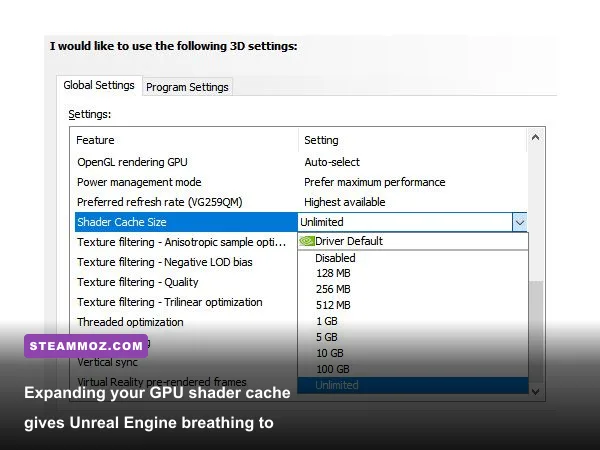
By default, Nvidia and AMD drivers cap local shader caching at a meager 1GB to 4GB. Hogwarts Legacy easily blows past this ceiling within three hours of roaming the open world, forcing the driver to flush previously compiled shaders and rebuild them mid-game. This creates persistent micro-stutters every time you cast Revelio or encounter a new enemy type.
- For Nvidia Users: Right-click your desktop, open the Nvidia Control Panel, navigate to Manage 3D Settings > Global Settings, scroll down to Shader Cache Size, and change it from "Driver Default" to 10GB (or Unlimited if you have ample SSD capacity). Click Apply.
- For AMD Users: Open AMD Software: Adrenalin Edition, go to the Gaming tab, select Graphics, scroll to the bottom, expand Advanced, and ensure Reset Shader Cache is executed once before launching to clear corrupt pre-patch caches.
Disable Control Flow Guard (CFG) for Hogwarts Legacy
Windows Exploit Protection uses a feature called Control Flow Guard to safeguard memory spaces. Unfortunately, CFG intercepts Unreal Engine 4's rapid-fire memory calls, producing severe, erratic frame hitching. Disabling it selectively for this single executable is a well-known, battle-tested fix endorsed across community forums and technical breakdowns on the official Hogwarts Legacy Steam page.
- Press the Windows Key, type Exploit Protection, and hit Enter.
- Click on the Program Settings tab and click Add program to customize > Choose exact file path.
- Navigate to your installation directory (e.g.,
...\Hogwarts Legacy\Phoenix\Binaries\Win64\HogwartsLegacy.exe). - Scroll down to Control Flow Guard (CFG), check Override system settings, toggle the switch to Off, and hit Apply.
Configure a Manual Virtual Memory Pagefile
Hogwarts Legacy routinely triggers hard desktop crashes (often without an error prompt) if your system runs out of commit charge. Even if you have 16GB or 32GB of physical DDR4/DDR5 RAM, letting Windows manage the pagefile dynamically can cause out-of-memory lockups during rapid fast-travel transitions. As we've seen when analyzing other crash-heavy titles in our ELEX PC fixes guide, establishing an unyielding paging buffer is mandatory.
Open System Properties > Advanced > Performance Settings > Advanced > Virtual Memory Change. Uncheck "Automatically manage paging file size for all drives." Select your fastest NVMe SSD, choose Custom Size, set both Initial Size and Maximum Size to 16384 MB (16GB), and click Set before restarting your machine.
3. Optimal In-Game Settings for Maximum FPS and Visual Clarity
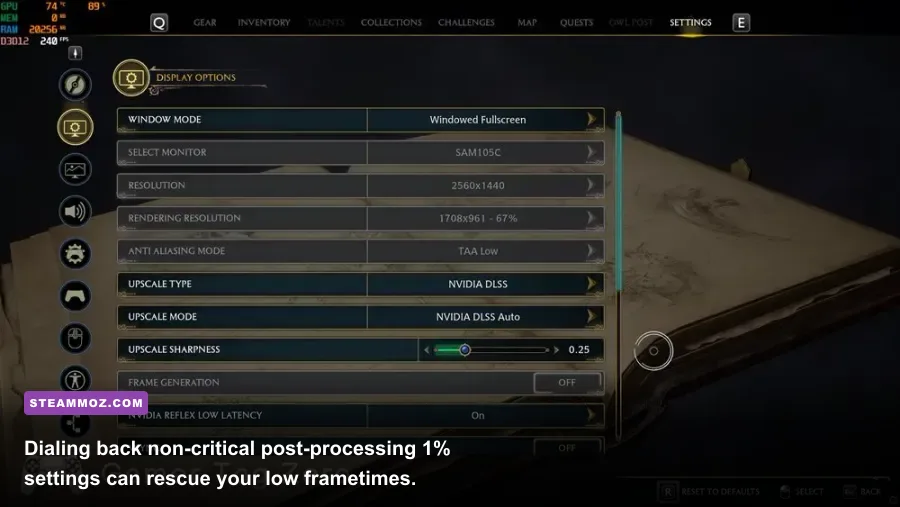
Avalanche Software's auto-detect preset is notoriously unreliable, frequently shoving 8GB cards into High or Ultra textures that guarantee frame collapse within twenty minutes of play. Fine-tuning these values manually strikes an ideal balance between crisp, atmospheric wizarding visuals and rock-solid frametime lines. Just like calibrating settings in our Far Cry 6 GOTY settings guide, targeted cuts yield massive performance dividends.
| In-Game Graphic Setting | Default Auto Preset | Recommended Value | Performance Gain | Visual Impact Breakdown |
|---|---|---|---|---|
| Effects Quality | Ultra | High | +4% to +6% FPS | Reduces minor particle density in heavy spell fights with zero noticeable downgrade. |
| Material Quality | Ultra | High | +3% FPS | Keeps stone and cloth shaders detailed while slashing memory addressing latency. |
| Fog Quality | Ultra | Medium | +11% to +15% FPS | Massive saver. Ultra fog raymarching eats GPU compute for breakfast during night scenes. |
| Sky Quality | High | Low | +4% FPS | Cloud tessellation overhead vanishes. You won't look at clouds while dodging trolls. |
| Foliage Quality | Ultra | Medium / High | +7% to +10% FPS | Medium drastically stabilizes frametimes in the Forbidden Forest and open valleys. |
| Post Processing | Ultra | Medium | +5% FPS | Cleans up excessive lens bloom and depth-of-field blur while recovering overhead. |
| Shadow Quality | Ultra | Medium / High | +8% to +12% FPS | Medium retains crisp contact shadows; Ultra tanks performance in lamp-lit corridors. |
| Texture Quality | Ultra | Card-Dependent (Medium/High) | Crucial for Stutters | Use Medium on 8GB GPUs; High on 10-12GB GPUs; Ultra only on 16GB+ monster rigs. |
| Population Quality | High | Medium | +6% FPS (Hogsmeade) | Reduces ambient student crowd density, relieving intense CPU thread bottlenecks. |
| Ray Tracing (All Options) | Off / On | OFF | +35% to +50% FPS | Completely broken BVH structure. Causes game-breaking stutters even on high-end hardware. |
After locking down these baseline graphics, turn your attention to temporal reconstruction. Running native resolution in modern DirectX 12 games is inefficient. Set your Upscale Type to Nvidia DLSS, AMD FSR 2, or Intel XeSS, and lock the Upscale Mode to Quality. If you run a high-refresh display at 1440p or 4K, avoid the ultra-performance modes as they soften distant castle spires unnecessarily.
4. The Secret Engine.ini Tweaks That Actually Kill Hitching
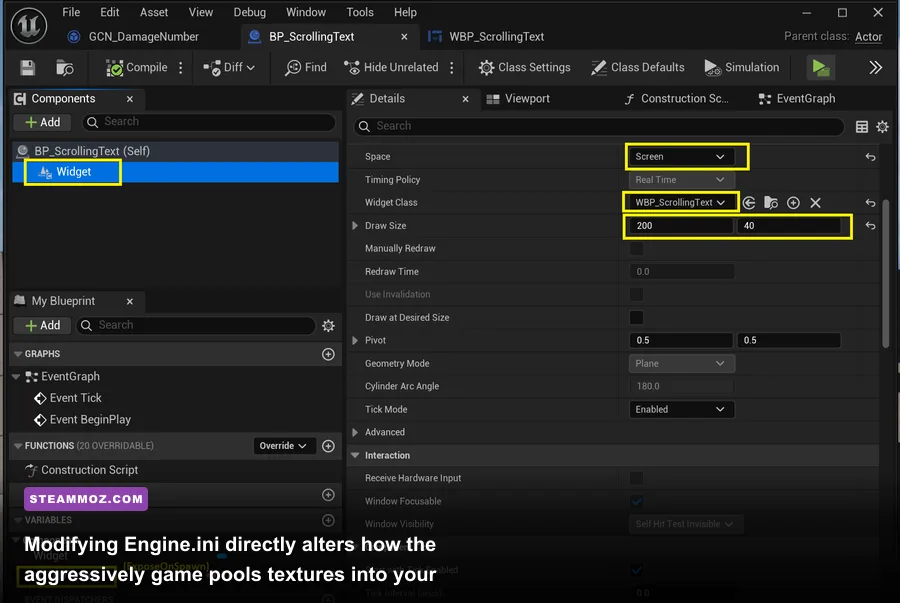
When in-game toggles fail to remedy localized hitching, you have to talk directly to the engine configuration file. Unreal Engine exposes asset-streaming pool variables through its configuration files, allowing you to force the game to respect your hardware's true physical limits. Modifying these values follows established guidelines found within the official Unreal Engine documentation.
To begin, press Win + R, paste the following path into the prompt, and hit Enter:
%LOCALAPPDATA%\HogwartsLegacy\Saved\Config\WindowsNoEditor
Locate the file named Engine.ini. Right-click it, make a backup copy on your desktop, and open the original using Notepad. Scroll to the very bottom of the document, hit enter to create a new line, and paste the following optimized block:
[SystemSettings]
r.Streaming.PoolSize=3072
r.Streaming.LimitPoolSizeToVRAM=1
r.bForceCPUAccessToGPUBuffer=0
r.CreateShadersOnLoad=1
r.Shaders.Optimize=1
r.FinishCurrentFrame=0
r.AsyncPipeline=1

[TextureStreaming]
r.Streaming.HLODStrategy=2
r.Streaming.MinSizeForStreaming=2048
r.Streaming.MaxNumTexturesToStreamPerFrame=60
Crucial Note on r.Streaming.PoolSize: You must tune this line based on your physical graphics card VRAM pool:
- 6GB VRAM: Set to
2048 - 8GB VRAM: Set to
3072 - 10GB – 12GB VRAM: Set to
4096or5120 - 16GB+ VRAM: Set to
8192
These commands stop the engine from thrashing texture files into oblivion when loading assets into Hogsmeade shops. The parameter r.CreateShadersOnLoad=1 forces the game engine to complete shader compilation phases before rendering scenes, trading a fraction of a second of loading time for smooth gameplay. If you enjoy fine-tuning configuration files across your library, explore our breakdowns on Filament: Marmalade Edition performance settings.
5. Fixing Desktop Crashes and Out of Video Memory Errors
If your game hard-crashes to desktop during the opening sorting ceremony or freezes while fast-traveling via Floo Powder, you are almost certainly running into memory corruption or driver execution timeouts. When resolving severe crash states, diagnosing baseline stability is critical, much like the steps covered in our troubleshooting guide for Everspace 2: Wrath of the Ancients crashing issues.
| Crash Symptom | Underlying Cause | Step-by-Step Fix |
|---|---|---|
| Instant Crash on "Preparing Shaders" | Corrupt DirectX shader cache or unstable CPU factory boost clocks. | Delete contents of %LOCALAPPDATA%\D3DSCache. On Intel 13th/14th Gen CPUs, drop SVID behavior or lower maximum boost multiplier by 1-2x in BIOS. |
| "Out of Video Memory" Error Prompt | VRAM leak driven by Ray Tracing combined with low system commit limits. | Fully disable all three Ray Tracing toggles. Expand Windows Virtual Memory pagefile to 16GB minimum on an SSD. |
| Random CTD During Floo Flame Travel | Corrupted game installation mips or conflicting background overlays. | Verify integrity of game files via Steam/Epic Launcher. Disable Discord, RivaTuner, and GeForce Experience in-game overlays. |
| DirectX Device Hung / Driver Timeout | Aggressive GPU overclocks or outdated display driver state. | Perform a clean driver reinstall using DDU (Display Driver Uninstaller) in Windows Safe Mode. Revert memory overclocks to stock clocks. |
If persistent crashing continues, check the status of official patches via the WB Games Support portal to verify whether a hotfix has broken compatibility with existing community mods. Third-party mods installed via Nexus Mods (especially custom lighting overhauls, reshades, or custom camera tools) are notorious for breaking memory pipelines whenever Avalanche rolls out minor game patches.
By enforcing manual shader limits, keeping Ray Tracing switched off, reining in the texture streaming pool through your Engine.ini file, and setting your graphics settings realistically, you transform Hogwarts Legacy from an unstable, stuttering slog into one of the most immersive, fluid action RPG adventures on PC.