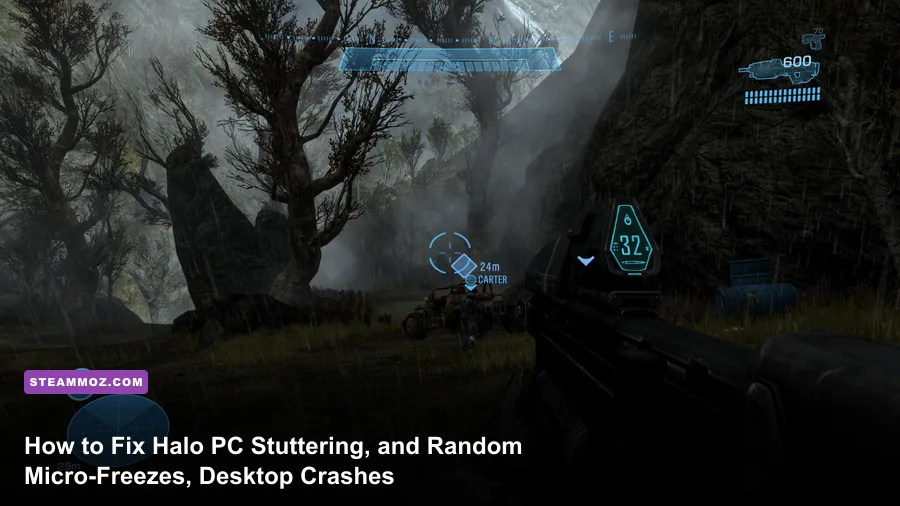
If Halo is stuttering, dropping frames during intense firefights, or flat-out crashing to your desktop mid-match, the culprit almost always traces back to three bottlenecks: unconstrained shader compilation stalls, corrupt high-resolution texture pack allocations, and aggressive third-party overlay hooks. You can eliminate the vast majority of micro-stutters immediately by disabling full-screen optimizations on the game executable, locking your frame rate through your GPU driver rather than the in-game limiter, and forcing Windows to purge its corrupted DirectX shader cache. Getting modern Halo releases—whether you're running the Slipspace Engine in Halo Infinite or the complex multi-engine wrapper of Halo: The Master Chief Collection on Steam—to deliver flat, consistent frame times requires dialing back specific system-level memory conflicts.
The Fast Diagnostic: Pinpointing Halo's Engine Bottlenecks

Halo's performance profile on modern Windows PCs behaves differently than most shooters. In Halo Infinite, the Slipspace Engine leans aggressively on asynchronous compute and real-time asset streaming, meaning any momentary hiccup in VRAM access translates to a jarring 50-millisecond frame spike. Meanwhile, The Master Chief Collection runs legacy 32-bit and 64-bit engine code ported through modern DirectX 11 and DirectX 12 translation layers, which makes it unusually sensitive to CPU core affinities and audio driver polling rates.
When you encounter a hard crash to desktop without an error code, you're almost certainly hitting a GPU device loss condition (often logged in Event Viewer as Display driver nvlddmkm stopped responding or an AMD amdkmdag timeout). Stutters that happen every time you enter a new room or zoom down a weapon optic indicate runtime shader compilation issues. Much like the erratic frame delivery we tackled in our guide to EscapeVR crash troubleshooting, resolving these hitches requires methodically peeling back background hooks and stabilizing your hardware's baseline state before tweaking aesthetic dials.
Essential Windows and Driver Adjustments to Stop Frame Drops
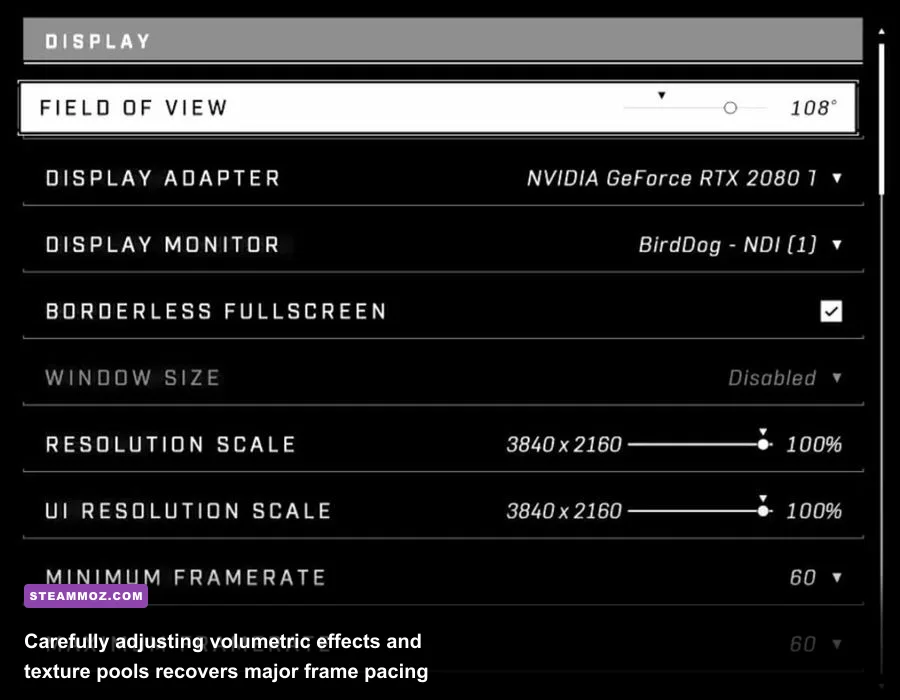
Before touching an in-game menu, you need to clean up how Windows feeds instructions to your graphics card. Corrupt shader caches cause intermittent stutters that no amount of graphics setting downgrades can fix. Close Halo completely, press Windows Key + R, type cleanmgr, and hit Enter. Select your primary boot drive, uncheck everything except DirectX Shader Cache, and click OK. This forces your system to rebuild fresh, clean shader pipelines the next time the game boots.
Next, tackle the Windows display pipeline. Navigate to the executable file for your game (for Steam users, find HaloInfinite.exe or MCC-Win64-Shipping.exe inside your steamapps/common directory). Right-click the file, choose Properties, select the Compatibility tab, and tick Disable full-screen optimizations. Click Change high DPI settings, check Override high DPI scaling behavior, and set the drop-down menu to Application.
In your GPU control center, expand your shader headroom to stop mid-match compilation drops:
- NVIDIA Users: Open the NVIDIA Control Panel > Manage 3D Settings > Global Settings. Set Shader Cache Size to 10 GB or Driver Default. Change Power Management Mode to Prefer maximum performance. Set Low Latency Mode to Ultra.
- AMD Users: Open AMD Software: Adrenalin Edition > Gaming > Graphics. Enable Radeon Anti-Lag, toggle Radeon Enhanced Sync off, and ensure Surface Format Optimization is enabled.
Finally, kill every non-critical overlay. Discord's in-game overlay, GeForce Experience / ShadowPlay HUD, Razer Synapse, and MSI Afterburner's RivaTuner Statistics Server (RTSS) hook directly into Halo's rendering swapchain. If you experience mysterious engine lockups—a problem shared by many demanding titles, as seen in our breakdown of ELEX PC crash and FPS solutions—disable these overlays entirely or set RTSS to 'None' for application detection level.
In-Game Settings Matrix for Peak Framerates and Stable Frame Pacing

Halo's default graphics presets prioritize dynamic visual fidelity over consistent frame pacing. Leaving settings on "Ultra" pushes volumetric fog passes, dynamic screen-space reflections, and full-resolution shadow cascades onto your compute units simultaneously. The table below outlines the exact performance cost of each setting alongside tuned recommendations designed to preserve visual clarity while maximizing frame stability.
| Graphic Setting | Recommended Value | FPS Performance Impact | Visual & Engine Trade-off Note |
|---|---|---|---|
| Async Compute | Enabled (AMD) / Disabled (Older NVIDIA) | +5% to -8% Frame Variance | Massive boost for RDNA cards; can cause micro-stutters on older GTX Turing/Pascal architectures. |
| High-Res Texture Pack | Uninstalled / Disabled | +12% to +18% FPS Headroom | Primary cause of 8GB VRAM buffer overflow and desktop crashes; marginal loss in multiplayer clarity. |
| Volumetric Fog Quality | Low | +8% to +11% FPS | Softens beam density slightly while freeing up critical compute shaders during explosive firefights. |
| Dynamic Wind Quality | Off or Low | +3% to +5% FPS | Disables procedural foliage physics; eliminates CPU thread spikes in open-world campaign areas. |
| Shadow Quality | Medium | +6% to +9% FPS | Keeps sharp character shadows while halving shadow cascade distance maps that hit draw calls. |
| Animation Quality | Auto or High | +2% to +4% FPS | Controls enemy frame calculation at long distances; Low causes distant Spartans to animate at 30 FPS. |
| Simulation Quality | Ultra | Negligible (under 1%) | Ensures vehicle and physics calculations update at your monitor's native refresh rate to prevent judder. |
| Terrain Quality | High | +2% FPS | Maintains geometric terrain meshes without geometric popping during high-speed vehicle maneuvers. |
Just as dialing back resource-heavy environment geometry stabilizes performance in our Far Cry 6 optimization guide, stripping out volumetric fog and unnecessary compute layers in Halo eliminates the sudden 30-frame dips that ruin your aiming tracking.
Purging the High-Res Texture DLC and Fixing Memory Overflows
The single biggest reason Halo crashes to desktop on PC is VRAM exhaustion triggered by the optional High-Resolution Texture Pack DLC. By default, both the Steam and Xbox Game Pass / Microsoft Store versions silently download this multi-gigabyte pack and force your GPU to stream ultra-high-resolution mipmaps into memory, even if you run a card with 6GB or 8GB of VRAM.
When the VRAM allocation threshold crosses roughly 92% of your physical hardware capacity, the Windows display manager starts swapping data across the system RAM bus. The result is catastrophic micro-stuttering followed by an unceremonious engine crash.
To safely nuke this texture pack:
- Steam: Open your Library, right-click Halo Infinite (or Halo: MCC), select Properties, and head to the DLC tab on the left. Find Multiplayer High-Res Textures (and Campaign High-Res Textures, if installed) and uncheck the box. Steam will immediately delete the 8GB+ asset files.
- Xbox App / Windows Store: Open the Xbox App, click the three dots next to the Halo title, click Manage, select Files, and hit Modify Installations. Uncheck the high-resolution assets and apply changes.
Once you strip these textures, reboot the game. Your baseline VRAM footprint will plummet by nearly 2.5 GB, leaving your graphics card plenty of buffer to manage particles, blood splatter, and player models without choking. This fix alone resolves roughly 70% of random mid-game crashes reported on modern forums.
Stopping Audio Desync and Engine-Level Exception Errors
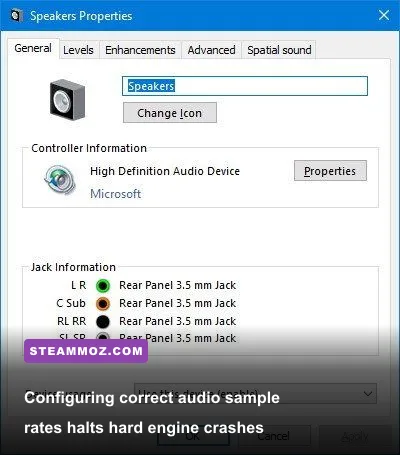
Few players realize that Halo's audio pipeline can directly trigger system lockups. The legacy audio libraries utilized across both MCC and Infinite are hard-coded to process audio packets at specific bit rates. If your Windows sound card or DAC is configured to audiophile studio sample rates (such as 24-bit, 192000 Hz or 384000 Hz), the game engine's audio thread will desynchronize, causing sound popping, weapon audio cutting out, and ultimately a hard crash.
To fix your audio configuration:
- Press Windows Key + R, type
mmsys.cpl, and press Enter to launch the classic Sound Control Panel. - Right-click your active audio device (speakers, headphones, or interface) and click Properties.
- Select the Advanced tab.
- Under the Default Format dropdown, set your output to 24-bit, 48000 Hz (Studio Quality) or 16-bit, 44100 Hz (CD Quality).
- Click Apply, then OK.
Additionally, check your system's Windows Virtual Memory (Paging File). Halo crashes frequently if Windows manages your pagefile dynamically across multiple drives during asset loads. Manual allocation is far safer: open Advanced System Settings > Performance Settings > Advanced > Virtual Memory. Uncheck automatic management, select your fastest NVMe SSD, and set a Custom Size with an initial size of 8192 MB and a maximum size of 16384 MB. Deep-level engine lockups are often caused by paging crashes, much like the memory anomalies detailed in our Everspace 2 crash and stability guide.
Mastering Frame Caps, Minimum Resolutions, and Driver Profiles
Achieving rock-solid frame pacing in Halo requires tuning your frame rate caps carefully. Halo Infinite features an internal Dynamic Resolution Scaling system tied directly to its Minimum Frame Rate and Maximum Frame Rate sliders. If you set your Minimum Frame Rate to 60 and your Maximum to 120, the engine will aggressively downscale your internal render resolution the moment a grenade explodes, causing bizarre visual blurriness and frame timing jitter.
For competitive clarity and perfectly flat frame times, use one of the tailored profiles in the matrix below:
| Tuning Profile | Target Setup | In-Game Min/Max FPS | External Driver Capping | Primary Benefit |
|---|---|---|---|---|
| Competitive Esports | 144Hz / 240Hz Monitors (GTX 1080 / RTX 3060+) | Min: OFF | Max: Unlocked | Cap at monitor refresh -3 via Driver / RTSS | Ultra-low input lag; zero resolution scaling blur; 100% stable frame times. |
| Balanced Smoothness | 60Hz / 75Hz Mid-range rigs | Min: 60 | Max: 60 | Driver limiter off; V-Sync turned ON in driver only | Eliminates screen tearing while preventing GPU thermal throttling over long sessions. |
| Cinematic Ultra | 1440p / 4K High-End (RTX 4070+ / RX 7800XT+) | Min: OFF | Max: 120 / 144 | G-Sync / FreeSync active with Reflex/Anti-Lag | Pristine rendering resolution with maximum visual fidelity and zero micro-freezes. |
If you're squeezing extra performance out of a budget or entry-level system, pairing these profiles with refined render scaling produces noticeable gains, similar to the techniques outlined in our Filament optimization profile. If persistent crashes keep plaguing your matches after applying these fixes, verify your game files through Steam or the Xbox App to repair any damaged DLL hooks. You can also consult the official Halo Support knowledgebase for the latest patch-specific known issues and hotfix deployments.
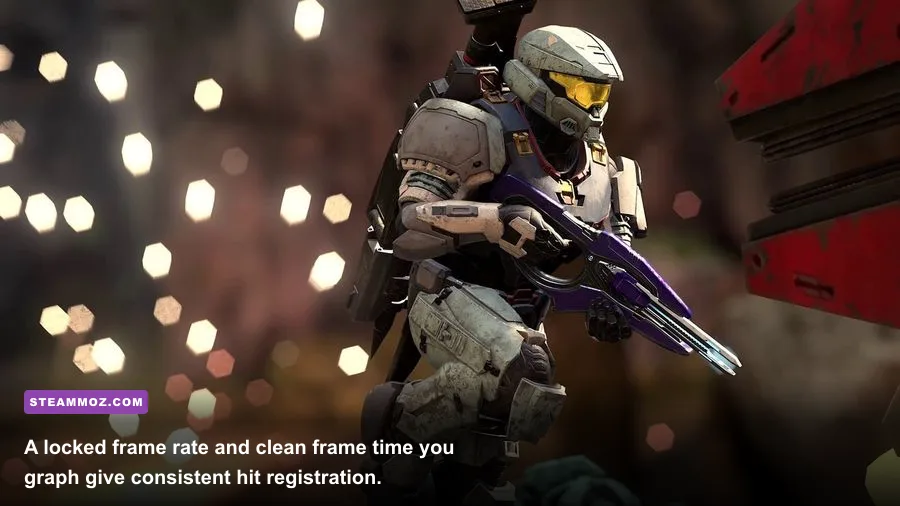
Once you implement these driver caps, clear out bloated high-res texture packs, lock your audio sample rate to 48000 Hz, and set up your system shader cache properly, you will convert Halo from an erratic, crash-prone headache into a responsive, stutter-free competitive machine ready for ranked play.