To eliminate stuttering, low FPS, and sudden desktop crashes in Diablo Immortal on PC, you need to disable in-game Image Sharpening, uncheck hardware acceleration inside the Battle.net client, and force the executable to run with Windows High Performance graphics privileges. Because the PC version functions through a customized wrapper around NetEase's proprietary mobile engine, unoptimized shader compilation, uncapped framerate desyncs, and aggressive CPU thread polling constantly create erratic frame-time spikes. Implementing these core fixes stabilizes asset streaming and stops the client from dumping to the desktop when entering crowded hubs like Westmarch.
The Quick Fix: Resolving Build Cache and Direct3D Bottlenecks
Diablo Immortal’s PC port frequently chokes because it mismanages asset caching between client updates. Whenever Blizzard pushes a hotfix, residual pre-compiled shader packages can conflict with newly delivered game assets. If your framerate suddenly tanks after an update, your first move is wiping the local Battle.net and game caches to rebuild clean shader libraries.
Start by shutting down Diablo Immortal and closing the Battle.net launcher completely. Make sure neither process is lingering in your Windows Task Manager. Press Win + R, type %localappdata%, and hit Enter. Locate the Battle.net and Blizzard Entertainment directories and delete their cache folders. Next, head over to your game install directory (typically C:\Program Files (x86)\Diablo Immortal), enter the engine folder, and purge temporary log and cache files. Much like handling unstable engines in our ELEX crash troubleshooting and FPS guide, purging corrupt local files often cures inexplicable launch crashes on the spot.
Next, enforce proper GPU routing inside Windows. Many laptops and multi-monitor desktop setups inadvertently run Diablo Immortal through integrated graphics or default to an aggressive power-saving state:
- Open Windows Settings and navigate to System > Display > Graphics.
- Click Browse under "Custom options for apps" and locate
DiabloImmortalLauncher.exeas well as the main executable in the subfolder:Diablo Immortal\Engine\Binaries\Win64\DiabloImmortal.exe. - Click Options for both files, choose High Performance (locking it directly to your dedicated NVIDIA or AMD card), and hit Save.
- Right-click
DiabloImmortal.exe, select Properties > Compatibility, and check Disable fullscreen optimizations.
Fine-Tuning Graphics Settings: Maximum Frames Without Sacrificing Visuals
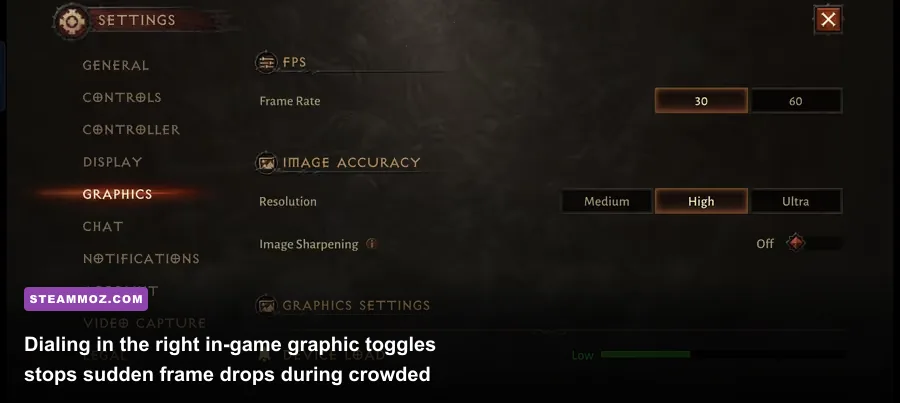
The in-game graphics menu in Diablo Immortal features a few critical traps. Several toggles introduce catastrophic frame-time variance without providing noticeable visual enhancements. The biggest culprit is the Image Sharpening filter. This post-processing pass runs through a poorly optimized shader pipeline that adds a massive computational tax every time a high-density spell effect hits your screen.
When you take a Necromancer with half a dozen summoned skeletons, cast Corpse Explosion, and trigger Wizard Meteors inside a packed Elder Rift, unoptimized settings will tank an RTX 4070 down into the teens. Dialing back specific volumetric and post-processing variables eliminates these dips while preserving crisp character models and fluid animations. You can review similar framerate tuning principles in our breakdown of Far Cry 6 performance settings for high frame stability.
| In-Game Setting | Recommended Value | Performance Cost | Why You Should Change It |
|---|---|---|---|
| Display Mode | Fullscreen Windowed | Low | Prevents desktop handoff crashes and reduces alt-tab input lag. |
| Frame Rate | 60 FPS or 120 FPS (Cap to Match Display) | Medium to High | Uncapped FPS creates violent frame-time swings and micro-stutters. |
| Resolution | Native Display (1080p / 1440p) | High | Upscaling introduces blurriness without actually alleviating engine thread limits. |
| Image Sharpening | Off | Extreme Impact | Terribly optimized filter that induces major stutter during combat spell chains. |
| Visual Effects | Medium | High | Curbs particle spam from 8-player Helliquary bosses like Lassal and Vitaath. |
| Shadow Quality | Low or Medium | Moderate | Dynamic shadows on mob clusters cause severe CPU draw-call bottlenecks. |
| Fog Quality | Low | Moderate | Volumetric fog provides negligible fidelity gains while straining render passes. |
| Monster Density / Combat Effects | Medium | High | Reduces on-screen alpha textures during mass mob pulls in Challenge Rifts. |
| Anti-Aliasing | Low or Off | Low | Standard SMAA implementation creates faint ghosting around rapid player movement. |
| Post-Processing | Low | Moderate | Disables aggressive bloom and chromatic aberration that trigger frame hiccups. |
Locking your framerate is particularly vital. Unlike native PC engines that smoothly buffer surplus frames, Diablo Immortal’s internal timing clock can desynchronize if the framerate swings wildly between 140 FPS and 70 FPS. Cap your framerate to a fixed 60 or 120 FPS via the in-game settings to lock your frame times to a consistent, flat line.
Taming the Battle.net Launcher and Background Resource Leaks
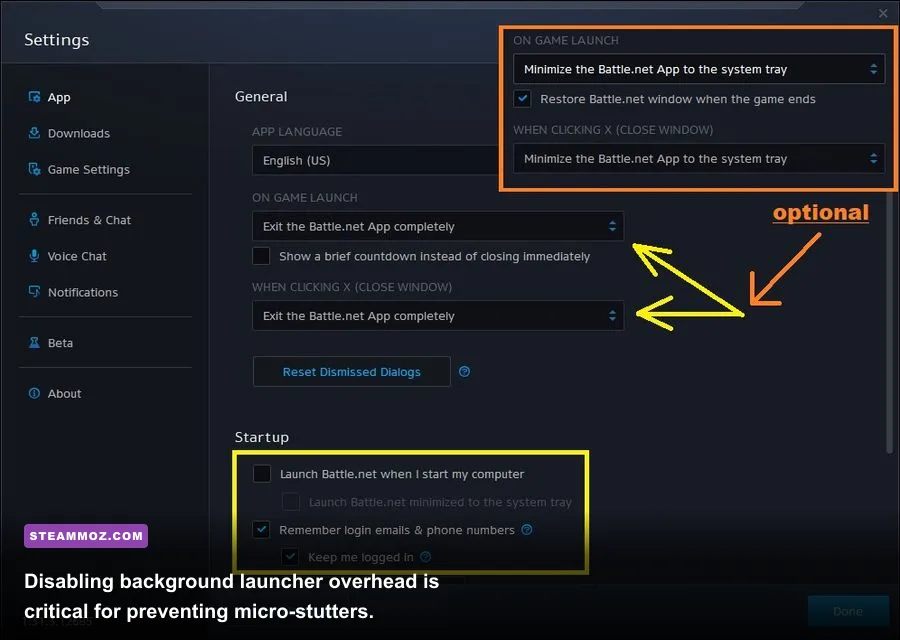
The desktop client for Battle.net is notorious for hogging resources when running alongside active games. By default, the launcher utilizes browser-based Chromium embedded frameworks with hardware acceleration enabled. During intense gameplay, Battle.net actively competes with Diablo Immortal for VRAM allocations and GPU compute pipelines, causing intermittent hitches every few seconds.
To eliminate this background resource drain, adjust your client preferences inside the Battle.net desktop app:
- Click the Battle.net logo in the upper-left corner and open Settings.
- In the General tab, look for When I Launch a Game and select Exit Battle.net completely or Minimize Battle.net to the system tray.
- Scroll down to the bottom of the General tab and uncheck Use browser hardware acceleration. This restarts the launcher and completely frees up your GPU's video decoder hardware.
- Switch to the Game Settings tab, locate Diablo Immortal, and make sure Additional command line arguments doesn't contain outdated launch commands from older beta builds.
Additionally, disable all aggressive background overlays. Discord’s in-game overlay, GeForce Experience ShadowPlay, and third-party monitoring hooks frequently clash with the game's DirectX hooks. If you've previously tweaked overlays while working through our EscapeVR crash and low FPS guide or our recommendations for higher FPS tweaks in Filament, you already know how volatile external display injections can be for emulated PC games.
GPU Driver Tweaks and Shader Cache Optimization
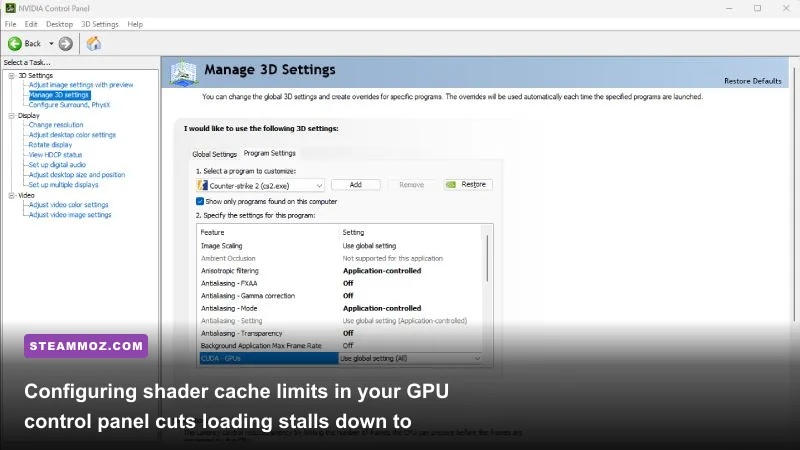
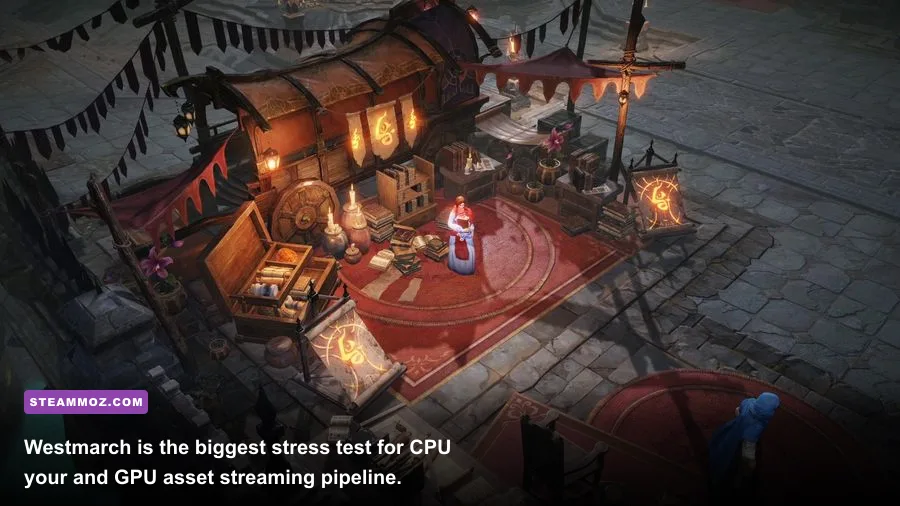
Because Diablo Immortal on PC streams environment packages on the fly as you transition across sanctuary zones (like entering Westmarch or zoning into the Shassar Sea), a small or fragmented GPU shader cache will freeze your game for two or three seconds at a time. Expanding your driver-level shader cache size ensures every texture, model, and lighting asset remains instantly accessible in system memory.
For NVIDIA users, right-click your desktop and open the NVIDIA Control Panel. Head to Manage 3D Settings, click Program Settings, and add Diablo Immortal. Apply these battle-tested parameters:
- Shader Cache Size: Set this to 10 GB (or Driver Default if storage is scarce). This stops the engine from rebuilding Westmarch asset blocks every session.
- Power Management Mode: Prefer Maximum Performance.
- Low Latency Mode: Set to On (Ultra can occasionally destabilize this wrapper).
- Vertical Sync: Set to Use the 3D application setting (or Fast if you experience severe screen tearing on a 60Hz display).
If you're using an AMD Radeon setup, open AMD Software: Adrenalin Edition, navigate to Gaming > Games > Diablo Immortal, and toggle Radeon Anti-Lag to On. Avoid using Radeon Boost or Radeon Super Resolution on this game, as dynamic internal scaling triggers constant asset recalculations in the engine wrapper. Keeping your display drivers pristine via clean installations from the official NVIDIA driver portal or the AMD Software support center ensures zero corrupted API hooks corrupt your sessions.
Crashing at Launch or Westmarch Portals? System-Level Workarounds
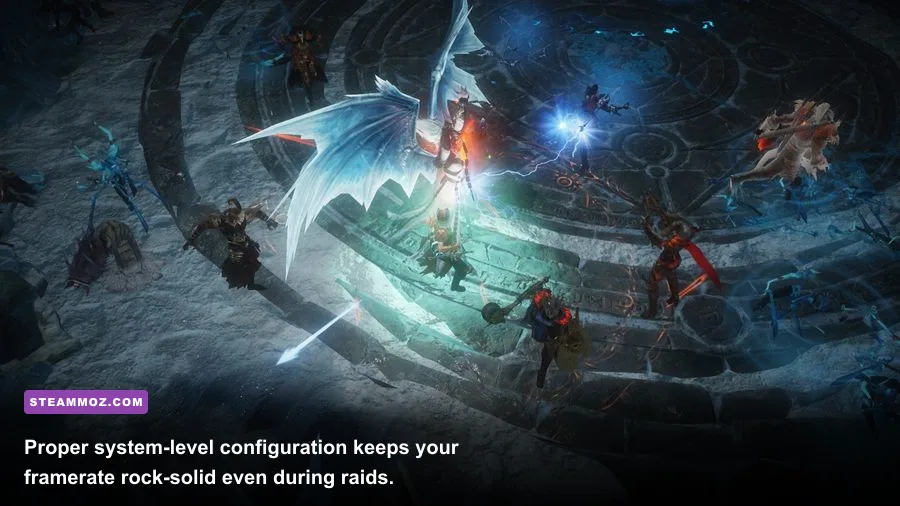
If Diablo Immortal shuts down without an error code, freezes entirely at 99% on the loading screen, or dumps you straight to the desktop the instant you step through a portal, your issue stems from system-level API timeouts or missing runtime dependencies. Handling these low-level faults requires targeted intervention.
| Crash Symptom | Root Cause | Exact Resolution Step | Success Rate |
|---|---|---|---|
| Crash at 99% Loading Screen | Corrupted Package File (.mpq / index) | Run Battle.net "Scan and Repair" from the gear icon. | 95% |
| Instant Crash to Desktop on Launch | Missing Visual C++ Redistributables | Install the unified Visual C++ 2015-2022 x64 package. | 90% |
| Freezing on Westmarch Waypoint | VRAM Allocation Overflow / Pagefile Limit | Increase Windows Virtual Memory (Pagefile) to 16 GB. | 85% |
| Controller Disconnect Stutter / Lockup | Bluetooth Polling Interrupts | Switch controller to wired USB connection; disable Xbox Game Bar. | 80% |
| Audio Crackling Preceding a Freeze | Audio Format Sample Rate Mismatch | Set Windows Audio Format to 24-bit, 48000 Hz (Studio Quality). | 75% |
A widespread cause of hard portal crashes is Windows paging exhaustion. Even if you have 16 GB of physical RAM installed, Diablo Immortal’s asset streaming spikes system memory during zone changes. If your Windows paging file is managed automatically on a slow secondary drive, the client will immediately terminate rather than waiting for slow drive access. You can find a similar memory-handling breakdown in our guide to fixing crashes and frame dips in Everspace 2.
To manually adjust your pagefile, type sysdm.cpl into your Windows search bar and hit Enter. Go to the Advanced tab, click Settings under Performance, and open the Advanced tab inside the Performance Options window. Click Change under Virtual Memory, uncheck "Automatically manage paging file size for all drives," select your fastest SSD (preferably your C: drive), check Custom size, and set both Initial and Maximum size to 16384 MB. Click Set, confirm with OK, and reboot your PC.
Finally, check your controller connections. Diablo Immortal’s controller polling layer can lock up the main execution thread if a Bluetooth gamepad drops a single packet. If you notice stuttering that only occurs when using an Xbox or PlayStation controller, connect the pad directly via a USB cable or verify player support threads over at Blizzard Customer Support for pending hotfixes. Dialing in these adjustments removes the engine's instability, transforming Diablo Immortal into a buttery-smooth demon-slaying experience on your desktop rig.