
To fix crashing on PC in League of Legends, you must first update your GPU drivers, repair corrupted game files via the Riot Client, and ensure Vanguard anti-cheat is running properly without background interference. Random crashes, bugsplats during champion select, and sudden desktop drops during teamfights usually stem from outdated display adapters, overlay software conflicts, or corrupted DirectX configurations.
Verify and Repair Game Files via the Riot Client
Corrupted installation files are the most frequent catalyst for mid-match crashes on Summoner's Rift or the Howling Abyss. When patches fail to apply cleanly, textures or map data for champions like Ahri or Jinx can cause fatal exception errors.
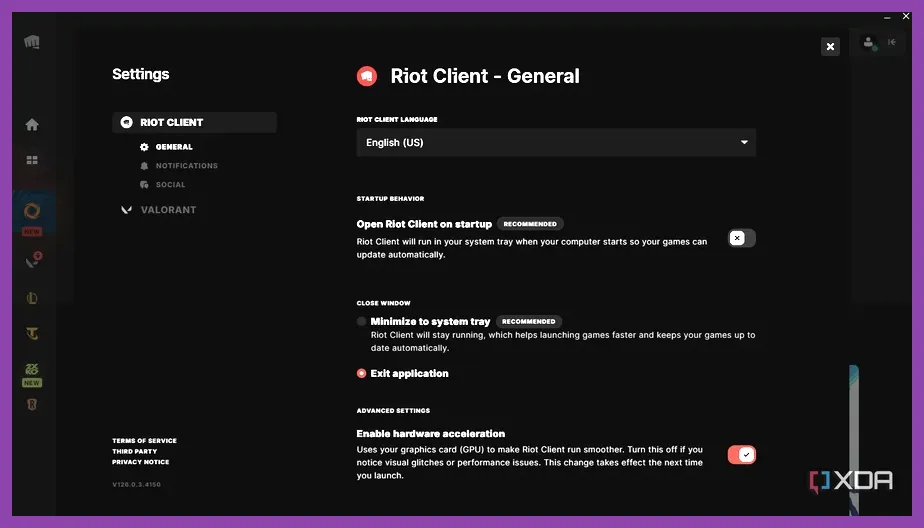
Open the Riot Games launcher, navigate to your Profile icon in the top right, and click on Settings. Select League of Legends from your installed games list and click the "Repair" button. This process scans your local directory, replaces missing files, and ensures your setup matches the official League of Legends Support standards. For similar optimization workflows across competitive titles, check out our guide on Roblox best loadout for ranked play.
Update Graphics Drivers and Configure DirectX
Outdated Nvidia or AMD display drivers frequently clash with League of Legends' rendering engine, leading to sudden black screens and desktop crashes. Clean-installing your drivers via GeForce Experience or AMD Adrenalin is a mandatory troubleshooting step.
Switching DirectX Modes
If your game crashes immediately upon entering a loading screen, your DirectX setting might be misconfigured. Navigate to your installation folder (typically C:\Riot Games\League of Legends\Config) and open the game.cfg file using Notepad. Look for the line reading Dx11Beta=0 or change it to enforce DirectX 11 or Legacy mode depending on your GPU architecture. Save the file and set it to read-only if the launcher overwrites your changes. For hardware-specific setup advice, consult our Stardew Valley 1.6 system requirements minimum and recommended breakdown.
Manage Vanguard Anti-Cheat Conflicts
Riot Vanguard runs at the kernel level and can occasionally conflict with third-party software, resulting in error codes and instant game closures. Overlays from Discord, GeForce Experience, and MSI Afterburner are notorious culprits.
Before launching a match, completely close background applications that inject hooks into your display. If Vanguard itself is bugged, right-click the system tray icon, exit Vanguard, and restart your PC to trigger a clean driver initialization. Gamers looking to fine-tune competitive setups can also explore our Stardew Valley 1.6 best settings for max fps guide.
Adjust In-Game Video Settings for Stability
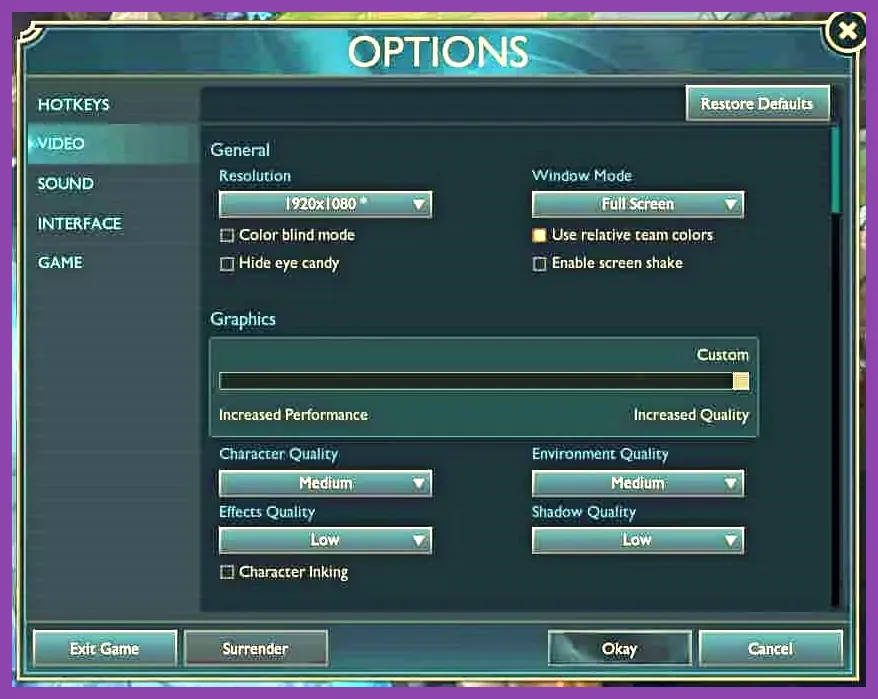
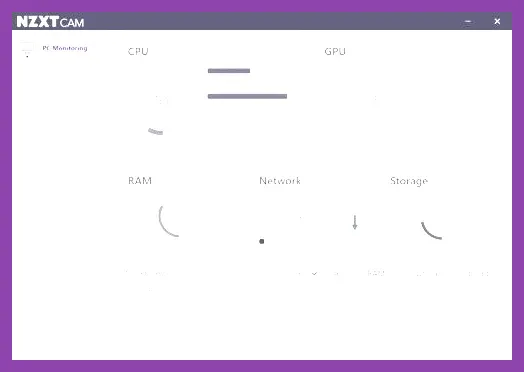
Pushing your hardware beyond its thermal limits during intensive 5v5 teamfights can trigger hardware-level thermal throttling or driver timeouts. Lowering specific graphical parameters reduces stress on your VRAM.
- Character Quality: Medium (Reduces shader complexity on complex models)
- Environment Quality: Low or Medium
- Shadows: Off or Low (Removes unnecessary shadow rendering calculations)
- Frame Rate Cap: Uncapped or match your monitor's refresh rate (e.g., 144Hz) using V-Sync Off to prevent GPU spikes
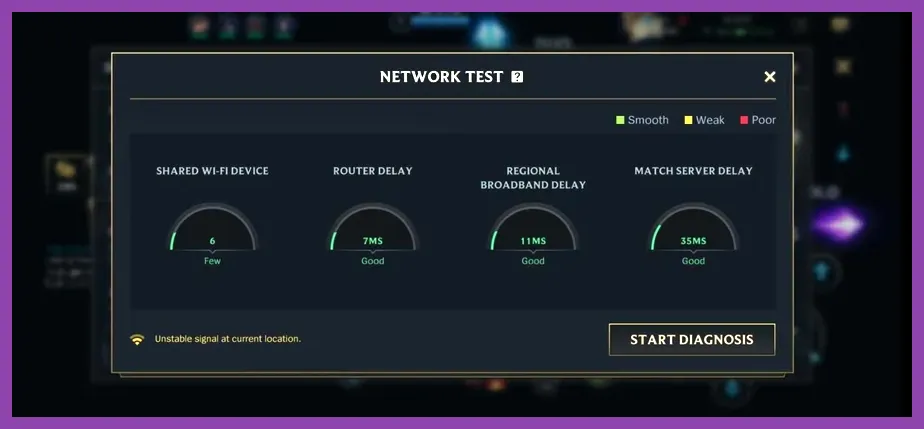
Keeping your frames stable prevents micro-stutters that precede crashes. For tactical loadout inspiration in other genres, read our PUBG Mobile best endgame build and loadout guide.
Clean Reinstall and Advanced System Diagnostics
If all else fails, a complete clean uninstallation is required. Uninstall League of Legends through Windows settings, then manually delete the remaining folders in C:\Riot Games\League of Legends and C:\ProgramData\Riot Games.
Download the fresh installer directly from the League of Legends Official Website. Additionally, run an elevated Command Prompt scan by typing sfc /scannow to repair corrupted Windows system files that might be interrupting Riot's client processes. For squad-based tactical strategies once your game is running smoothly, review our Sea of Thieves best team comp synergy guide.