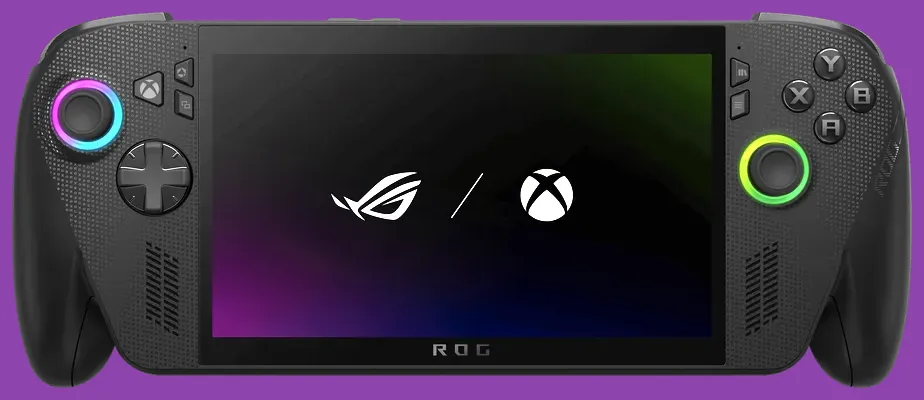
To fix crashing on the ASUS ROG Ally X, you need to address the root causes: aggressive VRAM allocation bugs in Armoury Crate SE, outdated AMD Z1 Extreme graphics drivers, unstable Windows 11 background services, and thermal throttling under high TDP limits. By reconfiguring your virtual memory settings, performing clean driver wipes, and setting appropriate frame rate caps, you can completely eliminate sudden game closures and desktop crashes.
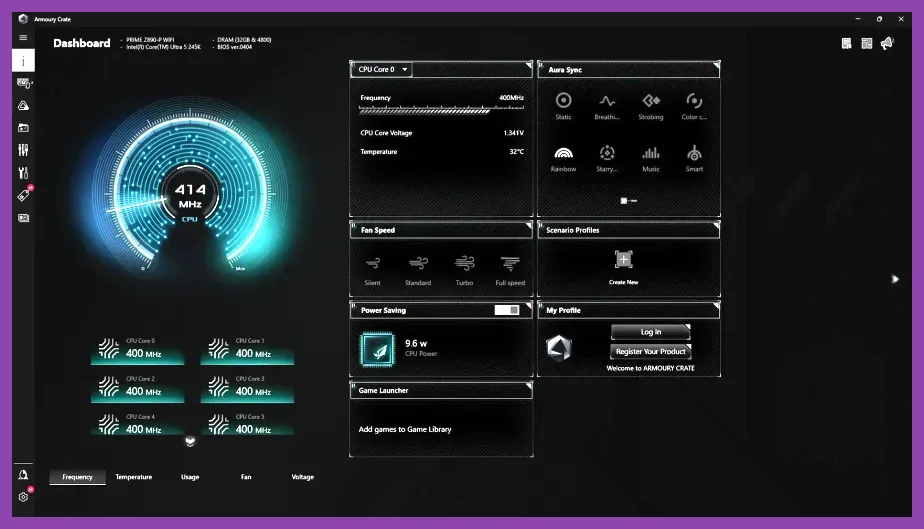
Understanding Why the ASUS ROG Ally X Crashes
While the ROG Ally X upgraded its battery life and memory capacity to 24GB LPDDR5X compared to the base model, it still runs on Windows 11. This means you are dealing with a standard desktop operating system packed into a handheld form factor. Many crashes occur because games request assets faster than the shared system memory can allocate them. When integrated AMD Radeon graphics pull from the same pool as system RAM without proper buffer management, memory leaks trigger unexpected out-of-memory fatal errors.
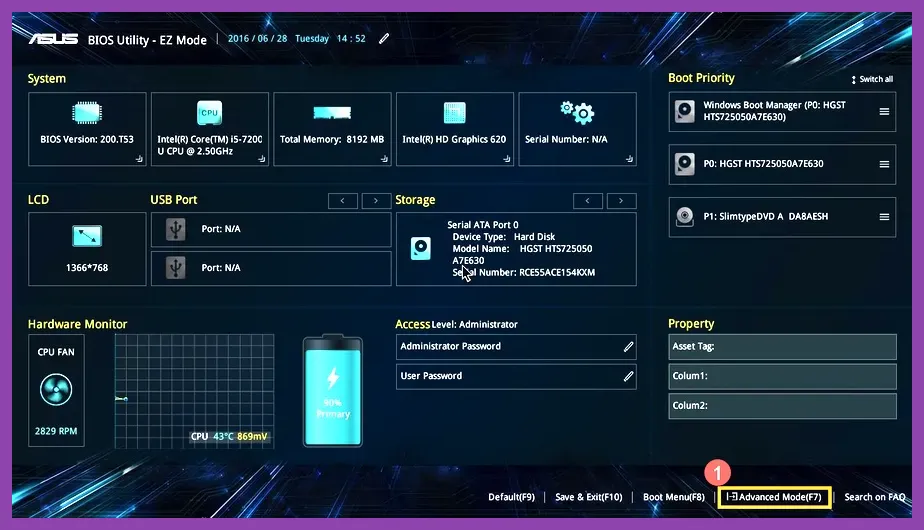
Furthermore, third-party overlays, aggressive power-saving states, and corrupted DirectX shader caches are notorious for freezing modern titles like Starfield or graphics-heavy indie releases. Before diving into advanced software debugging, ensure your hardware isn't overheating by cleaning out dust and ensuring your BIOS is updated to the latest version directly from the Official ASUS ROG Website.
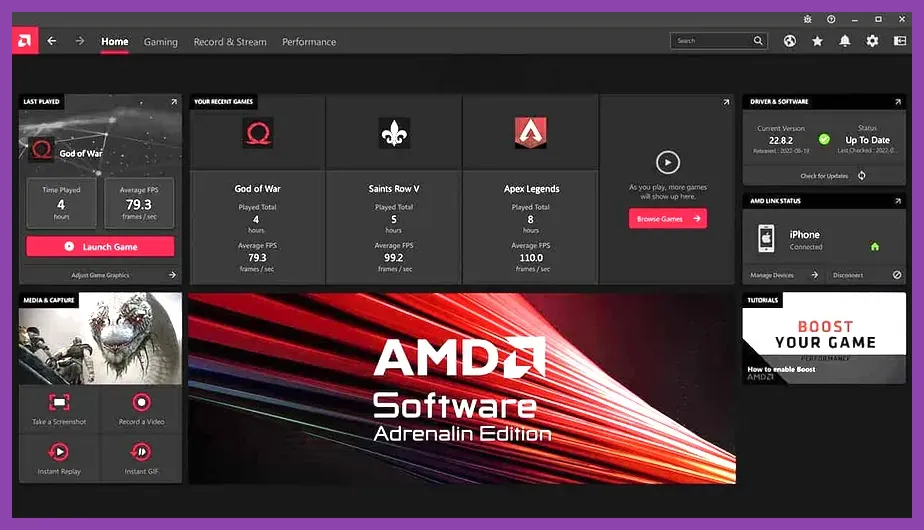
Step 1: Optimize VRAM Allocation in Armoury Crate SE
The single most common culprit behind game crashes on the ROG Ally X is the default VRAM setting. Out of the box, the system often defaults to an "Auto" setting, which forces games to guess how much video memory is available, frequently resulting in crashes upon loading screens.
- Open Armoury Crate SE using the dedicated physical button on the left side of your unit.
- Navigate to Settings > Operating Mode > GPU Settings.
- Change the Memory Alloc (VRAM) setting from "Auto" to a fixed value. For most modern AAA games, setting this to 6GB or 8GB provides the best stability.
- Restart your device completely to allow Windows to register the new memory partition.
If you play heavy titles that demand high texture pools, such as open-world RPGs, keeping this locked at 8GB prevents the game engine from crashing due to sudden resource starvation. For lighter titles, check out performance guides similar to Solo Leveling Arise Best Settings for Max FPS to balance your load.
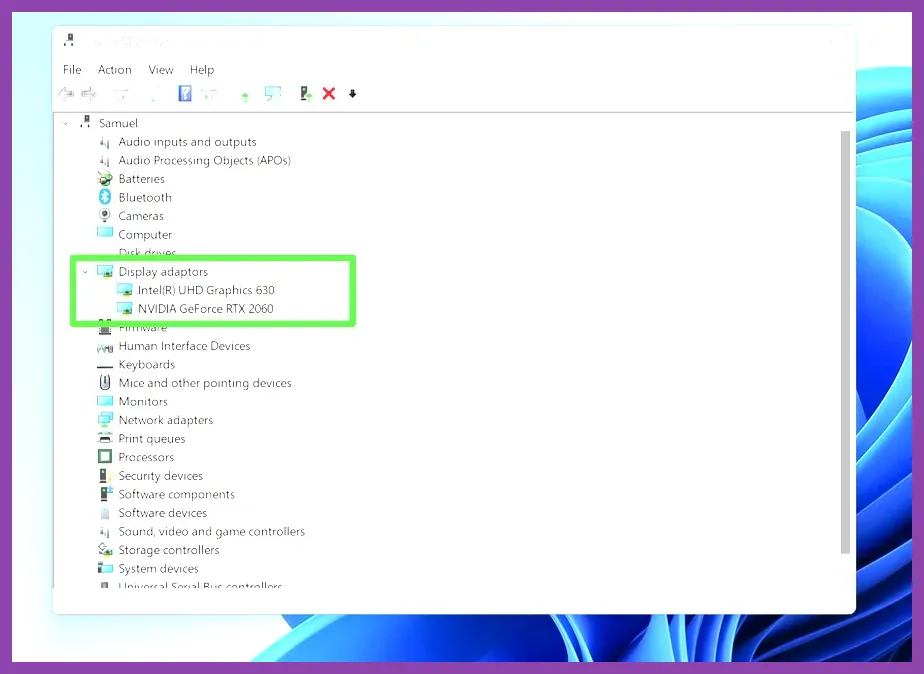
Step 2: Perform a Clean Install of AMD Z1 Extreme Drivers
Windows Update frequently overwrites custom AMD APU drivers with generic Microsoft basic display drivers, causing severe stuttering, graphic corruption, and application crashes. Cleaning out old driver remnants is vital.
- Download the latest official AMD Z1 Extreme graphics driver installer from the Official AMD Support Portal.
- Download a utility called Display Driver Uninstaller (DDU) to completely scrub corrupted registry entries.
- Disconnect your Ally X from the internet to prevent Windows Update from automatically downloading drivers in the background.
- Boot your device into Safe Mode, run DDU to remove existing AMD software, and reboot.
- Install the fresh AMD package you downloaded in Step 1, then reconnect to the internet.
Keeping your graphics stack clean ensures compatibility with demanding rendering pipelines, much like optimizing resource management in complex cooperative shooters discussed in Space Marine 2 How to Unlock All Characters and Champions.
Step 3: Adjust Windows Virtual Memory (Pagefile) Settings
Even with 24GB of RAM, Windows 11 relies heavily on a properly configured pagefile. If the pagefile is disabled or set to too small a fixed size, memory-intensive games will crash straight to the desktop without throwing a readable error code.
How to Configure Custom Pagefile Sizes
- Press the Windows key, type Advanced System Settings, and open "View advanced system settings".
- Under the Advanced tab, click Settings in the Performance section.
- Go to the Advanced tab again and click Change... under Virtual Memory.
- Uncheck "Automatically manage paging file size for all drives".
- Select your primary NVMe drive, click Custom size, and set both the Initial Size and Maximum Size to 8192 MB (8GB) or 16384 MB (16GB).
- Click Set, then click OK and restart your handheld.
This adjustment gives the Windows kernel a reliable buffer zone for caching memory pages, stopping unexpected out-of-memory crashes during intense gameplay sessions.

Step 4: Configure AMD Software Adrenalin Settings for Stability
AMD Software Adrenalin offers various enhancement features, but several of them interfere with game hooks and cause fatal engine crashes on handheld hardware. Open your Adrenalin app and apply these specific global settings:
- Radeon Anti-Lag: Disabled (Can cause input thread stalling in certain DirectX 12 titles).
- Radeon Boost: Disabled (Dynamic resolution scaling conflicts with handheld upscalers like FSR/XESS).
- Radeon Chill: Disabled (Can cause erratic frame pacing and abrupt stutter-induced crashes).
- Image Sharpening: Set to 50% (Optional, safe for clarity without destabilizing the render pipeline).
- Wait for Vertical Refresh: Set to "Always Off" or let the individual game decide via its own V-Sync menu.
By turning off aggressive background enhancements, you reduce the workload on the integrated graphics core, ensuring consistent frame delivery. If you enjoy tactical squad-based combat games, maintaining steady frame delivery is just as critical as picking items from a Squad Busters Best Weapons Tier List.
Step 5: Disable Third-Party Overlays and Background Bloat
Memory leaks frequently stem from resource-heavy third-party overlays running concurrently with Armoury Crate SE. Applications like Discord, Steam Overlay, Xbox Game Bar, and RivaTuner Statistics Server (RTSS) hook directly into game graphics APIs. When multiple overlays attempt to draw frames over the game simultaneously, the DirectX swapchain breaks, resulting in an instant crash.
Go through your installed applications and disable hardware acceleration on Discord and web browsers running in the background. Furthermore, consider auditing your startup programs via Windows Task Manager to ensure maximum system resources are dedicated entirely to your active game session. Maintaining a lean operating environment keeps your device running cool and steady, whether you are traversing dungeons or checking out character rosters in guides like Squad Busters Tier List All Characters Ranked for 2026.
Finally, verify your game files through Steam, Epic Games, or Xbox app after applying these system-wide changes. Corrupted game files combined with previous unstable memory states often need a quick file integrity verification to ensure a completely error-free gaming experience on your ASUS ROG Ally X.