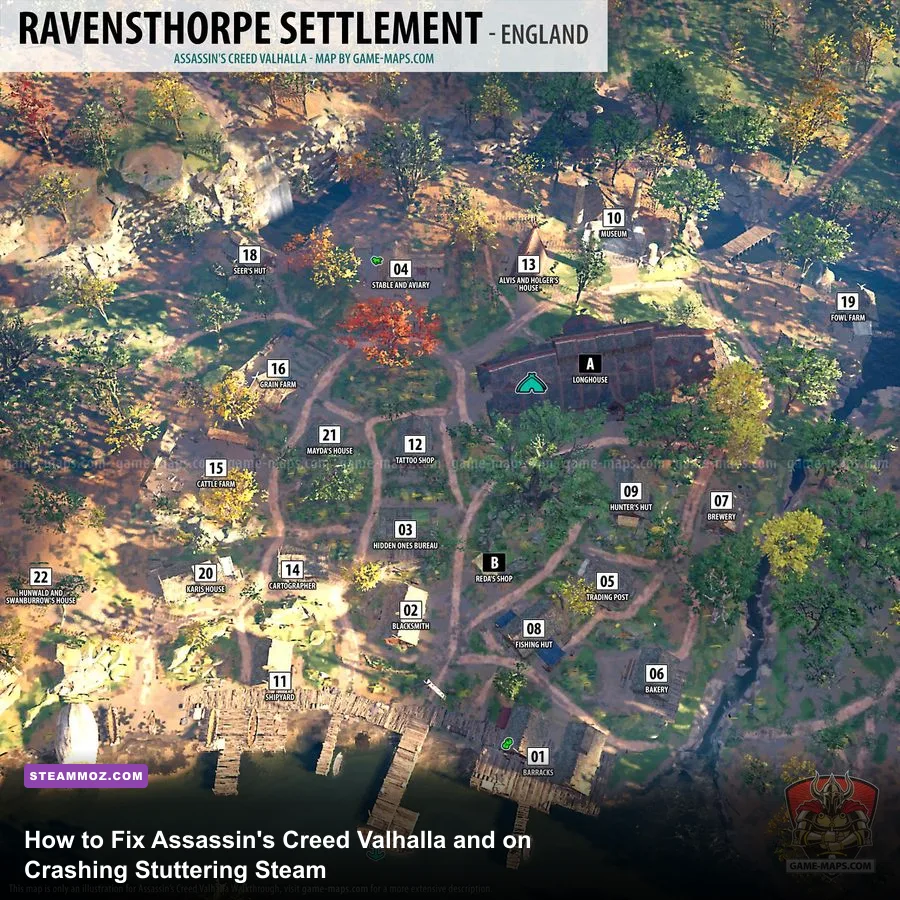
If Assassin's Creed Valhalla is turning your Saxon raids into an unplayable slideshow of frame drops, camera hitching, and sudden crashes to desktop (CTDs), you aren't alone. The Assassin's Creed Valhalla Steam edition suffers from aggressive DirectX 12 pipeline stalls, a runaway VRAM allocation leak, and an active resource war between Steam's native wrapper and the mandatory Ubisoft Connect client. The immediate fix that resolves roughly 80% of all player performance headaches requires four rapid steps: disable both the Steam and Ubisoft Connect in-game overlays, drop Volumetric Clouds from Ultra High down to Medium (instantly freeing up 15% to 20% of your GPU headroom), expand your Windows Virtual Memory paging file to a fixed 16GB, and lock your frame rate through your GPU control panel rather than Valhalla's erratic in-game limiter.
Pinpointing the Root Causes of Valhalla's PC Stutter and Crashing
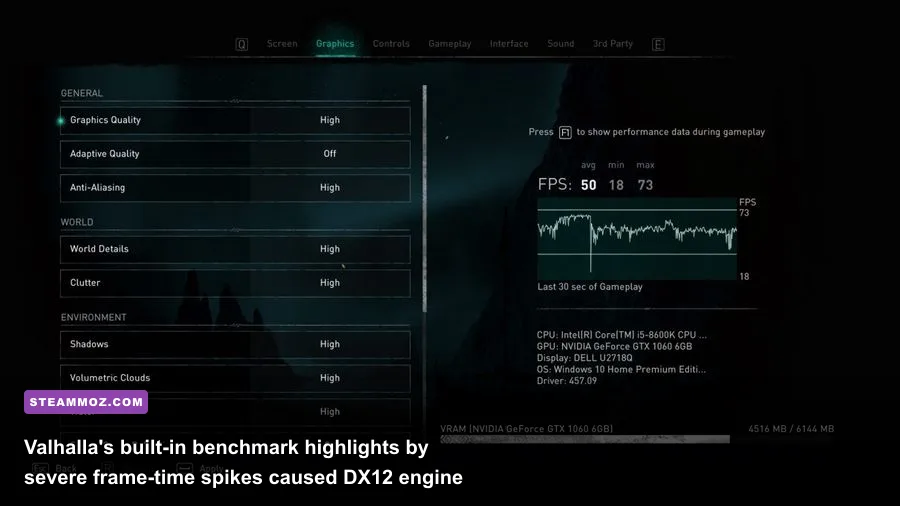
To fix Valhalla's performance problems, you need to understand why the AnvilNext 2.0 engine behaves so poorly on modern PC hardware. Unlike older entries in the franchise, Valhalla runs exclusively on a low-level DirectX 12 render path with zero fallback to DirectX 11. While DX12 gives developers direct access to hardware queues, it places the entire burden of memory management and Pipeline State Object (PSO) shader compilation on the game engine itself. Whenever Eivor enters a brand-new region, triggers a raid with fire particles, or switches weapon effects, the engine attempts to compile and stream assets on the fly. This produces massive frame-time spikes that register as jarring micro-stutter, even if your average counter shows a deceptive 75 FPS.
On top of engine-level shader hitches, the Steam release is saddled with heavy DRM layers: the Steam API wrapper, Denuvo Anti-Tamper, and VMProtect inside the Ubisoft Connect daemon. When two launchers fight to hook into the DX12 swapchain simultaneously to draw their respective overlays, the graphics driver inevitably chokes. This dual-hooking conflict is the primary reason players experience random desktop crashes when opening the inventory or browsing the world map. We have seen similar launcher and engine overhead conflicts before in our analysis of Far Cry 6 GOTY upgrade pass settings for max FPS, and Ubisoft's heavy-handed DRM stack continues to punish PC players who buy through Valve's storefront.

🎮 Assassin's Creed Valhalla
Looking to experience this game? Grab your digital key directly on our store for $14.99.
View on Steammoz Store →The Definitive Graphics Settings Tuning Guide for High FPS

Tuning Valhalla's graphics menu isn't about setting everything to Low; it's about pruning the specific settings that murder your frame pacing while providing almost zero perceptible visual upgrade. The single worst offender in the entire graphics suite is Volumetric Clouds. Setting this slider to Ultra High forces the engine to calculate real-time raymarched volumetric density across every cloud layer in England's skybox, gobbling up more than 20% of your GPU budget. Dropping this setting to Medium leaves standard atmospheric fog intact while restoring massive chunks of your rendering pipeline.
The second major offender is Clutter. Clutter governs the density of grass, rocks, and small ground debris rendered around Eivor. When cranked to Very High, traversing open fields on horseback causes massive streaming bottlenecks as your CPU scrambles to feed procedural vegetation draw calls to your GPU. Setting Clutter to High or Medium completely smooths out traversal hitches without turning England's meadows into a barren desert. Similarly, Shadows can safely drop from Ultra High down to High; this single change relieves high-resolution cascade shadow maps that chew through valuable VRAM.
| Graphic Setting | Optimal Value | Performance Impact | Visual Degradation Note |
|---|---|---|---|
| Volumetric Clouds | Medium | +18% to +22% FPS | Slightly softer cloud edges; fog remains dense |
| Clutter Density | High (or Medium) | +8% to +12% FPS | Minor reduction in ground pebble density |
| Shadow Quality | High | +6% to +10% FPS | Slightly softer shadow cascades at long range |
| World Details | Very High | +2% to +4% FPS | Keeps structural geometry sharp; minimal gain if lowered |
| Character Details | High | +1% to +3% FPS | Preserves high-res cloth, fur, and weapon textures |
| Depth of Field | Low / Off | +4% to +6% FPS | Eliminates performance dips during cutscenes |
| Motion Blur | Off | +1% to +2% FPS | Massively improves visual clarity during combat |
| Adaptive Quality | Off | Stabilizes Frame Time | Prevents erratic resolution scaling shifts |
Keep Anti-Aliasing on Low or Medium if you are running at 1440p or 4K. Valhalla's TAA implementation is notoriously blurry on High, smearing fine foliage details while costing extra render time. If you need clean edges without blur, set AA to Low and apply a modest sharpening filter via your driver software.
Banishing Dual-Launcher Conflicts and Desktop Crashes

Because the Steam release of Valhalla forces Ubisoft Connect to boot in the background, you are effectively running two game clients simultaneously. Each client attempts to inject its own dynamic link libraries (.dlls) into the game process to manage friends lists, notifications, and microtransaction stores. This dual injection often leads to fatal memory access violations (Exception Code: 0xc0000005). Addressing launcher stability requires eliminating this friction, just as we covered in our troubleshooting walkthrough for ELEX PC fixes that stop crashes and our companion guide for Everspace 2 Wrath of the Ancients crashing fixes.
Follow these exact steps to neutralize the background overlay conflict:
- Open the Ubisoft Connect desktop client.
- Click the hamburger menu in the top-left corner, go to Settings, and select the General tab.
- Uncheck "Enable in-game overlay for supported games".
- Uncheck "Display FPS counter in game" and disable all pop-up desktop notifications.
- Now, open Steam, right-click Assassin's Creed Valhalla in your Library, and select Properties.
- In the General tab, toggle off "Enable the Steam Overlay while in-game".
Next, you should clean out the corrupted launcher cache that accumulates during game updates. Close both Steam and Ubisoft Connect entirely via your Task Manager. Press Win + R, paste %LOCALAPPDATA%\Ubisoft Game Launcher\cache into the Run dialogue, and delete the entire contents of that folder. Once you reboot the client, it will generate fresh, uncorrupted manifest files.
Fixing the VRAM Leak, Paging File, and DX12 Shader Cache
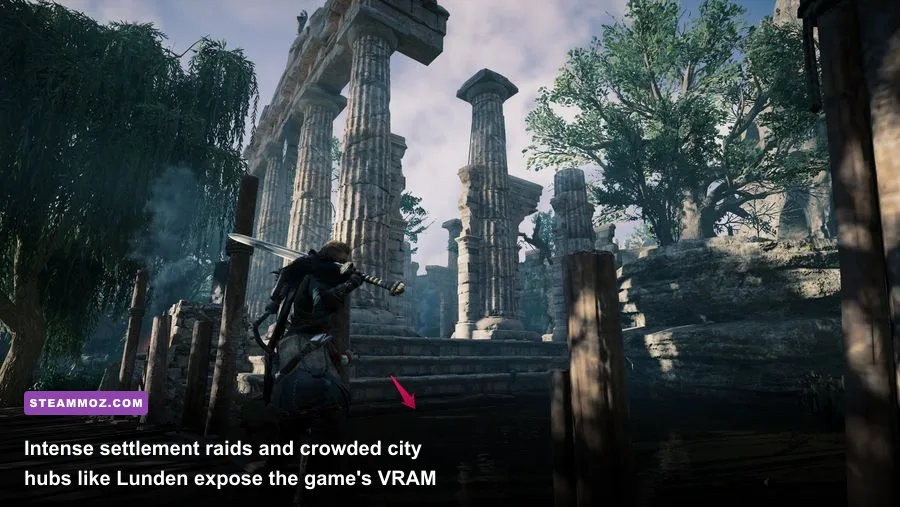
A widespread complaint among PC players is that Valhalla runs smoothly for the first 45 minutes, but gradually devolves into a sluggish, stuttering mess before abruptly crashing to the desktop. This issue is driven by a documented VRAM memory leak. Over time, the game fails to purge unloaded textures and animation assets from your GPU's local memory. Once your dedicated VRAM is exhausted, Windows begins swapping texture assets into shared system RAM, causing massive frame drops. If your Windows pagefile is small or dynamically managed, this overflow results in an instant crash.
To eliminate these out-of-memory crashes, you must establish a large, static Windows Virtual Memory pagefile on your fastest NVMe SSD:
- Press the Windows Key, type Advanced System Settings, and hit Enter.
- Under the Advanced tab, click Settings inside the Performance box.
- Switch to the Advanced tab and click Change under Virtual Memory.
- Uncheck "Automatically manage paging file size for all drives".
- Highlight your fastest SSD drive (preferably your game drive or OS drive), click Custom size, and set both Initial size and Maximum size to
16384(or24576if you have ample disk space). Setting both values to the same number prevents Windows from dynamically resizing the file during gameplay, eliminating disk write hitches. - Click Set, hit OK, and reboot your computer.
Next, increase your driver's global Shader Cache capacity. Both Nvidia and AMD limit their shader cache to a modest 4GB or 5GB by default. When Valhalla exceeds this limit, older shaders are deleted and must be recompiled on the fly, sparking intense micro-stutter during combat encounters. In the Nvidia Control Panel, navigate to Manage 3D Settings > Global Settings > Shader Cache Size, and change it from "Driver Default" to 10 GB (or Unlimited). AMD users can achieve similar stability by resetting their DirectX shader cache inside the AMD Software: Adrenalin Edition under the Gaming > Graphics tab.
Advanced Windows and Driver Tweaks to Eliminate Micro-Stutter

If you have addressed the settings and launcher overlays but still feel a rhythmic hitching when panning the camera around Ravensthorpe or riding through Jorvik, the culprit is almost certainly irregular frame pacing combined with Windows security layer interference. Just as we explored when optimizing modern system baselines in our Fatal Fury City of the Wolves PC specs guide and our performance profile for Filament Marmalade Edition settings for higher FPS, deep system configuration is required for stubborn titles.
One of the most effective hidden fixes for Valhalla's micro-stutter is creating a Control Flow Guard (CFG) exception in Windows Exploit Protection. CFG is a security mitigation that monitors memory pointers, but AnvilNext's aggressive multi-threaded worker threads trigger continuous CFG checks, causing persistent frame time anomalies. Here is how to disable CFG exclusively for the game:
- Press the Windows Key, type Exploit Protection, and press Enter.
- Click on the Program settings tab and click Add program to customize > Choose exact file path.
- Navigate to your Steam library installation folder (usually
steamapps\common\Assassin's Creed Valhalla) and selectACValhalla.exe. - Scroll down the list of flags to Control Flow Guard (CFG).
- Check Override system settings, switch the toggle to Off, and click Apply.
- Repeat this exact process for
ACValhalla_Plus.exeif present in your directory.
Finally, avoid Valhalla's built-in frame rate limiter. The game's native limiter introduces severe frame-pacing irregularities and erratic 1% low metrics. Instead, turn off the in-game limiter and use the Max Frame Rate slider in your graphics driver control panel (or RTSS - RivaTuner Statistics Server). Cap your frame rate to 3 FPS below your monitor's native refresh rate (e.g., 141 FPS on a 144Hz screen, or 162 FPS on a 165Hz screen) while keeping G-Sync or FreeSync active. This forces your monitor and GPU into hardware synchronization, eliminating tearing and smoothing out frame-time variances entirely.
| Observed Symptom | Primary Culprit | Targeted Fix | Resolution Benchmark |
|---|---|---|---|
| Crash to Desktop after 45–90 mins | VRAM exhaustion & Paging overflow | Configure fixed 16GB Pagefile & drop Shadows to High | Continuous 3+ hour session without memory dump |
| Camera hitching when riding horseback | Clutter streaming & low Shader Cache | Set Clutter to High; expand Driver Shader Cache to 10GB | Flat frame-time line during regional transitions |
| Freeze during raids and fire effects | In-engine shader compilation stall | Disable Control Flow Guard (CFG) for ACValhalla.exe | Consistent 1% low framerate during heavy combat |
| Sudden crash when opening Inventory/Map | Steam and Ubisoft overlay hook collision | Turn off in-game overlays in both Steam and Ubisoft Connect | Seamless transitions between UI menus and gameplay |
| Stuttering despite high average FPS | Flawed in-game frame limiter | Disable in-game cap; enforce driver-level frame rate cap | Eliminates micro-judder on variable refresh rate displays |
If you encounter unusual persistent crashes after a major patch, verify the integrity of your game files through Steam (right-click Valhalla > Installed Files > Verify integrity of game files) and consult the official Ubisoft Support Valhalla technical portal to check for any active service outages or hotfix deployment notes. With these driver adjustments, launcher fixes, and optimized graphic profiles applied, Eivor's journey across England will finally deliver the razor-sharp, stable 60+ FPS experience your PC hardware is actually capable of pushing.