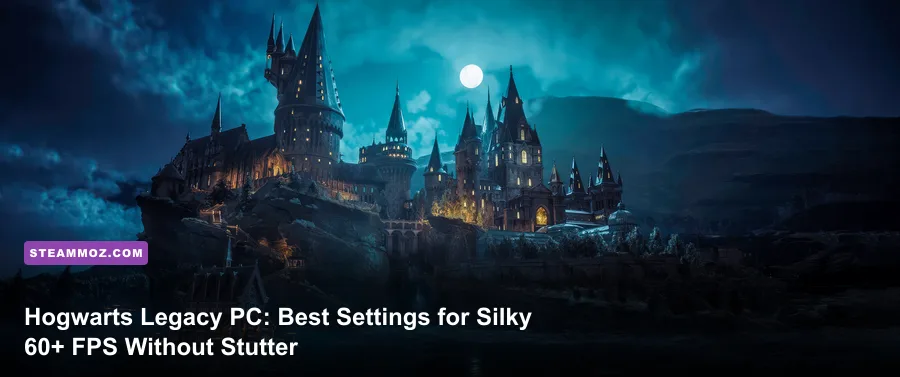
If Hogwarts Legacy is turning your rig into an overheating blast furnace or stuttering violently whenever you enter Hogsmeade, the fastest fix is dropping Fog Quality and View Distance to Medium, setting Shadows to Medium, disabling all Ray Tracing toggles, and flipping DLSS or FSR 2 to Quality mode. Doing this instantly claws back 35% to 50% of your lost framerate without degrading the castle into a blurry mess. Avalanche Software crafted an architectural wonder on Unreal Engine 4, but poor VRAM allocation, aggressive asset streaming bottlenecks, and unoptimized shader pipelines regularly punish even high-end systems. You do not have to settle for erratic frame times or jarring pauses during combat encounters.

The Real Culprit: Why Hogwarts Legacy Stutters on PC
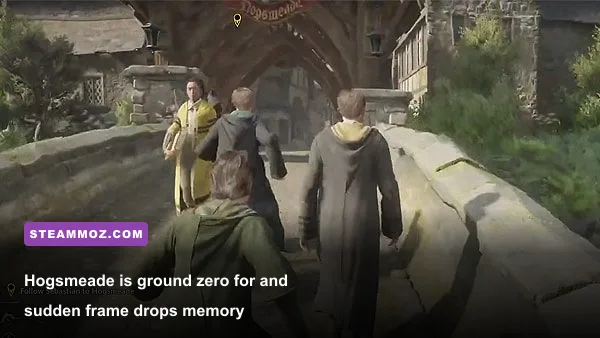
To fix performance drops, you need to understand what is actually choking your hardware. Unlike games limited by simple GPU fill rates, Hogwarts Legacy on Steam strains two major resources: your graphics card's Video RAM (VRAM) and your system processor's single-thread throughput. The game relies heavily on real-time asset streaming as you sprint through corridors, traverse the Central Hall, or fly on a broomstick toward the Forbidden Forest. When you transition between zones, the engine swaps gigabytes of textures and geometry on the fly.
If your graphics card packs 8 GB of VRAM or less, the game quickly exhausts your local video memory at 1080p and 1440p when using High or Ultra textures. Once VRAM fills up, the engine spills overflow assets into your slower system RAM over the PCIe bus. The visual result is immediate: micro-stutters, sudden five-frame-per-second freezes, and muddy textures that take five seconds to resolve. Much like the stability hurdles we solved in our ELEX PC stutter and crash troubleshooting guide, stopping pipeline starvation at the memory level is your top priority.
CPU overhead in crowded spaces represents the second major bottleneck. Areas such as Hogsmeade, the Great Hall during meal sequences, and the greenhouses run complex crowd simulation routines and draw calls. Even flagship GPUs like the RTX 4080 or Radeon RX 7900 XT will show 60% utilization in Hogsmeade while framerates tank into the 40s because a single CPU core is completely maxed out managing draw instructions. Keeping your visual presentation crisp requires cutting settings that hammer CPU draw calls without improving environmental clarity.

🎮 FORM
Looking to experience this game? Grab your digital key directly on our store for $14.99.
View on Steammoz Store →The Sweet Spot: Optimal Graphics Settings Breakdown
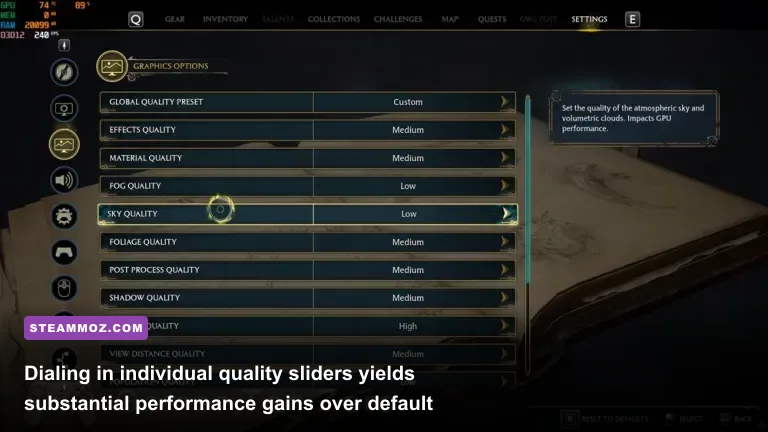
Avalanche provides a generous collection of visual toggles, but their performance costs are wildly uneven. Some settings drop your frame rate by double digits for imperceptible fidelity upgrades, while others grant substantial stability with virtually zero visual compromise. Avoid selecting the default global presets; fine-tuning each parameter delivers the best visual clarity per watt.
| Graphic Setting | Recommended Value | FPS Cost (%) | Visual & System Impact |
|---|---|---|---|
| Effects Quality | Medium / High | 8% – 12% | Controls particle density during combat; Ultra causes frame spikes during complex spell encounters. |
| Material Quality | High | 2% – 4% | Governs surface shaders and specular highlights across stone walls; very cheap on modern GPUs. |
| Fog Quality | Medium | 10% – 15% | High and Ultra cast expensive volumetric rays; Medium preserves atmospheric mood with huge FPS gains. |
| Sky Quality | Medium | 2% – 3% | Dictates cloud simulation and skybox detail; almost indistinguishable between Medium and Ultra. |
| Foliage Quality | Medium / High | 7% – 11% | Affects bush density and grass rendering distances outside Hogwarts; High strikes the cleanest balance. |
| Post Process Quality | High | 3% – 5% | Handles bloom, tonemapping, and depth-of-field; minimal performance penalty on midrange cards. |
| Shadow Quality | Medium / High | 12% – 18% | Cascaded shadow resolution eats memory bandwidth; Medium softens harsh outlines and stabilizes interior rooms. |
| Texture Quality | High (8GB VRAM) / Ultra (>10GB) | 0% (Within VRAM) | Directly governs texture buffer size; setting Ultra on an 8GB card will trigger catastrophic hitching. |
| View Distance Quality | Medium | 9% – 14% | Dictates distant mesh level of detail (LOD); High/Ultra severely cripple CPU draw calls in outdoor zones. |
| Population Quality | Medium | 6% – 10% | Limits wandering student counts; indispensable for smoothing out Hogsmeade and entrance corridors. |
| Ray Tracing (All Options) | OFF | 40% – 60% | Severe performance penalty; causes heavy noise, visual artifacts, and persistent frametime instability. |
Effects Quality: Keep this on High if you run an RTX 3070 or better; step down to Medium on cards like the RTX 3060 or RX 6600. During intense battles against Ashwinders and Poachers, casting Confringo, Bombarda, and Ancient Magic triggers dense alpha blending passes. Ultra can cause sudden drops of up to 20 frames right when dodging matter most.
Fog Quality: Medium is the undisputed champion here. Hogwarts is constantly smothered in volumetric fog, mist, and dynamic lighting shafts. Setting Fog to Ultra forces the engine to calculate volumetric samples at high steps, devastating your fill rate. Medium preserves the spooky, layered atmosphere across the Black Lake while reclaiming up to 15% of your baseline framerate.
View Distance Quality: This parameter heavily impacts both the GPU and your CPU's primary thread. Running Ultra renders distant turrets, trees, and small clutter items far beyond what your eye naturally tracks during normal play. Dropping View Distance to Medium cures a massive chunk of traversal stutter when sprinting through grand staircases or flying over the Scottish highlands, similar to the open-world asset balancing detailed in our Far Cry 6 PC settings performance walkthrough.
Ray Tracing Reflections, Shadows, and Ambient Occlusion: Leave every single ray tracing option OFF. The DXR implementation in Hogwarts Legacy is exceptionally unoptimized. Even on an RTX 4090, enabling ray-traced ambient occlusion and shadows crushes frame consistency and introduces glaring reflection denoiser artifacts on wet stone floors. Standard rasterized screen-space reflections look cohesive, clean, and run at triple the frame rate.
Display, Upscaling, and Frame Generation Settings
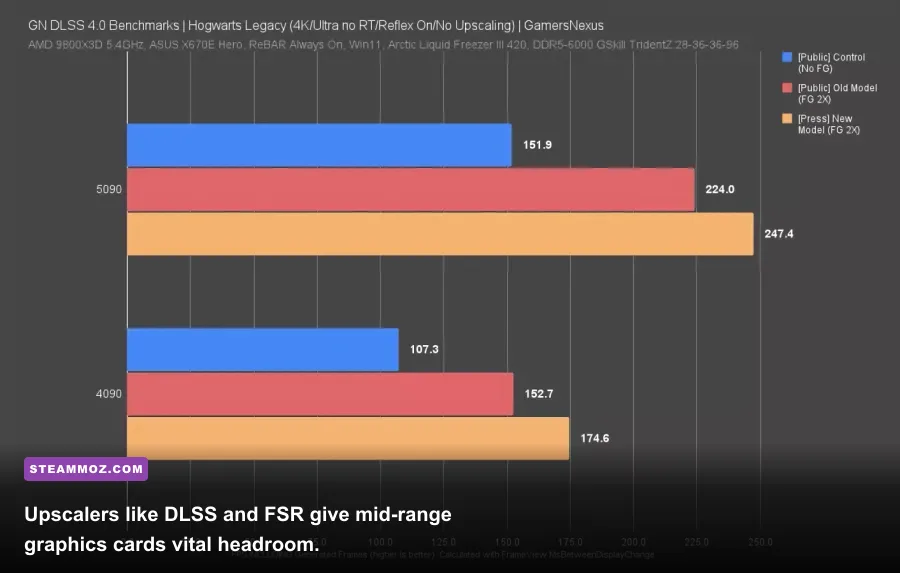
Rendering this game at native resolutions above 1080p without an upscaler is a waste of processing power. Avalanche integrated support for modern temporal upscalers, and using them is mandatory for maintaining a flat frametime graph.
If you run an Nvidia GeForce RTX GPU, select Nvidia DLSS set to Quality. DLSS reconstructs fine architectural lines, ornate stained glass, and foliage needles cleaner than the native TAA implementation, which notoriously blurs details in motion. For AMD Radeon and Intel Arc users, AMD FSR 2 or Intel XeSS set to Quality delivers comparable sharpening with minimal ghosting on spell trajectories. If you want a technical deep-dive on how modern temporal pipelines manage edge sampling, check the Nvidia DLSS technical portal.
Display and Latency Configuration
- Window Mode: Windowed Fullscreen (The game enforces this by default for reliable desktop layer switching).
- Upscale Sharpness: 0.2 to 0.4. Anything higher introduces aggressive ringing artifacts around character robes and foliage edges.
- Nvidia Reflex Low Latency: Set to On + Boost. This forces your GPU to remain in its highest P-state, shaving critical milliseconds off spell parry response times during high CPU-load spikes.
- Frame Generation (RTX 40-Series): ON. If you own an Ada Lovelace card, DLSS 3 Frame Generation effectively doubles on-screen smoothness through optical flow interpolation, slicing right through the Hogsmeade CPU bottleneck.
- V-Sync: Turn this OFF in the in-game menu. Instead, force V-Sync globally via your GPU driver control panel (Nvidia Control Panel or AMD Software) while capping your maximum framerate 3 FPS below your display refresh rate (e.g., 141 FPS on a 144Hz monitor). This prevents engine-level frame pacing judder.
- Motion Blur, Depth of Field, Chromatic Aberration, and Film Grain: Turn these OFF. Beyond personal visual taste, disabling post-process blurs clears up dynamic combat clarity and slightly lowers GPU memory overhead.
Engine.ini Tweaks and Memory Fixes That Actually Work
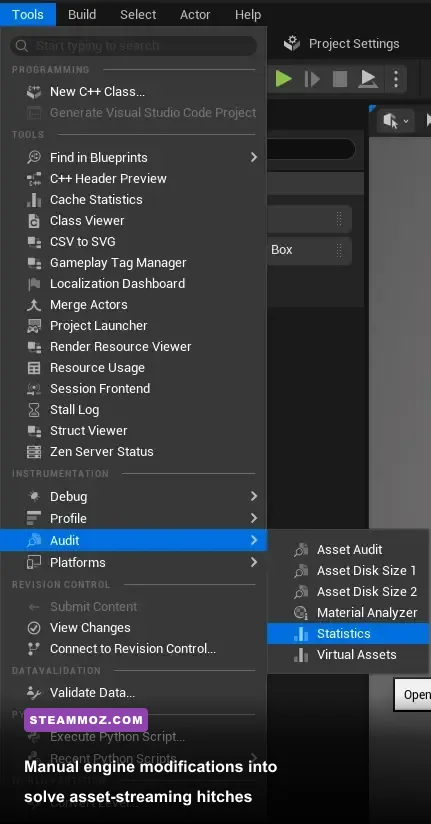
Even after configuring your in-game options, Hogwarts Legacy can still exhibit irritating micro-hitches during door transitions. That is because Unreal Engine 4's internal texture streaming pool is configured conservatively by default. You can override these limits by tweaking the configuration file.
Press Windows Key + R, paste the following path into the Run box, and hit Enter:
%LOCALAPPDATA%\Hogwarts Legacy\Saved\Config\WindowsNoEditor
Open Engine.ini with a text editor like Notepad. Scroll to the very bottom of the document, create a new line, and paste the following parameters tuned to alleviate asset streaming stalls:
[SystemSettings]
r.Streaming.PoolSize=3072
r.Streaming.LimitPoolSizeToVRAM=1
r.bForceCPUAccessToGPUBuffer=0
r.CreateShadersOnLoad=1
s.AsyncLoadingThreadEnabled=True
s.CreateGCClusters=True
Crucial Note on PoolSize: Adjust r.Streaming.PoolSize according to your physical GPU VRAM. If you have an 8 GB card, set it to 3072 (allocating 3 GB strictly for textures). If you have a 12 GB or 16 GB card, change that value to 4096 or 6144. Never allocate your entire VRAM capacity to the pool size, as space is required for render targets, geometry buffers, and lighting passes. For more on how Unreal manages memory allocation pools, explore the official Unreal Engine Texture Streaming documentation.
Next, fix your Windows Pagefile. A frequent source of sudden desktop crashes in Hogwarts Legacy is an undersized virtual memory paging file, particularly on systems with 16 GB of system RAM. Open Windows System Properties, navigate to Advanced > Performance Settings > Virtual Memory, and set a custom paging file on your fastest NVMe SSD with an initial size of 16384 MB and a maximum of 24576 MB. This prevents out-of-memory crashes when the game compiles shaders or loads dense levels, a persistent problem we also tackled in our guide on fixing low FPS and crashes in EscapeVR.
DirectX Shader Cache Reset
If you experience massive stuttering after applying a major game update or graphics driver upgrade, your DirectX shader cache is likely corrupted. Open the Windows Disk Cleanup utility, select your main OS drive, check DirectX Shader Cache, and click OK. The game will take a few minutes on its next boot to rebuild shaders during the title screen, but it will eradicate the constant micro-freezes caused by outdated cached pipelines.
Hardware-Specific Presets for Budget, Mid-Range, and High-End Rigs
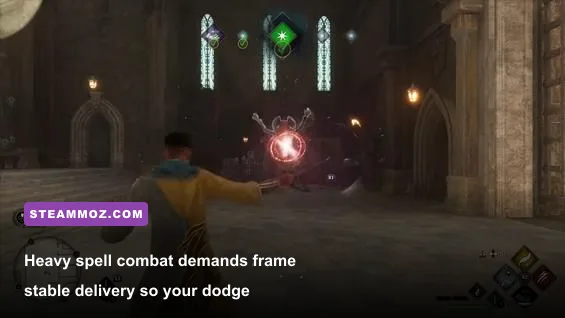
Every PC rig is unique, but hardware configurations generally fall into three distinct performance brackets. Here is how you should balance your machine for maximum fluidity depending on your graphics card and processor setup.
| Hardware Class | Example GPUs | Target Resolution | Upscaler Profile | Tuned Preset | Expected FPS |
|---|---|---|---|---|---|
| Budget Tier | GTX 1660 Super, RTX 3050, RX 6500 XT, RX 6600 | 1080p | FSR 2 / XeSS Balanced | Low/Medium Mix, Textures Medium, Shadows Low | 50 – 60 FPS |
| Mid-Range Tier | RTX 2070 Super, RTX 3060 Ti, RTX 4060, RX 6700 XT | 1440p | DLSS / FSR 2 Quality | Optimized High (Fog/View Dist/Pop Medium) | 65 – 80 FPS |
| Enthusiast Tier | RTX 3080, RTX 4070 Ti, RX 6800 XT, RX 7900 XT | 1440p / 4K | DLSS Quality / DLAA (+ Frame Gen) | Ultra / High Mix, Textures Ultra, Ray Tracing OFF | 90 – 130 FPS |
Budget Tier Configuration (1080p Target)
For cards carrying 6 GB to 8 GB of VRAM, your main objective is keeping memory consumption under the physical ceiling while freeing up CPU cycles. Set Textures to Medium; the visual difference on a 1080p display is negligible, but it cuts your baseline VRAM footprint by nearly 2 GB. Combine this with Shadows on Low and Foliage on Medium. You will hold an enjoyable 55 to 60 FPS across almost the entire map. Checking your baseline specs against similar requirements, as we outlined when breaking down modern PC system specifications, confirms that keeping background overhead low is half the battle on older cards.
Mid-Range Tier Configuration (1440p Target)
This is the hardware sweet spot for millions of PC players. If you are packing an RTX 3060 Ti, RTX 4060, or RX 6700 XT paired with a modern six-core processor, run the game at 1440p using DLSS or FSR 2 set to Quality. Keep Material, Post Process, and Texture Quality on High, while leaving Fog, Foliage, View Distance, and Population on Medium. This configuration avoids VRAM overflows while ensuring the castle interiors and stained glass look clean, crisp, and high-fidelity. For more tips on smoothing out tricky frame timings on mid-tier hardware, check out our guide on optimizing frames on modest systems.
Enthusiast Tier Configuration (4K or High-Refresh 1440p)
If you have raw GPU horsepower to spare—such as an RTX 4080 or Radeon RX 7900 XTX—you can safely max out Textures, Materials, Foliage, and Effects to Ultra. However, you should still keep Fog Quality on High rather than Ultra, and firmly disable Ray Tracing. If you run an Ada Lovelace GPU at 4K, pairing DLSS Quality with Frame Generation propels your performance past 110 FPS with butter-smooth frame pacing, even through the taxing corridors of the Bell Tower and the open fields of the South Sea Bog. If you encounter weird game crashes or odd software bugs during setup, submit a diagnostic ticket to Warner Bros. Games Support to verify that your system environment is clean.
Applying these targeted settings restores the speed and fluidity this combat system requires. When you can string Accio, Incendio, and Basic Cast combos together with zero stutter, the wizarding world transforms from an unoptimized hardware headache into the smooth, responsive RPG experience it was meant to be.