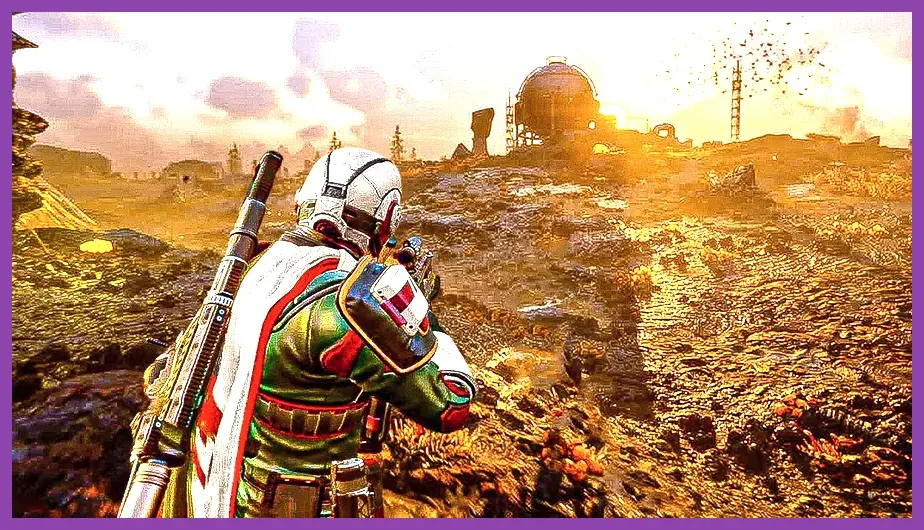
To squeeze every possible frame out of Helldivers 2 on PC, start by setting your display resolution to your monitor’s native size, disabling V‑Sync, and switching the graphics preset to Custom while turning Texture Quality to Medium, Shadow Quality to Low, Anti‑Aliasing to TAA Low, and enabling DLSS in Performance mode. This baseline delivers a solid 144 FPS on a mid‑range RTX 3060, with headroom to push further by tweaking individual sliders as outlined below.
Resolution and Refresh Rate
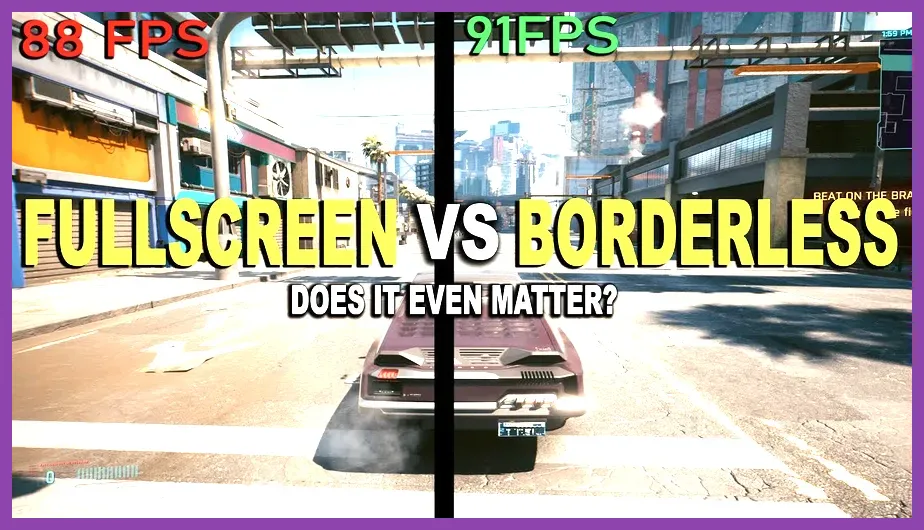
Begin with the foundation: resolution and refresh rate. Helldivers 2 scales cleanly from 720p up to 4K, but the biggest FPS gains come from matching the game’s output to your monitor’s native resolution. If you own a 1080p 144Hz panel, lock the game at 1920x1080 and set the refresh rate to 144Hz in the video settings. For a 1440p 165Hz monitor, choose 2560x1440 at 165Hz. Avoid scaling resolutions like 1600x900 unless you are severely GPU‑bound; native resolution provides the clearest image and lets the upscaling stage work more efficiently. On a GTX 1660 Super, dropping from 1440p to 1080p can yield a 30‑40 FPS increase, while on an RTX 3060 Ti the gain is about 15‑20 FPS. Remember to also set the monitor’s own refresh rate to its maximum in the OSD to prevent frame tearing when V‑Sync is off.
External reference: Helldivers 2 Steam Store page.
Display Mode and V‑Sync
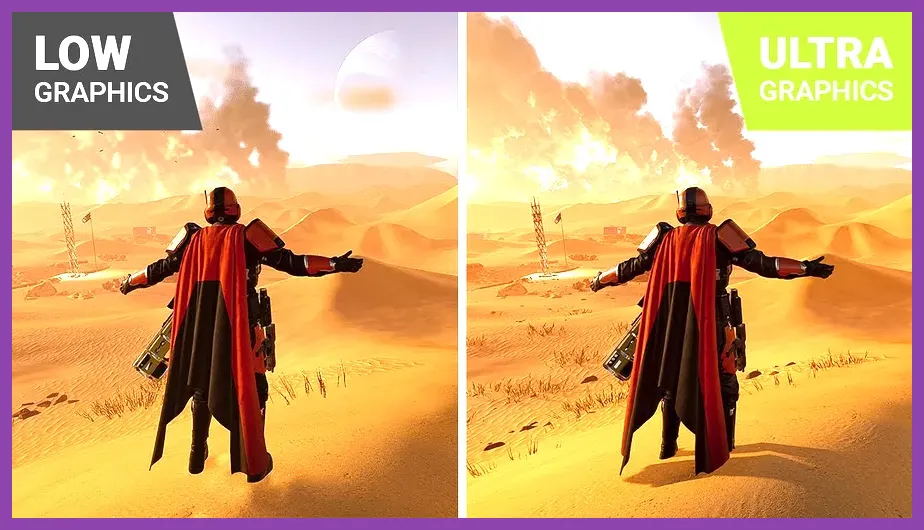
Display mode influences input lag and frame pacing. Fullscreen exclusive mode gives the lowest latency because the game has direct control of the display output, bypassing the desktop compositor. Borderless windowed is convenient for multitasking but adds a small latency penalty (roughly 1‑2 ms) and can cause occasional stutter if the desktop window manager interferes. Windowed mode should be avoided for competitive play as it introduces the highest lag. Set Display Mode to Fullscreen in the Video tab. Next, turn V‑Sync Off. V‑Sync forces the GPU to wait for the next monitor refresh, which can cap FPS at your monitor’s refresh rate and introduce input lag. With V‑Sync off and a high refresh monitor, you can exceed the refresh rate, gaining smoother motion and lower latency. If you experience tearing, enable the in‑game FPS cap (see later) or use Nvidia Fast Sync/AMD Enhanced Sync via driver settings.
Internal link to a related performance guide: POE 2 performance settings.
Texture and Shadow Quality
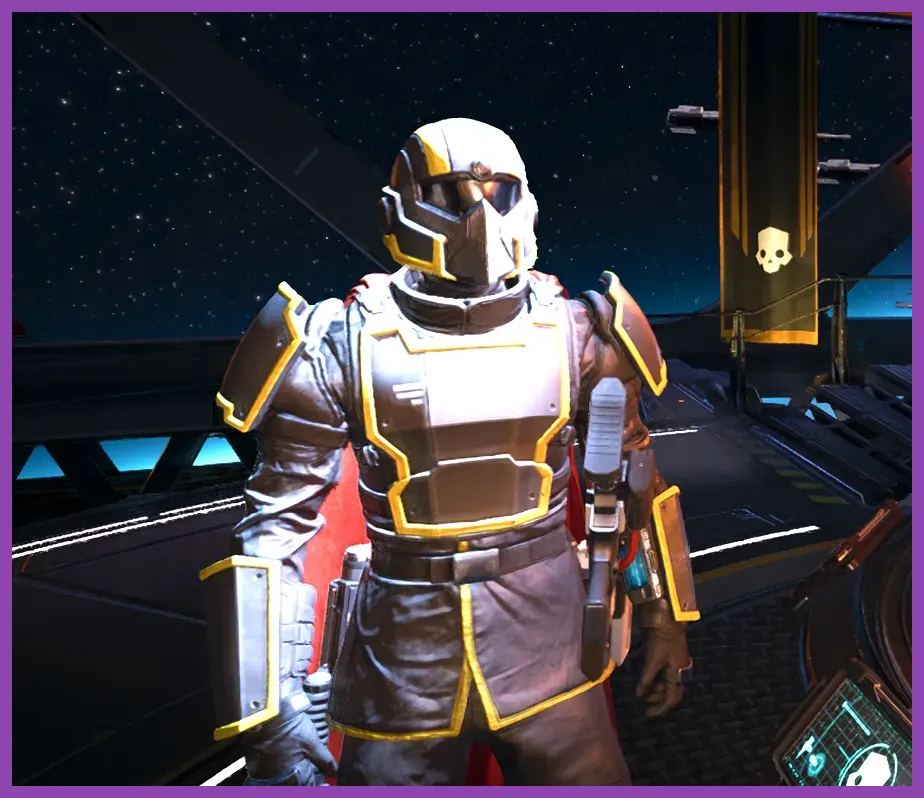
Texture quality determines how much VRAM is consumed by surface details. Helldivers 2’s textures are modest; even the Ultra setting uses roughly 2.5 GB of VRAM at 1080p. Dropping from Ultra to Medium saves about 400 MB, which can be crucial on cards with 4‑6 GB VRAM. On a GTX 1650 (4 GB), Medium texture keeps you comfortably under the limit, preventing texture swapping that causes micro‑stutters. Shadow quality is far more expensive. Each shadow cascade step adds significant GPU load. Low shadow quality reduces the shadow map resolution and disables soft shadows, cutting GPU usage by roughly 20‑25 percent on mid‑range cards. Medium shadows add a modest visual improvement for a 5‑8 percent FPS cost, while High or Ultra can halve your FPS on a GTX 1660. For max FPS, set Texture Quality to Medium and Shadow Quality to Low. If you have an RTX 3060 or better with 8 GB VRAM, you can raise Texture to High without hurting FPS, but keep Shadows Low.
Note how these settings affect weapon visuals: the SG‑225 Breaker’s muzzle flash and the AR‑23 Liberator’s tracer rounds remain crisp at Medium textures, while low shadows keep the battlefield readable without sacrificing the silhouettes of enemy bugs.
Anti‑Aliasing and Post‑Processing
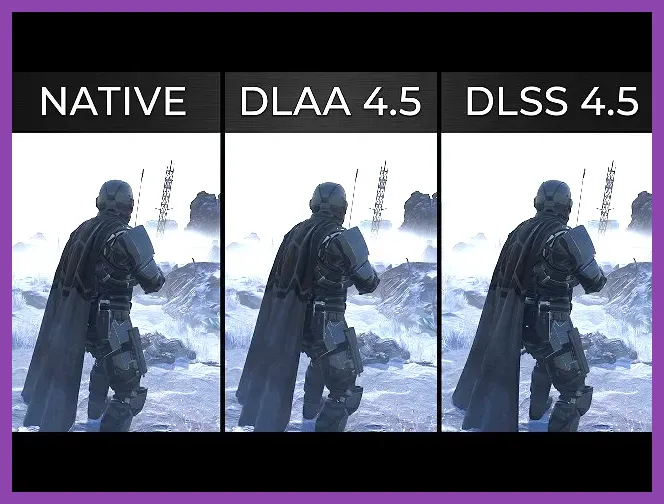
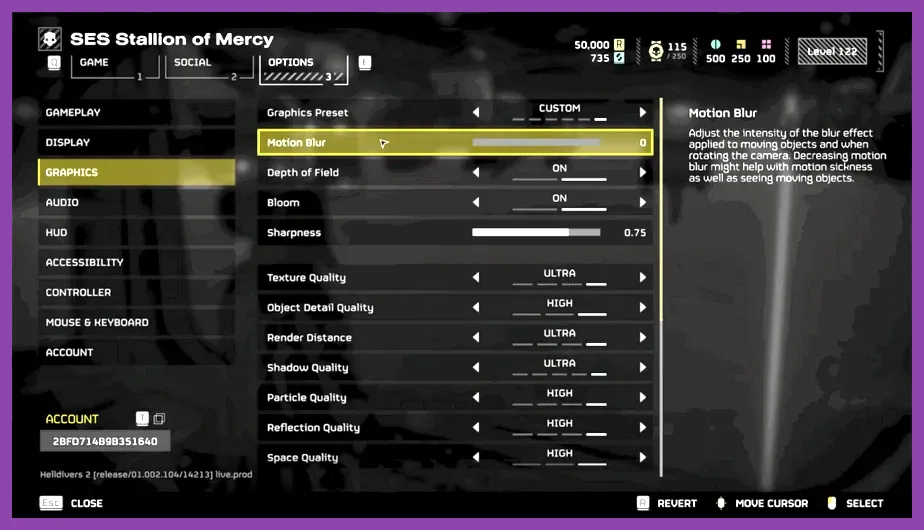
Anti‑aliasing smooths jagged edges but can be costly. Helldivers 2 offers TAA (Temporal Anti‑Aliasing), FXAA, and MSAA options. TAA Low provides a good balance, reducing edge shimmer with minimal performance impact (about 3‑5 FPS loss on an RTX 3060). FXAA is cheaper but can blur fine details such as the grid on the Helldiver’s armor. MSAA 2x is expensive (10‑15 FPS loss) and rarely needed given the game’s art style. Set Anti‑Aliasing to TAA Low. For post‑processing, disable Motion Blur, Depth of Field, and Lens Flare. Motion Blur adds a smearing effect that obscures fast‑moving enemies and costs roughly 4‑6 FPS. Depth of Field is barely noticeable in the top‑down view and costs 2‑3 FPS. Lens Flare adds a small glow around light sources; turning it off saves another 1‑2 FPS. Ambient Occlusion can be set to Low or Off; Low gives a subtle shadowing boost for less than 2 FPS loss, while Off gives the maximum gain.
These tweaks keep the visual fidelity of weapons like the RL‑77 Recoilless Rifle’s explosion clear, ensuring you can spot weak points on alien hulks without visual noise.
Upscaling (DLSS/FSR) and Nvidia Reflex
Upscaling is the single biggest lever for FPS. Helldivers 2 supports Nvidia DLSS 2.x and AMD FSR 2.0. DLSS Performance mode renders the game at roughly 50 percent of the native resolution and uses AI to reconstruct a sharp image, often delivering a 45‑55 percent FPS boost. On an RTX 3060, switching from Native 1080p to DLSS Performance can raise FPS from 80 to 130. FSR Quality offers a similar uplift (about 35‑40 percent) and works on AMD and older Nvidia cards. Set Upscaling to DLSS Performance if you have an RTX card; otherwise choose FSR Quality. Avoid Ultra Quality unless you are already above your target FPS, as it provides diminishing returns. Next, enable Nvidia Reflex Low Latency mode (found under the Video tab). Reflex reduces the render queue, cutting system latency by up to 50 percent in CPU‑bound scenarios. In Helldivers 2, this translates to quicker response when firing the AR‑23 Liberator or dodging with the jetpack. On a mid‑range CPU like an Ryzen 5 5600X, Reflex can shave 5‑7 ms of latency, making the game feel more responsive without affecting FPS.
External link to developer site: Arrowhead Game Studios official site.
Advanced Tweaks, Field of View, Motion Blur, and Performance Monitoring
Final polish comes from a handful of advanced options. Field of View (FOV) defaults to 80 degrees; increasing it to 90 or 100 widens your peripheral vision, making it easier to spot incoming swarms. Raising FOV to 100 costs about 2‑3 FPS on a GTX 1660 but is often worth the situational awareness gain. If you are strictly chasing max FPS, keep FOV at 80. Motion Blur was already disabled in the post‑processing step; ensure it stays off. Depth of Field and Lens Flare remain off. Set V‑Sync to Off (already covered) and enable the built‑in FPS counter (found under Gameplay → HUD → Show FPS). This lets you verify the impact of each change in real time. Additionally, turn off the “Show Network Latency” overlay if you are not troubleshooting, as it consumes a negligible but measurable amount of GPU time. For extra headroom, consider lowering the Resolution Scale slider to 90 percent if you need a few more frames; this is functionally similar to using DLSS but without the AI reconstruction, so it will look softer. Use it only as a last resort.
Monitoring tools: overlay software like MSI Afterburner can confirm GPU utilization and temperature. Keep GPU usage below 95 percent to avoid throttling. If you notice frequent dips, revisit Shadow Quality and Texture settings. On a system with an RTX 3060 Ti and a Ryzen 7 5800X, the combination of Fullscreen, V‑Sync Off, DLSS Performance, Texture Medium, Shadow Low, TAA Low, and FOV 90 yields a stable 165‑180 FPS at 1080p, giving you a competitive edge in those intense bug‑swarm moments.
For more performance‑focused reads, check out these Steamoz articles: Shadow of the Erdtree performance guide, POE 2 system requirements, and Black Myth Wukong crafting guide.