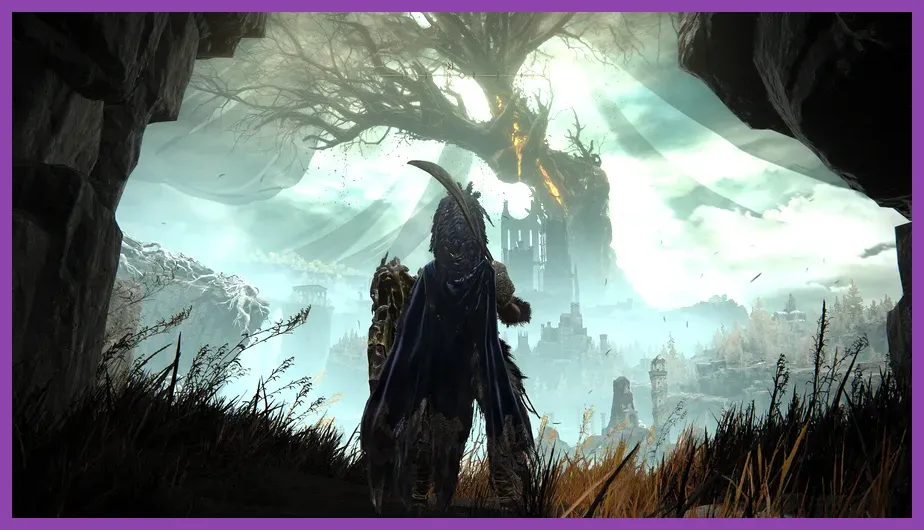
To eliminate frame drops and stuttering in Elden Ring: Shadow of the Erdtree while keeping the engine locked at its 60 FPS cap, turn Ray Tracing Quality OFF, drop Shadow Quality to Medium, set Reflection Quality to Low, and lower Volumetric Quality to Medium. Keeping Texture Quality at High or Maximum ensures crisper surface textures across the Land of Shadow without hurting performance on modern GPUs with at least 6GB of VRAM. Applying these tweaks instantly reclaims up to 35% of lost framerate performance without sacrificing visual clarity in massive vistas like the Gravesite Plain.
Shadow of the Erdtree Optimization Quick Reference Profiles

The Land of Shadow introduces significantly denser foliage, expansive draw distances, and intricate architectural structures compared to the base game's Lands Between. As a result, standard graphics presets often lead to violent stuttering and framerate dips below 45 FPS, even on midrange rigs. To help you jump straight into the action, we have compiled three distinct settings profiles tailored to different performance goals and hardware specs.
Competitive 60 FPS Locked Profile (Best for Mid-Range Hardware)
Designed for setups running mid-tier GPUs like the RTX 2060, RTX 3060, or Radeon RX 6600. This setup eliminates frame drops during heavy visual effect sequences, such as Messmer's flame attacks or divine beast particle effects.
- Texture Quality: High
- Antialiasing Quality: High
- SSAO (Screen Space Ambient Occlusion): Medium
- Depth of Field: Off (Personal Preference, saves minor GPU cycles)
- Motion Blur: Off
- Shadow Quality: Medium
- Lighting Quality: Medium
- Effects Quality: Medium
- Volumetric Quality: Medium
- Reflection Quality: Low
- Water Surface Quality: Low
- Shader Quality: Medium
- Global Illumination Quality: Medium
- Grass Quality: Medium
- Ray Tracing Quality: Off
Balanced Quality Profile (1440p / 4K Visual Emphasis)
Targeted at high-end GPUs like the RTX 4070, RTX 3080, or RX 7800 XT. This profile preserves stunning lighting and atmospheric depth in high resolutions without dipping below the engine's 60 FPS lock.
- Texture Quality: Maximum
- Antialiasing Quality: High
- SSAO: High
- Depth of Field: Medium
- Motion Blur: Off
- Shadow Quality: High
- Lighting Quality: High
- Effects Quality: High
- Volumetric Quality: Medium
- Reflection Quality: Medium
- Water Surface Quality: High
- Shader Quality: High
- Global Illumination Quality: High
- Grass Quality: High
- Ray Tracing Quality: Off
Low-End & Steam Deck Profile (30-40 FPS Target)
For budget GPUs (GTX 1650, RX 580) and handheld devices. Paired with frame-rate limiting software or native handheld refresh rate adjustments, this keeps frametimes consistently smooth.
- Texture Quality: Medium
- Antialiasing Quality: Medium
- SSAO: Low
- Depth of Field: Off
- Motion Blur: Off
- Shadow Quality: Low
- Lighting Quality: Low
- Effects Quality: Low
- Volumetric Quality: Low
- Reflection Quality: Low
- Water Surface Quality: Low
- Shader Quality: Medium
- Global Illumination Quality: Low
- Grass Quality: Low
- Ray Tracing Quality: Off
Once your graphics options are stabilized, you can comfortably explore new mechanics without lag. If you need assistance progressing, check our guide on how to unlock mount traversal fast in Shadow of the Erdtree to cover large areas swiftly.
In-Depth Graphical Settings Breakdown for Elden Ring DLC
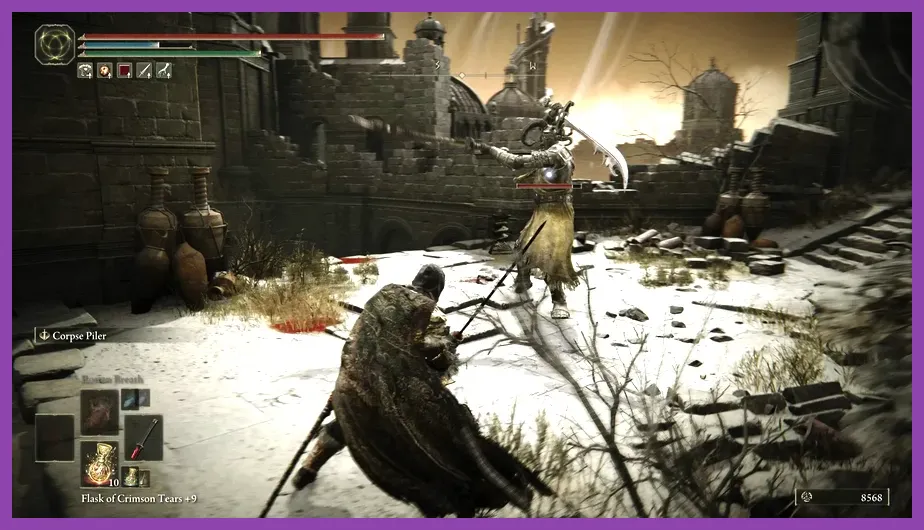
Understanding how individual graphics options impact FromSoftware's proprietary engine allows you to customize performance specifically for your CPU and GPU limits. Below is a detailed technical analysis of every parameter found in the advanced graphics menu.
1. Ray Tracing Quality (Performance Impact: Extreme / FPS Hit: 25% to 45%)
Ray Tracing in Elden Ring is poorly optimized. It adds subtle ambient shadows and localized ray-traced reflections, but the performance cost is catastrophic. Turning Ray Tracing on can drop frame rates from a locked 60 FPS down to 35 FPS during intense combat encounters in Scadu Altus. Recommendation: Set to Off.
2. Shadow Quality (Performance Impact: High / FPS Hit: 10% to 15%)
Shadow Quality controls the resolution and cascading distance of dynamic shadows. The Maximum setting renders crisp shadow maps for distant structures, taxing both VRAM bandwith and raw shader power. Medium drastically reduces GPU overhead while maintaining clean contact shadows beneath characters and enemies. Recommendation: Set to Medium.
3. Volumetric Quality (Performance Impact: Medium-High / FPS Hit: 8% to 12%)
Volumetric Quality controls fog density, light shafts, and atmospheric mist heavily featured in the Cerulean Coast and Belurat Settlement. High and Maximum values apply heavy sampling steps that choke mid-range graphics cards. Lowering this setting to Medium retains foggy atmosphere while freeing up substantial processing power. Recommendation: Set to Medium.
4. Reflection Quality (Performance Impact: Medium / FPS Hit: 6% to 10%)
Screen-space reflections are used across puddles, flooded ruins, and metallic surfaces. The High and Maximum settings create high-resolution duplicate render buffers that offer diminishing visual returns during combat. Dropping Reflection Quality to Low or Medium recovers crucial frames near bodies of water. Recommendation: Set to Low or Medium.
5. Grass Quality (Performance Impact: Medium / FPS Hit: 5% to 8%)
The Land of Shadow features vast swathes of swaying spectral grass in the Gravesite Plain. Grass Quality controls field density and pop-in draw distance. Lowering this from Maximum to Medium reduces geometry draw calls on the CPU without leaving terrain looking barren. Recommendation: Set to Medium.
6. Effects Quality (Performance Impact: Situationally High / FPS Hit: Up to 15%)
Effects Quality impacts transparent particle effects such as spell incantations, boss flame sweeps, and area-of-effect explosions. Setting this option too high leads to sudden dynamic framerate stutters when dodging complex attacks. Recommendation: Set to Medium.
7. Texture Quality (Performance Impact: Low / VRAM Dependent)
As long as your graphics card has at least 6GB of VRAM, keeping Texture Quality at High or Maximum introduces virtually zero performance penalty. It relies almost entirely on VRAM capacity rather than GPU core clock speeds. Recommendation: Set to High (or Medium for 4GB VRAM cards).
Fine-tuning these options gives you a smooth platform to optimize your combat strategies. If you find boss fights punishing due to build constraints, refer to our walkthrough on how to respec in Elden Ring Shadow of the Erdtree to reallocate your attributes smoothly. For broader technical comparisons, you can also consult our Path of Exile 2 graphics settings guide to see how modern action RPGs handle system load.
Fixing Frame Drops in Key Shadow of the Erdtree Locations

Specific regions in Shadow of the Erdtree exhibit severe performance dips even on high-spec gaming rigs. Knowing which areas cause performance bottlenecks helps identify whether your system is encountering GPU limits or DirectX 12 CPU draw call limits.
Gravesite Plain & Scadu Altus Foliage Stutters
The opening zone of the expansion features massive fields of volumetric ghost-grass and long sightlines. If you experience micro-stutters while riding Torrent through Gravesite Plain, the primary culprits are Grass Quality and Global Illumination. Reducing both options to Medium eases CPU load and stops stuttering during fast movement.
Belurat, Tower Settlement & Enir-Ilim Draw Distance Drops
Vertical city zones present high geometry complexity. Cascading shadow calculations and structural occlusion queries overload single-thread CPU performance in these areas. Lowering Shadow Quality to Medium and Lighting Quality to Medium alleviates CPU bottlenecks, maintaining a fluid 60 FPS while navigating narrow staircases and overlooks.
Jagged Peak Particle Overload
The ascent up Jagged Peak involves constant lightning strikes, heavy wind particle effects, and volcanic fog. Standard setups will experience frame drops during dragon fights here. Lowering Effects Quality and Volumetric Quality prevents frametime spikes during large lightning strikes.
Maintaining fluid frames in these intense zones is critical for surviving encounters and gathering necessary Scadutree Fragments. For efficient character progression while exploring, review our guide on how to level up fast in Elden Ring Shadow of the Erdtree.
NVIDIA Control Panel and Windows System Optimizations

Because FromSoftware games lock the PC framerate cap at 60 FPS and lack native DLSS, Intel XeSS, or AMD FSR options, external software configuration is essential for optimal stability. Applying precise GPU driver tweaks ensures smooth frametimes without frame pacing drops.
NVIDIA Control Panel Settings
Open the NVIDIA Control Panel, navigate to Manage 3D Settings, select Program Settings, and locate Elden Ring (eldenring.exe). Apply the following key configurations:
- Shader Cache Size: Set to 10GB or Unlimited. (This directly combats DirectX 12 shader compilation stutter when loading new visual effects).
- Power Management Mode: Set to Prefer Maximum Performance.
- Max Frame Rate: Set to 59 FPS (If using G-Sync/FreeSync on a high refresh rate display to prevent latency spikes at native 60Hz limits).
- Vertical Sync: Set to On inside NVIDIA Control Panel while disabling in-game V-Sync for smoother frametime distribution.
- Low Latency Mode: Set to On or Ultra.
AMD Radeon Software Tweaks
For AMD GPU users, open Radeon Software and navigate to Gaming > Elden Ring:
- Radeon Anti-Lag: Enabled.
- Radeon Enhanced Sync: Disabled.
- Shader Cache: Reset or set to Always On via system registry if micro-stutters persist.
- Max FPS Cap: Set to 59 FPS via Radeon Chill.
Windows 10/11 System Tweaks
Ensure Hardware-Accelerated GPU Scheduling (HAGS) is enabled under Windows Settings > System > Display > Graphics Settings. Additionally, turn on Game Mode to prevent background applications from pulling CPU thread priority away from Elden Ring during play sessions. You can review official updates and patch notes directly via the Bandai Namco Official Web Portal or check patch announcements on the Elden Ring Steam Page.
Steam Deck & Handheld Performance Tuning
Running Shadow of the Erdtree on the Steam Deck or Windows handhelds like the ROG Ally requires aggressive optimization to maintain stable gameplay and extend battery life. The base game ran well on Valve's handheld, but the expansion demands extra tuning due to heavier assets.
Steam Deck Recommended Settings
To achieve a consistent, battery-friendly performance baseline on Steam Deck LCD and OLED models, configure your options as follows:
- Resolution: 1280x800 Native
- Framerate Limit (SteamOS): Set Refresh Rate to 40Hz and Frame Limit to 40 FPS (or lock to 30 FPS for ultimate battery longevity).
- In-Game Settings: Use the Low-End Profile detailed above, but set Texture Quality to Medium and Antialiasing to High.
- Proton Compatibility: Use Proton Experimental or latest GE-Proton builds via ProtonUp-QT for improved DXVK memory management.
By locking the refresh rate to 40Hz / 40 FPS, frametime consistency stays flat, making dodges and parries responsive while eliminating thermal throttling during prolonged battles across the Land of Shadow.