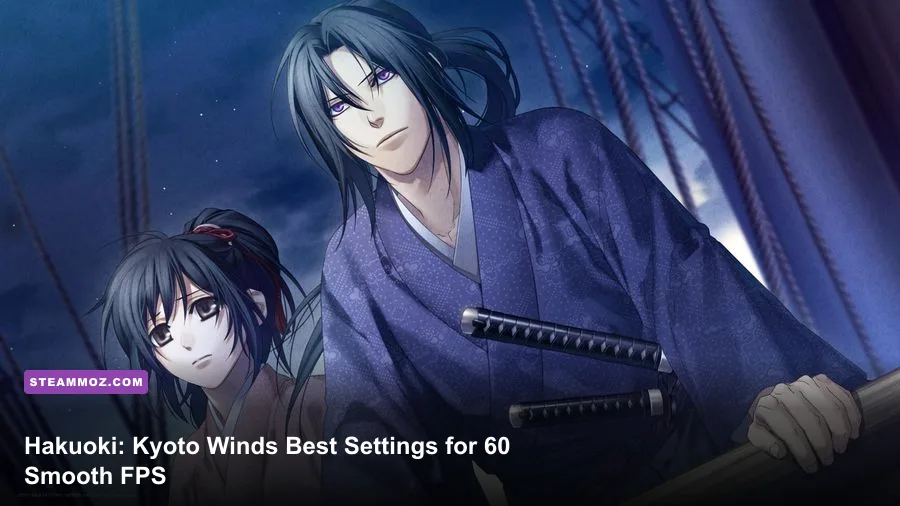
The best Hakuoki: Kyoto Winds PC settings are simple: use your monitor's native resolution, enable fullscreen and VSync, keep texture and image quality at their highest values, and disable overlays that cause stutter. This is a 2D visual novel, not a 3D action game, so even an older laptop should hold a smooth 60 FPS. Your real performance gains come from fixing display scaling, frame pacing, and Windows compatibility—not from lowering beautiful character art.
That distinction matters. Hakuoki: Kyoto Winds, also known as 薄桜鬼 真改 風ノ章 and 薄櫻鬼 真改 風之章, spends most of its runtime showing illustrated backgrounds, character sprites, event CGs, text boxes, and transition effects. There are no open-world shadows, particle-heavy battles, or geometry settings to micromanage. If the game feels sluggish, the problem is usually an awkward resolution mode, a laptop using integrated graphics, an overlay conflict, or a display refresh mismatch.
Use This High-FPS Hakuoki Settings Profile
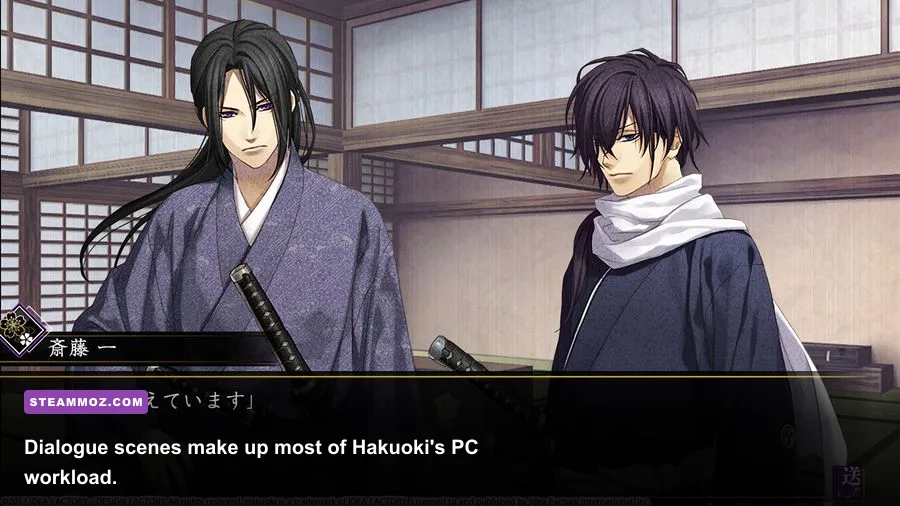
Start with the profile below before changing anything else. It preserves the artwork while removing the handful of presentation choices that can create unnecessary frame-time spikes. The target is a stable 60 FPS with clean scrolling and instant menu response at 1080p or your panel's native resolution.
| Setting | Recommended Value | FPS Impact | Visual Note |
|---|---|---|---|
| Display Mode | Exclusive Fullscreen | Low | Usually gives the cleanest frame pacing and avoids desktop scaling. |
| Resolution | Native panel resolution | Low | Use 1920×1080 on a 1080p display; don't upscale a blurry 720p image. |
| Refresh Rate | 60 Hz or panel maximum | Low | Match the Windows display setting to prevent judder during transitions. |
| VSync | On | Negligible | Stops tearing during scene changes and text-box animations. |
| Texture or Image Quality | High / Maximum | Negligible | Preserves detailed portraits, backgrounds, and event CGs. |
| Anti-Aliasing | Application Default | Negligible | Forced driver AA offers virtually no benefit on predominantly 2D art. |
| Post-Processing | On, unless stutter appears | Very Low | Keep fades and presentation effects intact on a capable PC. |
| Frame Rate Limit | 60 FPS, if exposed | Positive | A cap prevents needless GPU activity and stabilizes pacing. |
Hakuoki's artwork is designed to be looked at, not benchmarked. Dropping resolution to 1280×720 may technically reduce pixel work, but it also makes thin Japanese text, English subtitles, and line details in the Shinsengumi uniforms noticeably softer. At 1080p, the difference is immediately visible in the Kyoto backgrounds and route CGs involving Chizuru Yukimura, Toshizo Hijikata, and Hajime Saito.
If the game exposes fewer graphics options than this table suggests, that's normal. Some PC builds present only resolution, window mode, and VSync. In that case, leave the artwork at its default maximum and focus on the operating-system fixes later in this guide. For broader PC tuning principles, compare our Cricket Through the Ages FPS settings guide; the same frame-pacing logic applies even though Hakuoki is far lighter.

🎮 FORM
Looking to experience this game? Grab your digital key directly on our store for $14.99.
View on Steammoz Store →Why Hakuoki Rarely Needs Lower Graphics

The published PC requirements tell the story. The Steam release lists a 2.0 GHz processor, 2 GB of RAM, DirectX 9 support, and roughly 4 GB of storage as the baseline class of hardware. Those specifications are extremely modest by modern standards. A recent integrated GPU can push the game's 2D scenes far beyond the target display rate, while a discrete card such as a GTX 1650 has enormous headroom.
| Hardware Profile | Resolution Target | Practical Result | Best Adjustment |
|---|---|---|---|
| Older dual-core PC, 2 GB RAM | 1280×720 at 60 Hz | Playable if Windows is clean and background apps are closed. | Use fullscreen and disable overlays first. |
| Modern integrated graphics laptop | 1920×1080 at 60 Hz | Normally far above the game's needs. | Use native resolution and a 60 FPS cap. |
| Entry-level discrete GPU | 1920×1080 at 60 Hz | Stable performance with maximum artwork quality. | Keep VSync on for tear-free transitions. |
| 1440p or 4K gaming PC | Native or 1080p | GPU power is not the limiting factor. | Choose 1080p if text scaling looks cleaner. |
Don't confuse a visual transition with a performance collapse. Hakuoki uses fades, screen changes, and event-CG loading between story beats. A brief pause when moving from the Shinsengumi compound to another Kyoto location can be asset loading rather than low FPS. Steam's counter may also report a capped 60, even when the engine isn't rendering an intensive 3D scene.
For reference, the official Hakuoki: Kyoto Winds Steam page is the best place to confirm the current build's listed requirements. If your machine can run similarly lightweight games such as Deathtrap: Dungeon, raw hardware power isn't the concern here. Consistency is.
Fix Stutter, Tearing, and Slow Menus
When performance feels wrong, work through these fixes in order. First, plug in a laptop and select Windows' Best Performance power mode. Battery-saving profiles can downclock the CPU aggressively, which shows up as delayed menu input even though the game appears visually static. Next, confirm that Windows is using the monitor's intended refresh rate under Settings, System, Display, and Advanced display.
- Choose fullscreen first. Borderless mode can add a compositor layer on Windows, especially on older systems. If fullscreen causes alt-tab problems, switch to borderless and keep VSync enabled.
- Disable unnecessary overlays. Test Steam Overlay, Xbox Game Bar, Discord, AMD Adrenalin, and GeForce Experience one at a time. An overlay that works perfectly in a 3D game can still interrupt a small visual-novel window.
- Set the correct GPU. In Windows Graphics settings, add the game's executable and select High performance on dual-GPU laptops. This won't increase Hakuoki's maximum FPS much, but it can eliminate inconsistent frame pacing.
- Try driver-level VSync only if needed. If in-game VSync produces tearing, set the executable to VSync On in the NVIDIA or AMD control panel. Don't stack several frame limiters; choose one cap.
- Check text scaling. Keep Windows display scaling at 100% for testing. A very high scaling percentage can make older interfaces look oversized or cause awkward window placement.
- Verify the installation. Steam's file verification can repair missing assets after an interrupted update. It won't magically raise FPS, but it can address repeated pauses when event CGs load.
Don't use aggressive driver features such as Radeon Chill, NVIDIA Image Scaling, or forced sharpening for this game. They target 3D workloads and can introduce more variables than they solve. If you're troubleshooting several older PC releases at once, our Dungeons 3 crash and low-FPS fixes cover the same overlay, fullscreen, and compatibility checks in more detail.
Best Resolution for Text, CGs, and Route Scenes
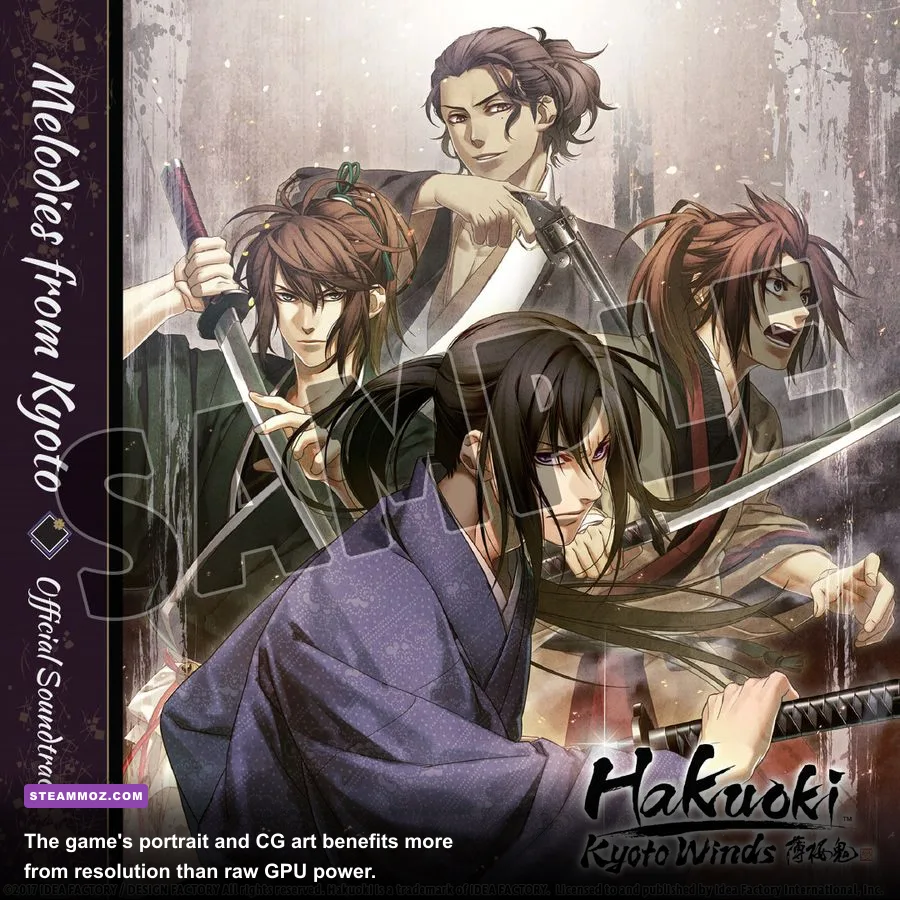
Native resolution is the correct quality setting for Hakuoki, but there is one exception: very high-density screens. On a 4K monitor, rendering the game at 3840×2160 may provide little visible benefit if the source artwork or interface is designed around 1080p. It can also make menus and text appear smaller depending on the game's scaling behavior. Test 1920×1080 first, then compare it with 2560×1440 if your display supports that mode cleanly.
| Display | Recommended Resolution | Why It Works | When to Lower It |
|---|---|---|---|
| 1366×768 laptop | 1366×768 | Matches the panel and avoids interpolation blur. | Use 1280×720 only if fullscreen scaling glitches. |
| 1920×1080 monitor | 1920×1080 | Best balance for readable text and crisp CGs. | Lower only for a compatibility issue. |
| 2560×1440 monitor | 2560×1440 or 1920×1080 | 1440p looks sharper; 1080p can improve interface sizing. | Choose based on text clarity, not FPS. |
| 3840×2160 monitor | 1920×1080 or 2560×1440 | Often matches the game's artwork and UI more naturally. | Use 4K only if scaling remains crisp. |
For players switching between the Hijikata, Okita, Saito, Harada, and Kazama routes, image quality is more important than chasing an inflated counter. The emotional weight of a scene comes from clean facial expressions, detailed backgrounds, and readable text choices. A stable 60 FPS at 1080p beats an unstable high-resolution mode that introduces judder during fades.
The official Aksys Games Hakuoki page is also useful for identifying the correct edition and character presentation. Avoid downloading unofficial texture packs or executable replacements while troubleshooting; they can alter the game's original artwork and make support harder.
The Final Profile for Older PCs and Steam Deck
On an older Windows PC, use 1280×720 only when native 1080p causes stutter or poor scaling. Keep VSync on, close browsers and launchers, and cap the game at 60 FPS if your tool allows it. The GPU should remain cool and mostly idle; if it is running at high utilization, inspect overlays, driver profiles, and background recording before lowering image quality.
Steam Deck users should begin at 1280×800, fullscreen, VSync on, and a 60 FPS cap. Because the Deck's screen is 16:10 while many visual-novel assets target 16:9, small black bars or unused space may be preferable to stretching the picture. If battery life matters more than animation smoothness, a 40 FPS cap at 40 Hz is a sensible compromise, but it won't improve the artwork itself.
For Windows compatibility problems, right-click the executable, open Properties, select Compatibility, and test Windows 7 compatibility mode only if the game fails to launch or behaves incorrectly. Don't enable random compatibility flags preemptively. Hakuoki's age is not, by itself, a reason to force administrator privileges or disable fullscreen optimization.
Finally, remember what a successful setup looks like: readable text, crisp event CGs, smooth fades, instant choices, and a steady 60 FPS counter. The game doesn't need a high-end graphics card, ray tracing, or a pile of driver tweaks. Set native resolution, preserve maximum image quality, control VSync and refresh rate, then remove overlays if anything feels uneven. That is the cleanest way to experience Chizuru's journey through Kyoto without sacrificing the visual detail that makes Hakuoki: Kyoto Winds endure.
If your broader library includes older titles that need the same practical treatment, Steamoz's Call of Juarez: Gunslinger PC performance guide and Back 4 Blood FPS settings guide offer useful contrasts: heavy 3D games need aggressive compromises, while Hakuoki mostly needs a clean, stable display path.