For the best balance of image quality and FPS in Grow: Song of the Evertree, start at your monitor’s native resolution, use Fullscreen, disable V-Sync if you have adaptive sync, and begin with the High preset before lowering shadows, effects, and view distance one step at a time. The biggest practical wins usually come from shadows and resolution—not texture quality—so you can keep the game’s colorful foliage and character detail intact while targeting a stable 60 FPS.
That recommendation fits the game. Grow is not a twitch shooter where a 144Hz ceiling changes everything; it’s a relaxed world-building adventure about restoring Alaria, cultivating World Seeds, helping Everkin, and expanding your town. A locked 60 FPS feels excellent. A stable 30 FPS is also perfectly playable on older hardware, but uneven frame pacing becomes distracting when you’re running between busy town hubs, animated farms, and heavily decorated worlds.
Before changing anything, check the official Steam page for Grow: Song of the Evertree and confirm that your PC is using the latest game build and graphics driver. The game’s requirements are modest by modern standards, but performance still varies substantially between a quiet early world and a mature settlement packed with buildings, crops, NPCs, and decorative objects.
Best Grow: Song of the Evertree settings for 60 FPS
Use the following as the best starting profile for a mid-range gaming PC with a dedicated GPU. It favors consistent frame delivery rather than chasing the highest possible benchmark number. If your system has an older GTX-class card, an integrated GPU, or only 8GB of RAM, the Balanced profile later in this guide is the safer choice.
| Setting | Recommended value | FPS impact | Visual note |
|---|---|---|---|
| Display mode | Fullscreen | Low | Usually gives the cleanest presentation and avoids desktop-compositor interference. |
| Resolution | Native; 1920×1080 for 1080p monitors | Very high | The largest GPU-side lever. Lower only after reducing heavier effects. |
| V-Sync | Off with FreeSync or G-SYNC; On without adaptive sync | Low to medium | Off reduces latency, while On prevents tearing on fixed-refresh displays. |
| Quality preset | High | Medium | A strong baseline before targeted reductions. |
| Textures | High | Low to medium | Keep High if VRAM allows; lowering it can make surfaces look noticeably flatter. |
| Shadows | Medium | High | Often the best single quality reduction in populated scenes. |
| Effects | Medium or High | Medium | Lower this if weather, glow, and environmental effects cause dips. |
| View distance | Medium | Medium to high | Reduces distant scene complexity while preserving close-up detail. |
| Anti-aliasing | High or the second-highest option | Medium | Protects foliage and roof edges from distracting shimmer. |
| Motion blur | Off | Negligible | Cleaner camera movement and no smeared UI or object edges. |
There’s an important distinction between a high average FPS and a good-feeling game. Grow’s camera frequently moves across layered vegetation, hills, town structures, and decorative props. If your counter says 75 FPS but the game repeatedly stutters down to 42, it will feel worse than a firm 60 cap. Use your GPU driver or RTSS to cap the frame rate at 60, 59, or 58 FPS depending on your display and adaptive-sync setup.
Players on a 120Hz or 144Hz monitor can try an 80 or 90 FPS cap, but don’t sacrifice half the image quality for that target. Grow’s slower pace makes High textures, stable shadows, and clean anti-aliasing more valuable than an inflated counter.

🎮 FORM
Looking to experience this game? Grab your digital key directly on our store for $14.99.
View on Steammoz Store →Which graphics options cost the most FPS?
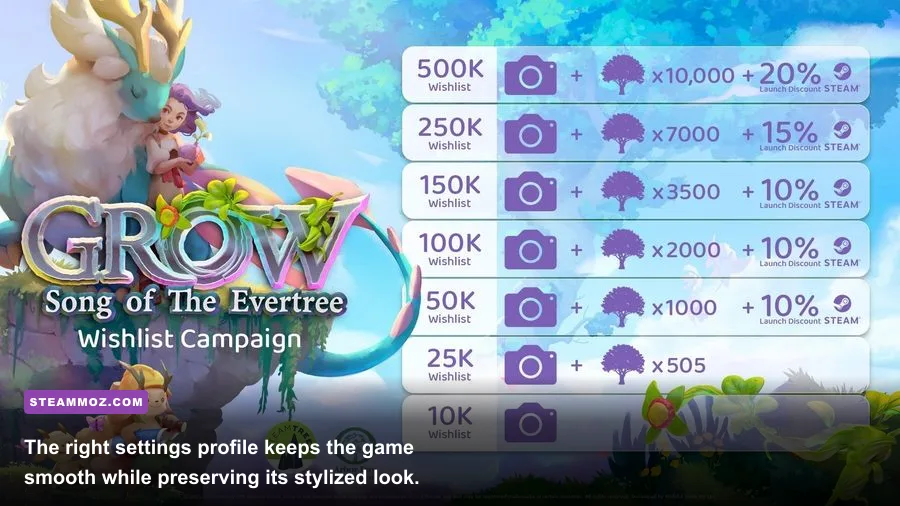
Not every slider deserves equal attention. Texture quality mainly affects VRAM capacity and streaming, while shadows and view distance make the renderer process more geometry and lighting work. That’s why the fastest optimization is not “turn everything to Low.” It’s a surgical pass that removes expensive work without stripping away the game’s identity.
| Option | Priority | Typical performance behavior | Best adjustment |
|---|---|---|---|
| Resolution scale or resolution | Highest | Directly changes the number of pixels rendered every frame. | Keep native first; reduce to 1600×900 or 1280×720 only if needed. |
| Shadows | Very high | Can become expensive around buildings, trees, and dense settlement layouts. | Move High to Medium before touching textures. |
| View distance | High | More distant objects remain active and visible across open worlds. | Use Medium on older GPUs and laptops. |
| Effects | Medium | Lighting, environmental effects, and animated spectacle can create short dips. | Lower one step if drops happen during weather or visual events. |
| Anti-aliasing | Medium | Higher modes improve edges but add GPU work at every resolution. | Use the second-highest mode instead of Low. |
| Textures | Low on FPS, high on VRAM | Insufficient VRAM can cause hitching rather than a constant FPS loss. | Keep High with 6GB or more VRAM; use Medium on 4GB cards. |
Shadows are the first setting I’d lower. Grow’s soft, toy-like art direction survives Medium shadows surprisingly well, especially once you’re moving through a world instead of staring at a building corner. View distance is next. Dropping it can make far-off objects appear later, but that trade-off is less obvious than the muddy surfaces created by Low textures.
Resolution is the emergency lever. At 1440p, try 1920×1080 before reaching for an aggressive resolution scale. At 4K, 2560×1440 is a much more sensible fallback. If the game offers a resolution-scale slider in your build, test 90% first; a small reduction can recover performance without producing the obvious softness of 75%.
Three performance profiles for different PCs
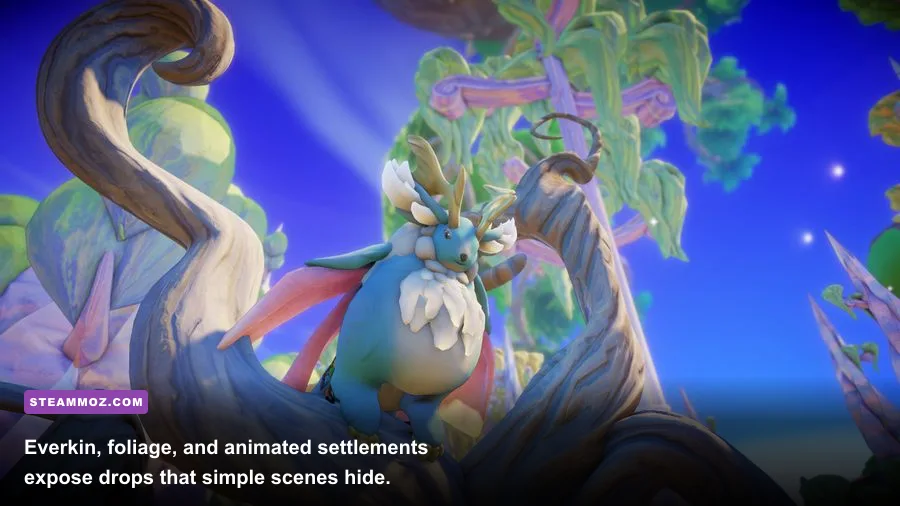
These profiles are more useful than blindly copying a preset because they account for the way Grow behaves across different hardware. An older CPU may struggle in a developed version of Alaria even when the GPU has plenty of headroom. Conversely, a laptop GPU can handle the town but collapse when high-resolution effects and shadows are active.
High-quality 60 FPS profile
Use native 1080p or 1440p, Fullscreen, High textures, High anti-aliasing, Medium shadows, High effects, and High view distance. Turn motion blur off. This is the sweet spot for a modern entry-level or mid-range gaming PC. The important compromise is Medium shadows: it saves performance in busy hubs while leaving the game’s surfaces and vegetation crisp.
Balanced laptop profile
Choose native 1080p if your laptop can sustain it; otherwise use 1600×900. Set textures to Medium, shadows to Low or Medium, effects to Medium, view distance to Medium, and anti-aliasing to Medium. Cap the game at 30 or 60 FPS based on what the machine can actually hold. A locked 30 is better than a noisy 60-to-35 swing, particularly on battery-powered systems.
Low-end 720p profile
Use 1280×720, Fullscreen, Medium textures if VRAM permits, Low shadows, Low effects, Medium view distance, and Low or Medium anti-aliasing. Close browsers and launchers, disable overlays, and play while plugged in. The goal here is not visual perfection; it’s avoiding the stutter that makes camera movement and object interaction feel sluggish.
| Hardware situation | Resolution target | Graphics profile | Frame-rate target |
|---|---|---|---|
| Modern mid-range GPU, 16GB RAM | 1080p native | High textures, Medium shadows, High distance | 60 FPS locked |
| 1440p gaming PC | 1440p native or 1080p fallback | High preset, reduce shadows first | 60 FPS; 80–90 if stable |
| Older dedicated GPU, 8GB RAM | 1600×900 or 1080p | Medium textures, Low shadows, Medium distance | 30–60 FPS |
| Integrated graphics laptop | 1280×720 | Low preset with Medium textures if possible | 30 FPS locked |
For broader troubleshooting, compare your results with Steamoz’s PC fixes for crashes and low FPS. The same basics—driver updates, background-process control, and verifying files—apply here, even though Grow’s art style makes its performance profile different.
How to fix stutter, hitching, and uneven frame pacing
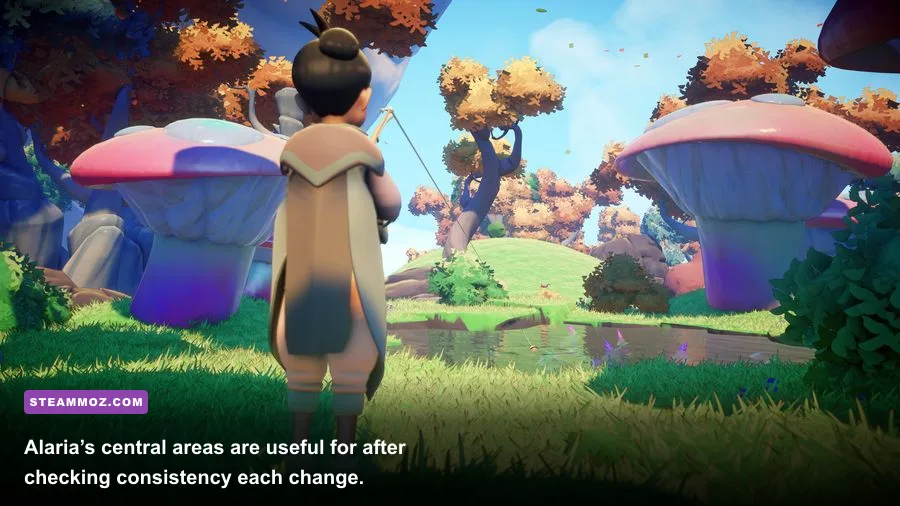
If average FPS looks healthy but the game still feels rough, don’t immediately slash every graphics option. First identify whether the problem is rendering, asset streaming, CPU load, or power management.
- Measure a repeatable route. Load the same world, walk from the central area of Alaria toward a developed plot, and repeat the route after every change. A quiet new World Seed won’t expose the same problems as a mature settlement.
- Watch GPU utilization. If the GPU stays near 95–99% during drops, reduce resolution, shadows, or effects. If GPU use falls while FPS drops, the CPU, asset streaming, or background software is more likely responsible.
- Use exclusive Fullscreen where available. Borderless mode is convenient, but Fullscreen can reduce interference from desktop overlays and make frame pacing more predictable on some systems.
- Disable overlays temporarily. Test Steam Overlay, Discord, Xbox Game Bar, recording tools, RGB utilities, and browser hardware acceleration one at a time. Don’t permanently blame the game until you’ve isolated the culprit.
- Verify the installation. Steam’s file verification can repair a damaged asset or incomplete update. The official Steam support instructions explain the process.
- Check power limits. On a laptop, select the high-performance power mode, keep the charger connected, and make sure the GPU is not running in a battery-saving profile.
Some hitching can come from loading or compiling assets rather than a graphics setting. If a particular location stutters once and then settles, repeat the route before changing anything. If every camera turn produces a hitch, lower view distance and effects, then test again. Avoid stacking five changes at once; you’ll lose track of what actually helped.
For a useful comparison in another demanding sandbox, Steamoz’s Barotrauma settings guide covers the same principle: frame pacing matters more than a screenshot-friendly maximum preset.
CPU, RAM, VRAM, and driver checks that matter
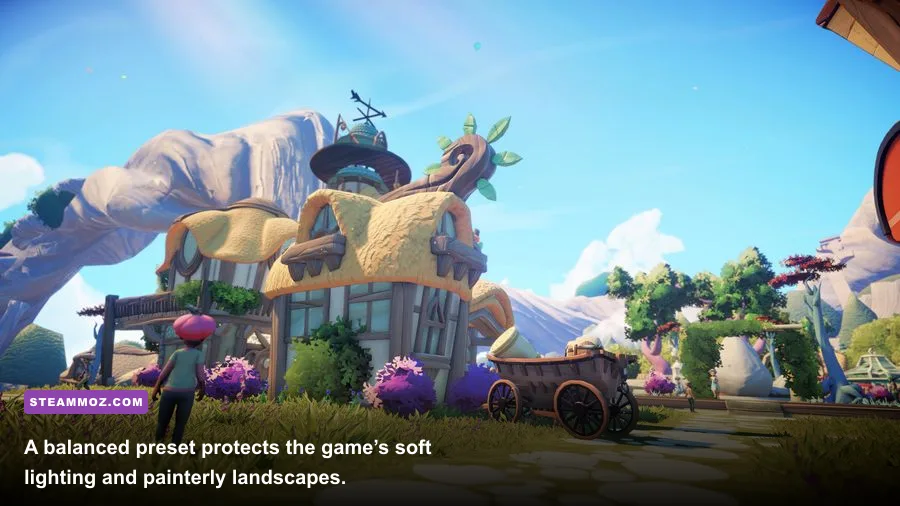
Grow’s visual style can fool you into thinking any old office PC will run it perfectly. The individual objects are simple, but a developed world can contain many animated characters, crops, structures, particles, and simulation tasks at once. That makes memory and CPU behavior important, especially after you’ve spent time expanding Alaria.
Eight gigabytes of system RAM can work, but 16GB is the more comfortable target. With 8GB, close Chrome tabs, launchers, streaming tools, and editing software before playing. If the game pauses while moving between areas and your storage activity spikes, RAM pressure or asset streaming—not raw GPU power—may be the real issue.
VRAM behaves differently. High textures may run smoothly on a card with enough memory, but a 4GB GPU can develop hitching when the game has to constantly move assets in and out. If lowering textures from High to Medium fixes stutter without changing your average FPS much, you’ve found a memory bottleneck.
Install a current driver from NVIDIA, AMD, or Intel, but don’t assume the newest driver automatically fixes every issue. If performance became worse immediately after a driver update, a clean installation or rollback is worth testing.
| Symptom | Likely bottleneck | First test | Do not change first |
|---|---|---|---|
| GPU at 99%, steady low FPS | GPU rendering load | Reduce resolution or shadows | System RAM |
| Low GPU usage during town drops | CPU or simulation load | Lower view distance and close background apps | Texture quality |
| Short freezes when entering areas | Asset streaming or RAM | Close memory-heavy apps and lower textures | Anti-aliasing |
| Screen tearing | Display synchronization | Enable V-Sync or adaptive sync | Shadow quality |
| Image looks soft but FPS is fine | Resolution or scaling | Return to native resolution and lower shadows | Texture quality |
Best visual compromises for Grow’s art style
Grow is at its best when its stylized color palette stays clear: green foliage, bright structures, readable paths, and expressive Everkin. That makes some settings much safer to reduce than others. Turn off motion blur immediately unless you genuinely like the effect. It adds little to the game’s slow exploration and can make panning across fields look smeared.
Keep textures higher than shadows whenever possible. Texture reduction affects the visual identity of buildings, terrain, and props at every distance, while Medium shadows still provide enough grounding to stop the world looking flat. Anti-aliasing also deserves protection because foliage and thin geometry can shimmer during camera movement. If you must reduce it, use the second-lowest option rather than disabling it completely.
View distance is situational. It matters most when surveying a large World Seed or looking across an open landscape. In a dense settlement, lowering it can reduce the number of distant objects the CPU and GPU need to process. If you notice aggressive pop-in after lowering it, raise the setting one step and reduce effects instead.
Finally, don’t judge your settings in an empty early-game world. Grow changes as you restore the Evermerge and develop new worlds. Re-test after adding buildings, planting heavily, and filling Alaria with residents and decorations. The profile that feels perfect during the opening hours may need Medium shadows and view distance later.
For more PC-focused tuning, Steamoz’s Date Everything PC settings guide and Arise: A Simple Story performance breakdown offer useful reminders about resolution targets and frame caps across lighter stylized games.
My final recommended settings profile
For most players, the final answer is simple: native 1080p, Fullscreen, High textures, Medium shadows, High or Medium effects, Medium-to-High view distance, the second-highest anti-aliasing option, motion blur off, and a 60 FPS cap. That profile preserves the details that make Grow charming while cutting the settings most likely to punish a busy town.
If you still dip below 60, lower shadows first, then view distance, then effects. Drop resolution only after those changes. If you’re on integrated graphics, use 720p and lock 30 FPS rather than chasing unstable performance. And if you’re on a high-end 1440p system, resist the temptation to max everything before testing a fully developed Alaria; the late-game settlement is the real benchmark.
Grow: Song of the Evertree is a game about nurturing a world, not racing a leaderboard. A stable frame rate, clean image, and consistent frame pacing will make every trip between Alaria and its cultivated worlds feel better than a benchmark-chasing preset that stutters whenever the settlement gets lively.