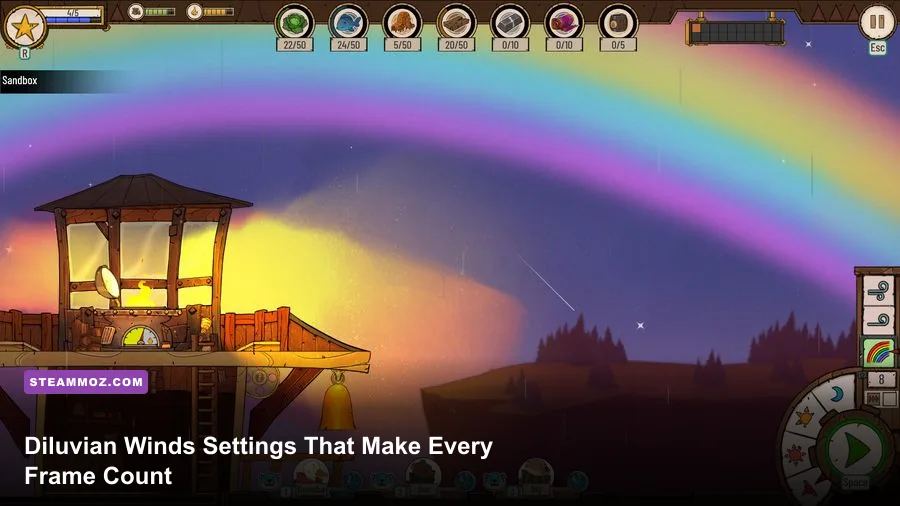
If you want the best Diluvian Winds graphics settings for max FPS, start with fullscreen or borderless fullscreen at your monitor’s native resolution, disable V-Sync while testing, and lower shadow, effects, and post-processing quality before touching texture quality. Diluvian Winds is not a twitch shooter, so a locked 60 FPS with stable frame times feels better than a wildly fluctuating 100 FPS. On older laptops, a 30 FPS cap at 1080p is also perfectly playable once the settlement grows and storms fill the screen.
The important catch is that Diluvian Winds is a compact survival city builder, not a game with a huge catalogue of competitive graphics sliders. Depending on the PC build and display mode, you may see a smaller collection of options such as resolution, fullscreen mode, V-Sync, quality presets, shadows, effects, and anti-aliasing. Some labels can move between updates. That means the smartest approach is not blindly copying a preset; it is identifying which settings affect the game’s busiest scenes and tuning those first.
This guide focuses on repeatable performance rather than a prettier screenshot in an empty settlement. It also separates GPU-heavy options from CPU-heavy situations, because a packed community, active production buildings, and a violent weather sequence can produce a slowdown that lowering resolution will not fix. For context, the official Steam page for Diluvian Winds is the best place to check the current build and minimum requirements before troubleshooting.
The Best Diluvian Winds Settings for Most PCs

Use the profile below as your starting point. It targets a clean 60 FPS at 1080p on a mainstream gaming laptop or desktop with a dedicated GPU. If your display is 1440p or 4K, keep the same quality choices but consider a 1080p render target if the game exposes one. Because this is a strategy game, consistency matters more than pushing every pixel at native resolution.
| Setting | Recommended Value | FPS Impact | Visual Note |
|---|---|---|---|
| Display Mode | Fullscreen; borderless if alt-tabbing | Low | Fullscreen can reduce desktop compositor overhead. |
| Resolution | 1920×1080 | High | Lower this only after shadows and effects. |
| V-Sync | Off while benchmarking; On for tear-free play | Variable | Off reveals your real frame rate; On can smooth presentation. |
| Quality Preset | Custom or High | Medium | Custom tuning avoids unnecessary texture reductions. |
| Shadows | Medium | Medium to high | Usually the best quality-to-performance cut. |
| Effects | Medium | Medium to high | Storms and dense activity become easier to render. |
| Anti-Aliasing | Medium or the second-highest option | Low to medium | Preserves clean roof and shoreline edges. |
| Textures | High if VRAM allows | Low | Textures tend to affect memory more than raw FPS. |
| Post-Processing | Low or Medium | Low to medium | Reduces haze and screen effects without wrecking clarity. |
| Frame Rate Limit | 60 FPS | Improves stability | A cap prevents needless GPU load in quiet scenes. |
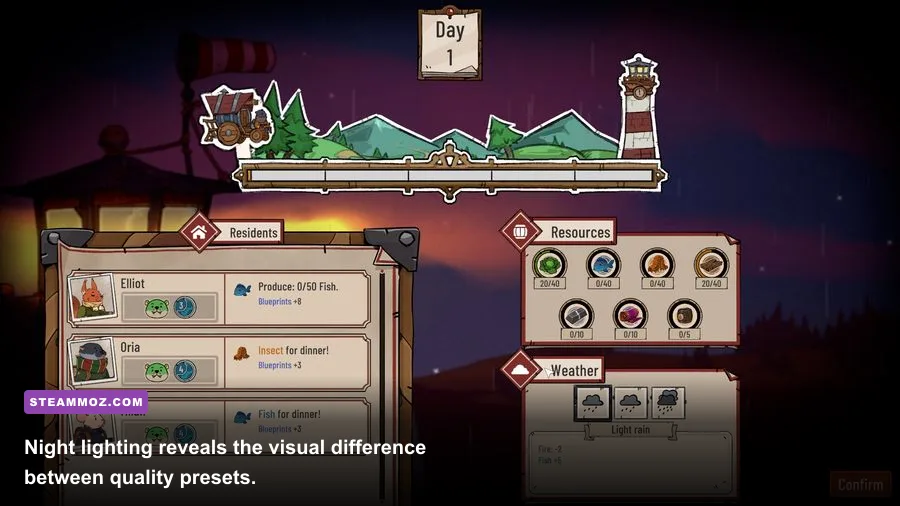
There is no prize for leaving every option on Ultra in a game where you spend much of your time reading production chains and planning shelter space. Medium shadows usually retain the atmosphere around the lighthouse while removing expensive softness and extra shadow detail. Effects are more situational: if storms, water movement, fog, or environmental particles cause the biggest dips, reduce effects before resolution.
Keep textures higher than shadows when your graphics card has enough VRAM. Lower textures can make buildings, terrain, and interface-adjacent scenery look muddy, yet they often deliver less performance than reducing dynamic lighting or effects. If you are using integrated graphics, Medium textures are safer, especially if Windows and background applications are already consuming shared memory.

🎮 Diluvian Winds
Looking to experience this game? Grab your digital key directly on our store for $5.39.
View on Steammoz Store →Which Settings Actually Improve FPS?
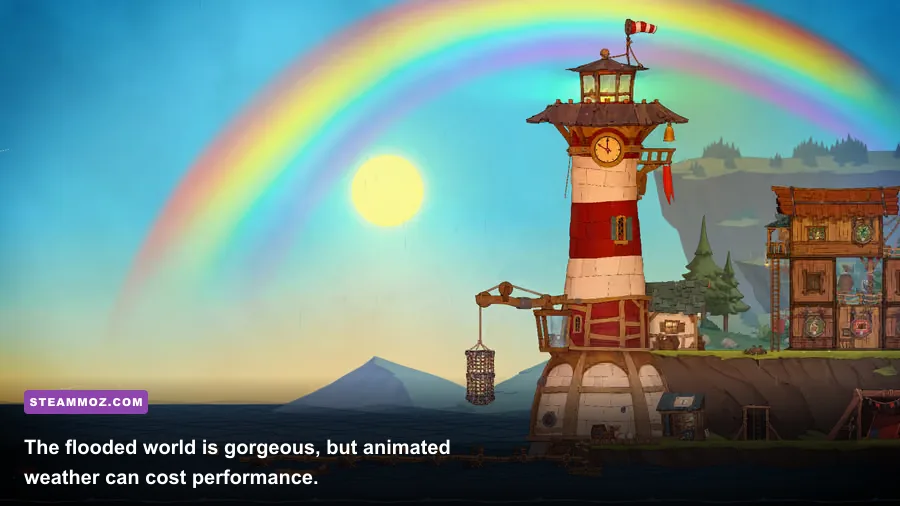
Resolution is the obvious slider, but it is not always the right first move. At 1080p, a graphics card can often handle the game’s fixed visual workload comfortably while the processor struggles with a large settlement. In that situation, going from 1080p to 720p may barely change the low point. Shadows, effects, and post-processing are better first cuts because they reduce the GPU work associated with every visible structure, weather effect, and light source.
Shadows are the safest serious reduction
Shadow quality affects more than the appearance of the lighthouse. It can increase the number and quality of shadow maps updated across buildings, terrain, and moving environmental elements. High shadows look attractive during close camera views, but Medium is usually the sensible choice for play. Low is reserved for integrated graphics or a machine that cannot hold its target during storms.
Effects matter most during weather and busy scenes
Do not judge effects quality from a calm opening minute. Pan across the settlement during a storm, when the screen contains water movement, particles, haze, lighting changes, and many animated objects. If frame time spikes there, Medium effects can make the experience feel much more stable. The trade-off is obvious: weather may look flatter, and atmospheric motion will lose some drama. For maximum FPS, Low effects are a reasonable sacrifice.
Anti-aliasing protects readability
Anti-aliasing is worth keeping at Medium unless you are desperate. At low settings, diagonal rooflines, shoreline edges, posts, and small building details can shimmer as you move the camera. That visual noise is especially irritating when you are inspecting a crowded settlement. If the game offers multiple anti-aliasing levels rather than a simple toggle, step down one level at a time and stop when the edges remain readable.
Post-processing is a clarity setting as much as a performance setting
Bloom, color grading, ambient haze, and similar effects rarely deserve priority over resolution or shadows. Still, disabling or reducing post-processing can make the screen easier to parse, particularly when storm effects overlap with the settlement. If the picture looks washed out after turning it down, restore Medium rather than compensating with excessive brightness.
| Performance Symptom | First Setting to Change | Second Adjustment | Why It Works |
|---|---|---|---|
| Low FPS during storms | Effects to Medium | Shadows to Medium | Reduces particles, haze, lighting, and shadow updates. |
| Low FPS only in large settlements | Shadows to Low or Medium | Cap at 30 or 60 FPS | Large scenes can expose CPU and draw-call limits. |
| GPU usage near 100% everywhere | Resolution down one step | Effects to Medium | Reduces pixel workload across the entire image. |
| Stutter while panning | Frame cap to 60 | Close background apps | More consistent frame pacing often matters more than peak FPS. |
| Blurry image but stable FPS | Raise textures | Raise anti-aliasing one level | Improves detail without restoring expensive shadows. |
For more general PC tuning ideas, Steamoz’s Dragonkin performance settings guide covers the same useful principle: change one expensive option at a time, then test the scene that originally exposed the problem.
Three Performance Profiles for Different Hardware
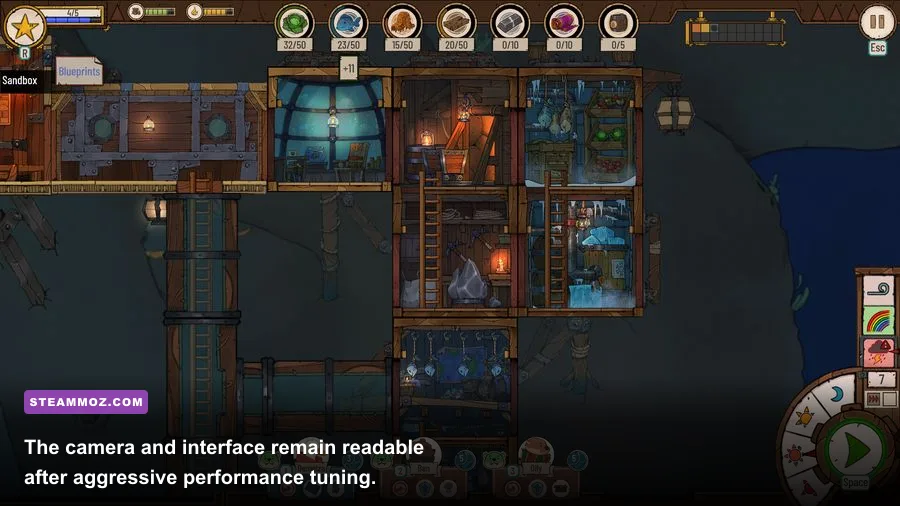
A single preset cannot serve every machine. A desktop with a modern graphics card should preserve the game’s painterly atmosphere, while an office laptop needs a stable target and fewer animated effects. These profiles assume 1080p unless stated otherwise and are designed around the way a settlement becomes more demanding over time.
High-FPS profile for modern gaming PCs
Use native resolution, High textures, Medium-to-High anti-aliasing, Medium shadows, and Medium effects. Keep V-Sync off if you have a variable-refresh display, then cap the game at 60 or 120 FPS depending on your monitor and GPU headroom. The 60 FPS cap is still the more efficient option for a strategy game: it lowers heat, fan noise, and power use while giving the simulation a stable visual rhythm.
Balanced profile for mainstream laptops
Choose 1080p fullscreen, Medium shadows, Medium effects, Medium anti-aliasing, and High textures if memory permits. If the laptop uses an integrated GPU, choose Medium textures and Low post-processing. A 60 FPS cap is ideal when possible; otherwise, a locked 30 FPS is preferable to swinging between 35 and 60 while the camera moves across a crowded settlement.
Low-end profile for integrated graphics
Start at 1600×900 or 1280×720, use Low shadows, Low effects, Low post-processing, and Low or Medium anti-aliasing. Keep the interface and camera comfortable rather than chasing a high number. Lock 30 FPS, close browsers, and plug the laptop into power. Shared-memory systems can lose performance when background software competes for RAM, even though the game itself looks modest.
| Hardware Situation | Resolution | Quality Profile | Target |
|---|---|---|---|
| Modern dedicated GPU | Native 1080p or 1440p | High textures, Medium shadows, Medium effects | 60–120 FPS |
| Mainstream gaming laptop | 1920×1080 | Medium shadows and effects, High textures | Locked 60 FPS |
| Integrated graphics | 1280×720 to 1600×900 | Low shadows, Low effects, Medium textures | Locked 30 FPS |
| Older dedicated GPU | 1920×1080, then 1600×900 | Medium preset with Low effects | 30–60 FPS |
The profile should be judged by its worst normal moment, not its best. A quiet menu or undeveloped shoreline tells you almost nothing. Let the settlement accumulate buildings and inhabitants, then test camera movement while weather is active. If your chosen target survives that scenario, it will feel dramatically smoother during ordinary planning.
How to Benchmark Diluvian Winds Properly
Diluvian Winds does not need a synthetic benchmark to expose weak settings. You can create a reliable test in under five minutes. Load the same settlement, zoom to the same distance, pan across the densest group of buildings, and repeat the movement during a storm. Record the lowest sustained frame rate and whether the game feels jerky while the counter still looks acceptable.
- Save a repeatable location. Pick a settlement with several constructed buildings, active production, and a clear view of the surrounding water. Avoid comparing a new game with a late-game save.
- Turn off V-Sync temporarily. This lets you see whether the GPU can exceed your target and whether the dips are tied to a refresh synchronization boundary. Turn it back on after testing if you prefer tear-free movement.
- Pan slowly across the busiest area. A fast camera swipe can create a misleading streaming hitch. Use the same gentle left-to-right movement for each setting.
- Test weather separately. Effects and shadows can look fine in calm conditions but collapse during atmospheric events. Repeat the route when the environment is visibly active.
- Change one option. Dropping five settings at once tells you the result, not the cause. Restore the profile, change one item, and repeat the route.
Frame-time consistency is the hidden target. A graph holding close to 16.7 milliseconds means a steady 60 FPS; sudden jumps to 30 or 40 milliseconds feel like stutter even if the average is high. If you do not have a frame-time overlay, the practical test is simple: drag the camera across the densest scene and watch for uneven motion. City builders reward a calm, predictable camera more than a headline frame-rate peak.
For troubleshooting outside the graphics menu, Steamoz’s PC requirements guide explains how to separate hardware limits from background software, while the ELEX PC fixes guide has useful steps for overlays, drivers, and crash-related performance problems. Those fixes are not Diluvian Winds-specific, but the diagnostic logic carries over.
Fixes for Stutter, Input Lag, and Sudden Drops
If lowering graphics quality does not solve the problem, stop treating the issue as a pure FPS problem. Stutter can come from frame pacing, power management, shader compilation, overlays, or a laptop running on its battery profile. Start with the simple checks: update your GPU driver, use the dedicated GPU if your laptop has one, close browser tabs and recording software, and make sure the game is not silently running in a power-saving Windows mode.
V-Sync deserves a deliberate choice. With a fixed-refresh monitor, V-Sync On can remove tearing but may add a small amount of latency and make a missed refresh feel more pronounced. V-Sync Off gives the lowest possible presentation delay but can produce tearing during camera movement. Variable-refresh displays are the ideal middle ground: enable the monitor’s adaptive sync, use a sensible frame cap below the panel’s maximum refresh rate, and avoid letting the GPU run flat-out for no reason.
Borderless fullscreen is convenient if you regularly switch to a wiki or a browser, but exclusive fullscreen can sometimes deliver cleaner frame pacing. Test both modes with the same save. Do not assume borderless is automatically faster or slower; desktop composition, driver versions, and the monitor’s refresh behavior all matter.
If the game feels sluggish rather than visibly choppy, check whether your frame cap is fighting V-Sync. A 60 FPS cap paired with a 60 Hz display can be smooth, but an unstable uncapped rate can cause inconsistent delivery. Conversely, forcing a 30 FPS cap on a high-refresh display may look worse than expected unless the monitor handles low frame rates cleanly. The best cap is the highest value your busiest settlement can hold reliably.
Finally, verify the game files through Steam after an update and keep enough free space on the drive for Windows and shader caches. The Steam community hub can reveal whether a sudden performance change is widespread after a patch. For development news, check the Alambik Studio website and the developer’s official posts rather than relying on an old forum preset.
The Best Visual Compromise for Long Sessions
My preferred long-session setup is native 1080p, High textures, Medium shadows, Medium effects, Medium anti-aliasing, Low-to-Medium post-processing, and a locked 60 FPS. It keeps the lighthouse, buildings, water, and settlement edges crisp without spending performance on effects that are easy to miss while planning. If the late-game camera drops below 60, lower effects first, then shadows. Keep resolution and textures intact until those changes have been tested.
For a weaker machine, 1600×900 with Low shadows, Low effects, Medium textures, and a 30 FPS cap is the more honest recommendation. The reduced resolution is visible, but a stable camera makes construction and resource management far less tiring. There is no shame in choosing 30 FPS here; Diluvian Winds is about reading the settlement and making decisions, not reacting to frame-perfect combat windows.
Remember that updates can change performance. Recheck the settings after a major patch, especially if new weather, buildings, lighting, or simulation systems arrive. Save your preferred profile in a note, benchmark the same settlement, and adjust from there. You can also compare the approach with Steamoz’s PC performance guide for another useful reminder: the listed minimum hardware is a starting point, not a promise of smooth late-game play.
The winning Diluvian Winds setup is ultimately the one that survives the storm. Prioritize a stable frame cap, reduce shadows and effects before sacrificing image resolution, keep textures high when VRAM allows, and judge every change in a developed settlement rather than a quiet opening scene. That combination delivers the cleanest view of the flooded world without letting beautiful weather turn your carefully built refuge into a slideshow.