To hit a rock-solid 60 to 120 FPS in God of War Ragnarok on PC without butchering visual fidelity, drop Volumetric Fog to Medium, set Shadows to High, lower Reflections to Medium, and run your upscaler of choice (DLSS, FSR 3.1, or XeSS) on Quality mode. These four quick adjustments instantly claw back roughly 28% to 35% in overall performance compared to running the Ultra preset blindly. The PC port handled by Jetpack Interactive and Santa Monica Studio scales exceptionally well across modern hardware, but certain visual effects punish your GPU far harder than their visual payoff justifies.
Whether you are trying to squeeze high refresh rates out of a mid-tier rig or clawing your way to a stable 60 FPS on a budget card, running default presets leaves massive performance on the table. Heavy particle effects during Runic attacks like Rampage of the Furies and sweeping vistas in Svartalfheim can quickly induce frame time spikes if your settings are unbalanced. Much like dialing in Far Cry 6 performance tuning for buttery frame pacing, you need an exact, setting-by-setting tuning strategy that eliminates stutter while preserving the visual grandeur of the Nine Realms.
The Engine Bottlenecks: Settings That Murder Your Framerate
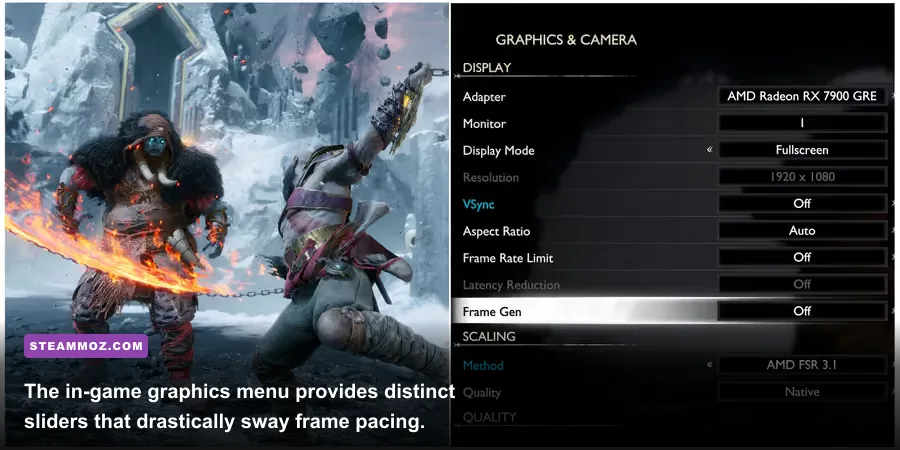
Not every setting in the graphics menu carries the same weight. God of War Ragnarok relies heavily on dense atmospheric calculations, dynamic lighting cascades, and intense alpha textures. Crank these up to Ultra, and your GPU spends crucial milliseconds rendering subtle environmental dust motes rather than rendering the combat cleanly.
The biggest single resource hog in the game is Atmospherics / Volumetric Fog. In realms like Niflheim, Helheim, or the misty rivers of Svartalfheim, setting Fog to Ultra will carve 12% to 16% off your total frame rate compared to Medium. The visual difference between High and Medium is virtually imperceptible in motion, yet Medium removes the heavy compute burden on your shader cores. Dropping this toggle is the single easiest way to stabilize your frame rate in outdoor zones.
The second major offender is Reflections. The game utilizes complex screen-space reflections (SSR) alongside pre-baked environment maps. In aquatic hubs, Ultra reflections force the engine to trace glossy reflections across dynamic water ripples and wet rock surfaces, costing up to 10% of your performance. Dropping Reflections to Medium reduces the sample count while keeping reflective bodies of water clean and natural, freeing up vital GPU cycles.
Then you have Shadows. Ultra Shadows renders sharp, full-resolution shadow maps at extreme draw distances. While that sounds great on paper, High shadows soften the edges naturally at distance—matching realistic sunlight dispersion—while recovering roughly 8% of your FPS. Unless you are standing still inspecting the underside of an ox cart in Nidavellir, you will never notice the difference in raw clarity.

🎮 FORM
Looking to experience this game? Grab your digital key directly on our store for $14.99.
View on Steammoz Store →The Sweet-Spot Optimization Table

To eliminate the guesswork, here is the battle-tested configuration sheet. This profile is engineered to capture 95% of the game's peak Ultra presentation while unlocking anywhere from 30% to 50% higher FPS, depending on your native hardware limitations.
| Setting | Optimal Value | FPS Gain vs Ultra | Visual Trade-Off |
|---|---|---|---|
| Model Quality | High | ~3% | Negligible; preserves geometric detail and avoids asset pop-in. |
| Texture Quality | High / Ultra (VRAM dependent) | 0% (within VRAM limits) | Keep on High for 8GB cards; Ultra requires 10GB+ VRAM buffer. |
| Anisotropic Filter | Ultra (16x) | <1% | Practically free on modern GPUs; keeps ground textures razor-sharp. |
| Shadows | High | ~8% | Softens distant shadow edges naturally without losing depth. |
| Atmospherics (Fog) | Medium | ~14% | Slight reduction in mist density; massive boost in foggy realms. |
| Reflections | Medium | ~9% | Removes glossy edge-case reflections; keeps water looking great. |
| Ambient Occlusion | High | ~4% | Maintains deep contact shadows under character feet and foliage. |
| Tessellation | High | ~2% | Preserves authentic ground deformation in snow and mud tracks. |
When implementing these settings, ensure you restart the game if you make large sweeps across Texture Quality and Model Quality. While the engine allows real-time swapping, clearing out old cached buffers guarantees you avoid memory leaks during realm transitions. Similar to steps outlined in our guide on resolving low FPS and crashes on PC, clean asset loading avoids erratic frame dips during heavy scripted moments.
Upscaling Decoded: DLSS, FSR 3.1, and XeSS Frame Generation
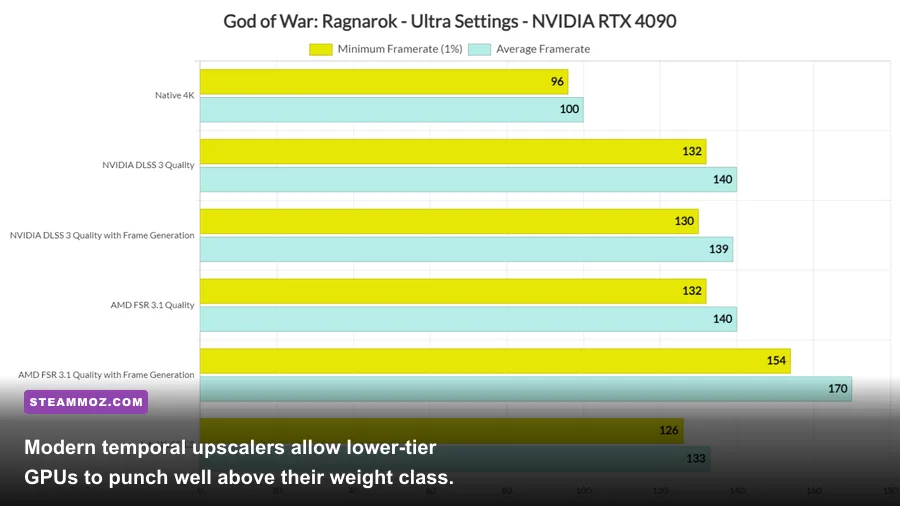
Native resolution rendering is essentially obsolete for modern, high-fidelity action games on PC. God of War Ragnarok includes full support for NVIDIA DLSS, AMD FSR 3.1, and Intel XeSS straight out of the box on God of War Ragnarök on Steam. Picking the right combination determines whether your combat flows like water or suffers from mushy temporal blur.
If you have an NVIDIA RTX graphics card, DLSS Super Resolution set to Quality remains the undisputed gold standard. At 1440p and 4K, DLSS Quality resolves fine details—like the chain links on the Blades of Chaos and the fur on Kratos's pauldron—better than native TAA, all while gifting you a free 25% to 35% frame rate leap. Check out NVIDIA's technical overview on NVIDIA DLSS technology if you want to inspect how the tensor cores handle reconstruction without smearing fine particle bursts.
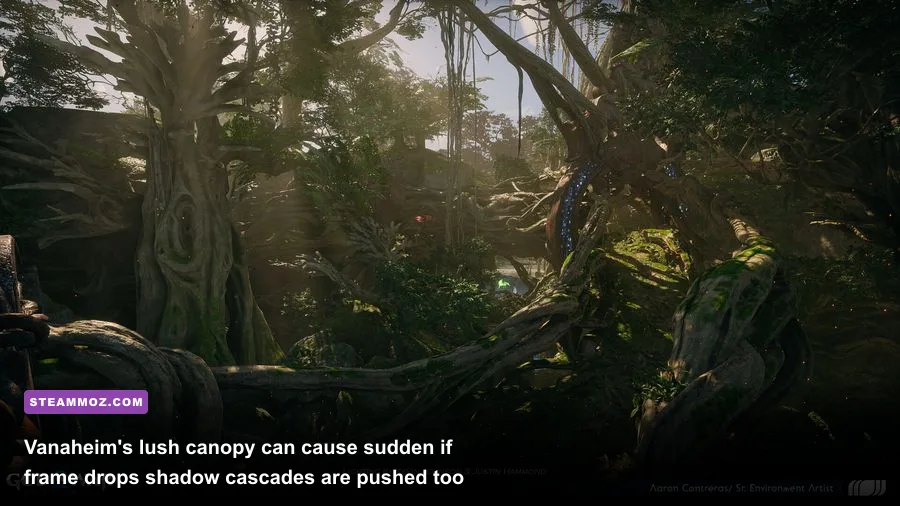
For AMD Radeon and Intel Arc users, FSR 3.1 brings massive improvements over previous iterations. FSR 3.1 dramatically reduces the ghosting artifacts that used to plague fast-moving objects, like Atreus's arrows or Freya's winged dashes. Keep FSR on Quality mode for 1440p displays, or Balanced mode if you are gaming at 4K on a mid-range card. Intel's XeSS is also an outstanding alternative on non-RTX cards, often resolving thin geometry and foliage with less shimmering than FSR in dense Vanaheim forests.
What About Frame Generation?
God of War Ragnarok separates Frame Generation from the upscaler, meaning you can run DLSS Super Resolution with FSR 3.1 Frame Generation on older GeForce RTX 20-series and 30-series GPUs. However, do not treat Frame Generation as a magic band-aid for an underpowered rig. If your baseline performance is sitting below 50 FPS, enabling Frame Generation will make the controls feel heavy and sluggish due to increased input latency. Only turn on Frame Gen if your base frame rate is already hovering at 60 FPS or higher, using it to push up into high-refresh territory (90 to 120+ FPS) for silky-smooth camera sweeps.
Eliminating VRAM Spikes and Traversal Stutter
At launch, Ragnarok raised eyebrows across the PC community due to its strict VRAM requirements, and memory management remains critical for smooth frame pacing. If you exceed your graphics card's dedicated VRAM pool, the engine offloads assets into system RAM, resulting in severe micro-stutters every time you sprint through a realm door or load into a new arena.
If your graphics card packs 8GB of VRAM (such as an RTX 3060 Ti, RTX 4060, or RX 6600 XT), never set Texture Quality to Ultra at 1440p or 4K. Ultra textures demand over 8.5GB of dedicated VRAM, pushing your card into memory overflow. Setting Textures to High drops memory allocation below 6.5GB, leaving plenty of breathing room for dynamic combat caches. You will preserve razor-sharp armor engravings without having your framerate crater during boss encounters.
Beyond VRAM limits, traversal stutters often stem from slow asset decompression. If you are struggling with intermittent hitching during world exploration, verify that your installation resides on a high-speed NVMe SSD rather than a SATA SSD or mechanical drive. As we have covered when tracking stopping stutter and crashes in open-world PC ports, modern console ports rely heavily on rapid background streaming. Ensuring your Windows pagefile is managed by your fastest drive prevents unexpected memory stalls.
Additionally, dive into your GPU control panel (NVIDIA Control Panel or AMD Software: Adrenalin Edition) and manually set the Shader Cache Size to 10GB. The default driver-managed cache can sometimes clear out compiled shaders prematurely, forcing the game to recompile effects mid-fight and creating irritating hitches when swinging the Leviathan Axe.
Hardware-Specific Presets for 60 to 120 FPS
Because hardware balance varies wildy, one universal preset cannot suit every setup. To get the best out of your specific machine, use the tailored profiles below based on your GPU class.
| Hardware Tier | Target Resolution | Settings Profile | Upscaler Choice | Target Framerate |
|---|---|---|---|---|
| Budget (GTX 1660 Super / RTX 3050 / RX 6500 XT) | 1080p | Medium Fog, Medium Shadows, Low Reflections, High Textures | FSR 3.1 / XeSS Quality | 55 - 65 FPS |
| Mid-Range (RTX 3060 / RTX 4060 / RX 6700 XT) | 1440p | Optimized Profile (High Textures, Medium Fog/Reflections) | DLSS / FSR Quality | 75 - 90 FPS |
| Upper Mid-Range (RTX 4070 / RX 7800 XT) | 1440p / 4K | Optimized Profile (Ultra Textures, High Shadows, Medium Fog) | DLSS / FSR Quality (+ Frame Gen) | 110 - 140 FPS |
| Enthusiast (RTX 4080 / 4090 / RX 7900 XTX) | Native 4K | Max Settings (Fog set to High, not Ultra) | DLSS Quality / DLAA (+ Frame Gen) | 120+ FPS Locked |
For budget setups hovering near minimum hardware specifications, balancing settings is comparable to optimizing graphics settings for higher FPS: every megabyte of VRAM and single percentage point of shader overhead counts. Keep an eye on system thermals as well. God of War Ragnarok places sustained, high-utilization demands across both your CPU and GPU simultaneously, meaning thermal throttling will manifest quickly as erratic frame time dips during long play sessions.
Combat Fluidity and Input Lag Tuning
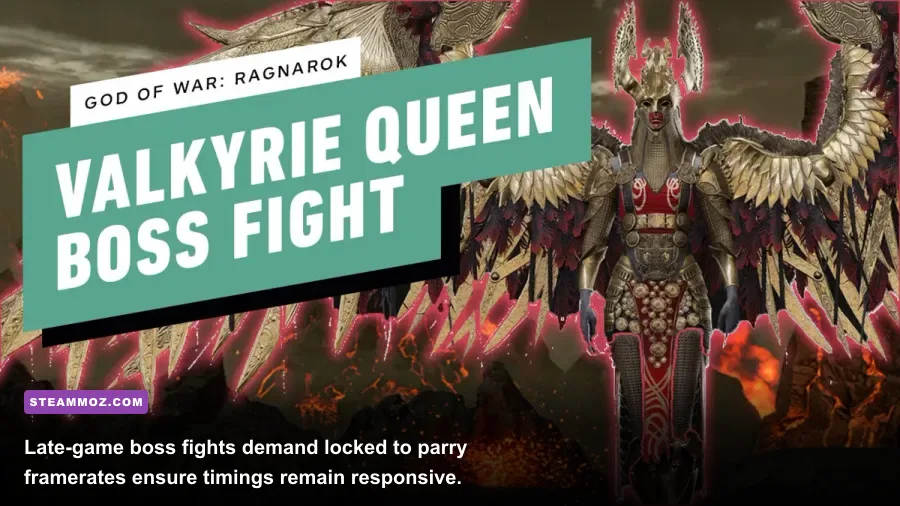
Getting high raw framerates means nothing if your combat inputs feel detached. God of War Ragnarok's combat design relies on precision timing—parrying light-elf lunges in Alfheim, dodging heavy unblockable red-ring slams from Einherjar brutes, and interrupting Valkyrie casts with shield bashes. To ensure your display reflects the game's actual internal state, you need to minimize system latency.
First, enable NVIDIA Reflex Low Latency (or AMD Anti-Lag) within the display settings. Setting Reflex to "On + Boost" prevents your CPU from over-submitting render queues, keeping input latency to absolute minimums during GPU-bound gameplay. If you decide to toggle Frame Generation, keeping Reflex enabled is mandatory to counteract the latency penalty inherent to interpolated frames.
Second, cap your frame rate just below your monitor's maximum refresh rate if you use a variable refresh rate (G-Sync or FreeSync) display. For a 144Hz panel, capping the framerate at 138 FPS via your GPU control panel keeps your display within the VRR window at all times, completely eliminating screen tearing without introducing the heavy input lag of traditional V-Sync. Similar to resolving GPU throughput ceilings seen in fixing performance drops and FPS stalls, proper frame capping smooths out frame pacing graphs into flat, predictable lines.
By swapping out heavy atmospheric rendering and glossy reflections for optimized alternatives, God of War Ragnarok transforms into one of the most responsive, visually arresting PC action experiences on the market. Lock in these settings, grab your Leviathan Axe, and enjoy the Nine Realms the way they were meant to be played.