If God of War on PC is freezing during realm transitions, hitching when throwing the Leviathan Axe, or crashing to your desktop after an hour of play, the issue comes down to three culprits: a progressive VRAM memory leak, aggressive DirectX 11 shader caching, and Windows Control Flow Guard interfering with asset streaming. By setting a static 16GB virtual memory pagefile, disabling Control Flow Guard for the game executable, and capping background shader sizes in your GPU control panel, you will eliminate these frame spikes and hard crashes immediately.

Stop God of War PC Memory Leaks and Random Desktop Crashes
Santa Monica Studio crafted an incredible PC port alongside Jetpack Interactive, but the engine handles long-play sessions poorly. Many players experience a clean 60 to 90 FPS during the opening hunt with Atreus, only for the game to devolve into a stuttering mess or crash directly to the desktop without an error code by the time they reach Brok's shop in the foothills. This is caused by a documented memory leak where allocated DirectX 11 buffers fail to flush from system RAM and video memory during zone streaming.
When the game runs out of addressable VRAM or system commit memory, it triggers a D3D_DEVICE_REMOVED or generic access violation error. Windows attempts to compensate by shifting game assets into your storage drive's pagefile. If your pagefile is set to "System Managed" on a drive with fluctuating free space, the engine hangs for half a second while expanding the swap space, resulting in severe micro-stuttering or an outright crash. Much like we uncovered when resolving crash loops in our Everspace 2 crashing guide, locking your virtual memory prevents the OS from choking the render thread.
To eliminate this issue, manually configure a large, contiguous virtual memory pagefile on your fastest NVMe SSD:
- Press Windows Key + R, type
sysdm.cpl, and hit Enter. - Navigate to the Advanced tab and select Settings under the Performance section.
- Click the Advanced tab inside the Performance Options window, then click Change under Virtual Memory.
- Uncheck "Automatically manage paging file size for all drives."
- Select your fastest SSD (preferably where God of War is installed), click Custom size, and set both Initial size (MB) and Maximum size (MB) to 16384 (16 GB) or 24576 (24 GB) if you have an 8GB VRAM card.
- Click Set, click OK, and reboot your PC.
Another major cause of silent desktop crashes is Windows Exploit Protection. Windows 10 and 11 apply Control Flow Guard (CFG) across all running binaries by default. Because God of War uses aggressively threaded background asset decompression when Kratos passes through hidden loading corridors (like narrow rock crevices and boat docks), CFG frequently misidentifies legitimate runtime memory addresses as unauthorized code execution, killing the process instantly.
To disable Control Flow Guard for God of War:
- Press the Windows Key, search for Exploit protection, and open the system settings panel.
- Select the Program settings tab and click Add program to customize > Choose exact file path.
- Navigate to your installation folder (usually
Steam\steamapps\common\GodOfWar\GoW.exe). - Scroll down to Control flow guard (CFG), check Override system settings, toggle the slider to Off, and click Apply.
🎮 God of War
Looking to experience this game? Grab your digital key directly on our store for $49.99.
View on Steammoz Store →Eliminate Micro-Stuttering and Combat Hitching in Midgard
Nothing ruins a precise parry against an incoming Hel-Walker faster than a sudden drop from 75 FPS down to 22 FPS. These rapid frame-time inconsistencies stem largely from shader pipeline compilation and Windows DWM (Desktop Window Manager) interference. Because the PC port operates using a borderless windowed presentation model masquerading as fullscreen, background desktop compositing can desynchronize frame pacing.
First, force your graphics driver to cache shaders indefinitely. By default, both NVIDIA and AMD limit shader cache allocation to 1GB to 4GB. God of War compiles thousands of draw calls and particle effects for every runic attack—such as the Hel's Touch or Kratos's Spartan Rage slams—quickly exhausting small caches. When the cache overflows, older shaders are purged, forcing the CPU to recompile them on the fly mid-combat. Similar stutter issues can be tackled using our methods outlined in the EscapeVR troubleshooting guide.
For NVIDIA users:
- Right-click your desktop and open the NVIDIA Control Panel.
- Navigate to Manage 3D Settings > Program Settings, and select God of War (GoW.exe).
- Locate Shader Cache Size and change it from "Driver Default" to 10 GB or Unlimited.
- Set Low Latency Mode to Ultra if you are GPU-bound, or On if your CPU usage sits above 85%.
- Set Power Management Mode to Prefer maximum performance to prevent core clock throttling during low-intensity cutscenes.
For AMD Radeon users:
- Open AMD Software: Adrenalin Edition.
- Go to Gaming > Graphics, scroll down to Advanced, and find Reset Shader Cache. Perform a one-time wipe to clear corrupted pre-release caches, then ensure surface format optimization is enabled.
- Verify you are running current graphics drivers by checking the official NVIDIA Driver Portal or AMD's support platform, as early driver revisions suffered from severe memory bloat in God of War's DirectX 11 pipeline.
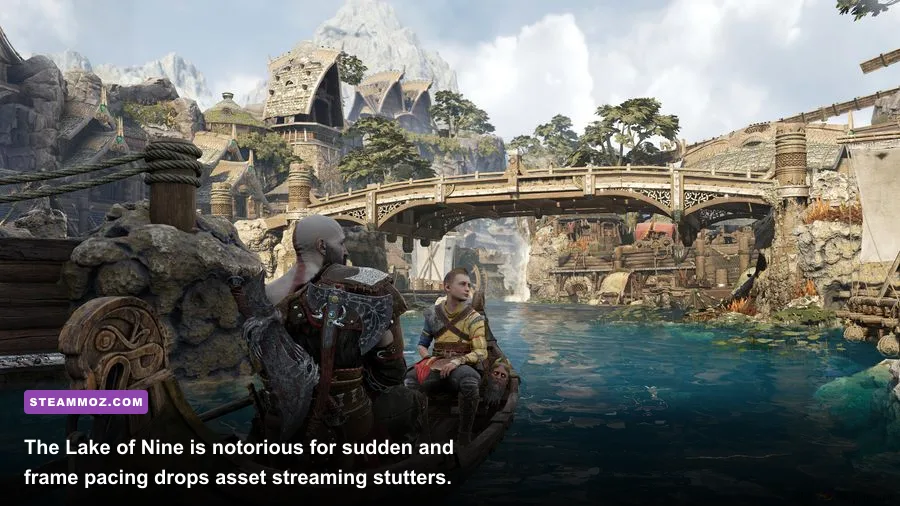
If you are gaming on Windows 11, enable Optimizations for windowed games. Open Windows Settings, click System > Display > Graphics > Change default graphics settings, and flip the toggle to On. This allows borderless games like God of War to bypass traditional desktop composition latency and use modern flip-model presentation, dramatically smoothing out camera panning across the Lake of Nine.
Optimized Graphics Settings for High FPS Without Ruining Visuals
God of War features four core graphical presets: Low, Original, High, and Ultra. The naming convention here is critical: Original is not a compromised console port setting; it represents the native, handcrafted artistic vision originally engineered for the PlayStation 4 Pro. Pushing every setting to Ultra does not transform the game into a next-gen remaster—it simply over-allocates render resources to subtle sub-pixel passes that destroy your framerate.
The single heaviest performance drain in the game is Reflections. The Ultra setting activates screen-space reflections on minute surfaces—including wet stone in mountain caves and individual puddles across Midgard—at full viewport resolution. Dropping Reflections from Ultra down to Original delivers an immediate 15% to 20% framerate increase with almost zero perceptible downgrade in motion. If you have fine-tuned titles using our Far Cry 6 PC optimization guide, you know that reflections and heavy shadows are prime targets for FPS recovery.
| Setting | Optimal Value | FPS Cost (High vs Ultra) | Visual Impact & Tactical Guidance |
|---|---|---|---|
| Texture Quality | High (6GB+ VRAM) / Original (4GB) | 1-3% (VRAM Bound) | Ultra pushes 4K mipmaps that cause memory thrashing on 8GB cards. High looks identical during action. |
| Model Quality | High | 4-6% | Governs LOD transitions. High prevents geometric pop-in on Kratos's armor and distant cliffs. |
| Anisotropic Filter | Ultra | < 1% | Virtually free on modern hardware. Keeps ground textures sharp at oblique viewing angles. |
| Shadows | Original or High | 12-18% | Ultra computes dynamic contact-hardening shadows at native resolution. Original provides the classic soft-contact look. |
| Reflections | Original | 15-22% | Ultra forces full-res planar ray checks. Original maintains glossy water without crushing your GPU fillrate. |
| Atmospherics | High | 5-8% | Controls volumetric fog density in Niflheim and Helheim. Ultra introduces heavy compute overhead in mist. |
| Ambient Occlusion | High | 6-9% | Adds essential grounding contact shadows beneath characters and environment props. Essential for visual depth. |
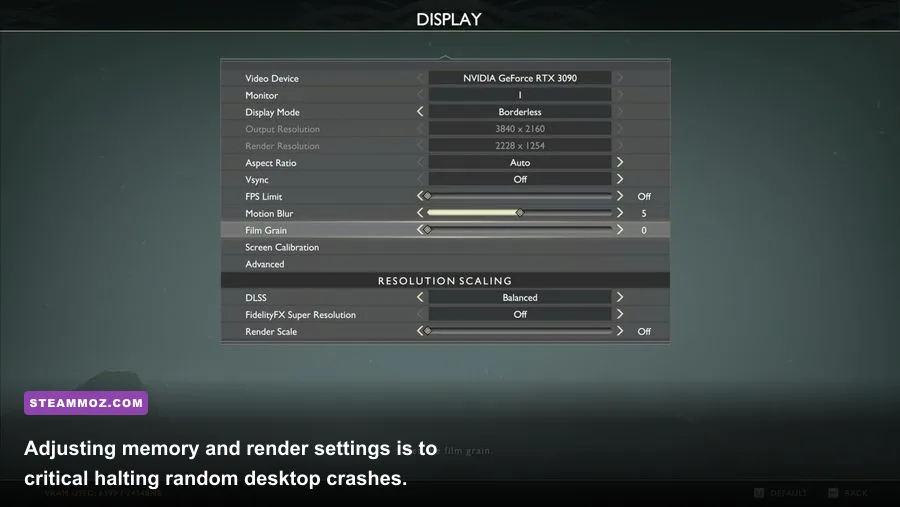
Another silent performance killer is Motion Blur. Setting Motion Blur anywhere from 1 to 10 not only obscures telegraph animations from agile enemies like Dark Elf Lords, but also introduces dynamic reconstruction passes that strain older GPUs. Slide both Motion Blur and Film Grain to 0 for a crisp image and consistent frame presentation.
For players running systems close to minimum hardware specs, balancing fidelity requires careful calibration. Reviewing our diagnostics for running older releases, such as the Elex PC crash and FPS fixes, demonstrates that dropping volumetric lighting and shadow cascades always yields the highest frame-time dividends without gutting character models.
Upscaling Showdown: DLSS vs FSR 2.0 vs Native Resolution
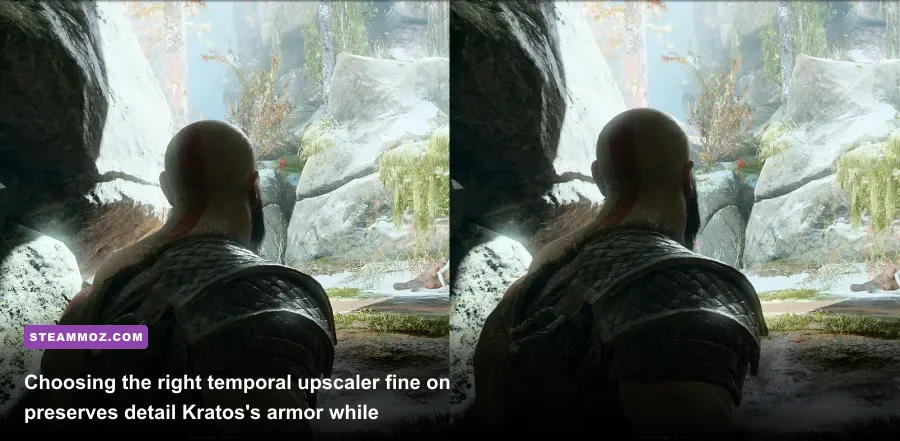
Thanks to post-launch patches delivered to the God of War Steam build, PC players are no longer restricted to rudimentary spatial upscaling. Patch 1.0.12 integrated full temporal reconstruction via AMD FidelityFX Super Resolution 2.0 (FSR 2.0) alongside NVIDIA Deep Learning Super Sampling (DLSS 2.3+). Understanding how these upscalers operate in God of War is vital for eliminating blur while sustaining a locked 60+ FPS.
God of War's native anti-aliasing solution is TAA (Temporal Anti-Aliasing). While competent at mitigating edge crawling, native TAA exhibits noticeable ghosting during rapid Leviathan Axe throws and camera swings. Activating DLSS or FSR 2.0 replaces the native TAA pipeline entirely with motion-vector temporal upsampling, resulting in a significantly clearer image when moving through dense foliage in the Witch's Woods.
| Upscaling Mode | Render Resolution (at 1440p) | Performance Gain | Image Clarity & Artifact Assessment |
|---|---|---|---|
| Native TAA | 2560 x 1440 | Baseline (0%) | Soft presentation; minor ghosting on axe trajectory runes and particle embers. |
| DLSS Quality | 1707 x 960 | +28% to +35% | Superb. Tensor-core reconstruction resolves thin beard hairs and chainmail better than native TAA. |
| DLSS Balanced | 1485 x 835 | +40% to +48% | Ideal for 4K displays. Minor shimmering on distant chain meshes, imperceptible in active combat. |
| FSR 2.0 Quality | 1707 x 960 | +26% to +33% | Sharp and stable. Slightly more disocclusion sizzling around Kratos's shoulders during fast dodges. |
| FSR 2.0 Balanced | 1485 x 835 | +38% to +45% | Solid boost for GTX 10-series and RX 5000/6000 hardware. Light edge sparkle on water surfaces. |
Crucial Warning on Dynamic Resolution Scaling (DRS): God of War includes an in-game dynamic resolution scaler. If you enable DLSS or FSR 2.0 while leaving the target FPS box configured in the display settings, the two systems fight for control over the internal render target. This causes wild resolution swings, sudden hitching, and internal render buffers resizing mid-frame. Always set Resolution Scaling to Off before engaging DLSS or FSR 2.0.
Sharpening calibration also makes or breaks visual clarity. The in-game DLSS implementation can look overly processed if left at default. Set the DLSS Sharpening slider to roughly 25% to 35%. If you run FSR 2.0, keep sharpening under 40% to prevent bright outlines around Kratos's armor trim and the rocky geometry of the Mountain Peak.
Hardware-Specific Tweaks: Intel E-Cores, Ryzen SMT, and Driver Cleanup
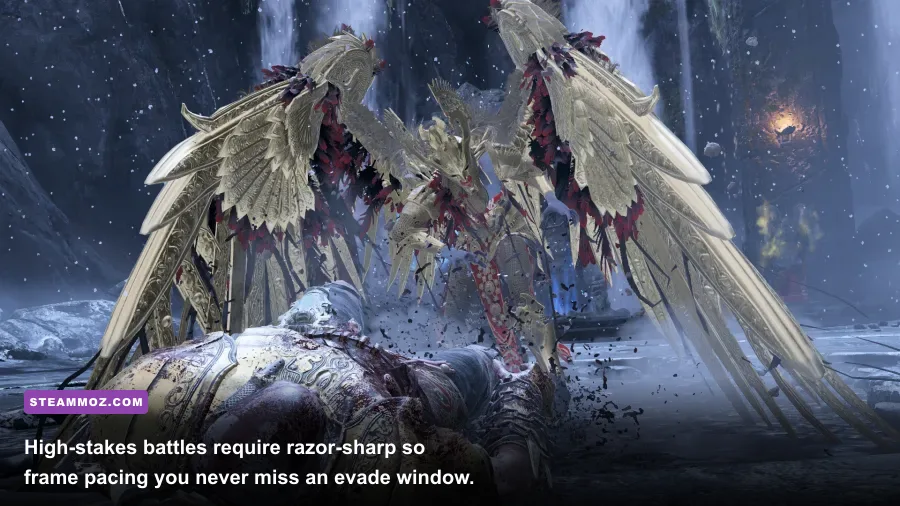
If you have implemented optimal graphics settings, cleared driver caches, and configured your pagefile, but still encounter sporadic hitching during heavy combat in Alfheim or Muspelheim, the bottleneck is your CPU thread scheduling. God of War was built for the PlayStation 4's low-clocked 8-core Jaguar architecture, meaning the engine balances work across many threads. Modern hybrid architectures—such as Intel 12th, 13th, and 14th Gen chips—frequently assign critical render tasks to low-power Efficient Cores (E-Cores) instead of Performance Cores (P-Cores).
When Windows shifts the main game thread from a 5.0 GHz P-Core to a 3.4 GHz E-Core during an intense combat encounter, the framerate drops by 40% for two full seconds while the thread migrates. You can lock God of War exclusively to P-Cores using Process Lasso or a quick launch argument:
- Download and install Process Lasso (the free utility is sufficient).
- Launch God of War and tab out to your desktop.
- Locate
GoW.exein Process Lasso's process list, right-click it, and hover over CPU Affinity > Always. - Select Select CPU Affinity, uncheck all E-Cores (typically CPU 8 through 15 or 16 through 23 depending on your chip), and leave only the high-clocked P-Cores active.
AMD Ryzen owners should verify that Simultaneous Multithreading (SMT) is behaving correctly. First- and second-generation Ryzen CPUs (Ryzen 1600, 2600, 2700X) suffer cross-CCX latency penalties when God of War bounces asset streaming threads between separate compute complexes. If you are experiencing micro-stutters on older Ryzen hardware, pinning the game to a single CCX via Process Lasso completely stabilizes frame-times.
Lastly, if you upgraded your graphics card recently or jumped between driver branches, remnant registry keys can throw DirectX execution loops. Detailed technical logs documented on the community-managed PCGamingWiki God of War technical hub highlight that old graphics driver hooks frequently trigger unhandled crash-to-desktop events in the game's audio decoding layer. Perform a clean driver wipe using Display Driver Uninstaller (DDU) in Windows Safe Mode, reboot, and install the newest clean driver package without auxiliary telemetry bloat.
Similar to the fine-tuning methods detailed in our look at Filament PC framerate stability, methodically peeling back background software overhead, tuning core affinities, and locking down your memory allocation will transform God of War from an unstable crash-prone title into the buttery-smooth, jaw-dropping cinematic spectacle it was engineered to be. Fire up the game, head straight into the Valkyrie arenas, and enjoy flawless, stutter-free combat across all nine realms.