Gato Roboto is one of the easiest modern PC games to run: its official minimum target is a 1.7 GHz Intel or AMD processor, 1 GB of RAM, an OpenGL 2.1-compatible graphics solution, Windows 7, and roughly 100 MB of storage. The recommended listing raises that to a 2.0 GHz processor, 2 GB of RAM, OpenGL 3.0 graphics, and the same 100 MB footprint. In practical terms, almost any Windows laptop from the last decade should handle this black-and-white Metroidvania smoothly.
That low barrier fits the game perfectly. Gato Roboto is a deliberately compact adventure built around sharp two-dimensional movement, readable pixel art, and quick rooms rather than huge streaming environments. You play Kiki, a cat whose owner, Gary, crash-lands on an alien planet. Kiki leaves the ship, discovers the titular combat suit, and explores a hostile facility packed with creatures, doors, upgrades, and bosses.
There are still a few useful distinctions between “it launches” and “it feels right.” Integrated graphics can run the game, but old drivers, aggressive laptop power-saving modes, or a problematic OpenGL implementation may cause more trouble than the game itself. Here’s the exact hardware target, followed by the settings and troubleshooting steps that matter.
Gato Roboto minimum and recommended PC specs

The requirements below reflect the Windows specifications published for the Steam version. Gato Roboto does not ask for a dedicated graphics card, a modern multi-core CPU, or a large installation. The most important graphics detail is the OpenGL version: the minimum requirement is OpenGL 2.1 compatibility, while the recommended target is OpenGL 3.0.
| Component | Minimum | Recommended | What it means in practice |
|---|---|---|---|
| Operating system | Windows 7 | Windows 7 | Windows 10 and Windows 11 are supported in normal modern setups |
| Processor | 1.7 GHz Intel or AMD | 2.0 GHz Intel or AMD | Very modest CPU demand; dual-core laptop chips are generally sufficient |
| Memory | 1 GB RAM | 2 GB RAM | The game itself uses little memory, though Windows needs additional headroom |
| Graphics | OpenGL 2.1-compatible GPU | OpenGL 3.0-compatible GPU | Integrated graphics are normally enough if drivers are current |
| Storage | 100 MB available | 100 MB available | Leave extra space for Steam files, saves, and updates |
There’s no listed requirement for DirectX 12, shader-model hardware, ray tracing, or a specific NVIDIA or AMD card. That matters for older PCs. A machine with Intel HD Graphics, AMD Radeon integrated graphics, or an aging GeForce card should be well above the visual workload required here, provided its OpenGL drivers behave properly.
The 100 MB storage figure is tiny, but don’t read it as a promise that your entire Steam installation consumes exactly that amount forever. The executable, Steam metadata, cloud-sync files, screenshots, and updates can push the real folder size higher. You still won’t need more than a few hundred megabytes, though. Compared with games such as Dinosaur Fossil Hunter, this is effectively a rounding error on any current drive.

🎮 Gato Roboto
Looking to experience this game? Grab your digital key directly on our store for $1.19.
View on Steammoz Store →What hardware do you actually need for smooth play?
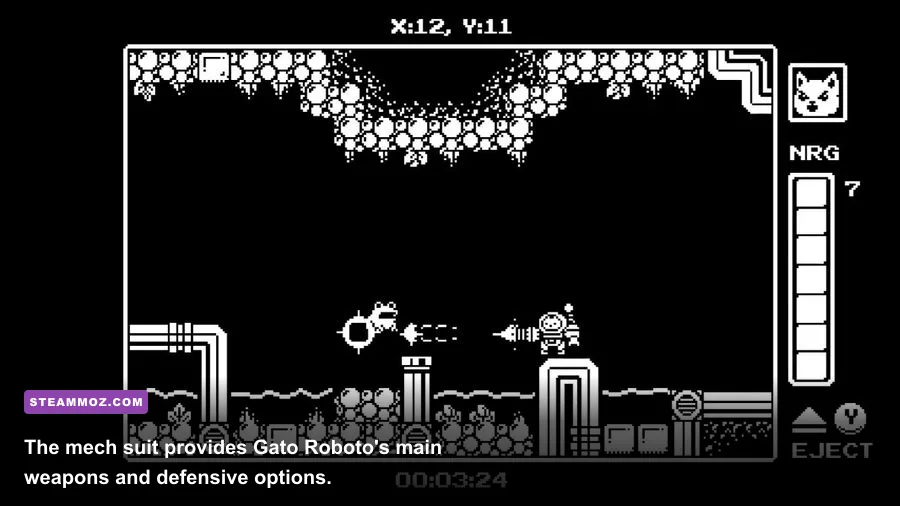
The short answer is less than the official recommended specification suggests. Gato Roboto’s camera is fixed to a crisp 2D presentation, and the world is divided into compact rooms rather than a continuously rendered 3D landscape. That keeps the GPU workload extremely light. The game’s challenge comes from timing, map knowledge, and enemy patterns—not from processing a dense scene full of effects.
A recent office laptop with 4 GB of system memory should be enough for the game, although 8 GB is a more comfortable baseline for Windows itself. You can play on older Intel Core, AMD A-Series, Celeron, or Pentium hardware if the machine supports the required OpenGL feature level. A dedicated GPU is unnecessary. If your laptop includes both integrated and dedicated graphics, forcing the game onto the dedicated chip won’t transform performance; it may only increase heat and battery drain.
| PC profile | Expected result | Best use case | Potential limitation |
|---|---|---|---|
| Older office laptop, 1.7 GHz CPU, 2 GB RAM | Playable at the game’s native presentation | Basic Windows gaming | Driver issues and background apps may matter |
| Modern integrated graphics, 4–8 GB RAM | Comfortably smooth | 1080p laptop or mini-PC play | Use the High Performance power profile if needed |
| Entry-level dedicated GPU, 8 GB RAM | More than enough | High-resolution monitor setups | No meaningful benefit from powerful hardware |
| Steam Deck-class hardware | Excellent fit | Handheld play and suspend/resume sessions | Check control preferences and display scaling |
Frame-rate consistency is still worth caring about, even in a pixel-art game. Kiki’s movement, jumps, and mech combat feel best when input arrives predictably. A sudden hitch while crossing a dangerous room can be more irritating than a lower average frame rate. Close browser tabs, launchers, and overlays if you’re using a particularly old system, and keep the game installed on a healthy drive rather than an almost-full mechanical disk.
If your machine already runs lightweight 2D games such as Flat Heroes, it should have no trouble with Gato Roboto. The same general rule applies: stable frame pacing and responsive input matter more than chasing an absurdly high frame counter.
Best graphics settings for old and modern PCs

Gato Roboto does not have the sprawling graphics menu you’ll find in a modern 3D shooter. That’s a feature, not a problem. There are fewer settings to misconfigure, and the game’s monochrome art style is designed to remain readable without expensive post-processing. Start with the native resolution of your display, then adjust only if you encounter scaling problems or performance drops.
| Setting or option | Recommended value | Performance impact | Visual or control note |
|---|---|---|---|
| Display resolution | Native monitor resolution | Low on most PCs | Preserves the sharpest image and cleanest pixel edges |
| Fullscreen mode | Use for older laptops | Usually neutral or slightly positive | Can reduce desktop compositing interruptions |
| Windowed mode | Use for streaming or multitasking | Usually low impact | Useful if fullscreen scaling behaves oddly |
| V-sync | Enable if tearing appears | May add a small amount of input latency | Disable if you prioritize the fastest possible response |
| Display scaling | Integer scaling when available | Negligible | Keeps pixel art crisp instead of softening edges |
| Background applications | Close heavy apps | Can improve frame pacing on weak systems | Especially useful with 1–2 GB of RAM |
On a very old computer, lowering resolution is the first thing to test, but it may not solve an OpenGL driver problem. If the game displays a black screen, crashes immediately, or shows corrupted sprites, treat that as a compatibility issue before assuming the hardware is too weak. Update the Intel, AMD, or NVIDIA graphics driver directly from the manufacturer, reboot, and then verify the files through Steam.
Windows power management can also quietly sabotage a laptop. Plug in the charger, set Windows to Best Performance, and make sure the game isn’t being forced through a battery-saving graphics profile. These steps sound excessive for a tiny cat game, but old integrated GPUs sometimes change clocks aggressively when they think you’re running an undemanding application.
Why Gato Roboto runs so well on low-end hardware

Gato Roboto’s technical simplicity is closely tied to its design. The game’s world uses high-contrast black-and-white artwork, compact room layouts, and a deliberately limited visual language. You aren’t loading a huge open world, calculating advanced lighting, or rendering dozens of physically simulated objects. Each room can communicate hazards, platforms, doors, and enemies with a small number of clear sprites.
That clarity helps gameplay, too. Kiki’s two main states—inside the mech suit or moving outside it—are immediately readable. The suit gives you direct combat power and access to hazards that would be dangerous on foot, while the cat form handles narrow routes and environmental puzzles. Because the screen stays visually uncluttered, enemy attacks are easy to identify once you learn their timing.
The game’s progression also avoids the performance traps found in larger Metroidvanias. You explore a connected facility, return through familiar areas with new abilities, and fight bosses without a huge number of persistent world systems running in the background. The result is a game that feels responsive on modest hardware and remains easy to pick up for short sessions.
Don’t confuse “simple to run” with “simple to play.” The mech’s weapons and movement give encounters their rhythm, but careless positioning still gets Kiki punished. Explore side rooms, watch for alternate routes, and use the map as a record of places you couldn’t reach earlier. That compact progression loop is why the game sits comfortably beside other focused indie adventures, rather than needing the hardware profile of a large modern Metroidvania.
For broader PC performance habits, our guides to smooth Fly Corp settings and Hunt: Showdown performance tuning cover heavier games, but the same principles apply: update drivers, control background load, and fix frame pacing before obsessing over peak FPS.
Gato Roboto PC troubleshooting and buying advice
If you meet the minimum specs but Gato Roboto won’t start, work through the fixes in this order. First, restart Steam and verify the installation from the game’s Properties menu. A damaged file is quick to rule out. Next, update your graphics driver and Windows, then try launching with unnecessary overlays disabled. Steam Overlay, Discord, recording tools, and GPU utilities can occasionally interfere with older OpenGL-based games.
- Verify the game files: Open Steam Library, right-click Gato Roboto, choose Properties, select Installed Files, and run “Verify integrity of game files.”
- Update the GPU driver: Use Intel, AMD, or NVIDIA’s official support page instead of relying only on an old Windows Update package.
- Switch display modes: Try fullscreen if windowed mode stutters, or windowed mode if fullscreen produces a black screen or incorrect scaling.
- Reduce system load: Close browsers with video tabs, cloud-sync clients, and launchers when playing on a 1 GB or 2 GB machine.
- Check the graphics adapter: On a laptop, confirm that Windows is using the correct GPU and isn’t applying an extreme battery-saving profile.
Buyers should also check the operating system listed on the current Gato Roboto Steam page before purchasing, especially if they’re using Linux, macOS, or an unusual handheld configuration. The published Windows targets are extremely forgiving, but platform compatibility is separate from raw horsepower.
The official Doinksoft website is another useful reference for the developer’s projects, while Devolver Digital provides publisher information. If you’re moving between several small PC games and dealing with crashes, our Hatsune Miku: Logic Paint S troubleshooting guide has a similarly practical starting point.
Bottom line: you don’t need a gaming PC for Gato Roboto. The official minimum is already low enough for aging office hardware, and a basic modern integrated GPU sits comfortably above the recommended target. Give the game a current OpenGL driver, enough free storage, and stable power settings, and Kiki’s entire rescue mission should run smoothly—even on a laptop that struggles with almost everything else.