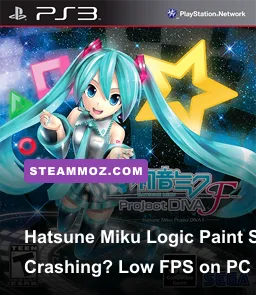
If Hatsune Miku Logic Paint S+ is crashing or running at an unexpectedly low frame rate on PC, the most reliable fix is to verify the Steam files, disable overlays, force the correct GPU, and use a capped 60 FPS profile. Because this is a 2D nonogram game, poor performance is rarely caused by demanding graphics; it usually comes from corrupted files, fullscreen scaling, outdated drivers, background overlays, or a bad display configuration.
One naming detail matters before you start: Steam listings and search results may refer to the game as Hatsune Miku Logic Paint S, while players often add “S+” when discussing the PC release, updates, or the expanded version. The troubleshooting steps below apply to the Steam PC build you have installed. They also avoid the common mistake of throwing every setting to Low when the real problem is input hooks or an unstable overlay.
Start with the fixes that solve most crashes

Do these in order, launching the game after each major change. That makes it much easier to identify the culprit instead of changing six variables at once.
- Restart Steam completely. Close the client from the Steam menu, then check Task Manager for any remaining Steam processes before reopening it. A stuck Steam Input or overlay process can survive a normal game exit.
- Verify the installation. Open Steam, right-click the game, choose Properties, select Installed Files, and click Verify integrity of game files. Steam will replace damaged executable, asset, or configuration files without removing your save data.
- Disable Steam Overlay. In the game’s Properties window, turn off Enable the Steam Overlay while in-game. Overlay injection is a frequent cause of immediate crashes on lightweight games, particularly after a Steam client update.
- Turn off third-party overlays. Test with Discord Overlay, Xbox Game Bar, NVIDIA App or GeForce Experience overlay, AMD Adrenalin overlay, MSI Afterburner, RivaTuner Statistics Server, and Overwolf disabled. Frame counters and capture hooks can interfere with a small 2D title more than expected.
- Run Windows Update and update your GPU driver. Install the current stable driver from NVIDIA or AMD. If the crash began immediately after a driver update, use the previous stable driver instead of repeatedly reinstalling the newest one.
Don’t begin with compatibility mode or administrator privileges. Those can hide the actual cause and sometimes break Steam Cloud behavior. If the game crashes before its first menu, launch it once with every overlay closed, then check whether the crash still happens when opening a puzzle rather than at startup.

🎮 Hatsune Miku Logic Paint S+
Looking to experience this game? Grab your digital key directly on our store for $11.99.
View on Steammoz Store →Use a stable PC graphics profile, not just Low settings

Hatsune Miku Logic Paint S is built around static puzzle grids, character illustrations, menus, and music playback. Lowering texture quality rarely produces a useful gain because the GPU workload is tiny. The settings that matter are resolution, display mode, frame pacing, and whether another application is forcing scaling or capture.
| Setting | Recommended Value | FPS Impact | Visual Note |
|---|---|---|---|
| Display mode | Borderless windowed | Low to medium | Usually more stable when switching between Steam and the desktop |
| Resolution | Native desktop resolution | Low | Prevents blurry scaling and avoids unusual aspect-ratio behavior |
| V-Sync | On if tearing appears; otherwise test Off | Low | On can smooth presentation but may add latency or expose refresh-rate issues |
| Frame rate | 60 FPS cap | Positive stability gain | More than enough for puzzle input and menu animation |
| Anti-aliasing | Default or Off | Minimal | Text and grid edges should remain sharp at native resolution |
| Post-processing | Default; disable only for testing | Minimal | Useful as a diagnostic switch, not normally the main fix |
For most systems, the best starting profile is borderless windowed, native resolution, V-Sync enabled, and a 60 FPS cap. If borderless mode stutters while fullscreen is smooth, use exclusive fullscreen instead. If fullscreen causes black screens or a crash during resolution changes, switch back to borderless and set Windows to the same resolution and refresh rate as the game.
A 60 FPS cap is especially sensible here. The game’s nonogram boards, including compact boards such as 5x5 and larger layouts such as 15x15 or 20x15, don’t benefit from an uncapped 200-plus FPS output. An uncapped loop can create unnecessary GPU usage, inconsistent frame pacing, or a laptop fan ramp that looks like a performance problem. If your display is 120Hz or 144Hz, test 60 first; only raise the cap if frame pacing remains clean.
Fix low FPS, stutter, and delayed puzzle input

When a simple 2D title reports low FPS, the number may not describe GPU rendering at all. The game can feel sluggish because of a refresh-rate mismatch, a background capture utility, power-saving mode, or a brief CPU spike from another application. The goal is stable frame delivery, not a huge counter number.
Force the dedicated GPU on laptops
Open Settings > System > Display > Graphics, add the game executable, select Options, and choose High performance. On NVIDIA hardware, you can also open NVIDIA Control Panel, select Manage 3D settings, add the game under Program Settings, and choose the high-performance NVIDIA processor. AMD users can set the title to the high-performance profile in Adrenalin.
Keep the laptop plugged in and select Windows Best performance while testing. Battery profiles can downclock the CPU, limit the dedicated GPU, and produce the exact pattern many players describe as “random low FPS.” Once the game is stable, you can return to a balanced profile and check whether the frame rate remains consistent.
Remove frame-pacing conflicts
Disable Xbox Game Bar recording, background capture, animated desktop software, browser video tabs, and hardware-monitoring overlays. RivaTuner’s limiter should not run at the same time as an in-game limiter and driver-level limiter. Choose one cap only. Multiple limiters can create uneven frame times even when the FPS counter looks locked.
Also check your monitor refresh rate in Settings > System > Display > Advanced display. A game running at 30 FPS on a 144Hz desktop may look much worse than the same 30 FPS on a 60Hz screen because the refresh intervals don’t divide cleanly. If V-Sync creates a 30 FPS fallback, disable it temporarily and use a single external cap at 60.
| Symptom | Likely Cause | Best Test | Expected Result |
|---|---|---|---|
| Low FPS only on a laptop | Integrated GPU or battery mode | Force High performance GPU and plug in power | Stable 60 FPS in menus and puzzles |
| Stutter when moving the mouse | Overlay, capture hook, or polling conflict | Disable overlays and test a basic mouse | Smoother cursor and grid selection |
| FPS drops after Alt-Tab | Fullscreen or refresh-rate transition | Use borderless windowed mode | Fewer spikes when returning to the game |
| 30 FPS despite powerful hardware | V-Sync fallback or hidden cap | Test V-Sync Off and remove duplicate limiters | Returns to the selected 60 FPS cap |
For broader PC troubleshooting, Steamoz’s guide to stutter-free FPS settings covers the same limiter and refresh-rate traps in more detail.
Stop startup crashes and black screens

If the game crashes before the title screen, focus on configuration files, permissions, and display initialization rather than graphics quality. First, open the game’s Steam Properties and use Browse local files. Look for a configuration or save folder, back it up to the desktop, and then rename the original folder. A corrupted resolution or controller setting can crash every launch; renaming the folder forces the game to create clean data on the next start. Do not delete the backup until you have confirmed that your progress is safe.
If you use Steam Cloud, temporarily disable it before testing a reset. Otherwise, a corrupted cloud configuration may immediately download itself again. You can restore the backup afterward, one file at a time, to find the problematic setting. This is safer than deleting the entire user-data directory.
For a black screen with audio, press Alt+Enter once to toggle windowed mode. If that works, close the game normally and keep borderless windowed mode. You can also try launching with a standard desktop resolution rather than a custom ultrawide mode. HDR, unusual DPI scaling, and mixed-refresh multi-monitor setups are worth disabling temporarily because they affect presentation even when the game itself is not graphically demanding.
Right-click the game executable, open Properties > Compatibility, and test Disable fullscreen optimizations only if fullscreen is the trigger. Avoid checking every compatibility option. Windows compatibility settings are a diagnostic tool here, not a universal performance boost.
Check controllers, audio, and background software

Some “crashes” are actually hangs caused by input or audio devices. Unplug extra controllers, steering wheels, USB adapters, and virtual gamepads, then launch with a keyboard and mouse. Steam Input can also be tested per game: open the controller settings and switch between the default Steam Input behavior and disabled Steam Input. If the game launches normally after that change, reconnect devices one by one.
Bluetooth headphones and virtual audio tools can create a startup failure when Windows changes the default output device during launch. Set one output device as the default, close audio enhancers such as Nahimic, Sonic Studio, Voicemeeter, and motherboard audio suites, and test again. If the crash disappears, reinstall or update the audio utility rather than lowering graphical settings.
Security software is another possibility. Don’t permanently disable antivirus protection, but check its quarantine and controlled-folder-access history. Add the Steam library folder as an allowed location only if Windows Security identifies the game executable incorrectly. Then run a normal Windows security scan and remove any unofficial DLL injector, mod loader, or “FPS booster” installed alongside the game.
When nothing works, isolate the failure cleanly
At this stage, create a short test profile: verified Steam files, all overlays disabled, borderless windowed mode, native resolution, V-Sync on, one 60 FPS cap, dedicated GPU selected, and no controller connected. Restart Windows, launch only Steam, and play one small puzzle for ten minutes. Then add features back individually. Re-enable Discord, reconnect the controller, restore fullscreen, and remove the cap one at a time. The first change that brings back the crash or stutter is your answer.
Check Windows Event Viewer under Windows Logs > Application for the crash entry. A faulting module mentioning a graphics driver points toward a clean driver install; an overlay DLL points toward capture software; an audio or input DLL points toward a device utility. The exact module is more useful than a generic “the game stopped responding” message.
If the problem survives a clean configuration reset and a verified installation, report it through the game’s official Steam listing with your GPU, Windows version, display mode, crash timing, and Event Viewer faulting module. You can also compare the symptoms with Steam’s official game troubleshooting guidance.
The short version is simple: verify first, remove overlays second, force the correct GPU third, and cap the game at 60 FPS. For a lightweight puzzle game, that combination is usually more effective than aggressive “low” settings. If you’re troubleshooting other demanding PC releases too, Steamoz’s PC crash and stutter guide and low-FPS troubleshooting guide offer useful follow-up checks for drivers, overlays, and corrupted configurations.