
For the best Fly Corp performance, use 1080p or 1600×900, turn VSync off while testing, choose the Low or Medium quality preset, reduce shadows and anti-aliasing first, and keep the game in exclusive fullscreen if your build offers it. That setup usually delivers the biggest GPU gains without making the strategic map look muddy. If the game still slows down after a network grows across Europe, Asia, or the entire world, the problem is probably simulation load rather than graphics quality.
That distinction matters. Fly Corp is a map-based airline management game from KishMish Games, and its demanding moments come from thousands of passengers, aircraft schedules, route calculations, airport queues, and constantly updating city connections. A lower resolution cannot magically make a very busy late-game network calculate faster. The right approach is to tune visual settings first, then manage the simulation and Windows background load separately.
Best Fly Corp settings for maximum FPS
Start with the profile below, then adjust one option at a time. Fly Corp’s exact menu labels can vary slightly between builds, but the important controls are consistent: resolution, fullscreen mode, VSync, quality, anti-aliasing, shadows, and detail-related effects. Test every change in the same saved game, ideally with a crowded region such as Western Europe already unlocked.
| Setting | Max-FPS value | FPS impact | Visual trade-off |
|---|---|---|---|
| Display mode | Fullscreen | Low to medium | Can reduce desktop compositing overhead and improve frame-time consistency |
| Resolution | 1920×1080; 1600×900 on weaker GPUs | High | Lower resolution makes labels and route lines softer |
| VSync | Off for testing; On if tearing is distracting | Medium | Off removes the frame cap but can introduce tearing |
| Quality preset | Low or Medium | Medium to high | Reduces scene effects and map presentation quality |
| Anti-aliasing | Low or Off | Medium | Diagonal route lines and small edges look more jagged |
| Shadows | Low or Off | Medium | Buildings and map elements lose depth |
| Effects or detail | Low | Low to medium | Less visual activity around airports and the map |
| Frame rate limit | 60 FPS, if available | Positive for stability | Prevents needless GPU usage and heat |
For a modern desktop GPU, 1080p with Medium quality is the sweet spot. Fly Corp is not a photorealistic game, so Ultra rarely adds enough clarity to justify the extra GPU work. On integrated graphics such as Intel UHD or older Radeon Vega hardware, Low quality at 1600×900 is more sensible than 1080p Ultra. The strategic information remains readable, and the lower pixel count leaves more headroom when the map fills with route lines.
Use the official Fly Corp Steam page to check your installed build and current system requirements. The game’s presentation is intentionally clean, so sacrificing shadows and anti-aliasing hurts far less than it would in a shooter. If you want a similar performance-focused workflow for another PC game, Steamoz’s Gone Viral smooth-60-FPS settings guide uses the same one-change-at-a-time testing method.

🎮 Fly Corp
Looking to experience this game? Grab your digital key directly on our store for $10.49.
View on Steammoz Store →Which settings actually cost the most frames?
Resolution is the first major GPU lever. Moving from 2560×1440 to 1920×1080 reduces the number of rendered pixels by roughly 44 percent, which is a substantial workload reduction. If your GPU usage sits near 95–100 percent during zoomed-out play, resolution and anti-aliasing are the fastest fixes. If GPU usage is low but frame time keeps rising as your airline expands, stop lowering resolution: you have likely hit a CPU or simulation limit.
Shadows are the next setting worth cutting. They add extra rendering passes and can be surprisingly expensive when the camera shows a wide section of the world map. Anti-aliasing has a smaller effect on most systems, but it is a good compromise setting because the map remains perfectly playable with it on Low. Effects and detail controls tend to matter less than resolution, shadows, and the quality preset, so leave them at Medium if the game still looks too flat on Low.
| GPU usage during slowdown | Likely bottleneck | Best first change | What not to do |
|---|---|---|---|
| 95–100% | GPU rendering load | Lower resolution, shadows, and anti-aliasing | Change route management before testing graphics |
| 60–85% | CPU simulation or background tasks | Reduce network complexity and close background apps | Keep dropping resolution expecting a major gain |
| Low usage with hitching | Asset streaming, overlays, or storage delay | Disable overlays and use an SSD installation | Assume the GPU is too weak |
| Stable FPS but visible tearing | Synchronization issue | Enable VSync or use a driver-level cap | Raise quality just to solve tearing |
VSync deserves a practical warning. Turning it on can eliminate tearing, but it may lock the game to your display refresh rate and add a little input delay. That delay is not a major concern in a management sim, so VSync On is fine if your monitor is 60 Hz and the game holds 60 FPS. For diagnosis, keep it Off first. A sudden jump from 60 to 30 FPS usually means synchronization is engaging after a missed frame, not that the game has suddenly become twice as demanding.
Best profiles for low-end, mid-range, and high-end PCs
There is no single perfect preset because Fly Corp scales differently depending on whether your system is GPU-limited or simulation-limited. The three profiles below are designed around the moments that actually expose performance problems: zooming out over a busy region, opening a crowded airport, and letting the game run while passenger demand updates.
| Hardware profile | Resolution and display | Quality settings | Expected target |
|---|---|---|---|
| Low-end laptop or integrated graphics | 1600×900 fullscreen | Low, shadows Off, anti-aliasing Off, VSync Off | Stable 30–60 FPS depending on network size |
| Mainstream gaming PC | 1920×1080 fullscreen | Medium, shadows Low, anti-aliasing Low, VSync optional | Locked 60 FPS through the early and mid game |
| High-end 1080p or 1440p PC | 1920×1080 or 2560×1440 | High, shadows Medium, anti-aliasing Medium | 60 FPS early; late-game limits may be simulation-based |
The low-end profile is intentionally conservative. Fly Corp’s map is readable at 1600×900, while Low quality removes the effects most likely to create GPU spikes. If text looks too small, keep 1080p and turn shadows off before lowering the resolution. The mid-range profile is the recommendation for most Steam players: Medium retains the game’s clean visual hierarchy and avoids wasting performance on effects that do not improve route planning.
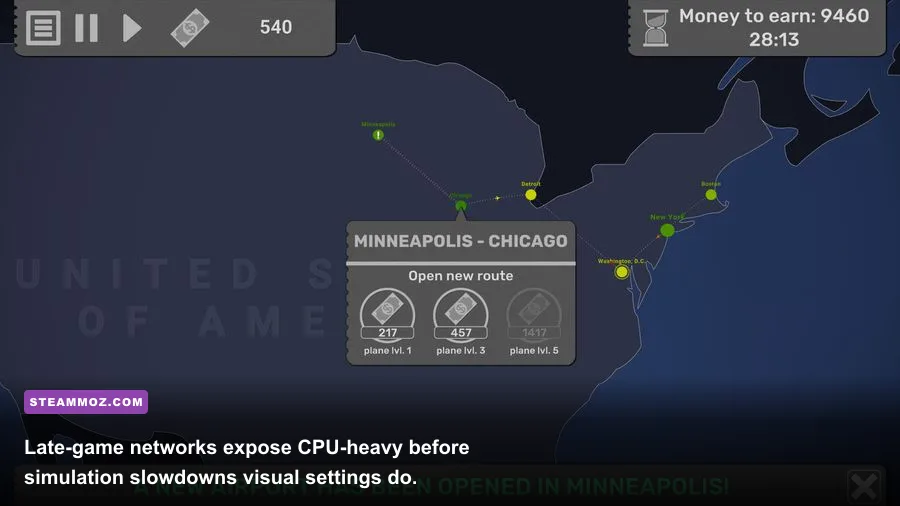
On a high-end machine, avoid assuming that Ultra guarantees a locked frame rate forever. Early in a new campaign, almost any reasonable GPU can render the map smoothly. After you unlock more countries and establish multiple connections into major hubs, the simulation has more work to perform every update. That is why a powerful graphics card can still show a lower frame rate in a mature save.
How to test FPS without fooling yourself
Use a repeatable test instead of judging performance from the main menu. Load the same save, zoom out to show the busiest region, wait ten seconds for passenger and route activity to settle, then pan across the map and open an airport information panel. Record average FPS and, more importantly, whether the camera stutters when the simulation updates. A short menu test tells you almost nothing about late-game performance.
- Disable VSync and any external frame cap.
- Load a save with at least one dense network, preferably in Europe or East Asia.
- Wait for passenger numbers and aircraft movement to stabilize.
- Pan, zoom, and open the busiest airport three times.
- Change one setting, reload the same save, and repeat the test.
- Enable a 60-FPS cap after tuning if your frame rate fluctuates heavily.
Steam’s overlay, Discord, browser video, RGB software, and recording tools can all create distracting frame-time spikes. Disable them temporarily while benchmarking. Also check that Fly Corp is installed on an SSD, especially if you notice pauses when loading saves or switching between large map views. These are not magic FPS buttons, but they help separate rendering issues from asset-loading hitching.
For comparison, our Groove Coaster lag and crash fixes cover overlay and background-process cleanup, while the Just Cause 3 settings guide explains why a frame cap can feel smoother than an uncapped average. The same principle applies here: consistent frame time feels better than a headline FPS number that collapses every few seconds.
Late-game stutter is often a network problem
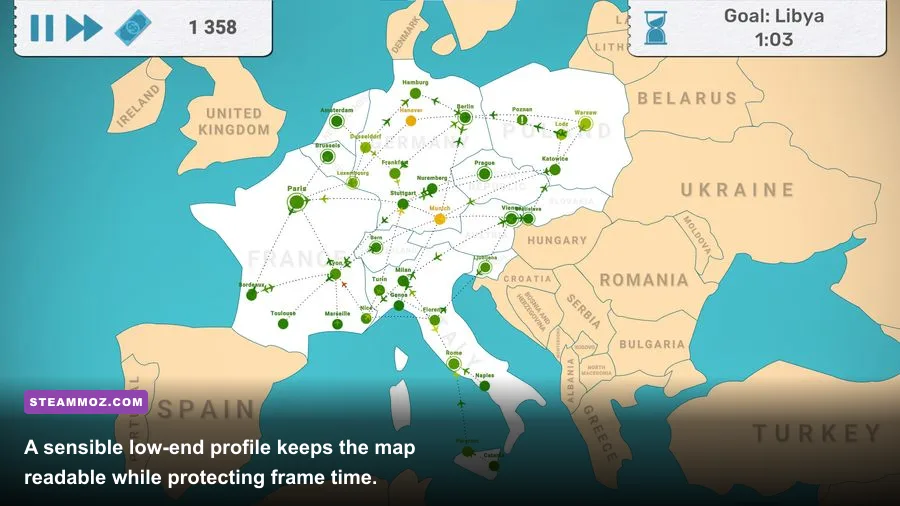
Once visual settings are under control, look at the airline itself. Fly Corp’s core loop is built around connecting cities, opening countries, adding airports, buying aircraft, and responding to passenger demand. Every extra route creates more traffic and more scheduling work. A huge web of short, overlapping connections can therefore be harder to simulate than a smaller network with carefully chosen hubs.
Watch for overloaded airports rather than blindly adding more flights. If a hub is repeatedly near capacity, upgrade its terminal or airport capacity where the game allows it, then consolidate duplicate routes. One efficient connection carrying demand is usually cleaner than several inefficient lines competing for the same passengers. This is a performance tip with a gameplay payoff: fewer redundant routes mean less clutter and easier network management.
Do not pause and unpause rapidly while diagnosing stutter. The game may process a backlog of passenger and route updates when simulation resumes, producing a temporary hitch that looks like a graphics problem. Let the game run for a full minute at normal speed, then compare the frame pacing. If the slowdown is strongest while time advances and eases while paused, the CPU simulation is the likely culprit.
For a broader troubleshooting reference, see Steamoz’s Hunt Showdown max-FPS settings guide and Hakuoki low-FPS fixes. Fly Corp does not need the same aggressive driver tweaks, but the diagnostic rule is universal: identify whether the GPU, CPU, storage, or background software is actually responsible before changing ten settings at once.
The final Fly Corp performance checklist
For most players, the best final setup is 1920×1080 fullscreen, Medium quality, Low shadows, Low anti-aliasing, VSync Off while testing, and a 60-FPS cap once performance is stable. Move to 1600×900 and Low quality only if GPU usage remains high or your laptop cannot hold the target. Keep the game installed on an SSD, close overlays, update your graphics driver, and test inside a busy save rather than an empty new campaign.
If FPS falls only after your airline spans multiple regions, lowering resolution may barely help. Clean up duplicated routes, upgrade congested airports, and reduce unnecessary network complexity. That is the real Fly Corp performance secret: graphics settings protect the renderer, but smart airline design protects the simulation. For official news and developer information, follow KishMish Games and the Fly Corp Steam community hub. With the right profile and a disciplined test save, the world map should stay smooth without turning every airport into a blurry icon.