If you want maximum FPS in Hunt: Showdown 1896, start with 1080p or 1440p, use exclusive fullscreen, set Object Quality and Lighting Quality to Medium, keep textures at High, disable motion blur and depth of field, then test DLSS or FSR only when your GPU cannot hold its target frame rate. That profile usually gives The Rat-style players the best mix of sharp silhouettes, readable compounds, and low input latency without turning the bayou into a muddy blur.
Hunt is unusually sensitive to bad graphics compromises. A setting that looks harmless in a bright compound can hide a hunter beside a window, smear a distant head behind foliage, or create uneven frame pacing during a banish fight. The goal isn't simply to chase a large number in the FPS counter. You want a stable refresh-rate match, clean motion, and enough visual detail to read a crouching enemy before they read you.
These recommendations target the PC version of Hunt: Showdown 1896 and are designed around competitive solo, duo, and trio play. Use the game's official Steam listing to check current system requirements, because Crytek's updates can change performance and available options. For wider PC tuning advice, our performance settings guide covers the same principles of resolution scaling, frame pacing, and GPU limits.

The best Hunt: Showdown 1896 settings for max FPS
Begin by choosing your performance target. A 60Hz monitor only needs a stable 60 FPS, while a 144Hz display benefits from a locked 120 or 144 FPS if your hardware can sustain it. Do not chase 200 FPS if the game regularly drops into the 80s during compound fights. Those spikes feel worse than a consistent cap and can make mouse movement feel uneven.
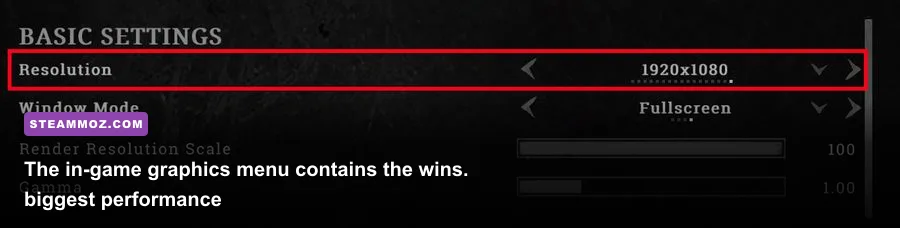
Use exclusive fullscreen rather than borderless whenever the option is available. Set the resolution to your monitor's native resolution first, then lower it only after reducing expensive settings. Native 1080p is generally the cleanest competitive choice. At 1440p, a High texture profile with Medium lighting and shadows is a strong starting point for modern GPUs with 8GB or more of VRAM.
For the display menu, use the highest refresh rate, disable V-Sync, and set a frame cap just below your display's refresh rate when using variable refresh rate technology. A 141 FPS cap on a 144Hz monitor or a 162 FPS cap on a 165Hz panel leaves enough headroom to reduce VRR fluctuations. If your system cannot approach the refresh rate, cap at a stable value such as 90, 100, or 120 instead.
| Setting | Recommended Value | FPS Impact | Visual and Competitive Note |
|---|---|---|---|
| Display Mode | Exclusive Fullscreen | Low to Medium | Usually gives cleaner presentation and lower desktop interference. |
| Resolution | Native 1080p or 1440p | Very High | The largest GPU lever; lower only after tuning quality options. |
| V-Sync | Off | Low | Avoids added latency; pair with a sensible FPS cap. |
| FPS Limit | Refresh rate minus 3 | None | Improves consistency with G-SYNC or FreeSync. |
| Upscaling | Off at native resolution; Quality if needed | High benefit | Use Quality before Balanced to protect distant target clarity. |
| Motion Blur | Off | Small | Removes camera smear during quick turns. |
| Depth of Field | Off | Small to Medium | Prevents cinematic blur from obscuring close targets. |
| Chromatic Aberration | Off | Small | Sharper edges and less color fringing. |

🎮 FORM
Looking to experience this game? Grab your digital key directly on our store for $14.99.
View on Steammoz Store →Graphics settings that actually affect FPS
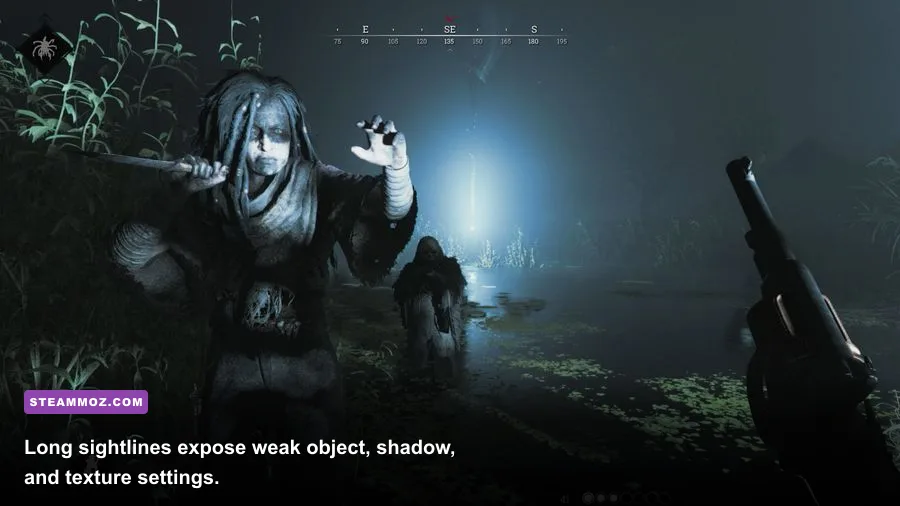
Object Quality is one of the most important Hunt settings because it controls how much world geometry remains visible at distance. Dropping it from High to Medium can help CPU-limited systems, but Low may remove or simplify details that help you understand a compound's shape. Medium is the sensible max-FPS choice; keep High if you have a strong processor and regularly fight across large sightlines.
Lighting Quality and Shadow Quality are expensive for obvious reasons: Hunt's dark interiors, lanterns, fire, and dynamic weather all create demanding scenes. Set Lighting Quality to Medium first. If you still need frames, lower Shadow Quality to Low or Medium. Low shadows can make the world flatter, but they are less damaging to target recognition than aggressive upscaling. Keep effects at Medium because explosions, fire, and certain environmental effects can cause brief GPU spikes when several players converge.
Texture Quality is different. It mainly consumes VRAM rather than raw shader performance. High textures are usually worth keeping on an 8GB-or-better graphics card. If you have a 4GB card or see hitching while rotating quickly, move to Medium. Texture filtering should stay High because anisotropic filtering improves the clarity of roads, rooftops, and ground surfaces viewed at an angle for a relatively small cost.
Anti-aliasing needs careful testing. Temporal anti-aliasing can make foliage and thin geometry shimmer less, but it may soften distant hunters. If your version exposes multiple anti-aliasing presets, start with the lower option and compare a distant window frame, fence line, and hunter silhouette in Training mode. Do not judge it from a static menu scene.
| Graphics Option | Max-FPS Value | When to Raise It | What You Give Up |
|---|---|---|---|
| Object Quality | Medium | Use High with a strong CPU and stable distant geometry. | Some far-world detail and compound definition. |
| Texture Quality | High on 8GB+ VRAM | Raise only if VRAM headroom remains and no stutter appears. | Surface detail when reduced. |
| Texture Filtering | High | Keep high on almost every system. | Very little performance is saved by lowering it. |
| Lighting Quality | Medium | Use High for image quality if GPU headroom is large. | Some illumination depth and atmosphere. |
| Shadow Quality | Low or Medium | Raise to Medium if indoor scenes look too flat. | Shadow definition and contact shading. |
| Effects Quality | Medium | Raise when firefights remain well above your FPS target. | Some fire, smoke, and impact detail. |
| Post-Process Quality | Low or Medium | Raise if you prefer a more cinematic image. | Extra effects with limited competitive value. |
| Water Quality | Medium | Raise for screenshot-focused play. | Reflection and surface detail near waterways. |
For a useful comparison, turn on the performance overlay and record GPU usage, CPU frame time, GPU frame time, and the 1% low. If GPU usage sits near 99 percent, lower resolution, upscaling, lighting, or effects. If GPU usage is low while frame time remains poor, Object Quality, shadows, background applications, or a CPU limit may be the culprit. That distinction matters more than blindly selecting Low across the board.
DLSS, FSR, and resolution scaling explained
Upscaling can rescue performance, but it should be treated as a precision tool rather than a free FPS button. DLSS is the first option to test on an NVIDIA RTX card. Choose Quality at 1440p or 1080p when possible. Balanced can provide a useful boost on demanding systems, but distant hunters, barbed wire, and foliage may look softer. Avoid the most aggressive performance modes for competitive play unless you are struggling to maintain a playable frame rate.
AMD and non-RTX users should test FSR at Quality first. It can deliver a strong improvement when your GPU is the bottleneck, although fine geometry may shimmer more than it does at native resolution. If the game offers a sharpening slider, use a restrained value. Excessive sharpening creates bright outlines around foliage and wire, which can be distracting in dark compounds and can make image grain look like movement.
At 1080p, native rendering often remains preferable because the internal image used by Quality upscaling is already relatively low resolution. At 1440p and 4K, Quality upscaling has more pixels to work with and tends to look cleaner. This is why a 1440p player may gain more from DLSS Quality than a 1080p player does.
Keep render scale at 100 percent when using native resolution. If the menu provides a separate resolution scale and upscaler, don't stack aggressive reductions without testing. A 75 percent render scale plus a Performance preset may produce a high FPS number, but the resulting image can erase the small visual cues that make Hunt rewarding: a shoulder behind a shutter, a rifle barrel through a crack, or a hunter crossing pale grass.
AMD FSR, NVIDIA DLSS, and other options can change between patches. The official Hunt: Showdown website and Crytek's official site are the safest places to track major engine and update changes instead of assuming an old benchmark still applies.
The competitive visibility profile for The Rat
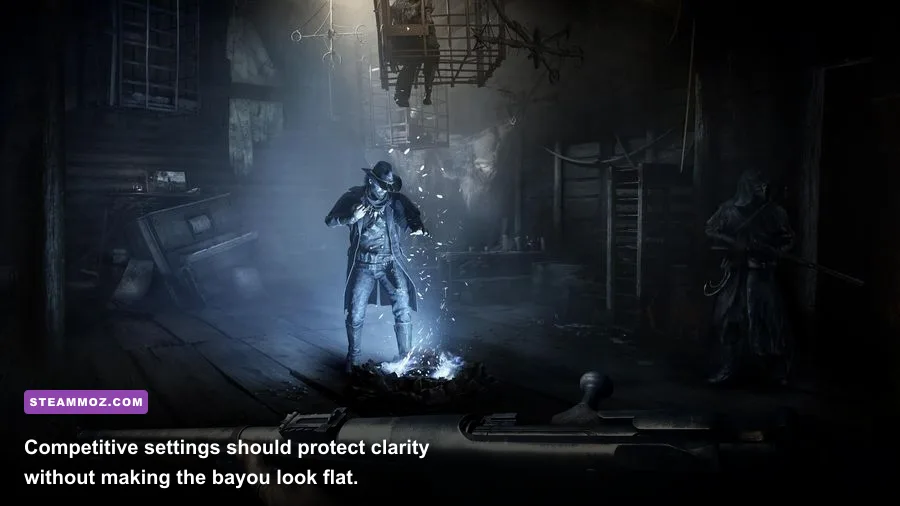
“The Rat” approach—staying patient, holding angles, and letting another team make the first mistake—depends on visual information more than flashy effects. You want dark interiors to remain readable, but you don't want post-processing to wash out the contrast between a hunter and a wall. The profile below is deliberately balanced rather than brutally low.
- Resolution: Native monitor resolution.
- Object Quality: Medium.
- Texture Quality: High with 8GB or more VRAM; Medium on 4GB cards.
- Texture Filtering: High.
- Anti-Aliasing: Low or the least blurry stable option.
- Lighting Quality: Medium.
- Shadow Quality: Medium if stable, otherwise Low.
- Effects and Post-Process: Medium or Low.
- Water Quality: Medium.
- Motion Blur, Depth of Field, Film Grain, Lens Flare, and Chromatic Aberration: Off.
- Upscaling: Off at 1080p if possible; DLSS or FSR Quality when necessary.
Don't assume higher brightness is automatically better. Excessive brightness can flatten the difference between a dark doorway and the wall around it. Adjust your monitor and in-game brightness while viewing an interior doorway, not the bright sky. You should be able to identify the opening without making every nighttime scene gray.
Keep sharpening moderate and avoid monitor “black equalizer” settings that crush or lift blacks too aggressively. These filters can reveal a player in one location while destroying shadow detail everywhere else. Hunt's visual darkness is part of its information game; the best setup improves clarity without turning every compound into a brightly lit shooting gallery.
For more genre-specific tuning ideas, compare this approach with our Star Wars Outlaws graphics settings guide. The games have different engines and lighting models, but the same rule applies: preserve image clarity first, then spend performance on effects you can actually notice during play.
How to test your FPS and eliminate stutter
Use Training mode or a quiet match to create a repeatable test. Move through a compound, rotate quickly toward a tree line, enter a dark building, look across a long road, and trigger a few effects. Repeat the route after every major change. Hunt's performance can vary by map, weather, time of day, and player activity, so a single spawn is not enough to declare a setting perfect.
Watch the 1% low and frametime graph instead of only average FPS. A system reporting 110 FPS average but repeatedly dropping to 45 during a banish fight will feel worse than one holding 90 with a nearly flat graph. If the game stutters when turning, check VRAM usage and texture quality first. If the frame rate collapses near fire, smoke, or multiple hunters, lower Effects, Lighting, and Post-Process before destroying texture clarity.
Close browser tabs, recording tools, RGB utilities, and overlays you don't need. Update your graphics driver, but avoid changing drivers immediately before a tournament or serious prestige push unless you have tested the new version. Let shader compilation or first-run caching finish where applicable. Windows power mode should favor performance on a desktop, while laptop players should test both plugged-in and battery profiles because mobile GPUs can silently throttle.
| Symptom | Likely Limit | First Change | Second Change |
|---|---|---|---|
| GPU stays at 98–100% | GPU-bound | Lower resolution or use Quality upscaling. | Reduce Lighting and Effects. |
| GPU usage is low and FPS is low | CPU, background task, or engine limit | Lower Object Quality and close background apps. | Check CPU temperatures and power mode. |
| Stutter while turning | VRAM pressure or asset streaming | Reduce Texture Quality one step. | Close overlays and verify game files. |
| Big drops during explosions | Effects or lighting load | Lower Effects Quality. | Lower Lighting and Post-Process Quality. |
| Distant hunters look soft | Upscaler or anti-aliasing blur | Return to native or DLSS/FSR Quality. | Lower sharpening only after testing. |
| Night scenes look washed out | Display filter or excessive brightness | Reset monitor black-level settings. | Recalibrate in a dark compound. |
After finding your profile, lock it for several matches. Constantly changing settings makes it difficult to tell whether a missed shot came from visibility, latency, or simple aim. The best Hunt setup is the one you can read instantly and trust under pressure.
If your machine still struggles, lower resolution before turning every setting to Low. Native 900p or 1080p with Medium object detail and clean post-processing can be more useful than a blurry upscaled image with maximum FPS. On the other hand, if you have plenty of headroom, raise textures and filtering first, then lighting. Those upgrades improve the look of the bayou without the same competitive cost as shadows and resolution.
Finally, remember that settings cannot fix an unstable connection, packet loss, thermal throttling, or a monitor running at the wrong refresh rate. Check those basics before blaming the engine. Hunt rewards patience, sound discipline, and tiny visual reads; your graphics profile should support all three. For a broader look at how settings affect different PC games, our Total War: Warhammer 3 team guide is a useful reminder that optimization is always about the decisions that matter most in the moment.