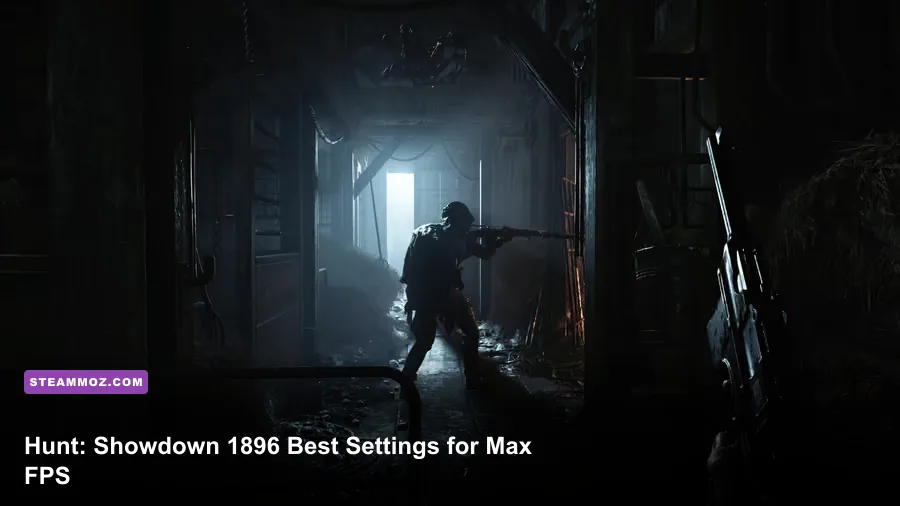
If you want the highest practical FPS in Hunt: Showdown 1896, start with 100% resolution scaling, low or medium Object Quality, medium Textures, low Shadows, low Effects, and DLSS Quality or FSR Quality when your GPU is the limit. Keep View Distance and Lighting at medium so hunters, doors, and compound edges remain readable. The Penitent is a hunter skin, not a separate graphics mode, so it has no special performance penalty; use the same competitive profile whether you queue as The Penitent or another hunter.
That balance matters because Hunt is not a normal arena shooter. CryEngine is constantly loading dense compounds, trees, volumetric fog, destructible doors, AI, sound traps, and long sightlines. A setting that adds five frames in a training match can still create ugly frame-time spikes when three teams collide around a lair. The goal here is a stable baseline for 60Hz, 120Hz, and high-refresh displays rather than a fake benchmark number that only works in an empty field.

Use This Competitive Preset First

Before tuning individual options, apply the profile below, restart the game, and test it in the same compound for several minutes. Hunt: Showdown 1896 can look deceptively smooth while its one-percent lows collapse during a banish fight. A stable 100 FPS feels better than a counter jumping between 150 and 65.
| Setting | Recommended Value | Performance Impact | Visual Trade-Off |
|---|---|---|---|
| Display Mode | Fullscreen | Low | Usually gives the cleanest frame pacing and prevents desktop overlays from interfering. |
| Resolution | Native monitor resolution | Very high | Lowering it adds FPS but makes distant hunters harder to identify. |
| Resolution Scaling | 100% | Very high | Preserves native sharpness; reduce only if the GPU is consistently maxed out. |
| Upscaling | Off at 1080p; DLSS Quality or FSR Quality at 1440p and 4K | High | Quality modes retain detail; Balanced and Performance can smear foliage and wires. |
| Object Quality | Medium | High | Lower values simplify distant geometry and can make compound reading less reliable. |
| Texture Quality | Medium or High if VRAM allows | Low to medium | Mostly affects texture sharpness, not raw GPU workload. |
| Texture Filtering | 8x | Low | Improves ground and wall clarity with a small cost on modern GPUs. |
| Anti-Aliasing | SMAA 1TX or the game's default temporal option | Medium | Temporal smoothing reduces shimmer but may soften motion. |
| Lighting Quality | Medium | Medium | Preserves useful interior contrast and lantern definition. |
| Shadow Quality | Low | High | Shadows lose detail, but enemy silhouettes remain easier to prioritize. |
| Effects Quality | Low | High | Less smoke, fire, and particle complexity during chaotic fights. |
| Post-Process Quality | Low | Medium | Reduces cinematic processing and keeps the image cleaner. |
| View Distance | Medium | Medium | Maintains useful geometry without paying for maximum-distance detail. |
| Water Quality | Low or Medium | Low to medium | Low is sensible unless you spend a lot of time near water-heavy compounds. |
| Motion Blur | Off | Negligible | Removes blur during quick turns and makes target tracking cleaner. |
Do not blindly set every option to Low. Hunt's dark interiors and thick vegetation depend on contrast, and ultra-low lighting or effects can make the picture harder to parse rather than more competitive. If you are troubleshooting a crash or severe stutter, pair this profile with the practical steps in Steamoz's PC crash and stutter guide; the engine-specific symptoms are different, but the shader-cache and overlay checks are useful.

🎮 FORM
Looking to experience this game? Grab your digital key directly on our store for $14.99.
View on Steammoz Store →Which Settings Actually Give You More FPS?

The biggest wins come from resolution, upscaling, shadows, effects, and object detail. Texture Quality is often misunderstood. If your graphics card has enough VRAM, moving from Medium to High textures may barely change average FPS, while reducing resolution scaling can produce an immediate improvement because the GPU renders fewer pixels every frame.
Object Quality deserves special attention in Hunt. It controls how much world geometry is maintained at distance, so cutting it can reduce GPU and CPU pressure around compounds. The downside is not simply uglier scenery. Fences, rooflines, tree branches, and small cover pieces may simplify earlier, changing how confidently you read a sightline. Medium is the sweet spot for most competitive systems; use Low only when your processor or GPU cannot hold its target during large compound fights.
Shadows and Effects are safer cuts. Low Shadows reduce the number and precision of shadow calculations, while Low Effects lowers the burden from muzzle flashes, fire, smoke, explosions, and other particles. You still need to see a shotgun flash or an explosive cloud, but you do not need cinema-quality contact shadows under every wagon. If your FPS falls specifically during gunfights, reduce these before sacrificing resolution.
Lighting Quality is more complicated. It affects the mood-heavy darkness that makes Hunt distinctive, but setting it to the absolute minimum can flatten interiors and make lantern-lit spaces look noisy. Medium usually offers the best competitive compromise. If you struggle to see in compounds, first check your monitor black-level settings and in-game brightness rather than immediately destroying the lighting preset.
| GPU-Limited Symptom | First Change | Second Change | What to Avoid |
|---|---|---|---|
| GPU stays near 99% at all times | Use DLSS or FSR Quality | Reduce resolution scaling to 90% | Dropping textures first when VRAM is not full |
| FPS collapses during explosions | Set Effects to Low | Set Shadows to Low | Using Performance upscaling at 1080p |
| Stutters when entering compounds | Lower Object Quality to Medium | Close overlays and cap FPS | Changing five settings without retesting |
| Image shimmers on foliage | Use SMAA 1TX or Quality upscaling | Keep Filtering at 8x or 16x | Sharpening the image aggressively |
| CPU frame time is higher than GPU time | Lower Object Quality | Use a sensible FPS cap | Expecting DLSS alone to fix a CPU limit |
DLSS, FSR, Anti-Aliasing, and Sharpness
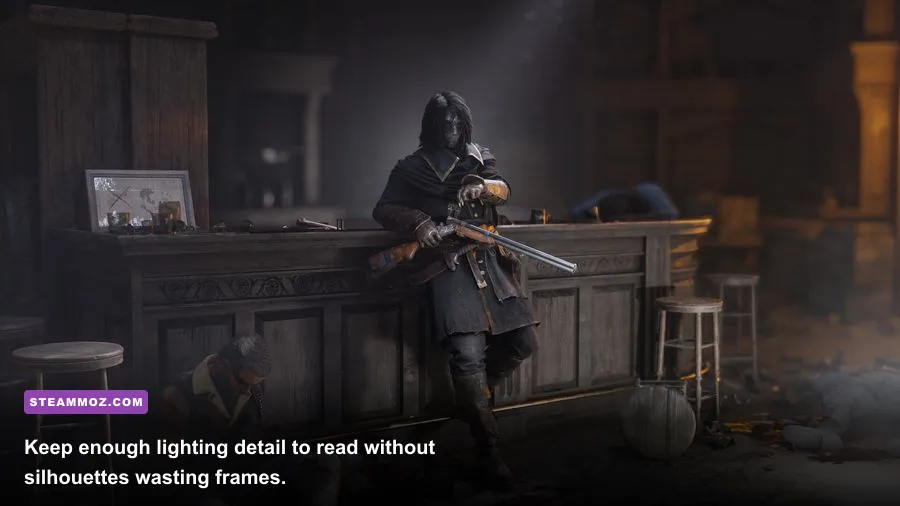
Upscaling is most useful at 1440p and 4K. DLSS Quality is generally the first option to test on compatible GeForce RTX cards, while FSR Quality gives Radeon and other systems a strong alternative. At 1080p, both technologies have fewer source pixels to work with, so distant hunter heads, wire fences, and branches can look softer or shimmer more than they do at native resolution.
Start with Quality, not Performance. Balanced can make sense when a 4K system is GPU-bound, but Performance should be a last resort for an entry-level card chasing 60 FPS. In a game built around spotting a rifle barrel through foliage, a large FPS number is not worth losing the tiny visual cue that tells you where the enemy is holding.
Use one reconstruction method at a time. Do not combine an aggressive upscaler with a very low resolution scale and then compensate with extreme sharpening. That recipe creates ringing around branches and bright outlines around doors. If the game exposes a sharpening slider, make small changes and test at distance; the correct value is the one that restores texture definition without turning foliage into crawling noise.
Anti-aliasing is also a tracking decision. A temporal option such as SMAA 1TX can reduce shimmer while panning, though it may soften the image. A crisper setting can look better in a still screenshot but produce distracting flicker as you rotate. Disable Motion Blur regardless. It does not meaningfully improve performance and only hides information during a quick turn, a vault, or a panic reload.
Best Profiles for 1080p, 1440p, and 4K
Your target should determine the profile. A 1080p player with a mid-range GPU can often prioritize native clarity and a high refresh cap. At 1440p, Quality upscaling is a sensible compromise. At 4K, native rendering is brutally expensive in dense compounds, so DLSS or FSR becomes part of the baseline rather than an emergency fix.
| Target System | Core Preset | Upscaling | Recommended FPS Cap |
|---|---|---|---|
| 1080p, GTX 1660 Super or RX 5600 XT class | Low/Medium mix, Textures Medium, Shadows Low | Off first; Quality if GPU-limited | 60 or 90 FPS |
| 1080p, RTX 3060 or RX 6600 XT class | Medium Object Quality, Medium/High Textures | Off or Quality | 90, 120, or monitor refresh rate |
| 1440p, RTX 3060 Ti to RTX 4070 class | Medium settings with Low Shadows and Effects | DLSS Quality or FSR Quality | 90 or 120 FPS |
| 1440p, RX 6700 XT or faster | Medium/High textures, Medium world detail | FSR Quality; test native too | 90 or 120 FPS |
| 4K, RTX 4070 Super or faster | Medium world detail, High textures if VRAM permits | DLSS Quality or Balanced | 60 or 90 FPS |
| Older 4GB GPU | Low Object Quality, Medium or Low Textures | Quality or Balanced | 60 FPS |
Those are starting points, not guaranteed results. Hunt's maps, weather, compound density, and player count all affect frame time. The official Hunt: Showdown 1896 Steam page lists the current system requirements, but treat them as a floor rather than a promise of a locked high-refresh experience. Check the official Hunt website and Steam news feed after major engine or graphics updates because settings and performance can shift between patches.
CPU, VRAM, and Frame-Time Fixes
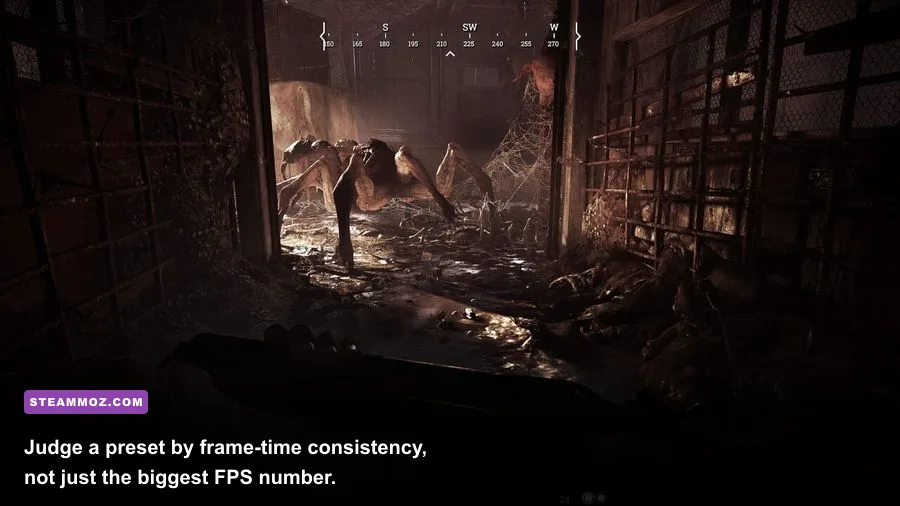
Not every Hunt performance problem is a graphics-setting problem. If GPU usage sits at 70% while one or more CPU threads are saturated, lowering resolution will barely help. That is a CPU limit. Object Quality and View Distance are the first in-game settings to test, because they reduce world-management work. An FPS cap can also smooth delivery by stopping the processor from chasing an unstable maximum.
Cap below your practical average, not your dream number. If a match fluctuates between 105 and 144 FPS, a 100 or 110 cap can feel substantially cleaner than an uncapped counter. Use the in-game limiter if it behaves consistently; otherwise, a driver-level cap can help. Leave a small amount of headroom so explosions, AI, and the banish sequence do not immediately slam into the ceiling.
VRAM pressure creates a different kind of misery: texture pop-in, hitching, and sudden pauses when moving between compounds. Medium Textures are a safe choice on 4GB cards. Cards with 8GB or more can usually test High Textures, but monitor usage rather than assuming the setting is free. Close browsers, recording tools, RGB utilities, and unnecessary overlays while testing. The Steam overlay, Discord overlay, GeForce Experience, and capture software can each complicate frame-time diagnosis.
Use a repeatable test. Load the same training area, sprint through a compound, aim down sights at distant foliage, fire several weapons, and then repeat in a live match. Watch average FPS, one-percent lows, GPU utilization, CPU frame time, and VRAM. An overlay from your GPU software or a tool such as PresentMon is more useful than staring at the built-in counter for ten seconds. If shader compilation or a driver update causes temporary stutter, give the game a few minutes to rebuild caches before deciding the preset failed.
For broader PC troubleshooting, Steamoz's smooth FPS settings guide covers frame caps and frame-time thinking, while the GTA V Enhanced specs breakdown is useful when you are comparing an older CPU or GPU against a newer upgrade.
Final Hunt: Showdown 1896 Tuning Checklist
Apply the changes in this order: choose fullscreen, confirm native resolution, set resolution scaling to 100%, select Medium Object Quality, cut Shadows and Effects to Low, keep Textures at the highest level your VRAM can handle, and use DLSS or FSR Quality only when the GPU is the bottleneck. Turn Motion Blur off, keep Filtering at 8x, and cap FPS to a number your system can sustain during compound fights.
Then test the settings with a purpose. If the GPU is pinned, lower upscaling quality or resolution scale. If the CPU is the limiter, lower Object Quality and cap the frame rate. If the game looks smeared, return from Balanced or Performance to Quality before raising sharpening. If dark buildings become unreadable, restore Lighting to Medium instead of raising every setting at once.
The Penitent will look exactly as threatening on this performance profile as on a cinematic one, and that is the point. In Hunt, the winning visual advantage is not glossy water or perfect shadow maps. It is a clean sight picture, consistent frame delivery, and enough detail to separate a hunter from the swamp before the first shot cracks. Lock that down, and you can spend the match listening for footsteps instead of fighting your graphics menu.
For official technical notes, keep an eye on the Hunt news archive. Major patches can reset settings or change how upscaling behaves, so revisit this profile after every substantial engine update rather than assuming yesterday's frame rate will still be there.