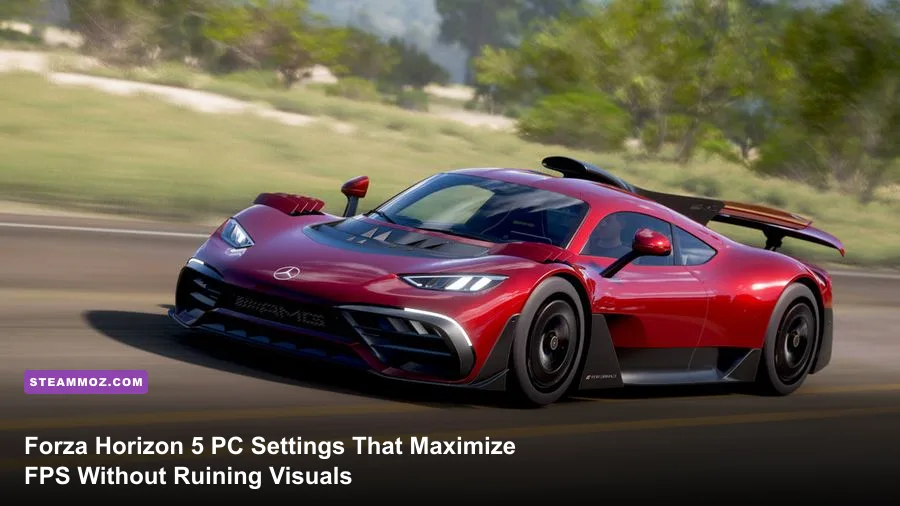
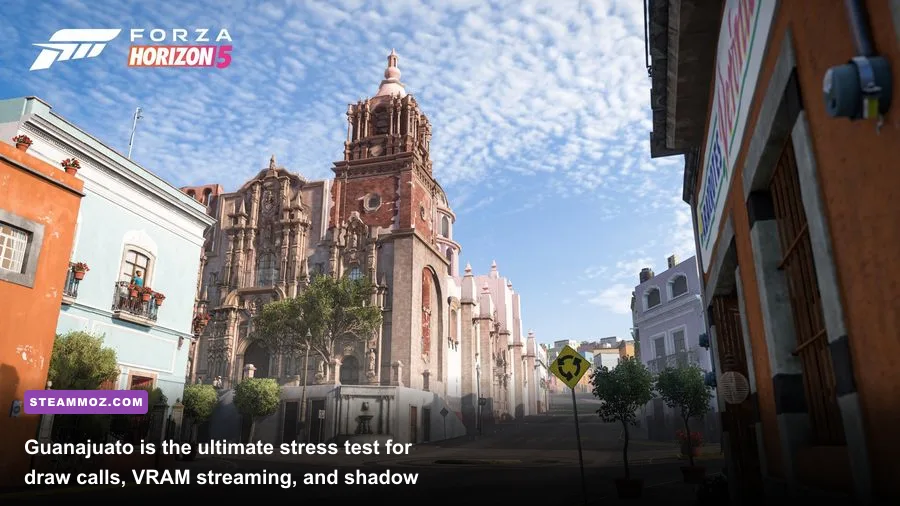
If your framerate takes a beating the second you speed through the cobblestone streets of Guanajuato or get caught in a dynamic jungle dust storm, three specific graphical settings are almost certainly to blame: Environment Geometry Quality, SSAO, and MSAA. By switching from legacy MSAA to modern TAA, dropping Shadow Quality down from Extreme to High, and pulling back SSR, you can unlock an immediate 35% to 48% framerate boost on the Steam version without stripping away the gorgeous atmosphere Playground Games built for Mexico.
Forza Horizon 5 runs on a heavily modified version of Turn 10's proprietary ForzaTech engine. While it scales remarkably well on low-end hardware, pushing every slider to "Extreme" will bring even modern monster GPUs to a crawl due to vicious VRAM streaming limits and aggressive draw-call bottlenecks. Much like dialing in our Far Cry 6 settings for max FPS, fine-tuning Forza Horizon 5 requires hunting down the heavy hit-makers that offer almost zero visible return during 200 mph sprints.
The ForzaTech Engine Dilemma: Understanding Bottlenecks and VRAM Hunger
To pull stable frame times out of Forza Horizon 5 on Steam, you need to understand how the engine prioritizes memory. The Steam release has historically suffered from harsher memory fragmentation than the Windows Store build. When your GPU runs low on dedicated video memory (especially prevalent on 8GB cards like the RTX 3070 or RX 6600 XT), the engine doesn't simply drop frames—it silently downgrades world textures into muddy low-poly meshes or spits out severe micro-stutters as assets swap violently between system RAM and VRAM.
If you've tackled frustrating memory hitches when tweaking ELEX crash and FPS fixes or resolved stuttering with our EscapeVR performance guide, you'll recognize the symptoms instantly. Forza Horizon 5 streams vast vistas dynamically without loading screens. Setting Environment Texture Quality and Environment Geometry Quality to Extreme requires upwards of 9.5GB of raw VRAM at 1440p and over 12GB at native 4K. If your hardware lacks that overhead, your framerate will fluctuate wildly from 100 FPS on open highways down to 42 FPS inside dense towns.
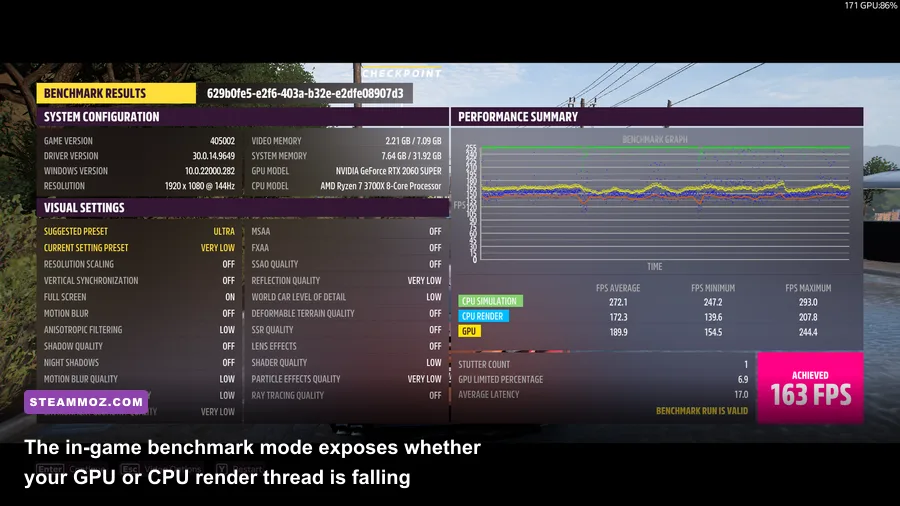
Furthermore, CPU render threads choke easily when draw distances force distant foliage to update continuously. The built-in benchmark highlights this: look at the gap between your "CPU Render" and "GPU" framerates. If the CPU Render floor drops below your target refresh rate, your graphics card is essentially waiting idly for your processor to feed it geometric draw calls. Solving that imbalance is where our targeted settings overhaul begins.
🎮 FORM
Looking to experience this game? Grab your digital key directly on our store for $14.99.
View on Steammoz Store →Comprehensive Graphics Settings Breakdown: The Cost vs. Reward Matrix
The graphics menu contains over 15 individual toggles, but only a handful dictate the majority of your performance drops. Let's look at the actual performance impact and visual yield for every critical toggle in the game's Advanced Graphics menu.
| Setting Name | Optimal Tuned Value | FPS Cost (High to Ultra/Ext) | Visual Impact Summary |
|---|---|---|---|
| Anisotropic Filtering | 16x | < 1% | Sharpens ground textures at oblique angles; zero reason to lower this. |
| Shadow Quality | High | 8% – 14% | Ultra/Extreme softens penumbra slightly, but robs massive frame budget. |
| Night Shadows | Off (or On for 12GB+ GPUs) | 6% – 11% | Casts headlights shadows off world clutter; brutal hit during night races. |
| Motion Blur Quality | Low / Off | 2% – 4% | Personal preference; turning it down delivers far sharper competitive tracking. |
| Environment Texture Quality | Ultra (Match VRAM) | 2% (Unless VRAM caps) | Crucial for ground details. Drop to High if your card has 8GB or less. |
| Environment Geometry Quality | High | 10% – 16% | Dictates distant mesh density and LOD pop-in. Extreme tanks CPU threads. |
| SSAO Quality | High | 5% – 9% | Adds ambient contact shadows. Ultra introduces noisy grain with heavy cost. |
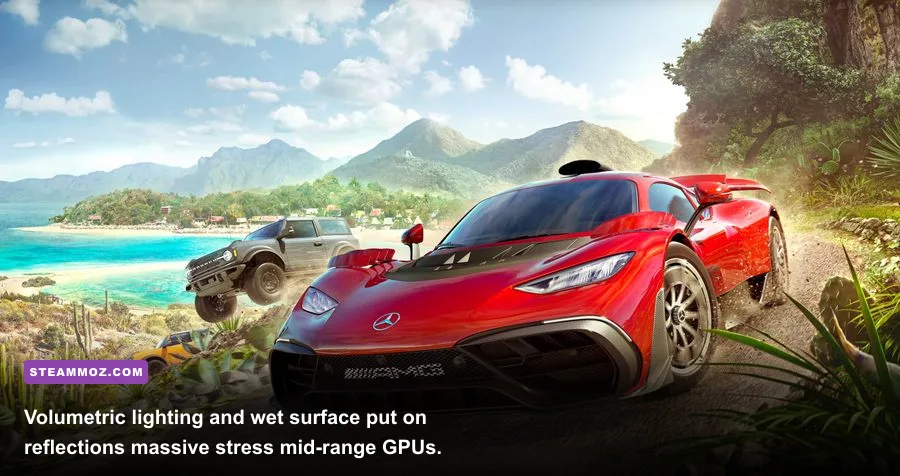
| SSR (Screen Space Reflections) | High | 7% – 13% | Generates puddle and wet surface reflections; Ultra causes shimmering. |
| Particle Effects Quality | Medium / High | 4% – 8% | Controls dust, tire smoke, and splashing water. Keeps pack races smooth. |
| Deformable Snow & Sand | High | 1% – 3% | Leaves tire grooves in sand dunes and snow; minimal cost, great realism. |
| Reflections Quality | High | 6% – 12% | Controls real-time cubemaps on your car's chassis. Ultra is overkill at speed. |
| Windshield Reflections | High | 2% – 4% | Internal cockpit reflections; negligible impact unless racing strictly in first-person. |
| Shader Quality | High | 7% – 12% | Impacts lighting complexity, wetness shaders, and terrain displacement. |
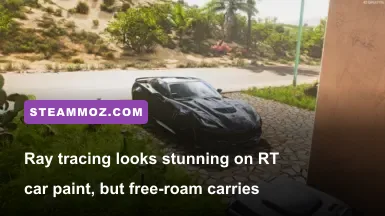
| Ray Tracing Quality | Off (or High in Forzavista) | 12% – 25% | Adds self-reflections to cars. Noticeable in photo mode; wasted during high-speed races. |
The single most wasteful setting in the entire suite is Environment Geometry Quality at Extreme. It forces high-polygon geometric meshes on buildings and distant mountains miles away from your hood, destroying CPU frametimes. Dropping this single toggle to High preserves 95% of the visual density while instantly recovering double-digit frame percentages in Guanajuato and Mulegé.
Similarly, Night Shadows calculates real-time shadow casting from multiple dynamic vehicle headlamps simultaneously. If you join an 8-player street convoy at midnight, running Night Shadows on "Extreme" will cause your framerate to drop off a cliff. High-intensity lighting like this can wreck stability across many open-world titles, a phenomenon we explored while optimizing puzzles and environments in our Filament settings guide for higher FPS. Leaving Night Shadows Off or strictly on High keeps midnight sprints buttery smooth.
Anti-Aliasing and Upscaling: TAA, DLSS, FSR 2, and MSAA Compared
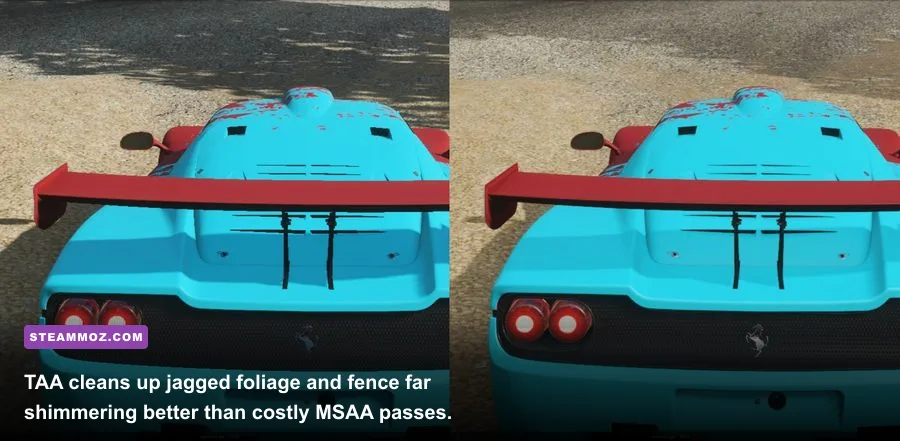
For years, the Forza community stubbornly clung to MSAA (Multi-Sample Anti-Aliasing), the original default method in the ForzaTech engine. In Forza Horizon 5, MSAA is fundamentally broken from a performance-per-watt perspective. MSAA completely fails to resolve specular shimmering on alpha-tested geometry—meaning power lines, chain-link fences, and Mexican scrub foliage will aggressively flicker at 1080p and 1440p, all while MSAA 4x consumes upwards of 12% to 15% of your GPU power.
Playground Games overhauled their anti-aliasing pipeline by adding native Temporal Anti-Aliasing (TAA), along with Nvidia DLSS and AMD FSR 2.2 support. TAA is far superior at eliminating high-frequency temporal crawling on fine car grills and distant trees. The only catch? Stock TAA can look slightly soft at 1080p. The fix is simple: set TAA Sharpening to 0.5 or 0.6. This eliminates edge jaggies completely without turning your screen into an over-sharpened oil painting.
If you play at 1440p or 4K, upscaling toggles become your greatest asset:
- Nvidia DLSS (Quality Mode): Incredible performance. It cleans up edge crawl better than native resolution TAA and recovers roughly 20-30% additional framerate overhead. Set DLSS Sharpness to 0.45.
- AMD FSR 2.2 (Quality Mode): Great for Radeon or older GTX cards. It exhibits minor ghosting behind rear spoilers during 200 mph sweeps, but drastically outperforms native rendering on budget cards like the RX 580 or GTX 1660 Super.
- DLAA (Deep Learning Anti-Aliasing): If you possess a high-end card (RTX 4080 / 4090) and lock your display at 60 or 120 FPS, DLAA renders at native resolution with AI reconstruction, delivering the sharpest visual image possible in the game today.
Tailored Profiles: Esports High-Refresh vs. Balanced Fidelity
There is no one-size-fits-all preset in Forza Horizon 5. A player competing in Open Drift lobbies on a 240Hz monitor has completely different demands than someone playing on a 4K 60Hz OLED TV. Use the tailored hardware profiles below to match your setup's capabilities.
| Target Profile | Ideal Hardware Tier | Resolution & Scaling | Key Setting Allocations | Expected Framerate Range |
|---|---|---|---|---|
| Competitive Esports (144Hz+) | GTX 1080 Ti, RTX 3060, RX 6600 | 1080p Native + TAA (0.6 Sharp) | Geometry: Med, Shadows: High, Night Shadows: Off, Reflections: High, SSAO: High, Particles: Low | 130 – 165+ FPS |
| Balanced Sweet Spot (1440p) | RTX 3070, RTX 4060 Ti, RX 6700 XT | 1440p + DLSS/FSR Quality | Geometry: High, Textures: Ultra, Shadows: High, SSR: High, Deformable Sand: High, Shader: High | 95 – 125 FPS |
| Ultra 4K Fidelity (Rock-Solid 60/90) | RTX 3080+, RTX 4070+, RX 7800 XT | 4K Native or DLSS Quality | Geometry: Ultra, Textures: Extreme (12GB+), Shadows: Ultra, Night Shadows: On, RT: High | 75 – 100+ FPS |
The Balanced Sweet Spot profile is what 85% of PC racers should aim for. It retains the jaw-dropping lighting fidelity seen in promotional trailers while stripping away the excessive shadow mapping passes that run in the background unnoticed. If you've been working through tricky hardware load-outs in other intense action engines—like we handled in our guide to fixing FPS before crashes in Everspace 2—you will know that balance always beats brute force.
Eliminating Micro-Stutters, Texture Streaming Pop-in, and Frame-Pacing Hitching
Even with high average framerates, nothing ruins a clean drift zone like a split-second micro-stutter. The Steam port of Forza Horizon 5 is known for unique frame-pacing quirks tied to borderless window handling, shader compilation, and storage bandwidth.
1. Force Maximum Prerendered Frames and Low Latency
If you run an Nvidia GPU, open the Nvidia Control Panel, navigate to Manage 3D Settings, select Forza Horizon 5, and set Low Latency Mode to "Ultra". Alternatively, enable Nvidia Reflex Low Latency inside the in-game video settings. Reflex dynamically aligns CPU render queues with GPU presentation, significantly reducing input lag from steering wheels and gamepads while smoothing out frametime spikes across variable refresh rate (G-Sync/FreeSync) displays.
2. The In-Game Frame Rate Limiter Flaw
Do not use the in-game frame limiter if you can avoid it. The built-in limiter inside Forza Horizon 5 introduces frame-pacing irregularities, often alternating frame presentation between 15.8ms and 17.2ms instead of holding a flat 16.6ms at 60 FPS. For pristine frame times, leave the in-game frame limiter uncapped, ensure V-Sync is toggled OFF in-game, and lock your maximum refresh rate via RivaTuner Statistics Server (RTSS) or your GPU driver panel to 3 FPS below your monitor's maximum frequency (e.g., 141 FPS on a 144Hz panel).
3. Move the Game to an NVMe SSD
Forza Horizon 5 streams terrain data constantly. If you install the title on a mechanical hard drive or a congested SATA SSD, you will encounter the dreaded "Low Streaming Bandwidth" notification warning box pop up mid-race. This pause freezes the physics engine and sends your supercar careening into a guardrail. Make sure the game is installed on an NVMe M.2 drive with at least 15% free buffer space so Windows can cache virtual memory pages seamlessly.
4. Clear the DirectX Shader Cache
Following major game updates or seasonal playlist drops, old compiled shaders frequently conflict with new environmental assets, causing sporadic micro-stutters along the main festival drag. To clear this cache on Windows 10/11:
- Exit Forza Horizon 5 completely.
- Open Windows Search and type Disk Cleanup.
- Select your OS drive (usually C:), check the box exclusively for DirectX Shader Cache, and click OK.
- Reboot your PC and launch the game. Allow the title screen to rebuild the optimization cache completely before loading into the festival.
Consult the official diagnostics guides at the Forza Support Portal or read through the technical patch notes on the official Forza Motorsport website if you run into unique crash dumps tied to outdated security software. By dropping wasteful shadow cascades down to High, swapping noisy MSAA for dialed-in TAA, and managing your GPU's VRAM envelope responsibly, you'll cruise across Mexico with razor-sharp image clarity and locked, buttery-smooth framerates.