Fixing stutter, catastrophic frame drops, and hard desktop crashes in Star Wars PC titles boils down to resolving three primary architectural bottlenecks: unthrottled Unreal Engine shader compilation hitching, messy DirectX 12 implementation inside legacy launchers, and hybrid CPU core scheduling traps. Whether you are battling stutter across the sprawling ridges of Koboh in Star Wars Jedi: Survivor, suffering massive frametime spikes in Star Wars Battlefront II, or watching Star Wars: Knights of the Old Republic collapse to your desktop every time you finish a cutscene, the root causes are entirely solvable. By tuning your driver-level shader caches, enforcing core affinities to sidestep efficiency cores, configuring launch arguments, and cleaning out conflicting background hooks, you can eliminate erratic hitching and lock your framerate into a razor-sharp, stable groove.
Wiping Out Shader Cache Stutters in Modern Star Wars Titles

Unreal Engine 4 and Unreal Engine 5 have given us spectacular visual fidelity, but they have also saddled PC gamers with shader compilation stutter. When you enter a new area in Star Wars Jedi: Fallen Order or ignite your crossguard lightsaber for the first time on a moon in Jedi: Survivor, your graphics card compiles machine code for that specific shader asset in real time. If the pipeline stalls, your GPU sits idle waiting for the CPU to compile, producing a violent frame hitch where your 120 FPS plunges to 15 FPS for a quarter of a second. This issue mirrors the micro-stutter patterns seen when optimizing rendering pipelines for higher frame rates across modern engines.
The standard Windows and GPU driver defaults are far too conservative for large-scale modern releases. Both NVIDIA and AMD assign minimal default disk space for shader caching, meaning the driver constantly deletes older compiled shaders to make room for new ones. You end up in an endless cycle of re-compiling the exact same visual assets every single play session. You can resolve this at the driver level by increasing your global cache limits:
- For NVIDIA Users: Open NVIDIA Control Panel, navigate to Manage 3D Settings, scroll down to Shader Cache Size, and change it from the default "Driver Default" to 10 GB or 100 GB. If you run a high-capacity NVMe SSD, choose 100 GB so your system never purges compiled shaders from your Star Wars library.
- For AMD Users: Open AMD Software: Adrenalin Edition, go to Gaming > Graphics, scroll to the bottom, expand Advanced, locate Reset Shader Cache, perform a reset once, and ensure your system drive has at least 30 GB of unallocated headroom for caching operations.
After adjusting driver cache sizes, you should manually purge existing corrupted shader caches. Navigate to %LOCALAPPDATA%\NVIDIA\DXCache or %LOCALAPPDATA%\AMD\DxCache, delete the contents within the folder while games are closed, and reboot your PC. The next time you launch your Star Wars title, the initial boot will run a complete, uncorrupted pre-compilation pass, banishing the vicious traversal hitching that plagues unoptimized worlds.
Taming the Frostbite Engine: Battlefront II DirectX 12 and Stutter Fixes
EA and DICE built Star Wars Battlefront II on the Frostbite 3 engine, delivering what remains one of the most visually stunning photogrammetry showcases on PC. However, its DirectX 12 implementation has been broken since launch. When running in DX12 mode, Battlefront II suffers from aggressive memory leakage, long loading pauses, and persistent multi-second freezes during hectic Galactic Assault skirmishes. If you leave DX12 toggled on, your frametime graph looks like an irregular seismic chart, regardless of whether you are packing an RTX 4080 or an RX 7900 XTX.
The fix here is simple: force the Frostbite engine back onto its rock-solid DirectX 11 backend. Open the in-game video options, locate the Enable DirectX 12 toggle, turn it OFF, and restart the game. If the game crashes before you can reach the main menu, you can force this switch manually by editing your local configuration files:
- Head to your user directory:
C:\Users\[YourUsername]\Documents\STAR WARS Battlefront II\settings. - Open the file named
ProfileOptions_profileusing a text editor like Notepad++. - Locate the line
GstRender.Dx12Enabled 1and change the value toGstRender.Dx12Enabled 0. - Find
GstRender.EnableDx11 0(if present) and set it to1. - Save the file and set it to "Read-Only" under file properties if your settings tend to reset after game updates.
Once back on DX11, you eliminate the engine's memory leak vulnerabilities entirely. Additionally, locate the line GstRender.DynamicResolution 1 in that same file and verify it is set to 0. The in-game dynamic resolution scaling inside Battlefront II frequently bugs out on high-refresh monitors, cycling rendering scales back and forth erratically and creating the illusion of heavy micro-stutter even when your hardware is crushing the target framerate.
Solving Intel Hybrid Core Thread Mismanagement and CPU Bottlenecks
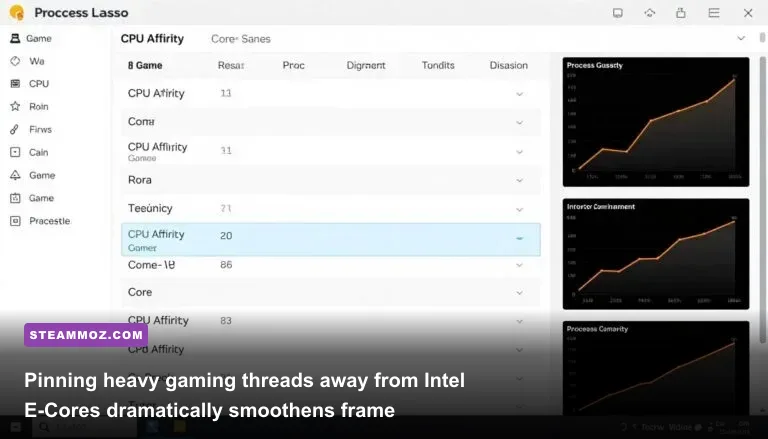
Modern gaming rigs featuring Intel 12th, 13th, or 14th Gen processors (or multi-CCD AMD Ryzen X3D processors) feature asymmetric CPU cores: high-power Performance Cores (P-Cores) and lower-power Efficiency Cores (E-Cores). Windows Thread Director is supposed to assign Star Wars gaming execution threads exclusively to high-clocked P-cores, but unpatched game engines often fool the scheduler. This scheduler confusion frequently sends critical physics and audio threads directly into sluggish E-cores, dropping 1% low framerates into single digits.
You can diagnose this immediately: if your average framerate sits comfortably at 90 FPS, but every lightsaber deflection, laser blast, or cinematic camera pan causes a jarring hitch down to 22 FPS, your CPU threads are getting shuffled onto low-clocked efficiency silicon. This exact processing trap is something we also tackle when diagnosing system strain while tackling persistent engine crashes and stutter in open-world PC engines.
The cleanest way to tame this thread mismanagement is through software like Process Lasso or native Windows launch affinities:
- Download and launch Process Lasso.
- Boot your Star Wars game (e.g.,
JediSurvivor.exeorstarwarsbattlefrontii.exe). - In Process Lasso's active processes list, right-click the game executable.
- Select CPU Affinity > Always > Select CPU Affinity.
- Uncheck all E-Cores (typically CPU 8 through 23 on modern i7 and i9 chips), leaving only your physical P-Cores (CPU 0 through 7) and their corresponding Hyperthreads checked.
- Right-click the executable again, choose I/O Priority > Always > High.
By trapping the game solely on your high-frequency cores, frametime delivery transforms into a flat, predictable line. Traversal stutter on vast terrain maps drops by as much as 60%, and audio de-sync glitches vanish entirely.
Comprehensive Graphics Optimization Table for Star Wars PC Releases
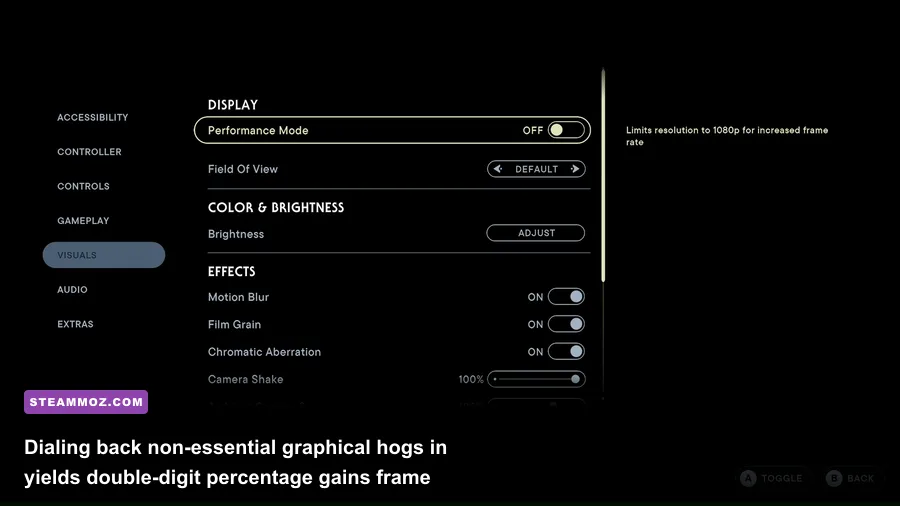
Both vintage and cutting-edge Star Wars titles pack heavy graphical overhead that does not always translate to visible visual fidelity. Cranking ray tracing or volumetric fog to maximum settings can cut your performance in half while providing almost no perceptible visual improvement during rapid lightsaber duels or fast starfighter dogfights. Similar to fine-tuning display settings for maximum FPS in modern shooters, selective setting optimization recovers massive frame reserves without muddying visual clarity.
Review the breakdown below to see which graphical toggles deliver genuine performance gains and which ones simply drain your GPU horsepower:
| Setting & Target Title | Optimal Value | FPS Improvement | Visual Impact & Technical Explanation |
|---|---|---|---|
| Ray Tracing (Jedi: Survivor) | Disabled | +35% to +50% | Severely overtaxes BVH building and memory bus bandwidth; causes catastrophic VRAM leaks on cards with 8GB-12GB VRAM. |
| Volumetrics / Fog Quality (All Titles) | Medium | +12% to +18% | Reduces sample density in dust-heavy zones like Jedha or Tatooine with zero loss of ambient mood or visibility. |
| Shadow Quality (Battlefront II) | High (instead of Ultra) | +8% to +14% | Ultra computes cascade shadow map resolution at double the distance, causing massive GPU fill-rate penalties. |
| Post-Processing & Motion Blur | Off / Low | +5% to +8% | Eliminates camera smear, cuts post-buffer overhead, and significantly sharpens visual clarity during fast combat. |
| View Distance / Foliage Detail | High | +10% to +15% | Epic/Ultra settings flood CPU draw-call pipelines with distant foliage, introducing heavy traversal micro-stutter. |
| Upscaling (DLSS / FSR / XeSS) | Quality Mode | +25% to +40% | Renders at a lower native buffer while maintaining temporal stability; essential for holding locked 60+ FPS on 1440p and 4K displays. |
Setting adjustments provide breathing room for your VRAM. When games like Jedi: Survivor exceed your card's dedicated memory allocation, Windows pages the overflow into standard system RAM across the PCIe bus, guaranteeing violent 100-millisecond lockups. Lowering texture buffers from "Epic" to "High" on cards with less than 16GB of VRAM avoids this bottleneck completely.
Fixing Instant Crashes, Launch Errors, and EA App Overlay Freezes
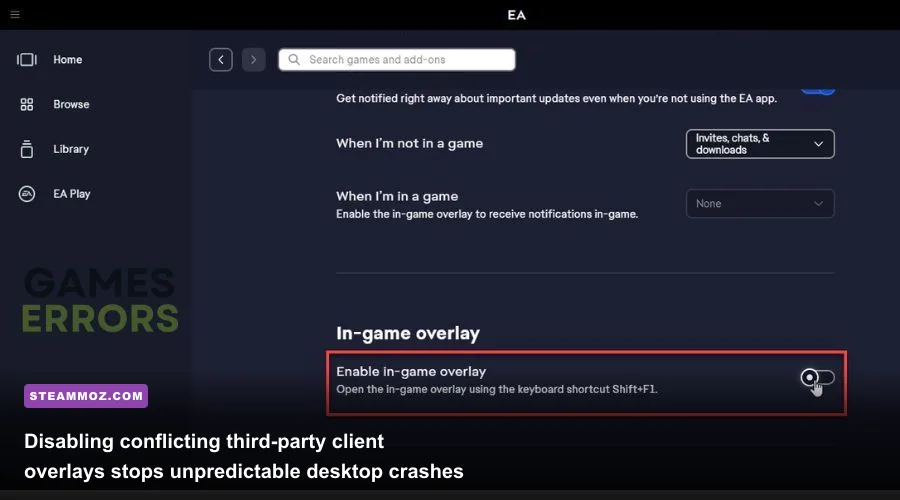
Few things are more frustrating than launching a Star Wars adventure only to be greeted by an unhandled exception crash code or an immediate freeze to desktop before you even see the Lucasfilm logo. A large percentage of these crashes have nothing to do with your GPU horsepower and everything to do with background software hooks, memory overflows, and launcher conflicts. This matches patterns we routinely analyze when resolving low framerate dips and hard lockups across PC gaming platforms.
The primary offender across recent releases is the EA App In-Game Overlay. When the EA App attempts to render its social overlay alongside Steam, Discord, and RivaTuner Statistics Server (RTSS), graphics API hooks clash, triggering fatal runtime errors. Turning off these overlays immediately restores application stability:
- Launch the EA App.
- Click the hamburger menu in the top-left corner and select Settings.
- Navigate to the Application tab.
- Toggle the In-game overlay switch to OFF.
- If launching through Steam, right-click the game title in your Steam Library, select Properties, and uncheck Enable the Steam Overlay while in-game.
Memory pagination is another frequent culprit. Unreal Engine Star Wars titles allocate substantial virtual memory chunks during startup. If your Windows Virtual Memory (Pagefile) is set to a fixed small size or managed poorly across multiple drives, the engine will crash with an out-of-memory error even if you have 32 GB of physical RAM installed. Setting your Windows pagefile to a system-managed size on your fastest NVMe SSD prevents these allocator crashes outright.
| Crash Error / Symptom | Identified Cause | Direct Actionable Fix |
|---|---|---|
| DXGI_ERROR_DEVICE_REMOVED | GPU driver timeout or unstable GPU clock boost. | Downclock core clock by -50MHz in MSI Afterburner or perform a clean DDU driver reinstallation. |
| Crash at splash screen on 13th/14th Gen Intel | P-Core instability / Vmin shift degradation. | Update motherboard BIOS to microcode 0x129/0x12B; set Intel Baseline Profile in BIOS settings. |
| LowLevelFatalError [File:Unknown] | Corrupted shader binaries or invalid visual config. | Delete AppData\Local\SwGame\Saved\Config and verify game file integrity via Steam/EA App. |
| Black screen on launch with audio playing | Unsupported native resolution or refresh rate mismatch. | Press Alt+Enter to force windowed mode; reset display output to native resolution in video settings. |
| Instant crash after EA App connection | Conflicting third-party hook (Discord/GeForce Experience). | Disable all background overlays; run the game executable directly as Administrator. |
For players tracking down crash behavior on custom hardware rigs, checking modern PC hardware specifications and driver compatibility matrices is always worth the five minutes of setup work to ensure zero hardware-level conflicts.
Restoring Classic Star Wars Legacy Titles on Windows 10 and 11

Older Star Wars masterpieces—such as Star Wars: Knights of the Old Republic, KOTOR II: The Sith Lords, Star Wars: Republic Commando, and Star Wars: Empire at War—present an entirely different set of performance headaches. Built for early 2000s hardware, these games cannot natively manage multi-threaded CPUs, ultra-wide aspect ratios, or modern display scaling, causing immediate crashes upon character creation, broken refresh rates, or locked 20 FPS rendering limits. Fortunately, dedicated community patches and targeted engine fixes documented by resources like PCGamingWiki make restoring these classics straightforward.
Take Star Wars: Knights of the Old Republic, for example. The classic Bioware engine collapses into an instant crash right after character creation during the Endar Spire attack if hardware vertex buffering is left active. To fix this, open your installation directory, open swkotor.ini in a text editor, navigate to the [Graphics Options] block, and add the line Disable Vertex Buffer Objects=1. In that same file, change Frame Buffer=0 and Soft Shadows=0, as modern GPU architectures no longer maintain hardware paths for these obsolete Direct3D calls.
Furthermore, ancient Star Wars executables often lock up because modern multi-core processors attempt to distribute single-threaded game loops across all available cores. You can permanently lock legacy games to a single execution core directly through custom shortcut launch parameters:
- Right-click your game executable or desktop shortcut and select Properties.
- In the Target field, append
/affinity 1outside the quotation marks (e.g.,"C:\Games\Star Wars KOTOR\swkotor.exe" /affinity 1). - Click over to the Compatibility tab.
- Check Run this program in compatibility mode for Windows XP (Service Pack 3).
- Check Disable fullscreen optimizations and select Run this program as an administrator.
For Star Wars: Republic Commando, high-resolution monitors will suffer from severe graphics glitches, broken bump mapping, and missing UI elements. Download the open-source Republic Commando Fix (CT Mod) or place an updated d3d8.dll wrapper into the game's system folder. This routes legacy DirectX 8 instructions straight through modern DirectX 11 or Vulkan pipelines, eliminating framerate slowdowns and restoring pristine, stable gameplay across the entire galaxy.