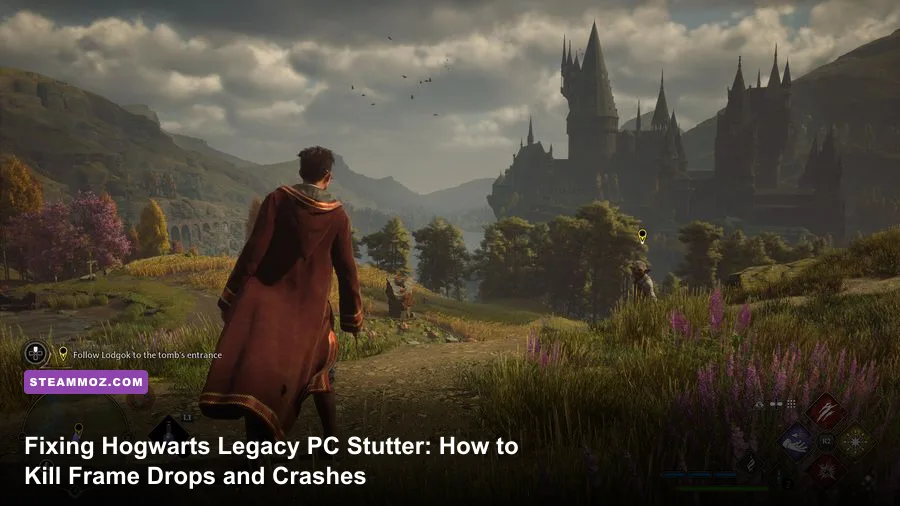
If your journey through the wizarding world feels like a slideshow punctuated by sudden crashes to your desktop, you are not alone. The stuttering, low frame rates, and violent frame drops in Hogwarts Legacy on Steam are caused primarily by three technical bottlenecks: aggressive VRAM saturation that penalizes 8GB graphics cards, Unreal Engine 4 asset streaming hiccups during cell transitions, and Windows memory allocation limits that choke your system pagefile. You can eliminate roughly 80 percent of these micro-stutters immediately by increasing your Windows Virtual Memory to 32GB, editing specific memory streaming parameters inside your Engine.ini configuration file, turning off Ray Tracing entirely, and locking in custom Nvidia/AMD driver shader cache ceilings.
The Root Causes of Hogwarts Legacy's PC Performance Nightmares
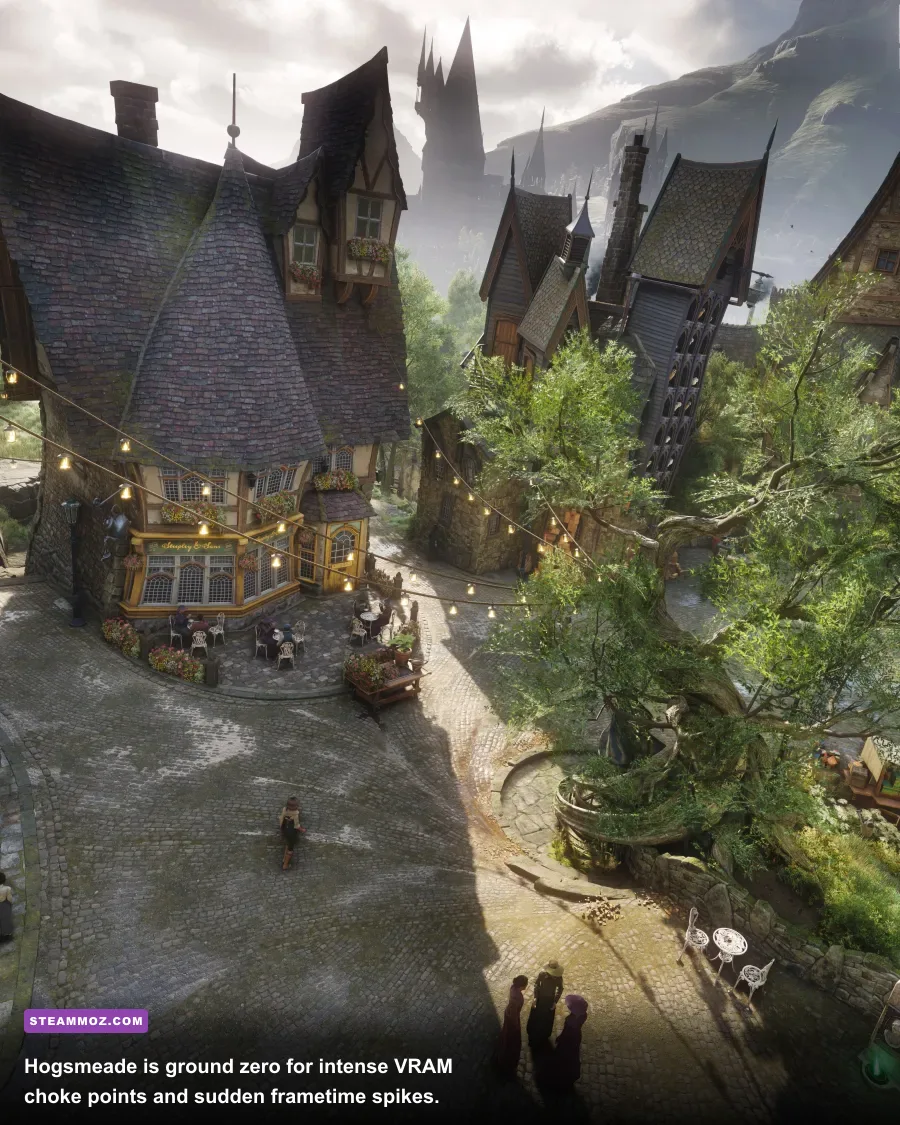
Avalanche Software built an astonishingly detailed digital recreation of the Wizarding World, but beneath the gorgeous gothic arches sits an unpolished implementation of Unreal Engine 4.32 combined with DirectX 12. Unlike traditional corridor action games, Hogwarts seamlessly blends massive exterior terrain cells with intricate, asset-heavy castle interiors like the Central Hall and Library. When you sprint down a corridor or fly toward Hogsmeade on a broom, the engine aggressively dumps and loads textures into VRAM on the fly.
If your graphics card features 8GB of VRAM—such as the RTX 3070, RTX 3060 Ti, or RX 6600 XT—the game routinely runs out of high-speed video memory. The moment your VRAM fills up, the engine spills data over system RAM via your motherboard's PCIe lanes. Because system RAM is drastically slower than GDDR6 or GDDR6X, your frame rate plummets from 75 FPS down to a crawling 14 FPS for two or three agonizing seconds. Similar asset-streaming issues plague other dense open-world titles, as detailed in our guide on ELEX PC fixes that stop crashes and rescue your FPS.
Compounding this is Hogwarts Legacy's real-time shader compilation pipeline. While the title forces a shader preparation screen upon initial boot, it fails to compile every micro-shader required for dynamic combat spells like Incendio, Confringo, and ancient magic finishers. When an enemy casts a shield charm or triggers an explosive barrel for the first time during a play session, your CPU spikes to 100 percent load on its primary thread, creating noticeable frametime spikes that register as jarring micro-stutters.

🎮 Hogwarts Legacy
Looking to experience this game? Grab your digital key directly on our store for $59.99.
View on Steammoz Store →Essential Engine.ini Tweaks to Eliminate Texture Hitching
The most effective community-engineered fix doesn't require downloading third-party mod executables. Instead, you can inject refined memory management commands directly into the engine's master configuration file. This forces the streaming system to reserve a permanent, rigid pool of memory rather than constantly negotiating allocations with Windows.
Before proceeding, close the game completely. Press Windows Key + R to launch the Run dialog, paste the following directory path, and press Enter:
%LOCALAPPDATA%\HogwartsLegacy\Saved\Config\WindowsNoEditor
Locate the file named Engine.ini. Right-click the file and open it with Notepad. Scroll straight to the bottom of the document, create a new line, and paste the following parameters:
[SystemSettings]
r.TextureStreaming=1
r.Streaming.PoolSize=3072
r.Streaming.LimitPoolSizeToVRAM=1
r.bForceCPUAccessToGPUBuffer=0
r.CreateShadersOnLoad=1

[ConsoleVariables]
wp.Runtime.HLOD=1
r.FinishCurrentFrame=0
Let's unpack what these lines actually do under the hood. The parameter r.Streaming.PoolSize=3072 establishes a dedicated texture streaming buffer of roughly 3GB. If you possess a GPU with 10GB or 12GB of VRAM (like an RTX 3080 or RTX 4070), change that number to 4096. If you wield a 16GB or 24GB powerhouse (such as an RX 7900 XT or RTX 4090), you can safely crank this value up to 6144. Setting r.Streaming.LimitPoolSizeToVRAM=1 guarantees the game never attempts to stream textures larger than your hardware's physical video memory, stopping the catastrophic PCIe bandwidth bottleneck in its tracks.
Save the file and close Notepad. Right-click Engine.ini, select Properties, check the Read-only box, and click Apply. This prevents the game's launcher from overwriting your custom tuning whenever patches roll out. If you ever need to diagnose crashes in other indie or simulator projects, understanding config structures is just as vital, much like tweaking settings highlighted in our EscapeVR The Basement crashing and low FPS fixes.
The Ultimate Graphics Settings Balancing Act (FPS vs. Fidelity)
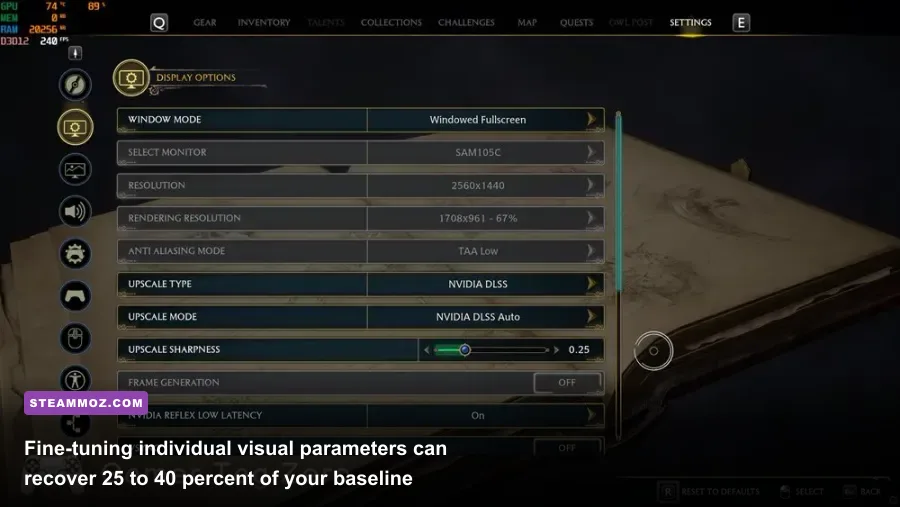
Hogwarts Legacy's in-game preset buttons (Low, Medium, High, Ultra) are notoriously deceptive. The "Ultra" preset turns on exorbitant volumetric fog and dynamic shadow cascades that crush modern graphics cards without providing a discernible upgrade in visual clarity. More importantly, the game's Ray Tracing implementation is fundamentally broken—the Bounding Volume Hierarchy (BVH) structures cause massive memory leaks that lead straight to desktop crashes.
To establish rock-solid 60+ FPS stability across every biome from the Forbidden Forest to the Astronomy Tower, dive into your display and graphics options and calibrate them according to the performance table below.
| Setting | Recommended Value | FPS Cost | Visual Impact & Optimization Logic |
|---|---|---|---|
| Ray Tracing (All Options) | Off | 35% – 50% | Completely cripples frametimes and burns 3GB+ VRAM; screen-space reflections look cleaner. |
| Effects Quality | Medium or High | 8% – 12% | Controls combat particle count. Ultra introduces severe stutter during multi-target spell chains. |
| Material Quality | High | 3% – 5% | Governs shader detail on robes, stone walls, and wood. Negligible frame cost above Medium. |
| Fog Quality | Medium | 10% – 15% | High and Ultra render computationally heavy volumetric light shafts in the Scottish Highlands. |
| Sky Quality | Medium | 4% – 6% | Reduces cloud render resolution slightly with zero impact on day/night atmospheric beauty. |
| Foliage Quality | Medium or High | 9% – 14% | High preserves lush forestry; Ultra cranks draw distances for grass clumps past your screen resolution. |
| Post Processing | Low or Medium | 5% – 7% | Reduces heavy motion blur, chromatic aberration, and depth of field halos for a crisp image. |
| Shadow Quality | Medium | 12% – 18% | Softens shadow penumbras cleanly while freeing up significant rasterization cycles. |
| Texture Quality | High (Medium on 8GB) | VRAM Dependent | Crucial: Set to Medium if your GPU has 8GB VRAM to eradicate Hogsmeade micro-stutter entirely. |
| View Distance Quality | Medium | 8% – 11% | Lowers draw distance for background clutter; stabilizes high-speed broom flight. |
| Population Quality | Medium | 7% – 10% | Reduces NPC density in the Great Hall and Hogsmeade, massively relieving CPU draw calls. |
Selecting these balanced values claws back over 40% of your rendering overhead. If you're accustomed to maximizing performance headroom across demanding action titles, you'll recognize similar efficiency gains to those uncovered in our breakdown of Far Cry 6 settings for maximum FPS.
Fixing Desktop Crashes: Pagefile, Exploit Protection, and Overlay Conflicts
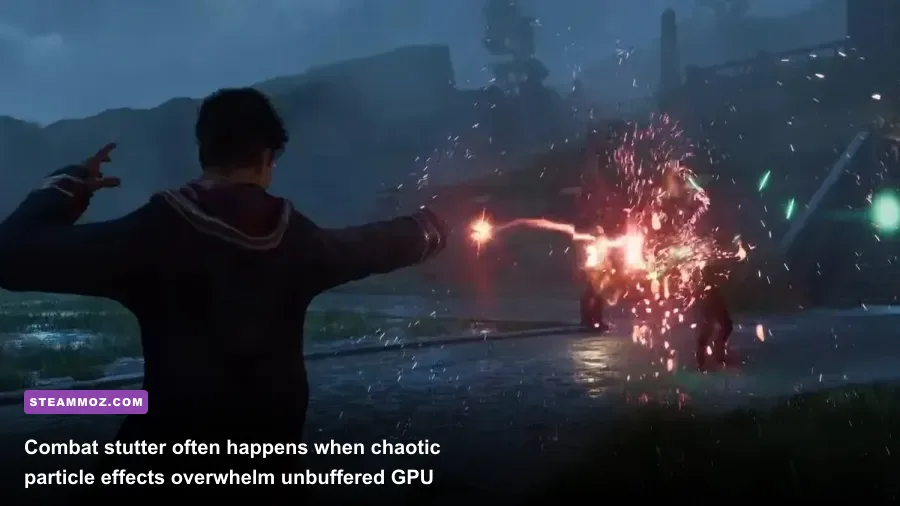
Few things ruin an immersive RPG session faster than casting Revelio inside the Bell Tower and watching your game abruptly vanish to the Windows desktop without an error prompt. This specific crash behavior occurs because Hogwarts Legacy rapidly exhausts virtual memory address space. When the Windows virtual memory manager cannot expand the swap file swiftly enough, the operating system forcibly terminates HogwartsLegacy.exe to protect system stability.
Step 1: Expand Your Windows Virtual Memory (Pagefile)
Even if your rig packs 32GB of physical RAM, Hogwarts Legacy demands a large swap buffer on your fastest NVMe solid-state drive to park background assets. Leaving your paging file set to "System Managed" frequently triggers sudden CTDs (Crash to Desktop).
- Press the Windows Key, type
View advanced system settings, and press Enter. - Under the Advanced tab, click Settings within the Performance box.
- Navigate to the Advanced tab and click Change under the Virtual memory section.
- Uncheck the box that says Automatically manage paging file size for all drives.
- Select your fastest SSD (preferably where Windows or Steam is installed).
- Select Custom size and enter the following identical values:
- Initial size (MB):
16384(16GB) - Maximum size (MB):
32768(32GB)
- Initial size (MB):
- Click Set, click OK, and reboot your PC.
Step 2: Disable Control Flow Guard (CFG) for Hogwarts Legacy
Windows Exploit Protection includes a security feature called Control Flow Guard. While exceptional for cybersecurity, CFG introduces significant micro-stutters and sudden access-violation crashes when running heavily modded or memory-intensive DirectX 12 games. You can disable CFG specifically for the game executable without compromising overall system defenses:
- Press the Windows Key, search for Exploit Protection, and launch it.
- Click on the Program settings tab.
- Click Add program to customize and select Choose exact file path.
- Navigate to your Steam installation folder (typically
Steam\steamapps\common\Hogwarts Legacy\Phoenix\Binaries\Win64\HogwartsLegacy.exe). - Scroll down the list until you find Control flow guard (CFG).
- Check the box for Override system settings, toggle the switch to Off, and hit Apply.
Step 3: Strip Away Invasive Third-Party Overlays
DirectX 12 hook conflicts represent another common crash trigger. Overlay software that hooks into the game's presentation layer can cause instantaneous crashes when the game alters its display mode or triggers a pre-rendered cutscene. Turn off the Discord In-Game Overlay, the Nvidia GeForce Experience In-Game Overlay, and set RivaTuner Statistics Server (RTSS) application detection level to None or ensure it runs in 64-bit stealth mode. Troubleshooting overlay hook issues is an essential diagnostic routine for stubborn game builds, similar to the process we used for our Everspace 2 Wrath of the Ancients crashing guide.
Upscaling, Frame Generation, and Driver Configuration Secrets
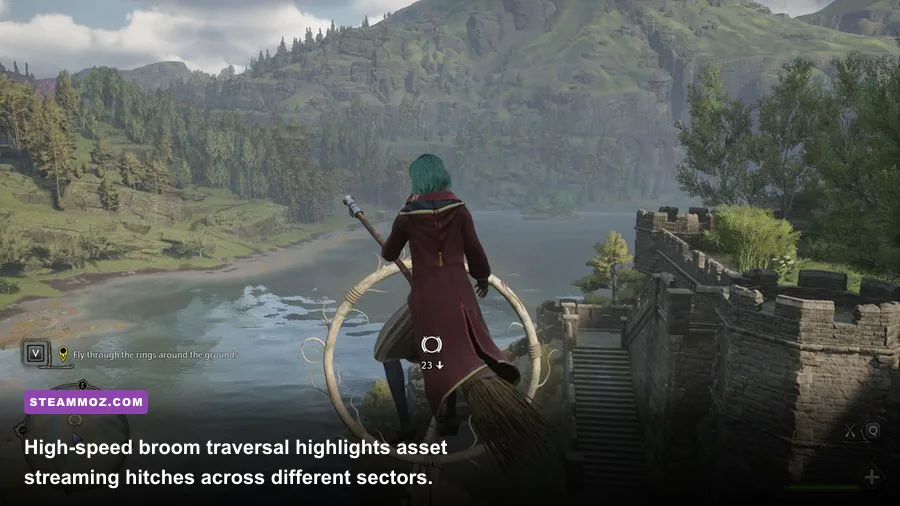
Modern temporal upscalers are mandatory equipment for Hogwarts Legacy. Rendering this game at native 1440p or 4K resolution without an upscaler forces an unsustainable raster workload onto your GPU's compute units. Furthermore, native TAA (Temporal Anti-Aliasing) introduces heavy ghosting across moving broom bristles and distant foliage.
If you possess an Nvidia GeForce RTX graphics card, set Upscale Type to NVIDIA DLSS and select the Quality mode for 1080p and 1440p, or Balanced for 4K. AMD Radeon owners should engage AMD FSR 2 or FSR 3 set to Quality. If your rig sports an Intel Arc or an older GTX card, Intel XeSS provides significantly sharper edge reconstruction than FSR without shimmering on chainmail or window grates.
| Hardware Tier | Target Resolution | Upscaler & Mode | Expected FPS | Crucial Tuning Focus |
|---|---|---|---|---|
| Budget (GTX 1660 Super / RX 5600 XT) | 1080p | FSR 2 / XeSS Balanced | 45 – 55 FPS | Textures set to Low; Population to Low; Shadows to Medium. |
| Mid-Range (RTX 3060 / RX 6700 XT) | 1080p / 1440p | DLSS / FSR Quality | 60 – 75 FPS | Textures set to Medium (8GB VRAM cap); Fog Quality to Medium. |
| Upper Mid (RTX 4070 / RX 7800 XT) | 1440p / Ultrawide | DLSS Quality + Frame Gen | 90 – 120 FPS | High/Ultra hybrid; Ray Tracing remains off; Texture Pool 4096. |
| Enthusiast (RTX 4080 / 4090 / 7900 XTX) | 4K Native or DLDSR | DLSS Quality / Frame Gen | 110 – 140 FPS | Max Ultra settings; Ray Tracing Shadows optional; Pool 6144. |
GPU Driver Control Panel Settings
Both graphics card manufacturers released targeted game-ready drivers addressing the game's shader anomalies. Make sure you are running the newest software from the official Nvidia Driver Portal or the AMD Driver Support Center. Once installed, dive into your dedicated driver panel to execute two vital tweaks:
- Shader Cache Size (Nvidia Control Panel): Navigate to Manage 3D Settings > Global Settings, locate Shader Cache Size, and change it from the default Driver Default to 10 GB. This prevents the driver from dumping compiled Hogwarts shaders, permanently stopping combat-entry stutters during subsequent playthroughs.
- Low Latency Mode / AMD Anti-Lag: Set Low Latency Mode to Ultra (or On). This synchronizes CPU draw calls with GPU frame output, smoothing out jagged frametime spikes inside congested spaces like the Grand Staircase.
- Power Management Mode: Switch this to Prefer maximum performance inside program settings for
HogwartsLegacy.exeto prevent your GPU clock speed from fluctuating during light dialogue sequences.
If you enjoy squeezing extra performance out of diverse gaming engines, check out our optimization profile in Filament Marmalade Edition settings for higher FPS for more GPU cache tricks.
Lingering Traversal Drops: What You Just Have to Live With
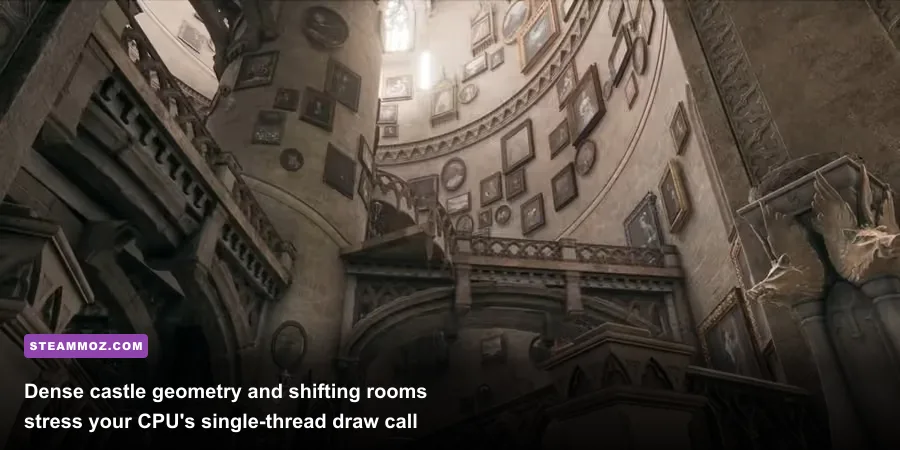
Even after executing every tweak outlined above, you might notice an occasional micro-hitch when crossing specific architectural thresholds. It helps to understand where the game's code reaches its structural limit so you don't waste hours chasing ghosts in your Windows registry.
In Hogwarts Legacy, doorways are literal disguised loading zones. When you walk from the dynamic exterior of the Transfiguration Courtyard into the interior of the Defense Against the Dark Arts tower, you will see a subtle geometric prompt over the doorway handle. For a fraction of a second, the game halts CPU pipeline calls while it checks whether the interior assets have completely populated into system RAM. Similarly, fast-traveling via the Floo Network directly into Hogsmeade triggers an inevitable two-second asset burst while pedestrian routines and shop inventories initialize.
These brief traversal hitches are inherent to the game's older Unreal Engine 4 world partition framework. What is not normal—and what this guide eliminates—is the ongoing, rhythmic 15-FPS stuttering during combat encounters, the constant micro-jitter when panning your camera, and the unprompted desktop crashes that wipe out twenty minutes of dungeon progress.
If persistent stability hurdles continue after applying these fixes, always verify your game file integrity via the Steam library (right-click Hogwarts Legacy > Properties > Installed Files > Verify integrity of game files) and review ongoing patch notices directly on the official WB Games Support Portal. With your Engine.ini texture pools pinned, virtual memory locked down, and graphics settings tuned for raster efficiency, you can finally experience Hogwarts at a smooth, stable 60+ FPS pace worthy of a true master of the dark arts.