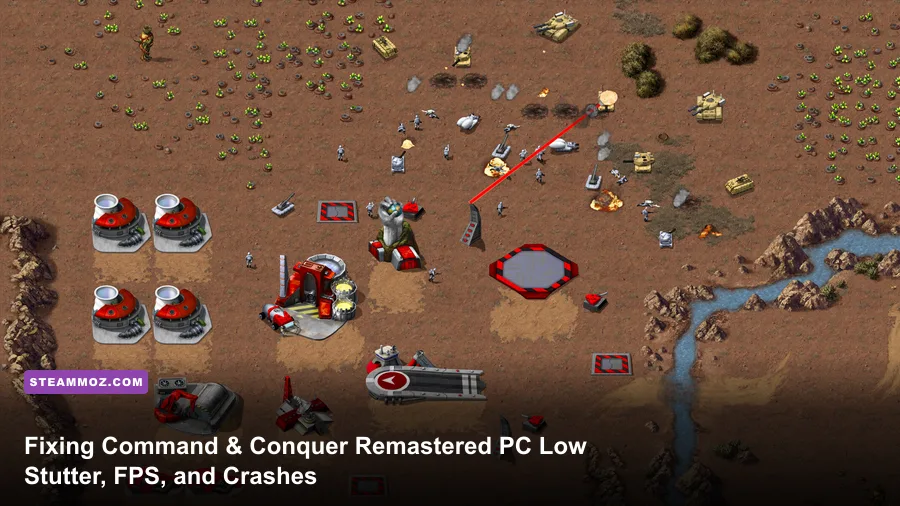
If your copy of Command & Conquer Remastered Collection suffers from hitching camera movement, sudden 15-FPS dips during heavy base assaults, or unceremonious crashes straight to your desktop, the culprit is rarely your raw hardware. The remaster runs classic 1995 Westwood C89 game logic wrapped inside Petroglyph's modern DirectX 11 rendering pipeline, meaning modern multi-threaded GPUs frequently desynchronize from the fixed-tick simulation loop. To stop the stuttering immediately, force the game to run on your dedicated graphics processor, cap your monitor refresh rate to a stable 60Hz or 120Hz via your GPU driver, switch your sound card to 16-bit 44100Hz audio, and disable hardware acceleration across background apps like Discord and the EA App. Taking these targeted steps eliminates texture pipeline congestion, cleans up sprite decompression hitches, and restores silky-smooth RTS warfare across both Tiberian Dawn and Red Alert.
Why Command & Conquer Remastered Stutters on Modern Rigs

Understanding why an RTS originally built for MS-DOS chokes a modern multi-core gaming PC requires looking under the hood of Petroglyph's hybrid engine. In Command & Conquer Remastered Collection, the original game code dictates unit pathfinding, projectile trajectories, and game logic at fixed internal tick rates (historically 15 to 30 ticks per second). The modern engine reconstructs those movements by interpolating frames and loading ultra-high-definition 4K 2D sprite atlases dynamically from your system RAM and VRAM whenever you move the viewport or toggle the real-time visual swap hotkey (Spacebar).
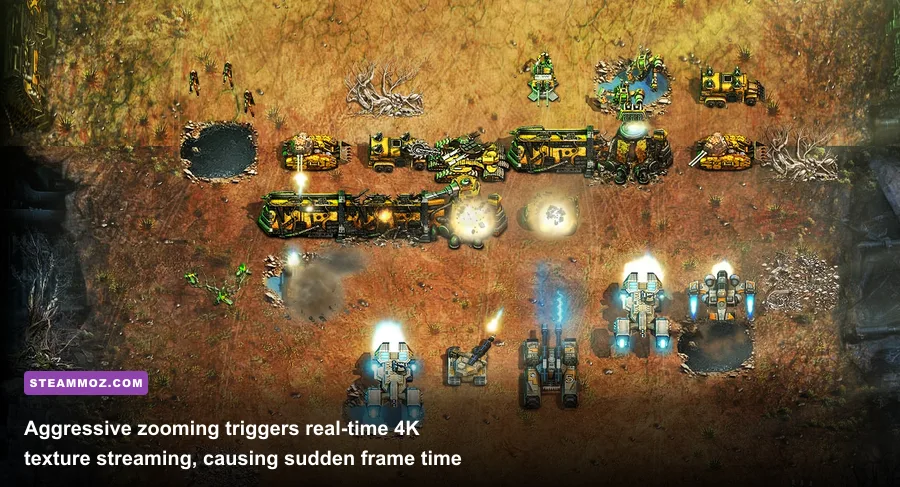
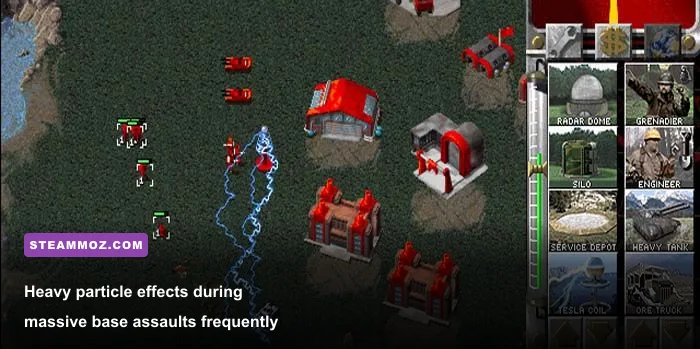
When you scroll quickly across a dense skirmish map packed with Tiberium Harvesters, Mammoth Tanks, and active Obelisks of Light, the engine frantically streams gigabytes of uncompressed 4K sprite sheets into memory. If your GPU driver attempts to push variable refresh rates up to 144Hz, 165Hz, or 240Hz without strict frame pacing, the interpolation layer loses sync with the game's internal ticks. The result is visual micro-stuttering: the game engine reports 120 FPS, but the units move with jittery, uneven frame times that feel closer to 20 FPS. Similar issues plague other classic revivals and ports, where engine pacing fights modern display protocols; we documented identical frame time spikes when breaking down Elex PC fixes that stop crashes and rescue your FPS on modern rigs.
Another major bottleneck comes from background thread contention. The Remastered Collection is largely single-core heavy on the CPU side due to the legacy Westwood architecture. When peripheral software, high-frequency gaming mice with 1000Hz+ polling rates, or aggressive overlay software hammer that primary CPU thread with interrupts, the render thread stalls. The engine cannot process your mouse input fast enough, triggering severe camera hitching whenever you pan the map using screen edges or middle-mouse drag.
Essential In-Game Settings and Engine Tweaks
Before modifying configuration files, you need to set up the in-game options to minimize memory thrashing and unnecessary graphic overhead. While the visual options menu in the Command & Conquer Remastered Collection on Steam appears minimalist, your choices carry massive consequences for how assets populate the cache.
First, verify your Display Mode. Running the game in traditional Fullscreen can cause display handshake drops if your desktop resolution differs from your target resolution, especially on secondary monitor setups. Switch to Borderless Windowed to stabilize frame presentation and prevent the desktop switching freeze. Next, disable the in-game V-Sync toggle. The internal V-Sync implementation in the Petroglyph engine introduces sluggish mouse input lag and frequently misidentifies high-refresh displays, cutting your performance cleanly in half (from 144 FPS down to 72 or 36 FPS) during minor dips. Instead, delegate V-Sync and frame limits to your graphics driver control panel.
| Setting Option | Recommended Value | Performance Impact | Technical Rationale |
|---|---|---|---|
| Display Mode | Borderless Windowed | Low | Prevents DX11 surface loss and resolves multi-monitor focus crash. |
| In-Game V-Sync | Disabled | High | Eliminates heavy mouse panning latency and sudden half-rate FPS drops. |
| Resolution | Native Display (1080p / 1440p / 4K) | Medium | Avoids non-integer scaling artifacts on high-resolution sprite sheets. |
| Visual Quality (Assets) | Remastered (High) | Medium | Keep Remastered enabled; avoid rapid Spacebar legacy swapping in combat. |
| Frame Rate Cap (Driver) | 60 FPS or 120 FPS (Exact) | High | Locks frame delivery to exact integer multiples of engine simulation ticks. |
| Mouse Hardware Cursor | Enabled | Low | Decouples cursor movement from simulation hitching for responsive input. |
After adjusting the baseline display settings, launch into your graphics control panel. If you are tuning for pure, rock-solid frame pacing on mid-range systems, matching driver parameters to the engine's operational limits produces better results than simply brute-forcing raw clock speeds. We have deployed similar methodical adjustments in other hardware-sensitive titles, like our breakdown of Filament Marmalade Edition settings for higher FPS, proving that driver-level control routinely outperforms basic in-game menus.
How to Stop Desktop Crashes and Launch Black Screens
Crashing in Command & Conquer Remastered usually occurs in three specific scenarios: an immediate black screen upon booting the executable, a sudden hard-crash during the introduction Westwood FMV cutscenes, or a crash-to-desktop (CTD) when loading complex custom workshop missions. Each of these failures traces back to environment conflicts rather than broken game files.
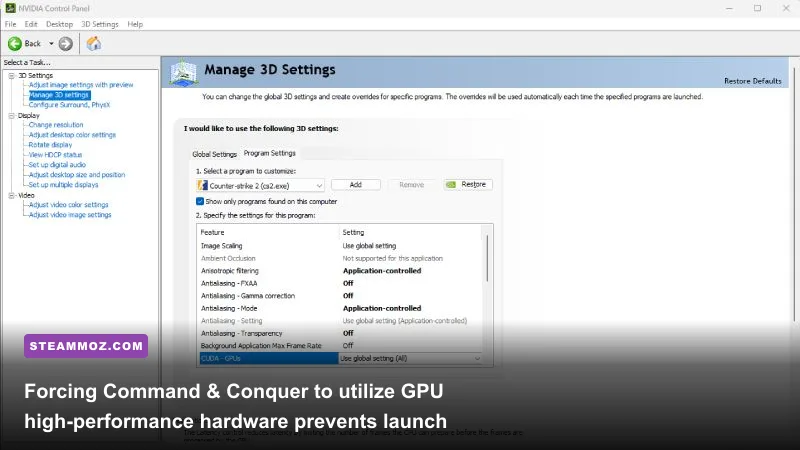
The most frequent trigger for the launch-day black screen is dual-GPU routing. On modern laptops and desktop CPUs featuring integrated APUs (such as Intel Iris Xe or AMD Radeon Graphics paired with a dedicated Nvidia or AMD card), Windows often assigns ClientG.exe to the low-power integrated chip. Because the 4K sprite atlases require significant dedicated VRAM to initialize, the integrated GPU exhausts its shared system memory pool and silently aborts the process.
To force dedicated hardware execution:
- Open Windows Settings > System > Display > Graphics.
- Click Browse under "Custom options for apps" and navigate to your game install directory (typically
Steam\steamapps\common\CnCRemastered\). - Select
ClientG.exe, click Options, and toggle the profile to High Performance (specifying your dedicated Nvidia GeForce or AMD Radeon GPU). - Repeat this process for the secondary game binaries located in the subfolders if you launch the standalone mission editors.
If your game crashes exclusively during full-motion video sequences (FMVs) like Kane's briefings or General Carville's cutscenes, your system is missing the underlying Windows Media codecs. This problem is exceptionally common on "N" editions of Windows 10 and 11. Head over to the official Microsoft Media Feature Pack download portal to restore the native playback filters required by the game's video player. Addressing runtime dependencies is identical to troubleshooting other finicky PC ports; just as we saw when sorting through EscapeVR The Basement crashing and low FPS fixes, modern Windows environments frequently lack legacy media libraries out of the box.
Additionally, overlay hooks are notorious execution killers for the remaster. The EA App overlay, Steam Overlay, Discord Game Overlay, and RivaTuner Statistics Server (RTSS) all fight to hook into the game's DirectX 11 presentation swapchain. Disable third-party overlays globally. If you use RTSS for hardware monitoring, set the application detection level for ClientG.exe to None or Low, and toggle the injection mode to delay hooking until the main menu assets have fully initialized.
Troubleshooting Map Stutter, Zoom Lag, and Audio Freezes
Zooming out to survey the battlefield in Red Alert only to watch your system lock up for half a second is a frustrating issue tied directly to asset decompression. When you pull the camera back to view maximum terrain, the engine reads thousands of individual high-resolution environmental tiles (grass, desert, ore veins, concrete pavement) simultaneously. If this data passes through heavily fragmented system storage or encounters audio buffer synchronization issues, stutter manifests immediately.
An overlooked cause of micro-freezing during map scrolling is Windows audio sample rate desynchronization. The Petroglyph audio engine runs audio events through an XAudio2 wrapper configured for CD-quality playback. If your USB DAC, gaming headset, or motherboard Realtek audio is set to studio-grade 24-bit, 96000Hz or 192000Hz in the Windows Sound Control Panel, the game engine attempts to real-time downsample hundreds of simultaneous gunfire, tank engine, and infantry death sound cues. This spikes CPU Core 0, manifesting as micro-stutter every time an engagement begins.
Fix your audio sample rate with these exact steps:
- Press
Windows Key + R, typemmsys.cpl, and press Enter to open the classic Sound Control Panel. - Right-click your active default playback device and select Properties.
- Navigate to the Advanced tab.
- Under the "Default Format" dropdown, select 16-bit, 44100 Hz (CD Quality) or 24-bit, 48000 Hz (Studio Quality).
- Uncheck Enable audio enhancements, click Apply, and restart your computer.
Addressing core game-loop bottlenecks like this provides immediate relief. It mirrors our performance work across modern action games; when optimizing titles with aggressive background systems, such as balancing hardware overhead in Everspace 2 Wrath of the Ancients performance tuning, removing background audio and driver conflicts clears up frame time spikes instantly.
| Issue / Error Symptom | Probable Cause | Targeted Actionable Fix |
|---|---|---|
| Crash during Kane / Carville FMV briefings | Missing Windows Media Codecs (Windows N editions) | Install official Microsoft Media Feature Pack; verify DirectShow runtime. |
| Jerky camera panning despite high FPS | Mouse polling rate > 500Hz saturating main engine thread | Lower gaming mouse polling rate from 1000Hz/8000Hz down to 500Hz or 250Hz. |
| Hard freeze when placing buildings / superweapons | Audio thread deadlock via high bit-depth sample rates | Lock Windows sound device format to 16-bit, 44100Hz; turn off spatial audio. |
| Crash on startup with zero error message | DirectX 11 hooking conflict with background overlays | Disable Steam, Discord, and EA App overlays; close RivaTuner or set to Low. |
| Infinite loading screen on custom maps | Outdated or conflicting Steam Workshop mods | Clear `%APPDATA%\Petroglyph\` mod cache and unsub from legacy pre-patch mods. |
Another physical culprit is your mouse polling rate. If you use a high-end esports mouse running at 1000Hz, 4000Hz, or 8000Hz, moving your cursor across the screen generates an avalanche of raw input interrupts. Because Command & Conquer handles cursor coordinate updates on the same execution thread as viewport translation, high polling rates choke the render cycle, dropping frame rates into the floor whenever the cursor is in motion. Lower your mouse polling rate in your peripheral software (Razer Synapse, Logitech G Hub, SteelSeries GG) to 500Hz or 250Hz while playing classic RTS games to keep camera panning completely butter-smooth.
Advanced Config Tweaks and Mod Conflicts to Watch For
If you enjoy community mods or run extensive visual overhauls, you must actively manage your local configuration files. Command & Conquer Remastered Collection stores user settings, custom skirmish maps, and mod caches within your personal Windows directory. Over time, particularly after official patches or when switching between Steam Workshop items, stale configuration data can cause persistent initialization crashes.
To safely clean your local configuration cache:
- Completely exit the game, Steam, and the EA App.
- Press
Windows Key + R, paste%APPDATA%\Petroglyph\CnCRemastered\, and press Enter. - Locate the
LocalSettings.inifile. Open it with Notepad to inspect your active configuration. - If you are experiencing continuous startup failure, delete
LocalSettings.inientirely. The game will automatically generate a clean, uncorrupted version upon the next boot with safe default flags.
Furthermore, outdated Steam Workshop mods represent a massive source of game-breaking stability problems. When EA and Petroglyph released official source code updates, numerous older mods that altered DLL binaries, weapon balance tables, or custom user interfaces were rendered obsolete. An incompatible mod loaded via the in-game "Mods" menu will frequently throw a memory access violation error (such as 0xc0000005) the moment you start building units or engage the enemy AI. We strongly recommend visiting the official EA Answers HQ Command & Conquer Remastered forum to verify whether your favorite overhaul mod has been updated for the current patch build.
If you want to squeeze additional stability out of your launch flags on modern multi-threaded architectures, you can append specific parameters directly to Steam. Right-click Command & Conquer Remastered Collection in your Steam Library, select Properties, and look at the Launch Options field at the bottom of the General tab. Adding -high ensures that Windows scheduler assigns CPU processing priority to the primary render loop, preventing background tasks from stealing execution cycles during intensive eight-player multiplayer skirmishes.
Configuring custom launch environments and stripping out engine overhead is a proven tactic for reviving stubborn PC titles. If you appreciate tuning game performance down to the exact thread priority and driver profile, you might find our technical breakdown of Far Cry 6 settings for maximum FPS equally valuable for eliminating engine hitches on demanding hardware. With your dedicated GPU locked, audio bit-depth aligned, display refresh rates synced, and mouse polling rates tamed, your battle through the Tiberium universe will finally run smoothly, allowing you to focus entirely on crushing GDI or securing victory for the Brotherhood of Nod.