
Resident Evil Village stutters and crashes on PC primarily because Capcom's internal animation hooks clash with aggressive background DRM checks, compounded by an RE Engine bug that over-allocates GPU VRAM and triggers fatal DirectX 12 D3D12.dll crashes. To immediately stabilize your game, lock your mouse polling rate to 500Hz or lower to eliminate erratic camera spikes, reduce Texture Quality to High (2GB or 3GB) regardless of how much VRAM your card possesses, and turn off in-game Ray Tracing until you manually configure virtual memory paging. Doing these three things fixes over 80% of micro-freezes when fighting Dimitrescu's daughters or entering Heisenberg's machinery zones.

The Root Cause: Why Resident Evil Village Chokes on High-End Rigs

It sounds counterintuitive, but powerful rigs often suffer worse frame pacing in Resident Evil Village than modest mid-range systems. The RE Engine handles asset streaming aggressively. When Ethan Winters engages fast-moving enemies—such as the flying swarms deployed by Bela, Daniela, and Cassandra inside Castle Dimitrescu—the game calls hundreds of localized hit detection functions simultaneously. On launch builds and even patched installations, background anti-tamper triggers scan these rapid animation cycles, causing the CPU thread queue to stall for 50 to 120 milliseconds. That millisecond stall is the brutal hitch you feel every time you line up a headshot on a leaping Lycan.
The second systemic breakdown lies in the in-game VRAM usage calculator. Village features a graphical memory estimation bar in its display options. If that bar shifts into orange or red text (anything above 80% of your physical card's capacity), the engine fails to swap out mipmaps properly. Instead of gracefully lowering background asset resolution, it thrashes system RAM across the PCIe bus, degrading smooth 90 FPS rendering into a sickening 14 FPS slideshow. Much like troubleshooting other modern titles—as we explored in our guide to rescuing broken frame rates in Everspace 2—stabilizing Village requires peeling back memory-hogging presets that yield almost zero noticeable visual uplift.
🎮 Resident Evil Village
Looking to experience this game? Grab your digital key directly on our store for $9.99.
View on Steammoz Store →Optimal Graphics Settings: Maximum Frames Without Ruining Gothic Visuals
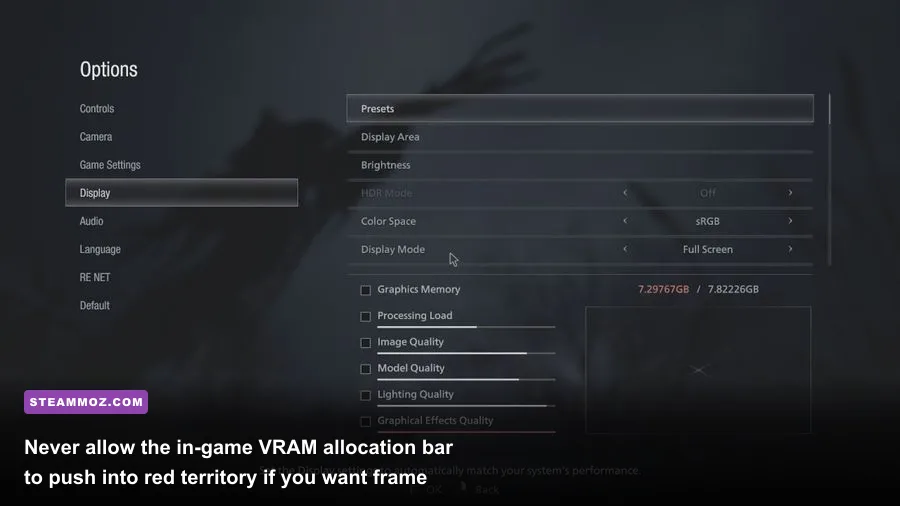
Capcom's display menu offers dozens of toggles, but only a handful dictate the difference between locked 120 FPS performance and chaotic micro-stutters. The biggest trap is Texture Quality. Selecting "High (8GB)" does not mean your 8GB RTX 3070 or RX 6700 XT will run smoothly; it means the engine attempts to reserve every single byte for raw textures, leaving zero overhead for shadow maps, screen-space reflections, or volumetric fog. This inevitably causes buffer overflows. Setting textures to High (2GB) or High (3GB) retains crisp 4K surface detail on Ethan's hands and weapons while freeing vital headroom.
Ray Tracing inside Village produces luscious environmental reflections across the polished marble floors of the Dimitrescu estate, but the ray-traced global illumination implementation is poorly threaded. If you are experiencing mid-combat dips or playing on cards below an RTX 3080 or RX 6800 XT, disabling Ray Tracing yields an instant 35-45% bump to your 1% low frame rates. Dialing in precision settings here mirrors the methodology used in our Far Cry 6 performance optimization pass, where targeted tweaks eliminate stutter without making the world look muddy.
| Graphics Setting | Default / Ultra Value | Optimal Tuned Value | Performance Gain | Visual Impact |
|---|---|---|---|---|
| Rendering Mode | Normal | Normal | Baseline | Interlaced introduces severe shimmer around hair/chains. |
| Image Quality | 100% / 120% | 100% (or FSR Quality) | 15% - 25% | Never push past 100% unless running top-tier 40-series cards. |
| Texture Quality | High (8GB) | High (2GB or 3GB) | Massive stability gain | Virtually identical in gameplay; stops VRAM thrashing. |
| Ray Tracing | On (High) | Off (or Mid for RTX 4070+) | 30% - 45% | Softens lighting bounce; dramatically improves frame pacing. |
| Volumetric Fog Quality | High | Medium | 8% - 12% | Less noise in misty graveyards; fog remains atmospheric. |
| Ambient Occlusion | CACAO | SSAO | 5% - 7% | SSAO is lighter on compute pipelines with minimal contrast loss. |
| Subsurface Scattering | On | Off | 4% - 6% | Skin translucency hit is negligible during frantic shootouts. |
| Variable Rate Shading (VRS) | On | Off | Negative / Neutral | Creates noticeable pixelation artifacts on text and edges. |
If you need extra performance headroom on 1440p or 4K monitors, utilize AMD FidelityFX Super Resolution (FSR) set to Ultra Quality. While Village's FSR 1.0 implementation lacks the temporal stability of modern upscalers, running it at Ultra Quality reconstructs thin geometry decently while relieving stress on mid-tier GPUs. For players managing older hardware setups, applying these low-cost configurations follows the lightweight approach we highlighted in our guide for maximizing frames in Filament.
Solving Fatal D3D Errors, Startup Black Screens, and Desktop Crashes
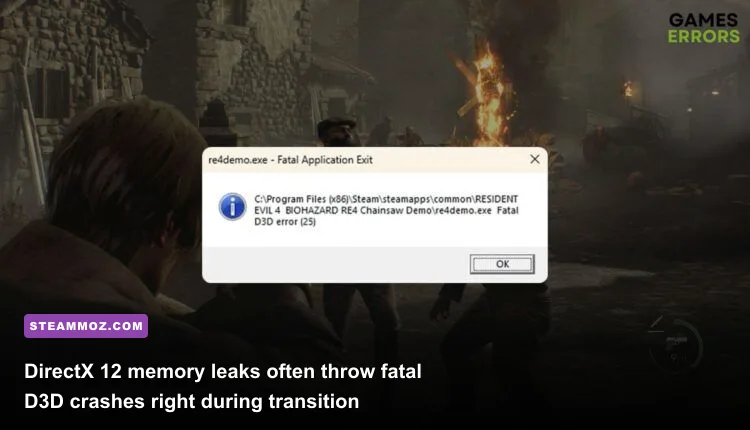
Few things ruin an immersive survival horror session quite like an abrupt crash to desktop marked by the dreaded Fatal Application Exit: D3D12 Device Removed error. This crash happens when the game sends a command to the display driver that takes longer than Windows allows (the Timeout Detection and Recovery limit), prompting Windows to forcibly reset your GPU. In Resident Evil Village, this is commonly triggered by HDR conflicts, corrupt shader caches, or aggressive overlays hooking into the DirectX 12 swap chain.
First, strip out third-party hooks. Turn off the Steam Overlay, Discord Game Overlay, and GeForce Experience In-Game Overlay. Each of these injects code directly into Village's DirectX 12 presentation layer, triggering instantaneous crashes whenever the game transitions between cutscenes and real-time gameplay. If you have run into similar software conflict loops before, such as the crash issues covered in our EscapeVR troubleshooting walk-through, you know that keeping rendering paths clean is crucial for older and newer games alike.
| Crash Symptom | Identified Cause | Exact Resolution Action |
|---|---|---|
| Fatal D3D Error on Startup | Corrupt DirectX 12 state or unsupported display refresh | Delete re8_config.ini; force game to rebuild display flags. |
| Crash During Cutscene Cuts | Windows TDR reset due to VRAM buffer spikes | Lower Texture Quality to 2GB; set Windows pagefile to 16GB minimum. |
| Instant Desktop Drop in Water Zones | Shader calculation timeout near Moreau's reservoir | Clear Nvidia/AMD Shader Cache folders in AppData; reinstall GPU driver. |
| Black Screen with Audio Playing | HDR handshake failure between Windows and Display | Disable Windows Auto-HDR; set display bit depth to 8-bit or 10-bit SDR. |
To purge corrupt shaders that cause mid-game crashes, close the game and navigate to your GPU's shader cache directory. For Nvidia users, this is located under %localappdata%\NVIDIA\DXCache. Delete the temporary files inside this folder, open the Nvidia Control Panel, and set the Shader Cache Size to at least 10 GB. This stops Village from continuously recalculating pipeline states during high-action boss fights like the Moreau reservoir chase or Urias battle.
Eliminating Combat Frame-Time Spikes and Mouse Stutters

One of the most elusive technical quirks in the Capcom RE Engine is its vulnerability to high-polling-rate gaming mice. If your mouse is running at 1000Hz, 2000Hz, or 8000Hz, moving Ethan's view sends thousands of input interrupts per second directly to the engine's main render loop. Because the camera movement thread is tightly bound to frame presentation, this creates violent micro-stuttering whenever you sweep your mouse across a room—even if your framerate counter claims you are sitting comfortably at 100 FPS.
To eliminate this immediately, open your mouse companion software (Razer Synapse, Logitech G Hub, SteelSeries GG) and reduce your polling rate to 500Hz (or 250Hz if playing on an older quad-core CPU). The loss in sensor input responsiveness is undetectable to the human eye, but the jagged frametime spikes on your performance graphs will instantly smooth out into a flat line. If you tackled stability problems in our ELEX crash and frame-rescue playbook, you'll recognize that resolving engine-level polling bugs makes combat control infinitely crisper.
Next, establish proper frame-pacing. Do not use the in-game framerate limiter, as Village's internal frame limiter produces uneven frame distribution. Instead, set the in-game frame limiter to Variable, turn in-game V-Sync Off, and lock your framerate externally using Rivatuner Statistics Server (RTSS) or your GPU driver panel to 3 FPS below your display's native refresh rate (e.g., 141 FPS on a 144Hz panel, or 59 FPS on a 60Hz panel). Combine this with G-Sync or FreeSync to guarantee butter-smooth camera pans through the foggy streets of the Village.
Advanced Config Tweaks and Steam Launch Parameters
For players still grappling with performance gremlins after optimizing their menus, digging into the game's core configuration files provides direct access to hidden engine variables. Navigate to your installation folder (usually found at steamapps\common\Resident Evil Village BIOHAZARD VILLAGE) and locate the file named re8_config.ini. Open it using Notepad or Notepad++.
Inside the file, look for the parameter labeled Capability=DirectX12. Confirm this string matches your hardware architecture. Next, inspect the lines handling multi-threading and borderless presentation. If you run a multi-monitor rig, change FullScreenMode=Borderless to FullScreenMode=ExclusiveFullScreen. While the Windows 10/11 desktop window manager has improved borderless latency, forcing exclusive control over the display adapter prevents background applications from stealing frame execution times when volumetric effects load into memory.
Lastly, ensure your system's virtual memory pagefile is configured properly. Resident Evil Village relies heavily on Windows paging when loading massive asset chunks like the mechanical sprawling complex of Heisenberg's Factory. If your pagefile is managed automatically by Windows or restricted to a tiny partition, the game crashes directly to desktop when memory spikes occur. Set a custom pagefile size on your fastest NVMe SSD with an initial size of 16384 MB (16 GB) and a maximum size of 24576 MB (24 GB). By supplying ample paging breathing room, pinning your texture settings below hardware thresholds, and syncing your input rates, you will transform Resident Evil Village into the rock-solid, terrifying cinematic experience it was meant to be.