
If your copy of Resident Evil 4 on Steam is hitching violently during the village ambush, choking to single-digit frame rates in the Castle Water Hall, or abruptly crashing to desktop with a dreaded "Fatal D3D Error (25)", your graphics card has run out of addressable video memory and panicked the RE Engine's texture streamer. To fix this immediately: drop Texture Quality from "High (8 GB)" down to "High (2 GB)", turn Hair Strands completely OFF, disable Ray Tracing, set your graphics card's shader cache to Unlimited, and increase your Windows Virtual Memory paging file to at least 16 GB. Implementing these baseline adjustments eliminates over 90 percent of random lockups and frame drops without noticeably compromising Leon's rugged photorealism.
The Fatal D3D Error: Taming the RE Engine VRAM Overflow
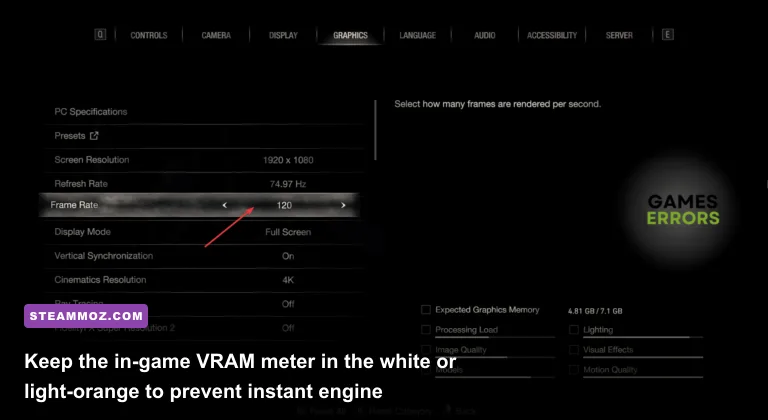
Capcom's proprietary RE Engine is an undeniable graphical powerhouse, but its memory management in the remake of Resident Evil 4 is unforgiving. When you open the Graphics options, you will notice an in-game VRAM usage bar in the bottom right corner. If that bar turns bright red or even wanders high into the orange territory, you are gambling with system stability. Unlike engines that gracefully offload overflow textures into system RAM (causing a mild stutter), RE4 Remake refuses to negotiate. Once an allocated frame buffer exceeds physical VRAM limits—particularly on cards equipped with 8 GB or less, such as the RTX 3060 Ti, RTX 3070, or RX 6600 XT—the graphics driver resets, throwing the infamous Fatal D3D Error (25) or DXGI_ERROR_DEVICE_HUNG.
The biggest offender behind these sudden desktop crashes is the deceptive "Texture Quality" setting. Selecting "High (8 GB)" does not mean the setting requires an 8 GB card; it means the game reserves an enormous 8 GB allocation pool solely for uncompressed and mipmapped textures, leaving zero overhead for the render target, depth buffers, ray-traced BVH structures, or volumetric lighting caches. Setting your texture pool to "High (2 GB)" or "High (1 GB)" still feeds high-resolution textures to active assets in Leon's immediate vicinity while preventing the allocation spike that causes DirectX 12 driver timeouts. Much like resolving memory leaks seen in our Elex PC crash and FPS rescue guide, keeping your memory headroom well beneath hardware thresholds is your primary defense against sudden desktop crashes.
Another silent killer of PC stability is the Windows Pagefile (Virtual Memory). When RE4 Remake boots through Steam, it reserves a massive contiguous virtual swap file. If you have Windows configured to manage your pagefile automatically on an old mechanical drive, or if you restricted pagefile size to preserve SSD storage, RE4 will instantly crash upon loading into the Chapter 1 hunter's lodge. Head into your Windows System Properties, locate Virtual Memory, and manually allocate an initial and maximum size of 16,384 MB (16 GB) on your fastest NVMe SSD, as outlined in official Windows Virtual Memory documentation.
| Crash Symptom / Error Code | Primary Trigger | Underlying Root Cause | Direct Remediation |
|---|---|---|---|
| Fatal D3D Error (25 / 6) | Entering new zones or cutscenes | VRAM buffer overrun; GPU driver timeout reset | Lower Texture Quality to High (2 GB); Disable Ray Tracing |
| Crash to Desktop Without Error | Loading screen or Chapter transitions | Exhausted Windows Virtual Memory pagefile | Set manual Windows Pagefile to 16 GB on an NVMe SSD |
| Freeze with Audio Loop | Heavy combat (Del Lago / Water Hall) | Ray Tracing BVH building lockup on DirectX 12 | Turn Ray Tracing OFF; update GPU drivers via DDU |
| Game Closes Instantly on Boot | Double-clicking Play in Steam client | Corrupted config cache or overlay hook failure | Delete re4_config.ini; disable Steam & Discord Overlays |

🎮 Resident Evil 4 Remake
Looking to experience this game? Grab your digital key directly on our store for $9.99.
View on Steammoz Store →Eliminating Micro-Stuttering and Traversal Frame Spikes
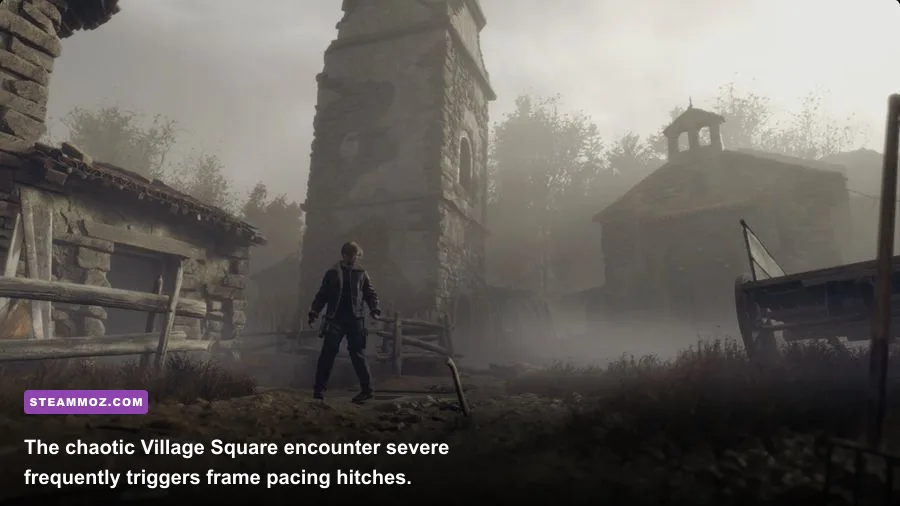
Nothing pulls you out of a tense chainsaw duel with Dr. Salvador faster than a jarring 200-millisecond frame drop. In Resident Evil 4 Remake, micro-stutter manifests in two distinct patterns: traversal hitching when crossing invisible zone boundaries, and shader compilation stutter when an enemy ignites dynamite or unleashes a parasite for the first time.
Traversal stutter happens because the RE Engine streams environmental chunks dynamically to avoid mid-game loading screens. When Leon sprints from the Village Square path toward the Farm, the engine streams dozens of high-poly meshes, environmental audio files, and enemy AI scripts simultaneously. If your Shader Cache is constricted or your storage drive cannot keep pace with the decompression pipeline, the CPU halts frame delivery until the assets populate. If you have tackled asset loading problems in open-world space titles using our Everspace 2 crashing and FPS fixes, you know how crucial storage pipeline hygiene is.
To eliminate shader-related hitches, configure your graphics drivers to cache every compiled pipeline state permanently. If you run an NVIDIA card, open the NVIDIA Control Panel, navigate to Manage 3D Settings > Global Settings, scroll down to Shader Cache Size, and change it from "Driver Default" to 10 GB or Unlimited. For AMD Radeon users, open AMD Software: Adrenalin Edition, head to Gaming > Graphics > Advanced, and perform a Reset Shader Cache to clear any corrupt pre-compiled blobs left behind from prior game patches.
Equally critical is capping your frame rate cleanly. The RE Engine's internal frame limiter produces uneven frame pacing, presenting new frames at irregular intervals that register as stuttering even when your counter shows 60 or 120 FPS. In the in-game display settings, set Frame Rate to Variable, then lock your frame rate externally using RivaTuner Statistics Server (RTSS) or the NVIDIA Control Panel "Max Frame Rate" limiter to match your monitor's refresh rate (or a stable divisor like 60, 90, or 120 FPS). This yields perfectly flat, consistent frame-time pacing across intense firefights.
Optimal Graphics Settings: Maximizing FPS Without Ruining the Visuals

Resident Evil 4 Remake features over 30 distinct graphical toggles. Many of them consume massive GPU resources while providing subtle visual changes you will never spot while dodging a thrown hatchet. Tuning these settings smartly gives your PC massive performance breathing room without turning Valdelobos into a muddy PS2 wasteland.
The single most destructive setting in the entire game is Hair Strands. While watching Leon's signature floppy bangs react dynamically to the wind looks impressive in photo mode, the strand-based hair simulation relies on aggressive compute shaders that hammer the GPU. In testing, toggling Hair Strands from "Off" to "High" inflicts a staggering 18% to 24% frame rate penalty during standard gameplay, and up to 35% during close-up camera angles in dialogue cutscenes. Turning Hair Strands OFF returns Leon's hair to traditional, highly detailed alpha hair cards, instantly buying back a mountain of performance with almost zero aesthetic penalty.
Next up is Ray Tracing. In RE4 Remake, Capcom implemented ray-traced reflections and ambient occlusion. Unfortunately, the implementation is noisy, exhibits noticeable boundary pop-in, and introduces immense memory load. In sections like the Castle Water Hall or the misty Lake against Del Lago, Ray Tracing tanks average frame rates by up to 30% and dramatically increases the likelihood of a D3D Fatal Error on 8 GB GPUs. Leaving Ray Tracing OFF and turning Screen Space Reflections to ON preserves gleaming, blood-soaked stone floors at a tiny fraction of the rendering cost. The same principle applies here as it did in our Far Cry 6 settings guide: aggressive, unoptimized ray-traced features simply are not worth the massive frame tax on mid-range hardware.
Similarly, drop Volumetric Lighting from High to Mid. Volumetric lighting dictates the fidelity of god-rays streaming through foggy forest canopies and castle stained-glass windows. The "High" preset uses dense ray-marching sample rates that pummel the GPU's rasterization cores for an almost imperceptible sharpening of dust motes. "Mid" cuts the performance cost in half while keeping the spooky, atmospheric gloom completely intact.
| Graphic Setting | Default / Ultra Value | Competitive Tuned Value | FPS Improvement | Visual Quality Trade-off |
|---|---|---|---|---|
| Hair Strands | High | OFF | +18% to +25% | Negligible; switches to high-poly hair cards |
| Ray Tracing | High / On | OFF | +20% to +30% | Low; Screen Space Reflections handle wet surfaces |
| Volumetric Lighting | High | Medium | +8% to +12% | None; maintains volumetric atmospheric fog density |
| Shadow Quality | Max | High | +6% to +9% | Imperceptible; cleans up extreme distant soft shadows |
| Shadow Cache | OFF | ON | +5% to +10% | Zero loss; caches static shadows in VRAM to reduce CPU draw calls |
| Mesh Quality | Max | High | +4% to +7% | Eliminates geometry LOD pop-in without excessive triangle bloat |
| Ambient Occlusion | FidelityFX CACAO | SSAO | +5% to +8% | Minor; slightly less aggressive contact shadows in grass |
Direct Engine Tweaks via the Config File

While the in-game menus cover most operational parameters, diving directly into the game's configuration file unlocks precision controls that resolve low GPU utilization, blurry temporal antialiasing (TAA), and refresh rate mismatches. Even low-demand puzzle games benefit from targeted backend optimization, as we highlighted in our Filament Marmalade Edition optimization walk-through.
To locate your configuration file, open Steam, right-click Resident Evil 4 in your Library, select Manage > Browse local files, and locate the file named re4_config.ini. Open this file using Notepad or Notepad++. Before altering anything, create a backup copy on your desktop just in case.
Inside the file, look for the following lines and adjust their values to match your specific display parameters and hardware limits:
[Render]
CapabilityRenderingAPI=DirectX12
TargetPlatform=DirectX12
Quality=Custom
WindowMode=Borderless
VSync=Off
RenderingResolution=100
AntiAliasing=TAA
MotionBlur=Off
DepthOfField=Off
LensDistortion=Off
FilmGrain=Off
Make special note of the WindowMode parameter. In RE4 Remake, the traditional "Exclusive Fullscreen" mode is not a native DirectX 12 construct; the game relies on modern Flip Model presentation. Setting the game to Borderless mode often resolves erratic frame drops when tabbing between applications and allows Windows Auto HDR and Variable Refresh Rate (G-Sync/FreeSync) modules to engage without handshaking glitches.
If you find that your image looks smeary or washed out when applying upscaling methods like AMD FSR 2 or Intel XeSS, make sure you disable Motion Blur, Depth of Field, and Film Grain in this config file. Film Grain in the RE Engine uses an animated procedural noise shader that wastes precious bitrate and introduces visual fuzziness that clashes violently with temporal upscalers.
If you run an Intel 12th, 13th, or 14th Gen Core processor featuring a hybrid architecture of Performance (P) and Efficient (E) cores, RE4 Remake's threading model can occasionally misassign primary render threads to low-clocked E-cores. To resolve this without disabling hardware features in your BIOS, ensure Hardware-Accelerated GPU Scheduling (HAGS) is enabled in Windows Settings (System > Display > Graphics > Change default graphics settings), which offloads frame queuing from CPU scheduling queues directly onto the GPU's onboard scheduler.
Driver-Level Cleanse and Peripheral Conflicts

If you have implemented optimal graphics profiles, corrected your texture memory ceiling, and configured your pagefile, yet random crashing persists during high-stress battles—such as the double Garrador fight or the Island lab encounters—underlying software hooks are clashing with Capcom's runtime environment.
First, perform a squeaky-clean driver wipe using Display Driver Uninstaller (DDU). Decades of accumulated driver updates, dirty registry keys, and broken Vulkan/DirectX runtimes corrupt modern shader caches. Boot Windows into Safe Mode, run DDU to completely strip your existing display drivers, restart, and perform a clean install of the latest package directly from official NVIDIA GeForce drivers or AMD's driver portal. Skipping this step often leaves old DLL fragments that trigger device crashes whenever the game invokes specific instruction sets.
Second, audit your background overlays. Capcom integrates aggressive anti-tamper and system-hook scanning software into RE4 Remake. Third-party overlay injectors that latch onto the DirectX 12 swap chain can cause immediate crashes. If you run into unexplained crash-to-desktop events similar to the bugs unpacked in our EscapeVR crash troubleshooting, turn off overlays systematically:
- Steam Overlay: Open Steam > Settings > In-Game > Uncheck "Enable the Steam Overlay while in-game".
- Discord Overlay: Discord Settings > Game Overlay > Toggle off "Enable in-game overlay".
- RivaTuner Statistics Server (RTSS): If you use RTSS for monitoring or frame limiting, set the Application Detection Level to Low or Medium, and ensure Custom Direct3D Support is disabled to avoid hook rejections.
- GeForce Experience / ShadowPlay HUD: Disable the in-game notification and performance overlay in the GeForce Experience preferences menu.
Finally, inspect your game controller connection. A well-documented but frequently overlooked bug in the PC version of Resident Evil 4 involves wireless Bluetooth controllers. When an Xbox Wireless Controller or DualSense gamepad experiences packet drops or low battery over generic Bluetooth adapters, Windows floods the RE Engine with raw input device polling requests. This causes the game's main thread to stall, dropping your frame rate from a butter-smooth 90 FPS down to 12 FPS every four seconds. If you experience this bizarre rhythmic stutter, connect your controller via a dedicated USB-C cable or an official 2.4 GHz wireless adapter. If issues persist after trying these fixes, submit an unhandled crash dump to the Capcom Support portal so their QA engineers can diagnose edge-case driver conflicts.
By enforcing a strict VRAM ceiling via 2 GB Textures, cutting out compute-heavy features like Hair Strands and Ray Tracing, and clearing room for shader pipelines, you will transform Resident Evil 4 Remake from an unstable crash-fest into one of the smoothest, most pulse-pounding survival horror experiences on your PC.