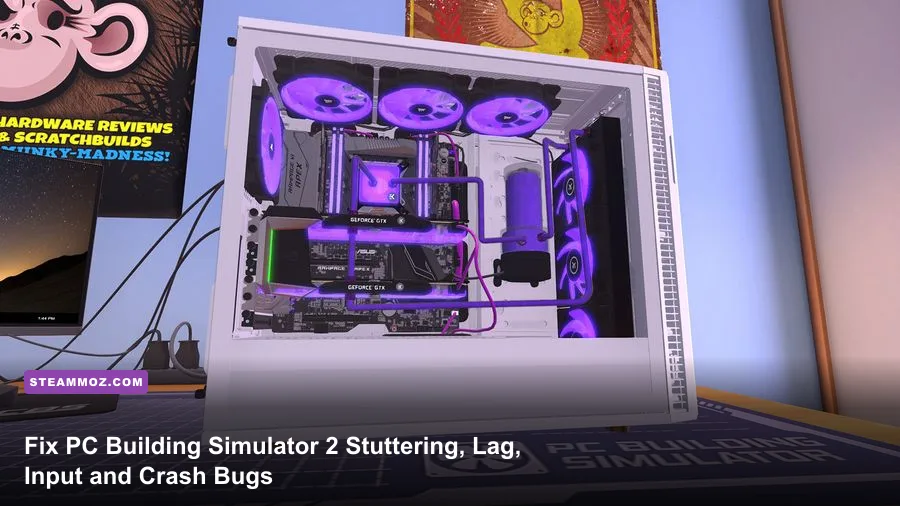
If you're dealing with sluggish mouse input, wild frame drops while rotating cases, or outright crashes during synthetic 3DMark loops in PC Building Simulator 2, you aren't alone. The immediate fix for the game's notorious camera jitter and micro-stuttering is switching from Borderless Windowed to Exclusive Fullscreen, capping your frame rate through your GPU control panel instead of the broken in-game V-Sync toggle, and dropping Screen Space Reflections (SSR) down to Medium. These three tweaks instantly eliminate the engine-level frame timing spikes that plague the Unity rendering pipeline when rendering transparent tempered glass and custom chrome water blocks.
Developed by Spiral House and Epic Games, PC Building Simulator 2 ramps up the fidelity compared to its predecessor, introducing realistic thermal camera readouts, individually addressable RGB LEDs, and liquid loop physics. But behind that glossy coat of automotive paint lies an aggressive collection of resource bottlenecks. Whether you're running an RTX 4090 or nursing an older GTX 1660 Super through career mode, this field guide breaks down every critical setting, input lag workaround, and game-breaking bug fix to get your virtual tech shop running at a locked, buttery-smooth frame rate.

Dialing In the Perfect Graphics Settings for Maximum FPS
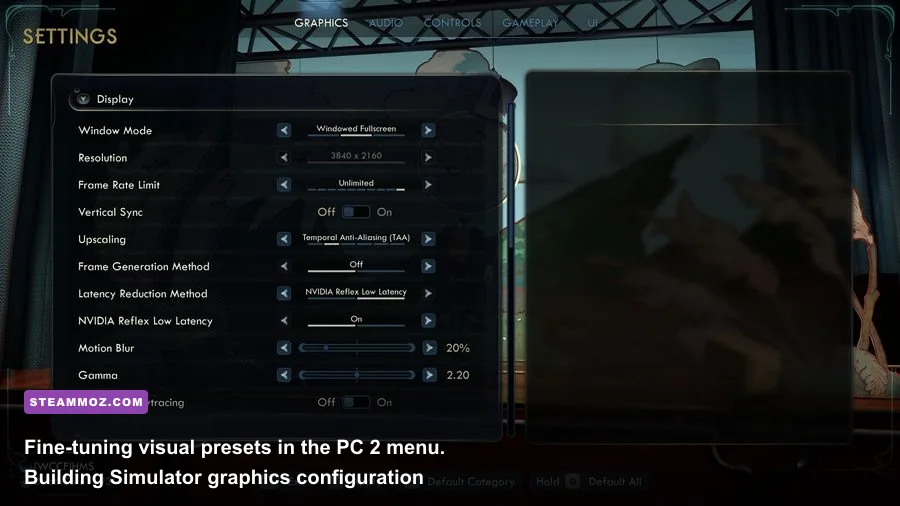
PC Building Simulator 2 runs on a heavily customized build of the Unity engine, relying on complex surface shaders to render brushed aluminum, acrylic water blocks, and reflective tempered glass panels. When you enter the workshop, every ambient fluorescent tube and motherboard LED casts dynamic reflections across your workspace. If you leave every slider maxed out, your GPU spends unnecessary compute cycles calculating multi-bounce specular highlights on parts you can't even see inside a closed chassis.
The single heaviest performance killer is Screen Space Reflections (SSR). On Ultra, SSR continuously raymarches every specular surface across the entire room, dragging framerates down by up to 24% whenever you zoom into an open motherboard tray. Dropping this to Medium retains glossy sheen on copper coldplates while recovering massive GPU headroom. Much like our breakdown on fine-tuning graphics settings for maximum FPS in modern releases, dialing back invisible geometry overhead is your quickest ticket to fluid gameplay.
Shadow Quality is another sneaky culprit. The game renders high-resolution soft contact shadows for every thumb screw, fan blade, and power supply cable. Switching from Ultra to High sharpens shadow boundaries slightly while saving roughly 8-12% in rendering overhead. Meanwhile, Volumetric Lighting introduces substantial performance dips whenever daylight streams through the shop windows or when using overhead spot lamps. Keeping this set to Low or Medium clears up internal room fog without dulling the visual ambiance.
| Graphic Setting | Default / Max Preset | Recommended Value | FPS Cost Impact | Visual Quality Trade-off |
|---|---|---|---|---|
| Display Mode | Borderless Windowed | Exclusive Fullscreen | Low (0-2%) | Significantly reduces desktop composition latency and eliminates stutter. |
| Resolution Scale | 100% | 100% (Native) | Extreme (30%+) | Avoid dropping below 100%; text and tiny motherboard pin labels turn unreadable. |
| V-Sync | On | Off (Cap in GPU Driver) | Medium (5-8%) | In-game V-Sync introduces massive mouse floatiness; use driver-level caps instead. |
| Anti-Aliasing | TAA (High) | SMAA or FXAA | Medium (6-10%) | TAA introduces ghosting on spinning radiator fans; SMAA keeps cable lines razor-sharp. |
| Screen Space Reflections | Ultra | Medium | Very High (18-24%) | Ultra recalculates every glass bounce; Medium retains metallic shine with double the frames. |
| Shadow Quality | Ultra | High | High (8-14%) | Negligible softness loss on small screw sockets, but prevents frame drops when zooming in. |
| Volumetric Lighting | High | Medium or Low | Medium (7-11%) | Removes excessive ambient dust haze; drastically stabilizes workshop bench frame pacing. |
| Ambient Occlusion | Ultra | High | Medium (5-8%) | High provides full contact shading under drive cages without crushing the fill-rate. |
| Texture Quality | Ultra | Ultra (If VRAM ≥ 6GB) | Negligible (<2%) | Only drop to Medium if your dedicated GPU has less than 4GB of video memory. |
| Post-Processing Bloom | On | Low / Off | Low (2-4%) | Disabling stops intense RGB glare from blinding your view of front-panel pin headers. |
After adjusting your presets according to the table above, avoid using in-game scaling features. If your graphics card struggles at native 1440p or 4K, rely on driver-level upscaling technologies like Nvidia Image Scaling (NIS) or AMD Radeon Super Resolution (RSR) via your respective control panels. These external upscalers handle the simulator's dense UI fonts far cleaner than the native downsampling options provided in the menus.
🎮 PC Building Simulator 2
Looking to experience this game? Grab your digital key directly on our store for $24.99.
View on Steammoz Store →Tackling Input Latency, Mouse Smoothing, and Workshop Micro-Stutters
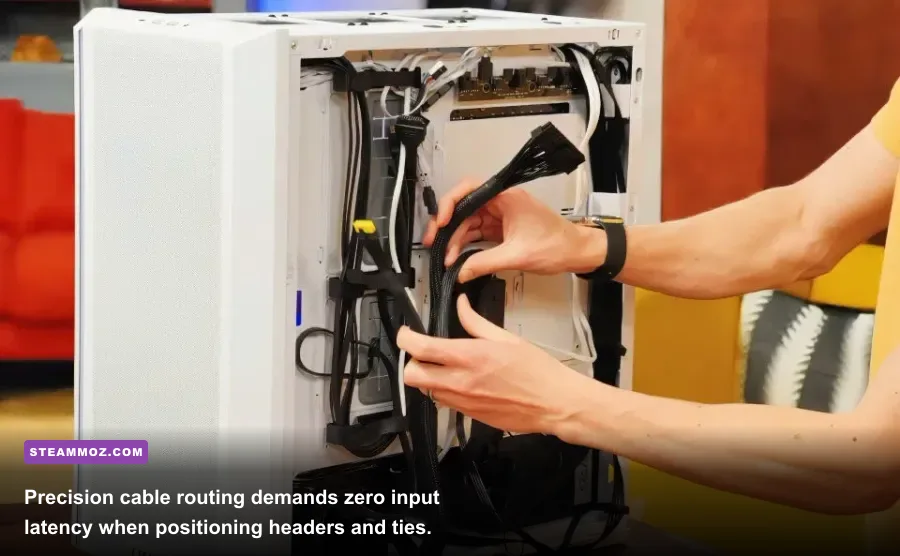
There is nothing more frustrating than trying to land a tiny screwdriver on an M.2 NVMe standoff while your cursor slides around like it's on wet ice. Input latency in PC Building Simulator 2 stems from two primary technical conflicts: the Unity engine's default hardware cursor polling behavior and aggressive desktop window compositing under Windows 10 and 11.
First, tackle mouse smoothing and floating cursor delay. By default, PCBS2 hooks into Windows mouse acceleration if raw input is bypassed by borderless display wrappers. To fix this, force your client into True Fullscreen mode. Navigate to your installation directory, right-click the game executable (PCBS2.exe), choose Properties > Compatibility, and check Disable Fullscreen Optimizations. This prevents the Windows Desktop Window Manager (DWM) from buffering extra frames between your mouse sensor and the simulation camera.
Second, check your physical mouse polling rate. High-end gaming mice pushing 4000Hz or 8000Hz polling rates will cause massive, erratic micro-stutters in PCBS2. The game's main simulation thread runs its UI interaction logic on a single CPU core. Flooding that thread with thousands of position reports per second causes the game loop to drop animation frames whenever you swing the camera around a case. Drop your mouse polling rate to 1000Hz or 500Hz inside Razer Synapse, Logitech G HUB, or your mouse's native software suite. The cursor will feel instantaneous, and workshop frame drops will vanish.
Lastly, establish low-latency frame pacing through your graphics driver control panel:
- Nvidia Users: Open Nvidia Control Panel > Manage 3D Settings > Program Settings > Select PC Building Simulator 2. Set Low Latency Mode to Ultra, and set Max Frame Rate to 3 FPS below your monitor's native refresh rate (e.g., 141 FPS for a 144Hz screen, or 57 FPS for a 60Hz panel).
- AMD Users: Open AMD Software: Adrenalin Edition > Gaming > PCBS2. Enable Radeon Anti-Lag and configure Radeon Chill with min/max caps set identically to lock your display timing.
If you're exploring technical remedies across other demanding titles, our walkthrough on optimizing rendering pipelines for higher FPS covers similar foundational frame timing techniques that apply here as well.
Stopping Crashes, 3DMark Freezes, and Infinite Loading Screens
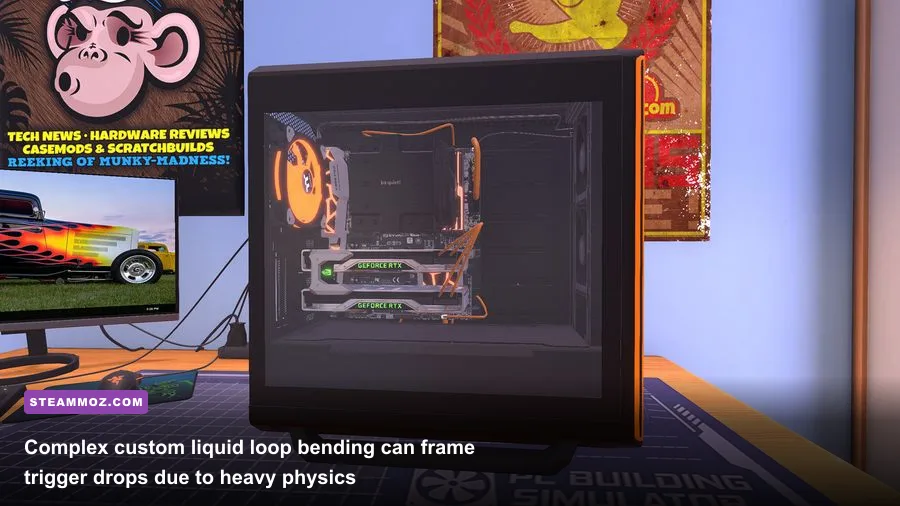
Nothing breaks your immersion quite like spending 45 minutes meticulously bending hardline acrylic tubing for a customer's triple-radiator custom rig, only for the client to crash straight to desktop the second you fire up 3DMark Time Spy. Synthetic benchmarking inside the game actually executes real computational rendering routines for physics and thermal calculations, triggering physical GPU driver timeouts if your real-world system runs low on memory.
A frequent culprit behind desktop crashes is the DirectX 12 rendering wrapper instability on certain system configurations. You can force the application to run using clean, battle-tested DirectX 11 libraries. To do this through the Epic Games Store launcher, open your Settings, scroll down to Manage Games, click on PC Building Simulator 2, check Additional Command Line Arguments, and type -force-d3d11. This stops memory access violations dead in their tracks, particularly on older Nvidia Pascal and AMD Polaris architectures.
If your game freezes during the loading splash screen or career save loads endlessly, your local save profile has likely hit a serialization error caused by a corrupted thermal paste state or missing inventory item GUID. You can rescue your save files before reinstalling by checking the AppData directory:
%USERPROFILE%\AppData\LocalLow\Spiral House Ltd\PC Building Simulator 2\SavesAlways keep a weekly backup copy of this folder. If a loading freeze strikes, delete the temp_save.dat cache file inside that folder, leaving your numbered .save slots intact. Windows will rebuild the cache on your next launch without corrupting your career progression.
| Issue / Error Symptom | Probable Technical Cause | Direct Remediation Step |
|---|---|---|
| Hard Crash to Desktop during 3DMark Time Spy | D3D Device Lost / VRAM exhaustion during in-game rendering pass | Launch with -force-d3d11 argument; lower Shadow Quality to free up real GPU memory buffer. |
| Infinite Loading Screen on Career Boot | Corrupted temporary save state or broken delivery scheduling log | Clear temp_save.dat in LocalLow directory; verify game installation files via Epic launcher. |
| Total System Lockup / Driver Timeout | Aggressive GPU core clocks destabilized by simulation workload spikes | Disable real GPU overclocks; reinstall clean DirectX runtimes using official Microsoft installers. |
| Game Won't Launch (Instant Black Screen) | Missing Visual C++ Redistributables or outdated system libraries | Update Visual C++ 2015–2022 runtimes (x64 and x86) and verify DirectX End-User Runtime binaries. |
| Save File Vanishing After Patch | Cloud Sync overwrite conflict between Epic Games Launcher and local disk | Disable Epic Cloud Saves for PCBS2; restore save history from local Windows shadow copies. |
Similar crash patterns frequently occur in other simulation and sandbox games; if you have encountered unexpected application halts elsewhere, check our guide on diagnosing PC crashes and rescuing framerates to harden your operating system against unstable background runtime errors. Making sure your core platform dependencies are healthy guarantees the simulator won't trip over corrupt system DLLs.
Resolving In-Game Simulation Bugs, Cable Snagging, and Part Clashes
Not every bug in PC Building Simulator 2 is an operating system error; several frustrating issues are baked directly into the game's physical assembly logic. Understanding how the game calculates component clearance and part collision hitboxes will save you hours of wasted troubleshooting at the repair bench.
One of the most persistent workshop bugs involves the infamous "Case Incomplete: Missing Cables" error when attempting to deliver a finished customer build. This almost always occurs due to front-panel I/O headers or invisible power-switch connections. In cases like the Lian Li O11 Dynamic or Corsair 5000D, the front panel wiring can clip behind the motherboards' rear VRM heatsink shields. To fix this, remove both side panels, zoom in on the bottom-right sector of the motherboard, switch to Cabling Mode, and hover your cursor slowly until the translucent yellow connection indicator highlights through the circuit board trace.
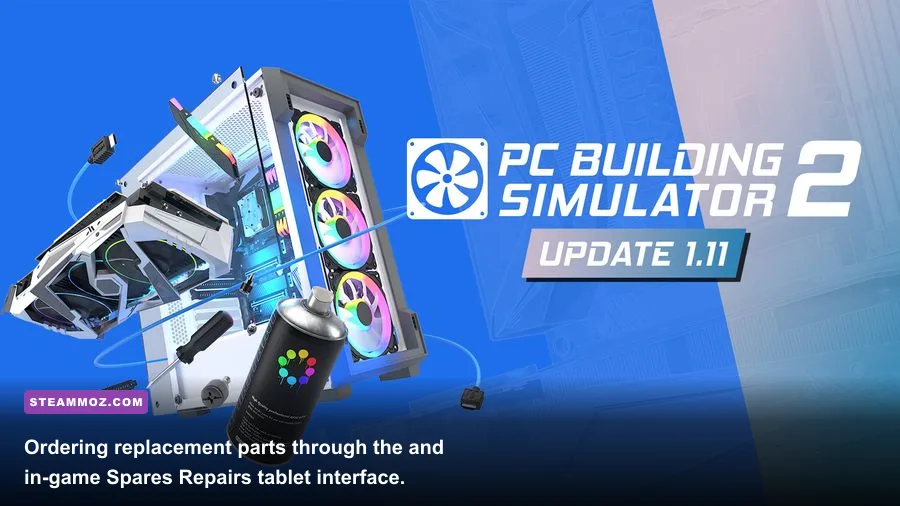
Another common progression blocker occurs in the tablet's Spares and Repairs marketplace app. Occasionally, an ordered chassis or refurbished graphics card fails to spawn in the delivery corridor outside your shop doors, despite the tablet marking the order as delivered. This happens when your workshop hallway inventory buffer exceeds 15 physical boxes. To fix the stall:
- Clear every empty cardboard box and finished client rig out of your shop hallway.
- Store completed customer builds on your storage room shelving racks or process their payout emails immediately.
- Advance the in-game clock by clicking End Day on your office tablet or the front-door calendar.
- Upon morning reset, the physics engine will force-respawn backlogged inventory packages directly onto the delivery floor.
Watch out for GPU clearance bugs with oversized cards like the Nvidia GeForce RTX 4090 Founders Edition or custom water-blocked cards. If the game falsely flags a radiator as "colliding" with a graphics card when visual inspection shows clear clearance, toggle off the case's front fans first. Install the GPU into the primary PCIe 16x slot, plug in the 12VHPWR power cable, and then reinstall your case cooling fans afterward. The simulation checks installation order hitboxes strictly, and reversing your assembly sequence frequently resolves false obstruction errors.
Advanced Config Tweaks and Hardware-Level Optimization
For enthusiasts who want every last drop of performance and frame consistency, digging into Unity's configuration parameters can yield incredible gains. Unity games compile configuration settings inside the game's root directory, and editing these files directly allows you to adjust garbage collection intervals and multithreading behavior that the basic in-game menus hide from view.
Navigate to your PCBS2 main installation folder (usually found at C:\Program Files\Epic Games\PCBuildingSimulator2) and look for the folder named PCBS2_Data. Inside, you will find a file named boot.config. Open this file using Notepad or any text editor. Add the following strings on fresh lines at the bottom of the file:
gc-max-time-slice=3
gfx-enable-native-gfx-jobs=1
wanted-memory-budget=4096
Here is what these commands do under the hood:
gc-max-time-slice=3: Restricts the Unity garbage collector to a maximum pause time of 3 milliseconds per frame, virtually eliminating the sudden hitching you feel when turning your character around the workshop.gfx-enable-native-gfx-jobs=1: Forces the engine to distribute graphics draw calls across multi-core CPUs, providing huge relief for processors like AMD Ryzen 7 7800X3D or Intel Core i7-13700K.wanted-memory-budget=4096: Pre-allocates a 4GB texture pool in your system RAM, preventing stutter when pulling massive component models from the inventory menu.
Ensure that your Windows operating system manages its virtual memory pagefile correctly. PC Building Simulator 2 caches uncompressed high-resolution textures into system pagefiles during complex custom-loop leak tests. If your Windows pagefile is locked to a small static size on a mechanical hard drive, the game will stutter aggressively or produce out-of-memory errors. Set your pagefile to System Managed on your fastest NVMe solid-state drive to prevent bottlenecking.
If you're still auditing your overall system health, running basic hardware checks is critical. Our review of evaluating system hardware specifications covers how thermal throttling and memory allocation limits drag down modern PC games. Make sure to download the latest redistributable package directly from the Microsoft DirectX End-User Runtime installer, and consult the active PCGamingWiki PCBS2 community data for new compatibility flags whenever major career patches drop. And if system stability hurdles persist across multiple titles on your rig, exploring our diagnostic steps for resolving low frame rates and crash loops will help you rule out deeper driver conflicts once and for all.
With your graphics pipeline balanced, exclusive fullscreen active, and engine garbage collection reined in, PC Building Simulator 2 transforms into the crisp, ultra-responsive technical sandbox it was meant to be. Get back to your workbench, route those custom water cooling loops, and build your digital dream rigs without stutter or frame dips holding you back.