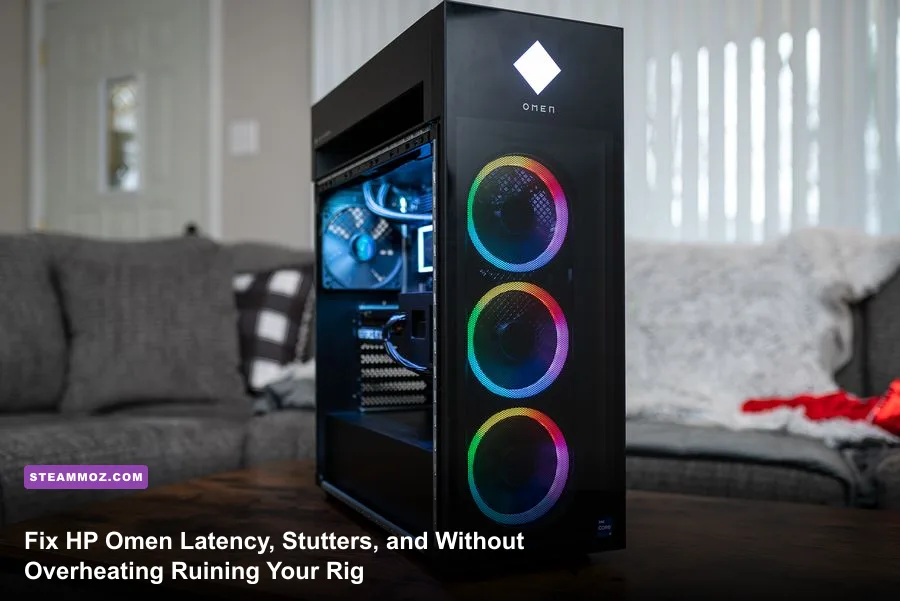
If your HP Omen desktop or laptop suffers from sudden frame drops, erratic ping spikes in competitive shooters, or audio pops that interrupt your gameplay, your hardware is rarely the real culprit. Nine times out of ten, OMEN Gaming Hub background services, aggressive factory thermal limits, and conflicting network packet filters are fighting Windows 11 for priority. You can solve these common issues right now by disabling the OMEN Network Booster, setting manual fan thresholds before your processor hits its 90°C thermal wall, switching your display routing to Discrete GPU mode, and pruning HP bloatware that inflates DPC latency.
Slay the Ping Spikes: Disabling OMEN Network Booster and Driver Conflicts
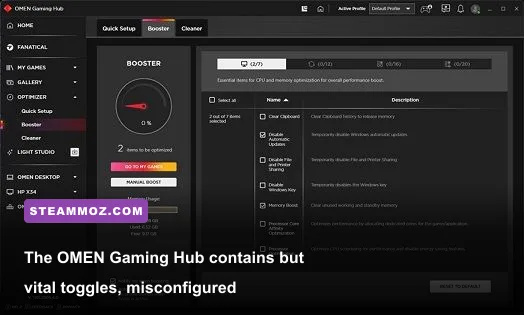
Many Omen owners notice massive jitter spikes during online matches in Counter-Strike 2, Valorant, or Call of Duty, jumping from a clean 25ms ping up to an unplayable 200ms. HP packages its machines with an aggressive packet prioritization utility known as OMEN Network Booster (powered by HP Network Optimizer and Realtek or Killer packet inspection). Instead of speeding up your packets, this service injects an intermediary filter into your network stack via the Windows Filtering Platform (WFP). Every single incoming and outgoing UDP gaming packet gets buffered and re-evaluated, which induces terrible packet queuing and bufferbloat.
Turning Off Network Booster in OMEN Gaming Hub
Open OMEN Gaming Hub, navigate to your machine's primary dashboard tab, and click on Network Booster. Switch the master toggle to Off. Do not leave it on "Auto" or "Custom." Even if you prioritize your active game to high bandwidth, the background driver still intercepts the socket stream. Completely disabling this layer forces Windows to route packets directly to your physical network interface controller (NIC), dropping jitter immediately.
Disabling the HP Network Optimizer Service
Turning off the toggle inside the hub doesn't always kill the underlying Windows service. Press Win + R, type services.msc, and press Enter. Scroll down until you find HP Network Optimizer Service. Right-click it, select Properties, hit Stop, and change the Startup type to Disabled. If you run an Omen laptop with an Intel Wi-Fi card, ensure you download the clean, standalone drivers directly from HP Customer Support or Intel rather than letting OEM update suites install bundled packet-management software. Just like stabilizing erratic frame rates when applying our Elex PC fixes that stop crashes and rescue your FPS, shedding rogue network processes is the fastest route to rock-solid stability.
Taming the Thermals: Fan Curves and Undervolting in OMEN Gaming Hub
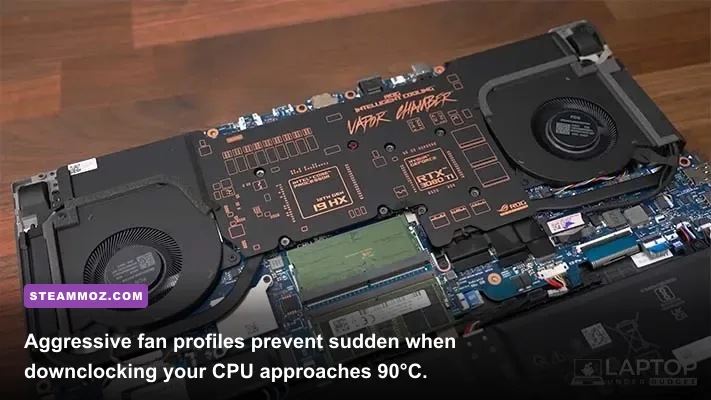
Whether you're rocketing through open-world titles on an Omen 16 laptop or pushing heavy ray tracing on an Omen 40L desktop, thermal throttling is the number one cause of severe in-game frame hitching. Modern Intel Core i7/i9 and AMD Ryzen 7/9 processors boost aggressively until they collide with HP's strict thermal throttle ceiling—typically set at 95°C for laptops and 85°C on air-cooled 25L/30L desktops. When the chip strikes that ceiling, the motherboard drops CPU clock speeds down from 4.9 GHz boost frequencies straight to base clock speeds (often sub-2.4 GHz) for two or three seconds to dump heat, creating jarring 1% low frame dips.
| OGH Power Profile | CPU Power Target (PL1 / PL2) | Fan Curve Behavior | Thermal Throttle Risk | Recommended Use Case |
|---|---|---|---|---|
| Eco / Quiet | 35W / 45W capped | Sub-40% RPM (Silent bias) | Extremely Low | Web browsing, light indie titles, battery work |
| Balanced | 45W / 80W dynamic | Delayed ramp; spins up past 82°C | Moderate to High | Everyday desktop use, lightweight strategy games |
| Performance | 65W–115W+ (Uncapped) | Aggressive; spins to 100% past 85°C | High (Requires custom fans) | Demanding AAA titles, high-refresh esports |
| Custom (Pro-Tuned) | Manual PL1 cap / Fan offset | Linear curve: 60% at 65°C, 100% at 83°C | Minimal (Sustained Clocks) | Marathon gaming sessions, competitive FPS |
Configuring a Proactive Fan Profile
By default, HP's "Balanced" profile keeps fans quiet until temperatures climb past safe cooling ranges. You want your fans cooling the chassis before the heat-sink soaks. Inside OMEN Gaming Hub, head to Performance Control, choose Manual under the Fan Speed settings, and pull the slider up to maintain at least 50% to 60% fan speed while gaming. If you're using an Omen laptop, elevate the rear feet of the machine by half an inch using a notebook stand or laptop riser; this single physical adjustment drops peak temperatures by 4°C to 6°C by widening the airflow intake beneath the bottom mesh.
Managing Power Limits Without Crashing
If your specific Omen model supports undervolting within the Gaming Hub, start small with an intelligent core offset of -30mV to -50mV. This lowers the thermal output under heavy load without degrading clock speeds. If your model locks voltage sliders due to Intel bios undervolt protection, toggle the system profile to Balanced in Windows, but use in-game frame rate caps to stop your GPU from running wild at 99% usage when rendering unnecessary frames on a standard refresh monitor.
Banishing DPC Latency and Audio Crackles: Windows and Driver Tweaks
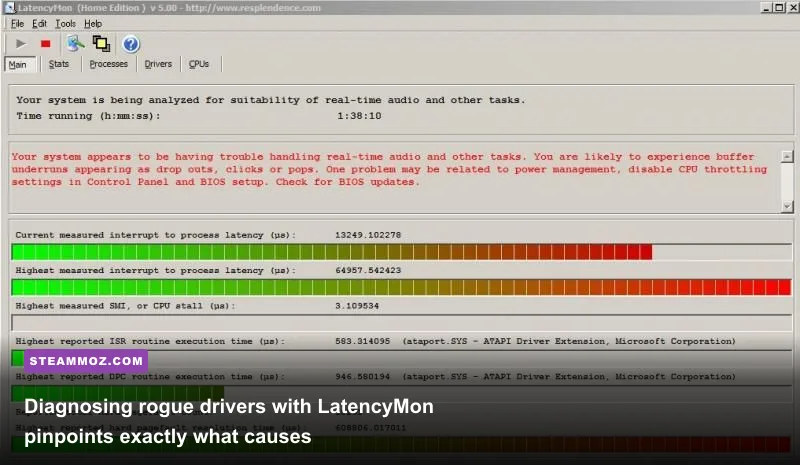
DPC (Deferred Procedure Call) latency is the hidden gremlin behind intermittent audio popping, micro-stutters, and mouse floatiness. When a system driver takes too long to complete a routine task, the operating system holds up incoming game rendering requests. This lag is especially prevalent on HP machines packed with OEM monitoring software running invisible telemetry checks every 500 milliseconds.
Diagnosing Problem Drivers with LatencyMon
Before changing random system settings, verify which driver is misbehaving. Download and run Resplendence LatencyMon while your game runs in the background. Hit the green "Start" button, play for five minutes, and review the Drivers tab. If you see elevated execution times (above 1.0ms) on nvlddmkm.sys, HPAudioAnalytics.sys, or wdf01000.sys, your system is bottlenecked by background driver calls. Finding and eliminating these background hitches is just as critical here as it is when clearing frame timing issues in our EscapeVR: The Basement crashing and low FPS guide.
Disabling HP Background Analytics and Audio Helpers
HP bundles several diagnostic services that do nothing to improve performance. Type Installed Apps into your Windows search bar and locate HP Audio Center and HP System Event Utility. In your Windows Services panel, set the following background services to Disabled:
- HP App Helper Core Service: Gathers hardware usage metrics and transmits telemetry.
- HP OMEN HSA Service: Communicates hardware health to OGH; highly prone to CPU spikes.
- HP Analytics Service: Background diagnostic reporting that periodically locks CPU threads.
Disabling these does not prevent your keyboard backlighting or performance modes from working, but it immediately clears audio driver latency spikes.
Display Lag and GPU Settings: Advanced Optimus, MUX Switch, and G-Sync
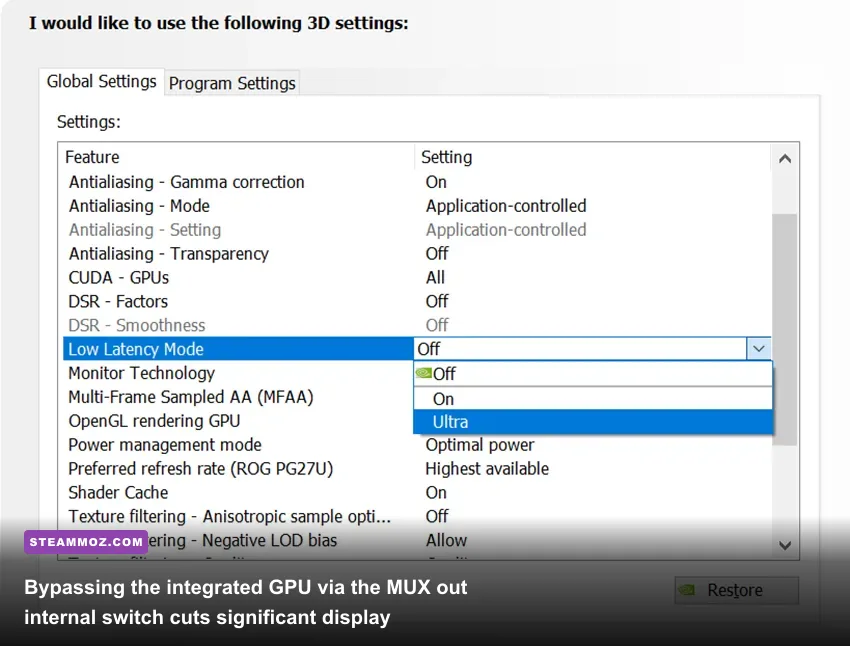
If you play on an HP Omen laptop (such as the Omen 16 or Transcend), one of the biggest latency traps is running in standard "Hybrid" graphics mode. When Hybrid mode is active, your dedicated Nvidia GeForce RTX GPU renders frames, but those frames must be passed through the processor's integrated graphics chip (iGPU) before reaching your display panel. This display pipeline handshake introduces 10ms to 20ms of hardware-level input latency and cuts 1% low frame rates by as much as 15%.
Forcing Discrete GPU Mode via the MUX Switch
To eliminate this display routing delay, you must bypass the integrated graphics chip entirely:
- Launch OMEN Gaming Hub and select your laptop from the left-hand column.
- Click the Graphics Switcher tab.
- Select Discrete instead of Hybrid or Dynamic switching.
- Restart your laptop when prompted.
If the option is missing in software, reboot your machine, spam F10 to enter the HP BIOS Setup, go to Configuration, find Display Mode or Device Configuration, and switch from Hybrid to dGPU Only. This locks your Nvidia graphics card directly to the internal screen. Dialing in graphic output settings like this mirrors the process we detailed for the Far Cry 6 GOTY Upgrade Pass settings for max FPS, ensuring every drop of rendering power goes directly to raw performance.
Nvidia Control Panel Latency Tuning
Once you are in Discrete mode, optimize how your GPU queues frames by right-clicking your desktop and opening the Nvidia Control Panel. Navigate to Manage 3D Settings and adjust the following parameters:
- Low Latency Mode: Set to On. (Use Ultra only if your game doesn't natively support Nvidia Reflex; using both simultaneously can cause frame timing conflicts).
- Power Management Mode: Set to Prefer Maximum Performance to stop your GPU from downclocking during slower in-game sequences.
- Max Frame Rate: If you use G-Sync or an adaptive refresh panel, cap your global frame rate 3 FPS below your display refresh rate (e.g., 162 FPS on a 165Hz panel, or 237 FPS on a 240Hz screen). This locks input latency into the absolute lowest hardware threshold, as covered by Nvidia Reflex latency documentation.
If you're jumping into fast-twitch fighting games or shooters, matching your frame delivery to your monitor's limits is as vital as reading up on our Fatal Fury: City of the Wolves PC specs explained breakdown to avoid frame queue stalls.
The Ultimate HP Omen Optimization Blueprint: Settings Audit
To make sure your Omen desktop or laptop stays clean, stable, and responsive across long gaming stretches, audit your system against this proven settings checklist. These modifications streamline your operating system so Windows 11 dedicates full processing priority to your game binaries rather than OEM telemetry suites.
| System Setting / Feature | HP Factory Default | Pro-Gamer Tuned Value | Impact on Gaming Performance |
|---|---|---|---|
| OMEN Network Booster | Auto / Prioritized | Off (Disabled in Services) | Eliminates 100ms+ jitter spikes & bufferbloat |
| Display MUX Mode | Hybrid / Dynamic Optimus | Discrete (dGPU Direct) | Cuts 10-15ms input lag; boosts 1% low FPS by 10-20% |
| Windows Game Mode | On | On | Prevents background Windows updates during play |
| Hardware GPU Scheduling (HAGS) | On | On (Off if testing DLSS 3 Frame Gen issues) | Decreases frame submission CPU overhead |
| HP Analytics & Telemetry | Enabled (Automatic) | Disabled via services.msc | Reduces DPC latency spikes and micro-stutter |
| OGH Thermal Setting | Balanced (Passive Fan Curve) | Performance / Manual 60%+ Floor | Stops severe CPU throttling downclocks |
Tuning Windows 11 Graphics and Power Options
Windows 11 features its own performance overrides that can clash with HP presets. Open your Windows Settings, navigate to System > Display > Graphics, and ensure that Hardware-accelerated GPU scheduling is turned on as outlined in Microsoft's high performance graphics guide. Below that, manually add your main game binaries (such as cs2.exe or everspace2.exe) and set their preference to High Performance.
Just as we configured precise rendering profiles when compiling our Everspace 2: Wrath of the Ancients crashing fix and FPS guide or squeezing clarity out of our Filament Marmalade Edition settings for higher FPS, configuring direct hardware handoffs prevents Windows from switching performance states mid-match.
Keeping Omen Firmware Up to Date Without Bloat
Never use generic third-party driver updaters to maintain your HP Omen. Update your BIOS directly from the official HP driver portal to receive critical thermal table updates and fan speed curve patches. Once you flash a new BIOS version, reboot, enter the BIOS menu, load setup defaults to clear any corrupted NVRAM registers, and re-enable your XMP or EXPO memory profiles so your DDR5 or DDR4 RAM operates at its advertised megatransfers per second instead of failing down to JEDEC base speeds.
Follow this checklist, strip out the unwanted software layers, and your HP Omen machine will transform from a stuttering, thermal-throttling headache into the razor-sharp, low-latency gaming rig you originally paid for.