If Forza Horizon 5 turns your 200-mph sprint across the Mexican desert into a hitching slideshow or crashes straight to your desktop mid-race, the problem almost always boils down to three specific culprits: aggressive VRAM saturation spilling over into system RAM, open-world asset streaming chokes on standard storage, or background software hooks conflicting with the ForzaTech engine. You do not need an overpriced halo GPU to lock in a responsive, fluid 60 to 120 FPS across Horizon Mexico. By systematically dialing back the two biggest VRAM hogs, cleaning out corrupted DirectX shader caches, reconfiguring your Windows pagefile, and stripping out aggressive third-party background injections, you can eliminate erratic frame pacing and keep the game rock-solid stable for hours.
Diagnosing the Core Culprits: Why Forza Horizon 5 Hitches and Crashes
Playground Games crafted one of the most stunning open-world racers ever made, but the engine handles memory allocation and high-speed world streaming with razor-thin margins. Unlike closed-circuit racers where tracks fit neatly into local GPU memory, Forza Horizon 5 on Steam continually streams terrain geometry, dynamic foliage, high-resolution textures, and weather volumetric data in real time as you rip across the map.
When your system runs into stutters, you are usually looking at one of three failure states:
- VRAM Exhaustion: If you run "Extreme" textures on a graphics card with 8GB or even 10GB of VRAM, the game will exceed your card's dedicated frame buffer. The moment VRAM hits 95% capacity, the engine shunts texture mipmaps to system RAM across the PCIe bus. System RAM is an order of magnitude slower than GDDR6/GDDR6X, causing brutal, reproducible micro-freezes every time the camera sweeps or new assets pop in. Similar to dealing with severe PC crashes and low framerate bugs, pinpointing memory thresholds is your first line of defense.
- Shader Cache Pipeline Stalls: Game updates and GPU driver revisions routinely invalidate your compiled pipeline state objects (PSOs). If the engine tries to compile effects—like nighttime dust storms or headlight reflections—on the fly, your CPU locks up for milliseconds, resulting in jerky frame delivery.
- Process Injection and Privilege Violations: The PC version of FH5 employs aggressive integrity checks. Programs that inject overlay hooks, spatial sound drivers, or background mouse/keyboard suites often cause instant desktop crashes with the dreaded
0xc0000005access violation code.
The Definitive Settings Optimization: Maximum Frames Without Sacrificing Visuals
Many PC players make the mistake of slapping the "Extreme" preset on everything and assuming their modern rig will power through. In reality, several settings in Forza Horizon 5 provide virtually zero perceptible visual uplift during motion while tanking your frame rate by 20% to 35%. Just as we discovered when fine-tuning settings for maximum frames per second in other heavy open-world sandboxes, precision profiling gives you the best balance between crisp visuals and seamless performance.
The table below provides a field-tested breakdown of every critical graphic option in the game, highlighting what to turn down first to gain massive performance headroom without making Mexico look like a muddy mess.
| Graphic Setting | Recommended Value | Performance Gain | VRAM Impact | Visual Quality Trade-Off |
|---|---|---|---|---|
| Environment Texture Quality | Ultra (High for ≤8GB GPUs) | 10% – 16% | Extreme (−1.8 GB) | Imperceptible while driving; saves massive VRAM overhead |
| Environment Geometry Quality | Ultra | 5% – 8% | Low | Maintains long-distance foliage and road mesh fidelity |
| Shadow Quality | High | 7% – 11% | Moderate | Softens dynamic shadow edges; cuts heavy GPU compute load |
| Screen Space Ambient Occlusion | High | 4% – 6% | Low | Keeps ground contact shadows crisp under vehicles and trees |
| Reflection Quality | High | 8% – 12% | Moderate | Reduces cubemap refresh spikes on wet asphalt and vehicle hoods |
| MSAA vs. TAA | TAA Enabled (Sharpness 5) | 12% – 18% | Low | Eliminates foliage and fence shimmering without 4x MSAA cost |
| Ray Tracing | Off (or Low) | 15% – 25% | High | Ray tracing in free-roam drains GPU power for subtle car reflections |
| Deformable Snow/Mud | Ultra | 1% – 2% | Negligible | Keep enabled; minimal performance cost for great tire ruts |
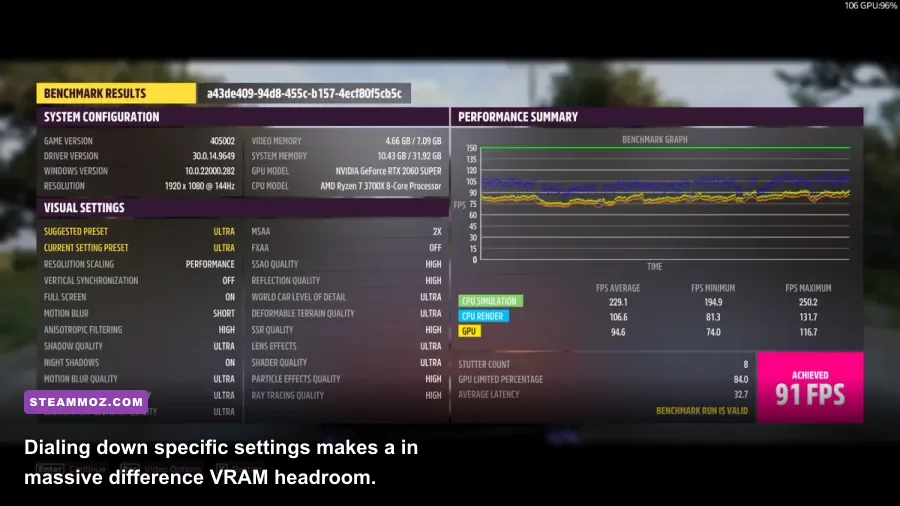
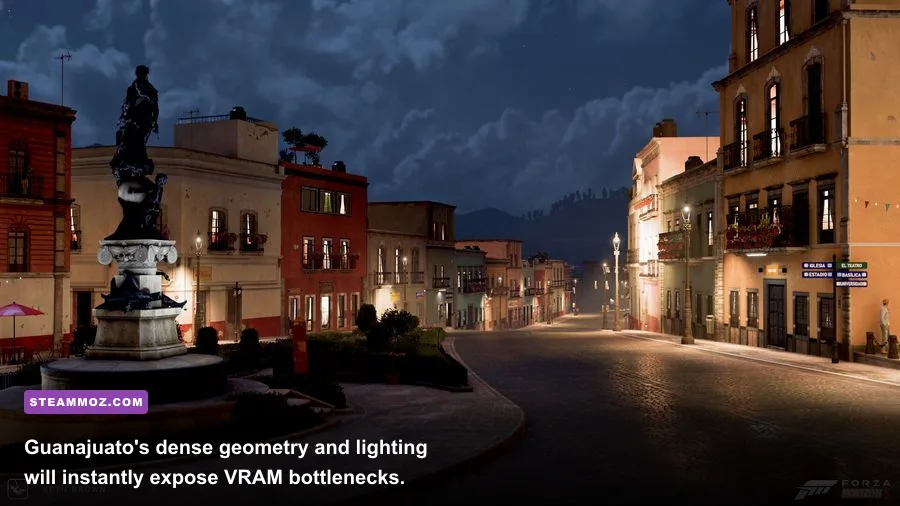
By swapping MSAA for TAA and knocking Environment Textures down from Extreme to Ultra, you reclaim nearly 2GB of VRAM and eliminate almost all asset-swapping stutters in Guanajuato city. If your GPU has 6GB or 8GB of VRAM, do not hesitate to drop textures to High. The texture quality in motion is practically identical, but your 1% low frame rates will instantly stabilize.
Eliminating World Streaming Stutters: Storage, RAM, and Pagefile Tweaks
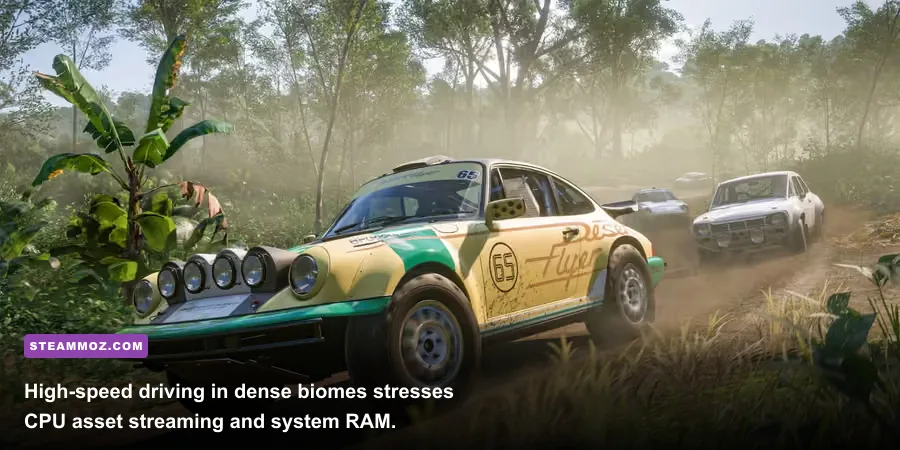
Are you getting hitches specifically when driving down the central highway at speeds exceeding 220 mph, or when entering crowded festival hubs? That is an asset streaming stall, not a pure GPU rendering limitation. When you move at hypercar speeds, the engine has only fractions of a second to load high-poly assets from your disk into RAM and then push them into GPU memory.
First, never run Forza Horizon 5 from a mechanical hard drive (HDD) or an external USB drive. The game demands high sequential read speeds and low seek times. An internal NVMe M.2 SSD is ideal, but even a standard SATA III SSD will work wonders. If you have been diagnosing storage-related hitches across other titles—like fixing performance traps in crash-prone open-world RPGs—you know how much drive throughput matters for open-world games.
Second, fix your Windows Virtual Memory (Pagefile). FH5 has a known habit of crashing after 45 to 60 minutes of uninterrupted play if Windows manages the pagefile automatically. When the operating system dynamically resizes the pagefile to accommodate memory spikes, the game frequently hits a memory allocation timeout and dies. Set a static, manual pagefile using these exact steps:
- Press Windows Key + R, type
sysdm.cpl, and press Enter. - Navigate to the Advanced tab and click Settings under the Performance section.
- Select the Advanced tab inside the Performance Options window and click Change under Virtual Memory.
- Uncheck "Automatically manage paging file size for all drives".
- Select your fastest solid-state drive (preferably your C: drive or the drive where FH5 is installed).
- Click Custom size, and set both the Initial size and Maximum size to
16384MB (or24576MB if you have 16GB of system RAM). - Click Set, then hit OK, and reboot your PC.
Locking the pagefile to a fixed size stops Windows from constantly shrinking and expanding disk-allocated memory pools mid-race, eradicating a primary source of mid-session desktop crashes.
Resolving Desktop Crashes, Launch Freezes, and Error 0xc0000005

Few things are more frustrating than launching the game, watching the speedometer splash screen spin, and having the window quietly vanish into thin air. If your game crashes before reaching the main menu or drops to the desktop during loading screens, third-party software interference is the chief suspect. Much like working through demanding setups outlined in our PC hardware spec breakdowns, conflicting background software will ruin stability regardless of your raw hardware power.
| Crash Symptom | Likely Root Cause | Actionable Fix | Est. Time |
|---|---|---|---|
| Crash to desktop on splash screen | Audio software / Hooking conflicts | Disable Nahimic, Sonic Studio, and Sonic Radar services in Windows | 3 mins |
| Random crash during races (0xc0000005) | Corrupted DirectX Shader Cache | Delete contents of %localappdata%\NVIDIA\DXCache or AMD equivalent |
2 mins |
| Sign-in loop or crash after Xbox login | Corrupted Gaming Services cache | Reset Gaming Services via Windows Apps & Features menu | 4 mins |
| Instant freeze when clicking "Start Game" | Antivirus false positive | Add ForzaHorizon5.exe to your antivirus exception/exclusion list |
2 mins |
| Crash when Alt-Tabbing or changing settings | Third-party overlay conflicts | Disable Discord, GeForce Experience, and RivaTuner (RTSS) hooks | 2 mins |
Audio services like Nahimic, Realtek Audio Console, and ASUS Sonic Studio are notorious for crashing FH5. To check if they are running, open your Windows Task Manager, head to the Services tab, look for anything named NahimicService, right-click, and select Stop. If that stops your crashes, set the service's startup type to "Disabled" inside services.msc.
For persistent engine faults, consult the official Forza Support Portal for recognized patch conflicts, especially if you are troubleshooting fresh content drops from Playground Games.
Windows-Level Tweaks and Driver Tuning for Rock-Solid Frame Pacing
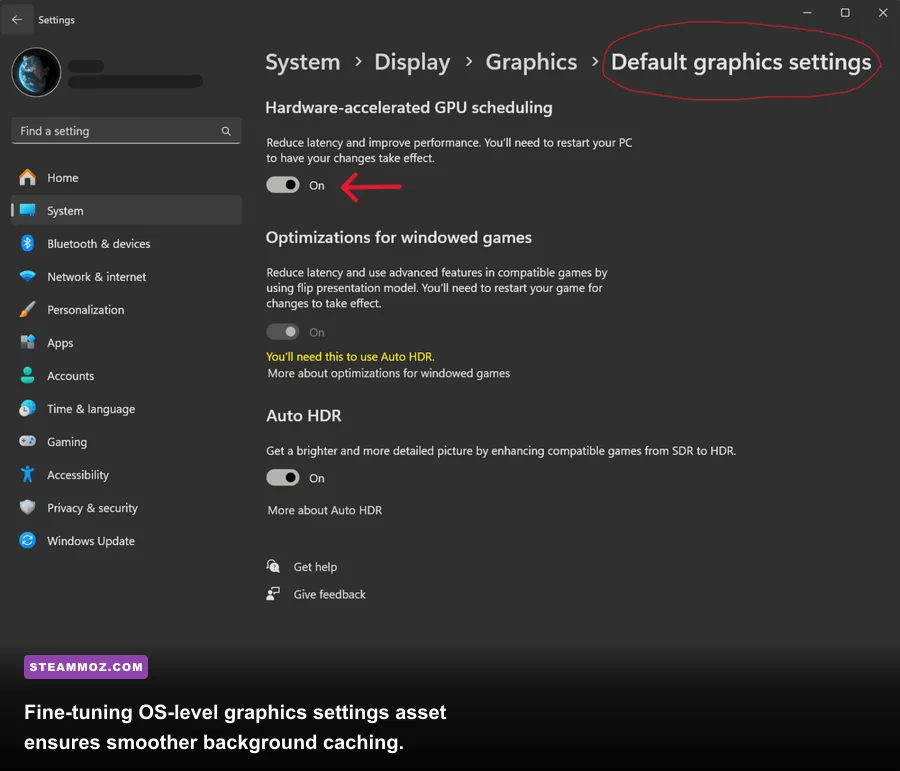
Once you dial in your in-game settings and remove offending background apps, the final step is ensuring your operating system handles frame presentation flawlessly. If you still encounter micro-stutters despite high average frames, your frame pacing is out of sync with your monitor's refresh rate.
Follow this exact control panel setup to achieve buttery-smooth frame delivery:
1. Enable Hardware-Accelerated GPU Scheduling (HAGS)
In Windows 10 and 11, search for Graphics Settings in the Start menu. Toggle Hardware-Accelerated GPU Scheduling to On. This reduces driver overhead by allowing your graphics card to handle its own memory management directly. Reboot your PC after toggling this on.
2. Configure the Driver Shader Cache Limit
By default, graphics drivers allocate a conservative shader cache size. If you play multiple modern titles, your drivers will continuously overwrite compiled Forza shaders, triggering micro-stutters every time you boot the game. If you have fine-tuned performance in titles like indie technical gems or sprawling AAA games, you already know the power of driver-level caches.
- Open the Nvidia Control Panel (or AMD Software Adrenalin Edition).
- Navigate to Manage 3D Settings > Global Settings.
- Scroll down to Shader Cache Size and change it from "Driver Default" to 10 GB (or Unlimited).
- Click Apply.
3. Frame Rate Limiting and Variable Refresh Rate Setup
Do not use the in-game V-Sync option—it introduces perceptible input latency and occasionally suffers from double-buffering drops down to 30 FPS if your frame rate dips even a fraction below 60. Instead:
- Turn V-Sync OFF inside the Forza Horizon 5 video menu.
- If you have a G-Sync or FreeSync monitor, open your Nvidia Control Panel or AMD Software, enable G-Sync / FreeSync, and set Vertical Sync to ON at the driver level.
- Use the driver-level Max Frame Rate limiter to cap your FPS exactly 3 frames below your display's native refresh rate (e.g., 141 FPS on a 144Hz monitor, 162 FPS on a 165Hz monitor, or 57 FPS on a standard 60Hz panel).
- Enable Nvidia Reflex Low Latency inside the game settings (set to "On + Boost").
This configuration completely eliminates screen tearing, keeps your display inside its active variable refresh rate window, prevents frame queue congestion on the CPU, and delivers that elusive, glassy frame delivery across every dirt path, rainforest canopy, and asphalt straightaway Mexico has to offer.