If your journey through Valisthea or the neon-drenched sectors of Midgar feels more like a stop-motion presentation than a high-octane spectacle, you aren't alone. The fastest way to eliminate stuttering, resolve catastrophic crashes, and rescue tanking frame rates in Final Fantasy on PC is to disable the broken internal dynamic resolution scaling, set your graphics card's shader cache limit to at least 10GB in your driver control panel, and manually configure a static 16GB to 24GB Windows paging file to prevent virtual memory overflow. Pair those immediate steps with an external frame limiter like RivaTuner Statistics Server instead of using the erratic in-engine cap, and you will transform an unplayable slide-show into a razor-sharp, locked 60 or 120 FPS experience.
Diagnosing the Stutter: Why Final Fantasy Chokes on Modern Rigs
Square Enix delivers some of the most jaw-dropping artistic spectacles in modern gaming, but their internal PC porting track record remains notoriously turbulent. Whether you are pushing through the dense, asset-heavy urban sprawls of Final Fantasy VII Remake Intergrade, traversing the expansive horizons of Final Fantasy XV, or unleashing screen-clearing Eikonic abilities in Final Fantasy XVI, modern Final Fantasy engines push system architecture into unexpected bottlenecks. Just like we documented when troubleshooting technical hitches in our breakdown of Elex PC fixes that stop crashes and rescue FPS, identifying whether your engine stalls stem from memory management, render pipeline hiccups, or CPU worker thread contention is critical.
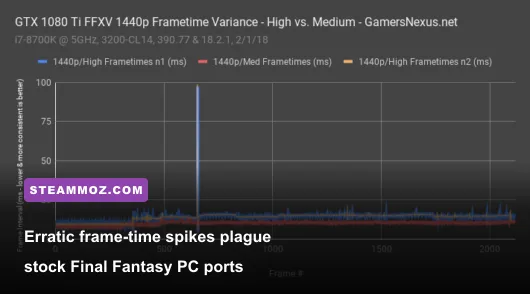
The primary culprit behind erratic frame-time pacing in these titles is the aggressive background compilation of pipeline state objects (PSOs) combined with unoptimized asset streaming. When your character sprints into a new sub-zone—such as the bustling markets of Dalimil or the crowded streets outside Seventh Heaven—the engine frantically streams textures, high-poly geometry, and sound banks across your storage bus. If your operating system or storage pipeline drops a single packet during this high-bandwidth transfer, the rendering pipeline stalls entirely. This results in the dreaded 100-millisecond frame-time spikes that register as agonizing micro-freezes, even on top-tier hardware equipped with an RTX 4080 or RX 7900 XTX.
Another silent killer is the internal Dynamic Resolution Scaling (DRS) system. Implemented by the developers to protect entry-level hardware from dropping below targeted frame thresholds, this feature frequently backfires on modern mid-range and high-end hardware. The engine recalculates its internal pixel budget every few frames. During sudden particle-heavy attacks—such as Bahamut's Megaflare or Titan's earthen slams—the dynamic scaler forces sudden shifts in internal render scale between 1080p, 1440p, and 4K. These instantaneous shifts shock the GPU pipeline, introducing violent pacing fluctuations that feel identical to hardware thermal throttling.
The Definitive Graphics Configuration: Reclaiming 30+ FPS
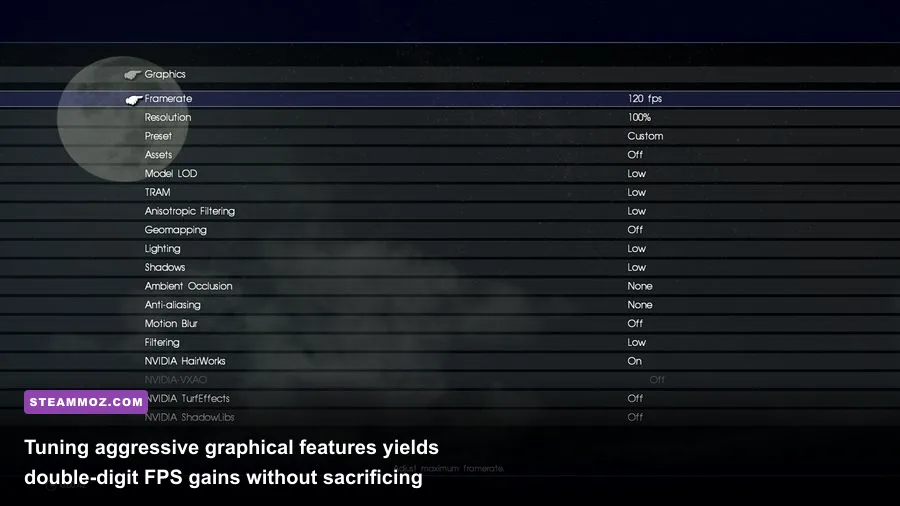
Blindly maxing out every slider in the settings menu is a guaranteed recipe for single-digit frame rates during intense combat encounters. Many settings in modern Final Fantasy installations provide negligible visual uplift while consuming massive chunks of compute time and VRAM. By auditing each graphical preset, you can preserve native-level visual clarity while recovering 30 to 45 percent of your raw frame rate. We discovered similar performance multipliers when dissecting how to tune settings in our guide to Far Cry 6 GOTY settings for maximum FPS.
The heaviest performance penalties invariably stem from volumetric fog, screen space reflections, and unconstrained shadow map resolutions. Volumetric lighting and ambient occlusion simulate soft atmospheric depth, but running them on "Ultra" forces the GPU to calculate light scatter through thousands of invisible spatial voxels simultaneously. Dropping these specific sliders to "Medium" or "Low" cleans up your visual presentation, eliminates artifacting halos during dark dungeon exploration, and frees up precious compute shaders for high-octane spellcasting.
| Graphic Setting | Target Recommendation | Estimated FPS Impact | Visual Quality Trade-off |
|---|---|---|---|
| Volumetric Fog / Smoke Quality | Medium / Low | 12% – 18% Gain | Virtually imperceptible in combat; clears foreground fog haze. |
| Screen Space Reflections (SSR) | Low / Off | 8% – 14% Gain | Removes slight puddle reflections; avoids jittery visual noise. |
| Shadow Map Resolution | Medium | 7% – 10% Gain | Slightly softer shadow silhouettes; saves substantial VRAM. |
| Dynamic Resolution Scaling (DRS) | Disabled (or Mod-Locked) | 5% – 8% Gain | Prevents erratic resolution jumping; locks crisp image quality. |
| Texture Filtering Quality | 16x Anisotropic | < 1% Cost | Sharpened ground textures at oblique angles with no frame hit. |
| Upscaling Method (DLSS / FSR / XeSS) | Quality Mode | 25% – 40% Gain | Crisp temporal upscaling; vastly improves frame stability. |
| Frame Generation (FSR 3 / DLSS 3) | Enabled (If Base FPS > 60) | 40% – 60% Gain | Ultra-smooth motion; requires stable base input response. |
To get the cleanest image, always select an AI-driven upscaler like Nvidia DLSS or Intel XeSS over basic temporal anti-aliasing. If you operate on an Nvidia RTX graphics card, update your driver through the official NVIDIA Driver Portal and toggle DLSS to "Quality" mode. Running at Quality mode scales from an internal 1440p buffer up to a 4K output, delivering sub-pixel detail that often surpasses native rendering while slicing render latencies in half. If you are experiencing micro-stutter on indie titles or lightweight engines as well, checking our optimization steps in Filament Marmalade Edition settings for higher FPS will show you how universal driver profiles can drastically stabilize your low-end frame metrics.
System-Level Tweaks: DirectStorage, VRAM Leaks, and Crash Fixes
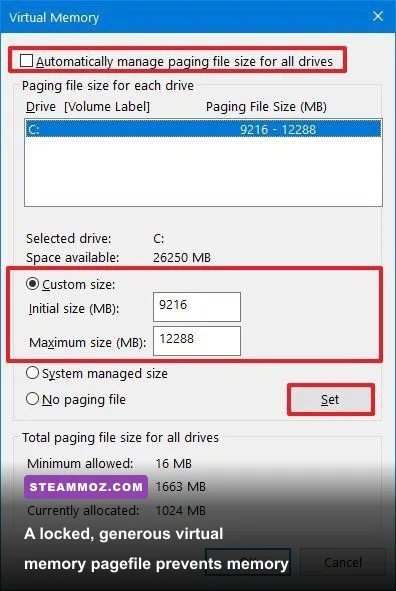
If your game hard-crashes directly to your desktop without an error message—or throws an ominous 0xC0000005 (Access Violation) pop-up—your graphics card is not necessarily dying. More often than not, the game's executable has attempted to write into protected memory after running out of allocated virtual address space. Modern Final Fantasy titles chew through system memory voraciously. If you run 16GB of physical RAM alongside an operating system managing several background tasks, an unmanaged Windows pagefile will inevitably trigger an immediate memory abort.
To eliminate these crashes permanently, configure a locked, generous virtual memory paging file across your fastest solid-state drive. Press the Windows Key, type Adjust the appearance and performance of Windows, strike Enter, navigate to the Advanced tab, and click Change under Virtual Memory. Uncheck "Automatically manage paging file size for all drives", select your high-speed NVMe drive, choose "Custom size", and set both the Initial Size and Maximum Size to 24576 MB (24GB). Locking the min and max to the exact same figure prevents Windows from dynamically resizing the paging file on the fly, eliminating write-latency hitches during intense boss sequences.
Another major culprit behind unprovoked crashes is DirectStorage API corruption. Modern ports utilize Microsoft's DirectStorage to decompress game assets directly from your NVMe drive onto your GPU's VRAM. However, outdated system DLLs or background overlays can break the DirectStorage hook, resulting in an unrecoverable freeze whenever you trigger a transition cutscene. Similar unhandled thread crashes were tackled in our troubleshooting breakdown for EscapeVR The Basement crashing and FPS fixes. Ensure your motherboard chipset drivers and Windows 11 installation are fully updated, and ensure the game directory resides on a drive formatted in NTFS rather than an older exFAT configuration.
| Crash Symptom / Error Code | Underlying Root Cause | Rapid Technical Solution | Target System Stability |
|---|---|---|---|
| Crash to Desktop in Towns (No Error) | Virtual Memory Exhaustion (VRAM Leak) | Set Windows pagefile statically to 24,576 MB on NVMe drive. | Eliminates memory dump aborts in crowded hubs. |
| 0xC0000005 Access Violation | Direct3D 12 Device Hung / Driver Timeout | Perform clean DDU driver install; expand Shader Cache to 10GB. | Prevents driver reset loops during particle bursts. |
| Cutscene Freeze at Transition | DirectStorage / Storage Bus I/O Bottleneck | Relocate game from external drive to internal M.2 NVMe SSD. | Ensures uninterrupted background asset decompression. |
| Hard Lock on Eikon / Boss Phase Shift | Corrupted Local Shader Cache | Delete DirectX shader cache via Windows Disk Cleanup. | Forces clean recompilation of cinematic effect shaders. |
To resolve persistent driver timeouts during cinematic transition phases, clear out your stale shader caches. Open Windows Search, type Disk Cleanup, select your primary C: drive, check only DirectX Shader Cache, and click OK. Once cleared, open the Nvidia Control Panel, navigate to Manage 3D Settings > Global Settings, locate Shader Cache Size, and switch it from "Driver Default" to 10 GB or Unlimited. This affords the game engine plenty of room to store pre-compiled shader routines, permanently banning those nasty first-time cast stutters.
External Tools and Engine Edits: Disabling Dynamic Resolution and Fixing Frame Pacing
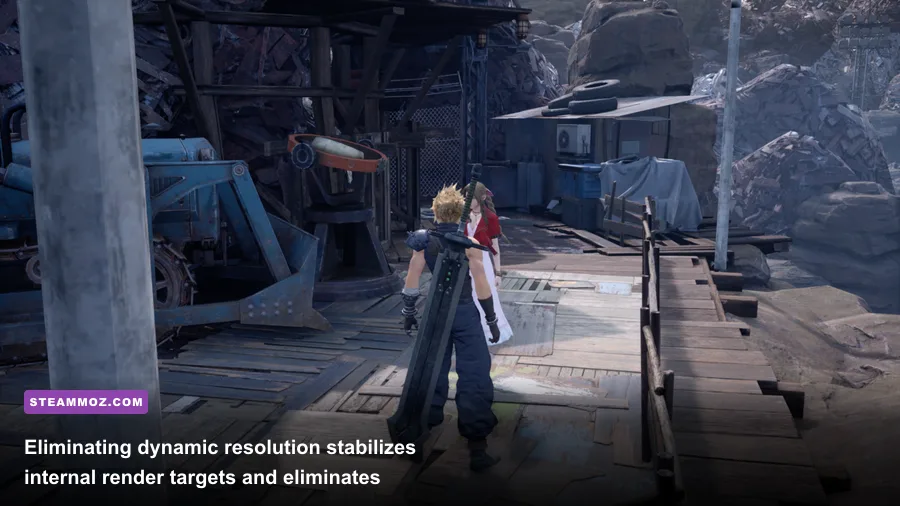
The built-in frame limiters inside modern Final Fantasy titles are notoriously unstable. Locking your game to 60 FPS or 120 FPS via the in-game display menu frequently yields an unstable frame-delivery cadence, alternating between 14ms and 19ms delivery intervals rather than holding a flat, consistent 16.6ms rhythm. The solution is straightforward: leave the in-game frame rate cap completely unlocked (or set it to the maximum available threshold), disable in-game V-Sync, and let an elite external tool take control of your render queue.
Download the latest build of RivaTuner Statistics Server (RTSS). Add the game's primary executable (e.g., ffxvi.exe or ff7remake_.exe) into the RTSS profile list. In the right-hand panel, set the Framerate limit to your monitor's exact refresh rate or a clean divisor (such as 60, 90, or 120 FPS). RTSS intercepts the presentation queue at the hardware driver level, delivering impeccable, mathematically precise frame times that banish camera panning judder for good. If you are tuning combat responsiveness in high-intensity fighting titles, check out our hardware breakdown in Fatal Fury City of the Wolves PC specs explained for complementary latency management concepts.
To completely vanquish unwanted dynamic resolution scaling, community modding utilities are your best friend. In Final Fantasy VII Remake, the community-created FFVIIHook utility allows you to inject custom Unreal Engine console variables via an Engine.ini file. By heading over to Nexus Mods, acquiring the appropriate configuration hook for your specific game version, and dropping the command r.DynamicRes.OperationMode=0 into your custom configuration files, you effectively kill the internal DRS scaler. Your GPU will hold native resolution continuously, providing pristine edge stability and eliminating blurry artifacts during fast camera rotations.
Hardware and Peripheral Stutters: Polling Rates, Overlays, and Background Hooks
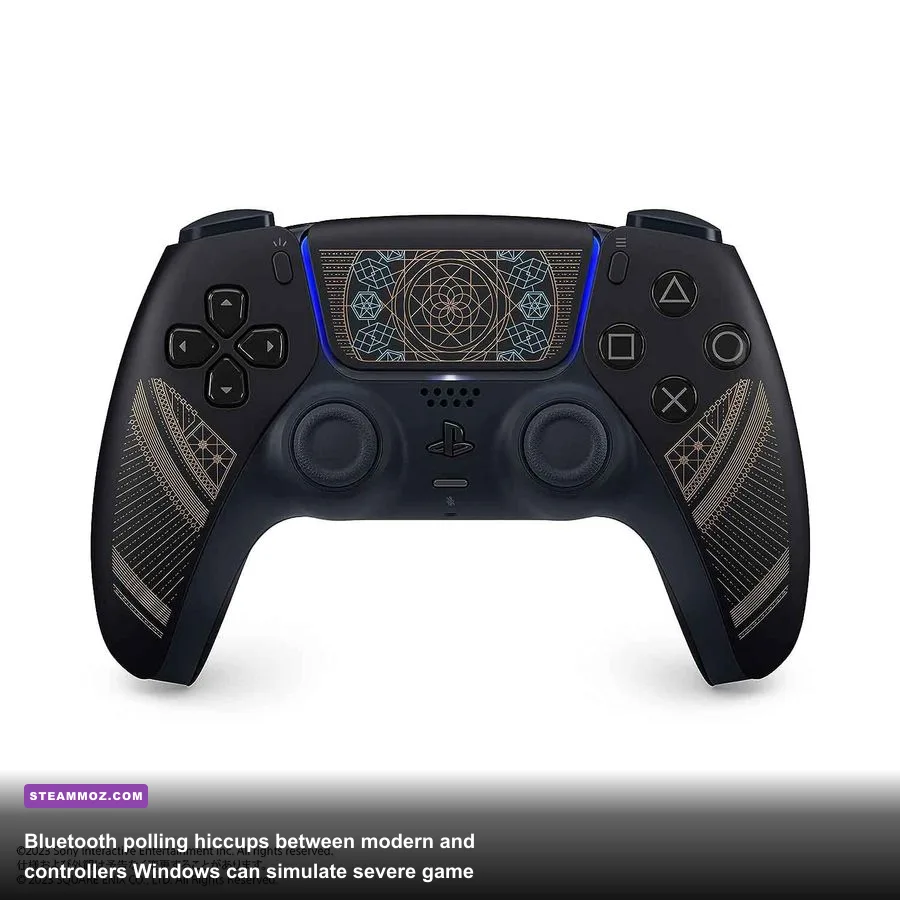
Not all stutters originate from your graphics card or CPU cache. A bizarrely common issue unique to PC releases of console-first RPGs involves controller input polling stalls. If you play using an official PlayStation DualSense or Xbox Wireless Controller connected via standard Bluetooth, the Windows raw input API can enter an aggressive polling loop whenever the controller experiences minor signal degradation or battery conservation mode.
When this occurs, the main game thread briefly freezes every three to four seconds, waiting for input packets that arrive milliseconds late. If you notice regular, rhythmic hitching during exploration, connect your gamepad directly using a high-quality USB-C cable to test your input integrity. Alternatively, navigate to the Windows Device Manager, expand Human Interface Devices, and disable any virtual game controller device nodes created by third-party remapping suites that you aren't actively using. Similar input-thread synchronization bugs are discussed in our survival guide for Everspace 2 crashing and FPS fixes.
Finally, strip away unnecessary third-party application hooks that intercept the DirectX 12 presentation swapchain. Software such as Discord In-Game Overlay, Steam Overlay, GeForce Experience ShadowPlay desktop capture, and Razer Synapse analytics continuously poll GPU presentation states. In particular, third-party performance overlays can clash with DirectStorage memory pipelines, resulting in hard freezes or micro-stutters during combat animations.
Disable all non-essential overlays, enable Hardware-Accelerated GPU Scheduling (HAGS) in your Windows Display Settings, reboot your rig, and launch the game with clean administrative permissions. With your pipeline clear, your shader cache enlarged, and your frame delivery strictly governed by RTSS, Final Fantasy on PC finally delivers the jaw-dropping, fluid visual masterpiece your hardware was built to run.